
Written byCoco LinUpdated on Nov 25, 2026

Before we start: If an SD card became RAW, don't try to format it directly if you still need the data on the card. With the software Donemax Data Recovery, you can easily scan and extract the files from the RAW SD card.
PAGE CONTENT:
A RAW SD card is a card that an operating system cannot recognize as having a usable file system. Windows may show it as RAW, ask you to format it, or display its capacity without allowing you to open files. This does not necessarily mean the data is gone, but the card's file system or partition information may be damaged. RAW SD card recovery is still possible with a professional data recovery software.

RAW status can follow unsafe removal, interrupted writing, power loss, SD card file-system corruption, or card-reader problems. It can also indicate physical damage or a failing card. Software recovery may help when the card's data is still accessible, while physical damage may require a professional recovery service.
The safest first step is to stop using the card. Do not take more photos, copy files onto it, or run format or repair commands before recovering important data. New writes may overwrite recoverable files, and repair operations can change file-system information.
Before recovery, rule out a simple connection issue. Try a different card reader or USB port, and check the card on another computer. If it disconnects repeatedly, becomes unusually hot, or is physically damaged, stop testing it. Repeated attempts can worsen a failing card.
|
Situation |
Recommended first action |
Avoid |
|---|---|---|
|
Card appears as RAW but stays connected |
Stop writing to it and attempt recovery |
Formatting or saving files to the card |
|
Card is not detected by one reader |
Try another reader or computer |
Assuming the card is empty |
|
Card disconnects or behaves erratically |
Stop using it; consider professional help |
Repeated scans and connection attempts |
|
Files are irreplaceable |
Recover or create an image before repair attempts |
Running write-based repair tools first |
In many cases, RAW SD card recovery software can scan the card and find files that are still accessible. Recovery is more likely when the card is detected by the computer and its data has not been overwritten. Results depend on the cause of the RAW status, the card's condition, and any use after the problem appeared.
Recovery software cannot guarantee that every file will be restored. Files may be incomplete or corrupted if the card has physical damage, unreadable sectors, or overwritten data. For critical business, legal, or irreplaceable data, consider a reputable data recovery service before extensive troubleshooting.
Donemax Data Recovery can scan a connected storage device for recoverable files. The interface is intuitive and very easy to handle. It can recover data from different types of devices in any data loss scenarios.
With the software, you can recover lost data from RAW SD card in a few steps:
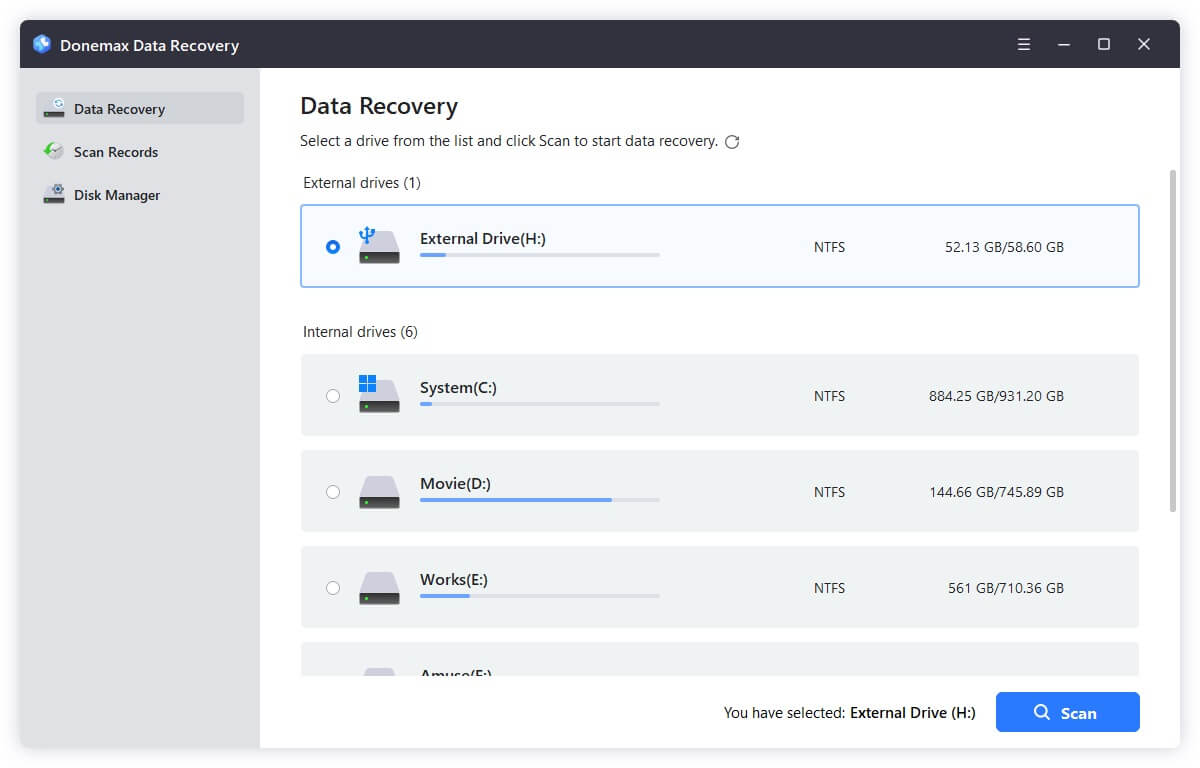
Step 1. Use a reliable card reader and connect it directly to the computer if possible. Open the software Donemax Data Recovery. Locate the SD card in the available drive list. Confirm its size or label so you select the correct device.
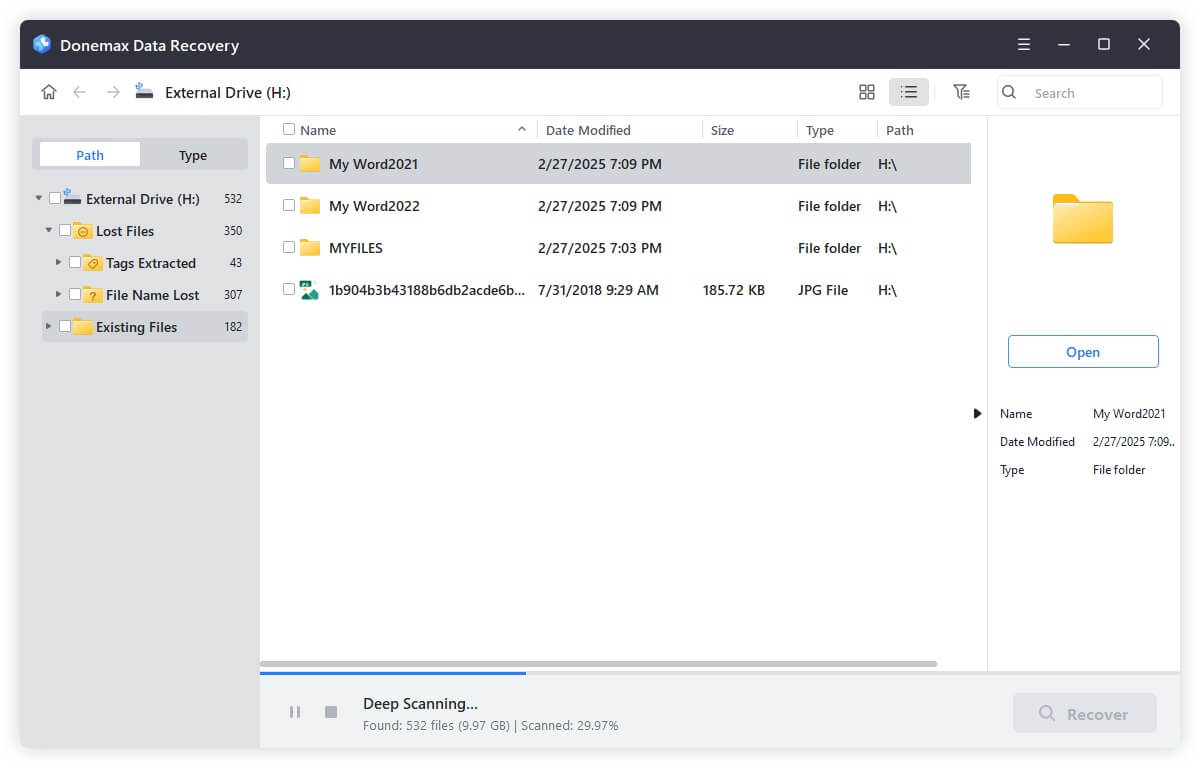
Step 2. Select the card and run the scan. A deeper scan may take longer, especially for larger cards.
Step 3. Use file type, folder, or search filters if available. Preview files when the software supports it. Prioritize important files and check a sample before recovering everything. Save recovered data to your computer's internal drive or another external storage device. Open photos, videos, and documents from the destination to check that they are usable.
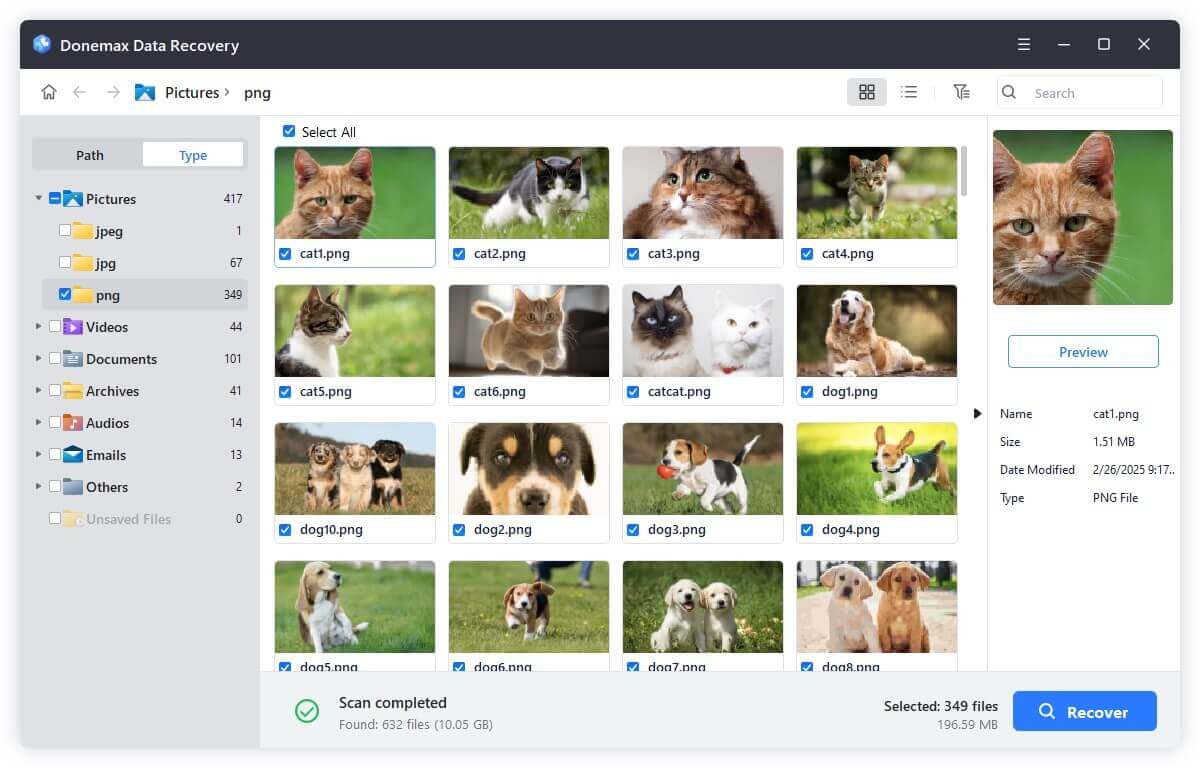
Do not choose the RAW SD card as the recovery destination. Writing recovered data to the same card can overwrite files that have not yet been restored.
The right method depends on whether the computer detects the card and whether the data matters more than returning the card to service.
|
Method |
Best for |
Risk to existing data |
Notes |
|---|---|---|---|
|
Try another reader or computer |
Possible reader or connection issue |
Low |
Does not repair the file system |
|
Data recovery software |
Card is detected and files are inaccessible |
Low if you only scan and save elsewhere |
Results depend on card condition |
|
Format the card |
Data is already recovered or not needed |
High |
Formatting can make recovery harder |
|
File-system repair tools |
Data is backed up or recovery is no longer needed |
Medium to high |
Repair may alter file-system information |
|
Professional recovery service |
Physical damage or highly valuable data |
Depends on handling |
Stop using the card and seek expert assessment |
After you have recovered and checked the important files, you can try reformatting the SD card. Formatting creates a new file system and may make the card usable again, but it erases the existing file-system structure. Format only after recovery.
If the SD card formats successfully and passes basic read-and-write checks, you can keep it for further use. Successful formatting does not prove the card is healthy, so do not use a card that continues to fail as the only copy of important files.
Common causes include:
RAW status is a symptom, not a diagnosis. If the card repeatedly becomes RAW after formatting, it may be unreliable and should be replaced.
Good handling can reduce the chance of file-system problems, although no memory card is immune to failure.
If an SD card shows as RAW, its file system may be damaged or unreadable, but some files may still be recoverable. Stop using the card, avoid formatting it, and recover files to another drive with a tool such as Donemax Data Recovery. After checking the recovered files, you can try formatting the card. If formatting succeeds and the card works reliably, you can keep it for further use; replace it if problems return.
Donemax Data Recovery
Powerful, safe & easy-to-use data recovery software. Easily and completely recover deleted, formatted, or other lost data. The tool supports PC, Mac, HDD, SSD, USB drive, camera, SD card, RAID and other storage devices.
Coco Lin
Coco has been a writer and a chief programmer at Donemax software since 2018. Over 10 years of experience of writing troubleshooting articles in the software industry, she is passionate about programming and loves to providing solutions to Windows and Mac users. Also she enjoys music and palying tennis in her free time.
Gerhard Chou
In order to effectively solve the problems for our customers, every article and troubleshooting solution published on our website has been strictly tested and practiced. Our editors love researching and using computers and testing software, and are willing to help computer users with their problems