
Written byChristinaUpdated on Jan 23, 2026

Before we start: Lost precious photos/videos from DJI camera? How to recover the data effectively? First, unplug the SD card from the camera to avoid further damage to the lost data. Then download and use the reliable data recovery software Donemax Data Recovery to save the lost data as soon as possible.
PAGE CONTENT:
DJI drones and cameras are popular for capturing high-quality aerial and handheld footage, but losing photos or videos from them can be a nightmare. Whether it's an accidental deletion, a corrupted SD card, or a power failure during recording, your precious memories can disappear in seconds. Fortunately, there are effective ways to recover lost DJI photos and videos. This article provides a step-by-step guide, covering native DJI recovery methods, professional software solutions, and best practices to prevent future data loss.
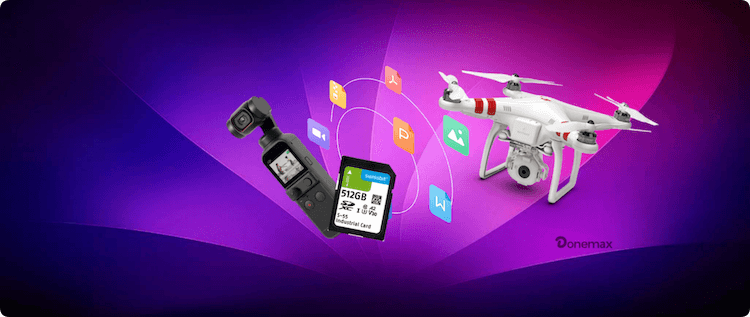
Understanding why your files are missing is the first step toward recovery. Here are the most common reasons:
1. Accidental Deletion
It's easy to mistakenly delete files while reviewing them on your drone or through the DJI app. Once deleted, photos and videos may disappear from your SD card but could still be recoverable using proper tools.
2. SD Card Issues
SD cards are the most common culprit for data loss. They can become corrupted due to sudden removal, formatting errors, physical damage, or using cards that are incompatible with your DJI device.
3. Power Failures or Crashes
Turning off the drone or camera mid-recording, or experiencing a sudden power loss, can corrupt files. In many cases, video files become partially saved, making them unreadable until repaired.
4. Firmware or Software Errors
Occasionally, DJI firmware glitches or app errors can cause files to disappear. Keeping firmware and apps updated reduces this risk.
5. File System Incompatibility
If your SD card is not formatted in a DJI-compatible format (usually FAT32 or exFAT), files may not save correctly or may be inaccessible when transferred to your computer.
Before attempting to recover lost files, it's crucial to take steps that prevent further damage:
Any new files written to the SD card can overwrite the deleted data, reducing the chance of recovery.
Avoid connecting your drone directly to the computer. A good-quality card reader ensures stable data transfer during recovery.
Before starting recovery, back up all accessible files on the SD card to a separate storage device to avoid accidental loss.
There are multiple ways to recover lost DJI footage, ranging from built-in DJI features to specialized data recovery software.
1. DJI Fly, DJI Mimo, or DJI GO 4 Apps
DJI apps often store recently deleted files in a cache or internal album. Steps to recover:
This method is simple but only works if the files are within the app's cache window, usually 30 days.
2. DJI Cloud Backup
If you enabled DJI cloud backup, your media might be automatically stored online. To restore:
Cloud backup is a lifesaver when your SD card is corrupted or your drone is damaged.
When native methods fail, professional recovery software is your best option. These programs scan your SD card or drone storage for deleted files and can recover both photos and videos.
Recommended Recovery Software
Donemax Data Recovery – User-friendly, supports video and RAW photo recovery. Deep scan for formatted or corrupted cards. Supports Windows and Mac, excellent for drone footage.
Step-by-Step Recovery Process
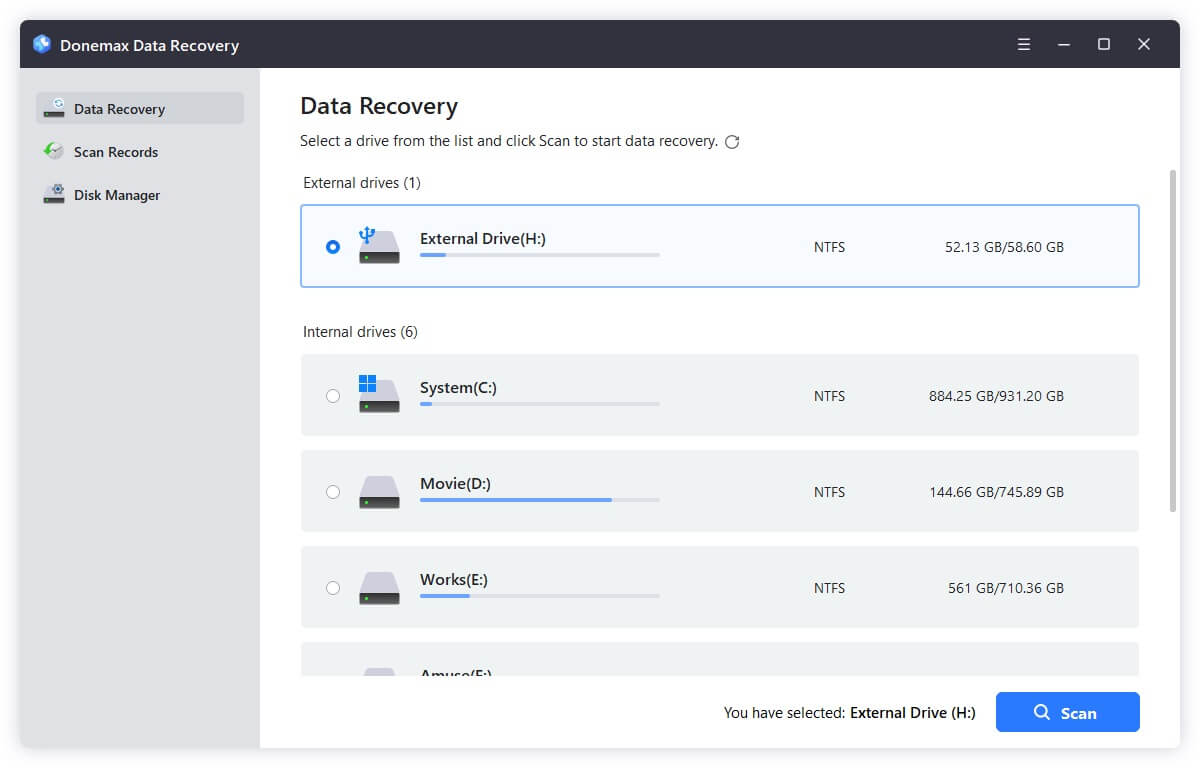
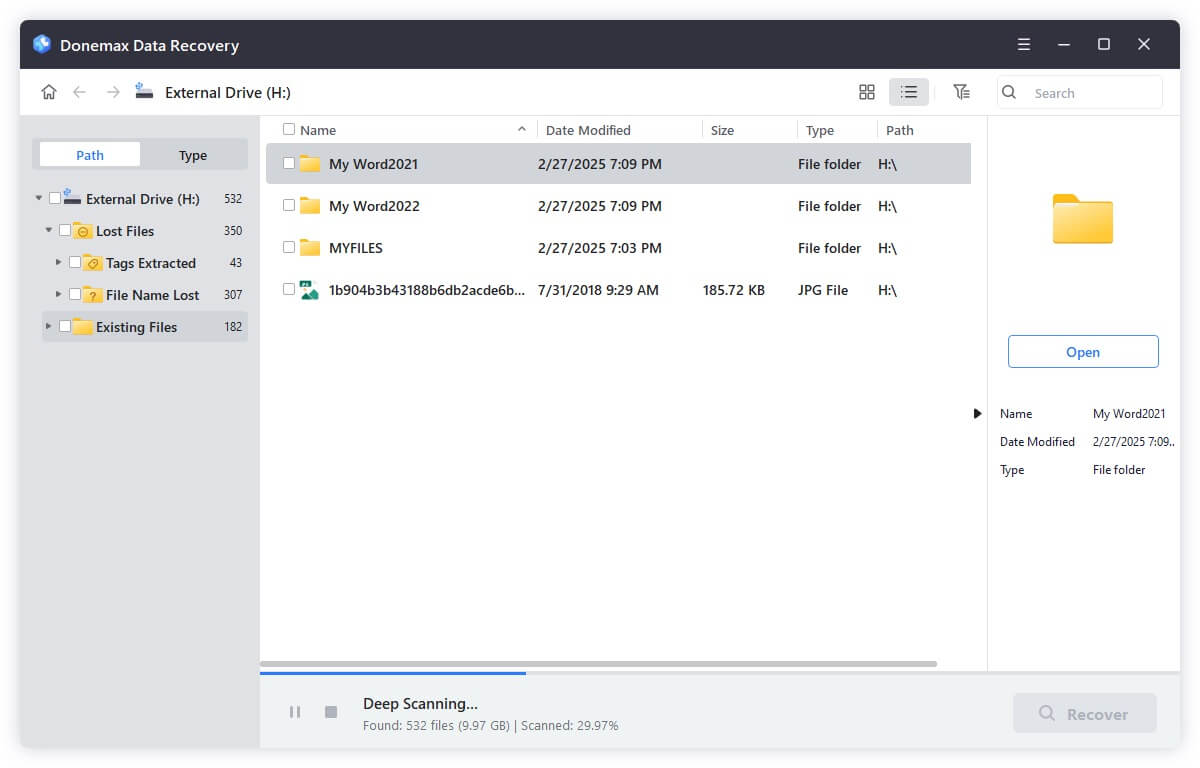
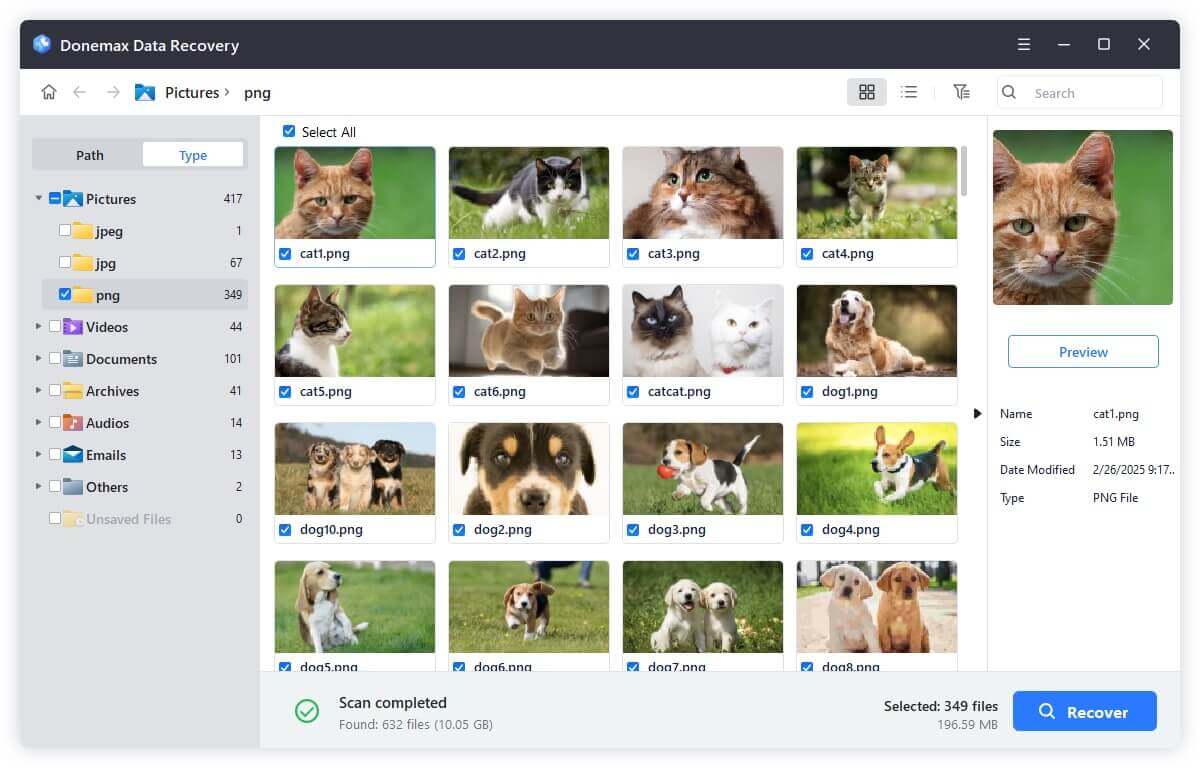
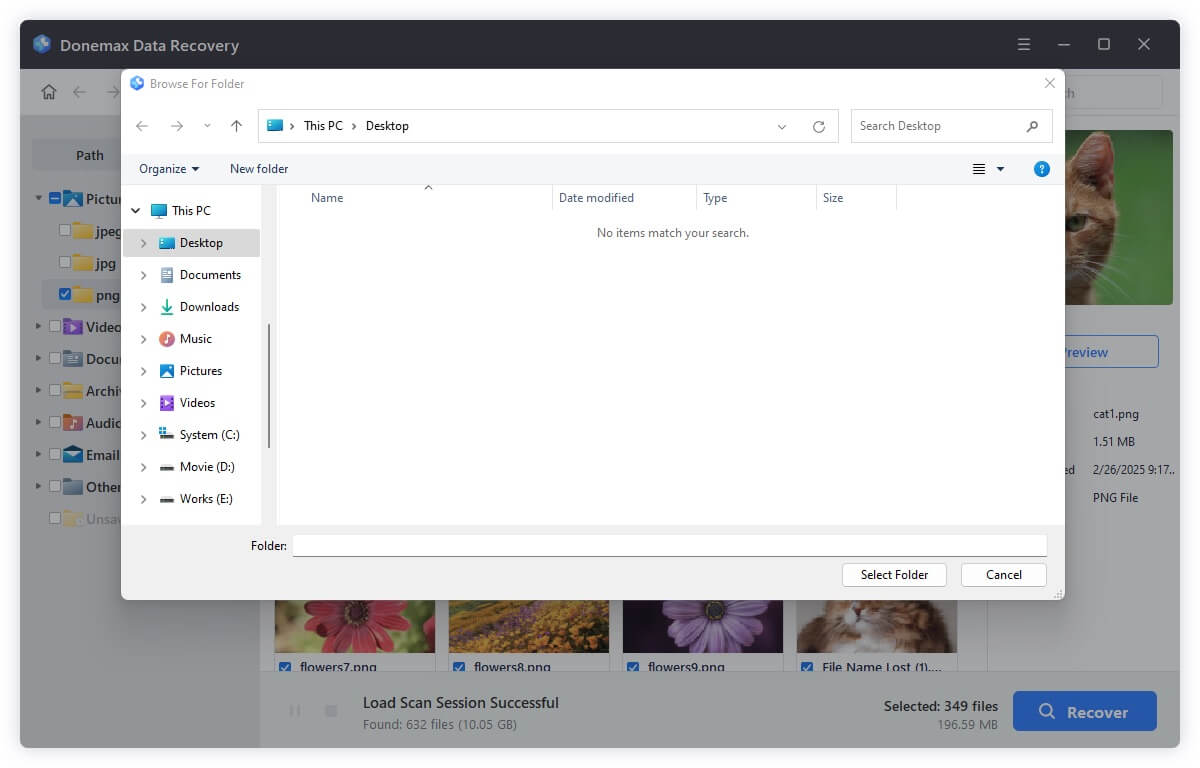
💡 Pro Tip: For large 4K videos, deep scan is often necessary as these files may not appear in a quick scan.
SD cards are the most common storage medium for DJI drones and cameras, and unfortunately, they are also prone to corruption. Corruption can result in your files becoming invisible, unreadable, or inaccessible. Understanding the causes and the right recovery methods is critical to retrieving your lost photos and videos.
Signs Your SD Card Is Corrupted
Step 1: Diagnose the Card
Before recovery, identify whether the issue is physical or logical:
Step 2: Attempt Basic Repairs
Sometimes a minor repair can make the card readable without deep recovery:
For Windows:
chkdsk X: /f
Replace X with your SD card drive letter. This checks for file system errors and attempts to fix them.
For Mac:
Step 3: Use Data Recovery Software
For corrupted or formatted SD cards, deep scan recovery software is essential. Recommended software includes:
Step-by-step guide for deep scan recovery:
Step 4: Repair Partially Corrupted Videos
Sometimes recovered videos play with glitches or do not open at all. In such cases:
Step 5: Prevent Future Corruption
After recovery, prevent future loss by:
💡 Pro Tip: If your SD card shows repeated errors after repair, it's best to replace it. Continuous use of a failing card increases the risk of permanent data loss.
Some DJI drones, like the Osmo Pocket or Action cameras, have built-in storage. Recovery is similar to SD cards:
Even partially lost footage can often be recovered using this method.
Prevention is always better than recovery. Follow these tips to protect your DJI media:
Q1: Can I recover DJI footage from a formatted SD card?
Yes, deep scan recovery software can often retrieve files from formatted cards, as long as new data hasn't overwritten the old files.
Q2: Which recovery software works best for DJI 4K videos?
Donemax Data Recovery and Wondershare Recoverit are recommended for large 4K files due to their deep scan capabilities and support for multiple formats.
Q3: Does DJI Cloud store all deleted files?
Only if you enabled cloud backup before deletion. DJI Cloud typically stores recent uploads and deleted files for a limited period.
Losing photos or videos from a DJI camera can be stressful, but with the right approach, most files can be recovered. Start with DJI's native app and cloud recovery features for convenience. If those fail, professional recovery software is your most reliable solution. Always remember to take precautionary steps before recovery, such as stopping use of the SD card and backing up existing files.
Prevent future loss by using high-quality SD cards, regularly backing up to cloud or local storage, and keeping firmware up to date. By combining recovery methods and preventive measures, you can enjoy capturing stunning DJI footage without worrying about losing it.
Whether it's a family vacation, professional drone shoot, or cinematic project, your memories and work deserve to be recovered and preserved.
Donemax Data Recovery for Mac
Donemax Data Recovery for Mac is one of the best Mac data recovery software. It is easy-to-use and can help in recovering deleted, formatted, inaccessible or lost data from Mac HDD/SSD, external disk, USB drive, SD card, camera or other storage devices.
Christina
Christina is the senior editor of Donemax software who has worked in the company for 4+ years. She mainly writes the guides and solutions about data erasure, data transferring, data recovery and disk cloning to help users get the most out of their Windows and Mac. She likes to travel, enjoy country music and play games in her spare time.
Gerhard Chou
In order to effectively solve the problems for our customers, every article and troubleshooting solution published on our website has been strictly tested and practiced. Our editors love researching and using computers and testing software, and are willing to help computer users with their problems

