
Written byCharlesUpdated on Oct 23, 2026

Before we start: After formatting a wrong drive/card, stop adding data to the drive immediately. Then you can use recovery software like Donemax Data Recovery to get back the lost files quickly.
PAGE CONTENT:
The exFAT (Extended File Allocation Table) file system is one of the most versatile and popular storage formats in the digital world today. Designed by Microsoft to bridge the gap between Windows and macOS, exFAT is widely used across external hard drives, portable SSDs, SD cards, micro SD cards, and USB flash drives. Because it supports massive individual file sizes without strict limits, it is the go-to choice for video editors, photographers, and cross-platform users.
However, accidental formatting is a very common issue. You might have clicked 'Format' by mistake in File Explorer or Disk Utility, formatted the wrong SD card on your digital camera, or formatted an external drive to clear a corruption prompt. When this happens, it feels like all your precious photos, 4K videos, documents, and audio tracks have vanished into thin air.

Here is the good news: formatting a drive does not immediately destroy your raw data. In most cases, a standard quick format only deletes the file system index while leaving the actual data sectors intact. In this guide, we will explore why files remain recoverable on exFAT drives, what to look for in recovery tools, and why Donemax Data Recovery is the best data recovery software for formatted exFAT drive users on Windows and Mac.
To maximize your chances of getting your files back, it helps to understand what actually happens when an exFAT drive is formatted.
When you perform a standard format (Quick Format) on an exFAT drive, the operating system resets the File Allocation Table, file directory structures, and volume boot headers. It marks all storage clusters on the drive as 'free' and available for writing new files.
Crucially, the physical binary data representing your images, video streams, and office files remains stored on the physical disk sectors or flash memory blocks. Until new data is saved directly onto those exact clusters, the original files are fully recoverable.
The most important factor determining data recovery success is preventing data overwriting. The moment you realize your exFAT drive has been formatted:
Not all data recovery programs handle exFAT drives with equal efficiency. Because exFAT directory structures differ significantly from NTFS or FAT32, choosing software specifically optimized for exFAT geometry is essential. Look for the following key features:
When evaluating performance, scan speed, raw signature parsing, and user experience, Donemax Data Recovery stands out as the best data recovery software for formatted exFAT drive recovery.
Donemax Data Recovery features an advanced raw recovery engine specifically tailored for exFAT partition structures. It can effortlessly scan formatted external HDDs, SSDs, camera SD cards, and flash drives, reconstructing lost file paths, original filenames, and raw image/video structures.
Follow this simple, step-by-step guide to restore your missing files from a formatted exFAT drive using Donemax Data Recovery:
Step 1: Connect Drive and Launch Software
Plug your formatted exFAT external hard drive, USB drive, or SD card into your computer. Download and install Donemax Data Recovery on your computer's main internal hard drive. Launch the program.
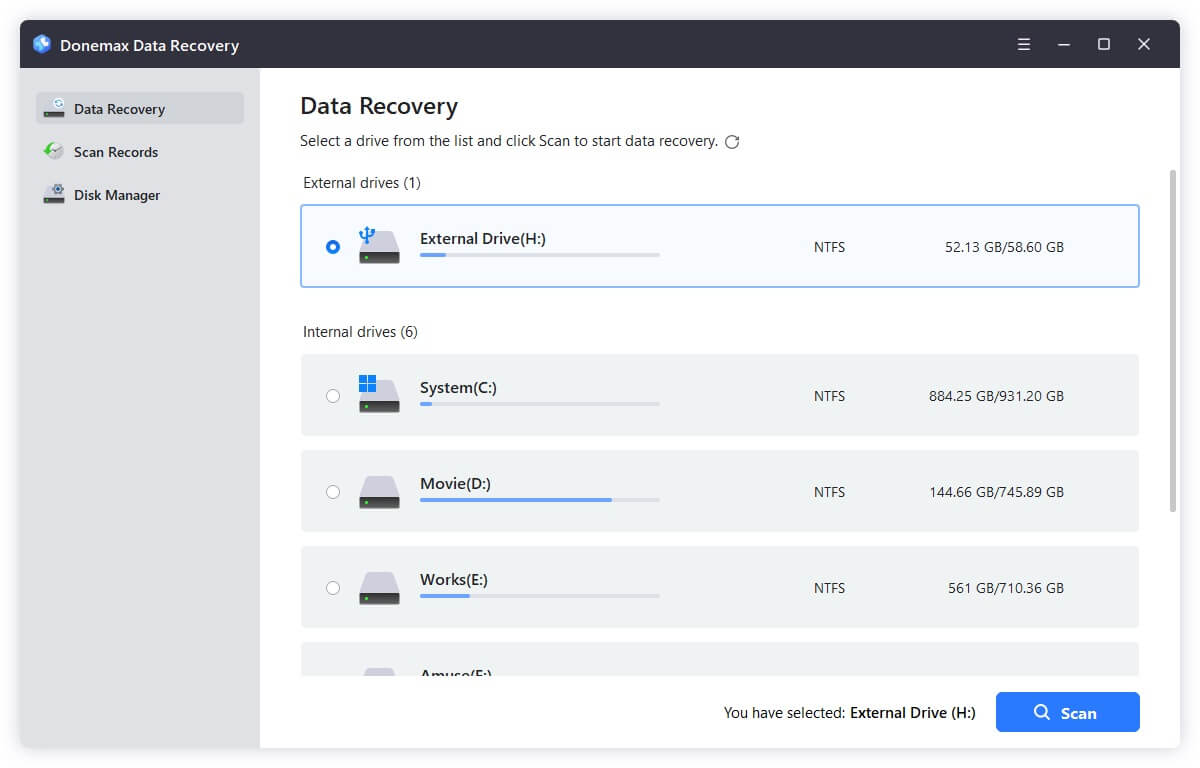
Step 2: Select the Formatted exFAT Drive and Scan
In the main user interface, select your formatted exFAT drive from the list of available storage devices. Click the 'Scan' button to begin scanning. The software will perform a deep sector scan to search for all recoverable files.
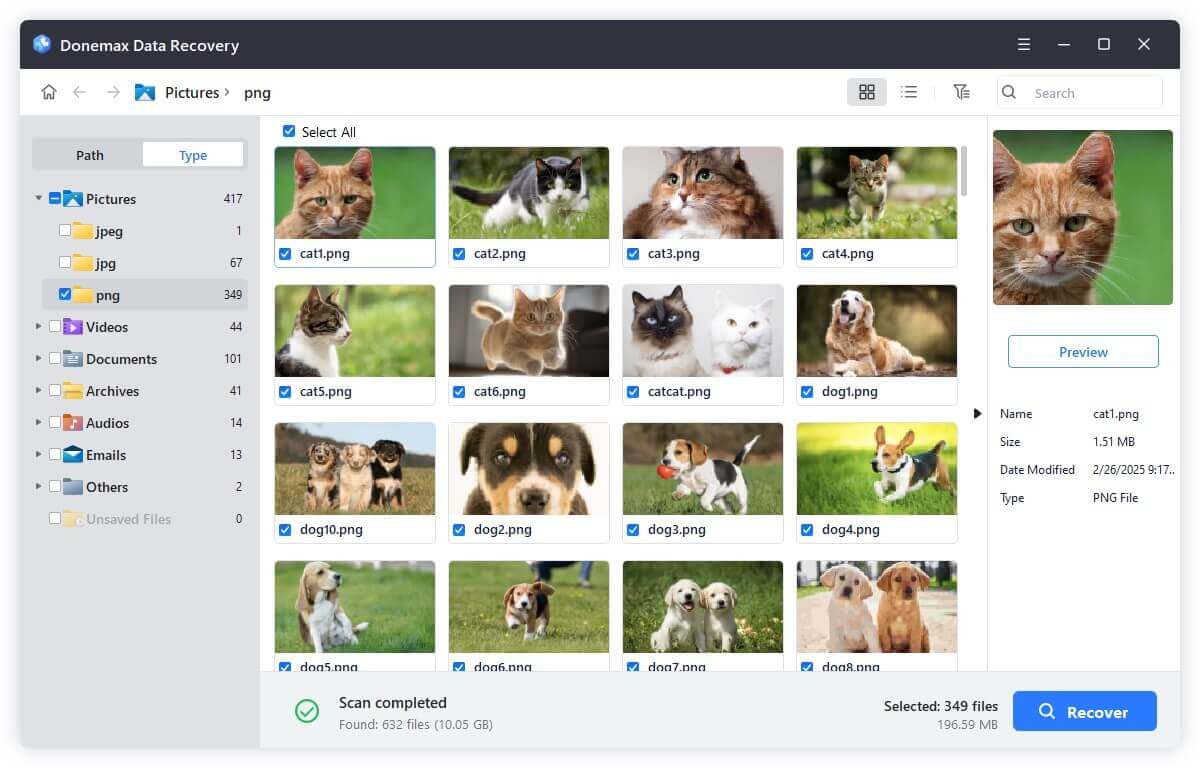
Step 3: Preview, Select, and Recover Files
Once the scan is complete, filter the results by file type (e.g., Pictures, Videos, Documents). Double-click files to preview them in real-time. Check the boxes next to the items you wish to restore, click 'Recover', and save them to a different, safe storage location (such as your internal drive or another external disk).
While searching for recovery options, you may encounter alternative methods online. Here is how they compare:
To minimize data loss risks on exFAT storage drives in the future, follow these practical tips:
Accidentally formatting an exFAT drive can feel like a disaster, especially when it holds important work files, high-definition videos, or irreplaceable photos. Fortunately, formatting does not instantly destroy your underlying files.
By taking action quickly, avoiding saving new files to the drive, and using the best data recovery software for formatted exFAT drive recovery—Donemax Data Recovery—you can easily scan, preview, and restore your lost data with complete peace of mind.
Charles
Charles, who lives in Sydney, Australia, is an editor & writer of Donemax Team. He is good at writing articles related with Apple Mac computers, Windows operating systems, data recovery, data erasure, disk clone and data backup, etc. He loves reading and playing tennis in his spare time and is interested in testing new digital devices such as mobile phones, Macs, HDDs, SSDs, digital cameras, etc.
Gerhard Chou
In order to effectively solve the problems for our customers, every article and troubleshooting solution published on our website has been strictly tested and practiced. Our editors love researching and using computers and testing software, and are willing to help computer users with their problems