
Written byMariaUpdated on Apr 02, 2026

Summary: Recovering an unallocated partition is possible in most situations if prompt and careful action is taken. Built-in Windows tools can help with minor issues, while third-party software, like Donemax Data Recovery, is ideal for recovering lost data without formatting. Professional services remain the last resort for physically damaged disks.
PAGE CONTENT:
Dealing with an "unallocated" drive can feel like your data has vanished into a digital black hole. One minute your files are there, and the next, your drive letter is gone, replaced by a mysterious black bar in Disk Management.
The good news? In most cases, your data is still there. It's just "homeless" because the map the computer uses to find it (the partition table) is broken.
This guide will walk you through how to recover an unallocated partition and get your files back safely using professional yet easy-to-follow methods.
Think of your hard drive like a giant library. A partition is a bookshelf with a label (like "Drive D:"). Unallocated space is like a pile of books on the floor with no shelf and no label.
Before we fix it, we need to know what happened. This helps choose the right recovery path:
The "Golden Rules" of Partition Recovery
To ensure you can recover lost data from unallocated space, follow these three rules immediately:
If the partition is missing due to a minor registry error, you can sometimes "nudge" it back into place.
Using Disk Management:
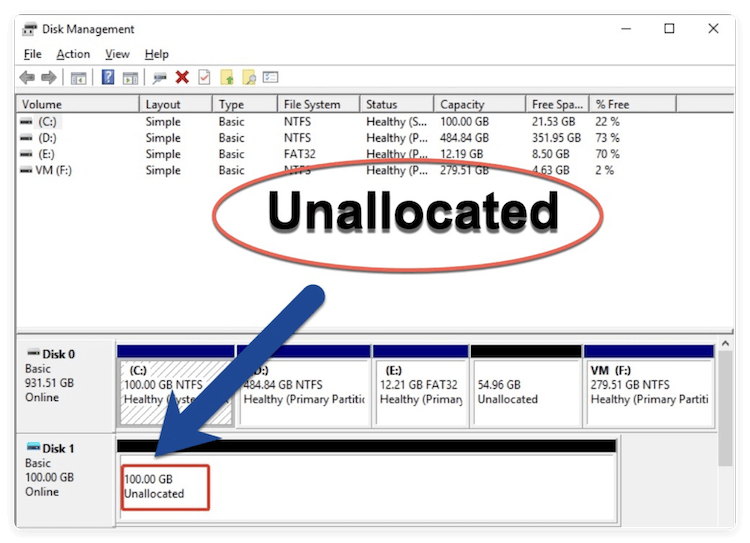
📍 Warning: If you right-click and choose "New Simple Volume," you will get the space back, but it will format the drive and erase your data. Only do this if you don't need the files.
Using CHKDSK (If the partition is visible but "RAW"):
If you see the drive but can't open it, try repairing the file system:
In some cases, it's able to recover the partition from the unallocated space on disk. The professional partition recovery software is able to analyze and find the "missing" part of the lost partition. Then reconstruct the old partition with the original information.
Top Recommended Tools:
MiniTool Partition Wizard: Great for previewing files before you commit.
AOMEI Partition Assistant: Excellent for advanced disk management.
General Steps for Software Recovery:
If the deleted/lost partition cannot be restored directly and you need to recover data the important files, specialized data software is the best choice. These tools scan the raw sectors of your disk to find the file system information or file records of your old partitions. In this way, the software can help you get back the files even if partition recovery failed.
Donemax Data Recovery is a reliable data recovery that can not only recover deleted files, but also recover files from deleted/lost/formatted/inaccessible partition. It can deeply scan the the unallocated space to find data from lost partition.
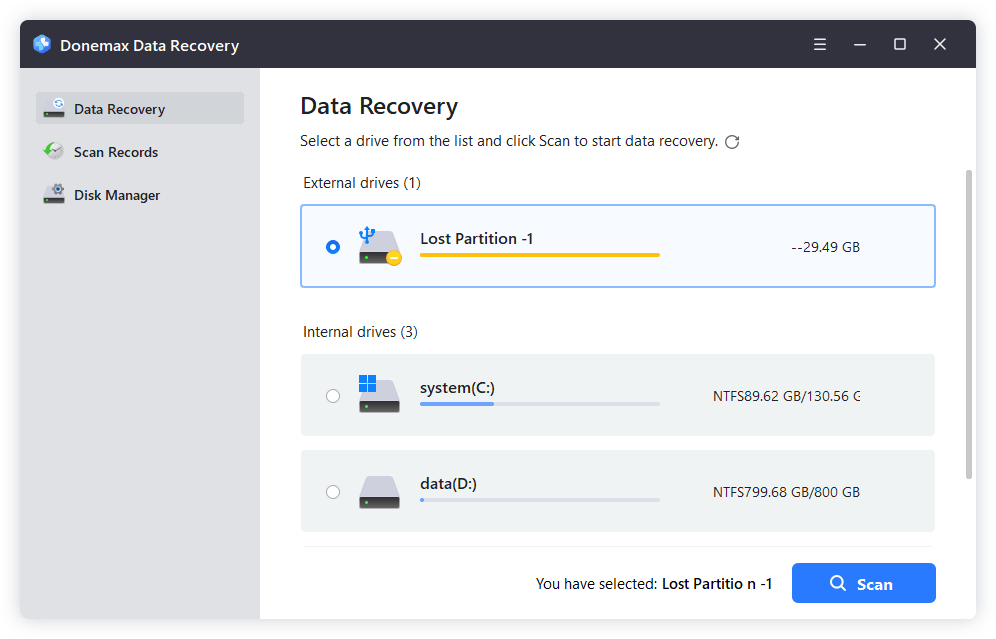
Step 1. Run the software and it will search and list the lost partition automatically. Just select it and click the Scan button. Then the software will deeply scan the drive.
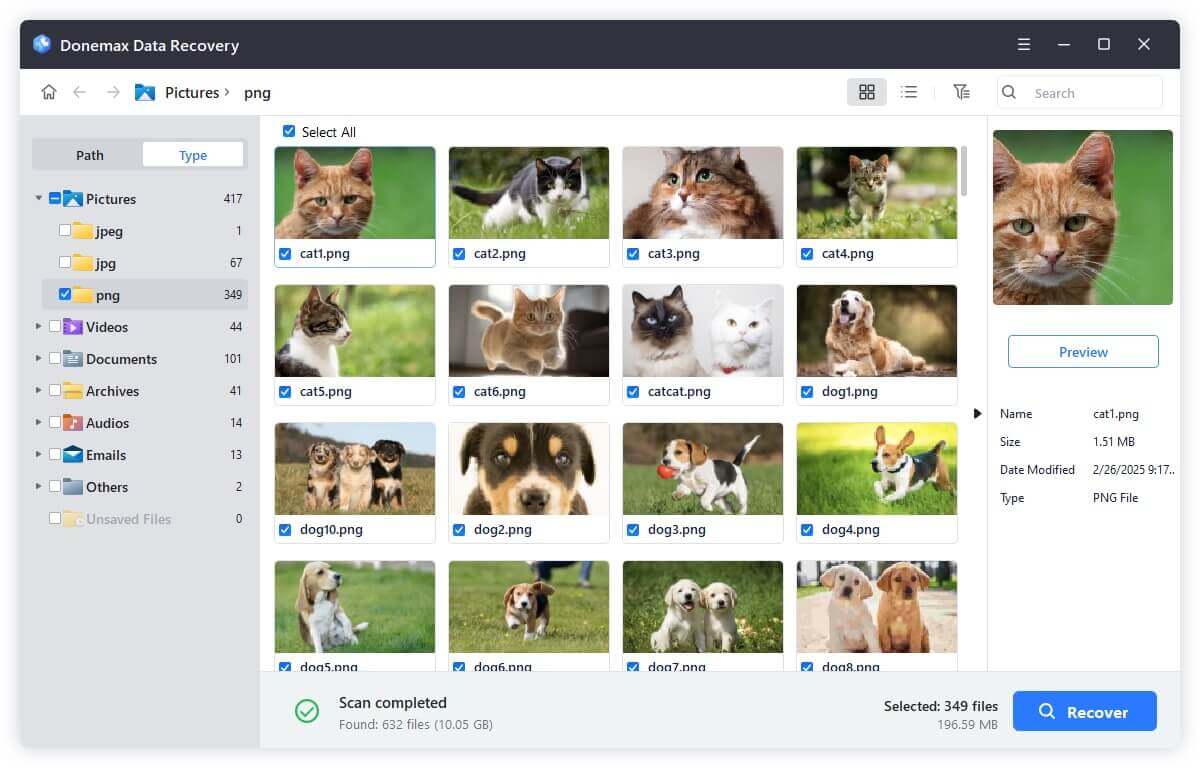
Step 2. After the scanning is finished. You can then search, filter and preview the found files. Choose the wanted files and ensure to save them to another drive.
If your SSD has failed or your HDD is clicking, software cannot help you. You will need a Professional Data Recovery Service. They use "Clean-rooms" to physically open the drive and swap parts to read the data directly from the platters.
When to call a pro:
Recovery is stressful. Prevention is easy:
Can you recover an unallocated partition? Yes. If it was a simple accidental deletion, software will usually fix it in minutes. If the drive is dying, act fast, stop using it, and seek professional help.
Preventive measures, including regular backups, safe drive handling, and disk health monitoring, can significantly reduce the risk of unallocated partitions in the future.
By following these steps, users can regain access to their lost partitions and protect their data from permanent loss.
Donemax Data Recovery
Powerful, safe & easy-to-use data recovery software. Easily and completely recover deleted, formatted, or other lost data. The tool supports PC, Mac, HDD, SSD, USB drive, camera, SD card, RAID and other storage devices.
Maria
Maria is one of the senior writers & editors of Donemax who lives and works in Sydney, Australia. She loves PC, Mac and Internet Technology. She has 6 years of writing articles about data recovery on PC/Mac, disk cloning solution, data eraser and computer OS optimization, etc. She is also interested in testing various software and digital products.
Gerhard Chou
In order to effectively solve the problems for our customers, every article and troubleshooting solution published on our website has been strictly tested and practiced. Our editors love researching and using computers and testing software, and are willing to help computer users with their problems

