
Written byCharlesUpdated on May 26, 2026

Before we start: When the computer is working normally, it's better to make a full and bootable copy for it. If any system or application related files are missing, you can easily find and restore the files to solve issue. Or you can just use the cloned disk to replace the original drive to make everything working again quickly. You can use Donemax Disk Clone to do the job.
PAGE CONTENT:
When launching certain games or graphics-intensive applications, you might be greeted with an annoying message like "The program can't start because AMD_AGS_X64.DLL is missing from your computer." This error often halts your workflow or gameplay and can be frustrating, especially if you're unsure of what the AMD_AGS_X64.DLL file does or how to fix the issue.
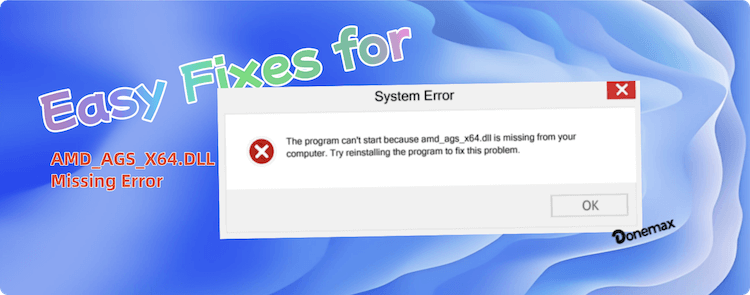
In this guide, we'll explore what this file is, why the error appears, and how to resolve it using safe, effective methods. Let's dive into how you can restore functionality to your system and get back to your tasks without delay.
AMD_AGS_X64.DLL stands for AMD GPU Services 64-bit Dynamic Link Library. It's a crucial file used by certain AMD Radeon graphics cards and required by games or applications that depend on GPU-based rendering and acceleration. This DLL file provides application-level access to AMD GPU features, especially in DirectX 11/12 environments.
If this file is missing, corrupted, or incompatible, programs that rely on AMD graphics services will fail to start or crash unexpectedly.
These errors are typically triggered when launching a game like Assassin's Creed, Resident Evil, Far Cry, or any GPU-heavy application.
Several underlying factors could cause this error:
Understanding the root cause helps you choose the most effective fix. Let's go through the top methods to resolve the issue.
Before diving into advanced fixes, try the following quick checks:
1. Restart Your PC
Sometimes the system fails to load DLL files correctly, and a reboot may fix temporary glitches.
2. Check the Recycle Bin
The file may have been accidentally deleted. If you find AMD_AGS_X64.DLL in the Recycle Bin, right-click and select Restore.
3. Run a Full Antivirus Scan
Use Windows Defender or a reliable antivirus tool to scan your system. Malware can corrupt or delete DLL files.
If these checks don't help, proceed with the step-by-step solutions below.
If the issue persists after the preliminary checks, here are some advanced methods you can try to fix the issue. You can follow the methods one by one and check if the issue can be resolved in any way.
Corrupt or outdated AMD graphics drivers are one of the most common reasons behind the AMD_AGS_X64.DLL missing error. Since the DLL file is part of the AMD GPU Services package, any problem with the associated drivers can lead to the DLL being improperly installed, corrupted, or not recognized by the system.
Reinstalling your AMD graphics drivers ensures that all critical components—including AMD_AGS_X64.DLL—are correctly deployed in your system's directories. Here's a comprehensive, step-by-step guide:
Step 1: Uninstall the Existing AMD Drivers
Before you install fresh drivers, it's crucial to remove the corrupted or outdated ones to avoid conflicts.
Option A: Uninstall via Device Manager
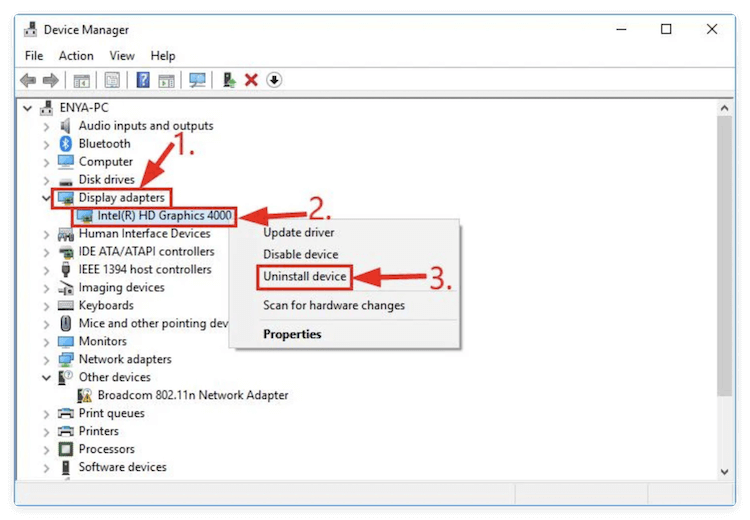
Option B: Use AMD Cleanup Utility (Recommended)
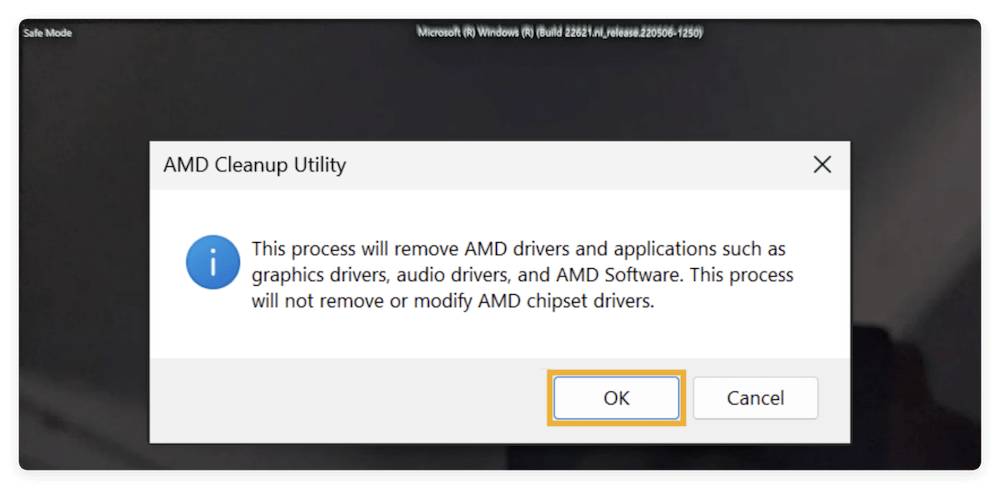
Using the AMD Cleanup Utility is preferable because it ensures no leftover files or registry traces are present that might interfere with the reinstallation.
Step 2. Download and Reinstall ADM Drivers
Now, visit the official AMD Drivers and Support page:
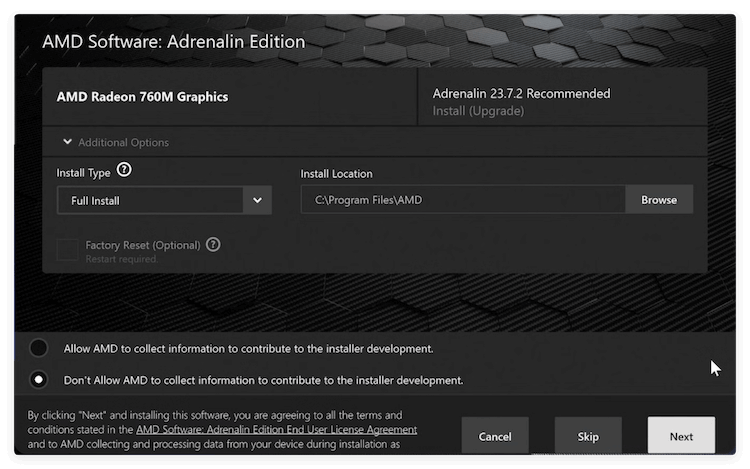
This reinstall usually includes the required AMD_AGS_X64.DLL file in the package.
Why Reinstalling the Driver Works
Reinstalling the AMD graphics driver works because it ensures:
In many cases, this single step can eliminate the DLL error without the need for manually downloading or placing files, especially since AMD packages are self-contained.
If the driver update doesn't resolve the issue, you can manually add the DLL file.
Steps to Restore Manually:
regsvr32 AMD_AGS_X64.DLL
This will register the file within Windows. Restart your PC afterward.
💡 Note: Only download DLL files from official or verified sources. Avoid shady third-party sites which might host malware.
Corrupt system files may also trigger the missing DLL error. Microsoft provides built-in tools to repair them.
Step 1: Run SFC
sfc /scannow
Step 2: Use DISM Tool (if SFC fails)
DISM /Online /Cleanup-Image /CheckHealth
DISM /Online /Cleanup-Image /ScanHealth
DISM /Online /Cleanup-Image /RestoreHealth
These commands will verify and repair Windows image corruption. After completion, restart your PC.
If AMD_AGS_X64.DLL is required by a specific game or software and nothing else works, reinstall that application.
Steps to Reinstall Software on Windows:
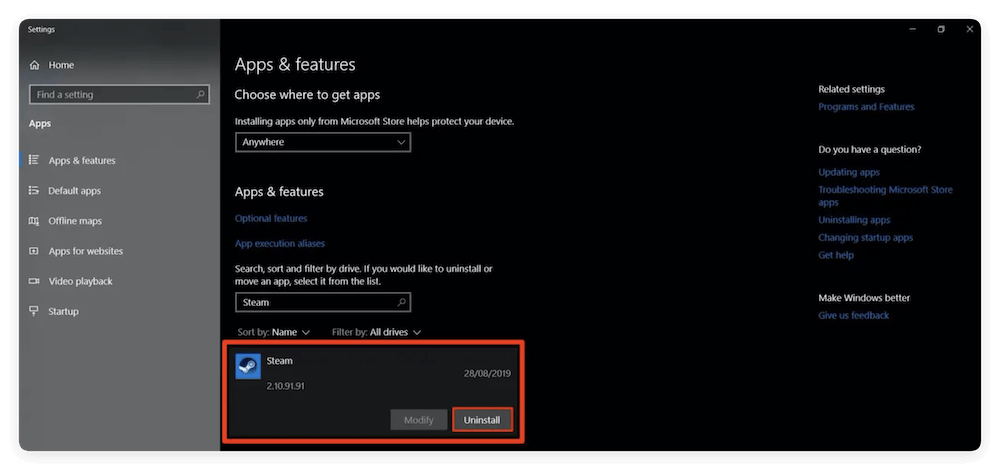
This often restores all dependent files, including the required DLL.
If the error started recently after a driver or software update, system restore might bring things back to normal.
Steps to Run System Restore:
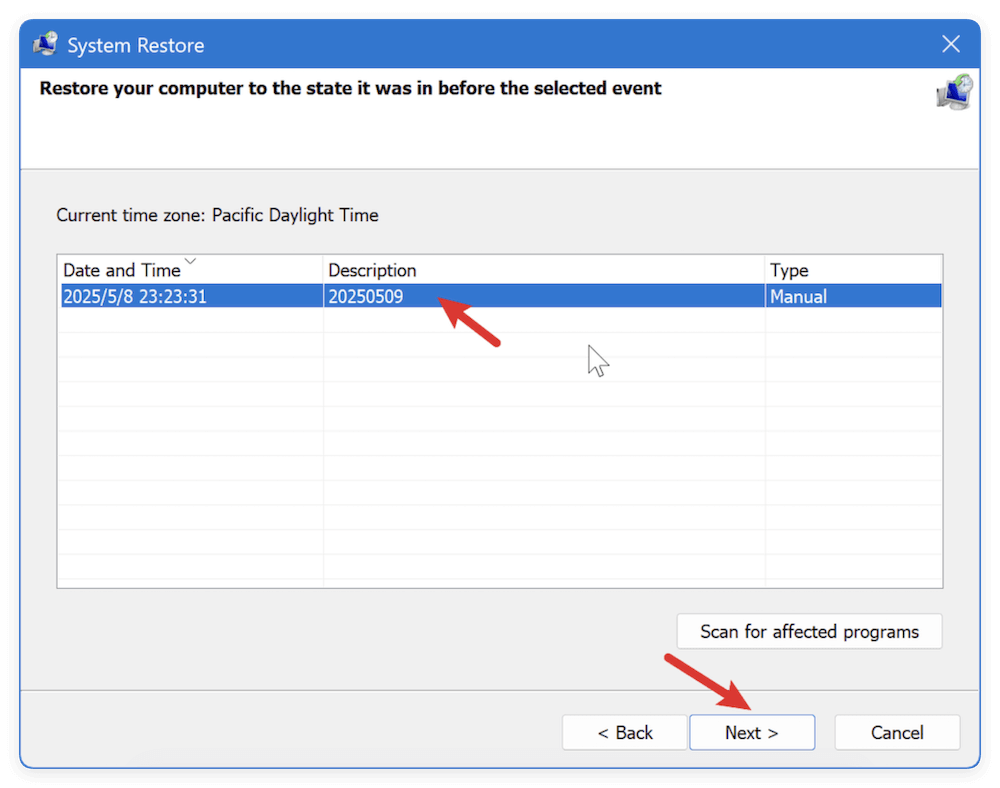
System Restore won't affect your personal files but will revert system and driver settings.
💡 Note: You need to create a system restore point before the issue happened. Otherwise, this method is not valid.
An outdated version of Windows can sometimes conflict with updated drivers or software, leading to DLL issues.
How to Update Windows:
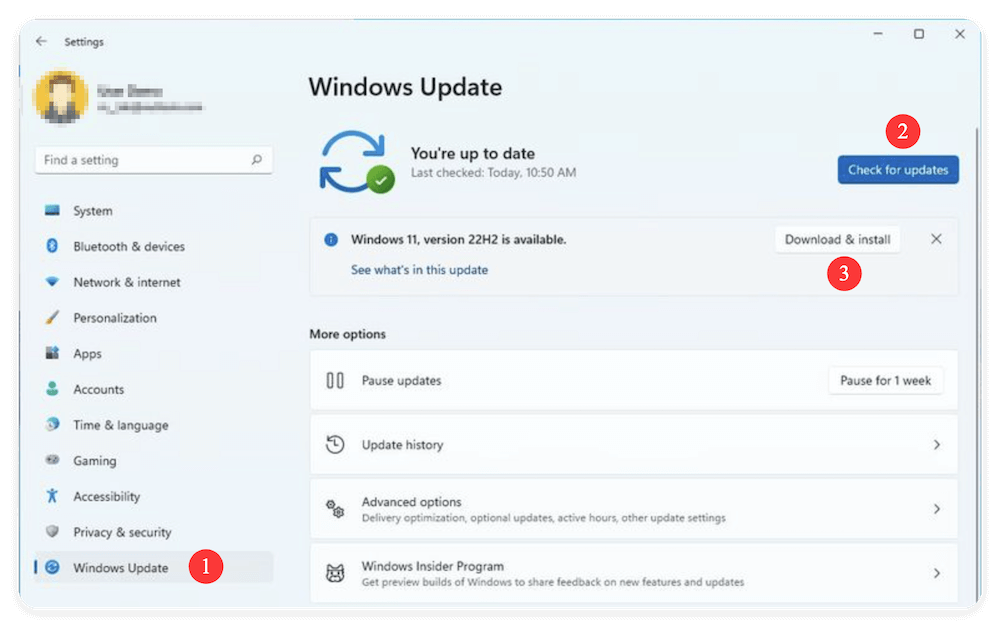
Keeping Windows up-to-date ensures compatibility with the latest drivers and libraries.
While not always necessary, some users find success with DLL fixer software like:
These tools scan your system for missing/corrupt DLL files and attempt to replace or restore them. However, always review these tools carefully to avoid installing bloatware or malicious software.
To avoid encountering DLL errors in the future, follow these tips:
If none of the above methods work, it may indicate:
In such cases, consult a certified IT technician or visit an authorized AMD support center.
The AMD_AGS_X64.DLL missing error is a common but fixable issue, especially for systems using AMD graphics cards. Whether caused by driver problems, software conflicts, or malware, this guide has outlined several proven solutions you can safely perform yourself.
To recap, the most effective solutions include:
Always begin with the least invasive fixes and work your way up. And remember: regular maintenance and system updates can go a long way in preventing DLL issues in the first place.
Donemax Disk Clone
An award-winning disk cloning program to help Windows users and Mac users clone HDD/SSD/external device. It also can create full bootable clone backup for Windows PCs and Macs.
Charles
Charles, who lives in Sydney, Australia, is an editor & writer of Donemax Team. He is good at writing articles related with Apple Mac computers, Windows operating systems, data recovery, data erasure, disk clone and data backup, etc. He loves reading and playing tennis in his spare time and is interested in testing new digital devices such as mobile phones, Macs, HDDs, SSDs, digital cameras, etc.
Gerhard Chou
In order to effectively solve the problems for our customers, every article and troubleshooting solution published on our website has been strictly tested and practiced. Our editors love researching and using computers and testing software, and are willing to help computer users with their problems
Clone hard drive with advanced clone technology or create bootable clone for Windows/Mac OS.
Completely and easily recover deleted, formatted, hidden or lost files from hard drive and external storage device.
Certified data erasure software - permanently erase data before selling or donating your disk or any digital device.