Written byChristinaUpdated on May 22, 2026

Before we start: Donemax Data Recovery for Mac is a powerful Mac data recovery program. It can completely recover data from a drive which has partition map error. It also can help you repair damaged drives on Mac.
PAGE CONTENT:
A partition map is an essential component of any disk. It serves as a guidebook for your Mac to locate, access, and manage different partitions on a drive. Think of it as the table of contents for your hard drive, ensuring data is organized and accessible.
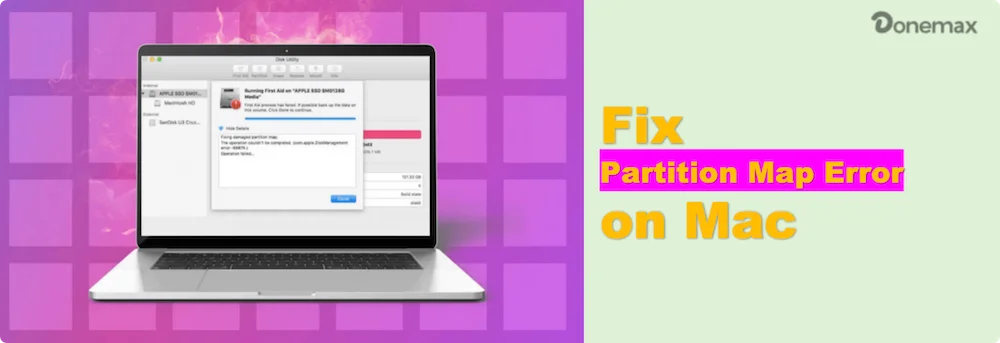
The partition map error is a frustrating issue that Mac users may encounter. This error often appears during operations such as formatting a drive, partitioning it, or booting macOS. It prevents users from properly accessing their drives, leading to data loss or functionality issues. In this article, we'll explore the causes of this error, how to diagnose it, and, most importantly, how to fix it.
Before you can fix the issue, it's crucial to diagnose it properly.
1. Symptoms:
Some common signs of a partition map error include:
2. Tools for Diagnosis:
Diagnosing a partition map error can be done using the following tools:
Resolving a partition map error may seem daunting, but macOS provides several tools, and third-party solutions can further enhance your repair options. This section delves deeper into each method to help you confidently address the issue.
Disk Utility is a graphical interface that simplifies disk diagnostics and repair. Here's a more detailed breakdown of how to use it effectively:
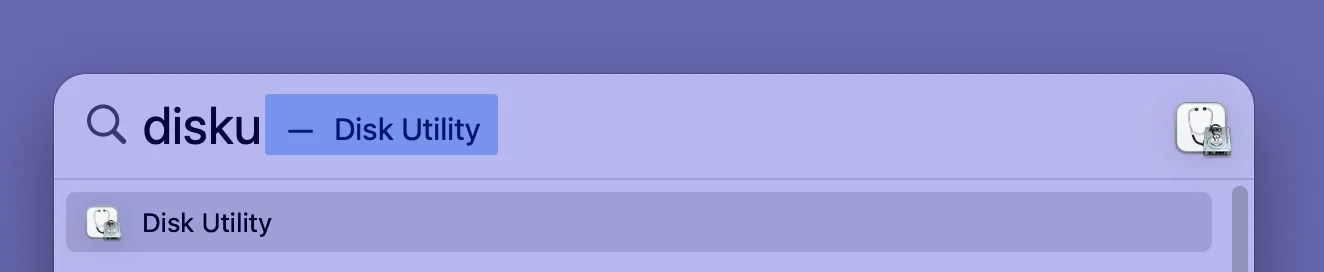
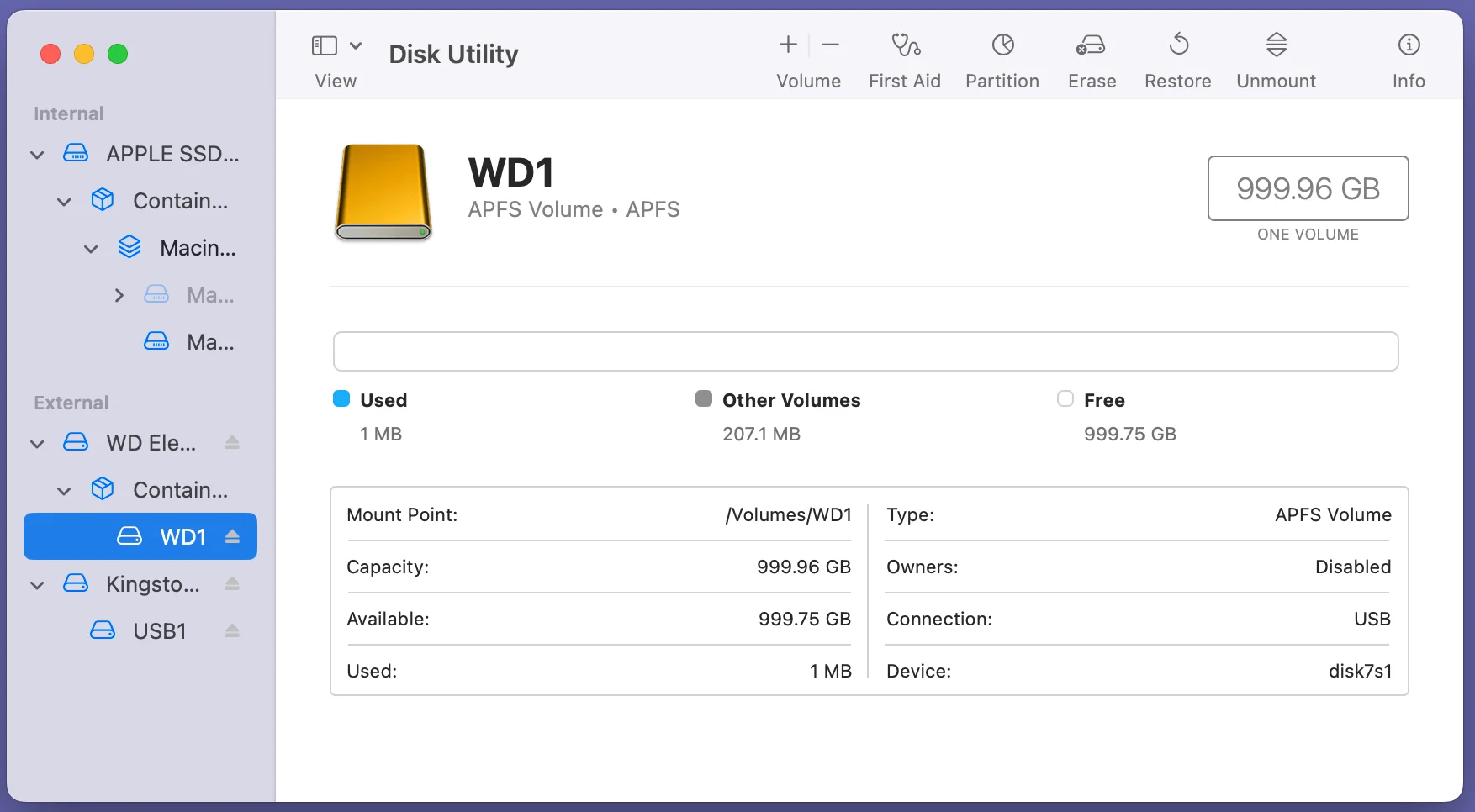
Step 1. Open Disk Utility: Move to Disk Utility from Utilities via Applications or use Spotlight Search (Command + Space) to find it.
Step 2. Select the Affected Disk: In the left sidebar, all connected drives and their partitions will appear. Select the drive with the issue.
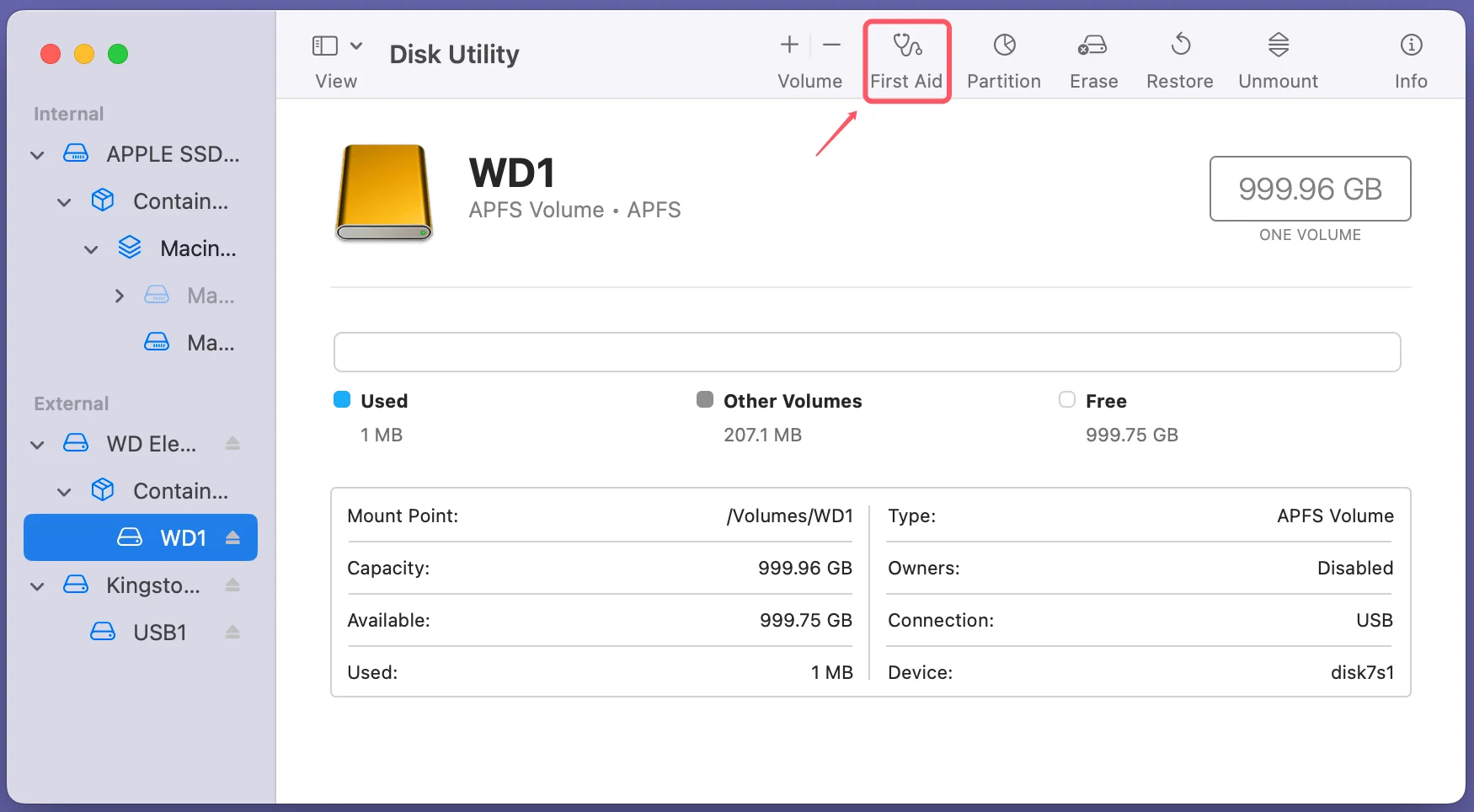
Step 3. Run First Aid: Press the First Aid button located at the window's top.
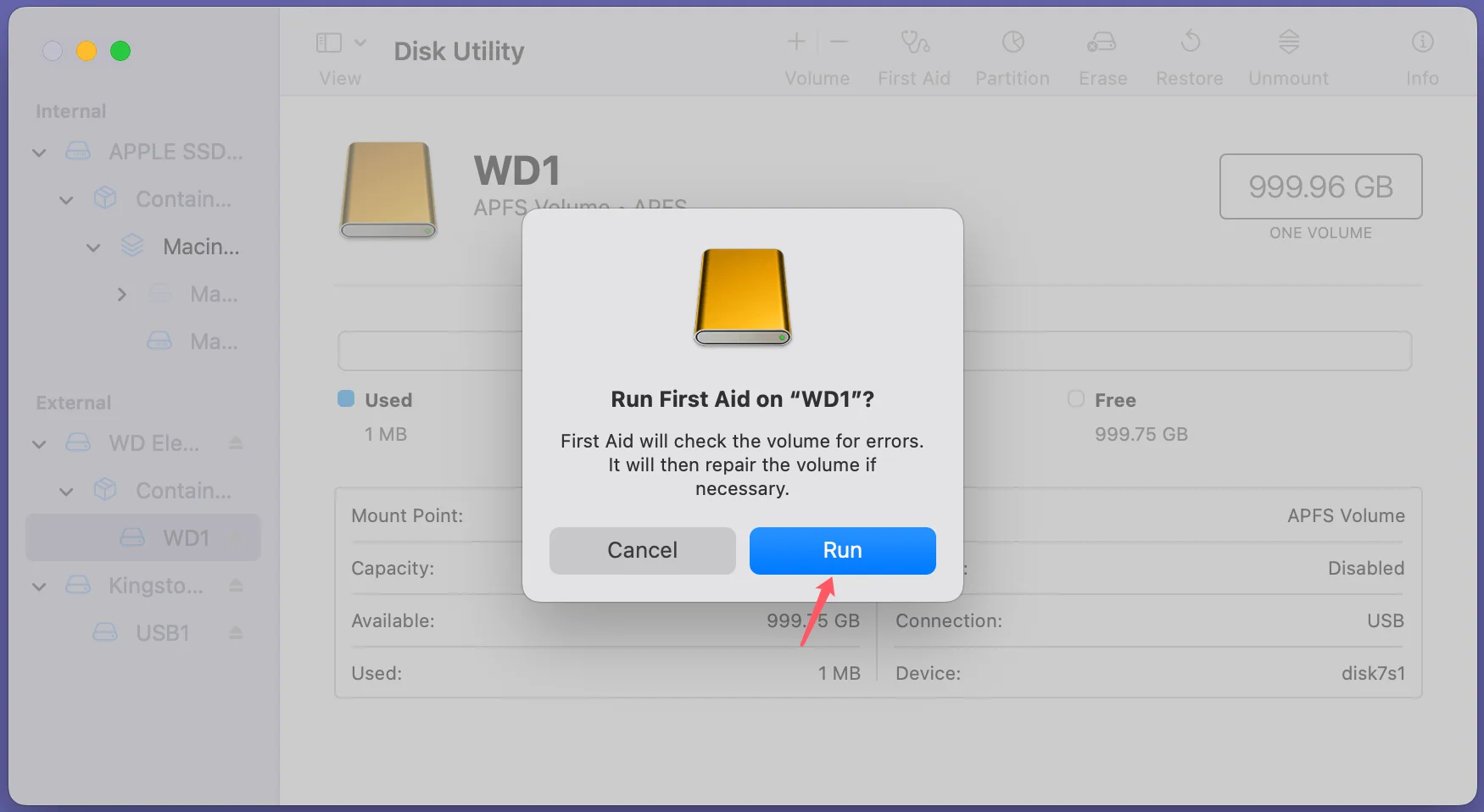
Disk Utility will scan the disk for errors, including partition map corruption, and attempt to repair them.
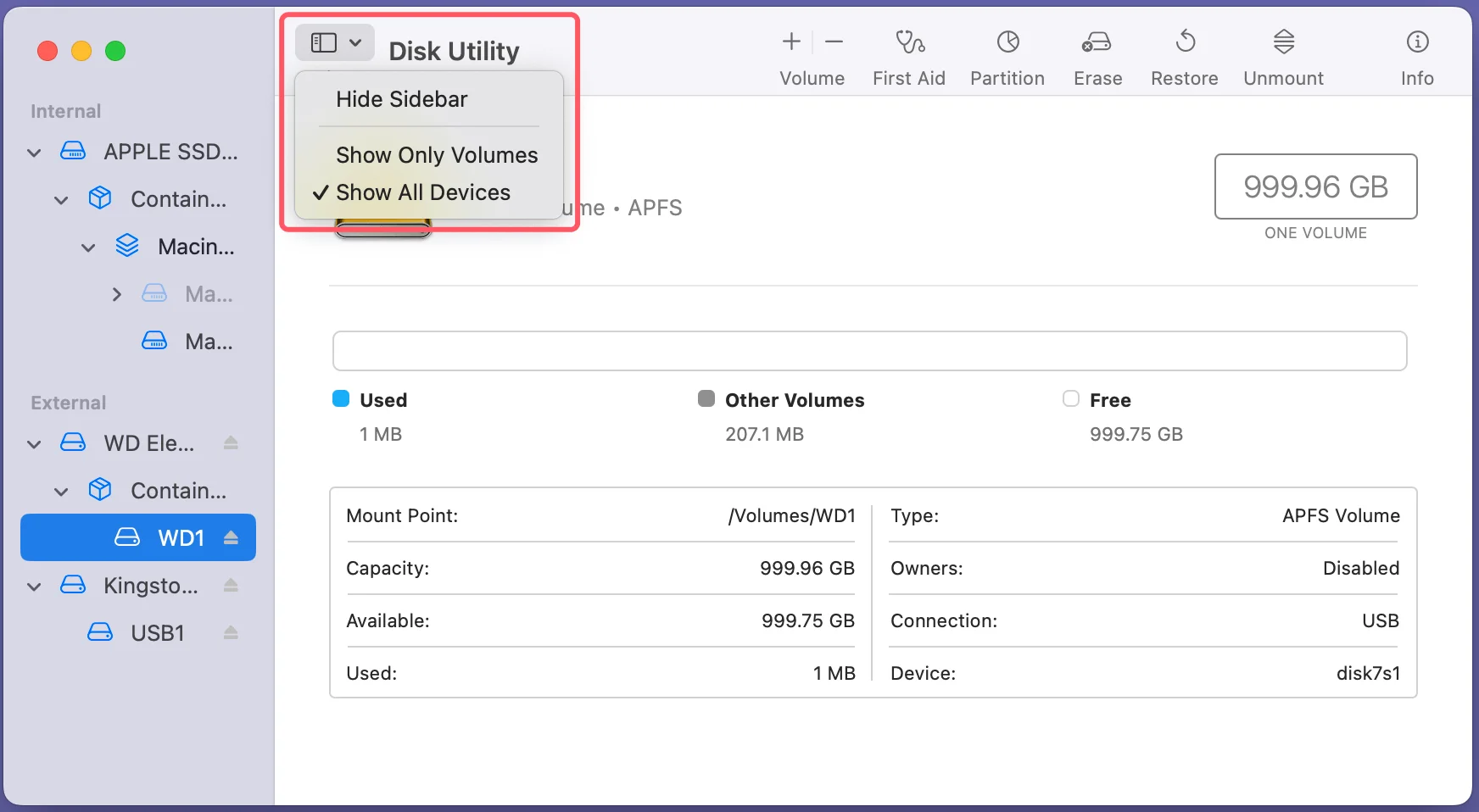
💡 Pro Tip: If the disk doesn't appear in the sidebar, click View > Show All Devices to reveal the entire disk hierarchy.
Step 4. Interpret Results: If First Aid reports "Operation successful," the partition map has been repaired.
If First Aid fails, note the error message - it may provide clues, such as "Partition map needs repair" or "Disk structure is corrupt."
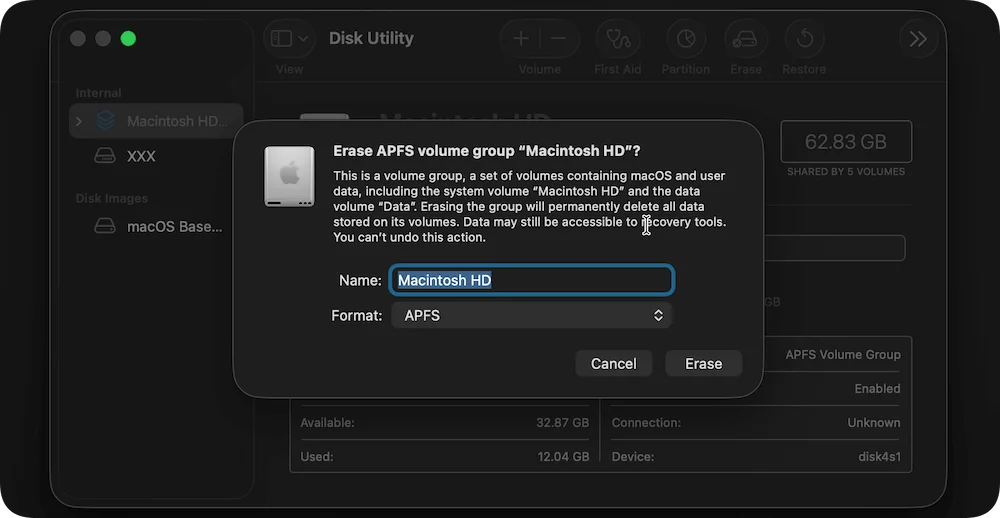
Step 5. Erase and Reformat (if necessary): Proceed to wipe the disk if repairs are unsuccessful. Before continuing, make sure you have a backup because this step will erase all of the drive's data.
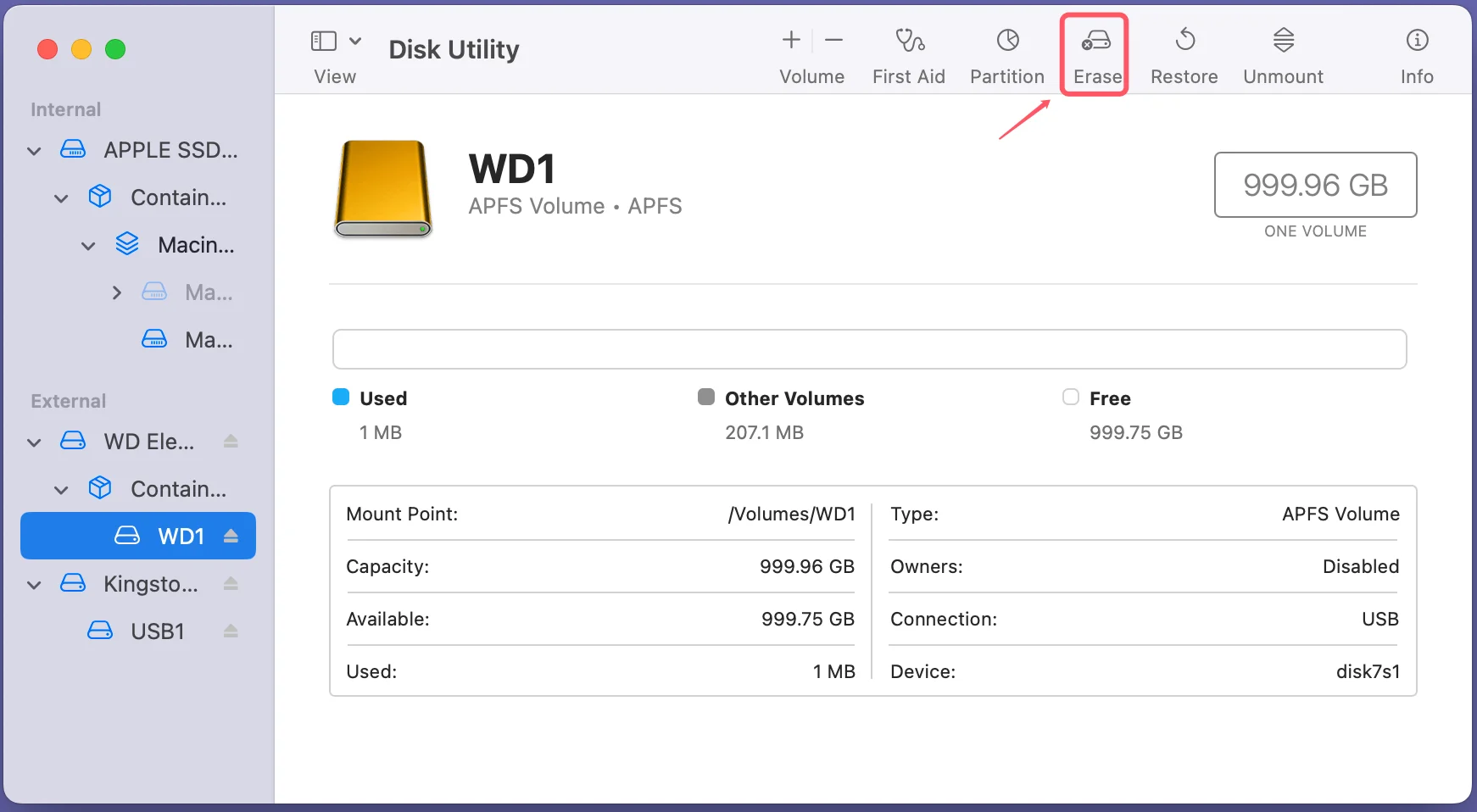
For users comfortable with the command line, Terminal offers precise control over disk operations.
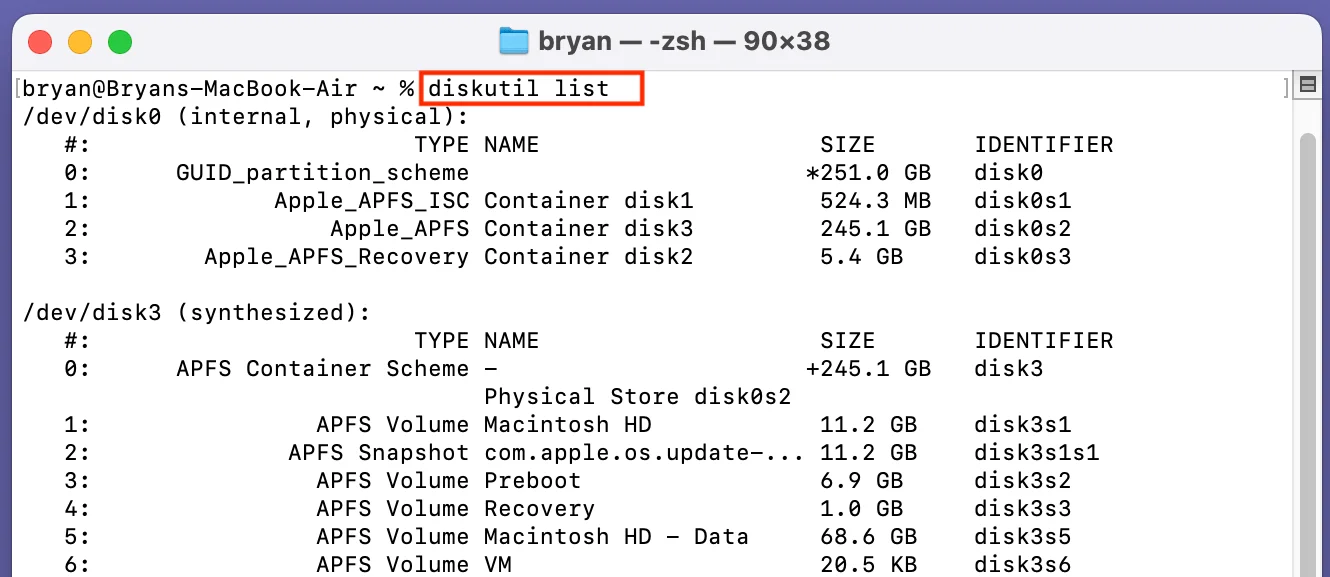
Locate the Disk: Use the following command to list all connected disks and their identifiers:
diskutil list
This will display each disk and its partitions. Look for the disk experiencing issues (e.g., /dev/disk7).
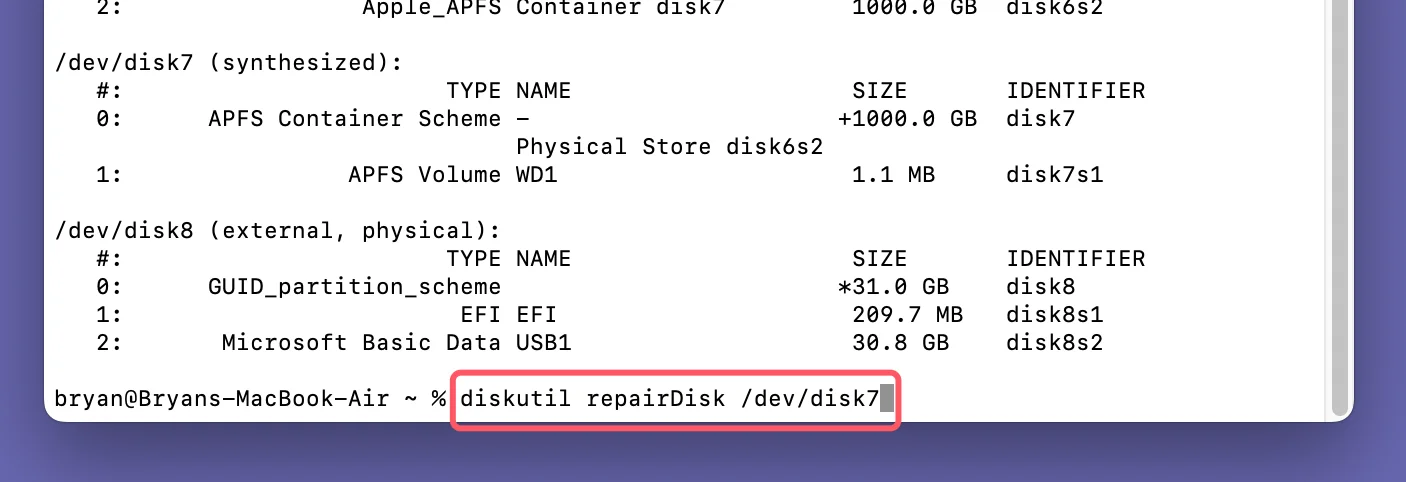
Repair the Disk: Run the following command to attempt repairing the partition map:
diskutil repairDisk /dev/diskX
Replace diskX with the identifier of your disk (e.g., /dev/disk7).
💡 Note: Terminal may provide additional details about the repair process that Disk Utility does not reveal, which can be helpful for troubleshooting.
Rebuild Partition Map: If the repair fails, rebuild the partition map entirely:
diskutil eraseDisk APFS NewDiskName /dev/diskX
Replace NewDiskName with a desired name for your disk.

Advanced Commands: For stubborn issues, consider using advanced tools like fsck (file system consistency check).
fsck_hfs -fy /dev/diskX
This tool scans and repairs HFS+ partitions specifically.
Reformatting is often a last resort but ensures the partition map is entirely rebuilt.
Step 1. Backing Up Data: If the drive is accessible, copy important files to another location before reformatting.
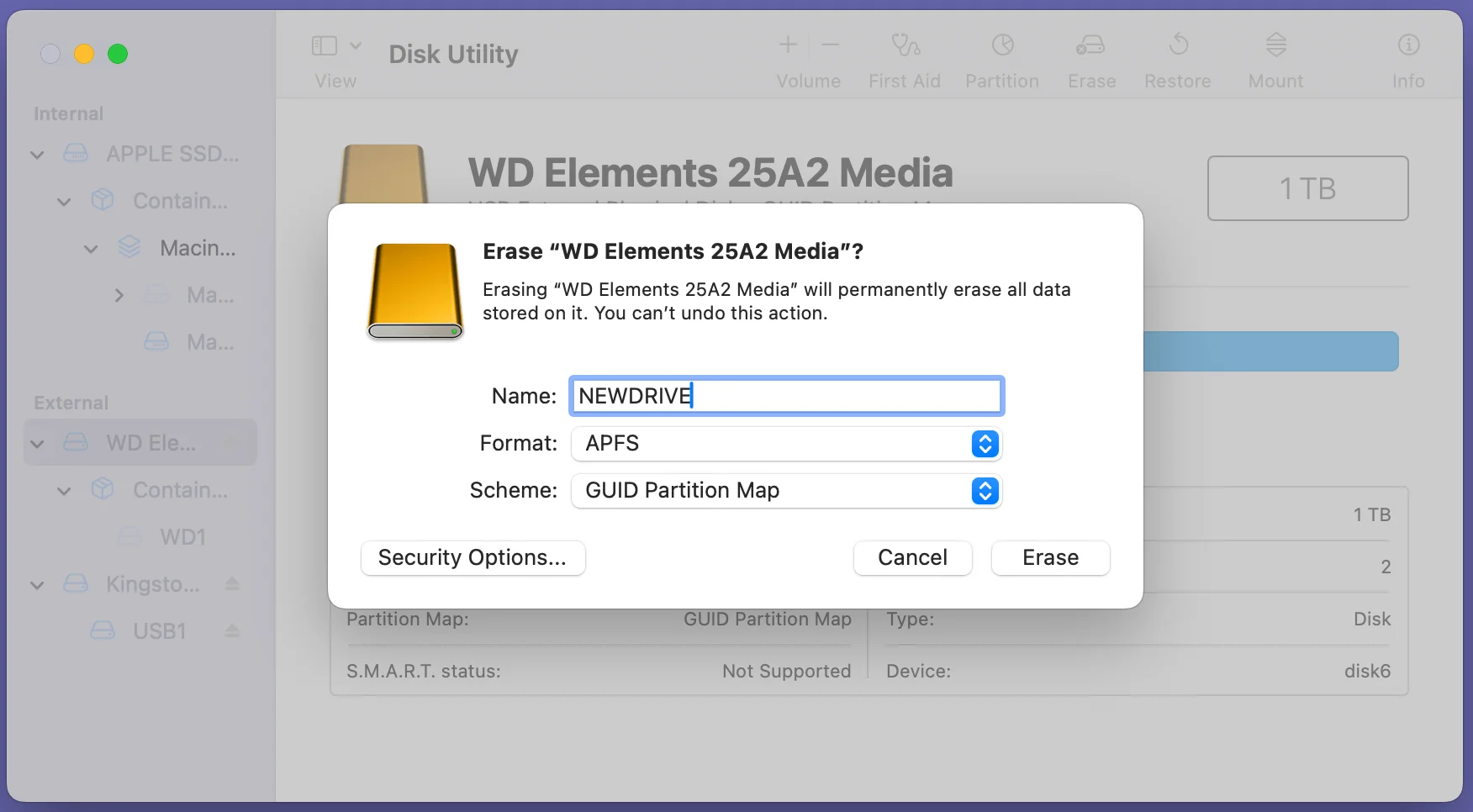
Step 2. Use Disk Utility to Erase: Open Disk Utility, select the affected disk, and click Erase.
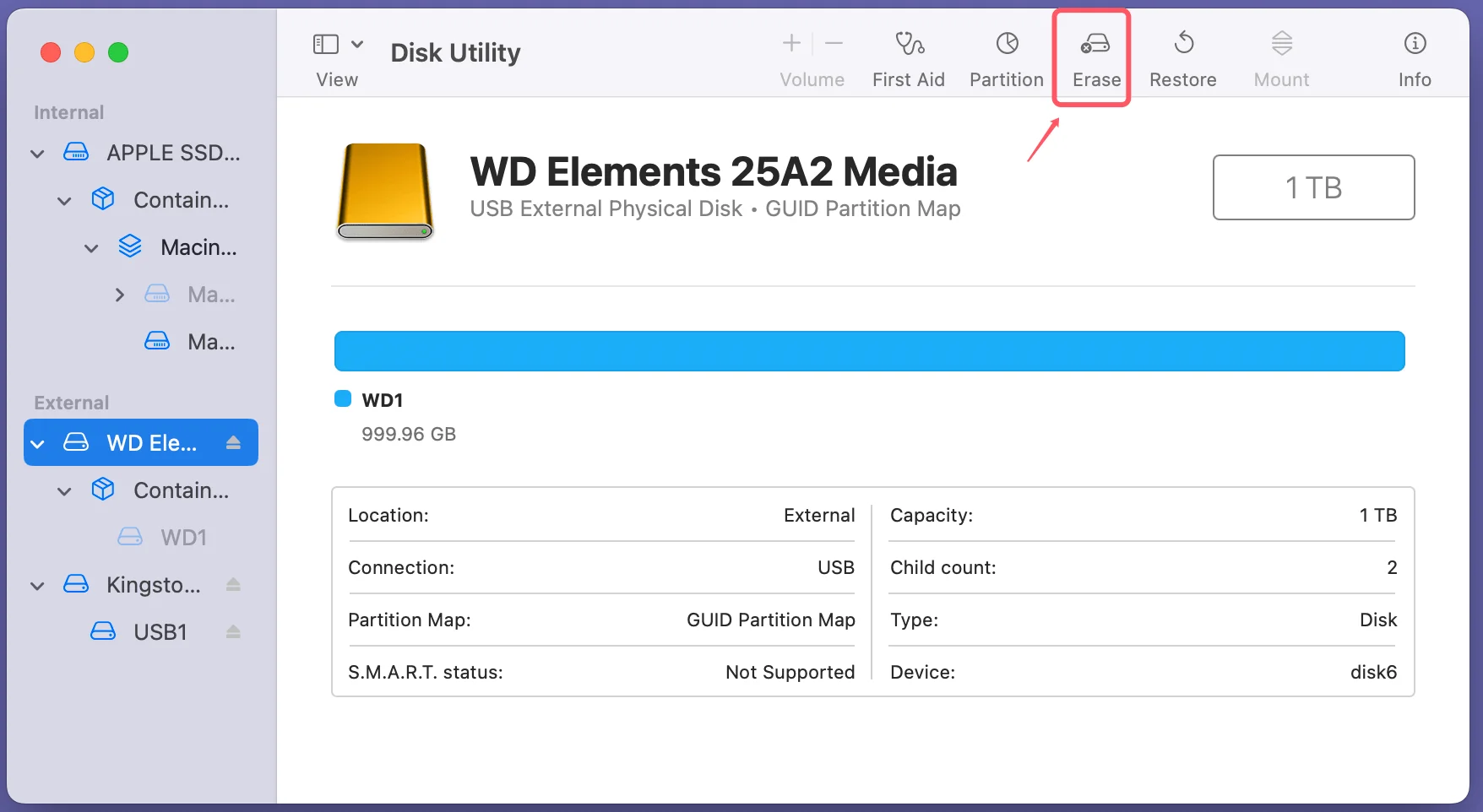
Under the Format dropdown, choose a format:
Under the Scheme dropdown, select GUID Partition Map (required for macOS boot drives).
Confirm the action to erase and reformat the disk.
Creating Partitions:
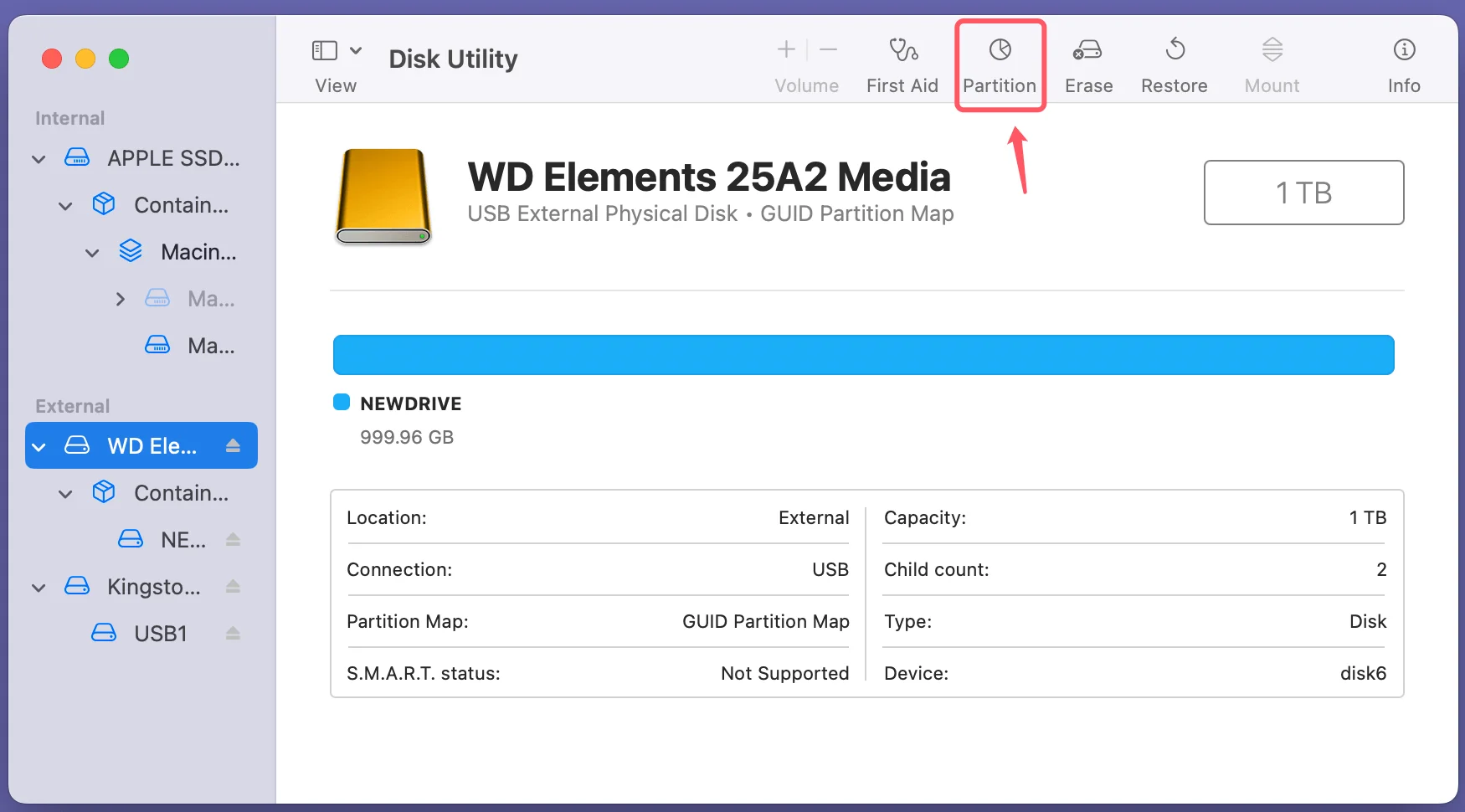
💡 Important: Ensure you do not interrupt the reformatting or partitioning process, as it may cause further corruption.
Recovery Mode offers tools for fixing disks and reinstalling macOS. Here's how to use it effectively:
Step 1. Enter Recovery Mode:
Step 2. Disk Repair in Recovery Mode: From the macOS Utilities menu, select Disk Utility. Follow the same steps as outlined in Section 4.1 to run First Aid or reformat the disk.
Step 3. Reinstalling macOS: If the disk is repaired but macOS is not bootable, choose Reinstall macOS from the Utilities menu.
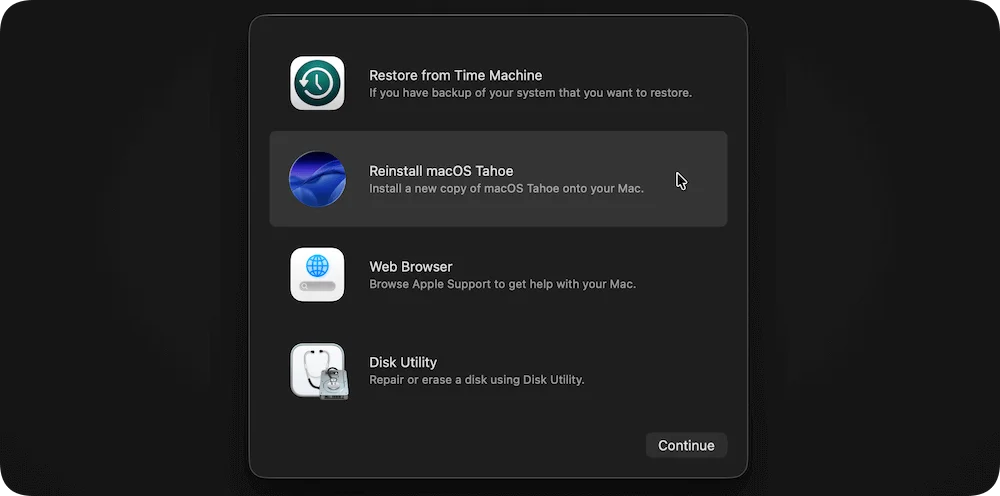
To install a new version of macOS, adhere to the instructions.
If built-in tools fail, third-party utilities provide powerful alternatives:
Each tool has its strengths, and selecting the right one depends on the nature of the error and whether data recovery is a priority.
Mac data recovery software can help in recovering existing data or lost data from a corrupted/erased drive on Mac even the drive has partition map error. Donemax Data Recovery for Mac is one of the best Mac data recovery software. It can help you fix damaged drives and get all lost data back.
Step 1. Download and install Donemax Data Recovery for Mac on your Mac.
Step 2. Select the corrupted or erased drive after launching Donemax Data Recovery for Mac.
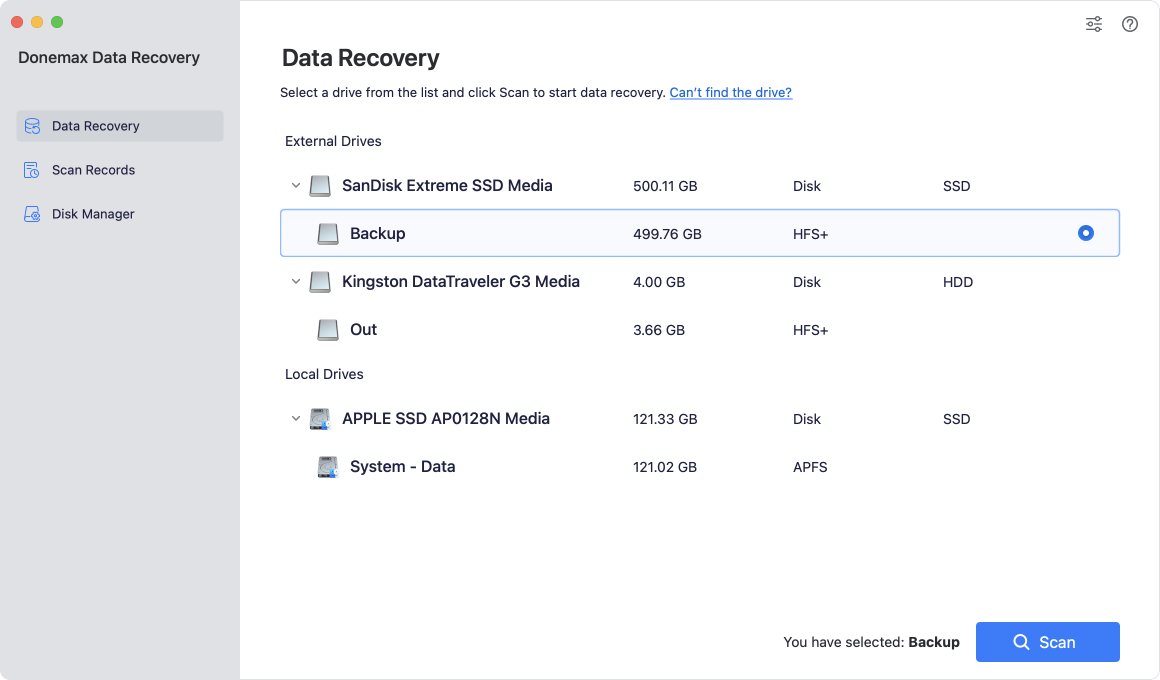
Step 3. Click on Scan button to deeply scan the drive and find all recoverable files.
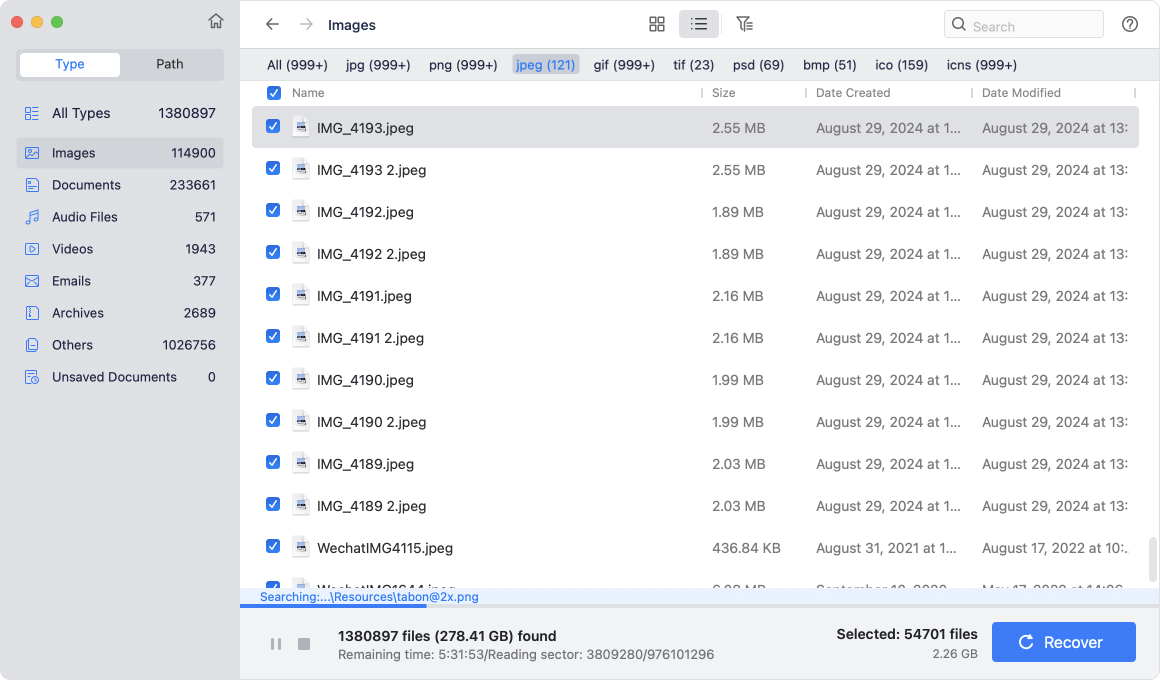
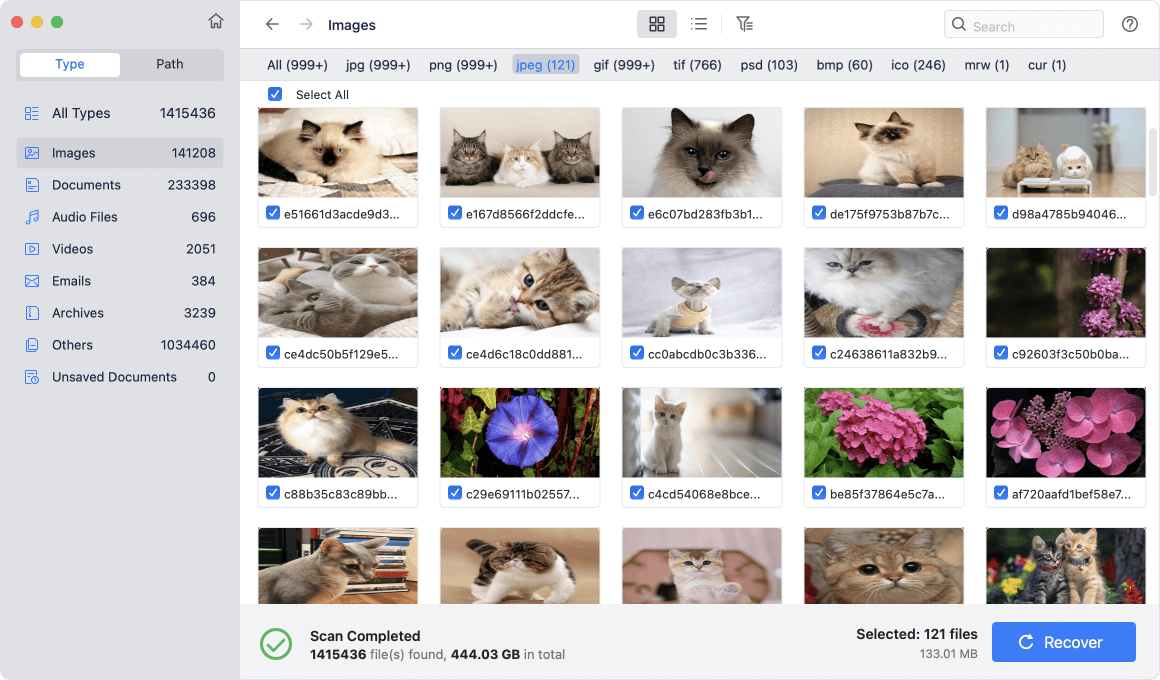
Step 4. Once the scan is completed, you can preview all recoverable files. Then select the wanted files, click on Recover button to save them.
Prevention is always better than cure, and taking proactive measures can save you from future headaches.
Partition map errors can be disruptive and frustrating, but with the right tools and techniques, they are often fixable. Start by diagnosing the problem using macOS's built-in utilities or Terminal commands. If the issue persists, consider reformatting the drive or using third-party tools for advanced repairs.
Prevention is equally important - regular backups, disk maintenance, and safe disk-handling practices can go a long way in ensuring the health of your drives. For particularly stubborn issues, don't hesitate to seek professional help.
By following these steps, you can restore your drive's functionality and minimize data loss, ensuring a smooth and error-free experience on your Mac.
Donemax Data Recovery for Mac
Donemax Data Recovery for Mac is one of the best Mac data recovery software. It is easy-to-use and can help in recovering deleted, formatted, inaccessible or lost data from Mac HDD/SSD, external disk, USB drive, SD card, camera or other storage devices.
Christina
Christina is the senior editor of Donemax software who has worked in the company for 4+ years. She mainly writes the guides and solutions about data erasure, data transferring, data recovery and disk cloning to help users get the most out of their Windows and Mac. She likes to travel, enjoy country music and play games in her spare time.
Gerhard Chou
In order to effectively solve the problems for our customers, every article and troubleshooting solution published on our website has been strictly tested and practiced. Our editors love researching and using computers and testing software, and are willing to help computer users with their problems
Clone hard drive with advanced clone technology or create bootable clone for Windows/Mac OS.
Completely and easily recover deleted, formatted, hidden or lost files from hard drive and external storage device.
Certified data erasure software - permanently erase data before selling or donating your disk or any digital device.