
Written byCharlesUpdated on Sep 21, 2026

Before we start: Upgrading to macOS 27 Golden Gate can cause external drives to fail to mount due to permission resets, stuck system processes, or file system errors. Data Safety Rule: If you have important files on the unmounted drive, recover them first using Donemax Data Recovery for Mac before attempting troubleshooting or disk repairs.
PAGE CONTENT:
Upgrading your Mac to macOS 27 Golden Gate brings exciting features, refined designs, and tighter security controls. However, many users discover that after updating, their external hard drive, SSD, or USB flash drive stops mounting automatically.
When an external disk refuses to mount, it will not show up on your Desktop or in Finder. You might see the drive light blink, but your files remain completely inaccessible. How to fix external hard drive not mounting on macOS 27 Golden Gate and get your files accessible?
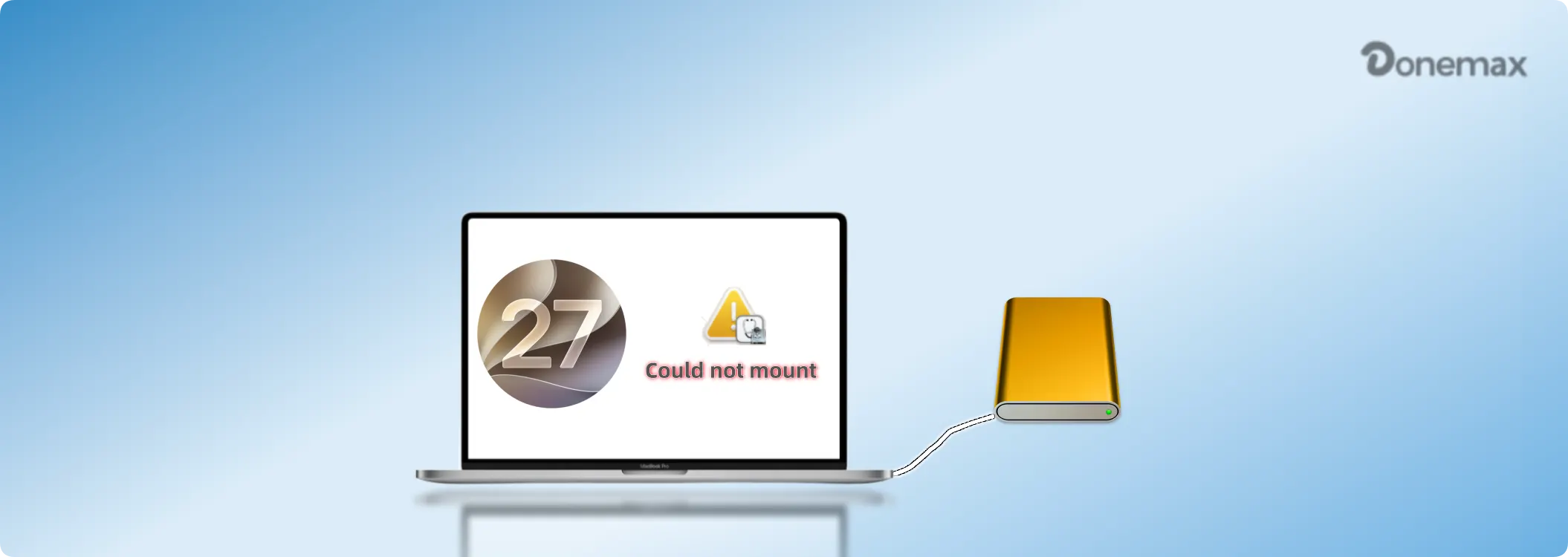
In this guide, there are many ways to fix the problem and also recover the files from the not mounting drive, like Simple fixes include adjusting Finder preferences, managing accessory permissions, force mounting via Disk Utility or Terminal, and killing frozen fsck tasks. Or reformatting the drive in Disk Utility serves as a final fix after your important files are safely restored to another location.
Several underlying causes can trigger this issue on macOS 27 Golden Gate:
When faced with an unmounted external drive, your immediate reaction might be to run diagnostic tools or reformat the disk. However, performing repairs on a corrupted drive can lead to permanent data loss.
If you have irreplaceable photos, work documents, or backups on the external drive, you must recover your data first using Donemax Data Recovery for Mac and save it to another safe drive.
Donemax Data Recovery for Mac is specifically designed to recognize unmounted, corrupted, greyed-out, or inaccessible drives on macOS 27 Golden Gate. It accesses the raw storage layer directly, bypassing system mounting restrictions.
Follow these simple steps to retrieve your files before fixing the mounting issue:
Step 1: Select the Unmounted External Drive: Launch the software. Under the 'Data Recovery' tab, locate your unmounted external drive listed among the storage devices.
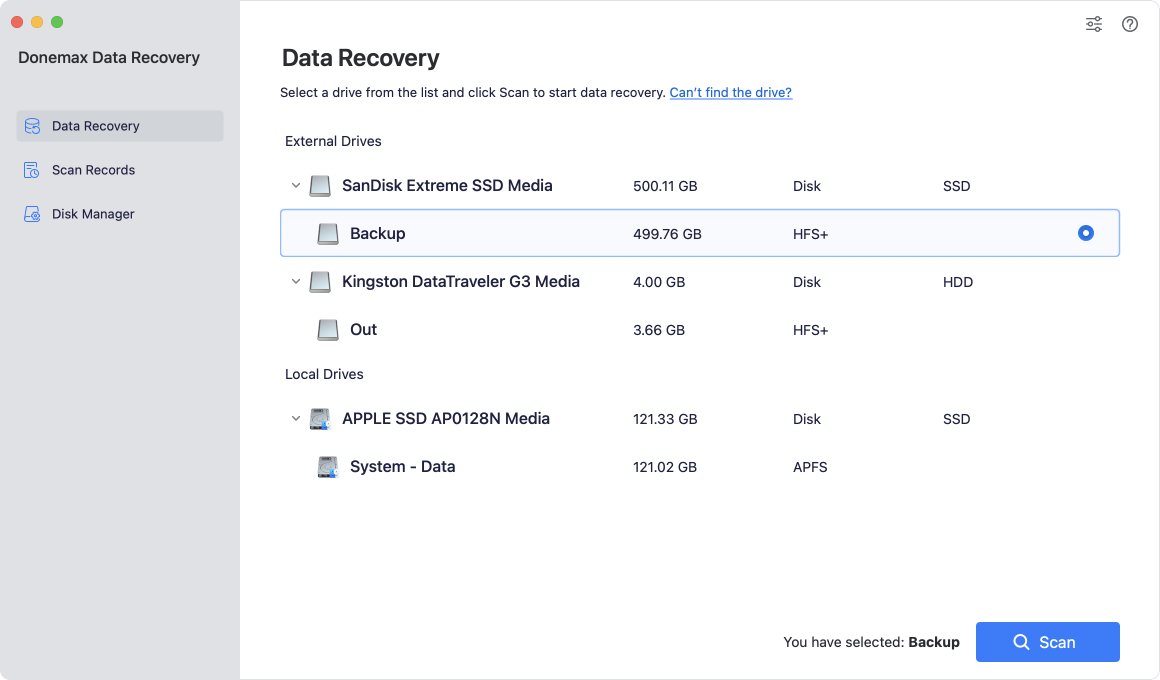
Step 2: Scan for Lost Files: Click the 'Scan' button. Donemax will perform a deep scan to discover all existing, lost, and formatted files on the drive.
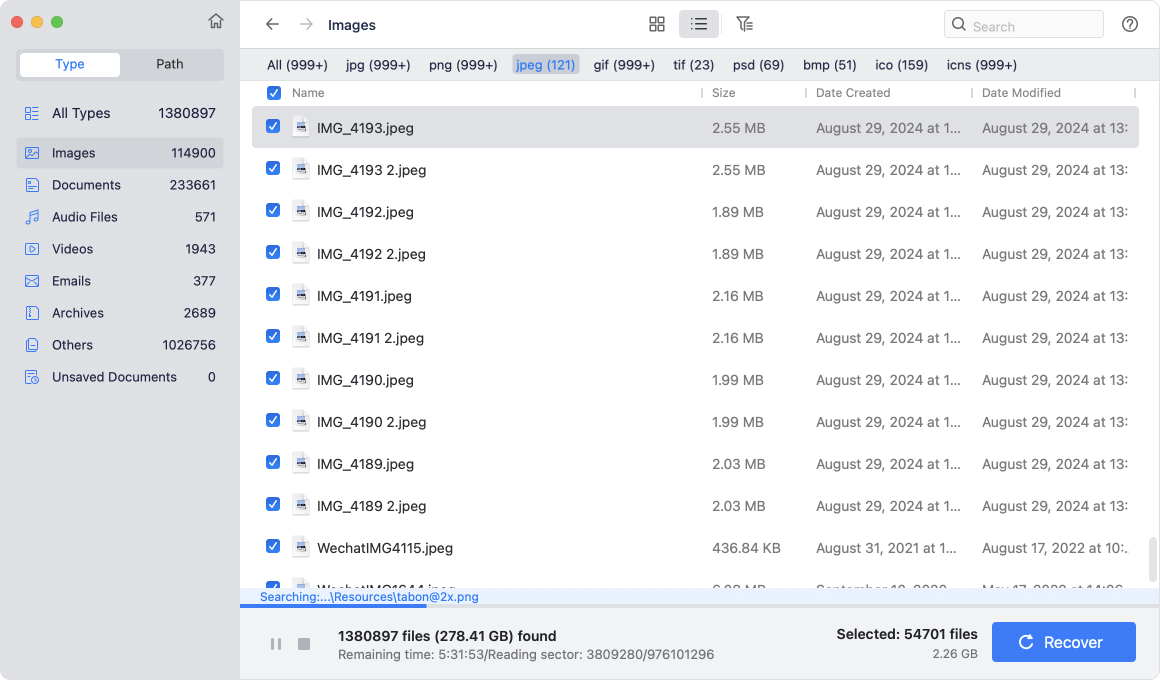
Step 3: Preview and Recover to Another Drive: Once the scan completes, preview your files. Select the documents and media you need, click 'Recover', and save them to a different healthy drive or your Mac internal storage.

With your vital files safely restored to another storage location, you can now proceed to fix the external hard drive not mounting on macOS 27 Golden Gate without any risk of losing your data.
Before modifying system settings, rule out physical hardware glitches:
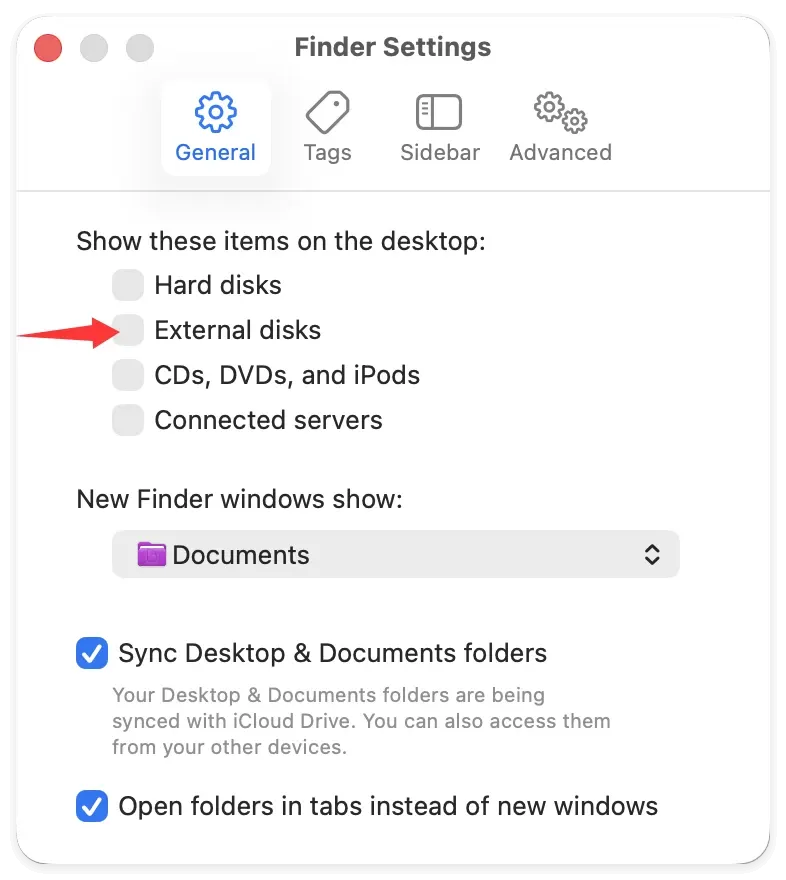
Sometimes the drive is actually mounted, but macOS 27 settings are configured to hide external disks from your workspace.
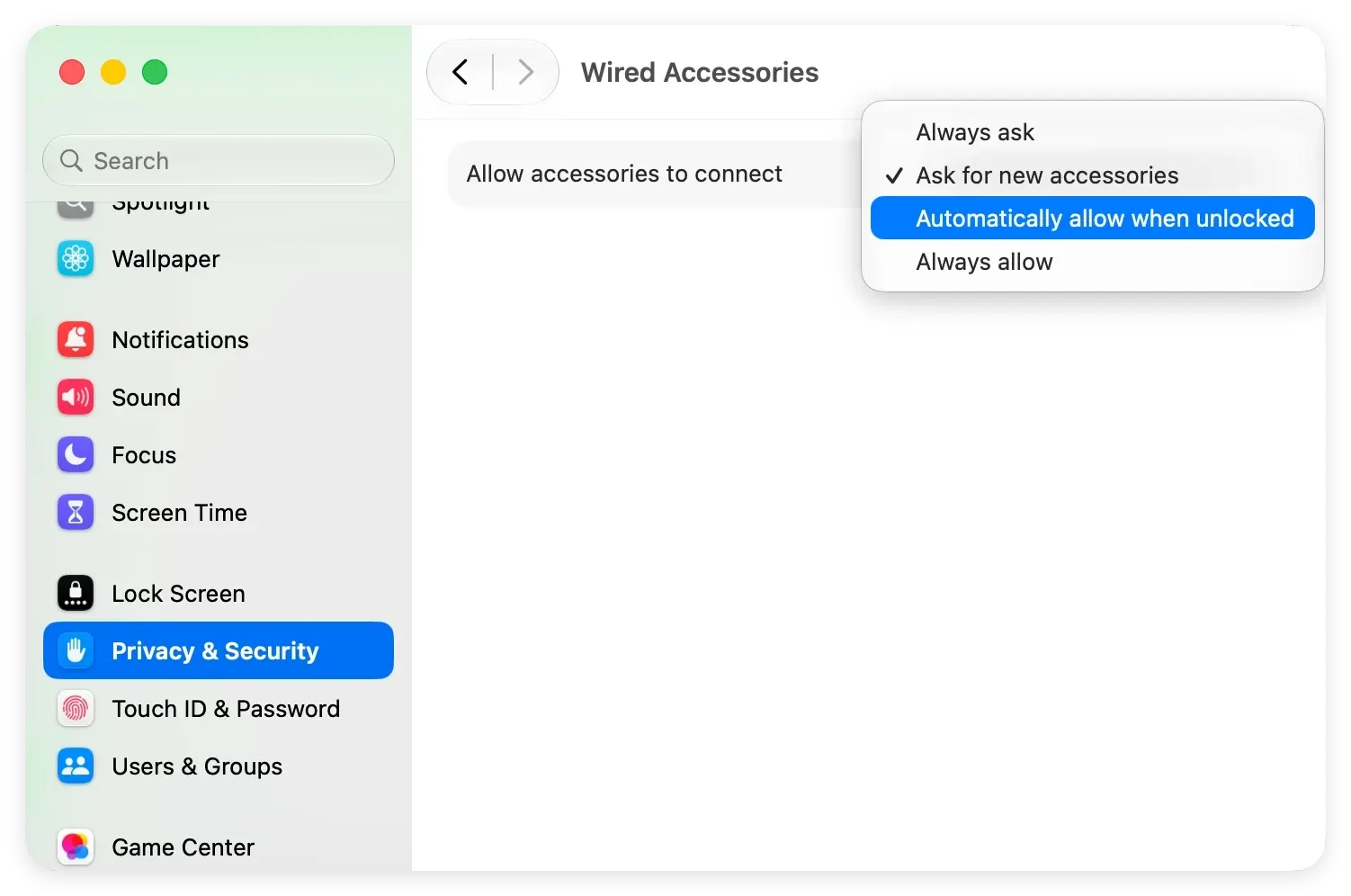
macOS 27 Golden Gate features strict security rules for external accessories. If permission is denied, your drive cannot mount.
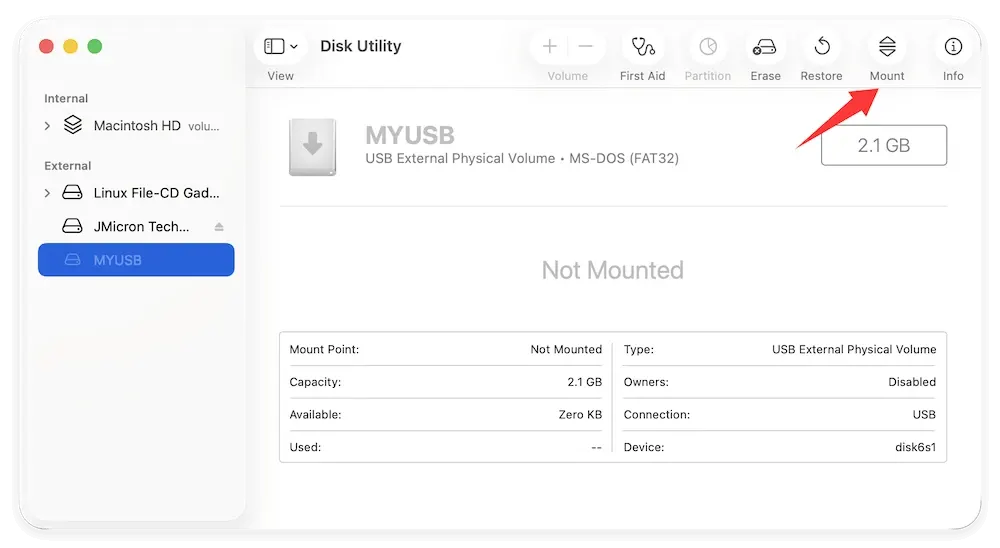
Disk Utility can force macOS to recognize and mount unmounted disk volumes.
If your drive was removed improperly, macOS 27 launches a background file system consistency check (fsck). If fsck gets stuck, it holds the drive hostage and prevents mounting.
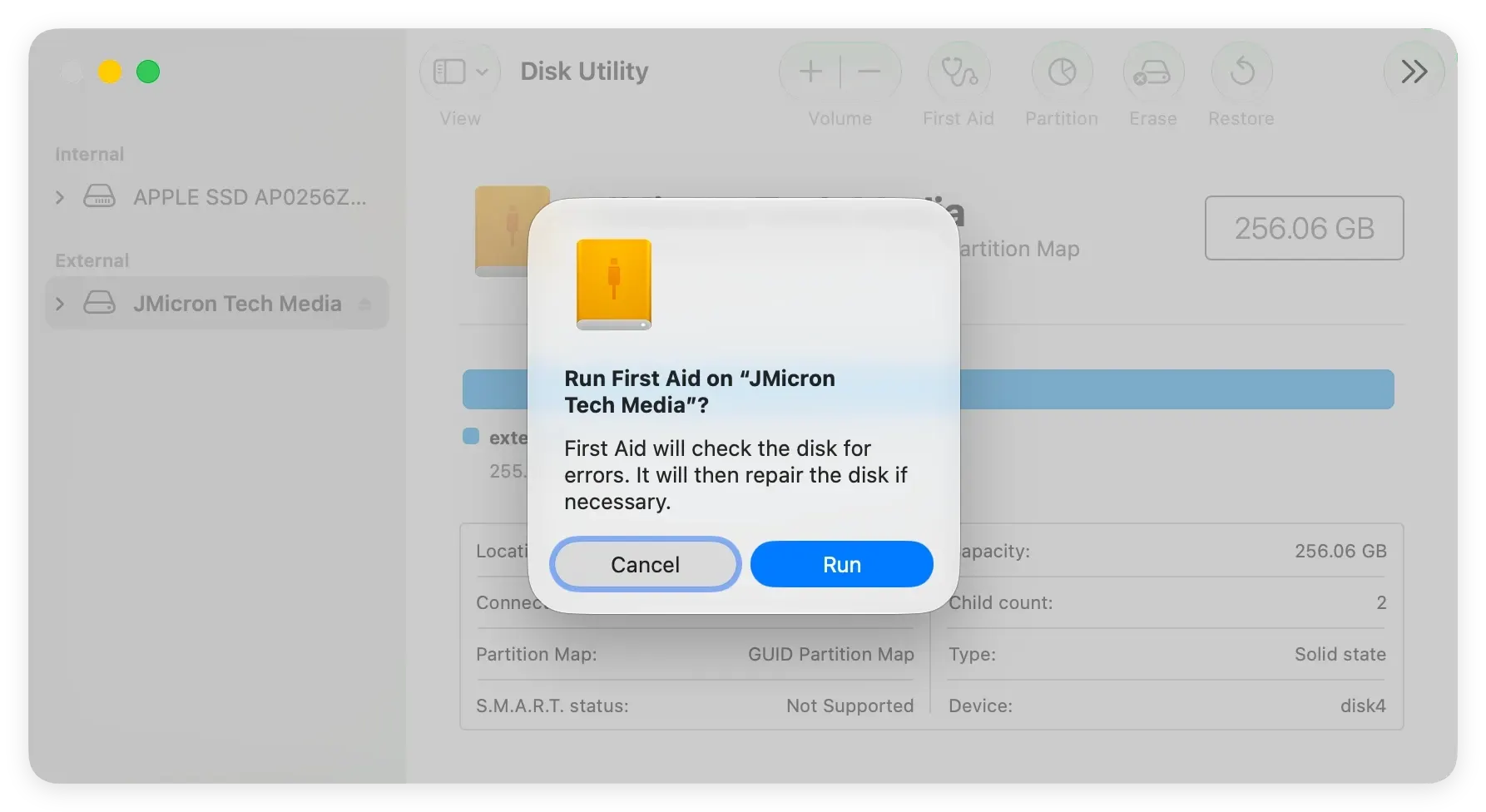
If minor directory corruption prevents mounting, Disk Utility's First Aid feature can fix it.
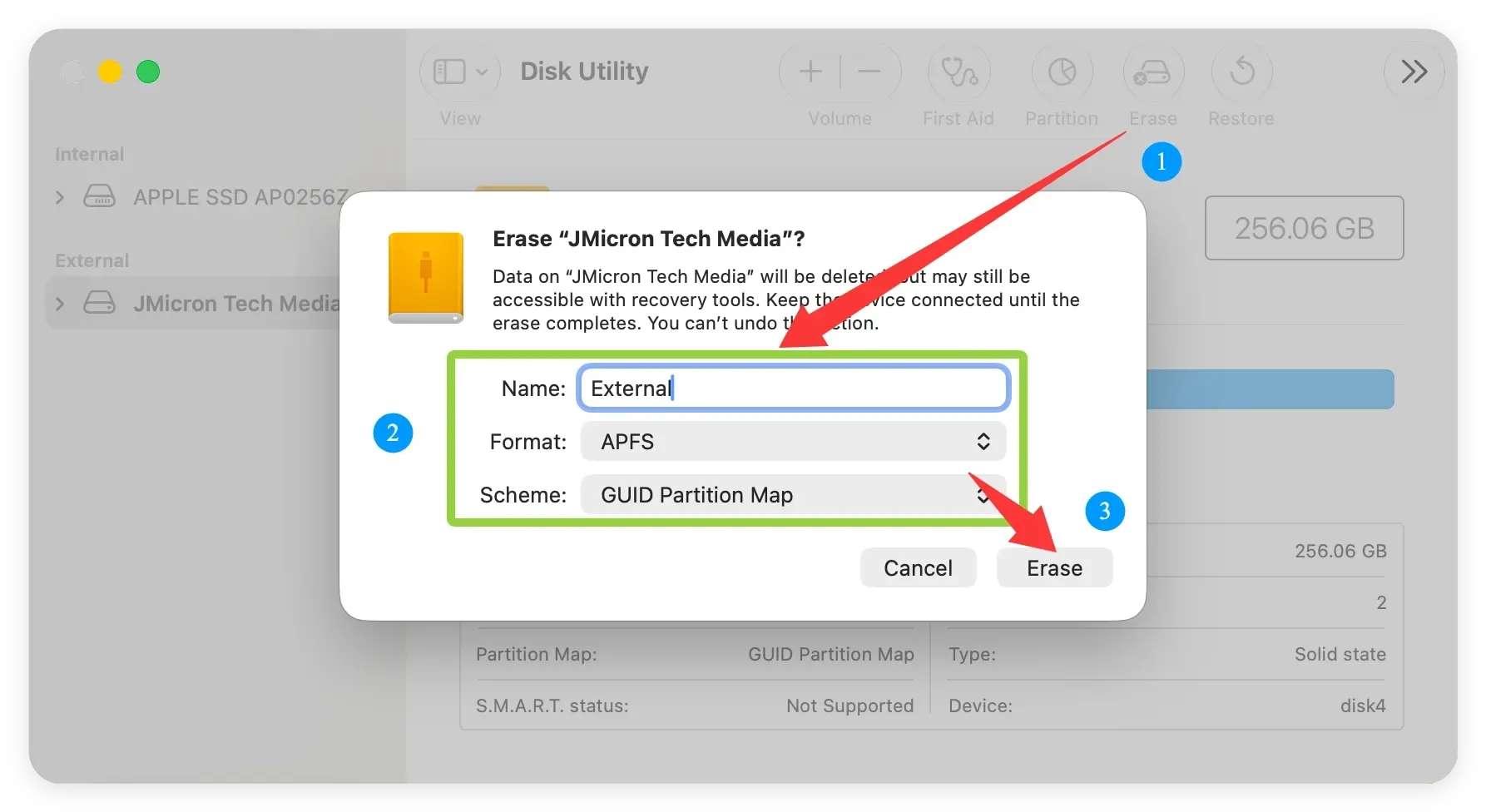
If all repair methods fail, the drive's file system may be severely corrupted. Reformatting creates a fresh, healthy file system.
⚠️ Note: Reformatting wipes all data on the drive. Ensure you have recovered your files with Donemax Data Recovery for Mac before completing this step.
Encountering an external hard drive not mounting on macOS 27 Golden Gate can be frustrating, but your files are rarely gone for good. By prioritizing data safety, you can resolve the issue without stress.
Always remember to recover your valuable files using Donemax Data Recovery for Mac and save them to another safe drive first. Once your data is secured, follow the step-by-step methods outlined above—from checking Finder settings to reformatting—to get your external drive mounting smoothly again on macOS 27 Golden Gate.
Donemax Data Recovery for Mac
Donemax Data Recovery for Mac is one of the best Mac data recovery software. It is easy-to-use and can help in recovering deleted, formatted, inaccessible or lost data from Mac HDD/SSD, external disk, USB drive, SD card, camera or other storage devices.
Charles
Charles, who lives in Sydney, Australia, is an editor & writer of Donemax Team. He is good at writing articles related with Apple Mac computers, Windows operating systems, data recovery, data erasure, disk clone and data backup, etc. He loves reading and playing tennis in his spare time and is interested in testing new digital devices such as mobile phones, Macs, HDDs, SSDs, digital cameras, etc.
Gerhard Chou
In order to effectively solve the problems for our customers, every article and troubleshooting solution published on our website has been strictly tested and practiced. Our editors love researching and using computers and testing software, and are willing to help computer users with their problems