
Written byMariaUpdated on Oct 21, 2026

Before we start: Whether you use your Mac for personal tasks, managing a business, or handling client projects, maintaining data privacy is more critical today than ever before. Over time, your Mac accumulates dozens or even hundreds of confidential files. If you don't need some confidential files, ensure to shred them permanently with Donemax Data Eraser. It can make sure the data is gone forever without worrying about data leakage.
PAGE CONTENT:
When you no longer need some sensitive documents on Mac, your natural instinct is probably to drag them to the Trash bin and hit 'Empty Trash'. However, did you know that standard Mac file deletion does not actually destroy your files? In many cases, deleted data remains stored on your hard drive or SSD, making it vulnerable to recovery by data recovery software.

If you plan to sell your MacBook, pass your Mac mini to a family member, return a corporate laptop, or simply want to clean up sensitive data, you need a guaranteed way to permanently erase those files. In this comprehensive guide, we will walk you through everything you need to know about how to permanently delete confidential files on macOS safely and beyond recovery.
To understand why special erasure steps are necessary, it helps to understand how Apple's operating system manages data storage.
When you move a file to the Trash and empty it, macOS does not overwrite the physical binary data of that file on your drive. Instead, macOS simply marks the directory pointer as 'free' and flags that specific storage block as available for future data writes.
Until new files happen to overwrite those exact memory cells or disk sectors, your original confidential information remains completely intact. Anyone who gains access to your Mac or its storage drive can easily scan the disk using basic data recovery tools to restore your private files in a matter of minutes.
In older versions of macOS, Apple offered a built-in feature called 'Secure Empty Trash'. However, Apple removed this feature starting in macOS El Capitan due to performance issues and hardware differences introduced by modern Solid State Drives (SSDs). As a result, Mac users today need reliable methods to ensure true, permanent file destruction.
If you want a foolproof, user-friendly method that guarantees your sensitive files are shredded beyond any possibility of recovery, using a dedicated software tool is the gold standard solution.
Donemax Data Eraser for Mac is a powerful, Apple-certified data sanitation utility specifically designed for macOS. It uses advanced military-grade overwriting algorithms (such as DoD 5220.22-M, NIST 800-88, and Gutmann) to overwrite the targeted files multiple times with random binary data, making recovery mathematically impossible.
Step-by-Step Guide: Shredding Confidential Files with Donemax Data Eraser for Mac
Follow these simple steps to permanently delete your confidential files on macOS using Donemax Data Eraser:
Step 1. Download and Install the Application: Visit the official Donemax website and download Donemax Data Eraser for Mac. Follow the quick installation wizard to set up the software on your Mac.
Step 2. Select 'Erase Files' Mode: Open Donemax Data Eraser from your Applications folder or Launchpad. Choose the Erase Files feature from the main interface. This mode allows you to target specific individual files and folders without affecting the rest of your Mac system.
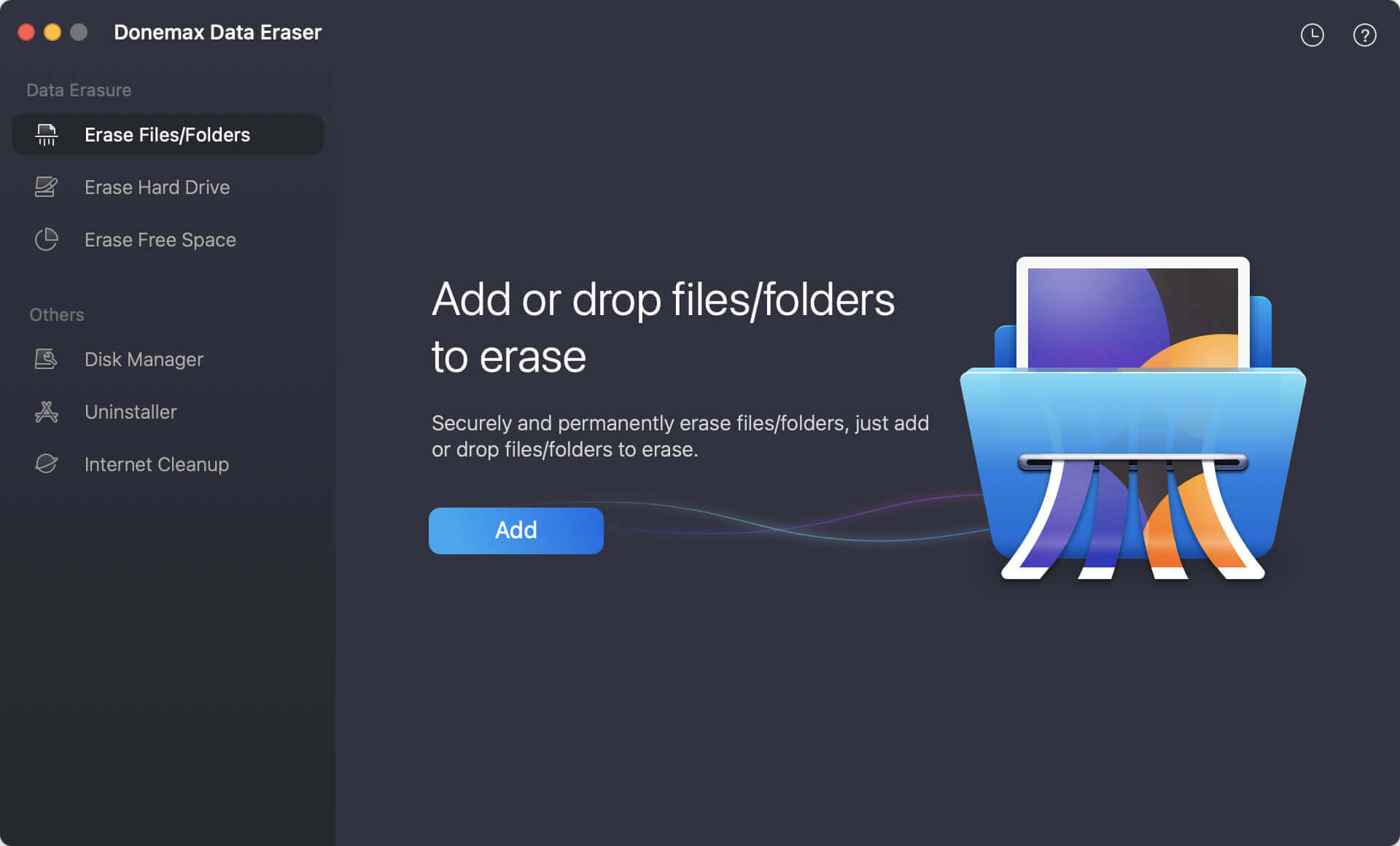
Step 3. Select Confidential Files & Folders: Click the Add button or simply drag and drop your sensitive files directly into the software window.
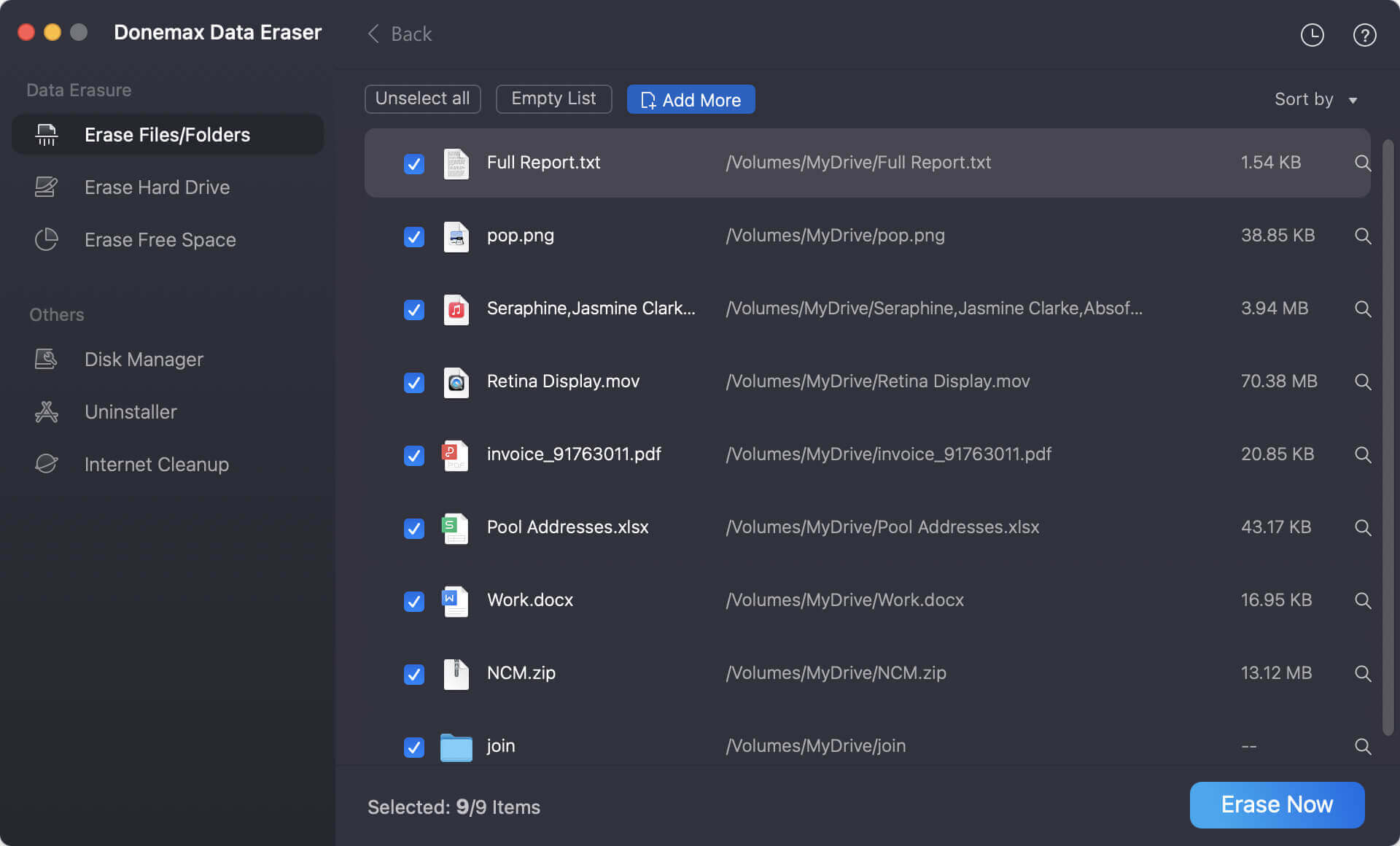
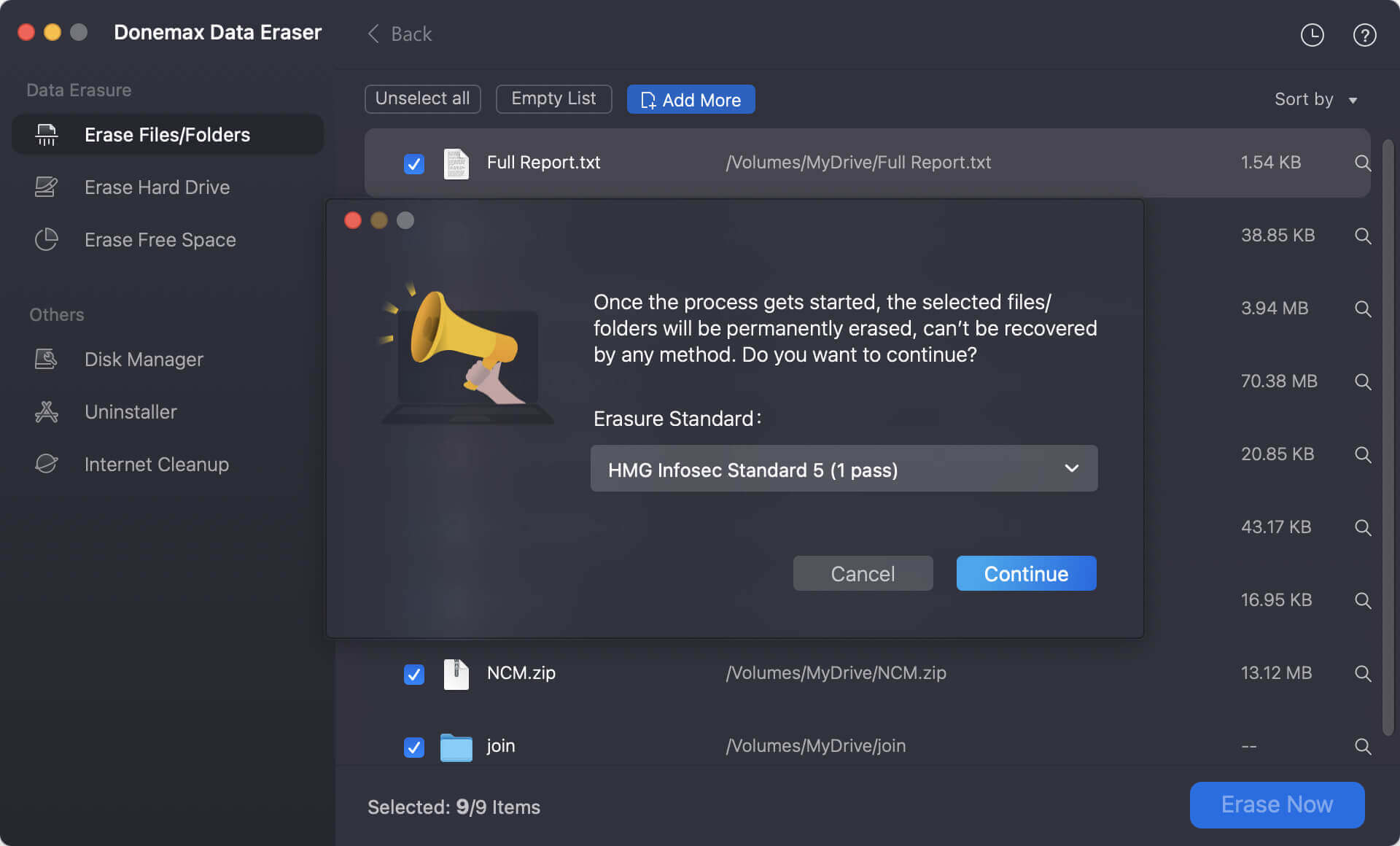
Step 4. Initiate Shredding: Double-check your selected file list. Once confirmed, click the Erase Now button to select a data wiping algorithms and start shredding the files. The software will overwrite the physical storage sectors occupied by those files and destroy them completely.
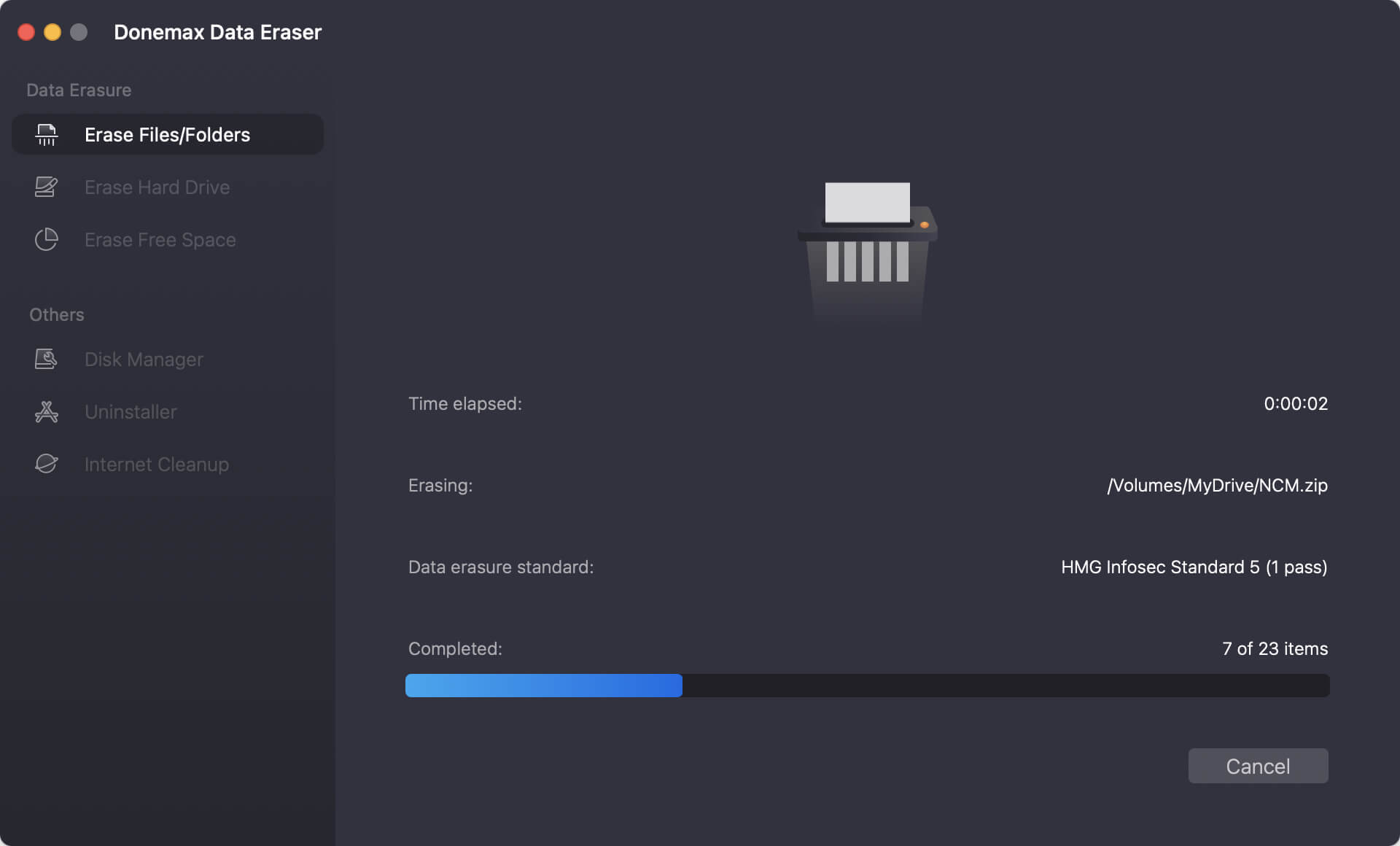
Step 5. Complete Permanent Deletion: Once the process finishes, your confidential files are permanently gone. Even high-end data recovery programs or forensic laboratories will find zero recoverable traces.
For users comfortable with command-line tools, macOS includes a built-in Terminal utility called 'srm' (secure remove) in older macOS releases, or the standard 'rm' command. However, there are important limitations to keep in mind.
Deleting Files via Terminal
Step 1: Open Terminal from Applications > Utilities.
Step 2: Type 'rm -P' followed by a space. The '-P' flag instructs macOS to overwrite the file three times before removing it.
Step 3: Drag and drop the confidential file into the Terminal window to automatically paste its exact path.
Step 4: Press Enter to execute the command.
⚠️ Important Warning: Terminal commands bypass the Trash entirely and execute immediately. If you accidentally type the wrong directory path, you could permanently delete vital system or personal files. Furthermore, modern Apple Silicon Macs and APFS file systems utilize wear-leveling algorithms that can render traditional command-line overwriting less effective on SSDs. For most users, dedicated software remains much safer.
What if you already emptied confidential files into the Trash normally in the past? Those deleted file remnants may still be lurking in the free storage space of your Mac drive.
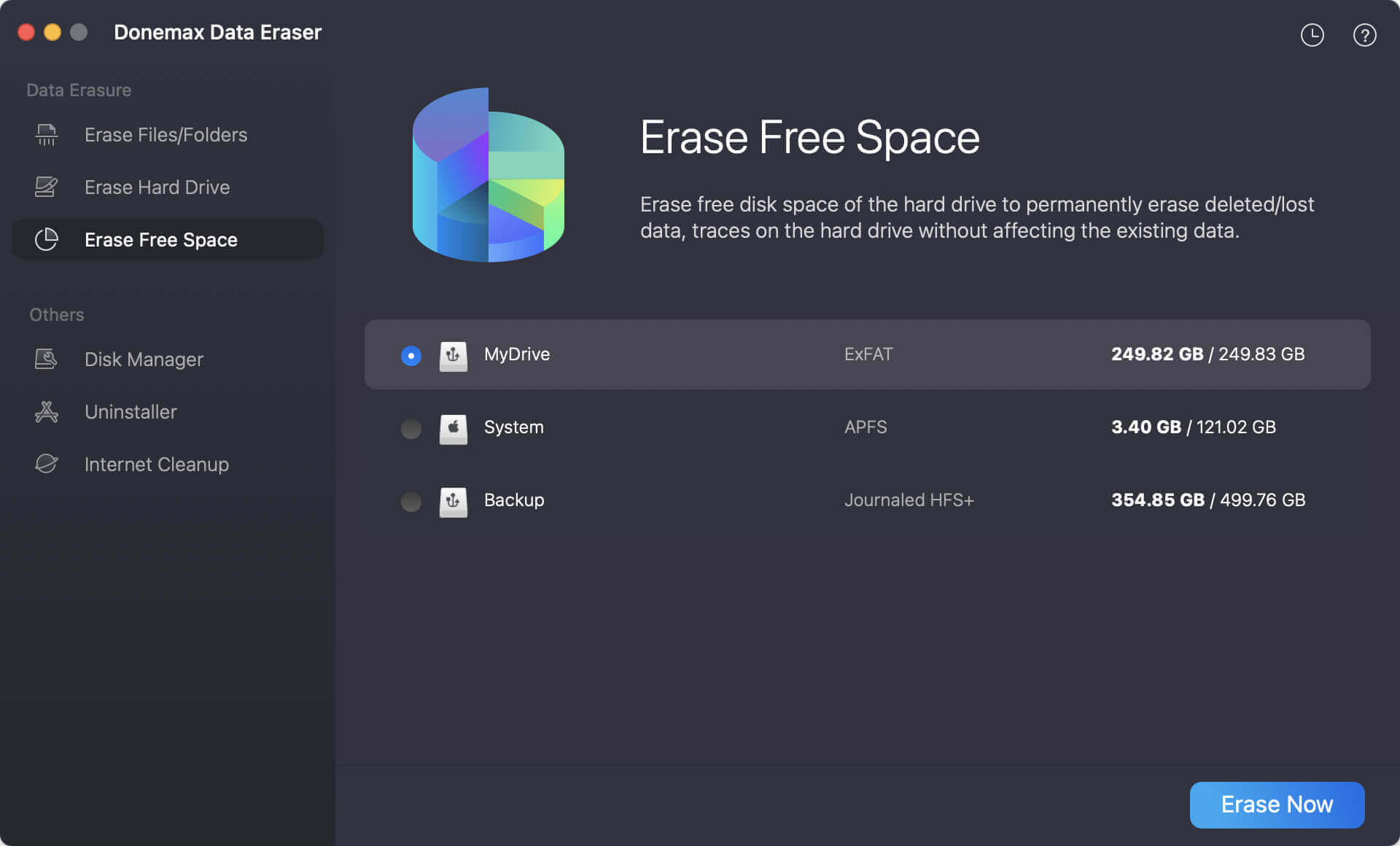
To clean up previously deleted files without reformatting your drive, Donemax Data Eraser for Mac offers a specialized feature called 'Erase Free Space'.
Step 1: Open Donemax Data Eraser for Mac.
Step 2: Select the 'Erase Free Space' mode from the sidebar.
Step 3: Select your Mac drive partition (such as Macintosh HD) and click 'Erase Now'.
Step 4: The software will scan all unused storage sectors and overwrite them, ensuring that all previously deleted file traces are wiped clean while keeping your operating system and active files completely safe.
Maintaining long-term digital privacy on your Mac requires smart security habits. Keep these essential tips in mind:
Knowing how to permanently delete confidential files on macOS gives you absolute control over your personal privacy and digital security. Relying on basic deletion methods leaves your private records exposed to potential data leaks.
By utilizing trusted, professional software like Donemax Data Eraser for Mac, you can securely shred confidential documents, clear leftover free space traces, and safeguard your private information with complete confidence.
Donemax Data Eraser for Mac
100% safe and powerful Mac data erasure program. It offers certified data erasure standards including U.S. Army AR380-19, DoD 5220.22-M ECE to securely and permanently erase data from Mac HDD/SSD and external storage devices, making data recovery impossible.
Maria
Maria is one of the senior writers & editors of Donemax who lives and works in Sydney, Australia. She loves PC, Mac and Internet Technology. She has 6 years of writing articles about data recovery on PC/Mac, disk cloning solution, data eraser and computer OS optimization, etc. She is also interested in testing various software and digital products.
Gerhard Chou
In order to effectively solve the problems for our customers, every article and troubleshooting solution published on our website has been strictly tested and practiced. Our editors love researching and using computers and testing software, and are willing to help computer users with their problems