
Written byMariaUpdated on Jul 15, 2026

Before we start: There are different ways to remove or wipe everything on macOS 27 Golden Gate. However, some methods cannot ensure the data is completely removed. With professional tools, it's able to recover the removed files. Use Donemax Data Eraser for Mac can help you overwrite the data and make the data unrecoverable.
PAGE CONTENT:
Thinking about selling, trading in, or donating your Mac? Or maybe you just want to clear out the clutter and give your computer a fresh start. Whatever your goal, learning how to wipe everything on macOS 27 Golden Gate is the best way to keep your personal files safe while preparing your system for its next adventure.

Wiping a Mac used to be a long, headache-inducing chore involving complex recovery buttons and disk formatting menus. Thankfully, macOS 27 Golden Gate makes this transition smoother than ever before. In this easy-to-follow guide, we will explore the simplest ways to format and wipe your Mac. Plus, we will show you how to securely clean your drive's hidden free space so that your private information can never be recovered by anyone.
If you are running macOS 27 Golden Gate on an Apple Silicon Mac (M1, M2, M3, M4, M5, etc.) or a T2-equipped Intel Mac, Apple provides a built-in feature called "Erase All Content and Settings." This functions similarly to a factory reset on your iPhone—safely deleting your personal accounts, passwords, and files while leaving the core macOS system completely intact.
Here are the simple steps to use the Erase Assistant:
Step 1: Click on the Apple logo in the top-left corner of your screen and select System Settings.
Step 2: Navigate to General in the left sidebar, then click on Transfer or Reset on the right side.
Step 3: Click on the Erase All Content and Settings button.
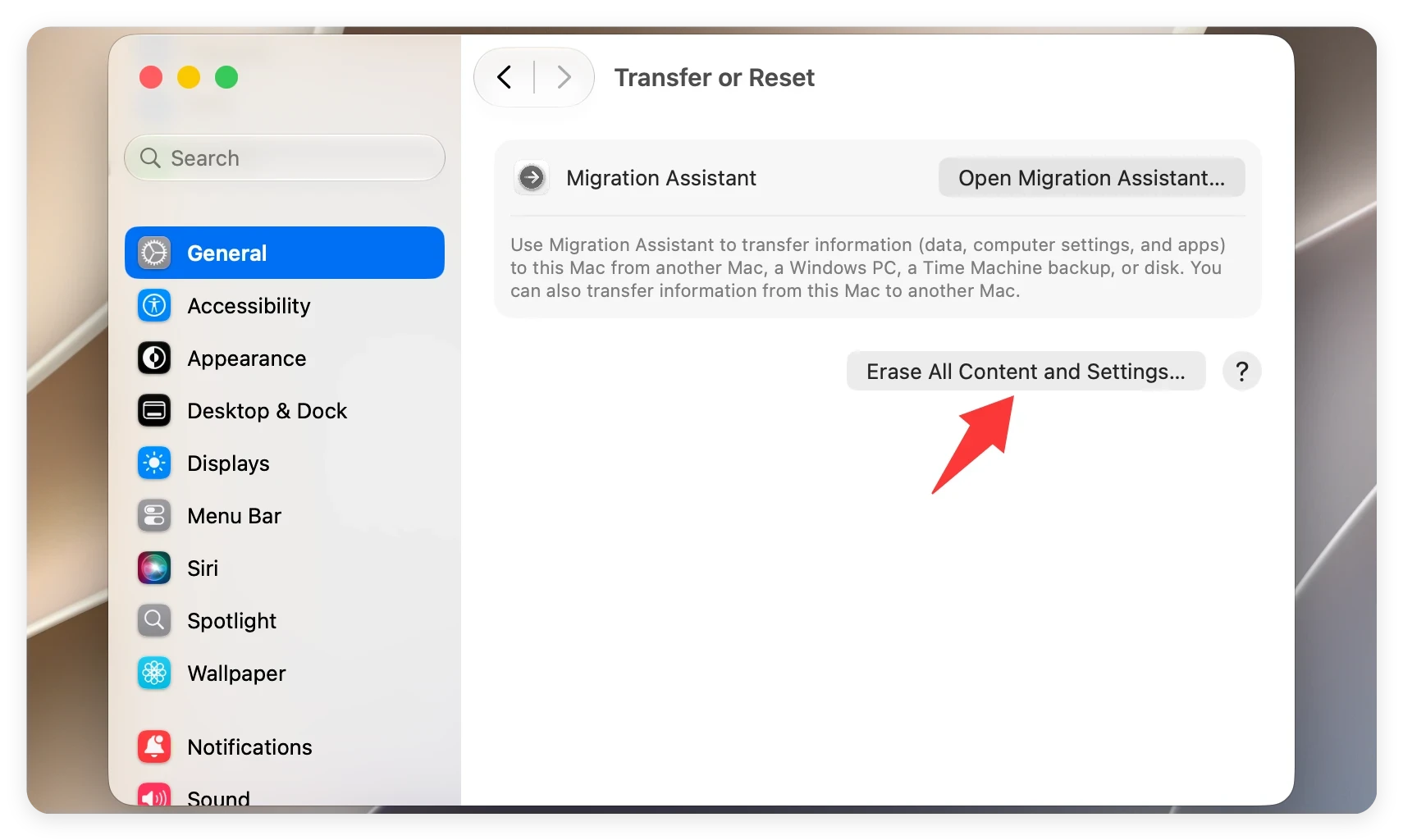
Step 4: Enter your administrator login password when prompted by the Erase Assistant wizard.
Step 5: The wizard will display a summary of everything to be deleted (Apple ID, Touch ID, Apple Wallet data, etc.). Review this and click Continue.
Step 6: Enter your Apple ID password to sign out of Find My Mac and Activation Lock. Then click Erase All Content & Settings to confirm.
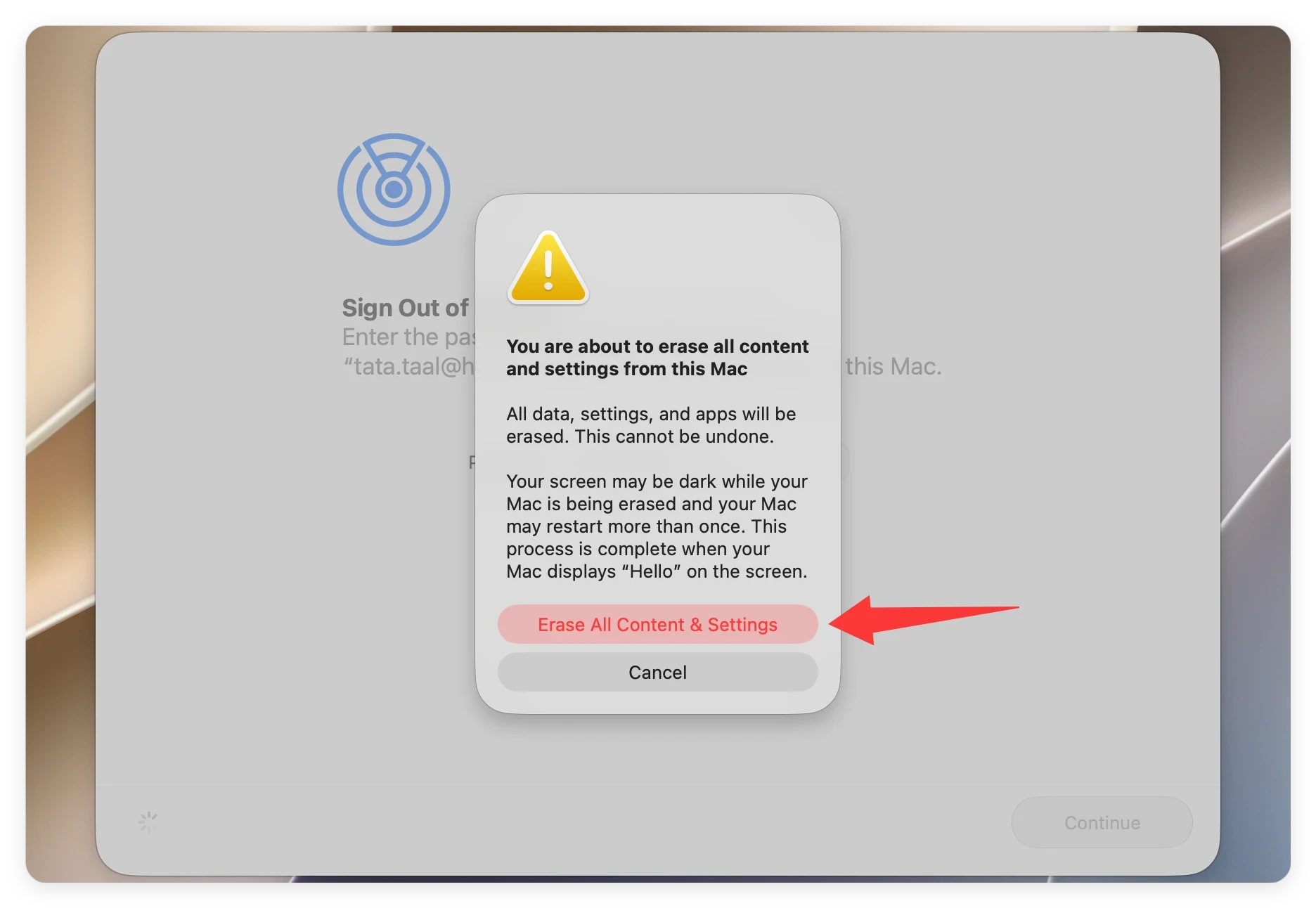
Your Mac will shut down, erase your private encryption keys, and reboot to a system activation screen. Once you see the familiar multi-language "Hello" screen, your system is fully reset.
If you prefer a complete hard drive format, using Disk Utility in macOS Recovery is your go-to method.
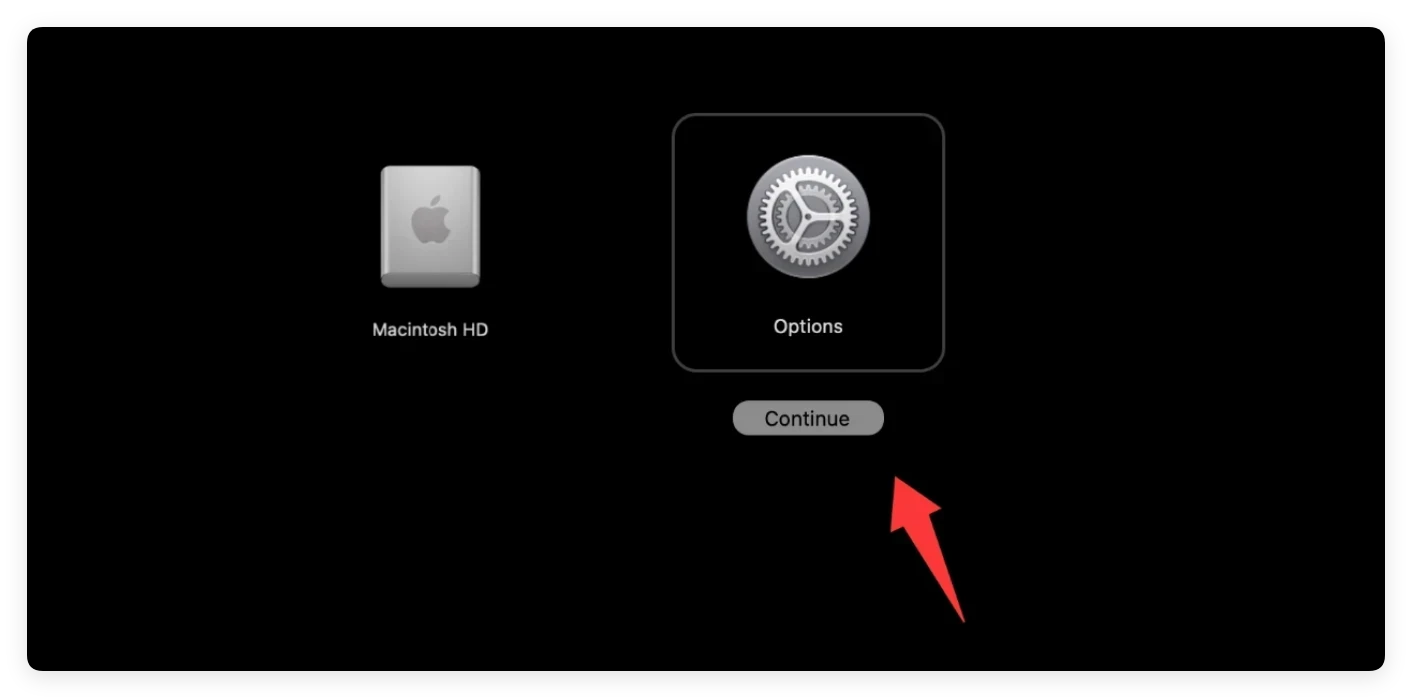
How to enter macOS Recovery on macOS 27 Golden Gate (Apple Silicon Macs):
Shut down your Mac. Press and hold the Power button until you see "Loading startup options." Click Options and select Continue.
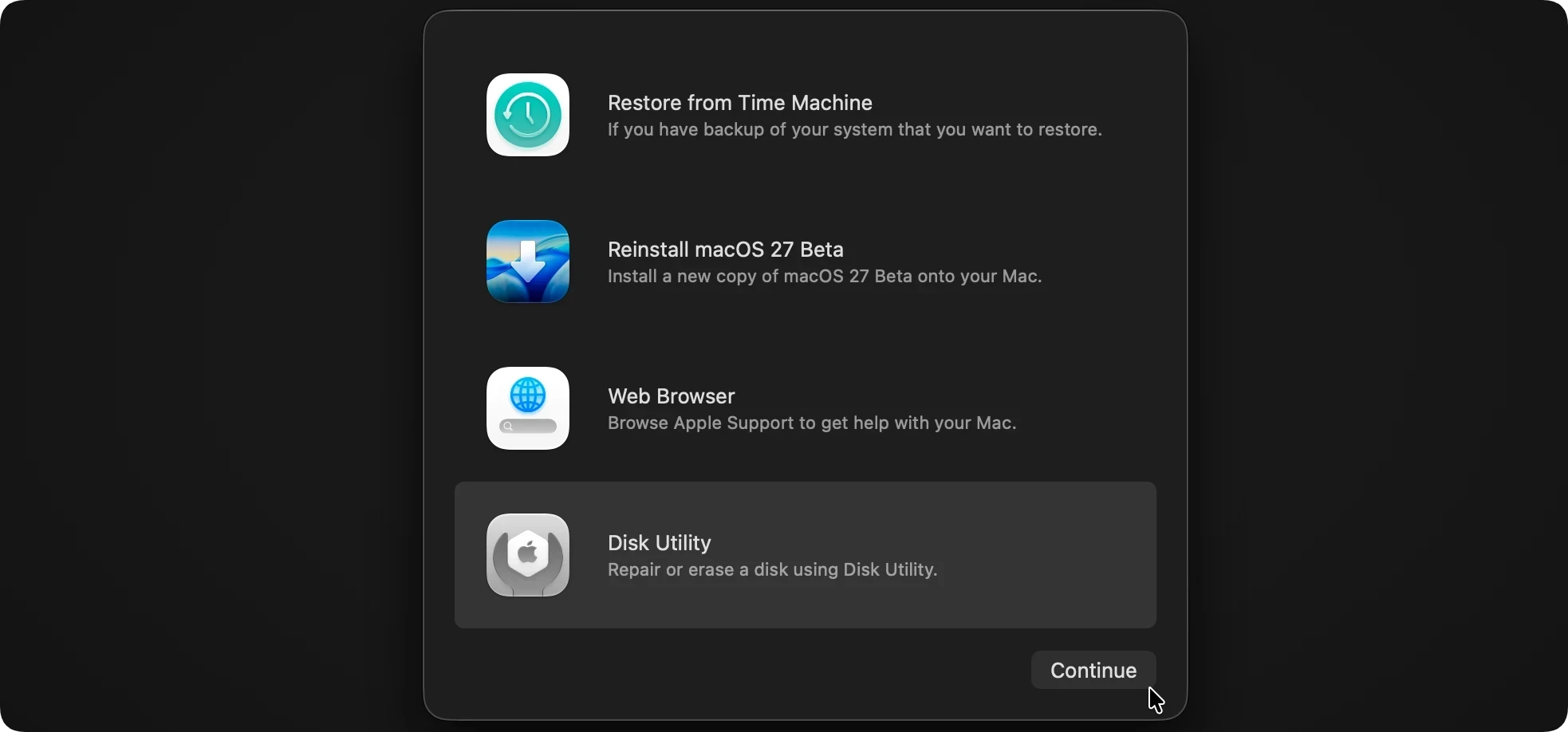
Once you are in the macOS Recovery screen, follow these steps to wipe your drive:
Step 1: Select Disk Utility from the utilities window and click Continue.
Step 2: In the left sidebar, choose the main startup disk, usually named Macintosh HD.
Step 3: Click the Erase button in the top toolbar. Choose APFS as the format and click Erase button.
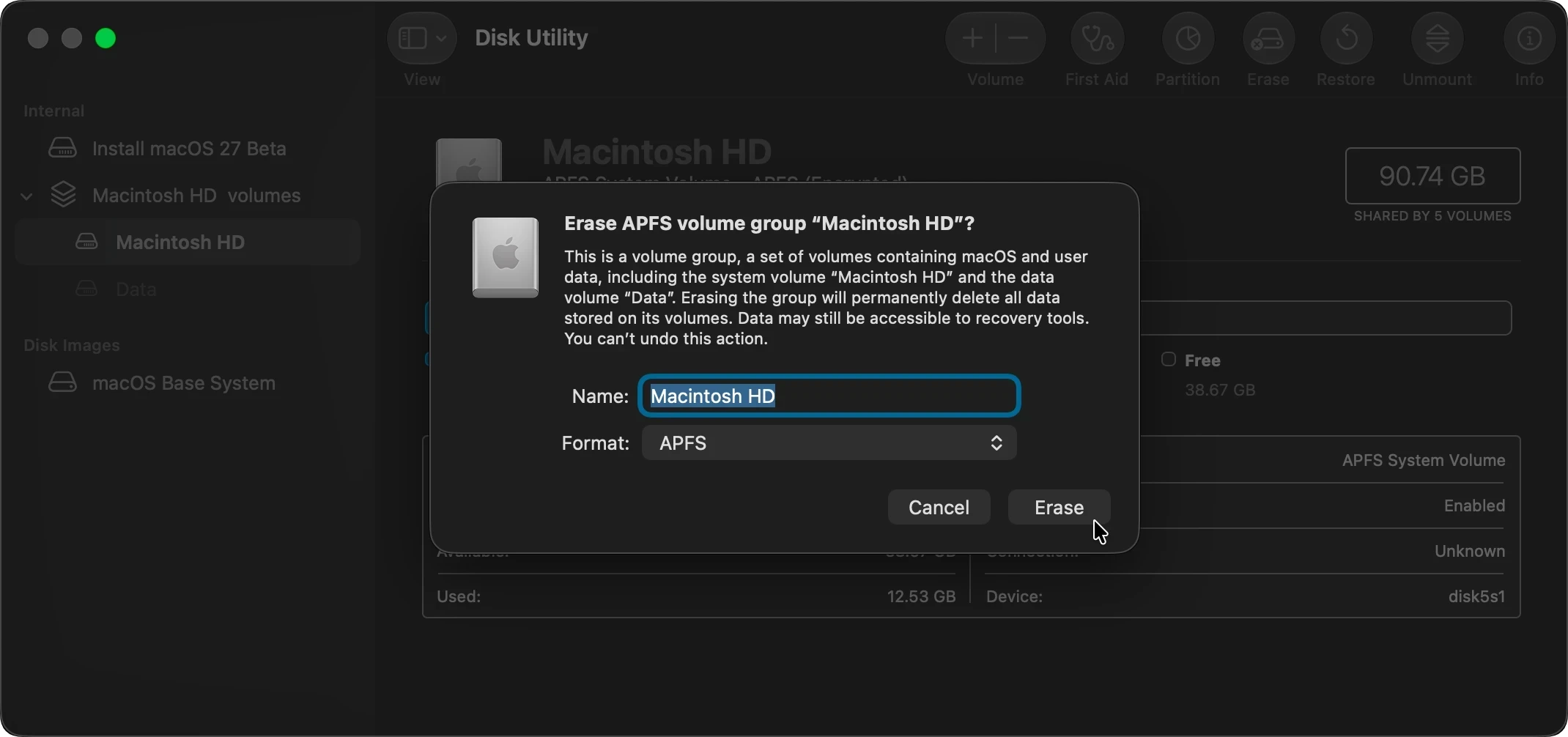
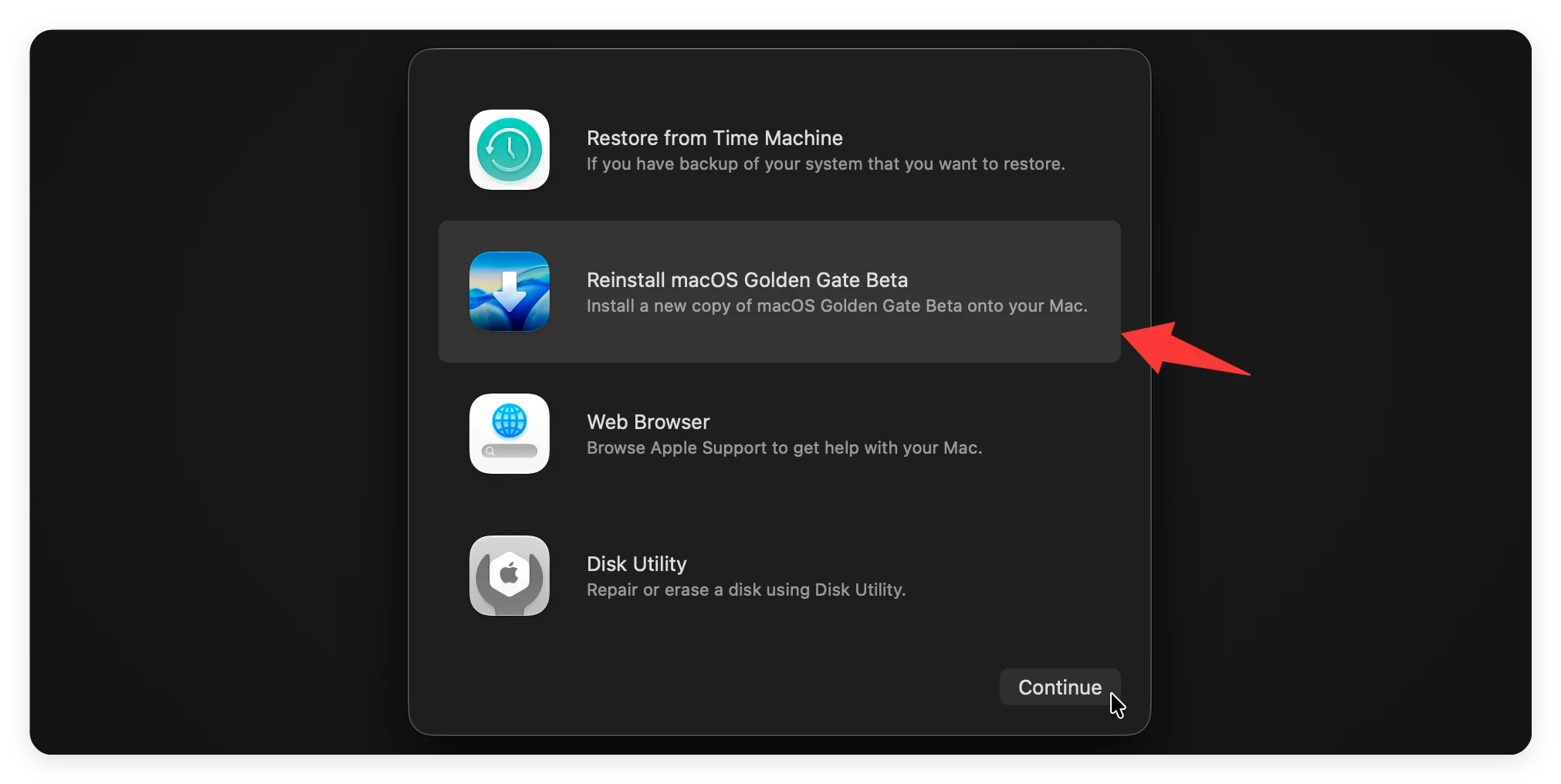
Step 4: Once the formatting process is complete, close Disk Utility. You can now select Reinstall macOS 27 Golden Gate from the main menu to install a clean operating system.
Many Mac owners believe that using Erase Assistant or formatting their drive via Disk Utility is enough to keep their personal data 100% secure. Unfortunately, that isn’t entirely true.
When you delete files or perform a quick format on an SSD or HDD, the operating system doesn't actually overwrite the actual files. Instead, it simply removes the "pointers" to those files and marks that disk space as "free space" (unallocated space) where new files can be written. Until those sectors are overwritten with random data, powerful file recovery software can easily piece your files back together.
If you sell your Mac, trade it in, or let another person use it, they could potentially use a data recovery app to retrieve your sensitive PDFs, tax forms, family photos, and browser passwords.
To guarantee that your deleted data is completely gone and impossible to recover, you should use professional data-wiping software like Donemax Data Eraser for Mac before giving your device to another person.
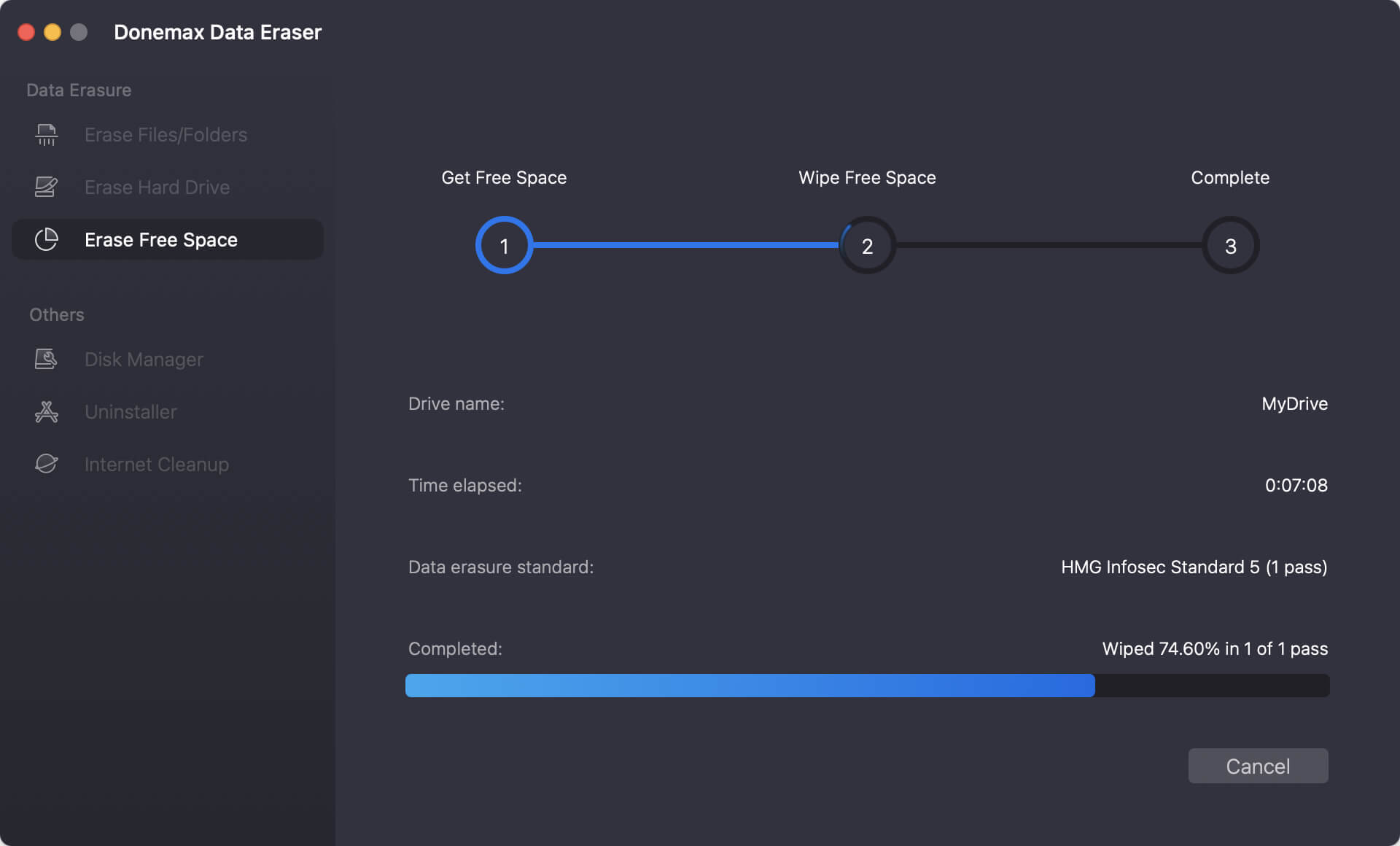
Donemax Data Eraser for Mac features a highly specialized mode called Erase Free Space. This tool scans your entire hard drive for unallocated sectors where old files are hidden. It then overwrites this empty space with certified, military-grade wiping algorithms (like DoD 5220.22-M or Peter Gutmann's algorithm). This process ensures that any previously deleted data is permanently destroyed without harming your active macOS 27 Golden Gate system or active files.
How to use Donemax to wipe free space:
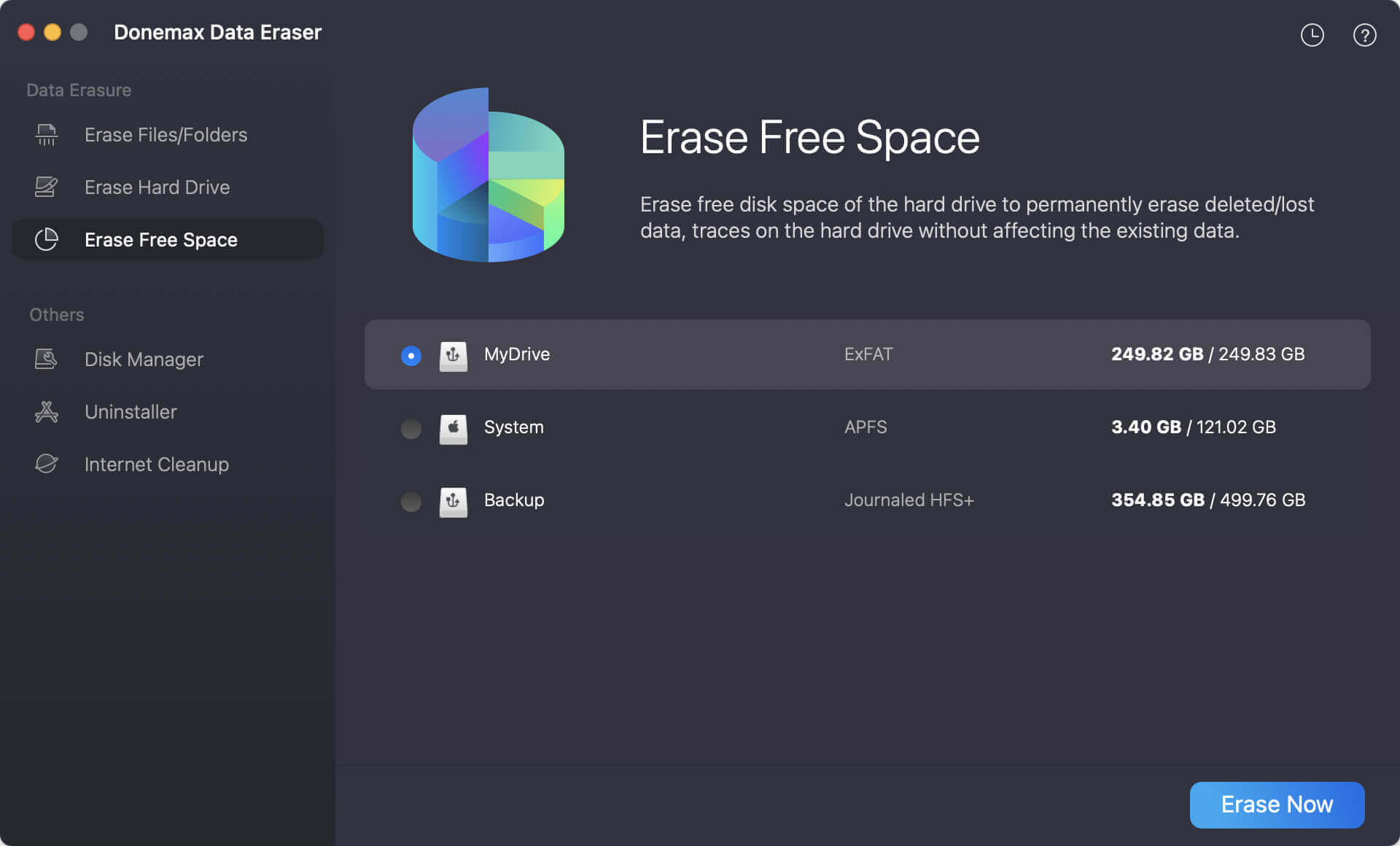
Step 1: Download and open Donemax Data Eraser for Mac on your computer. Select the Erase Free Space mode from the left sidebar. Select your Mac's main startup disk (Macintosh HD) and click Erase Now.
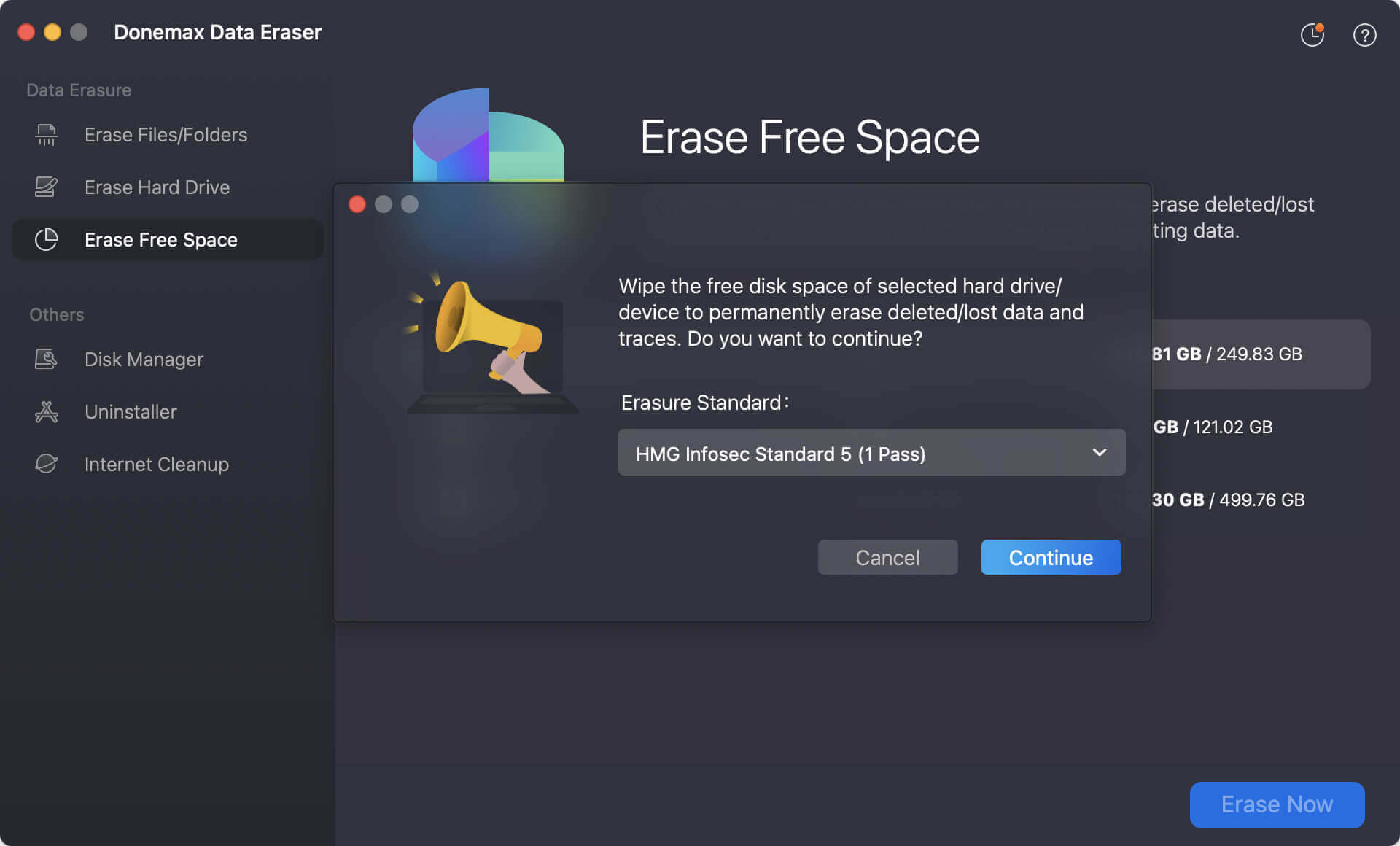
Step 2: Choose the data erasure standard which can ensure the data will be overwritten with international data wiping algorithms. Then click the Continue button to start wiping.
Step 3: Let the software write over the unused disk space. Once complete, your deleted files are officially unrecoverable—even to the most advanced forensic tools.
Wiping your Mac on macOS 27 Golden Gate doesn't have to be a stressful or confusing chore. Whether you utilize Apple's handy built-in Erase Assistant for a quick reset or opt for the traditional Recovery Mode path, preparing your machine is easier than ever.
However, standard formatting is only half the battle when it comes to true privacy. To ensure your deleted files don't fall into the wrong hands, taking the extra step to overwrite your unallocated drive sectors is essential. By using Donemax Data Eraser for Mac to securely wipe your disk's free space, you can hand off your device to its next owner with absolute peace of mind, knowing your personal data is gone for good.
To make sure you don't miss anything, here is the perfect workflow for a secure handoff:
Donemax Data Eraser for Mac
100% safe and powerful Mac data erasure program. It offers certified data erasure standards including U.S. Army AR380-19, DoD 5220.22-M ECE to securely and permanently erase data from Mac HDD/SSD and external storage devices, making data recovery impossible.
Maria
Maria is one of the senior writers & editors of Donemax who lives and works in Sydney, Australia. She loves PC, Mac and Internet Technology. She has 6 years of writing articles about data recovery on PC/Mac, disk cloning solution, data eraser and computer OS optimization, etc. She is also interested in testing various software and digital products.
Gerhard Chou
In order to effectively solve the problems for our customers, every article and troubleshooting solution published on our website has been strictly tested and practiced. Our editors love researching and using computers and testing software, and are willing to help computer users with their problems