
Written byMariaUpdated on Dec 11, 2025

Summary: If a hard drive was erased wrongly by Disk Utility, how to get back the data from the hard drive? Don't worry, the article will show you how to recover lost data from a hard drive which is erased by Disk Utility. Also, there is a solution for you to wipe data permanently on hard drive.
PAGE CONTENT:
For Mac users, there are some cases that a hard drive might be reformatted. For example, if the file system of a drive cannot fulfill a specific task. If you want to store files larger than 4GB, a FAT32 is not proper. You can reformat it to APFS, exFAT or other formats. In some other cases, you may need to format a drive to solve drive issues, like inaccessible, file corruption, and others.
To format a hard drive on Mac, users often use the macOS built-in tool Disk Utility. The software offers the feature Erase to format a hard drive on Mac. Please note that when erasing a drive with Disk Utility, all the data on the drive will also be removed. If a wrong drive is formatted or the important data was not backed up first, then you will lose the files. However, is it possible to recover lost data from hard drive erased by Disk Utility?
Actually, after erasing or formatting a hard drive with Disk Utility on Mac, the data is not gone forever. There are still methods to get back the lost data in such a case. Here in this guide, we will outline the solution to recover the formatted data with a reliable recover software. Also, there is a data wiping solution available if you want to remove data permanently to avoid data recovery.
Hard drive on Mac will need to be formatted sometimes. For example, the drive was used on Windows and used the file system that is not compatible with Mac, you have to erase it in Disk Utility in order to use it on Mac. You can also erase corrupted or inaccessible hard drive in order to reuse it.
How to erase or format hard drive on Mac? The Mac system provides the built-in tool Disk Utility that can help you format hard drive. You can erase a hard drive in a few steps with Disk Utility on Mac.
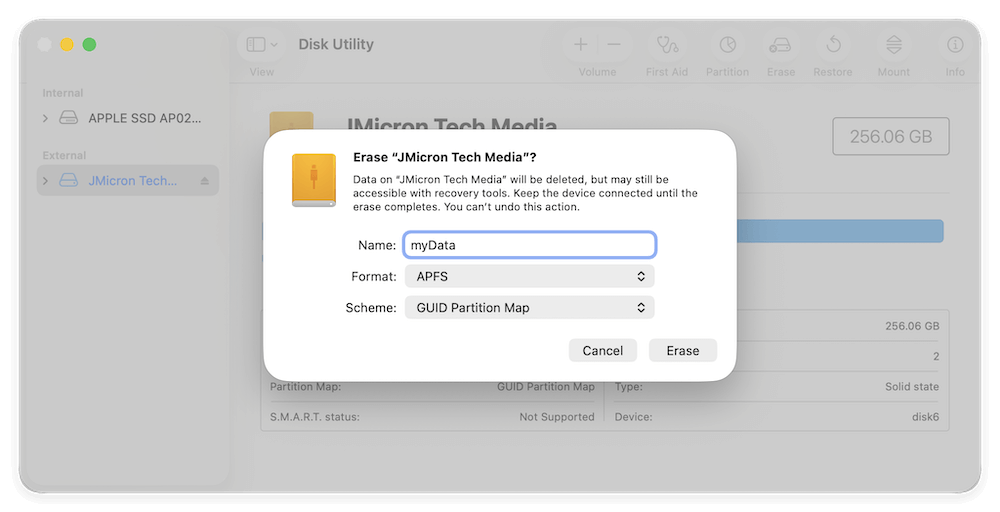
However, if you erase or format a wrong hard drive with Disk Utility on Mac, then you will lose the data on the drive. However, please note that if you erase the hard drive by Disk Utility on Mac, the data on the drive is not erased permanently. So you can still recover the data after erasing in Disk Utility.
If you formatted a wrong hard drive with Disk Utility on Mac and lost some important files, we suggest you use Donemax Data Recovery for Mac to recover the lost files. Here are the steps to recover lost data from a hard drive which is erased by Disk Utility.
Step 1. Please download and install the software on your Mac. Here is the download for this Mac data recovery software.
Step 2. Launch the software and choose the hard drive that was erased by Disk Utility.
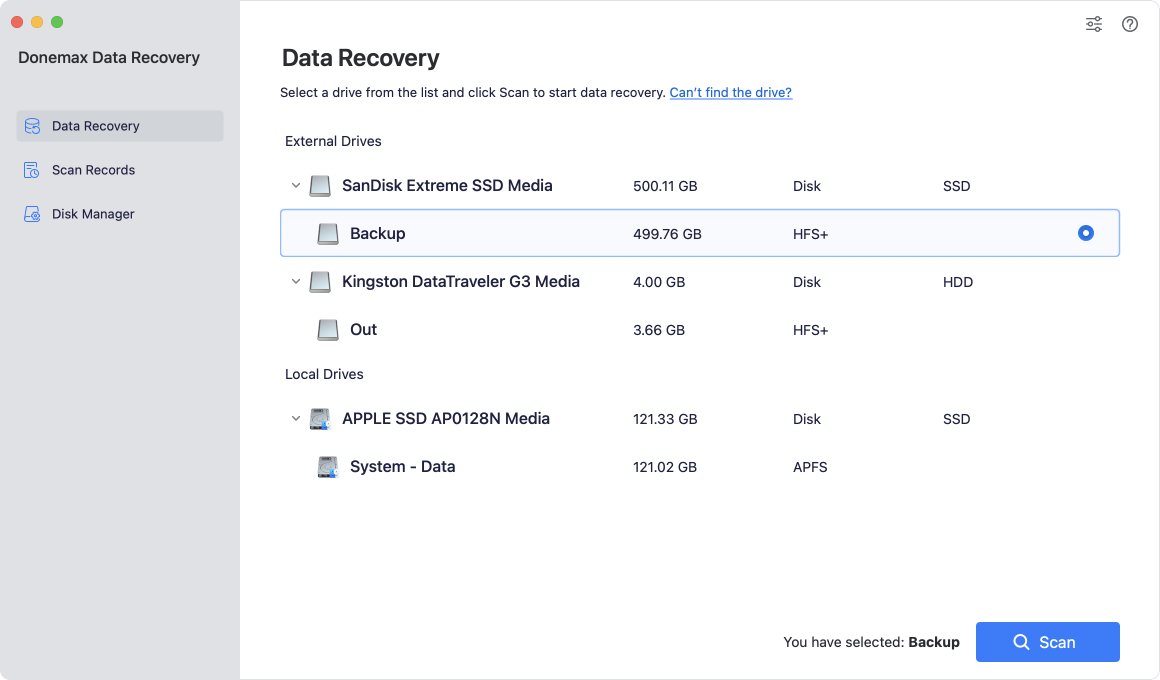
Step 3. Click the Scan button to scan the erased hard drive. It will take some time to scan the hard drive.
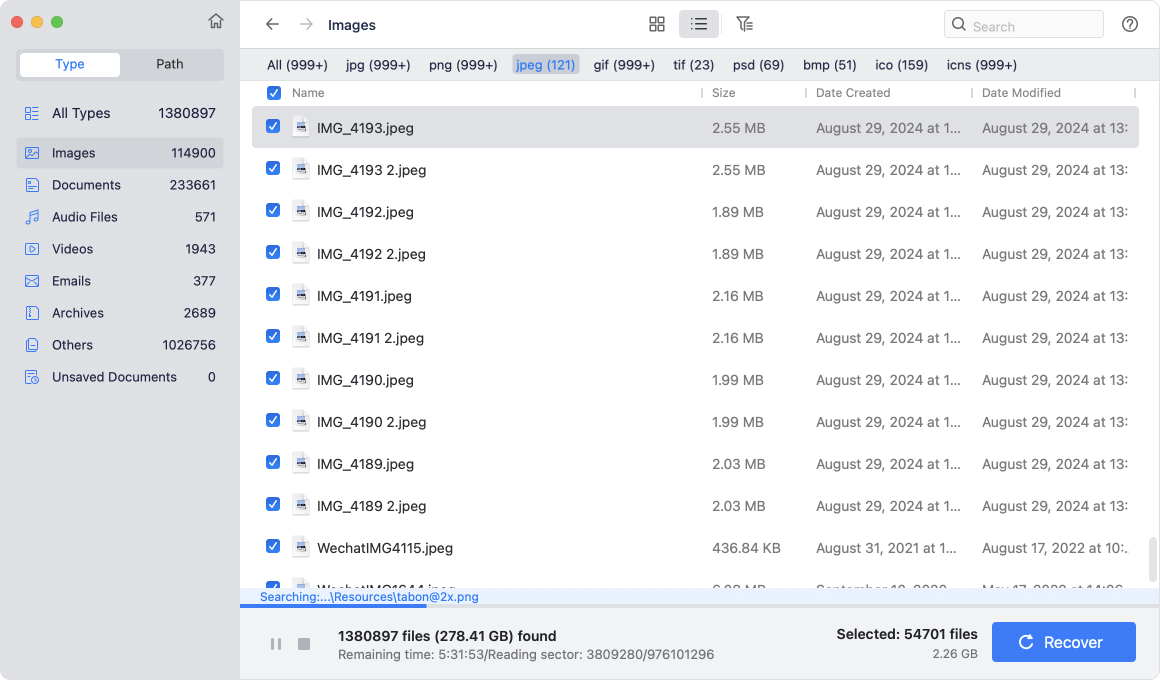
Step 4. Once the scan is done, please check and choose the wanted files to recover and save to another drive.
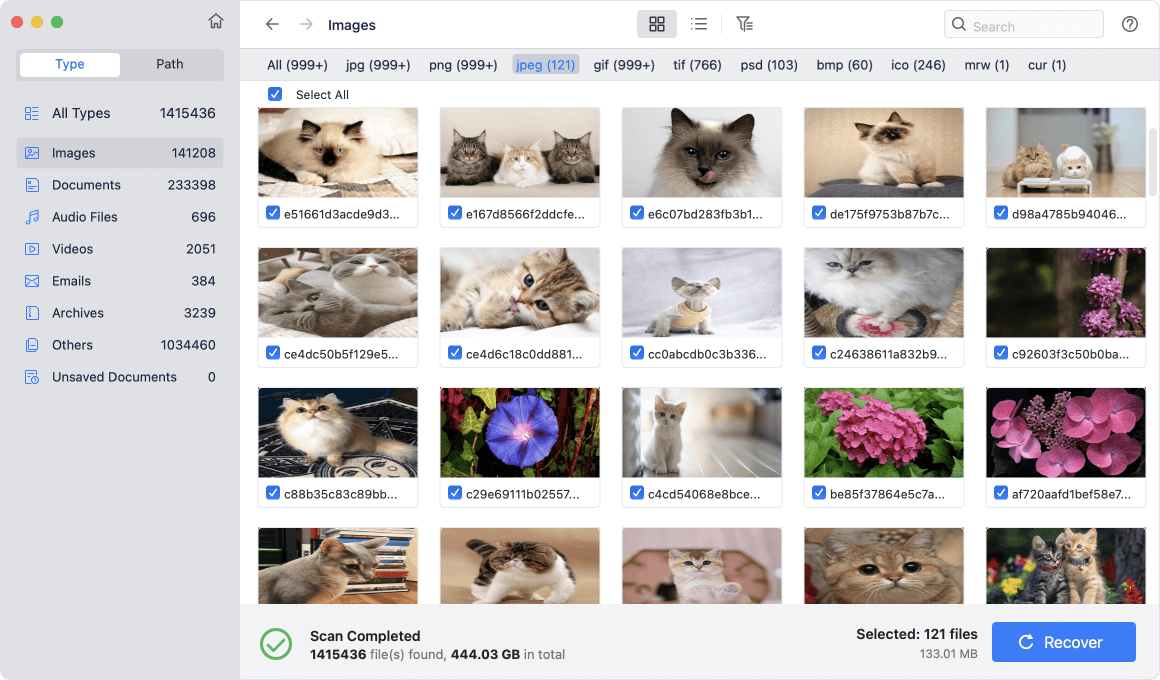
As you can see, it's very easy to recover data from erased hard drive on Mac. The software is effective and can recover lost data quickly. It can recover lost pictures, videos, audio files, documents or any other files from the erased hard drive.
Tips for a successful data recovery:
To ensure a successful data recovery after formatting or erasing drive with Disk Utility, take the following tips:
If you just want to erase a hard drive and don't want the data still be recoverable, then you have to find some other solutions. Otherwise, your personal information would be extracted by others. How to avoid data leakage and keep your personal data safe? You need to find a professional tool that can wipe data permanently from a hard drive.
What's the reliable and safe data erasure software you can try? We suggest you use Donemax Data Eraser for Mac. This software is able to help you wipe data permanently from hard drive. Also, the data wiped by this tool will not be recoverable any more.
The software provides 3 modes to shred files or wipe hard drive data on Mac. No matter you want to shred individual files/folders, wipe entire hard drive, or just wipe the deleted files on a hard drive, this data wiping tool can help you.
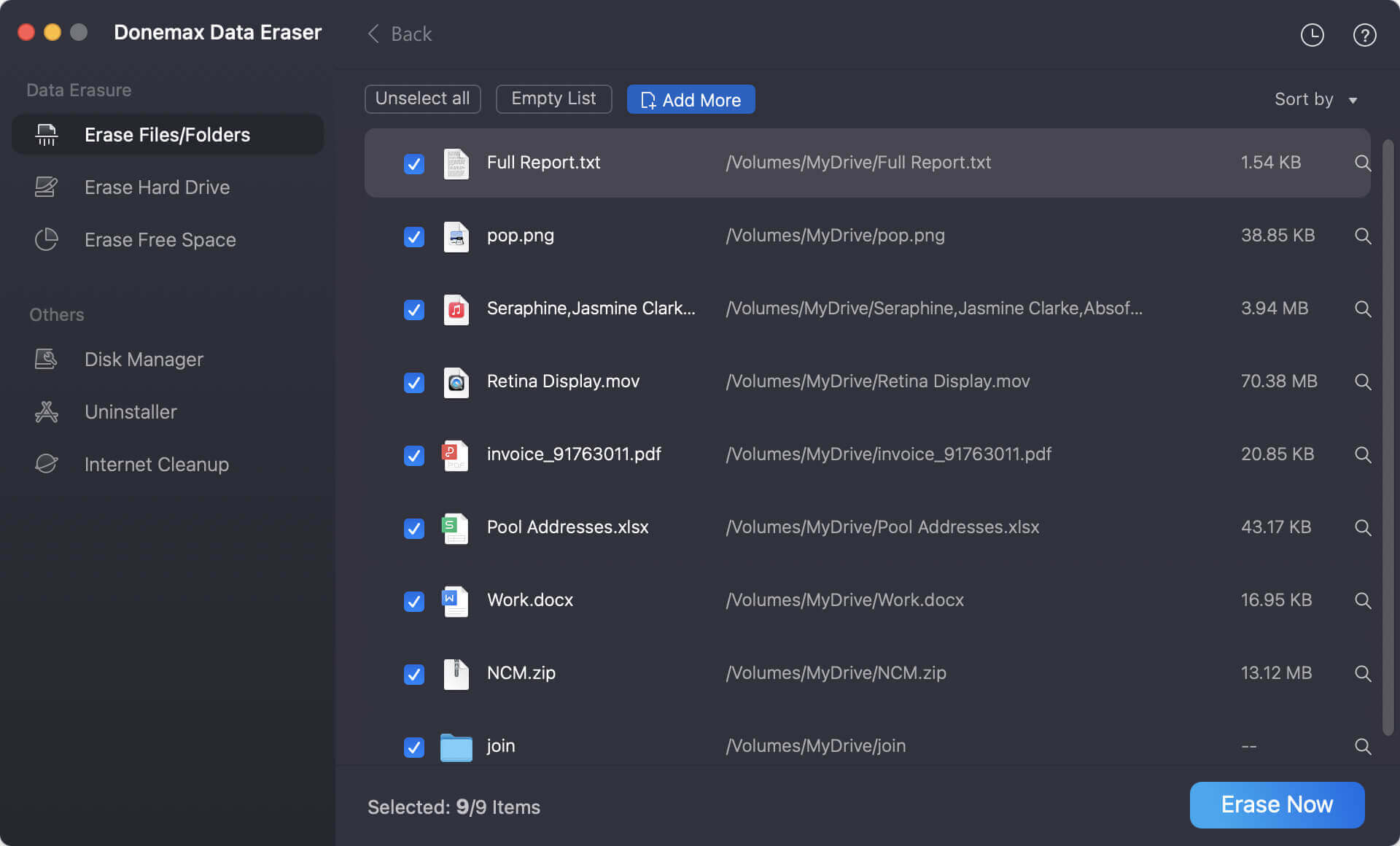
Mode 1. Erase Files/Folders. The option is used to shred some specific files or folders. You can choose the files or folders and add to the list. Then click the Erase Now button to wipe the selected files/folders permanently.
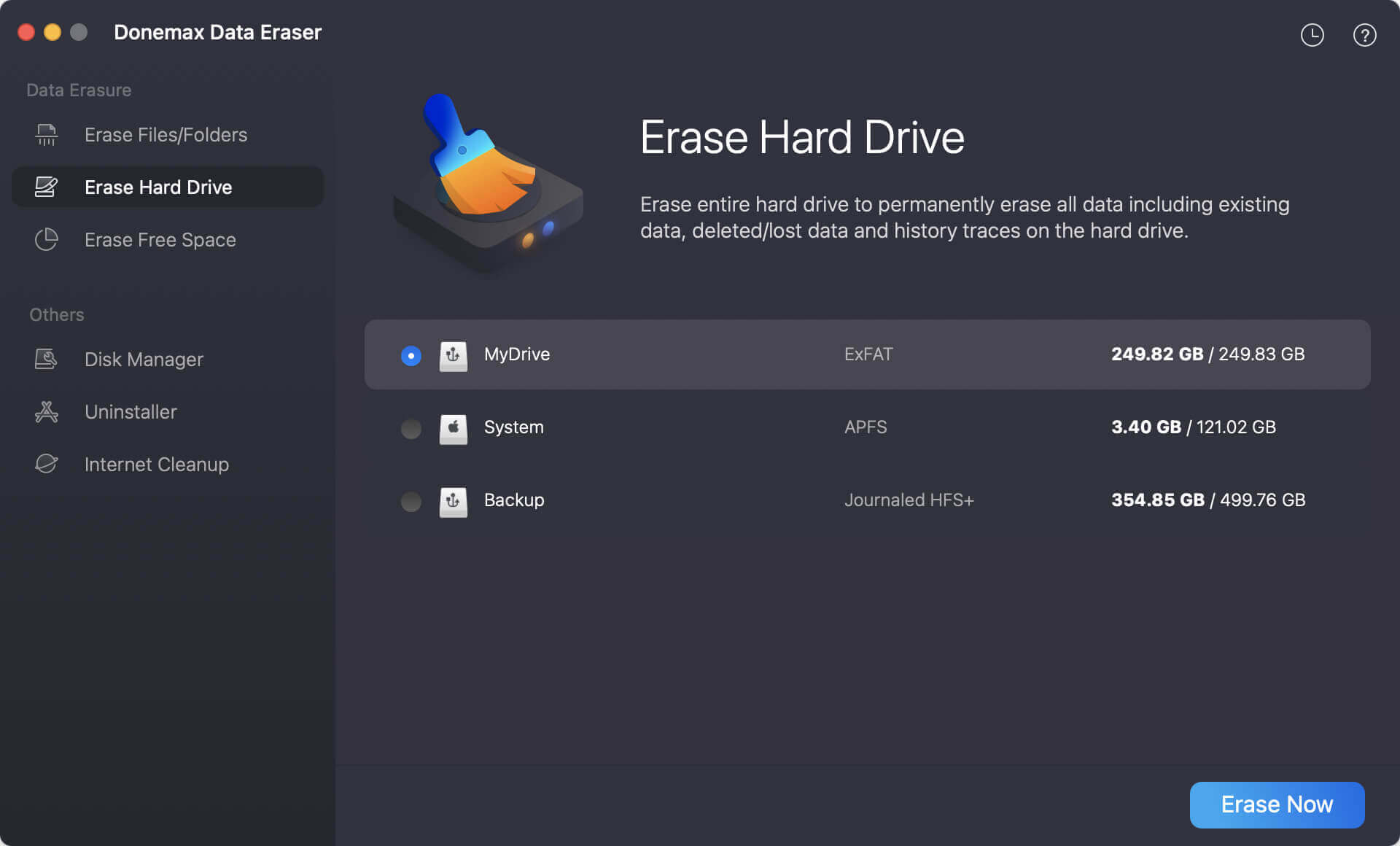
Mode 2. Erase Hard Drive. If you don't need all the data on a hard drive, you can just choose the hard drive to wipe directly with this mode. It's able to wipe all the existing or deleted files on the hard drive.
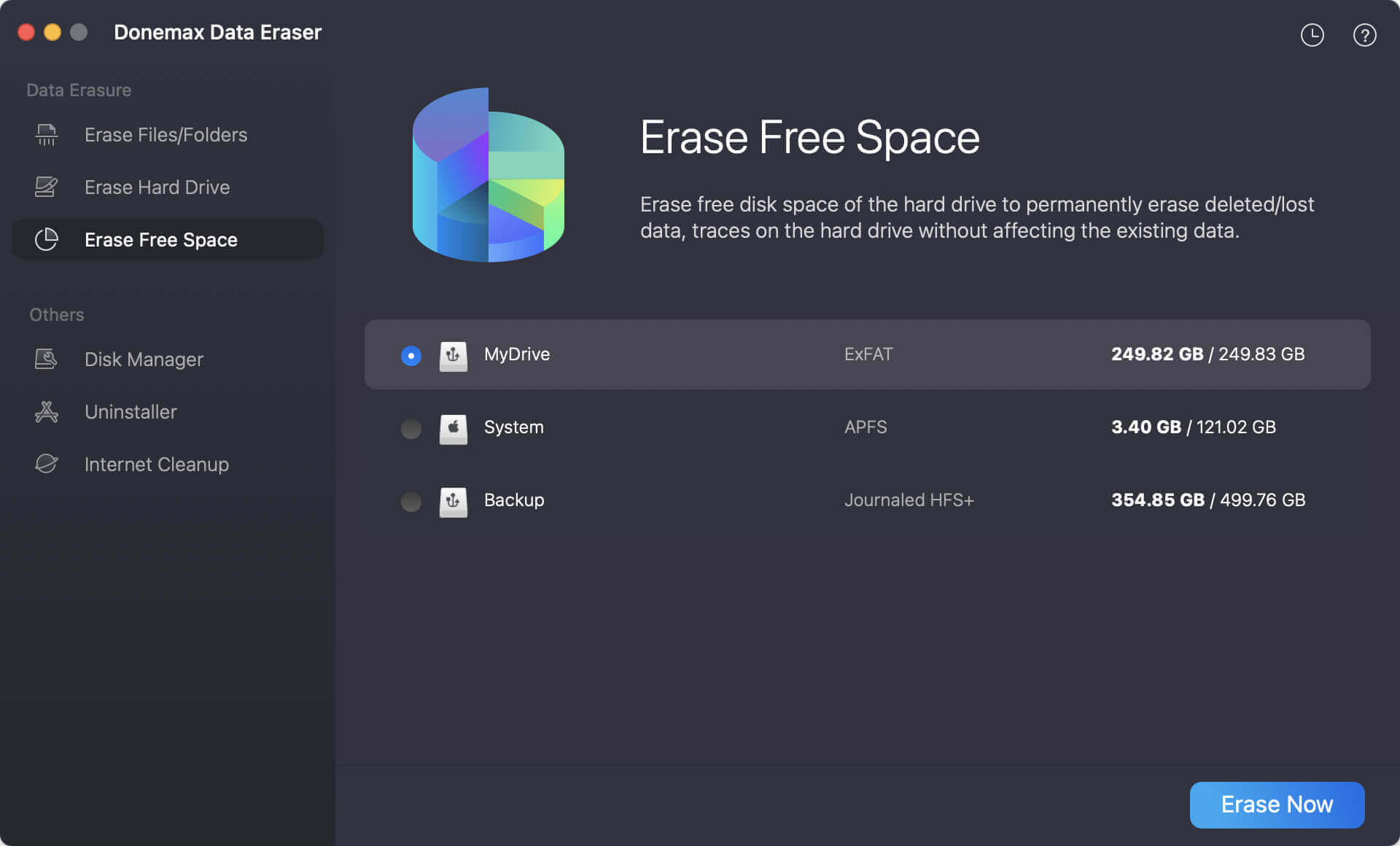
Mode 3. Erase Free Space. Some files would just be deleted before and you don't want these deleted files be recovered in any way. Then you can use this option to help you wipe all the deleted data from the free space on the hard drive.
💡 Note: The data wiped by Donemax Data Eraser for Mac will not be recovered in any way. So, it's essential to back up the important files to another drive first.
If you want to format a hard drive, we suggest you check and ensure to back up your important files first to another drive. If you format a hard drive wrongly, Donemax Data Recovery for Mac is able to recover data from erased hard drive. Also, you can use it to recover deleted or lost data in any other cases. However, if you need to wipe data permanently, it's highly suggested to use the professional data wiping software Donemax Data Eraser for Mac.
Donemax Data Recovery for Mac
Donemax Data Recovery for Mac is one of the best Mac data recovery software. It is easy-to-use and can help in recovering deleted, formatted, inaccessible or lost data from Mac HDD/SSD, external disk, USB drive, SD card, camera or other storage devices.
🇶1. Is the data recoverable after erasing the drive with Disk Utility on Mac?
Yes. After erasing a drive using Disk Utility on Mac, the data is not gone forever immediately. Before the formatted data is overwritten by new files, there is a great chance to recover the data.
🇶2. How to recover lost data from hard drive erased by Disk Utility on Mac?
Use the trusted data recovery software Donemax Data Recovery for Mac can help you rescue the data effective:
🇶3. How to ensure the erased data on a drive is unrecoverable?
If you want to make sure the data is gone for good from a hard drive, you can use the software Donemax Data Eraser. Here is how:
Maria
Maria is one of the senior writers & editors of Donemax who lives and works in Sydney, Australia. She loves PC, Mac and Internet Technology. She has 6 years of writing articles about data recovery on PC/Mac, disk cloning solution, data eraser and computer OS optimization, etc. She is also interested in testing various software and digital products.
Gerhard Chou
In order to effectively solve the problems for our customers, every article and troubleshooting solution published on our website has been strictly tested and practiced. Our editors love researching and using computers and testing software, and are willing to help computer users with their problems

