
Written byCharlesUpdated on Aug 18, 2026

Before we start: To get the MacBook Neo or other Macs working again quickly after a sytem crash, it's better to create a bootable clone backup beforehand. Donemax Disk Clone for Mac is the best tool to create bootable clone for Mac.
PAGE CONTENT:
Setting up a new MacBook Neo is an exciting experience. However, even the most reliable Mac is not entirely immune to sudden hardware failure, software corruption. While Apple offers built-in tools like Time Machine, many users discover that standard file backups fall short when a system disaster strikes.
That is where a bootable clone backup comes in. By creating an exact 1:1 replica of your startup drive, you can instantly boot your MacBook Neo back to life. In this guide, we will explore the best clone backup tool for MacBook Neo to keep your data safe.

Here is why relying solely on Time Machine can leave you vulnerable:
A clone backup solves all these problems. It copies every single block of your drive―including the operating system, user settings, installed applications, and hidden system structures―into an exact duplicate.
When searching for the best clone backup tool for MacBook Neo, ensure the software meets these crucial requirements:
If you are looking for the best clone backup tool for MacBook Neo, Donemax Disk Clone for Mac stands out as a powerful, reliable, and user-friendly solution.
Donemax Disk Clone for Mac is engineered specifically to handle modern macOS environments. Whether you want to back up your system SSD or duplicate an external drive, Donemax delivers fast and accurate results.
| Feature | Donemax Disk Clone | Time Machine | Manual File Copy |
|---|---|---|---|
| Bootable Emergency Copy | Yes (100% Instant Boot) | No (Requires Recovery) | No |
| Backup Speed | Ultra-Fast (Sector Clone) | Moderate (Background) | Slow (File by File) |
| System Settings & Apps | Fully Preserved | Restored via Migration | Excluded |
Before starting, connect an external hard drive or portable SSD (such as a NVMe drive) to your Mac. Make sure the target drive has enough capacity to hold all your source data.
💡 Note: Cloning will erase all existing data on the destination external drive. Be sure to back up any important files stored on that external drive before proceeding.
Step 1: Download and Launch Donemax Disk Clone for Mac
Download Donemax Disk Clone for Mac from the official Donemax website. Install the software on your MacBook Neo and launch it from the Applications folder.
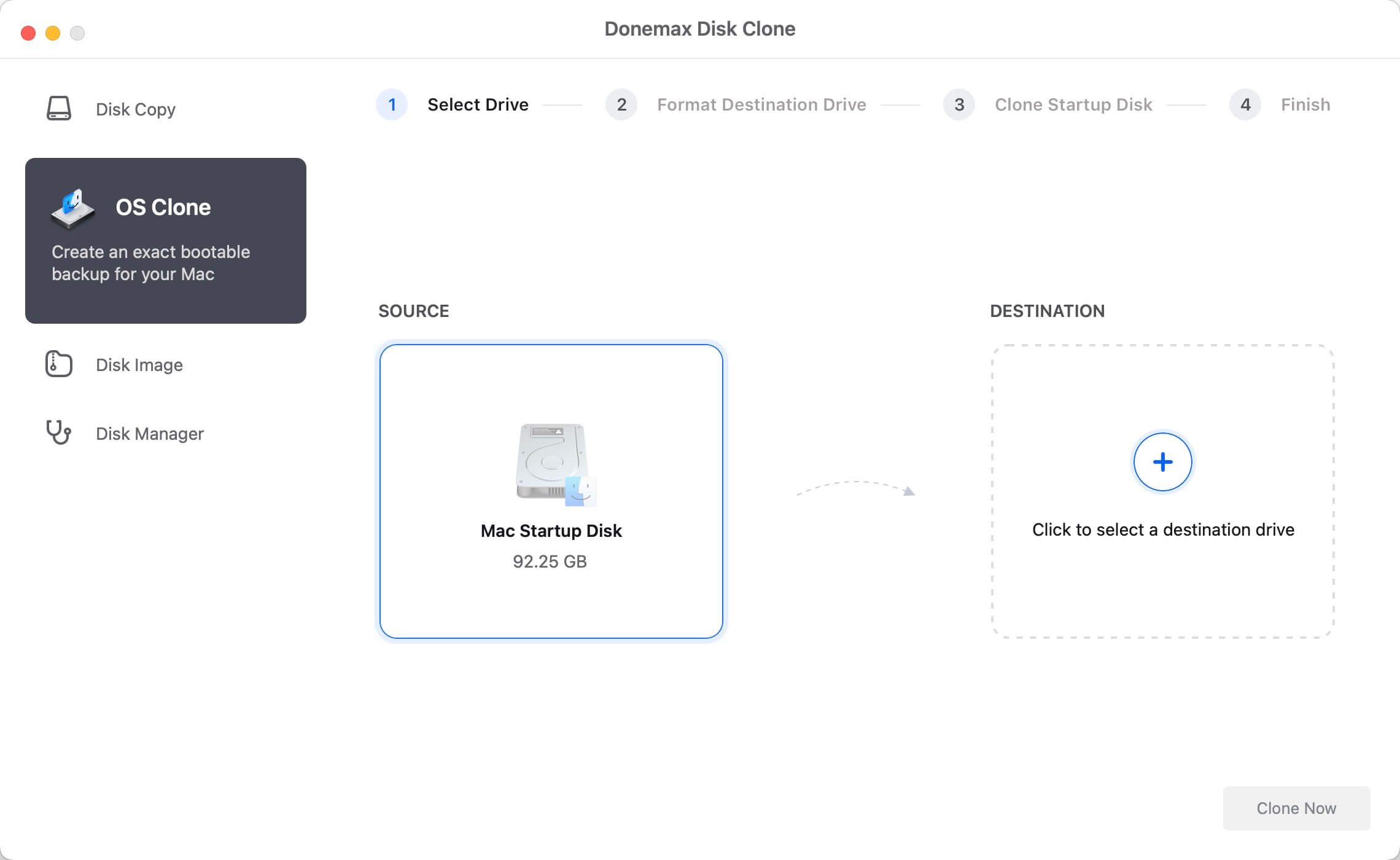
Step 2: Select the 'OS Clone' Mode
This mode is specifically tailored to clone your startup drive and create a bootable backup.
Step 3: Choose Your External Target Drive
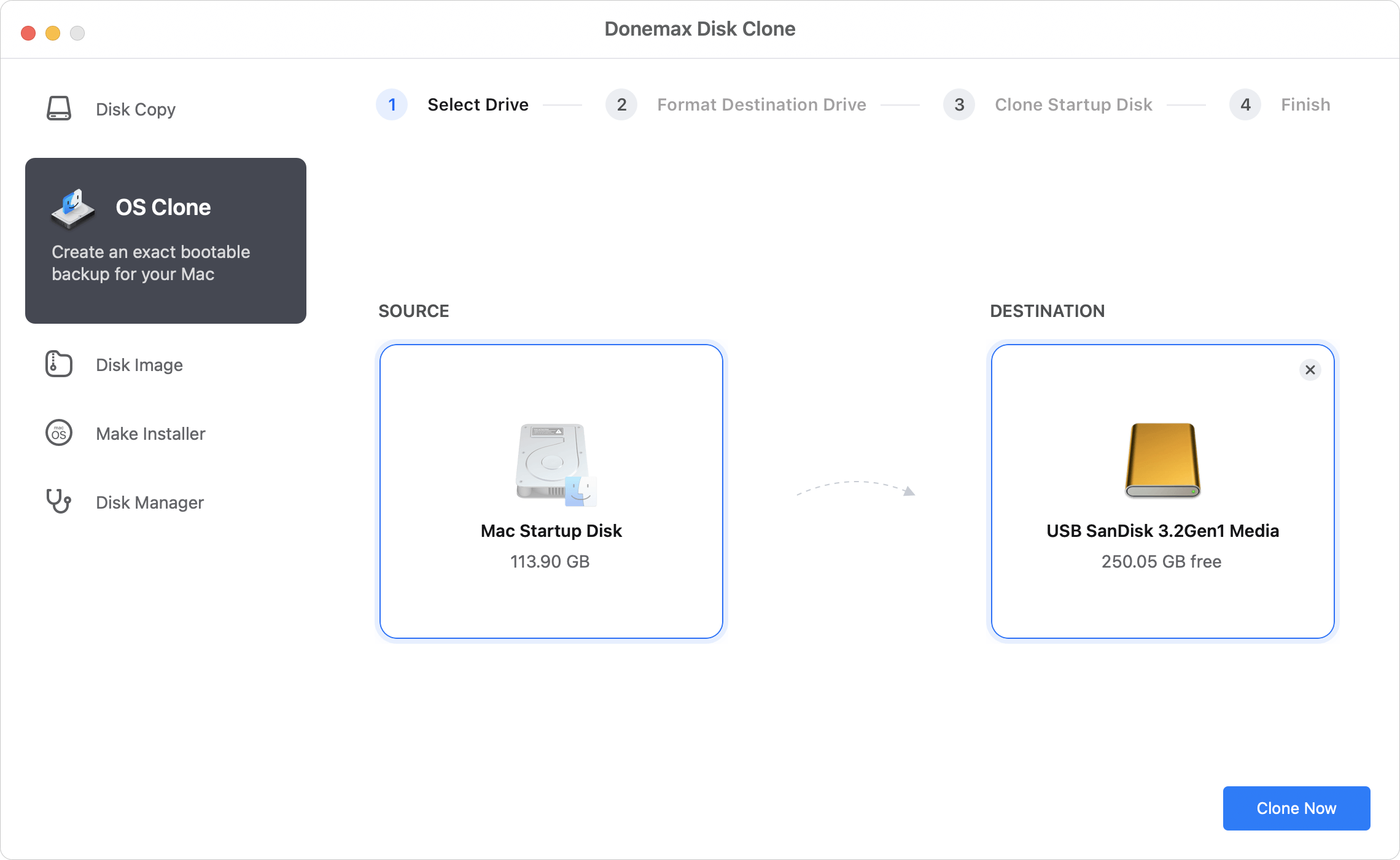
Donemax will automatically detect your local system disk as the source drive. Next, select your connected external SSD or HDD as the destination drive.
Step 4: Start the Cloning Process
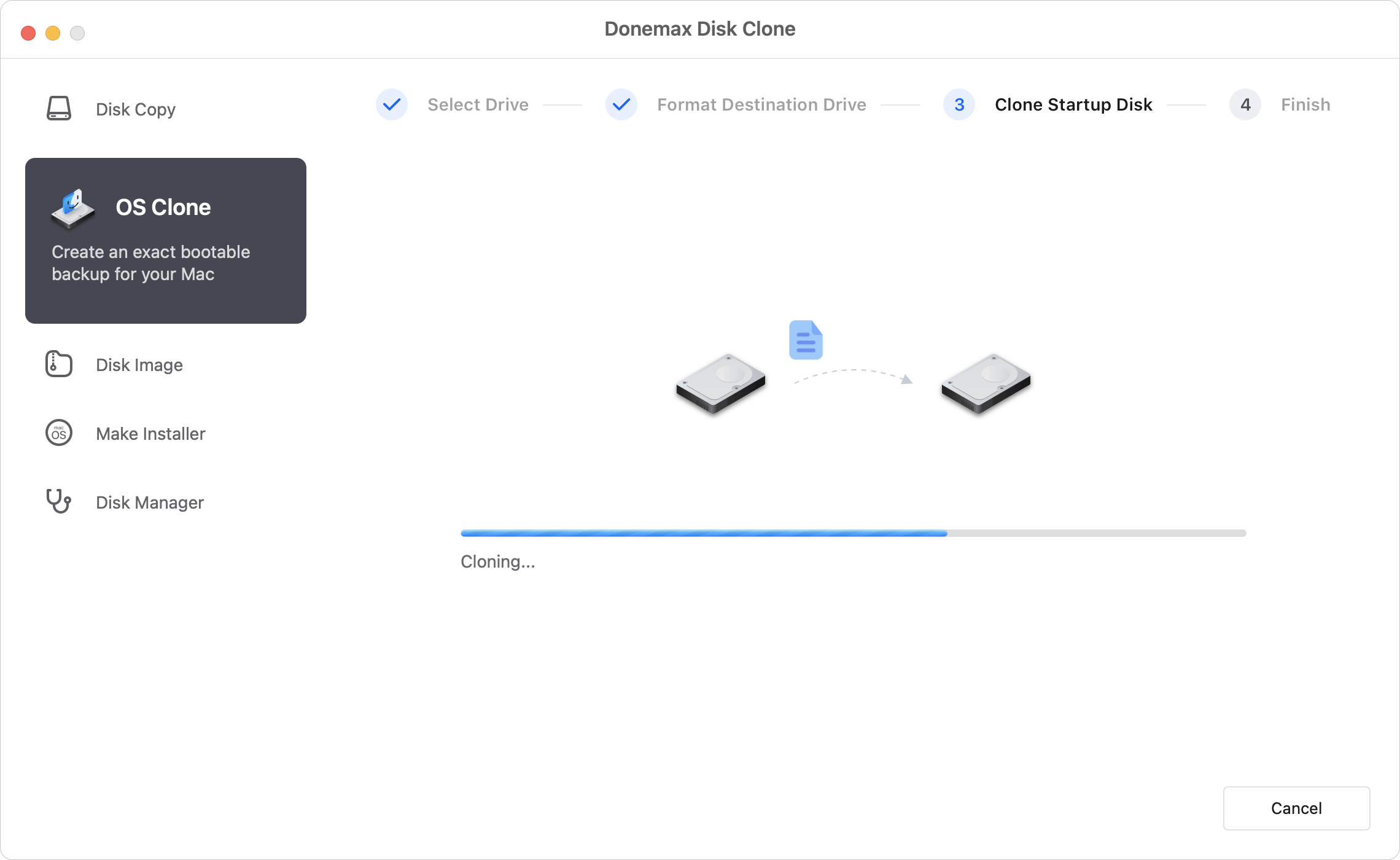
Click the Clone Now button. Donemax will prompt a quick confirmation warning about erasing the destination drive. Confirm and let the software work its magic. Depending on the size of your data, the process will finish in just a few minutes.
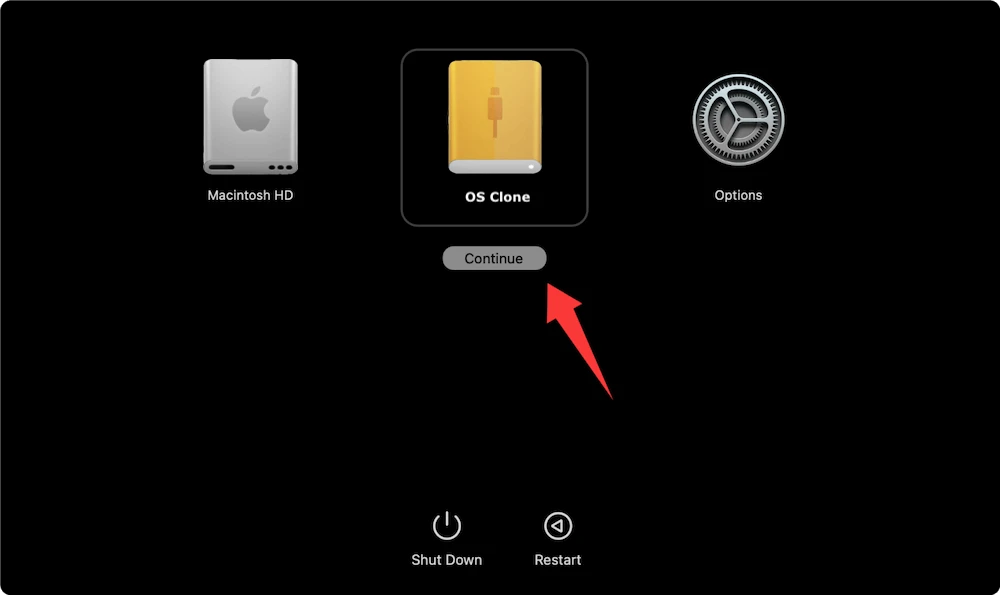
To ensure your data remains protected under all circumstances, follow these expert backup best practices:
Protecting your MacBook Neo does not have to be complicated or stressful. While standard file backups are fine for daily edits, having a bootable system clone is the ultimate insurance policy against system crashes, hardware failures, and sudden downtime.
By choosing Donemax Disk Clone for Mac―the best clone backup tool for MacBook Neo―you can easily create an exact, bootable duplicate of your Mac in just a few clicks. Take control of your data security today, and enjoy total peace of mind knowing your entire Mac environment is safely backed up.
Donemax Disk Clone for Mac
An award-winning disk cloning program to help Mac users clone HDD/SSD/external device. It also can create full bootable clone backup for Macs.
Charles
Charles, who lives in Sydney, Australia, is an editor & writer of Donemax Team. He is good at writing articles related with Apple Mac computers, Windows operating systems, data recovery, data erasure, disk clone and data backup, etc. He loves reading and playing tennis in his spare time and is interested in testing new digital devices such as mobile phones, Macs, HDDs, SSDs, digital cameras, etc.
Gerhard Chou
In order to effectively solve the problems for our customers, every article and troubleshooting solution published on our website has been strictly tested and practiced. Our editors love researching and using computers and testing software, and are willing to help computer users with their problems