
Written byChristinaUpdated on Jun 08, 2026

Before we start: Time Machine cannot create bootable backup for Mac. If you also want to keep a bootable copy of your Mac, you can choose the disk cloning software Donemax Disk Clone for Mac as supplementary backup plan.
PAGE CONTENT:
If you are an avid Mac user, you already know how important it is to keep your files safe. Apple provides an excellent built-in backup utility called Time Machine. It runs quietly in the background and saves historical versions of your files.
But what happens if your Mac internal drive crashes completely? Or what if you need to set up a brand-new Mac right away without waiting hours to pull files from a network drive? In these situations, a standard backup file is not enough. You need an exact, functional duplicate of your hard drive that you can plug in and boot from instantly.
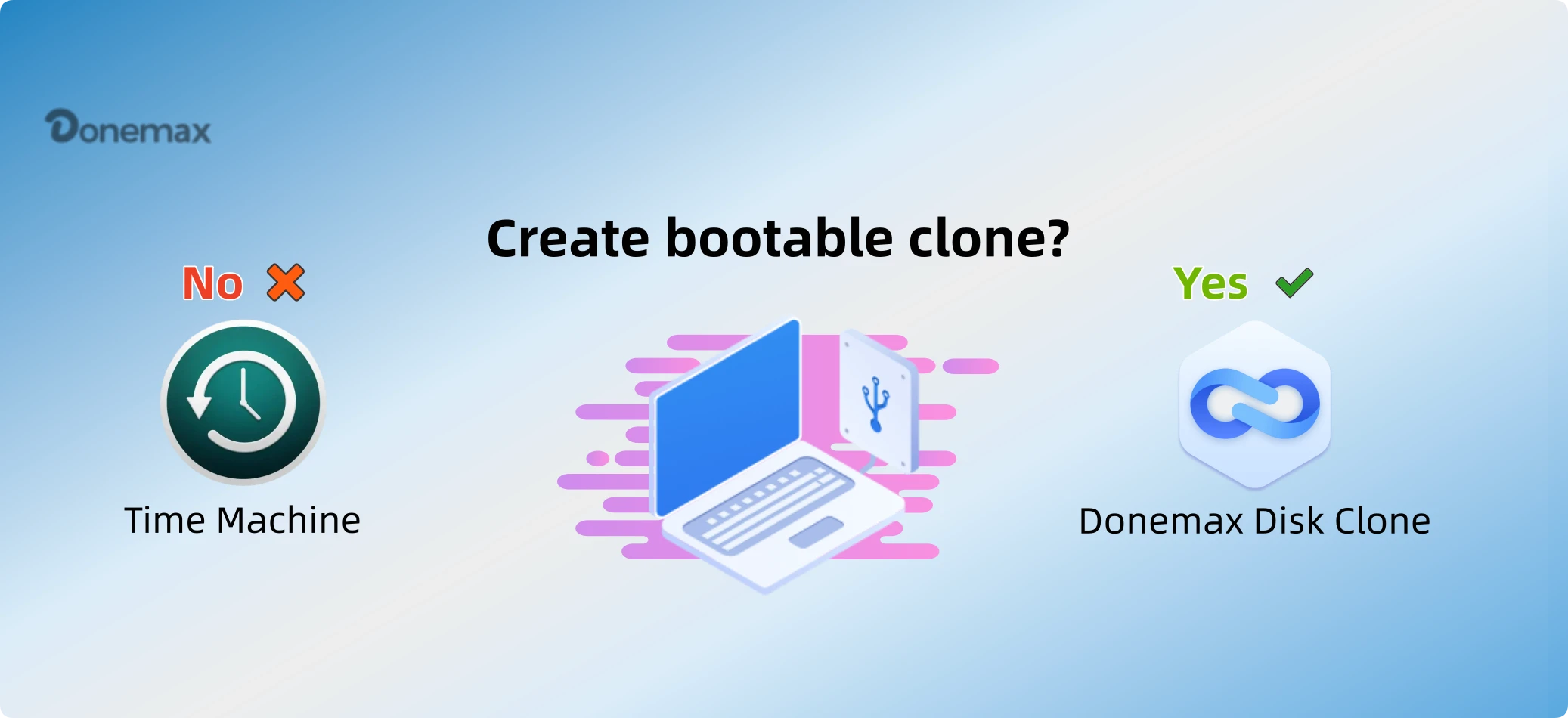
This brings up a massive question that thousands of users search for daily: Can Time Machine create bootable clone for Mac? If you are looking for a simple, honest answer to this question, you are in the right place. In this detailed guide, we will clear up the confusion around Time Machine and show you a foolproof way to build a real bootable clone.
Let's cut straight to the chase and answer the core question directly. No, Time Machine cannot create a bootable clone for Mac. It never has been designed to do this, and changes in modern versions of macOS make it completely impossible now.
This often surprises users because Time Machine is incredibly thorough. It saves almost everything on your storage drives. However, saving copies of files is completely different from creating a structurally functional, bootable clone of an entire operating system system container.
If you back up your Mac using Time Machine, you cannot plug that external backup drive into a dead Mac and start working directly from it. Instead, you have to use macOS Recovery mode, reinstall a fresh copy of the operating system, and then wait for Time Machine to slowly copy your files back onto the drive. It works fine for regular file recovery, but it is not a direct clone solution.
To understand why Time Machine lacks this feature, we need to take a quick look under the hood of how modern Mac systems work. Apple made major shifts in how macOS manages storage disks starting with macOS 11 Big Sur and continuing through macOS 26 Tahoe.
Here are the primary technical reasons why Time Machine cannot build a bootable drive for you:
Since the built-in Time Machine utility falls short for this specific task, how do you protect your workflow with a true bootable backup? The answer is using a dedicated, professional Mac drive cloning application.
We highly recommend Donemax Disk Clone for Mac. This powerful utility bypasses the limitations of regular file backups by performing a block-level sector clone. It completely replicates your entire Mac drive layout, making it the perfect tool to build a secure, secondary startup drive.
When you use Donemax Disk Clone for Mac, you do not just copy documents. The software completely clones the underlying macOS engine along with all your system settings, custom configuration profiles, installed applications, and user files. Everything is moved safely over to an external drive, giving you a perfect mirrored workspace that is ready to launch anywhere.
Creating a functional, bootable clone of your Mac does not require a degree in computer science. Donemax Disk Clone for Mac makes the entire process simple, intuitive, and highly automated. Here is exactly how to do it:
Step 1: Connect a fast external hard drive or SSD to your Mac. Ensure the drive has enough storage capacity to hold all the data currently residing on your internal Mac storage drive. Open up the Donemax software application.
Step 2: Look at the top dashboard interface and select the primary tool option labeled OS Clone. This specific feature is custom-engineered to handle the complex system volumes and security keys needed for a bootable backup.
The software will automatically identify your internal Mac storage as the source drive. Next, look at the destination section and select your newly connected external hard drive or SSD from the drop-down list.
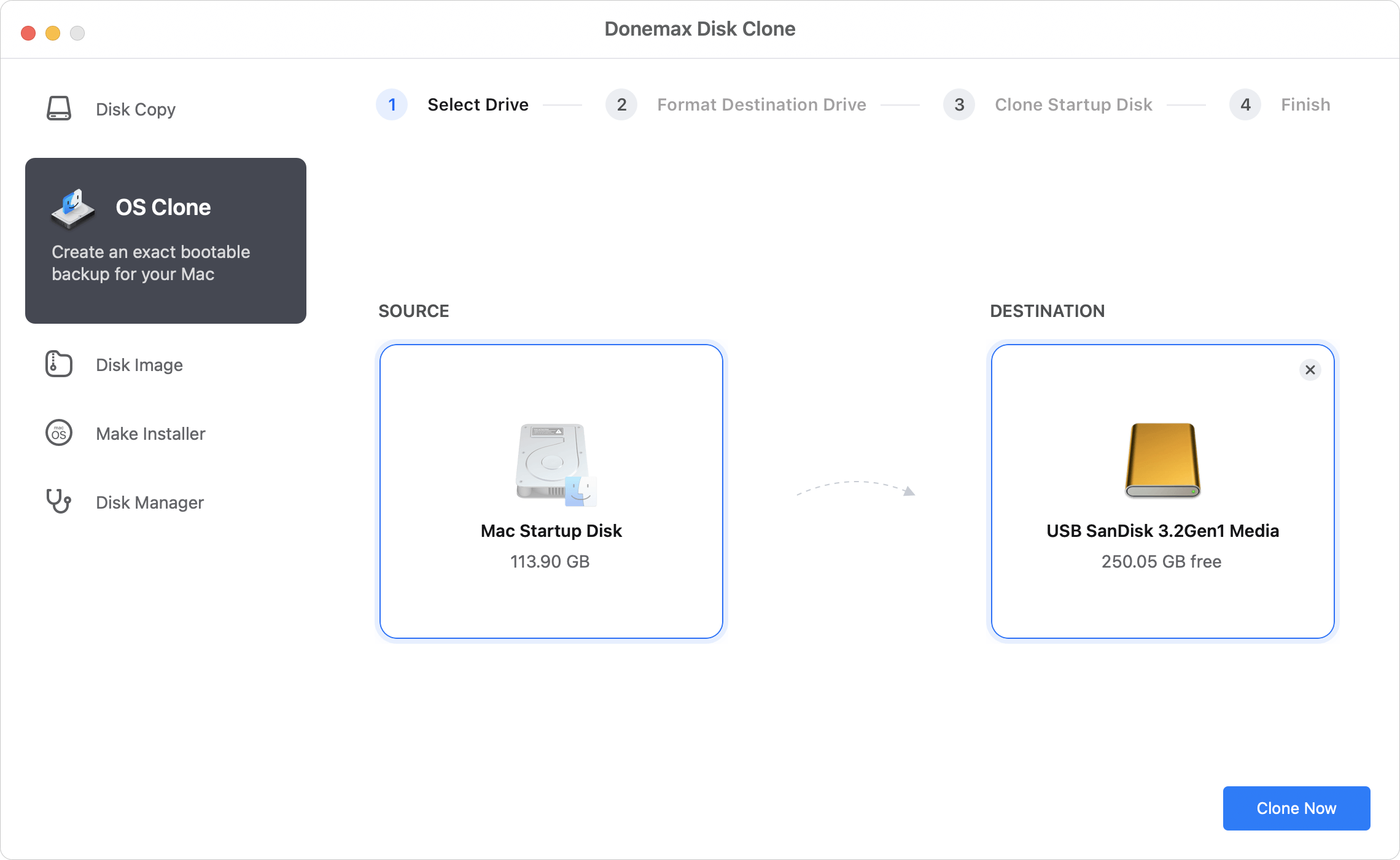
Step 4: Double-check your choices to ensure you selected the correct external drive. Click on the blue Clone Now button. The software will safely work through Apple's security protocols and clone your entire operating system, apps, and data over to the target disk.
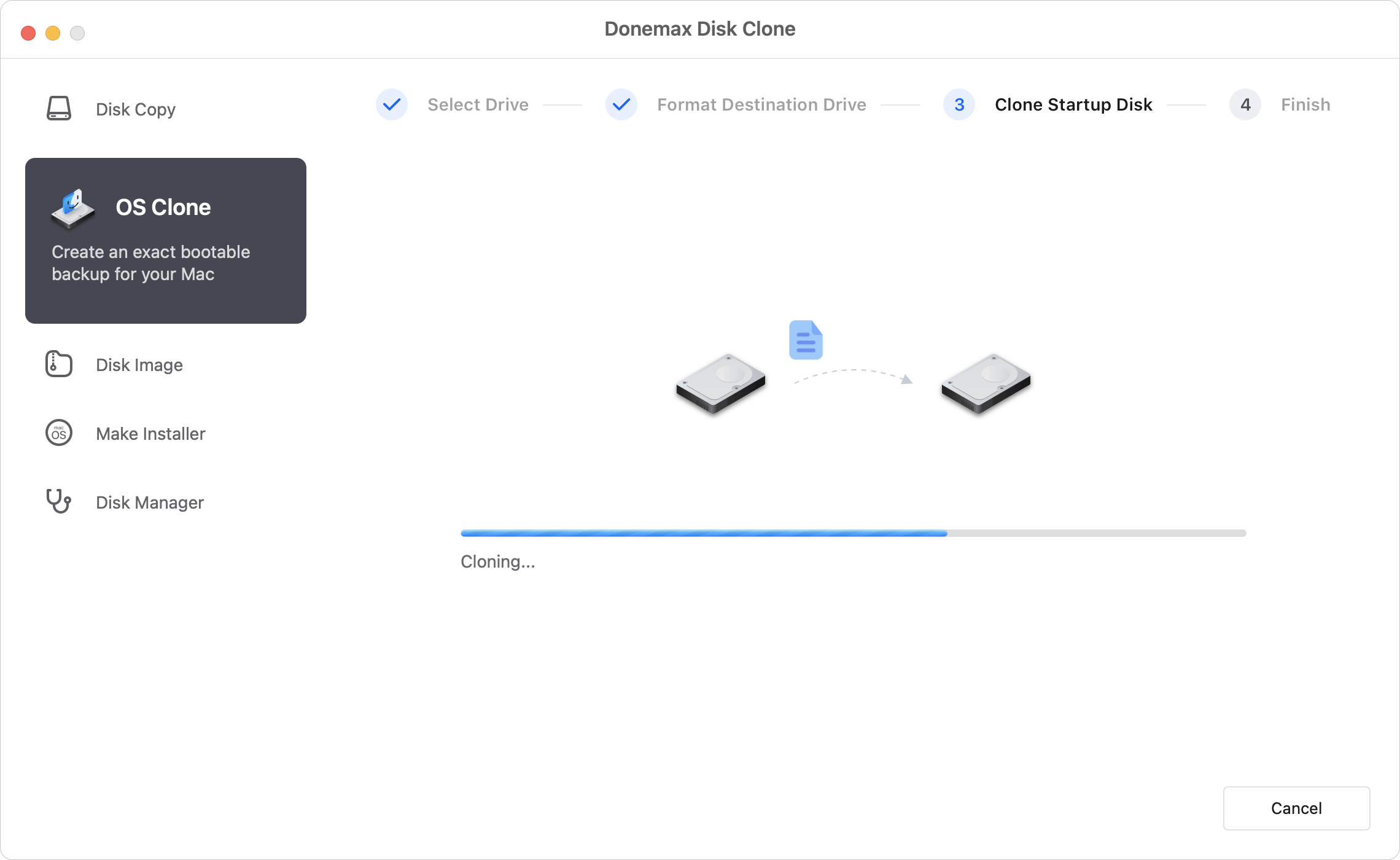
Once the cloning process finishes, you will have a perfect, independent bootable copy of your Mac environment. Keep this drive in a safe place, or use it immediately as a fast portable workspace!
For Apple Silicon Macs, turn off your computer, then press and hold the Power button until you see the startup options screen. For Intel Macs, hold down the Option (Alt) key immediately after turning the machine on. Select your clone drive from the list to boot.
While Time Machine remains an incredible companion tool for basic file version tracking and everyday rollbacks, it simply cannot protect you from major drive disasters that require an immediate boot alternative.
Knowing that the answer to "Can Time Machine create bootable clone for Mac?" is a definitive no helps you patch the vulnerabilities in your current data defense plan. By adding Donemax Disk Clone for Mac to your tools, you get the ultimate peace of mind.
Don't leave your productivity hanging on a single thin thread. Grab Donemax Disk Clone, and secure your Mac system with a true, bootable clone backup now!
Donemax Disk Clone for Mac
An award-winning disk cloning program to help Mac users clone HDD/SSD/external device. It also can create full bootable clone backup for Macs.
Christina
Christina is the senior editor of Donemax software who has worked in the company for 4+ years. She mainly writes the guides and solutions about data erasure, data transferring, data recovery and disk cloning to help users get the most out of their Windows and Mac. She likes to travel, enjoy country music and play games in her spare time.
Gerhard Chou
In order to effectively solve the problems for our customers, every article and troubleshooting solution published on our website has been strictly tested and practiced. Our editors love researching and using computers and testing software, and are willing to help computer users with their problems

