
Written byChristinaUpdated on Jun 10, 2026

Before we start: How to make a complete clone backup for M4 Mac? Using Donemax Disk Clone for Mac, which can clone everything, including macOS system, settings, apps, and all personal files. What's most, it can make sure the cloned drive is bootable.
PAGE CONTENT:
Apple's M4 Mac lineup brings groundbreaking speed and efficiency to desktop and laptop users. Your M4 Mac stores an irreplaceable mix of system settings, specialized applications, and deep directories of personal data. But what happens if your Mac experiences unexpected damage, or you need to wipe it for a repair? Standard cloud backups or file-copy routines fall short because they do not protect your operational environment.
To guarantee true peace of mind, you need to create a byte-for-byte replica of your entire system. This comprehensive guide walks you through how to clone everything on M4 Mac to an external hard drive with Donemax Disk Clone. By leveraging this intuitive, professionally tuned backup tool, you can create a fully operational, bootable copy of your internal storage. Let us look into how this smart software solution simplifies your data security strategy.
Donemax Disk Clone for Mac is a premium, user-friendly system utility designed specifically to handle the modern storage frameworks of macOS. Built to operate perfectly alongside Apple Silicon architecture, this tool makes data migration and deep system backups straightforward for users of all technical experience levels. Instead of relying on command-line scripts or complex, multi-layered interfaces, Donemax consolidates advanced disk duplication into a clear, visual wizard layout.
Once your external hard drive is formatted, you are ready to clone everything on M4 Mac to an external hard drive with Donemax Disk Clone. Follow these simple steps to build your exact bootable backup:
Step 1: Download and launch Donemax Disk Clone for Mac on your computer. Make sure your newly formatted external drive remains securely attached to your Mac's port.
Step 2: On the main interface of the software, navigate to the primary toolkit and click on the OS Clone mode. This specialized mode is specifically engineered to handle system files, deep application configurations, and active user profiles.
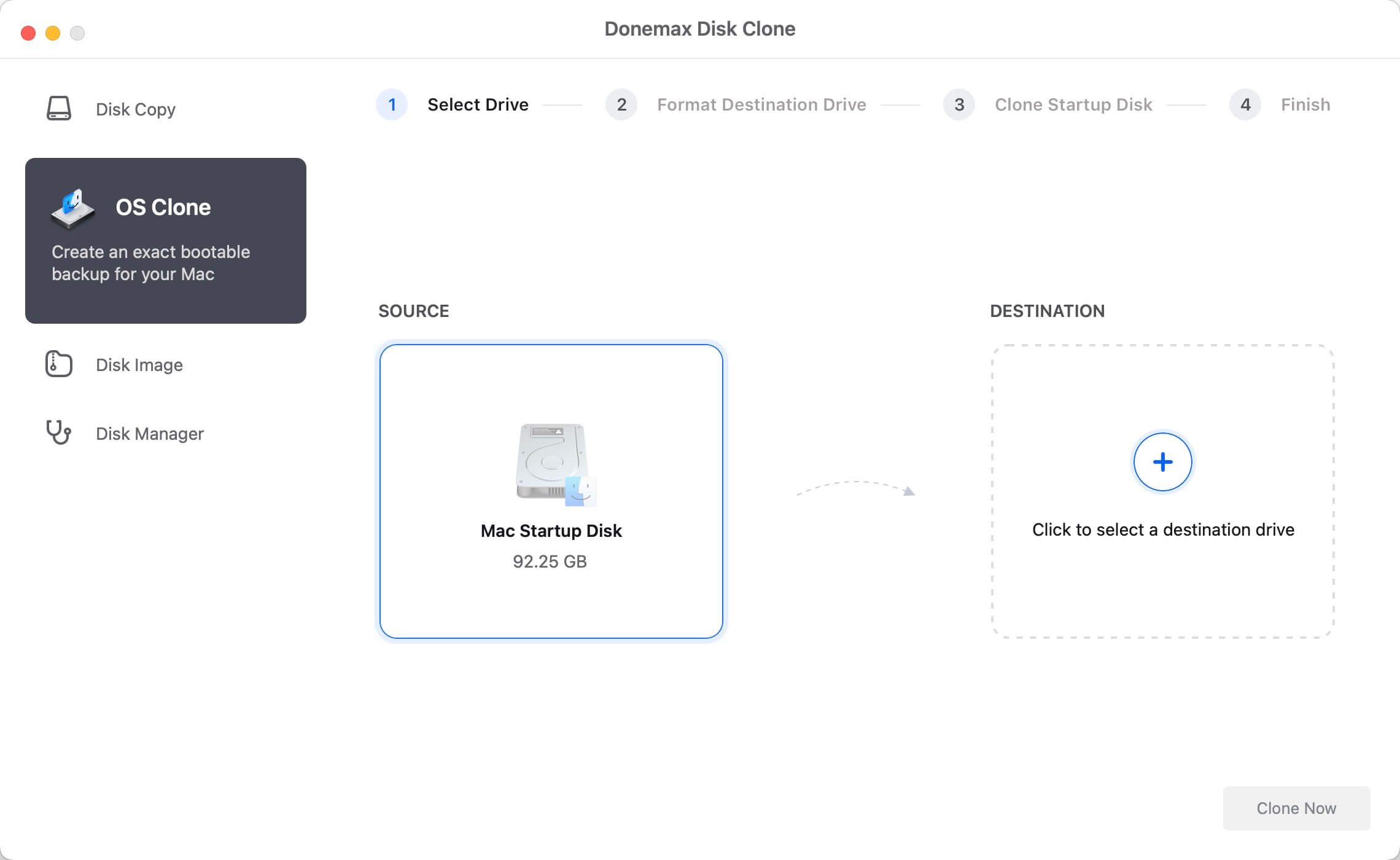
Step 3: The software will display a source and destination layout. Your Mac's internal startup SSD will be automatically selected as the source drive. Next, navigate to the destination selector and pick your connected external hard drive from the list.
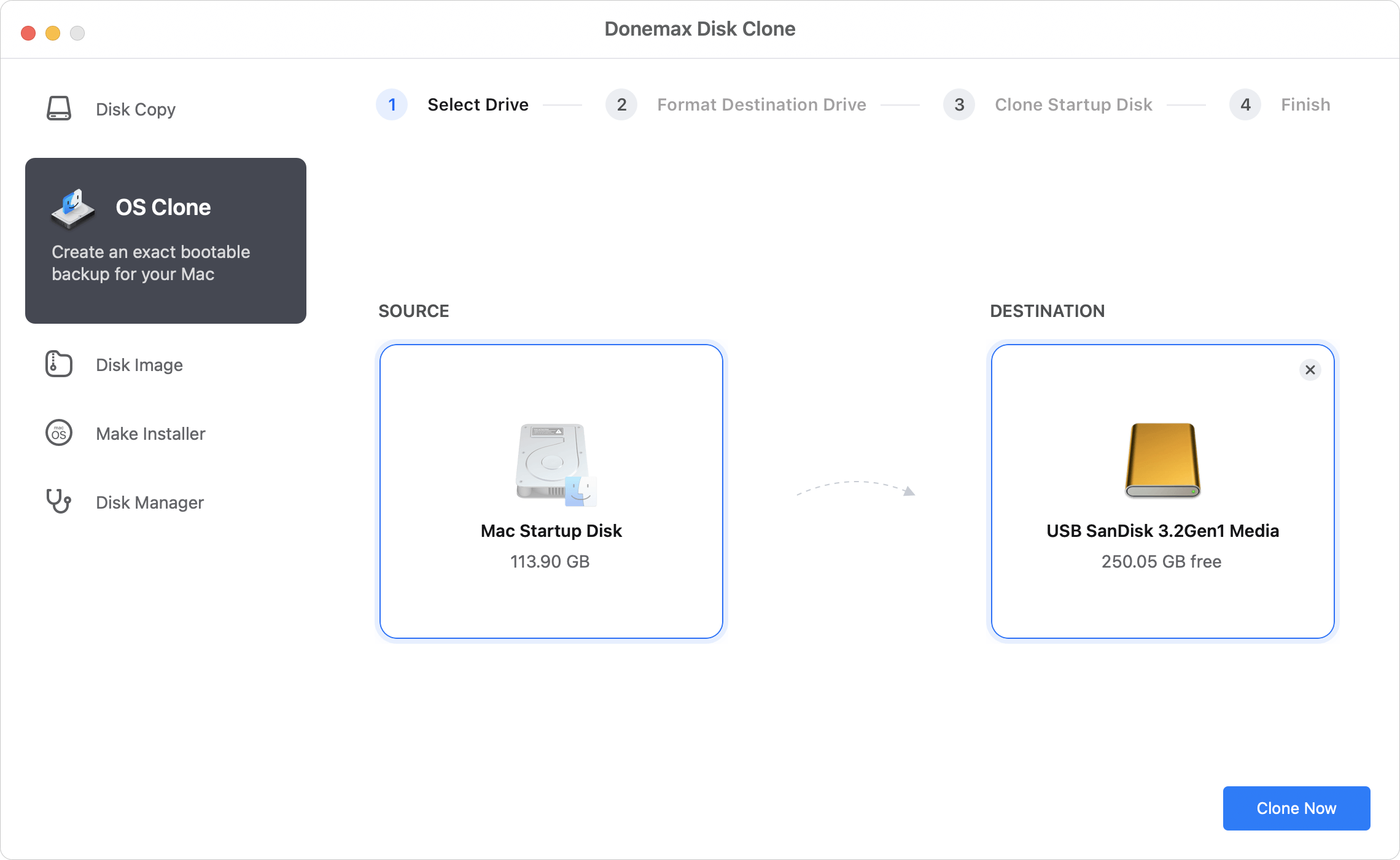
Step 4: Take a quick moment to verify your drive selections. Once you are confident that the correct external drive is selected as the destination, click the Clone Now button at the bottom of the interface. Donemax Disk Clone will begin transferring your data, system architectures, and applications.
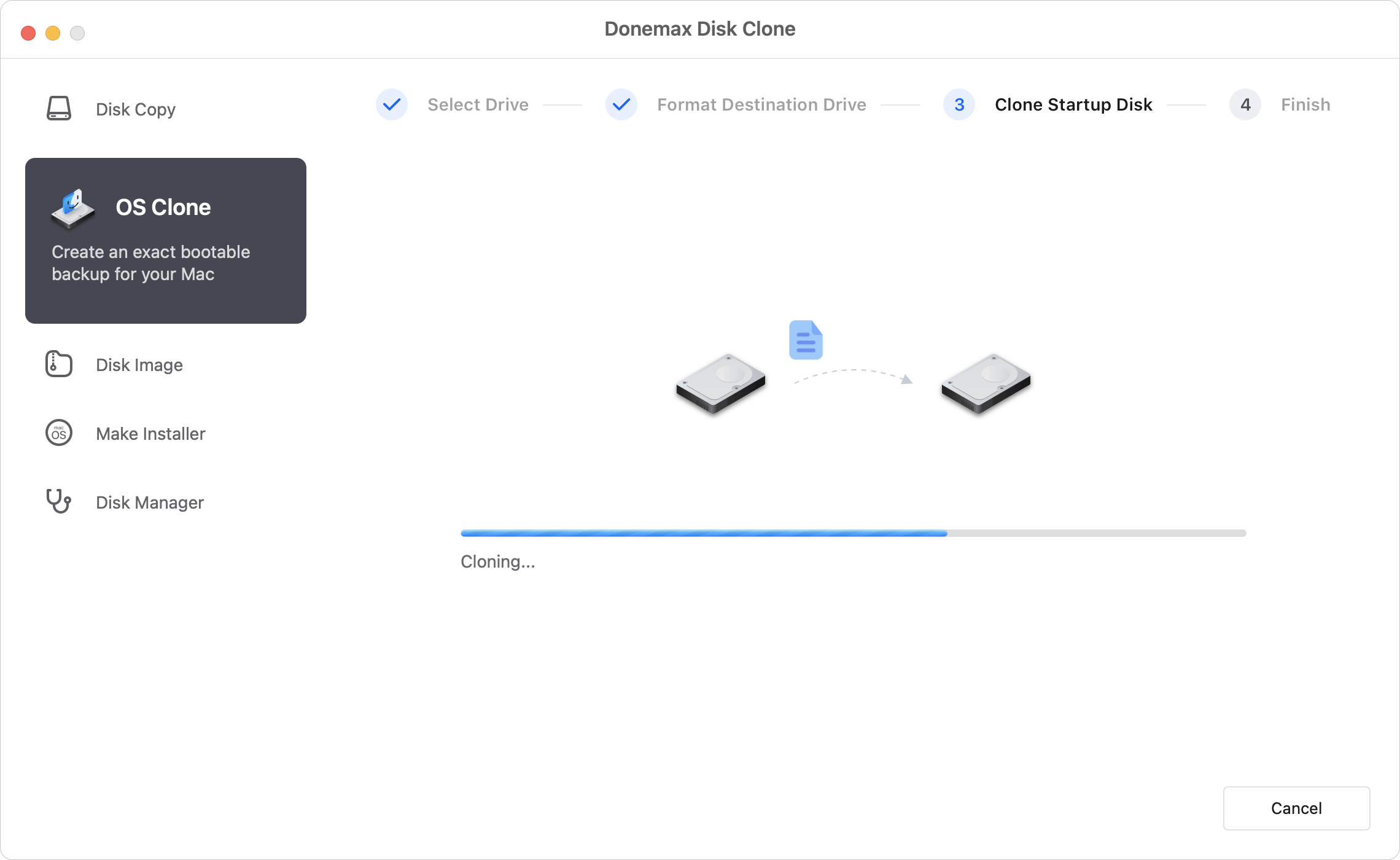
Step 5: A progress indicator will display the current status. Avoid disconnecting your drive or shutting down your Mac during this phase. When the progress bar fills up completely, the app will display a clone successful notification. Your external hard drive now contains a comprehensive, bit-by-bit copy of your entire M4 Mac environment.
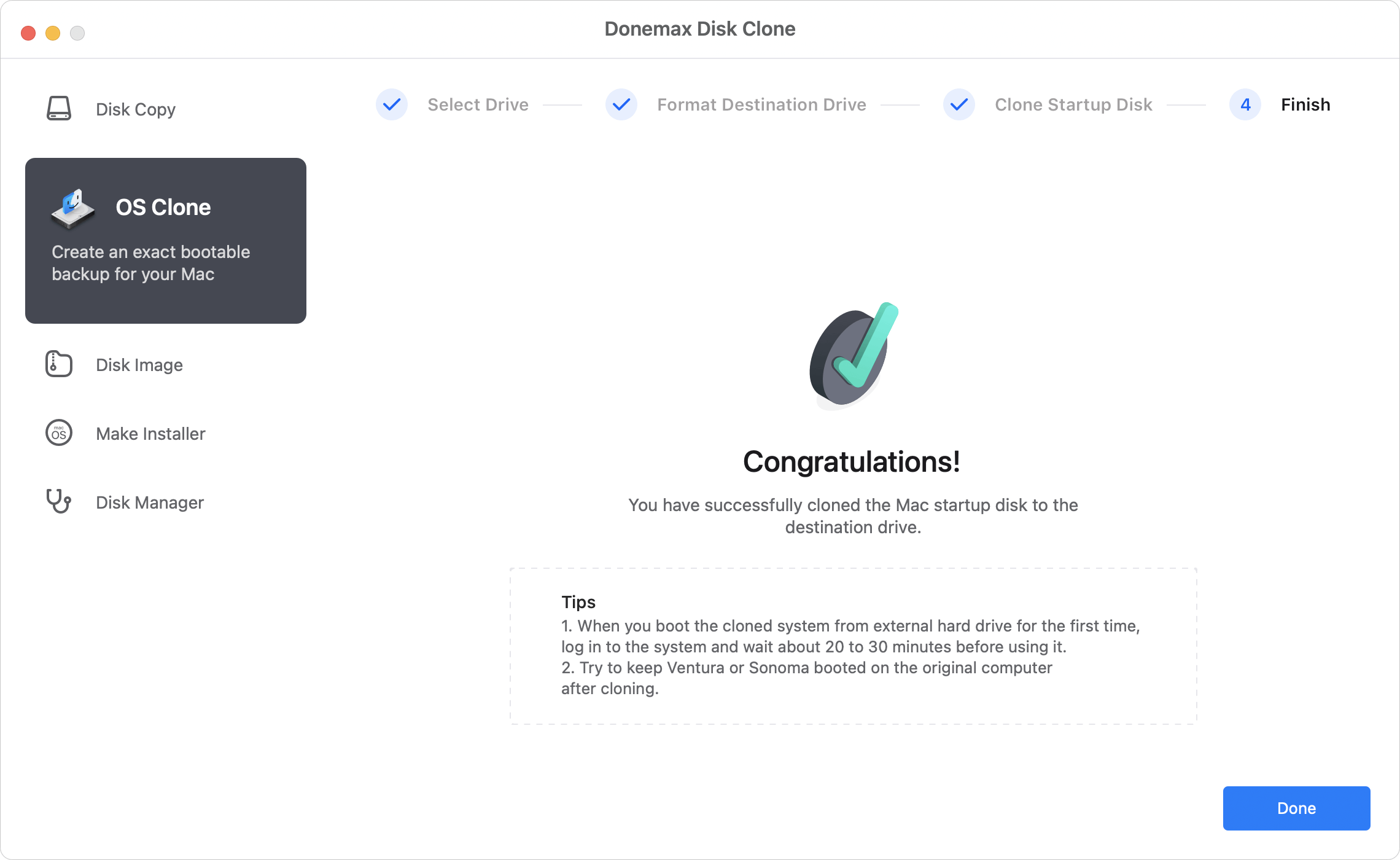
The main benefit of using Donemax Disk Clone for Mac is its ability to create a fully bootable backup disk directly from your running operating system. This means your external hard drive or solid-state drive (SSD) does not just act as a storage locker for files; it transforms into an exact mirror image of your active Mac environment. The software migrates everything—including core system components, custom preferences, operational caches, installed applications, and user accounts—with full cryptographic integrity.
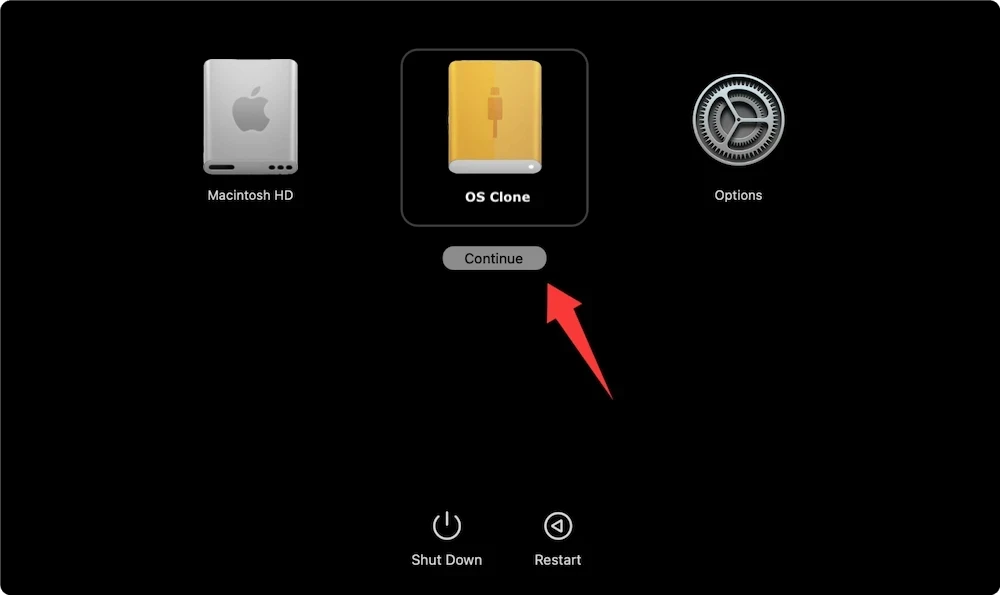
One of the standout features of Donemax Disk Clone is that it lets you boot your Mac directly from the external drive. Testing your newly created clone ensures it is fully functional and ready to use in an emergency. To boot your M4 Mac from your external drive, follow these steps:
Protecting your digital assets goes far beyond simply saving your document folders. By maintaining a comprehensive, operational clone of your system disk, you establish an elite safety net that safeguards your entire professional and personal workflow against unexpected failures. Donemax Disk Clone for Mac provides the exact combination of advanced technical capabilities and simple operation required to secure modern Apple Silicon machines.
Do not wait for a hardware failure or system update glitch to disrupt your productivity. Get your copy of Donemax Disk Clone for Mac today, follow our simple preparation and transfer steps, and create a reliable, bootable clone of your M4 Mac. Keep your system, settings, apps, and data safe so you can resume work instantly, no matter what happens.
Donemax Disk Clone for Mac
An award-winning disk cloning program to help Mac users clone HDD/SSD/external device. It also can create full bootable clone backup for Macs.
Christina
Christina is the senior editor of Donemax software who has worked in the company for 4+ years. She mainly writes the guides and solutions about data erasure, data transferring, data recovery and disk cloning to help users get the most out of their Windows and Mac. She likes to travel, enjoy country music and play games in her spare time.
Gerhard Chou
In order to effectively solve the problems for our customers, every article and troubleshooting solution published on our website has been strictly tested and practiced. Our editors love researching and using computers and testing software, and are willing to help computer users with their problems

