
Written byStevenUpdated on Feb 02, 2026

Before we start: If there is no Time machine backup available, how to restore MacBook to previous date? There are some methods to restore individual files or system in such a case. The best choice is to create a bootable clone for macOS with Donemax Disk Clone for Mac. It can help you boot Mac to a previous date with all data intact.
PAGE CONTENT:
Restoring a MacBook to a previous date is a critical skill when dealing with system errors, software bugs, or accidental file changes. Most Mac users rely on Time Machine to back up and restore data, but what happens when Time Machine isn't available? Whether due to a missing backup, corrupted Time Machine disk, or simply forgetting to enable it, there are alternative ways to restore your MacBook to an earlier state without Time Machine. In this guide, we will explore multiple options, from macOS built-in tools to third-party software, to help you recover files or revert system settings safely.

Before diving into solutions, it's essential to understand what restoring your MacBook involves. In general, restoring can mean two things:
Without Time Machine, complete system restoration is more challenging, as Time Machine is designed to maintain incremental backups of both your system and personal files. That said, macOS includes several built-in mechanisms, and there are third-party tools that can help recover lost data or undo unwanted changes.
macOS provides several native features that can help restore parts of your system or individual files without requiring Time Machine.
Many macOS applications, such as Pages, Microsoft Word, and Preview, maintain version histories. These allow you to revert documents to a previous state. To access this feature:
This method is useful for documents, spreadsheets, or presentations, but it won't revert system-wide changes.
If your issue is related to system settings rather than files, macOS provides several reset options:
This approach is suitable if your Mac is behaving oddly due to configuration changes but doesn't require a full system reinstall.
macOS Recovery Mode is a powerful built-in tool for system repair and reinstallation. It can restore the operating system while keeping your files intact. Here's how:
Recovery Mode doesn't require a Time Machine backup, but it is limited to repairing or reinstalling macOS rather than recovering old versions of files.
Even without a Time Machine backup, your MacBook might have a hidden safety net in the form of local snapshots. These are automatic backups that macOS creates on APFS-formatted drives. They are particularly useful for recovering system states, recent files, or undoing unwanted changes without relying on an external backup drive.
Apple File System (APFS), used in modern macOS versions, has a built-in feature called snapshots. A snapshot is essentially a read-only copy of your entire drive at a specific moment in time. These snapshots let you roll back your system or files to an earlier point without affecting current data.
You can view the list of available snapshots using Terminal:
tmutil listlocalsnapshots /
com.apple.TimeMachine.2026-01-08-120045
com.apple.TimeMachine.2026-01-07-235500
Each entry represents a snapshot created at a specific date and time. If the list is empty, your Mac currently has no snapshots to restore from.
If a snapshot is available, you can restore it with these steps:
tmutil restore -r <snapshot_name> /
Replace <snapshot_name> with the name of the snapshot you want to restore (e.g., com.apple.TimeMachine.2026-01-07-235500).
While local snapshots are useful, they have some limitations:
If macOS built-in options aren't sufficient, several third-party tools can help restore your system to a previous state without Time Machine. For example, you can use the Mac disk copy software Donemax Disk Clone for Mac to create a bootable clone backup for your macOS.
While Donemax Disk Clone for Mac is primarily a backup solution, if you've previously cloned your Mac's drive, you can restore your system from that clone. This method doesn't require Time Machine and can effectively bring your MacBook back to a previous date.
Here we will show you how to make a bootable and full clone backup for macOS:
Step 1. Launch the disk cloning software and choose OS Clone function. The Mac startup disk will be selected as source drive automatically. You can just select another empty external disk as destination.
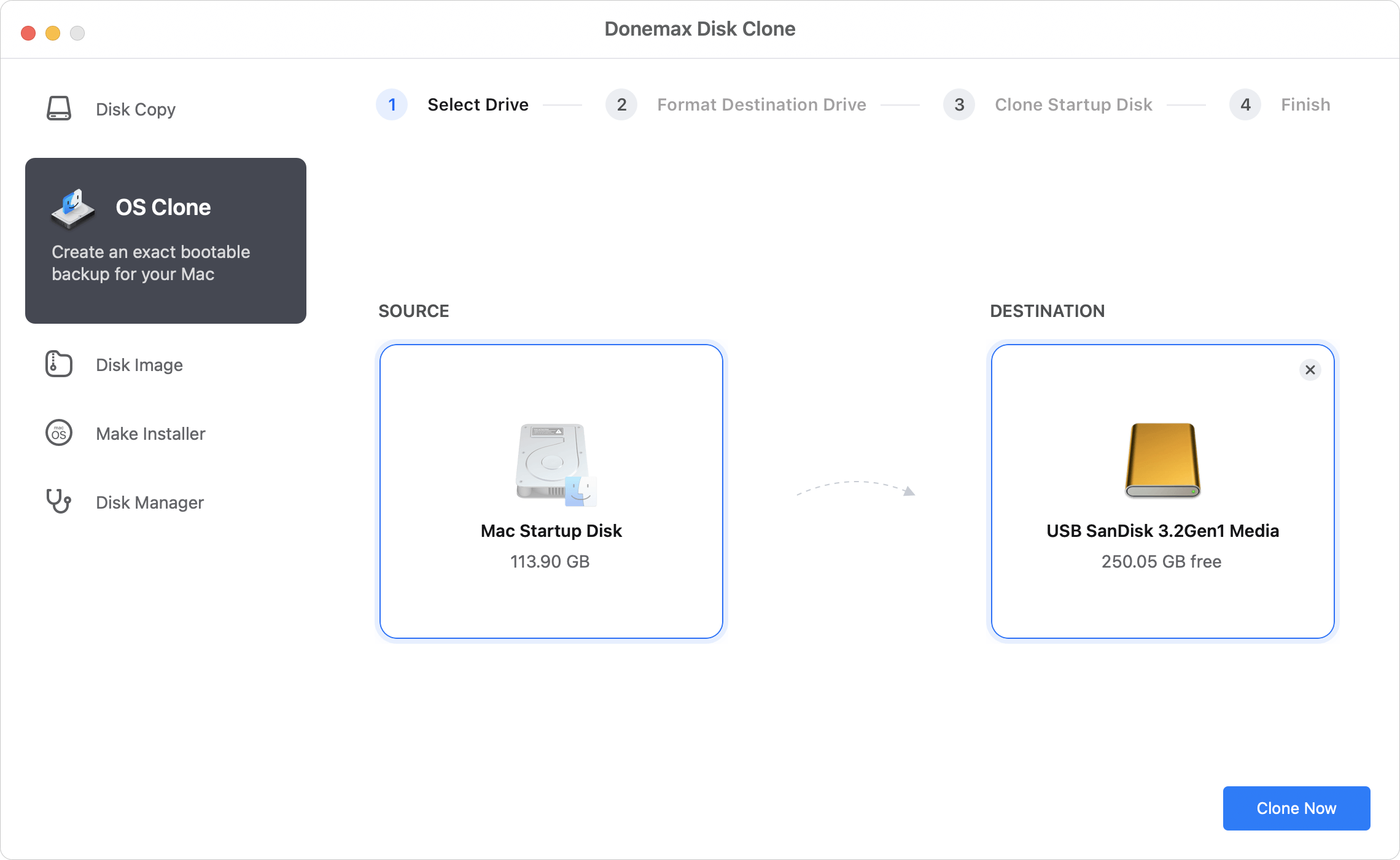
Step 2. The software will start to clone the system disk to the external drive after clicking on the Clone Now button. Just wait patiently.
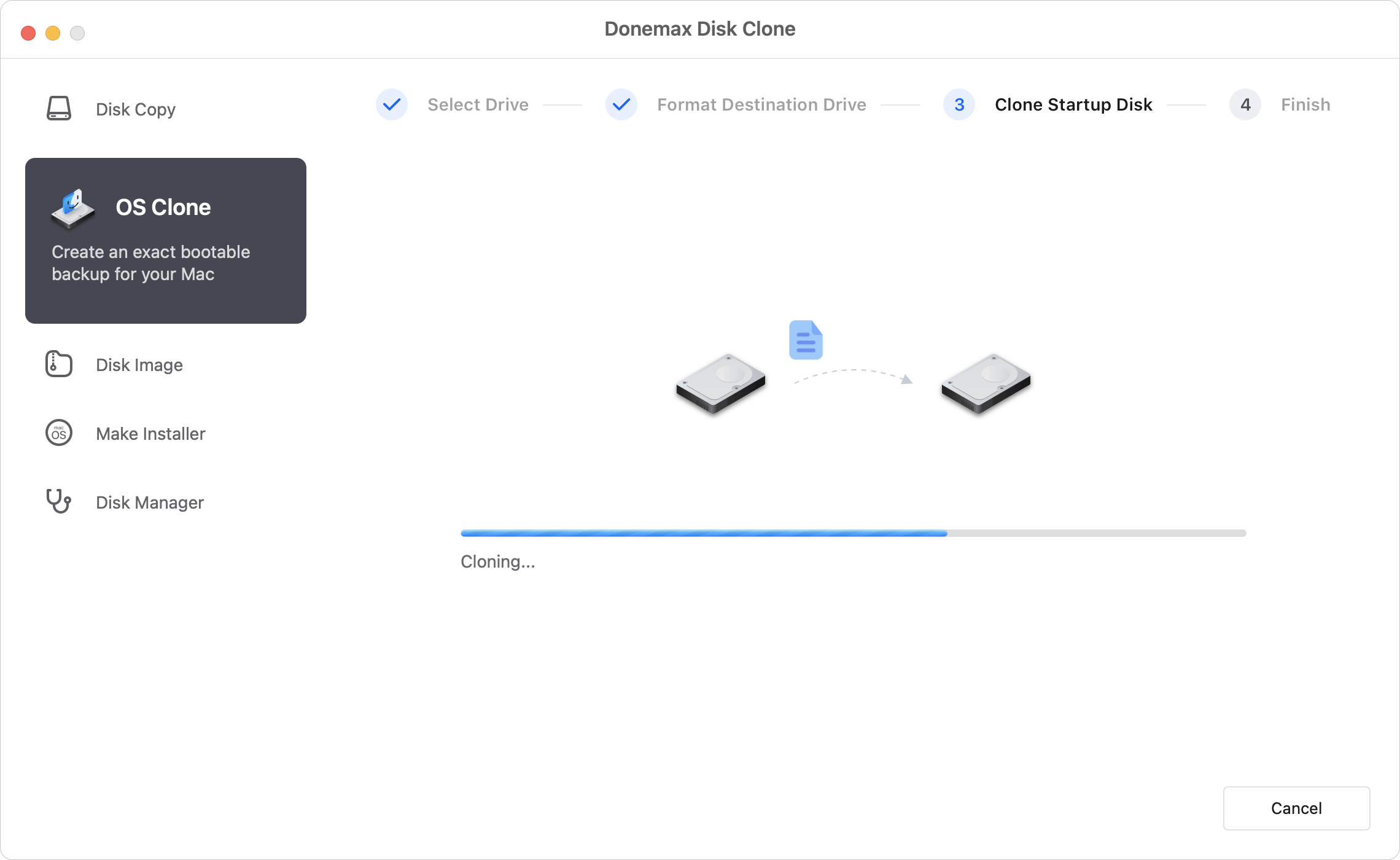
Step 3. After the cloning process is done, all the system data, installed apps, and personal files are cloned to the destination drive. Also, the software will make the cloned drive bootable.
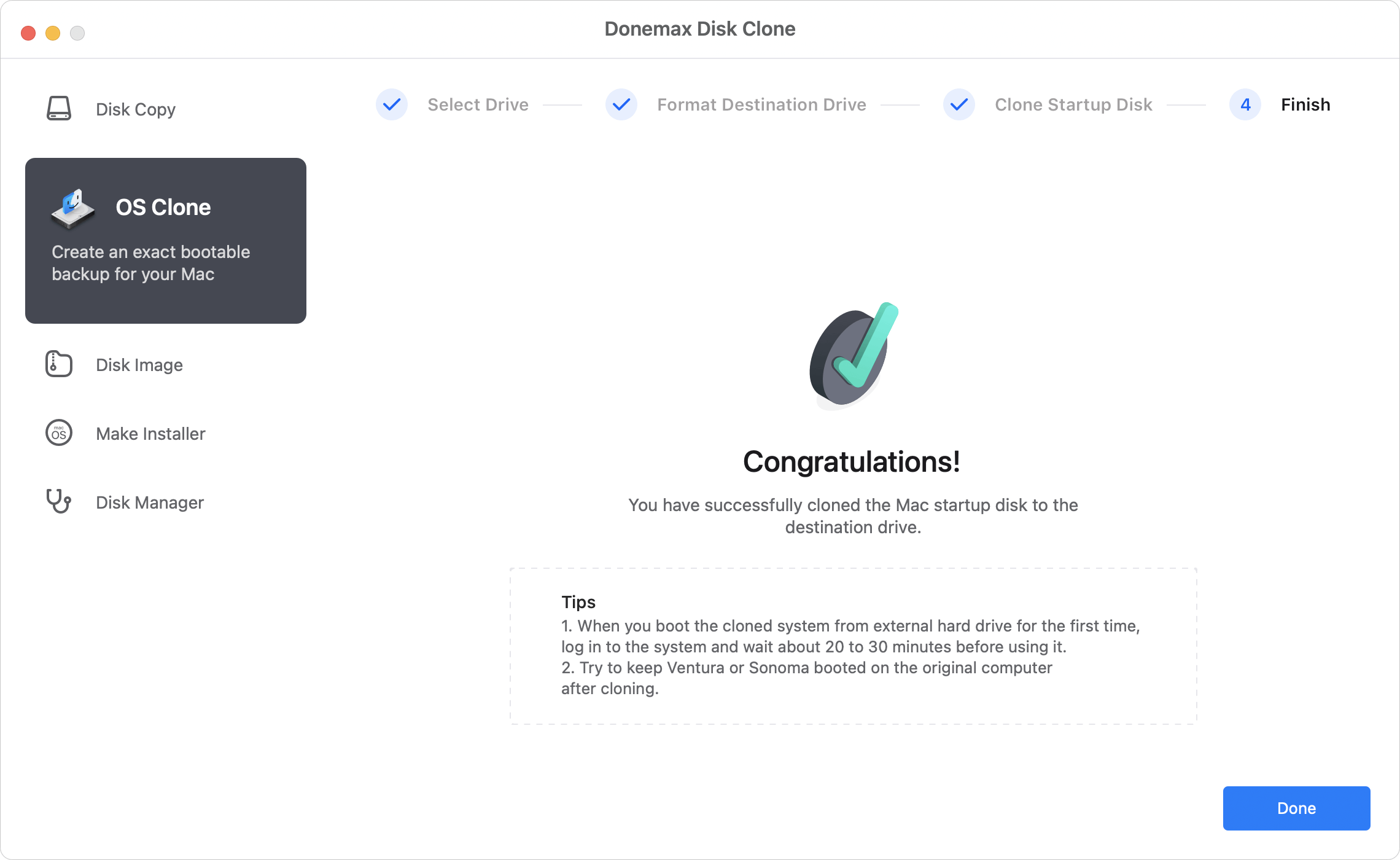
You can clone the system again in the future after some changes to the Mac. If you want to restore the macOS to a previous date, you can then boot from a specified cloned drive directly.
Even if you cannot restore the entire system, there are ways to recover specific files or documents without Time Machine.
1. Check the "Recently Deleted" Folder
Many apps, like Photos or Notes, have a "Recently Deleted" folder. Files in this folder are kept for a limited time before permanent deletion. Access them and restore any accidentally deleted files.
2. Use App Versioning
As discussed earlier, macOS allows apps to save versions of your documents. Check individual apps for version history to restore changes.
3. Recover Files from iCloud
If you use iCloud Drive, you can recover deleted files online:
4. Third-Party Recovery Tools
Tools like Donemax Data Recovery for Mac also allow selective file recovery. They are particularly useful when files are overwritten or accidentally erased.
Donemax Data Recovery for Mac is a user-friendly recovery tool capable of recovering deleted files, including photos, documents, and videos. It can scan your Mac's storage and identify recoverable items, even after accidental deletion or disk corruption. Th software specializes in deep scans for lost files.

Restoring a MacBook without Time Machine is possible but can be limited and time-consuming. To avoid future issues:
Taking proactive measures ensures you have multiple recovery paths and minimizes the risk of permanent data loss.
Restoring a MacBook to a previous date without Time Machine is challenging but not impossible. macOS provides several native options, including Recovery Mode, APFS local snapshots, and app-based version history, to recover system states and files. Third-party tools like Donemax Disk Clone for Mac and Donemax Data Recovery for Mac offer additional flexibility for both system and file restoration. While these methods can help in emergencies, the most reliable approach is preventive: maintaining regular backups through Time Machine, iCloud, or bootable clones. By combining built-in tools with third-party solutions, you can safeguard your MacBook and recover lost data efficiently, even without Time Machine.
Donemax Disk Clone for Mac
An award-winning disk cloning program to help Mac users clone HDD/SSD/external device. It also can create full bootable clone backup for Macs.
Steven
Steven has been a senior writer & editor of Donemax software since 2020. He's a super nerd and can't imagine the life without a computer. Over 6 years of experience of writing technical solutions and software tesing, he is passionate about providing solutions and tips for Windows and Mac users.
Gerhard Chou
In order to effectively solve the problems for our customers, every article and troubleshooting solution published on our website has been strictly tested and practiced. Our editors love researching and using computers and testing software, and are willing to help computer users with their problems

