
Written byCharlesUpdated on Jul 28, 2026

Before we start: The best system junk cleaner for macOS 27 Golden Gate is Donemax DMcleaner for Mac. macOS 27 accumulates hidden system caches, user logs, app leftovers, and temporary files that slow down performance and consume valuable SSD storage. Donemax DMcleaner for Mac safely scans your system, detects useless junk files without touching critical macOS system files, and reclaims gigabytes of free space in just one click. Alternative manual methods include using built-in macOS Storage Management and clearing user caches in Finder.
PAGE CONTENT:
Upgrading to macOS 27 Golden Gate delivers incredible new features, enhanced security, and smoother multitasking across Mac devices. However, as you use your Mac for daily work, web browsing, image editing, and app testing, unseen clutter gradually builds up in the background.
Over time, temporary cache files, system log entries, application leftovers, duplicate files, and localized language files hoard gigabytes of valuable solid-state drive (SSD) storage. You might notice your Mac running slower, fans spinning louder, or receiving a frustrating "Your disk is almost full" alert.

Finding the best system junk cleaner for macOS 27 Golden Gate is crucial to restore your Mac's speed and maintain long-term system health. In this guide, we evaluate top cleaning solutions, highlight the best system junk cleaner—Donemax DMcleaner for Mac—and share practical tips to keep your Mac running like new.
Even with Apple's advanced APFS file system and memory management, macOS 27 Golden Gate naturally generates temporary operational files to keep apps running smoothly.
When apps launch, perform background tasks, or update, they generate system cache files and error logs. While these files are helpful during active sessions, macOS rarely deletes old cache files automatically once they are no longer needed.
Here are the primary types of system junk hiding on macOS 27 Golden Gate:
Not all Mac cleaning tools are created equal. Because macOS 27 Golden Gate features strict System Integrity Protection (SIP) and refined permissions, choosing a cleaner that balances safety with thoroughness is essential.
A top-tier system junk cleaner for macOS 27 Golden Gate should meet these criteria:
When evaluating performance, safety, and ease of use, Donemax DMcleaner for Mac stands out as the best system junk cleaner for macOS 27 Golden Gate.
Donemax DMcleaner for Mac is a comprehensive utility specifically engineered to optimize, clean, and speed up macOS devices. Its smart engine scans critical storage regions, isolates redundant files, and lets you wipe away gigabytes of system junk safely in seconds.
Cleaning system clutter with Donemax DMcleaner for Mac is simple and straightforward. Follow these five easy steps:
Step 1: Download and install Donemax DMcleaner for Mac. Launch Donemax DMcleaner for Mac from your Applications folder or Launchpad.
Step 2: Select Junk Cleaner from the left sidebar menu and click the Scan button.
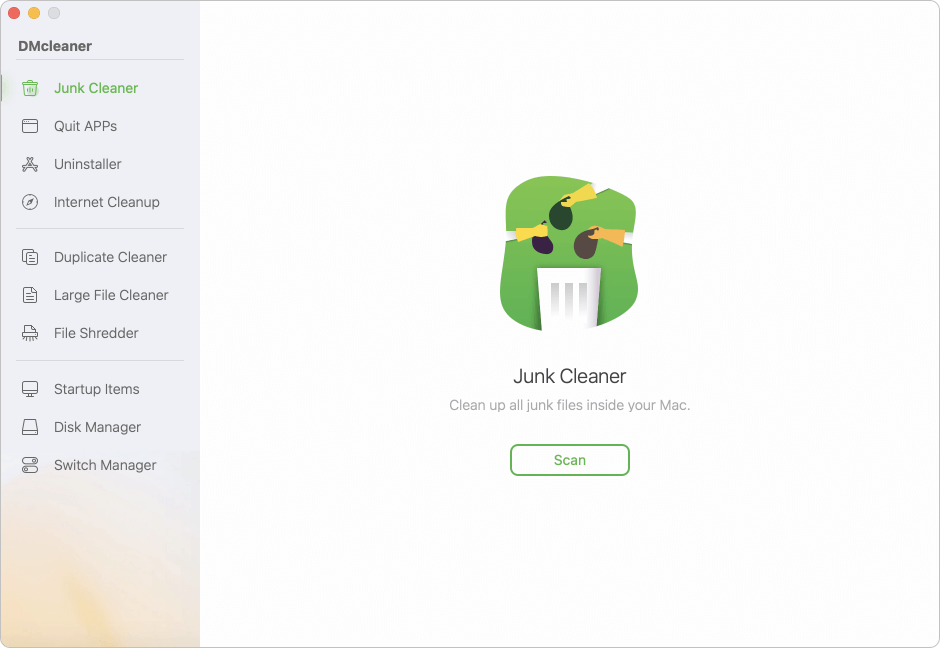
Step 3: Review the scanned items. The software categorizes junk files into System Cache, App Cache, User Logs, and Downloads.
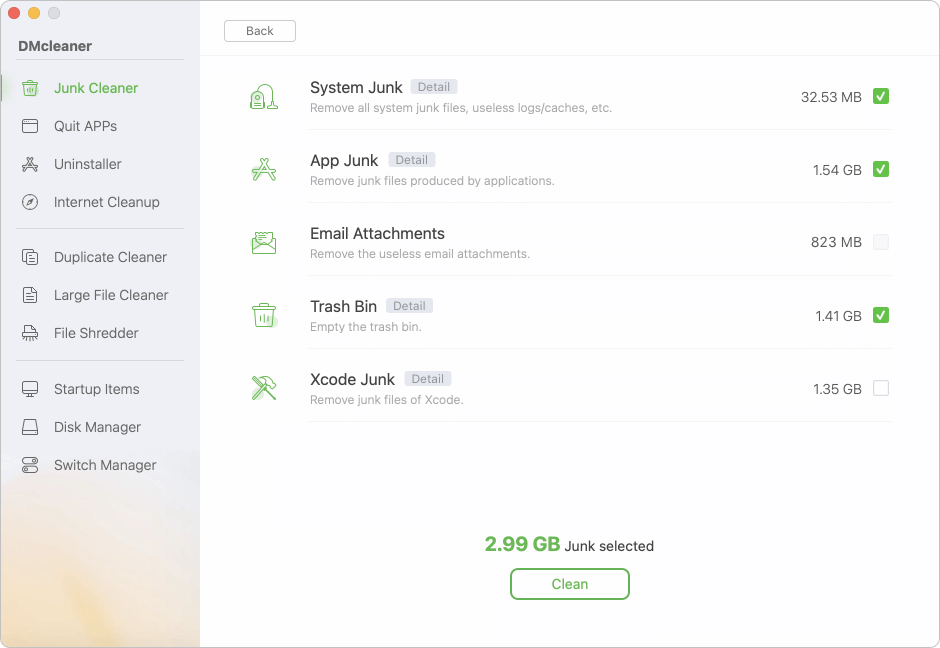
Step 4: Click Clean. Donemax DMcleaner will immediately remove the selected junk files and free up your storage.
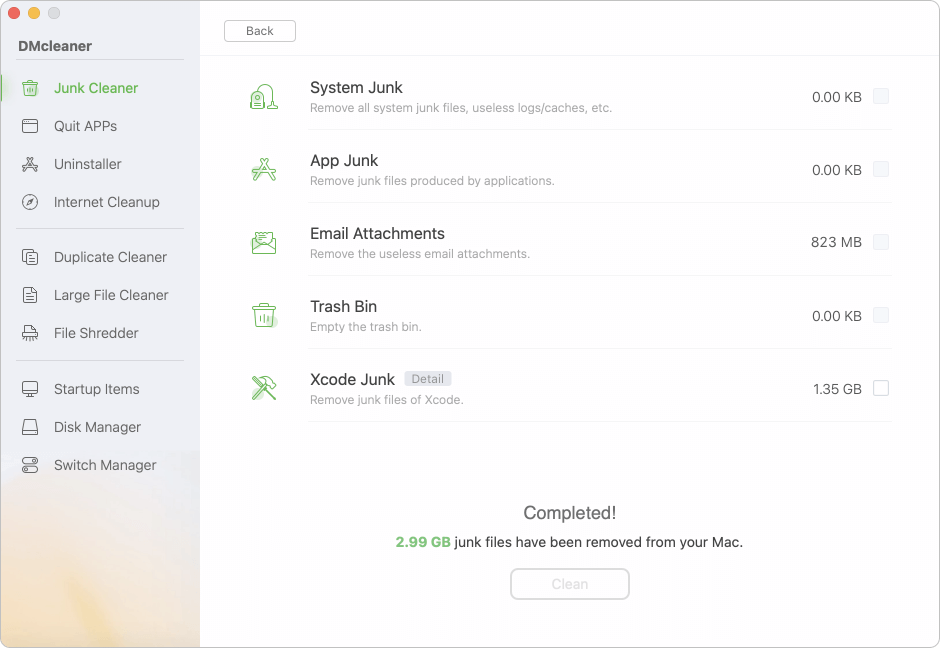
While dedicated software offers the fastest results, you can also perform basic manual cleaning using native macOS features.
macOS 27 Golden Gate includes a built-in tool that gives recommendations for optimizing storage space.
Advanced users can clear user cache folders manually through Finder, though extra caution is required to avoid deleting active system files.
Here is a comparison of how different cleaning solutions perform:
| Cleaning Solution | Safety Level | Ease of Use | Cleaning Depth |
|---|---|---|---|
| Donemax DMcleaner for Mac | Very High (Automated) | Very Easy (1 Click) | Deep System & App Junk Cleanup |
| macOS Built-in Storage Tool | High (Native) | Easy | Basic (Large files & recommendations) |
| Manual Library Cleaning | Moderate (Risk of user error) | Complex | Partial (User caches only) |
Beyond regular junk cleaning, adoption of these smart habits will keep your Mac fast and responsive:
Accumulating system clutter is a natural byproduct of using macOS 27 Golden Gate, but letting junk files hoard your SSD storage leads to slow performance, high memory usage, and storage headaches.
Using the best system junk cleaner for macOS 27 Golden Gate—Donemax DMcleaner for Mac—ensures your Mac stays fast, clean, and organized without risking key system files.
Download Donemax DMcleaner for Mac today, perform a free system scan, and reclaim your Mac's speed and storage space in just one click!
DMcleaner for Mac
Donemax DMcleaner for Mac is an award-winning Mac cleanup & maintenance tool. It offers over 10 tools to help Mac users clean junk data. It helps speed up a slow Mac. Additionally, it includes a smart switch manager and disk manager for Mac.
Charles
Charles, who lives in Sydney, Australia, is an editor & writer of Donemax Team. He is good at writing articles related with Apple Mac computers, Windows operating systems, data recovery, data erasure, disk clone and data backup, etc. He loves reading and playing tennis in his spare time and is interested in testing new digital devices such as mobile phones, Macs, HDDs, SSDs, digital cameras, etc.
Gerhard Chou
In order to effectively solve the problems for our customers, every article and troubleshooting solution published on our website has been strictly tested and practiced. Our editors love researching and using computers and testing software, and are willing to help computer users with their problems