
Written byChristinaUpdated on Aug 13, 2026

Before we start: If your MacBook Neo or other Mac machines are running slowly, you can use the software Donemax DMcleaner for Mac to solve the issue. The tool can deeply clean up junk data from Mac and speed it up.
PAGE CONTENT:
The A18 Pro MacBook Neo is engineered for lightning-fast responsiveness, high efficiency, and effortless multitasking. However, even the most advanced Apple Silicon laptops can encounter unexpected slowdowns over time.
If your A18 Pro MacBook Neo is lagging during daily tasks, taking longer to launch applications, or displaying the dreaded spinning rainbow wheel, you are certainly not alone. System caches accumulate, background services hog resources, and low disk space can restrict virtual memory performance.

In this comprehensive guide, we will walk you through proven, beginner-friendly steps to speed up a slow A18 Pro MacBook Neo and restore its factory-fresh performance in no time.
Quick Overview: Solutions at a Glance
Optimization Method |
Target Issue |
Difficulty / Speed |
|---|---|---|
1. System Reboot & Thermal Check |
Minor glitches & memory leaks |
Very Easy (1 min) |
2. Smart Cleanup via DMcleaner |
Junk files, large caches & leftovers |
Easy & Automated (2 mins) |
3. Disable Unnecessary Startup Apps |
Slow boot time & background CPU drain |
Easy (3 mins) |
4. Close Heavy Background Processes |
High RAM & CPU consumption |
Easy (2 mins) |
5. Reclaim SSD Storage Space |
Low virtual memory & swap file bottleneck |
Moderate (5 mins) |
6. Update macOS & Applications |
Software bugs & compatibility issues |
Easy (10 mins) |
Before jumping into solutions, it helps to understand why your ultra-fast MacBook Neo might feel sluggish. Here are the primary culprits:
It sounds basic, but restarting your MacBook Neo resolves many temporary performance bottlenecks. A restart flushes system RAM, clears temporary cache files, and stops runaway background tasks.
Additionally, check if your laptop feels unusually hot. If the A18 Pro chip reaches elevated thermal levels under intense loads, macOS automatically reduces processor clock speeds to prevent overheating. Give your Mac a moment on a hard, flat surface to cool down.
If you want a fast, safe, and automated solution, using a dedicated Mac utility is the best choice. Donemax DMcleaner for Mac fully supports the A18 Pro MacBook Neo and offers a complete suite of optimization tools designed for modern Apple Silicon chips.
Donemax DMcleaner for Mac helps you remove system clutter, free up unified memory, manage startup startup programs, and completely uninstall unwanted applications without technical hassle.
💡 WHY CHOOSE DONEMAX DMCLEANER FOR MAC? Donemax DMcleaner for Mac is tailored specifically to clean system caches, app leftovers, duplicate files, and startup daemons without risking critical system files. It is a one-click booster for your MacBook Neo.
Here is how to speed up your A18 Pro MacBook Neo using Donemax DMcleaner for Mac:
Step 1: Download and install Donemax DMcleaner for Mac from the official website.
Step 2: Launch the application and select the 'Junk Cleaner' scan mode.
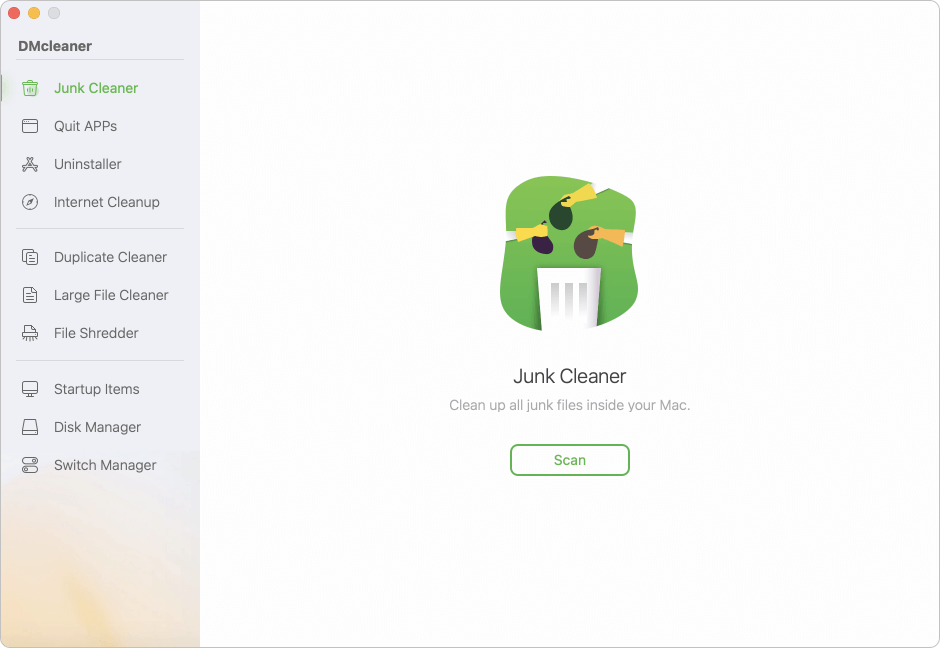
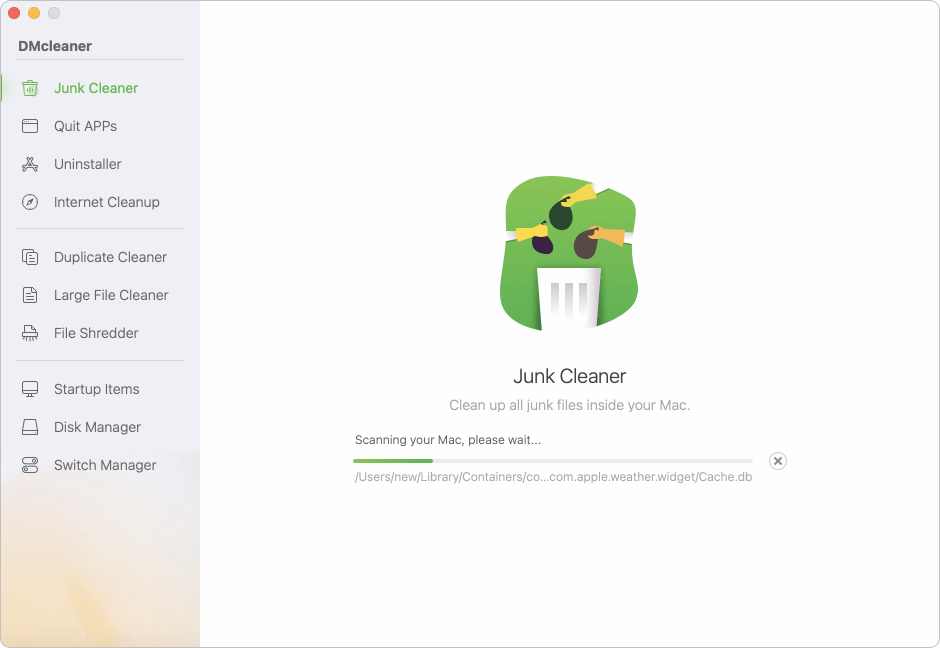
Step 3: Click 'Scan' to let the software discover hidden user caches, system logs, Xcode junks, and mail downloads.
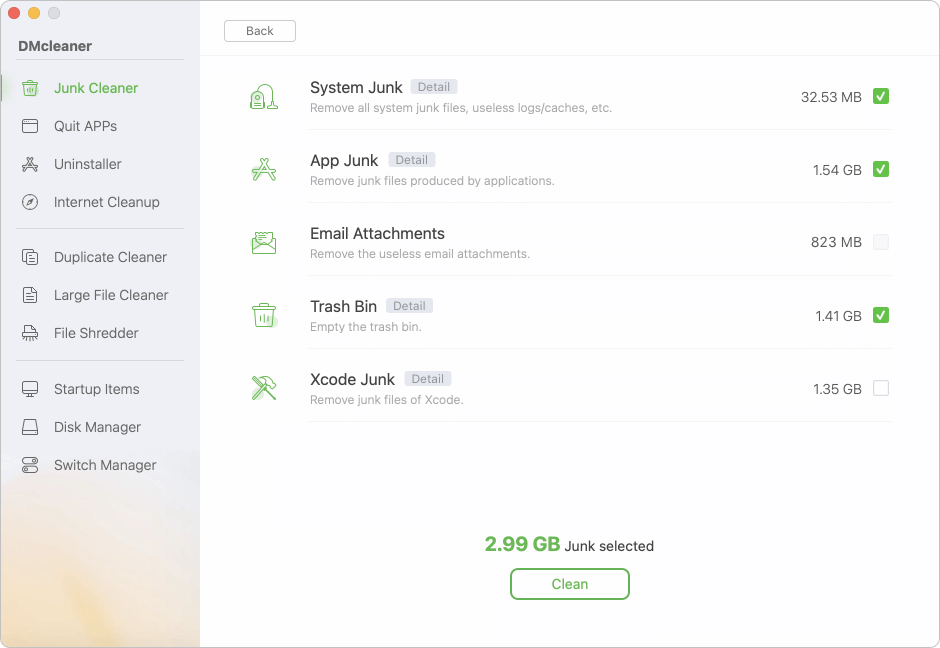
Step 4: Review the results and click 'Clean' to safely remove gigabytes of unnecessary data.
Step 5: Also, you can use other features to clean duplicated files, remove unwanted apps, navigate to the 'Startup Items' module to disable background launchers with a single toggle, etc.
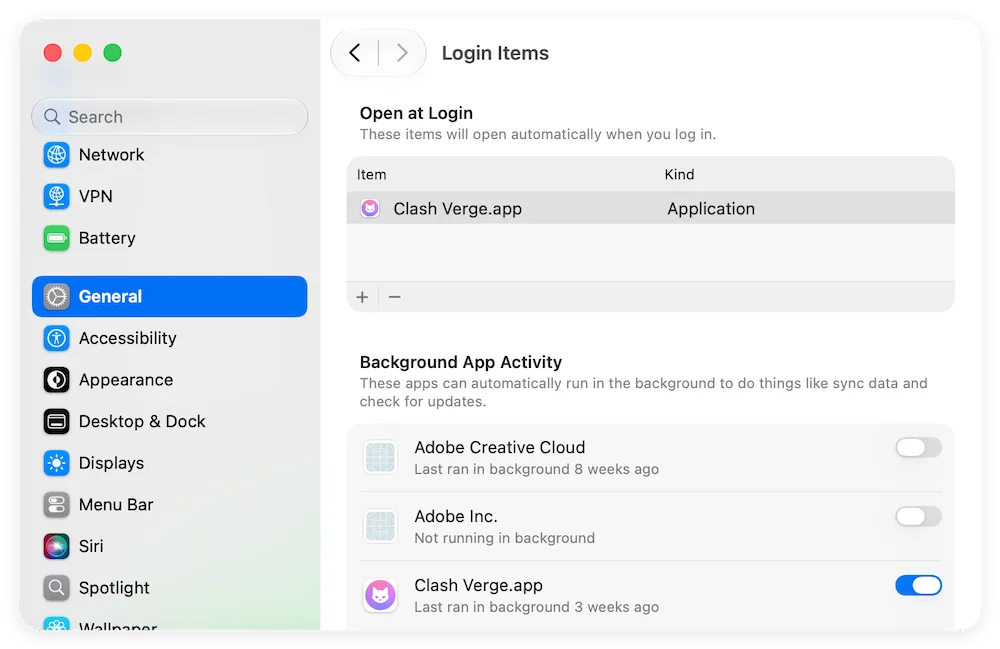
When you install new software, many apps quietly set themselves to open automatically upon login. Over time, dozens of background daemons consume CPU cycles and unified memory before you even open a single app.
To manually disable unnecessary login items:
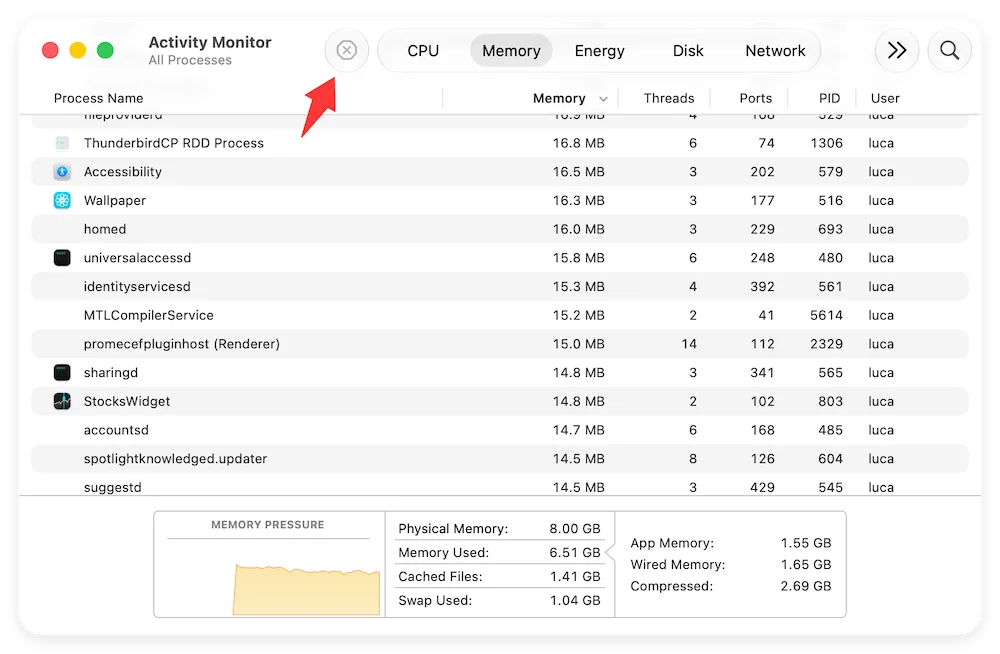
Sometimes a single frozen app or rogue browser tab can consume 100% of a processor core or exhaust available RAM.
You can quickly identify resource hogs using Activity Monitor:
Apple Silicon chips rely heavily on high-speed swap memory when multitasking. If your SSD storage is over 85% full, macOS struggles to allocate virtual memory, causing noticeable system lag.
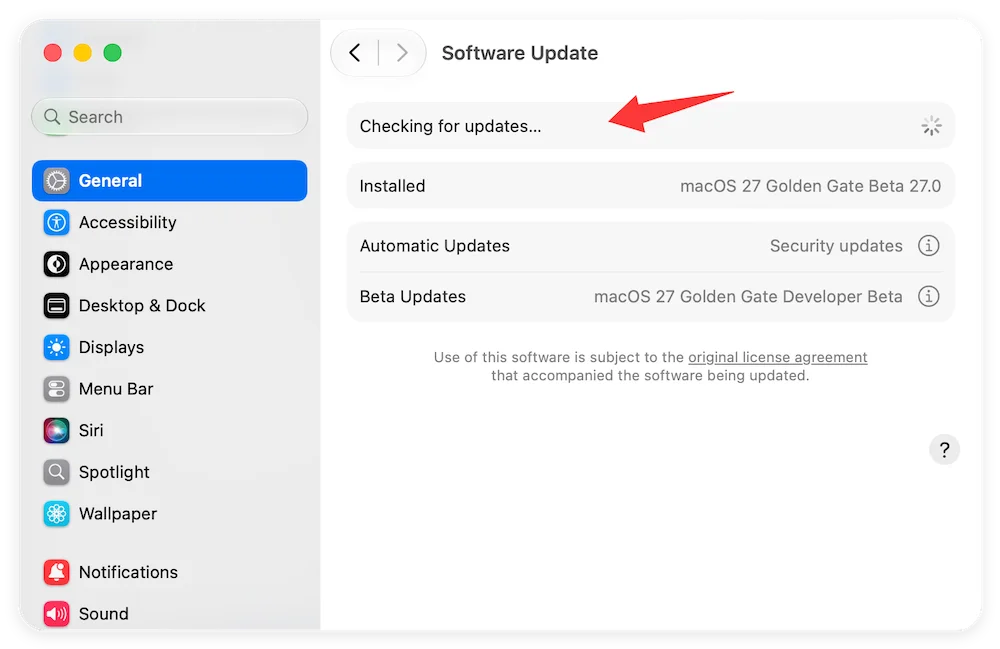
Software updates contain performance optimizations, bug fixes, and security patches designed to keep the A18 Pro architecture running smoothly.
Go to System Settings > General > Software Update and install any pending macOS updates. Also, open the Mac App Store and update all your installed software.
To maintain top performance on your A18 Pro MacBook Neo, adopt these quick maintenance habits:
Taking a few minutes to optimize your system can make a world of difference in your daily workflow. While Apple Silicon offers incredible power, regular maintenance ensures that system junk and runaway tasks never get in the way of your productivity. By combining simple habits like managing startup items with powerful tools like Donemax DMcleaner for Mac, you can easily speed up a slow A18 Pro MacBook Neo and keep it operating at peak performance for years to come.
Donemax DMcleaner for Mac
Donemax DMcleaner for Mac is an award-winning Mac cleanup & maintenance tool. It offers over 10 tools to help Mac users clean junk data. It helps speed up a slow Mac. Additionally, it includes a smart switch manager and disk manager for Mac.
Christina
Christina is the senior editor of Donemax software who has worked in the company for 4+ years. She mainly writes the guides and solutions about data erasure, data transferring, data recovery and disk cloning to help users get the most out of their Windows and Mac. She likes to travel, enjoy country music and play games in her spare time.
Gerhard Chou
In order to effectively solve the problems for our customers, every article and troubleshooting solution published on our website has been strictly tested and practiced. Our editors love researching and using computers and testing software, and are willing to help computer users with their problems