
Written byChristinaUpdated on Aug 27, 2026

Before we start: How to free storage space quickly and safely? Donemax DMcleaner for Mac is the best choice. It can find and remove duplicate and large files, clear system junk data, completely uninstall unnecessarily apps. It also offers some other useful Mac optimization tools.
PAGE CONTENT:
The M5 Mac mini is a compact powerhouse designed for high-performance creative work, smooth multi-tasking, and fast data processing. Whether you use your M5 Mac mini for video editing, software development, graphic design, or everyday office tasks, its fast unified memory and storage make working feel effortless.
However, even with cutting-edge hardware, storage space remains a premium resource. Over time, as you transfer media libraries, download email attachments, organize project folders, or sync cloud storage services, duplicate files quietly accumulate across your system. Many of these redundant files end up scattered inside deeply nested subdirectories or hidden library caches.
If you want to optimize your desktop performance and reclaim valuable gigabytes, learning how to remove hidden duplicate files on M5 Mac mini is essential. In this comprehensive guide, we will explore why duplicates gather in secret, how to locate them safely, and how to eliminate them using Donemax DMcleaner for Mac.
Most Mac users are surprised by how quickly storage space gets eaten up by identical items. Duplicate files do not just appear out of nowhere; they are usually created through routine computing activities:
Because macOS hides system configuration folders and library files by default, manually locating these duplicate items across thousands of directories is nearly impossible without specialized software.
Pro Tip: Content Matching vs. Name Matching
Why manual searching fails? macOS Finder allows you to search by file name, but duplicate files often have different titles (e.g., 'Photo.jpg' vs 'Photo (1).jpg') while retaining identical binary contents. A true duplicate file scanner compares file content byte-by-byte rather than relying on file names alone.
To quickly identify and delete redundant files without risking your system's stability, you need a dedicated macOS utility. Donemax DMcleaner for Mac is an all-in-one disk optimization tool specifically designed for modern Apple Silicon Macs, including the M5 Mac mini.
Among its versatile cleanup tools, DMcleaner features a dedicated 'Duplicate Cleaner' module engineered to scan hard drives, external SSDs, and specific subfolders for hidden duplicates with high speed and accuracy.
Cleaning up duplicate files with Donemax DMcleaner for Mac is straightforward and user-friendly. Follow these simple steps to free up your storage space:
Step 1. Launch DMcleaner and Choose 'Duplicate Cleaner'
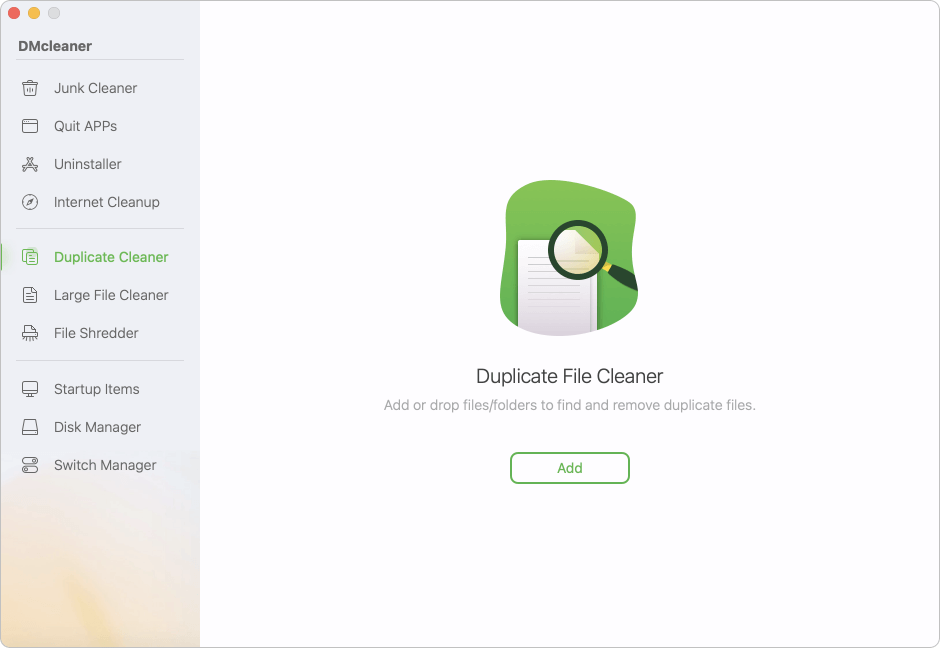
Open Donemax DMcleaner on your M5 Mac mini. From the left sidebar menu, click on the 'Duplicate Cleaner' feature. Click the 'Add' button in the center of the screen to select the folders, drives, or directories where you want to search for duplicate files. You can select your entire User Home directory, Pictures folder, Downloads, or connected external storage drives.
Step 2. Scan for Hidden Duplicates
Click the scan button to begin searching. DMcleaner uses intelligent algorithms to scan file headers and contents, effortlessly unearthing hidden duplicate files deep inside system subfolders.
Step 3. Filter and Review Duplicate Files
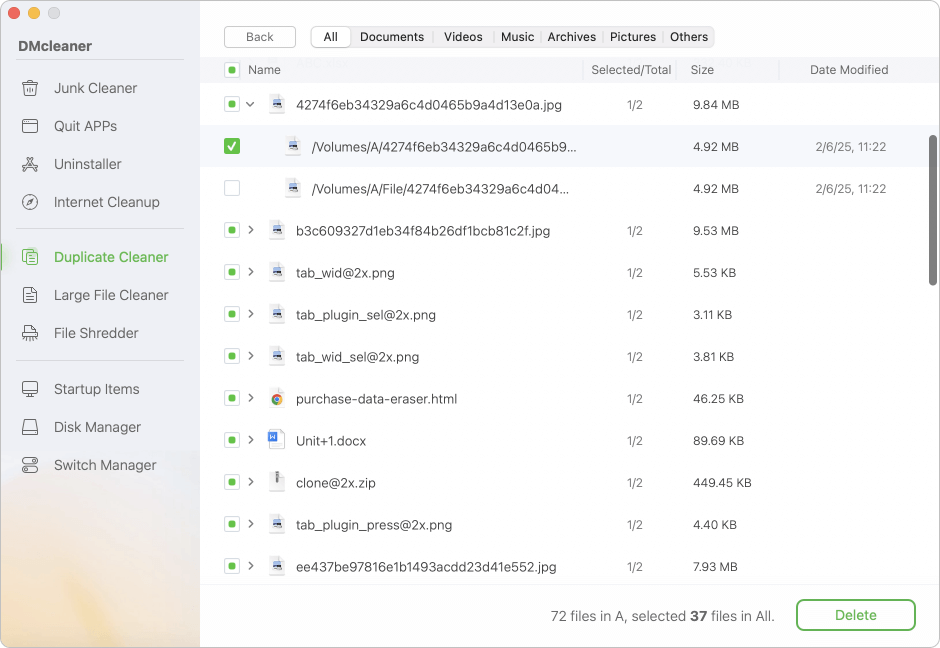
Once the scan completes, DMcleaner organizes all discovered duplicate files by specific categories. You can filter and review duplicate files by types, such as Photos, Videos, Audio, Documents, Archives, and Other files.
💡 Important Note: Before clicking the final delete button, always make sure to check and review the selected files first! While DMcleaner accurately identifies true duplicates, taking a quick glance ensures you keep the exact copy residing in your preferred folder path.
Step 5. Auto-Select and Delete Copies
After reviewing, you can let the software automatically choose the duplicate copies to keep one original intact. Finally, click the 'Delete' button to remove the unnecessary duplicates instantly and recover your free space.
Removing duplicate files is just one aspect of keeping your M5 Mac mini running smoothly. Donemax DMcleaner for Mac includes a complete suite of optimization modules to clean junk data and release system resources:
Keeping your M5 Mac mini organized and fast requires periodic maintenance. Duplicate files are silent space-eaters that clutter your drives and reduce available storage.
By taking advantage of the Duplicate Cleaner feature in Donemax DMcleaner for Mac, you can easily locate, review, and remove hidden duplicate files on M5 Mac mini within minutes. Furthermore, utilizing additional tools like Junk Cleaner and Uninstaller ensures your Mac remains clean, agile, and ready for heavy workflows. Download Donemax DMcleaner for Mac today and reclaim your Mac's storage space!
Donemax DMcleaner for Mac
Donemax DMcleaner for Mac is an award-winning Mac cleanup & maintenance tool. It offers over 10 tools to help Mac users clean junk data. It helps speed up a slow Mac. Additionally, it includes a smart switch manager and disk manager for Mac.
Christina
Christina is the senior editor of Donemax software who has worked in the company for 4+ years. She mainly writes the guides and solutions about data erasure, data transferring, data recovery and disk cloning to help users get the most out of their Windows and Mac. She likes to travel, enjoy country music and play games in her spare time.
Gerhard Chou
In order to effectively solve the problems for our customers, every article and troubleshooting solution published on our website has been strictly tested and practiced. Our editors love researching and using computers and testing software, and are willing to help computer users with their problems