
Written byChristinaUpdated on Sep 11, 2026

Before we start: When you find the external hard drive is not working on macOS 27 Golden Gate, the first thing is check and recover the important files from the drive. You can use the most reliable tool Donemax Data Recovery for Mac to retrieve files and then try to fix the drive.
PAGE CONTENT:
Upgrading to macOS 27 Golden Gate brings exciting system improvements, tighter security permissions, and refreshed system architecture. However, many Mac users encounter an unexpected problem after updating: their external hard drive stops working. Whether your drive is completely unmounted, shows up as read-only, or fails to appear on your desktop, this issue can cause immediate panic—especially if you have important files saved on it.

If your external hard drive is not working on macOS 27 Golden Gate, do not panic or rush to reformat the drive right away. Reformatting or running aggressive repairs without securing your files can result in permanent data loss. In this comprehensive guide, we will walk you through why this issue occurs on macOS 27 Golden Gate, how to safely recover your files using Donemax Data Recovery for Mac, and how to fix the external hard drive step by step.
When an external hard drive stops responding or fails to mount after upgrading to macOS 27 Golden Gate, the problem usually stems from modern system changes or physical connection issues. Understanding the root cause helps you select the right solution.
Here are the most common reasons why an external drive stops working on macOS 27 Golden Gate:
If your external hard drive contains critical documents, photos, or work files, your top priority must be data safety. Trying to fix a corrupted drive using First Aid, terminal commands, or formatting tools can overwrite or wipe your files.
Before applying any fix, use Donemax Data Recovery for Mac to scan the unrecognized or unmountable drive, retrieve your valuable data, and save the recovered files safely to another working drive or your Mac internal storage.
Donemax Data Recovery for Mac is a powerful, user-friendly data recovery software fully compatible with macOS 27 Golden Gate. It easily scans unmounted, corrupted, formatted, or unrecognized external drives (including HDDs, SSDs, USB flash drives, and SD cards).
Follow these simple steps to recover your files before attempting any drive repairs:
Step 1: Connect Your Drive. Connect your problematic external hard drive to your Mac using a direct USB port or reliable adapter.
Step 2: Launch Donemax Data Recovery for Mac. Download and install Donemax Data Recovery for Mac on your Mac. Launch the program from your Applications folder.
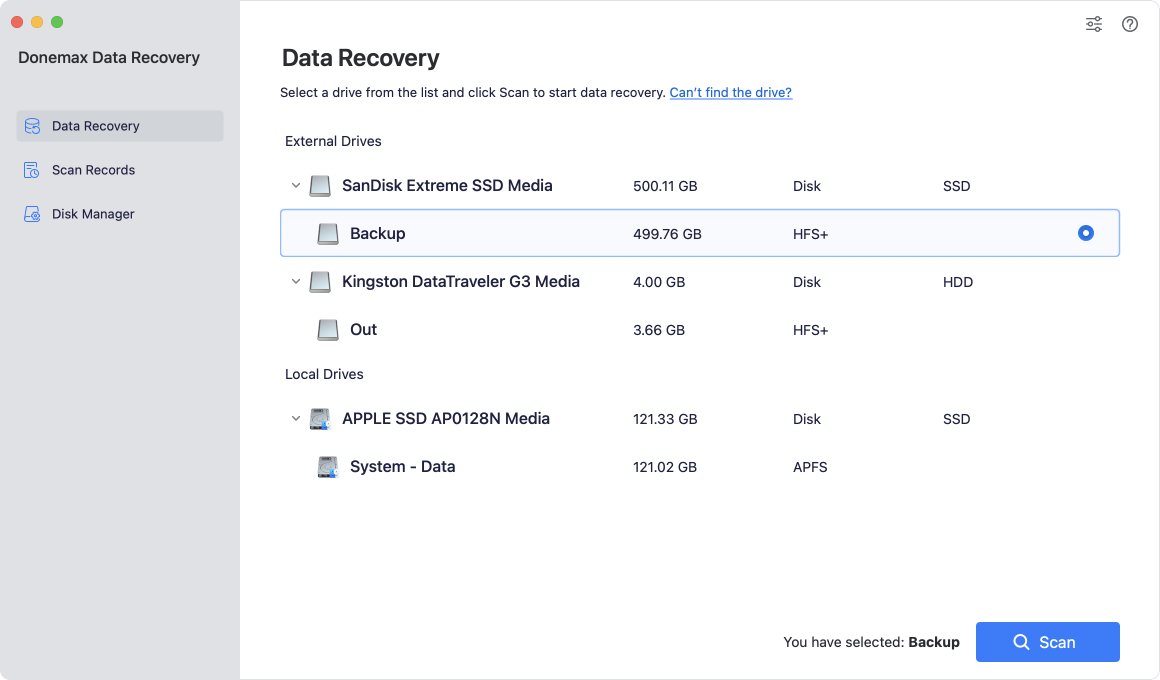
Step 3: Select and Scan the Drive. In the main interface, select your connected external hard drive from the list of available drives, then click the Scan button.
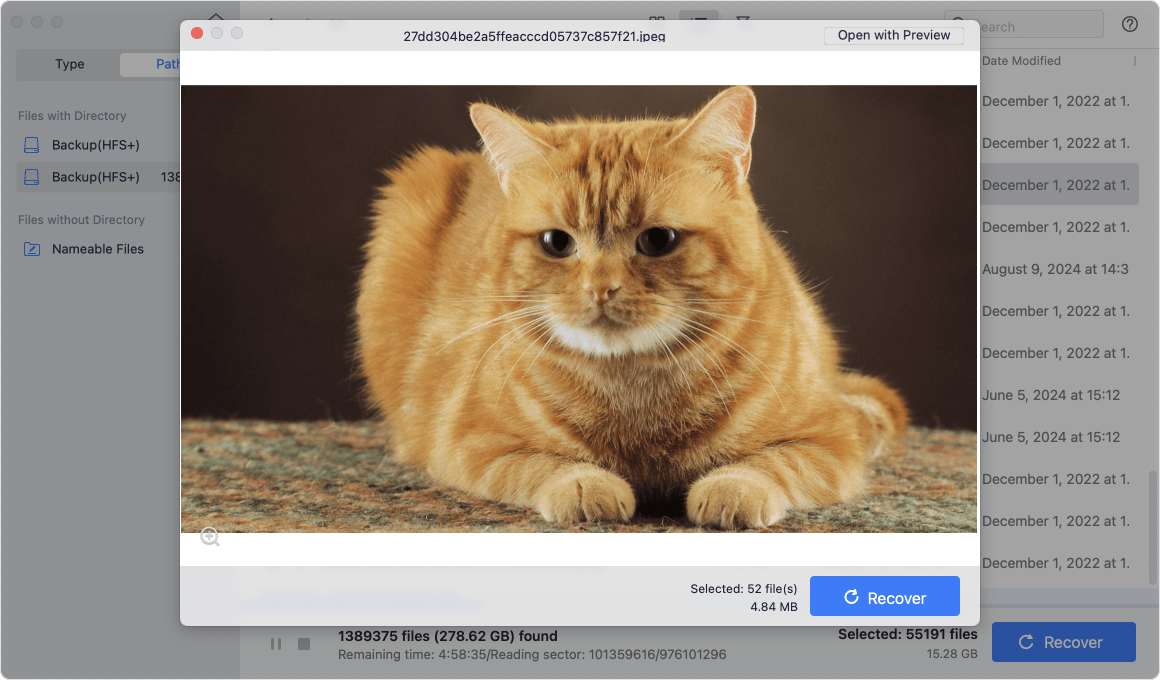
Step 4: Preview Found Files. The software will perform a thorough scan to find all recoverable files. Once the scan is complete, browse through the folders or use the search box to locate your files. You can double-click files to preview them.
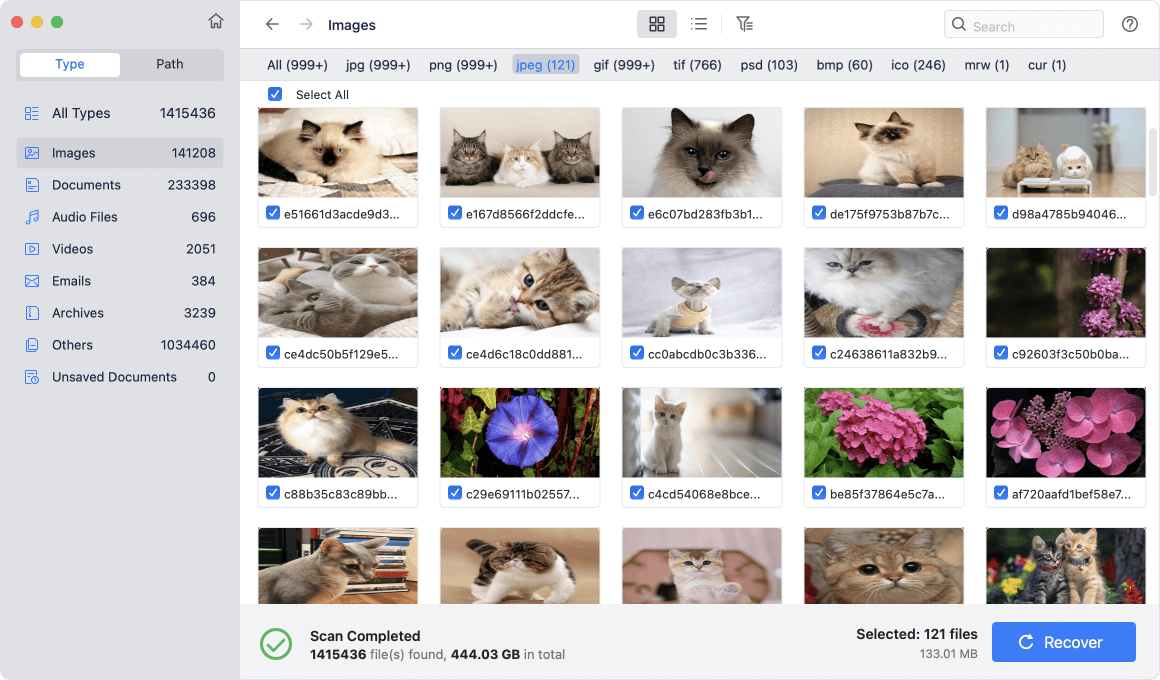
Step 5: Recover and Save to Another Drive. Select the files you want to save, click Recover, and choose a target location on your Mac's internal drive or a second external storage device. (Important: Do not save recovered files back onto the affected external hard drive).
Once all your important files are safely saved on another drive, you can proceed with confidence to fix the external hard drive on macOS 27 Golden Gate.
Now that your files are safe, try the following methods to repair and bring your external hard drive back to full operation on macOS 27 Golden Gate.
Hardware connection problems are surprisingly common after system updates. Start with basic physical checks:
Sometimes your external hard drive is mounted properly by macOS 27 Golden Gate, but Finder is configured not to show external disks on the desktop or sidebar.

Return to your desktop and Finder window to check if your external hard drive is now visible.
macOS 27 Golden Gate includes strict security protocols that may block newly connected USB devices or storage drivers.

If your drive does not appear in Finder, check whether macOS 27 Golden Gate recognizes the physical hardware in Disk Utility.

If your external drive is unmountable due to file system corruption, Disk Utility's built-in First Aid feature can scan and repair disk structure errors.

When an external drive is improperly unplugged, macOS automatically runs a background process called 'fsck_hfs' or 'fsck_apfs' to repair the drive. While 'fsck' is running, the drive will not show up in Finder.
You can terminate this stuck process using Terminal:
If your drive is severely corrupted or formatted in an incompatible NTFS layout, reformatting is the most effective way to restore functionality on macOS 27 Golden Gate.
💡 Note: Reformatting erases all data on the drive. Ensure you have recovered your files with Donemax Data Recovery for Mac before completing this step.
After reformatting completes, your external hard drive will work smoothly on macOS 27 Golden Gate.

Encountering an external hard drive that is not working on macOS 27 Golden Gate can be stressful, but following a clear, safety-first workflow ensures you do not lose your valuable files.
Always remember the gold rule: recover data first, repair second. Using Donemax Data Recovery for Mac allows you to safely save your important files to another drive before running First Aid or reformatting the disk. Once your data is secured, applying the step-by-step solutions in this guide will get your external hard drive working perfectly on macOS 27 Golden Gate.
Donemax Data Recovery for Mac
Donemax Data Recovery for Mac is one of the best Mac data recovery software. It is easy-to-use and can help in recovering deleted, formatted, inaccessible or lost data from Mac HDD/SSD, external disk, USB drive, SD card, camera or other storage devices.
Christina
Christina is the senior editor of Donemax software who has worked in the company for 4+ years. She mainly writes the guides and solutions about data erasure, data transferring, data recovery and disk cloning to help users get the most out of their Windows and Mac. She likes to travel, enjoy country music and play games in her spare time.
Gerhard Chou
In order to effectively solve the problems for our customers, every article and troubleshooting solution published on our website has been strictly tested and practiced. Our editors love researching and using computers and testing software, and are willing to help computer users with their problems