
Written byMariaUpdated on May 08, 2026

PAGE CONTENT:
Screen flickering on a MacBook can be an incredibly frustrating experience, especially when you're in the middle of an important project or enjoying a movie. Whether it's a subtle blink or a persistent flashing that makes the screen unusable, the good news is that most flickering issues are caused by software glitches rather than hardware failure.

In this guide, we'll walk you through professional-grade solutions to fix MacBook screen flickering and get your display back to its crystal-clear state.
Before we jump into the fixes, it helps to understand the "why." Screen flickering on MacBook usually falls into two categories:
Software Issues: Bugs in macOS, incompatible third-party apps, or corrupted cache files often interfere with how your GPU (Graphics Processing Unit) renders images.
Hardware Issues: Damaged display cables (common in "Flexgate" scenarios), failing backlights, or physical impact.
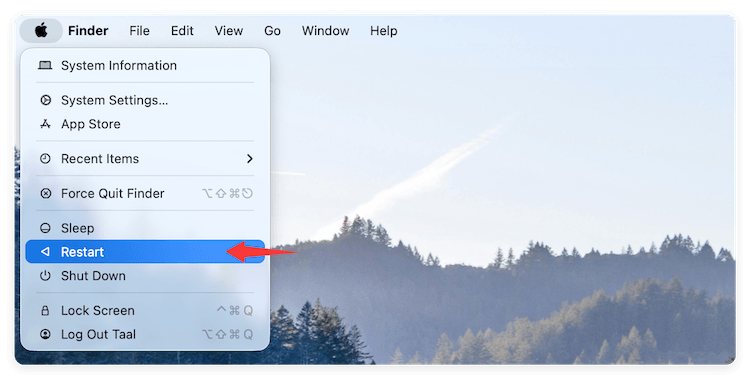
It sounds simple, but a restart flushes the system RAM and clears out temporary background processes that might be stuck in a loop.
NVRAM (Non-Volatile Random Access Memory) stores settings like screen resolution and brightness. If this data becomes corrupt, it can cause the screen to behave erratically.
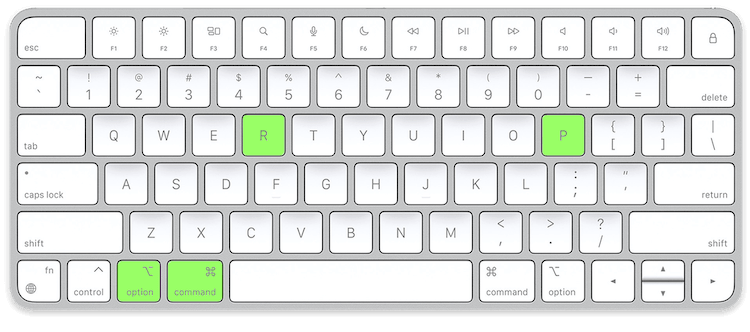
💡 Note: If you have an Apple Silicon Mac, this happens automatically every time you restart.
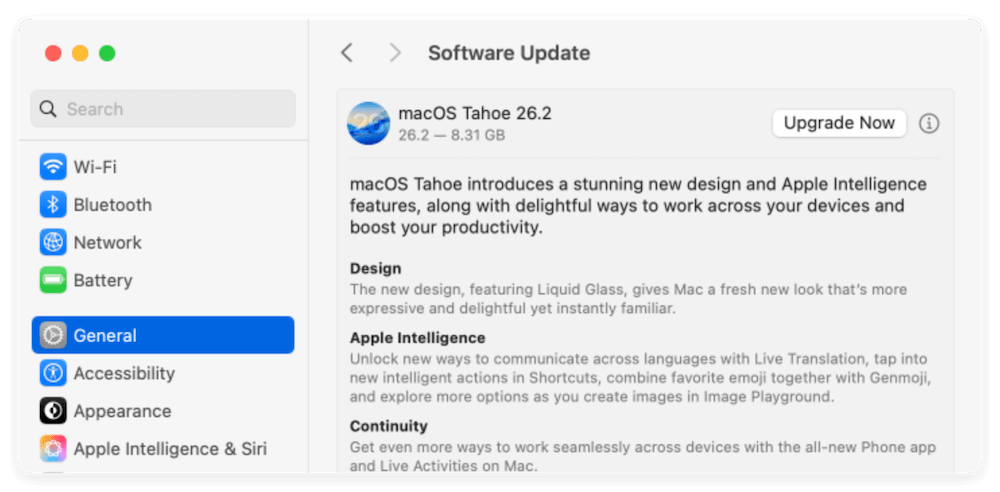
Apple frequently releases patches for graphics drivers. If you are running an older version of macOS, you might be missing a critical fix for display stability.
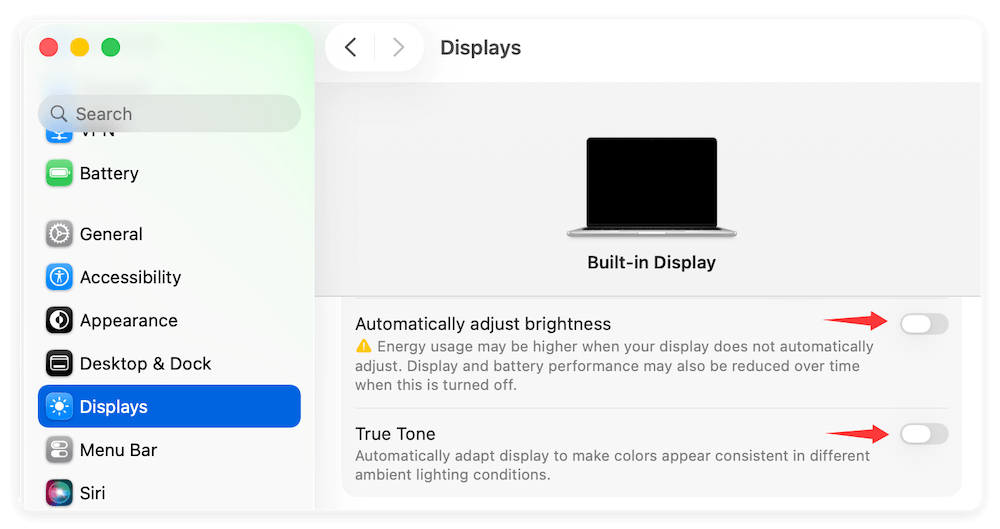
While these features are designed to make your viewing experience more comfortable, they rely on sensors that can sometimes miscalculate, leading to perceived flickering.
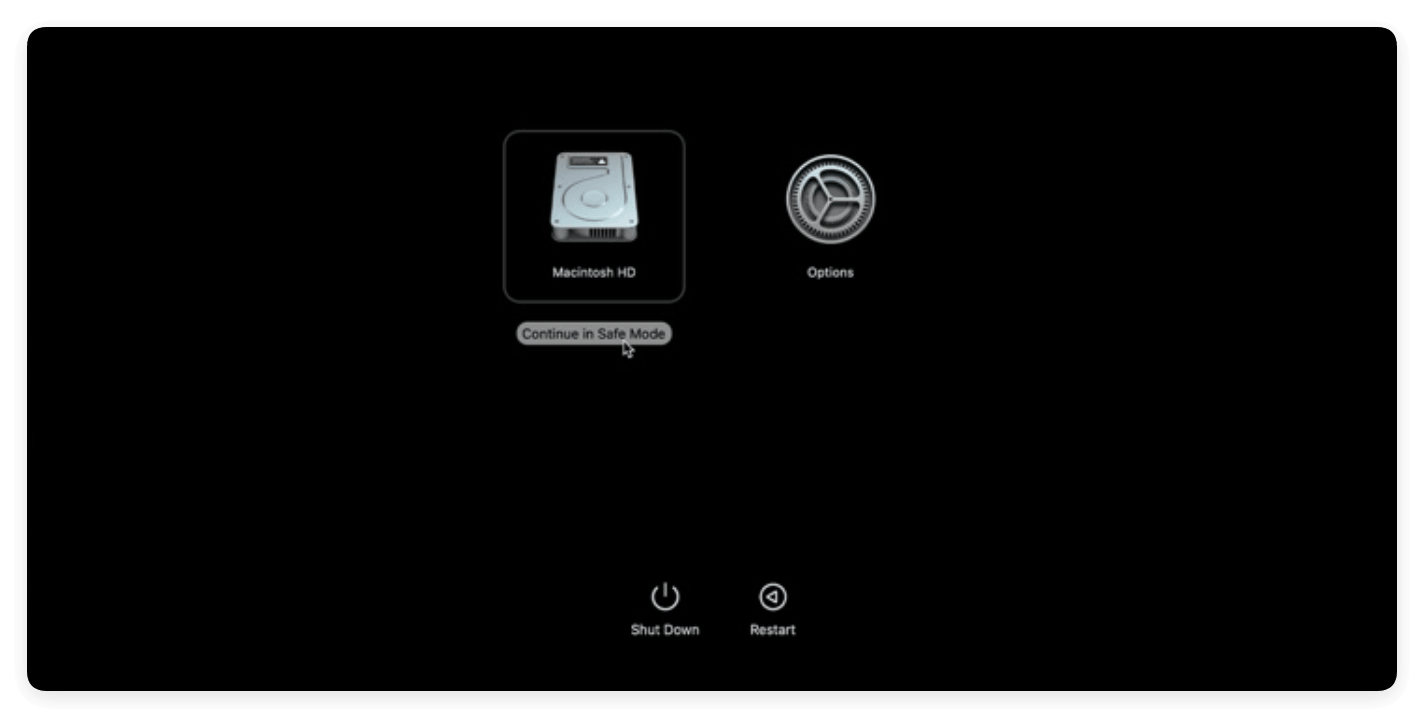
Safe Mode prevents non-essential software from loading. If the flickering stops in Safe Mode, you know a third-party app (like a screen recorder or a "helper" utility) is the culprit.
Many MacBook Pro models have two graphics chips: an integrated one for saving power and a dedicated one for high performance. Flickering often occurs during the "hand-off" between these two.
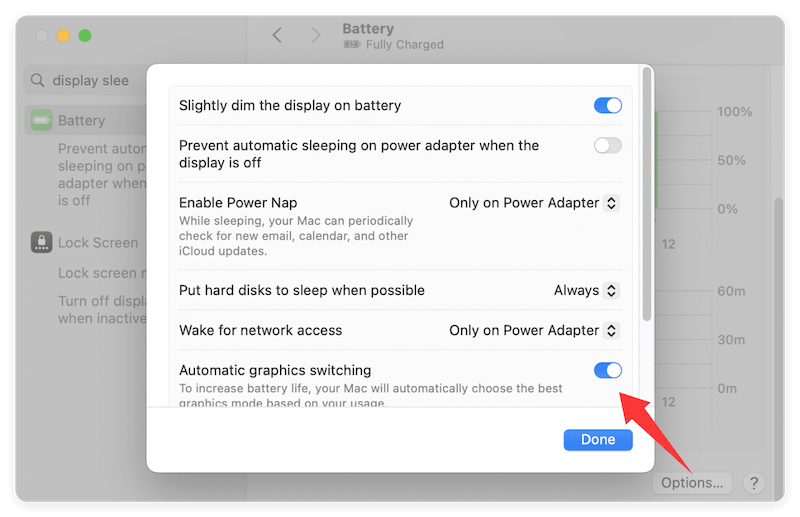
💡 Note: This will use more battery life, but it forces the Mac to use the high-performance GPU consistently, which often stabilizes the screen.
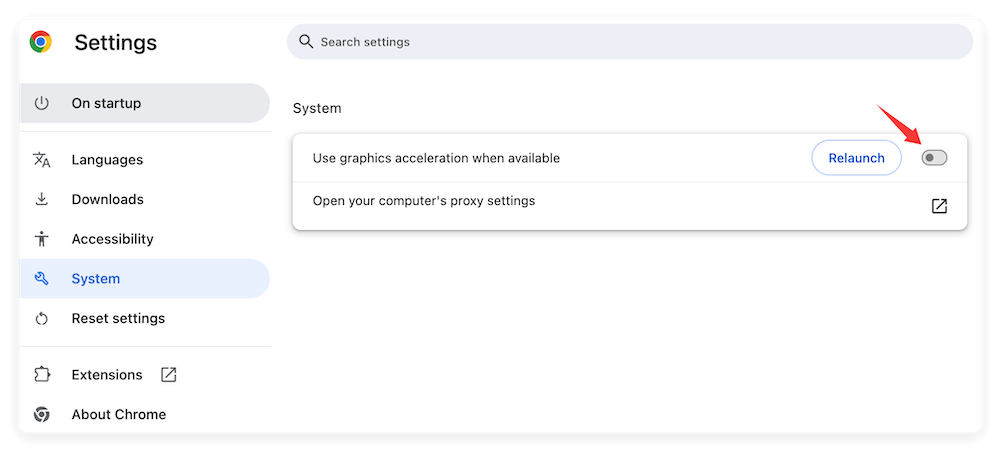
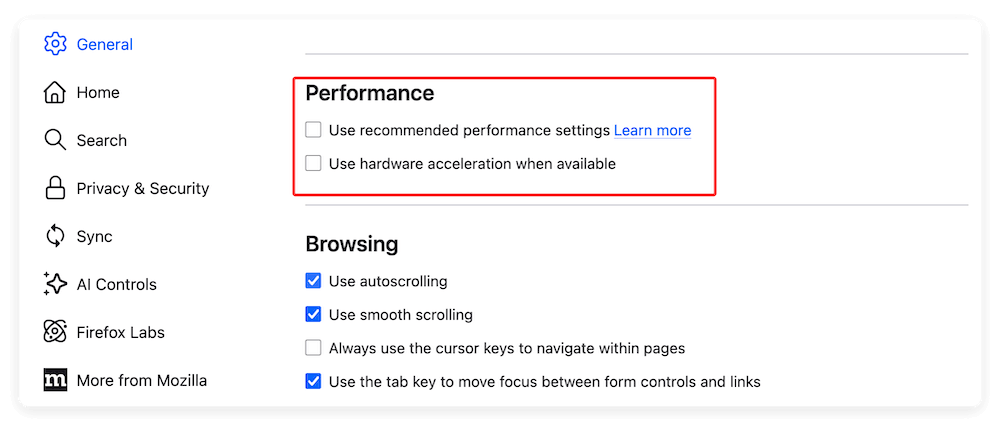
If the flickering only happens while browsing the web (especially in Chrome or Firefox), it's likely caused by "Hardware Acceleration." This feature offloads tasks to the GPU, but it can conflict with macOS.
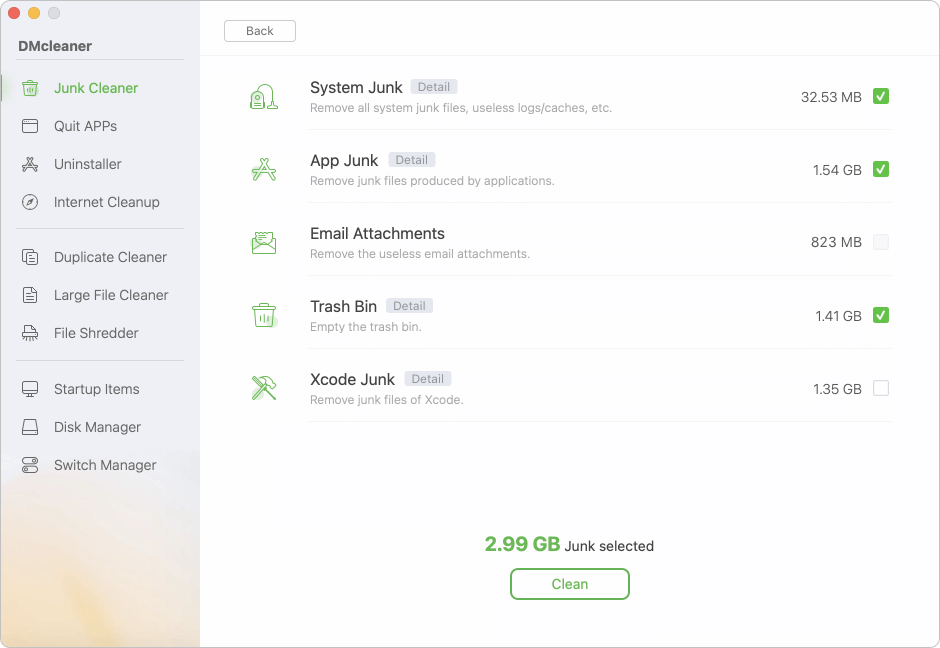
Sometimes, deeply buried system caches or "leftover" files from uninstalled apps create graphical conflicts. Using a specialized tool like DMcleaner for Mac can help you clear system caches and optimize startup items in one click, effectively removing the "clutter" that causes display lag.
If you have tried all the steps above and the screen still flickers—especially when you move the lid up and down—you are likely facing a hardware issue. Common hardware culprits include:
In these cases, we recommend booking an appointment at the Genius Bar or an authorized Apple service provider.
To fix MacBook screen flickering, start with the easiest solutions: restart, update your software, and disable True Tone. If you notice the issue is tied to specific apps, use the Activity Monitor to identify resource hogs or disable hardware acceleration in your browser. By following these steps, 90% of users can resolve their display issues without ever stepping foot in a repair shop.
For users who want to keep their Mac running smoothly and prevent these glitches, regular maintenance with tools like DMcleaner for Mac is highly recommended.
Donemax DMcleaner for Mac
Donemax DMcleaner for Mac is an award-winning Mac cleanup & maintenance tool. It offers over 10 tools to help Mac users clean junk data. It helps speed up a slow Mac. Additionally, it includes a smart switch manager and disk manager for Mac.
Maria
Maria is one of the senior writers & editors of Donemax who lives and works in Sydney, Australia. She loves PC, Mac and Internet Technology. She has 6 years of writing articles about data recovery on PC/Mac, disk cloning solution, data eraser and computer OS optimization, etc. She is also interested in testing various software and digital products.
Gerhard Chou
In order to effectively solve the problems for our customers, every article and troubleshooting solution published on our website has been strictly tested and practiced. Our editors love researching and using computers and testing software, and are willing to help computer users with their problems