


Written byLucienUpdated on May 09, 2026

PAGE CONTENT:
In today's digital age, securing sensitive information is paramount. With the growing reliance on digital storage, encryption has become a cornerstone of data protection. For Mac users, Apple's File System (APFS) is a critical tool for securing data on hard drives, solid-state drives (SSDs), and other storage devices.
APFS is designed with strong encryption capabilities to keep data safe from unauthorized access. If you are using an encrypted APFS drive, chances are you've set up a password for added security. However, there may come a time when you need to reset or change the password for encrypted APFS drive. Whether you've forgotten your password or simply want to update your security settings, this guide will help you understand the process.
Before delving into the steps for resetting or changing the password, it is important to understand how APFS encryption works and the role of the password.
APFS is the default file system used on macOS, beginning with macOS High Sierra. It is optimized for flash and solid-state drives (SSDs), but it also works with traditional hard drives (HDDs). One of the key features of APFS is its ability to encrypt data, which means that all files stored on an APFS drive are protected with encryption. APFS supports full-disk encryption, which secures all files and data on the drive. The encryption is done using strong algorithms, making it difficult for unauthorized users to access the contents of the drive.
When you enable encryption on an APFS drive, a password is required to access the data. This password is tied to an encryption key, which unlocks the drive. Without the password, the encrypted data remains inaccessible.
The password you choose for your encrypted APFS drive acts as a key to unlock the encrypted data. If you forget the password or need to change it for security reasons, you must have a way to either reset or change it. Failure to do so can result in permanent data loss, which is why it is essential to keep your password secure and backed up.
There are several methods available for resetting the password on an encrypted APFS drive, depending on the situation. Here are some common approaches.
The first method to reset the password on an APFS drive is through macOS Recovery Mode. This method is ideal when you’ve forgotten the password and need to regain access to your drive.
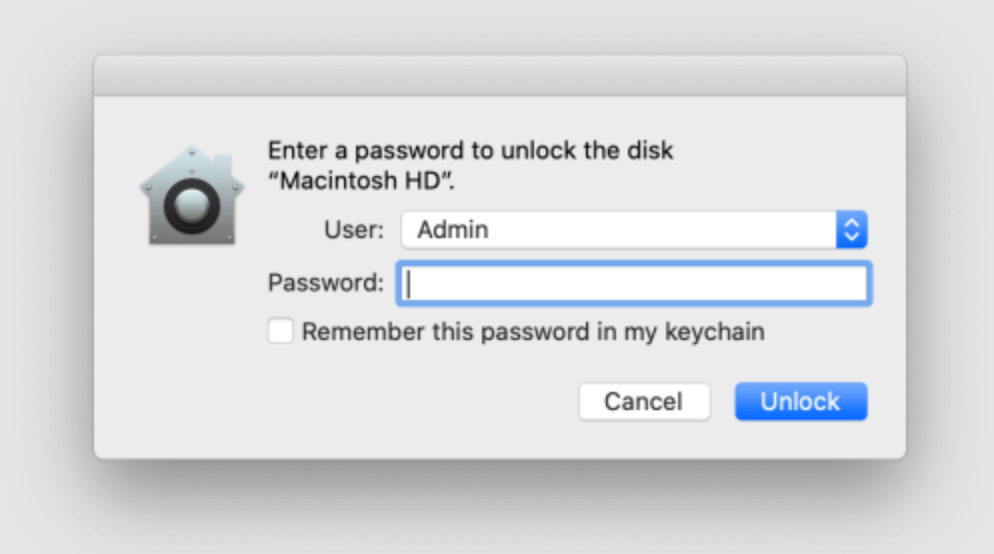
If you have associated your Apple ID with the encrypted drive, you can use it to reset the password. This method is convenient if you've forgotten your password but have access to your Apple ID.
If you generated a recovery key when encrypting the drive, this key can be used to reset the password.
For more experienced users, Terminal can be used to reset the password. This method should be used with caution, as incorrect commands can result in unintended consequences.
sudo fdesetup resetpasswd
Once you've regained access to your drive, you may want to change the password for enhanced security. There are several ways to change the password on an encrypted APFS drive.
Changing the Password via System Preferences
Using Disk Utility
Disk Utility also provides an option to change the password of an encrypted APFS drive.
Using Keychain Access (for related passwords)
If the password you are changing is associated with your Apple ID or other related services, you may want to update it in Keychain Access.
To avoid future issues with APFS encryption and passwords, take the following steps to ensure that you can easily recover your data if needed.
◾Using iCloud and Apple ID for Easy Recovery
Link your APFS drive to your Apple ID and iCloud account for easier recovery. This ensures that if you forget the password in the future, you can use your Apple ID to reset it quickly.
◾Generating and Storing a New Recovery Key
Store your recovery key in a safe place, such as a password manager, a secure physical location, or cloud storage. Having a backup recovery key can make a world of difference in case of password loss.
◾Regular Backups
Make a habit of backing up your files regularly. Use Time Machine or other backup solutions to ensure that even if something goes wrong with your drive, you won't lose your valuable data.
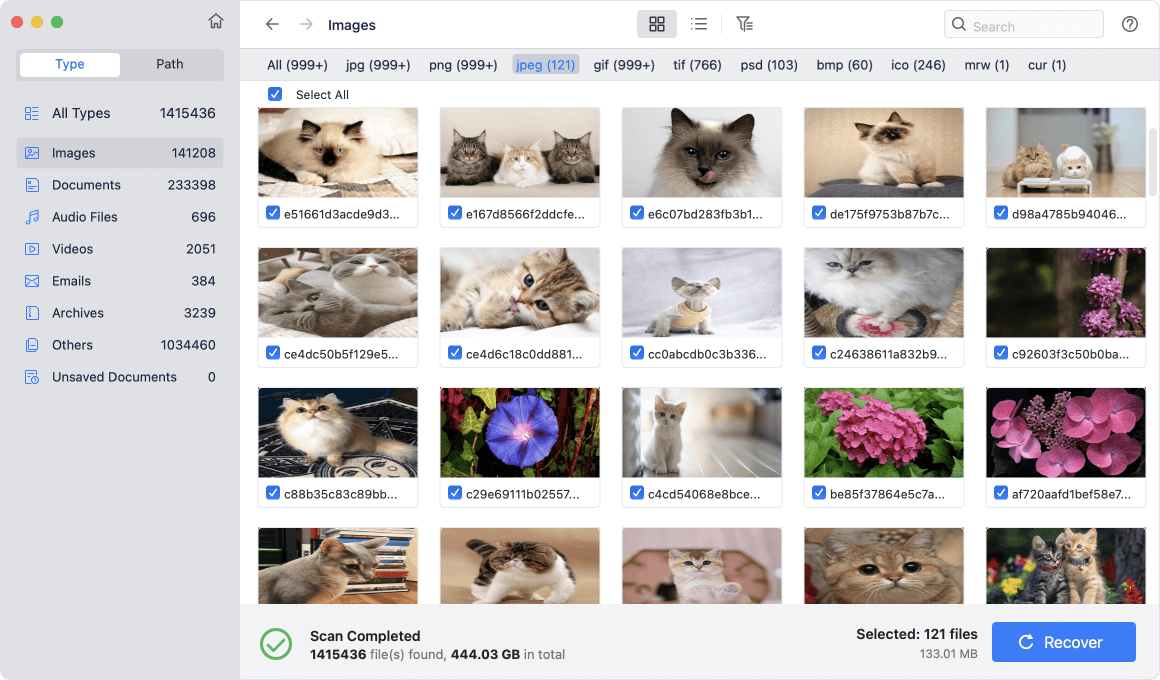
Mac data recovery software - such as Donemax Data Recovery for Mac can help you recover data from an encrypted or erased APFS drive on Mac:
Step 1. Download and install Donemax Data Recovery for Mac on your Mac and connect the APFS drive to your Mac.
Step 2. Open Donemax Data Recovery for Mac, select the APFS drive to search for lost files.
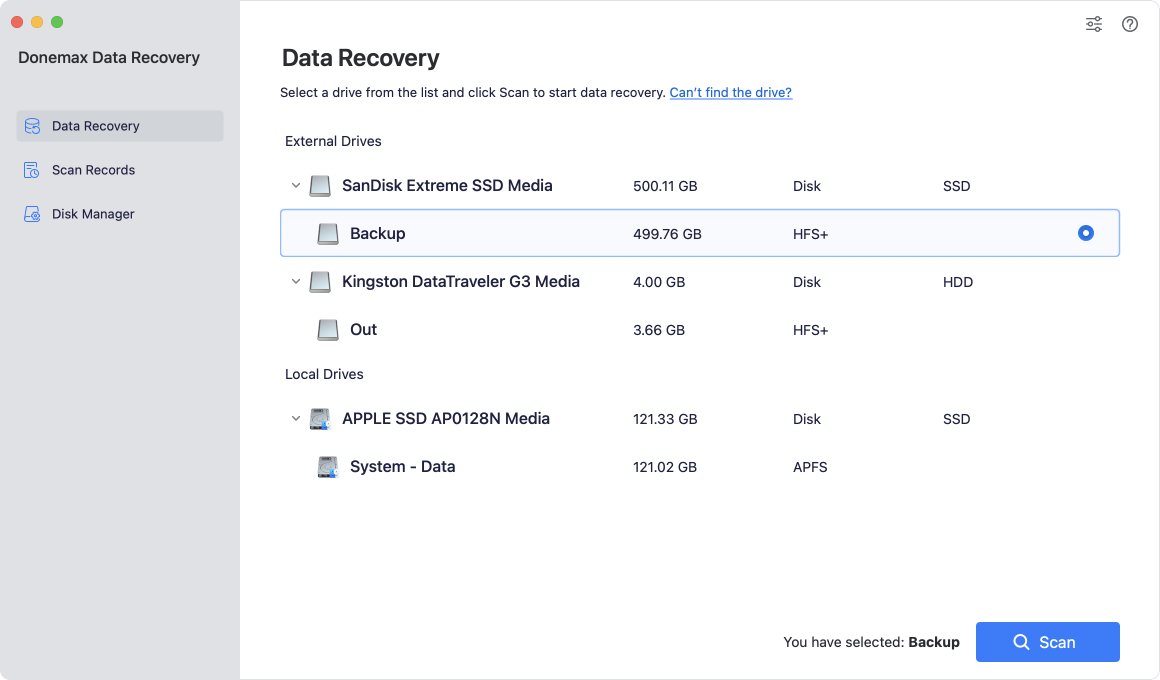
Step 3. Click on Scan button, Donemax Data Recovery for Mac will find all recoverable files including existing files, deleted/erased files, etc.
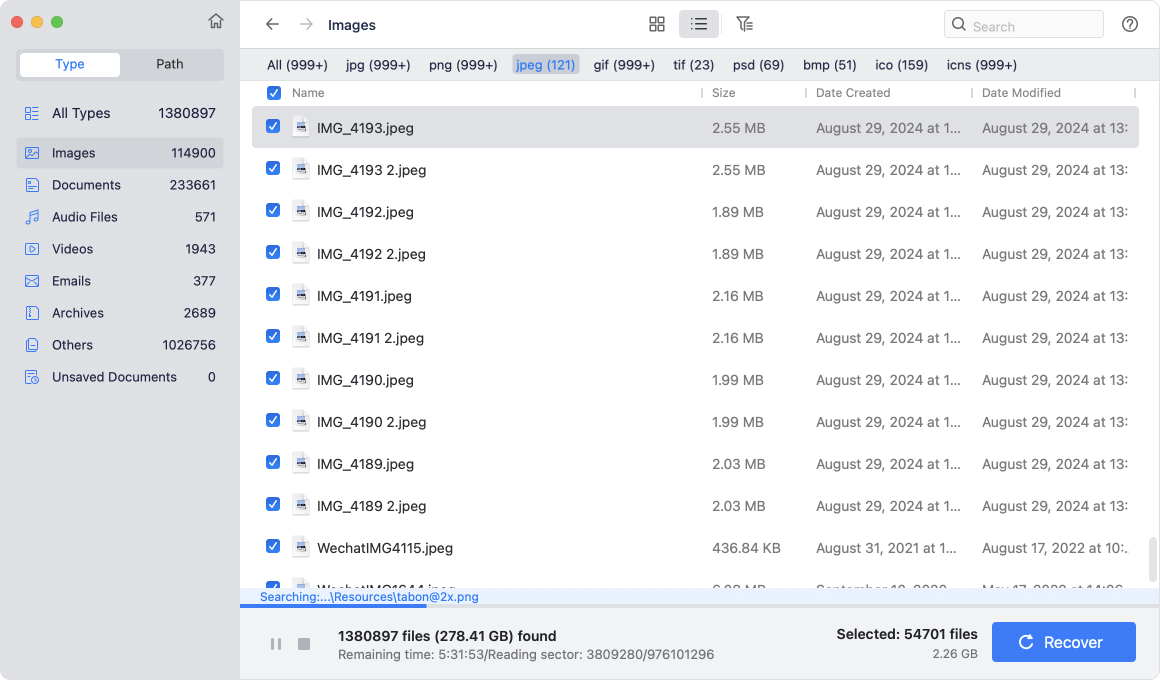
Step 4. Once the scan is completed, you can preview all recoverable files. Then select the wanted files, click on Recover button to save them.
Managing the password for an encrypted APFS drive is essential for maintaining the security of your data. Whether you need to reset or change the password due to forgetting it or for added security, there are several methods available to regain access. By following the outlined steps, you can ensure that your data remains protected while minimizing the risk of data loss. Always remember to back up your data, store recovery keys securely, and regularly update your passwords to maintain the highest level of security.
Donemax Data Recovery for Mac
Donemax Data Recovery for Mac is one of the best Mac data recovery software. It is easy-to-use and can help in recovering deleted, formatted, inaccessible or lost data from Mac HDD/SSD, external disk, USB drive, SD card, camera or other storage devices.
Lucien
Lucien is a writer and a chief programmer of Donemax software who has worked in the company for 5+ years. He has written much of the content on the site and devotes to providing troubleshooting and solution for Windows and Mac users including disk cloning, data recovery, migration, eraser, error fixes.
Gerhard Chou
In order to effectively solve the problems for our customers, every article and troubleshooting solution published on our website has been strictly tested and practiced. Our editors love researching and using computers and testing software, and are willing to help computer users with their problems

