Written byMariaUpdated on Jul 09, 2026

Before we start: How to fully read and write to NTFS drive on macOS 27 Golden Gate without formatting it? You can use the reliable Microsoft NTFS driver tool for macOS - Donemax NTFS for Mac. One-click to enable write permission for NTFS drive on Mac.
PAGE CONTENT:
The rollout of macOS 27 Golden Gate brings an exciting new era for Mac users. With incredible advancements in local Apple Intelligence, refined aesthetics, and performance upgrades, it is truly a powerhouse. However, deep system enhancements sometimes mean old compatibility issues persist.
If you are a multi-platform worker, one vital question likely stands out: can I use NTFS drive on macOS 27 Golden Gate? You might have plugged in your external drive from a Windows PC only to notice that you can open files, but you cannot drag, edit, delete, or save anything back onto it.
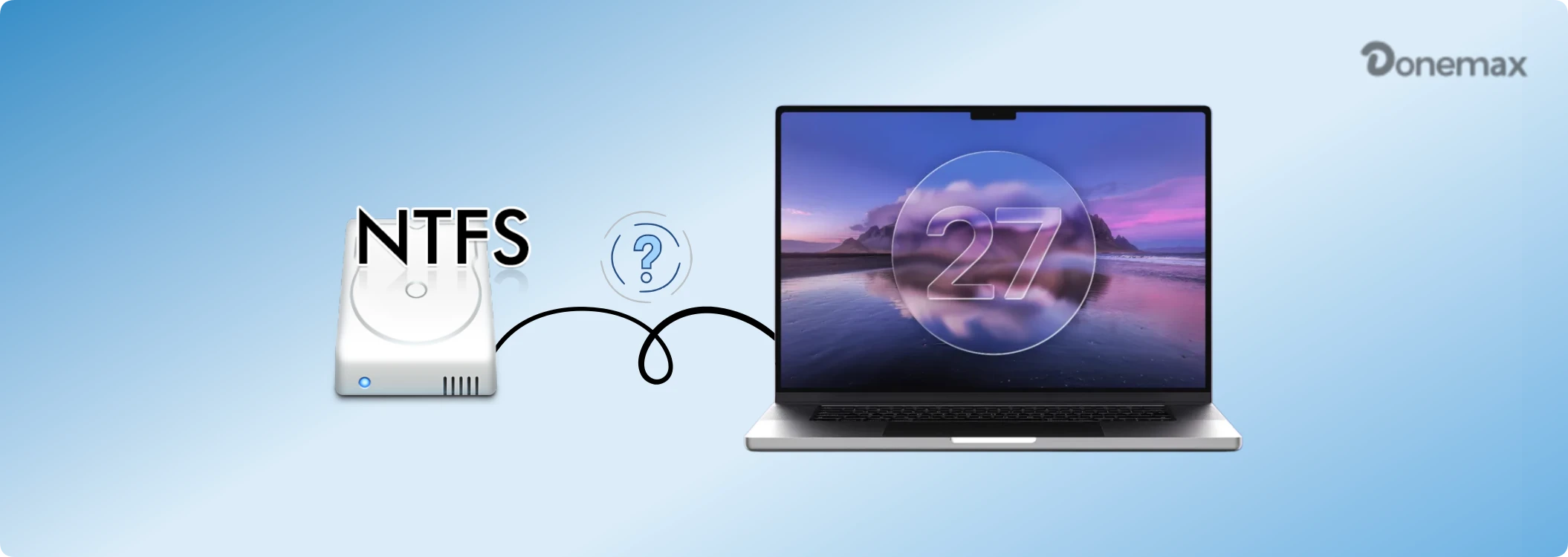
This issue can disrupt your workflow. Luckily, there are straightforward ways to unlock complete full read and write access to your hard drives. In this comprehensive guide, we will walk you through exactly why this happens and explore the safest, fastest solutions available right now.
To find the best fix, it helps to understand why this problem exists. NTFS (New Technology File System) is a proprietary file format designed entirely by Microsoft for the Windows operating system. It handles vast datasets, file permissions, and data security seamlessly on PCs.
On the flip side, Apple uses APFS (Apple File System) as its native storage standard. Historically, Apple has only licensed the 'Read' portion of the NTFS file language. Consequently, out of the box, any modern Mac can view or copy files from an NTFS drive, but writing data remains strictly blocked.
With macOS 27 Golden Gate, Apple has also officially finished its transition to Apple Silicon, removing all support for older Intel processors. Because of this architectural shift and tightened security frameworks, old terminal workarounds and outdated free tools completely fail to load. This leaves users searching for real, modern alternatives.
💡 Important System Update Note: macOS 27 Golden Gate operates exclusively on Apple Silicon (M1, M2, M3, M4, M5 series, etc.). Legacy third-party software that relies on old kernel extensions (kexts) is fully blocked by the system's strict security settings.
If you need to move data between Windows and your Apple Silicon Mac running Golden Gate, you have a few options. Let's evaluate the three main methods to determine which one fits your routine best.
The easiest, fastest, and most reliable solution to bypass this format lock is utilizing a dedicated utility like Donemax NTFS for Mac.
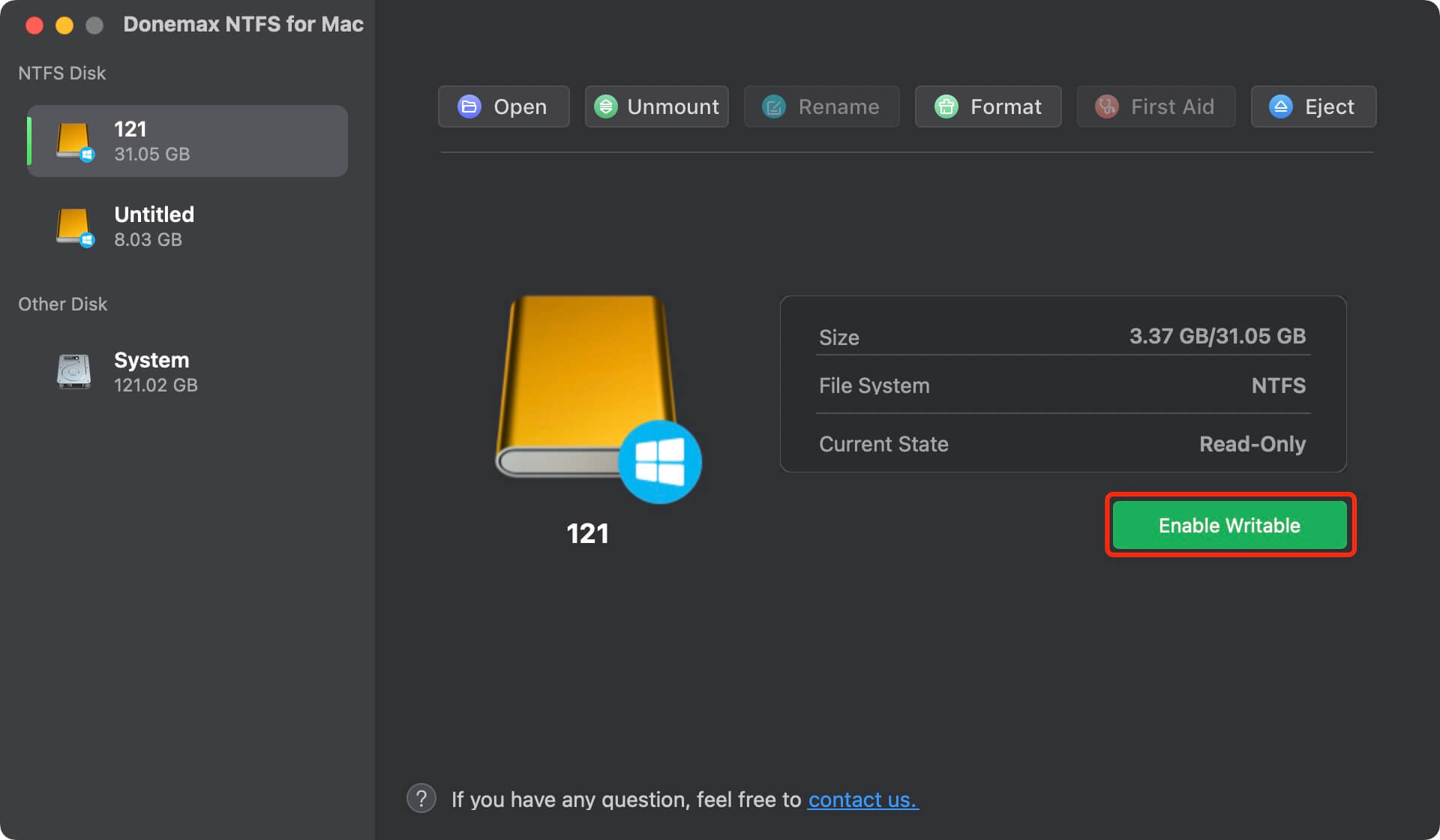
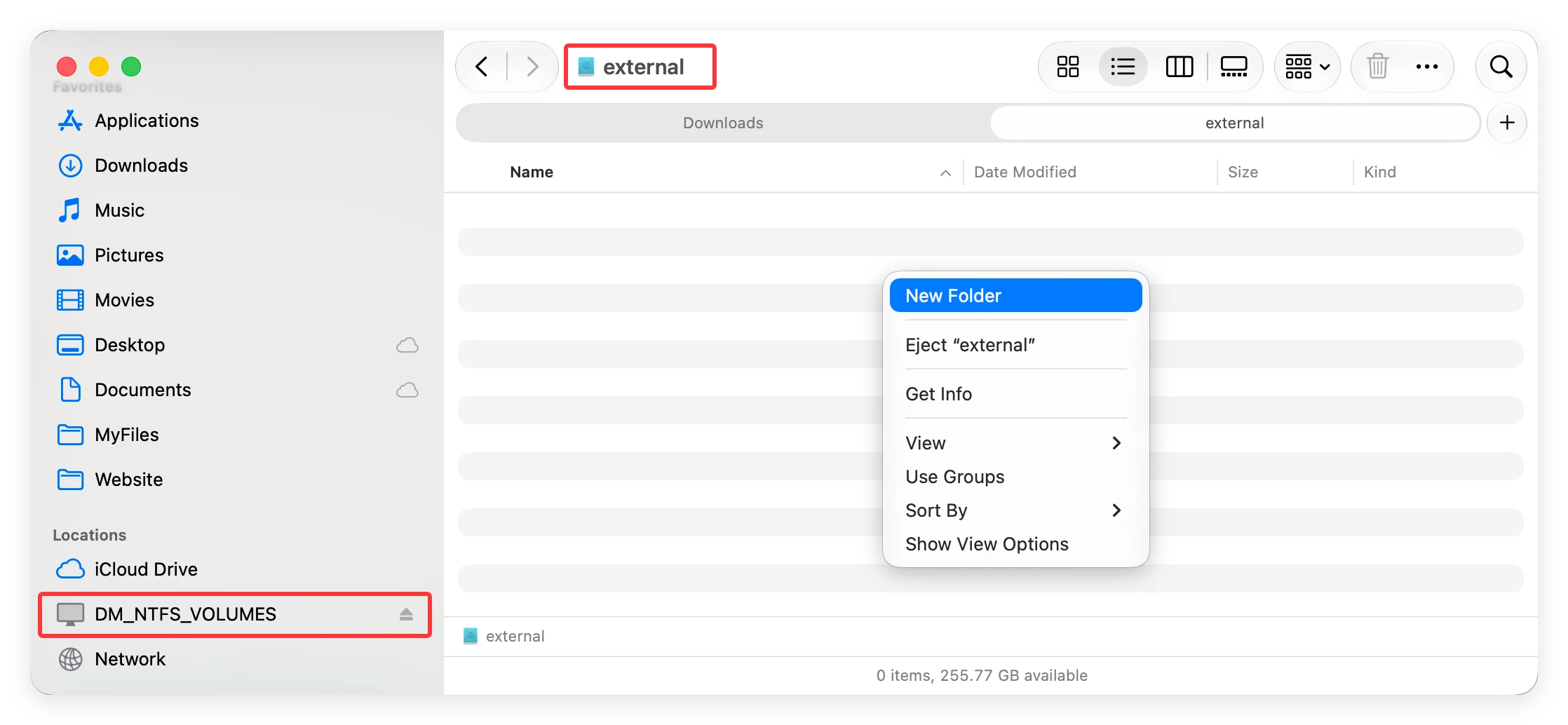
Donemax NTFS for Mac serves as a highly optimized, ultra-lightweight bridge driver. It translates the NTFS file structure seamlessly for your Apple Silicon Mac in real time. Plug your external NTFS hard drive or SSD into your Mac, just one click, the software mounts it with full read/write privileges.
Follow these simple steps to use Donemax NTFS for Mac:
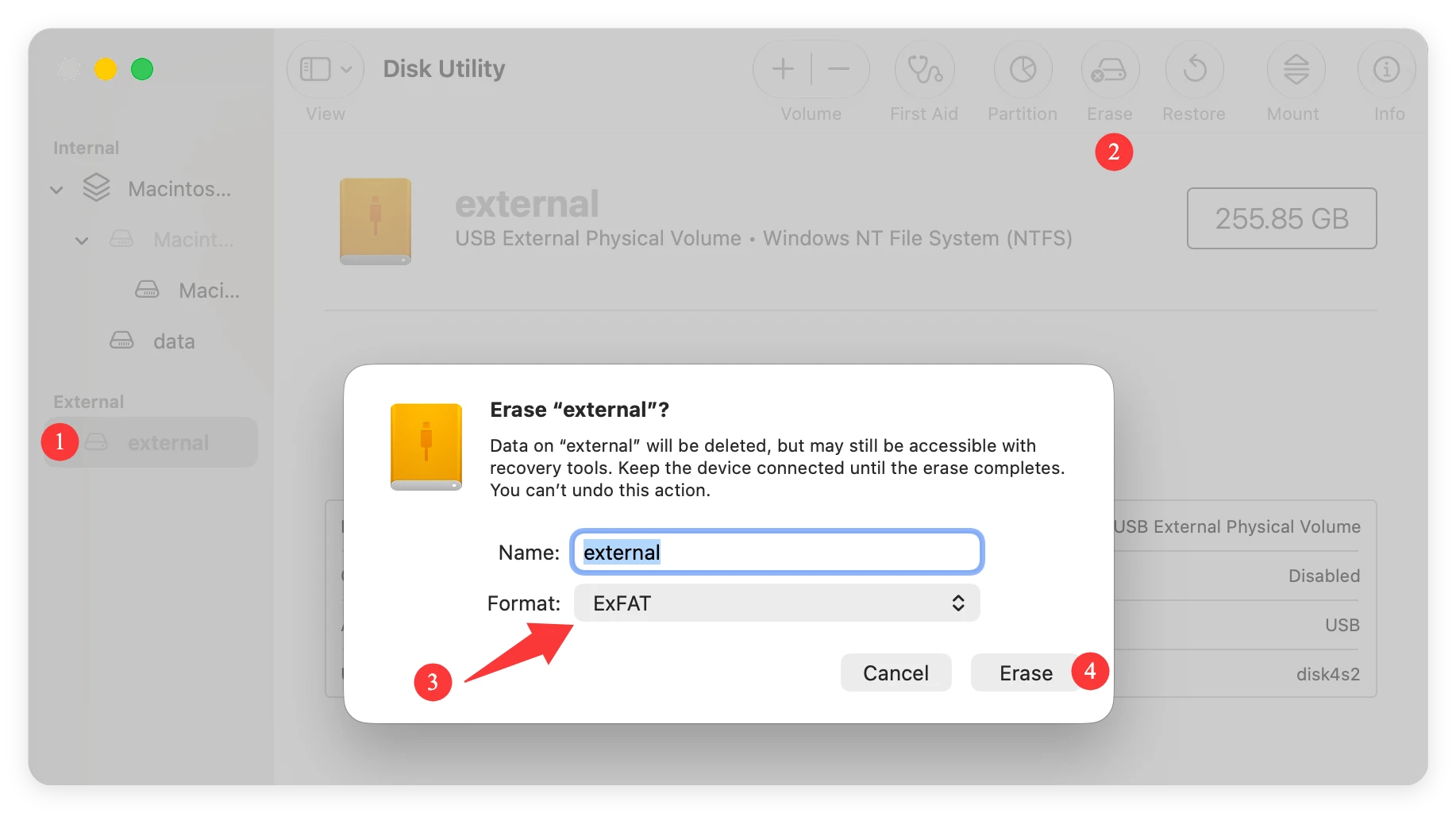
If your drive is completely empty or you have a safe backup of your files on another machine, you can change the format entirely. The exFAT file system is natively recognized by both Microsoft Windows and Apple macOS for both reading and writing.
However, please proceed with absolute caution. Reformatting a drive completely wipes every single bit of data stored on it. If you choose this route, always double-check your backups first.
To format your drive, plug it into your Mac, open the built-in Disk Utility app, select your external drive, click 'Erase', and choose exFAT from the format list. This works perfectly if you are starting fresh, but it is not ideal if you have hundreds of gigabytes of active data.
For highly advanced users, another workaround involves setting up a virtual machine environment. By installing software like VMware Fusion, you can run an instance of Windows 11 inside an isolated window on your Mac screen.
When you connect the NTFS drive, you can tell your Mac to pass the connection directly to the Windows environment. Since Windows natively understands NTFS, you will have unrestricted file editing rights inside that window.
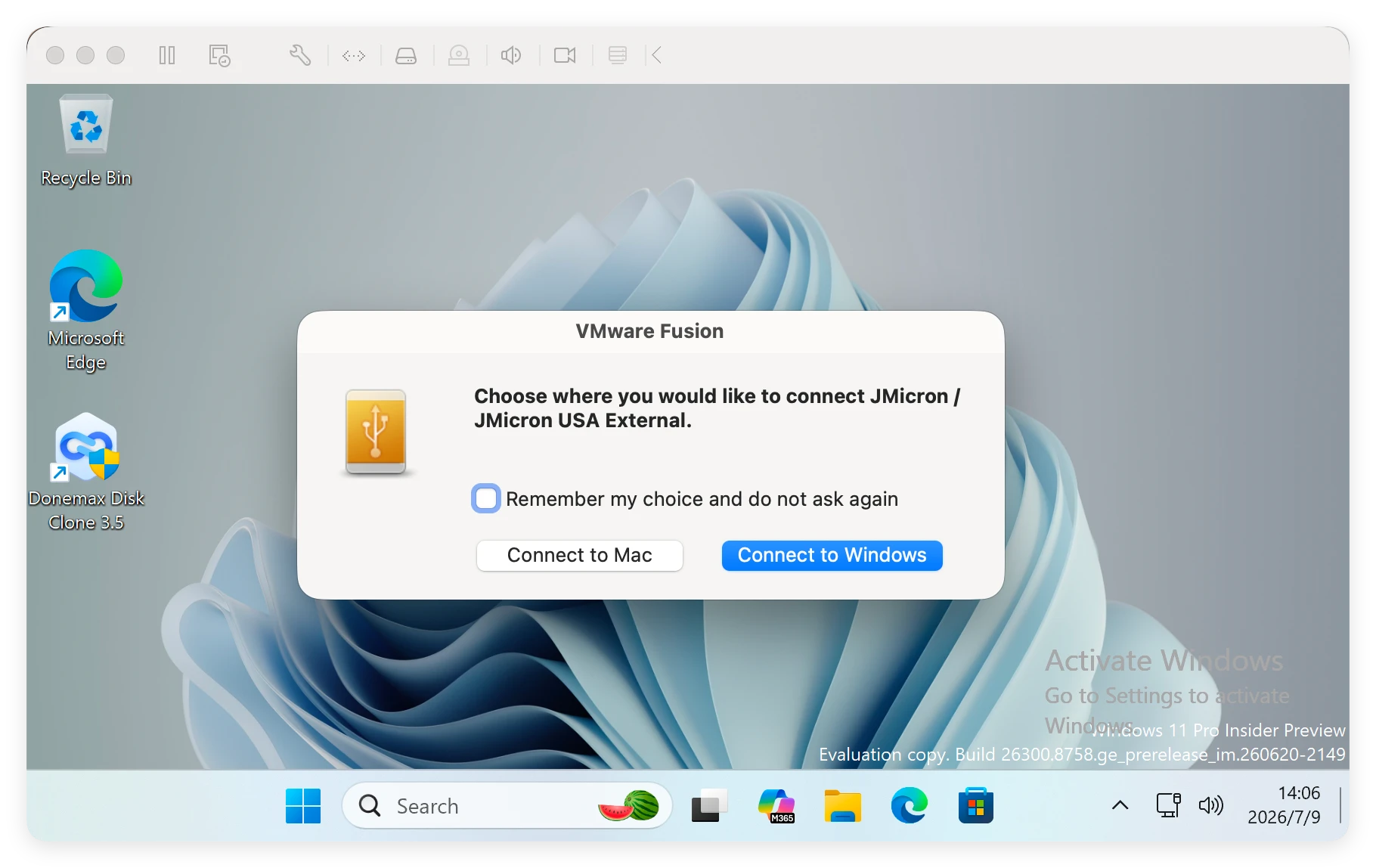
The downside here is that virtual environments demand hefty system resources, take up massive amounts of storage space, and require a paid Windows license. Additionally, moving files back and forth between the virtual window and your main Mac desktop feels tedious and slow.
To help you see the big picture clearly, let's look at how these three strategies compare side by side across important daily categories:
| Feature | Donemax NTFS for Mac | Format to exFAT | Virtual Machine (Windows) |
|---|---|---|---|
| Data Safety | 100% Safe (No formatting needed) | Data Cleared (Requires full wipe) | Safe (Isolated environment) |
| Ease of Use | Extremely Easy (One-click operation) | Medium (Requires disk management) | Complex (Long installation process) |
| Performance Speed | Native speed (Fast transfers) | Native speed (Fast transfers) | Slow (Heavy resource drag) |
While browsing online forums, you might run into old guides recommending free tools like NTFS-3G or manual command lines inside the Mac Terminal. We strongly advise skipping these out-of-date workarounds.
The open-source program NTFS-3G has not seen a meaningful core update in over five years. It relies heavily on old kernel architectures that macOS 27 Golden Gate completely blocks for security reasons. Attempting to force these tools to install often results in errors, or worse, unmountable external drives.
Similarly, older experimental Terminal write commands can easily corrupt your data. Because Apple's underlying code shifts with every major release, a command line that worked years ago can cause severe directory errors on macOS 27. Relying on a stable, up-to-date driver saves you time and protects your valuable files.
Navigating drive compatibility should not slow down your daily productivity. While answering 'can I use NTFS drive on macOS 27 Golden Gate' reveals a built-in limitation from Apple, the solution is thankfully simple.
For users who need to swap drives between systems effortlessly, choosing a dedicated driver like Donemax NTFS for Mac provides the cleanest, safest, and most productive experience. It bypasses technical terminal risks and avoids the painful process of deleting your data through formatting. Download your copy today and enjoy true seamless compatibility across all your devices!
Maria
Maria is one of the senior writers & editors of Donemax who lives and works in Sydney, Australia. She loves PC, Mac and Internet Technology. She has 6 years of writing articles about data recovery on PC/Mac, disk cloning solution, data eraser and computer OS optimization, etc. She is also interested in testing various software and digital products.
Gerhard Chou
In order to effectively solve the problems for our customers, every article and troubleshooting solution published on our website has been strictly tested and practiced. Our editors love researching and using computers and testing software, and are willing to help computer users with their problems