Written byStevenUpdated on Feb 11, 2026

Before we start: To use a hard drive in both Mac and Windows, you can choose to format the drive into FAT32 or exFAT. Otherwise, you can use Donemax NTFS for Mac to make the NTFS drive fully readable and writable on Mac.
PAGE CONTENT:
In today's tech-driven world, many users often work with both Mac and Windows systems. Whether it's transferring files, sharing external hard drives, or using USB flash drives, disk compatibility is a common concern. One of the most important factors in ensuring smooth cross-platform usage is choosing the right disk format, also known as a file system. A file system defines how data is stored, organized, and accessed on a storage device. Using an incompatible file system can lead to errors, inaccessible files, or even data loss.
This article explores the various disk formats available, their compatibility with Mac and Windows, their advantages and limitations, and guidance on formatting drives correctly for cross-platform use. You can then choose the best disk format compatible with both Mac and Windows.
A disk format or file system is essentially the structure used to organize and manage files on a storage device. Every storage device—hard drive, SSD, USB drive, or memory card—must have a file system for the operating system to read and write data. Different file systems support different maximum file sizes, drive capacities, and operating systems.
For instance, a drive formatted in Apple's APFS is optimized for macOS but cannot be read by Windows without specialized software. Conversely, NTFS is native to Windows but is only partially supported on Mac. Understanding these formats is crucial for anyone who frequently switches between Mac and Windows.
There are several file systems in use today. The most relevant for cross-platform compatibility include FAT32, exFAT, NTFS, HFS+, and APFS.
1. FAT32
FAT32 (File Allocation Table 32) is one of the oldest and most widely supported file systems. It works seamlessly across both Mac and Windows without additional software.
Advantages
Limitations
FAT32 is suitable for simple tasks like sharing small documents, photos, or music files. However, it is not ideal for large video files or backups because of its 4 GB file size limitation.
2. exFAT
exFAT (Extended File Allocation Table) is the modern alternative to FAT32. It was designed to overcome FAT32's limitations while maintaining broad compatibility.
Advantages
Limitations
For most users who need cross-platform compatibility, exFAT is the best choice. It allows large file transfers between Mac and Windows without additional software. External SSDs, USB drives, and SD cards benefit greatly from exFAT because it can handle large media files such as 4K videos or high-resolution backups.
3. NTFS
NTFS (New Technology File System) is the default file system for modern Windows systems. It offers advanced features like encryption, file compression, and journaling.
Compatibility:
Advantages
Limitations
NTFS is great for drives that primarily interact with Windows. If you occasionally need to read NTFS on a Mac, third-party utilities like Paragon NTFS or Tuxera NTFS can enable full access. However, this adds extra cost and potential compatibility issues.
4. HFS+ (Mac OS Extended)
HFS+ (Hierarchical File System Plus) is the legacy file system for macOS before APFS. It is fully supported on Mac but requires third-party software to be read on Windows.
Advantages
Limitations
HFS+ is ideal for Mac-only workflows, such as Time Machine backups or older Mac drives. It is not recommended for drives shared with Windows systems.
5. APFS (Apple File System)
APFS is Apple's modern file system introduced in macOS 10.13. It's optimized for SSDs, offering features like snapshots, encryption, and space sharing.
Advantages
Limitations
APFS is best suited for Mac-only storage solutions. If you need cross-platform compatibility, exFAT remains the safer choice.
When choosing a disk format for a drive that needs to work seamlessly on both Mac and Windows, the two most practical options are FAT32 and exFAT. Understanding their differences and limitations can help you avoid frustrating compatibility issues and ensure that your files are accessible wherever you need them.
FAT32, also called MS-DOS (FAT) on Mac, has been around since the 1990s and remains one of the most universally supported file systems. It works on almost all operating systems, including Windows, macOS, Linux, and even devices like game consoles, smart TVs, and cameras. Its broad compatibility makes it a safe choice for sharing drives with older devices or multiple platforms.
FAT32 is ideal for:
exFAT (Extended File Allocation Table) was introduced to overcome FAT32's file size and partition size limitations while maintaining cross-platform compatibility. Unlike FAT32, exFAT supports files larger than 4 GB, making it perfect for high-definition videos, large software packages, and modern backups.
exFAT is ideal for:
For some users who used Windows and now want to change to Mac, the old NTFS drives might contain too much data. How to use the NTFS drive on Mac fully without changing the format?
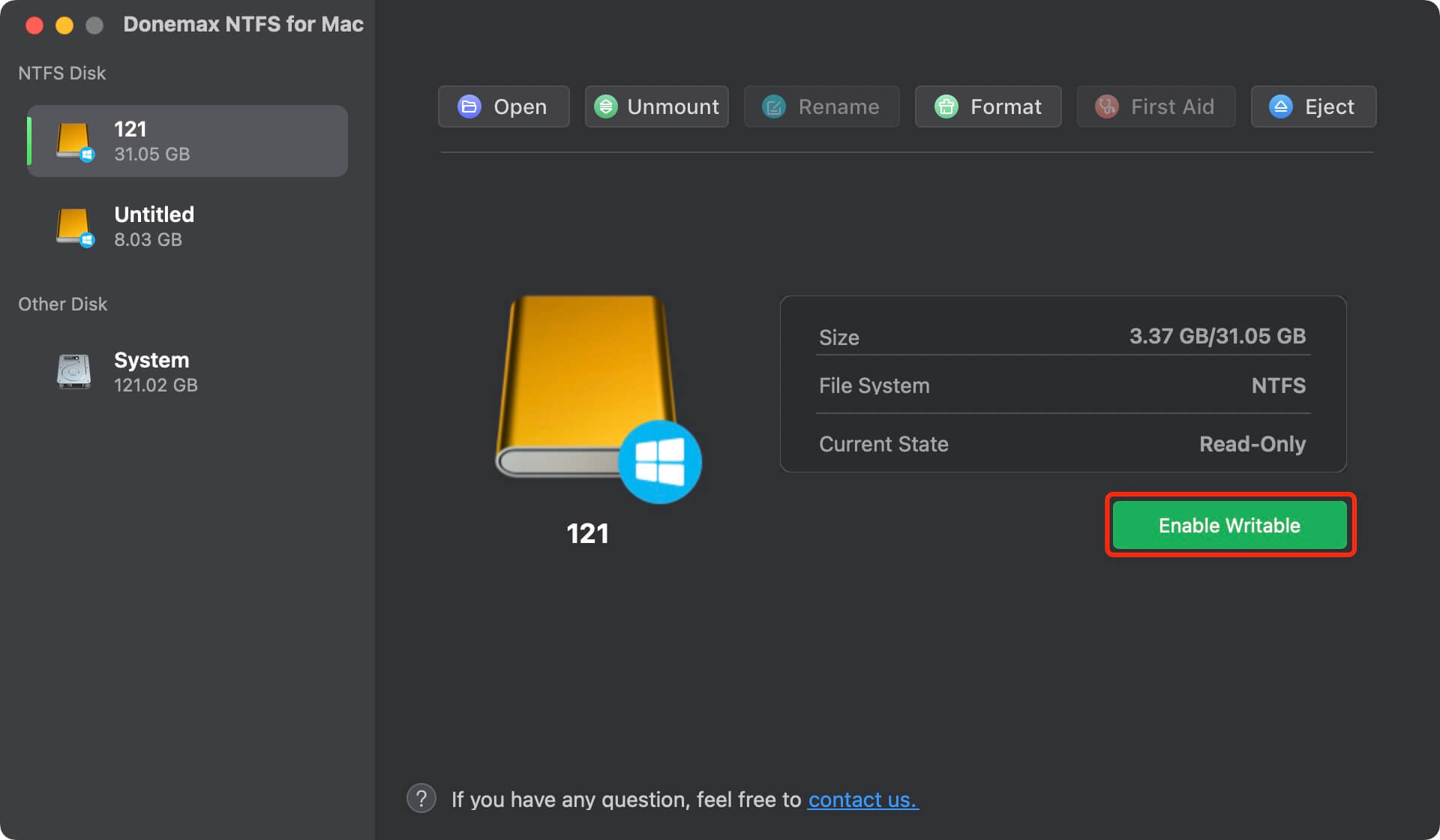
As mentioned before, NTFS drive is read-only on Mac by default. However, with a reliable Microsoft NTFS driver for Mac, you can easily make NTFS drive writable on Mac. Donemax NTFS for Mac is such a tool, which can enable NTFS writable on Mac with one click.
The software is easy to use. Connect the NTFS drive to Mac and run the software. Choose the NTFS drive in the software and click the Enable Writable button simply. Then you can find the NTFS drive is fully readable and writable without limitations.
If you regularly move files between Mac and Windows, exFAT is the safest and most reliable choice. It avoids FAT32's 4 GB file size limitation while remaining compatible with both operating systems. For smaller, older drives or when working with very old devices, FAT32 is still a viable option.
For NTFS drive which is best for Windows. If you want to keep the format and also enjoy full read-write access on Mac, you can use the software Donemax NTFS for Mac to make it possible.
Steps for FAT32 or exFAT:
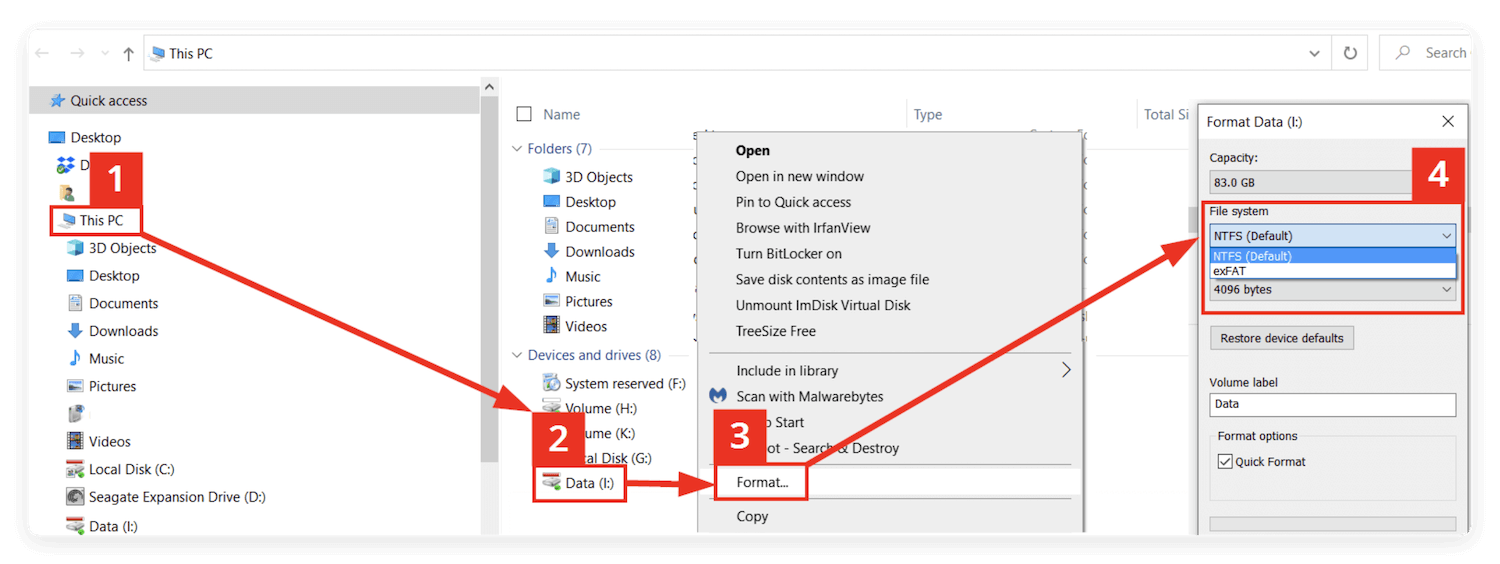
Tip: Formatting erases all data, so backup important files first.
Steps for FAT32 or exFAT:
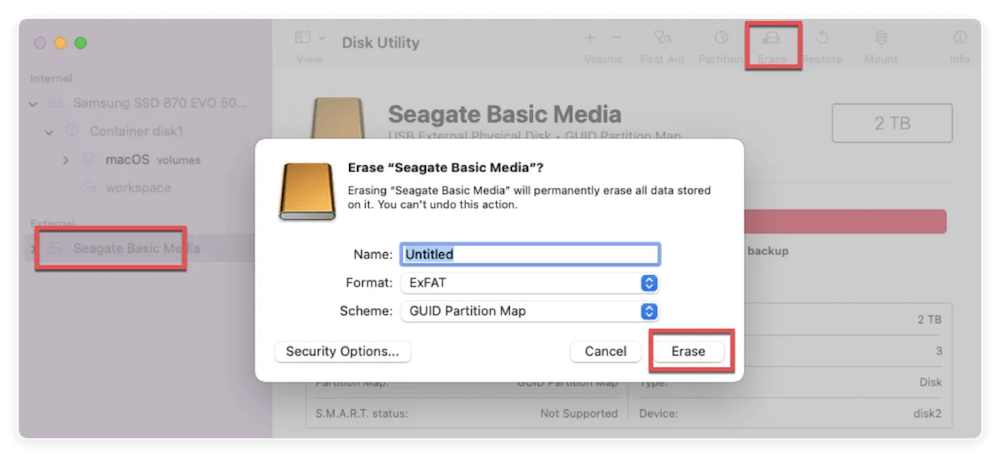
Extra Tip: Use exFAT for drives larger than 32 GB or for storing files larger than 4 GB. FAT32 is limited in both file and partition size.
Even when using compatible formats, users may encounter issues. Here are some common problems and solutions:
Choosing the right disk format is essential for seamless file sharing between Mac and Windows systems. While FAT32 offers universal compatibility, its limitations on file size make it less suitable for modern use. exFAT strikes the perfect balance, supporting large files and both operating systems without additional software.
For Mac-only storage, HFS+ and APFS remain optimal, whereas NTFS is ideal for Windows-centric drives. Also, you can use third-party software like Donemax NTFS for Mac to fully use NTFS drive on Mac without limitations. Always remember to backup your data before formatting and choose a file system based on your specific use case. By understanding these formats, you can ensure smooth, error-free file transfers and maximize the utility of your storage devices.
Steven
Steven has been a senior writer & editor of Donemax software since 2020. He's a super nerd and can't imagine the life without a computer. Over 6 years of experience of writing technical solutions and software tesing, he is passionate about providing solutions and tips for Windows and Mac users.
Gerhard Chou
In order to effectively solve the problems for our customers, every article and troubleshooting solution published on our website has been strictly tested and practiced. Our editors love researching and using computers and testing software, and are willing to help computer users with their problems