Why Can't I Drag and Drop Files to External Drive on Mac (Causes & Fixes)

Steven
Written byStevenUpdated on Oct 19, 2026

Gerhard Chou
Approved byGerhard Chou

Table of Contents

Before we start: The most common reason you cannot drag and drop files to an external drive on Mac is that the drive is formatted with the Windows NTFS file system, which macOS supports in read-only mode by default. To enable full drag-and-drop file copying to an NTFS drive on Mac without formatting, install Donemax NTFS for Mac. It mounts your drive in full read-write mode so you can copy, edit, and move files seamlessly.


 Download

Donemax NTFS for Mac

Rate: 4.8


PAGE CONTENT:

Plugging an external hard drive, SSD, or USB flash drive into your Mac is usually a seamless experience. You expect to open Finder, select your documents or photos, drag them over to the drive icon, and drop them in place.

However, it can be extremely frustrating when you attempt this routine task and nothing happens. You might notice a small circle with a line through it (a prohibition symbol), or the paste option stays completely grayed out. If you are asking yourself, 'why can't i drag and drop files to external drive on Mac', you are not alone. This is one of the most common issues reported by macOS users across all versions.
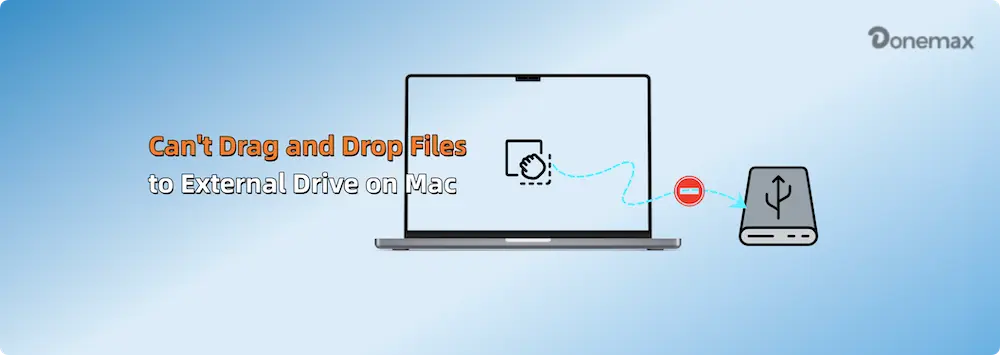
why can't i drag and drop files to external drive Mac

In this comprehensive guide, we will analyze the top causes behind this issue, explain how file permissions work on macOS, and provide step-by-step solutions—including using Donemax NTFS for Mac—to fix the problem in minutes.

Top 6 Reasons Why Drag and Drop Fails on Mac External Drives

Before attempting fixes, it helps to identify why your Mac is blocking file transfers to your external storage media.

  • The Drive Uses the Windows NTFS File System (Most Common): Microsoft NTFS is the standard format for Windows PCs. Apple macOS natively allows you to view and open files stored on NTFS drives, but it blocks writing permissions by default. When you try to drop a file onto an NTFS drive, Finder refuses to accept it.
  • Read-Only Permission Restrictions: Your Mac account permissions might be set to 'Read only' for that specific drive or folder. This often happens if the drive was configured on another Mac with restricted user access rules.
  • Corrupted File System or Drive Volume Errors: Unplugging an external drive without clicking 'Eject' can lead to directory index errors. When macOS detects minor file system inconsistencies, it locks the drive into read-only mode to prevent data loss.
  • Finder App Freezes or System Glitches: Sometimes the macOS Finder process experiences background glitches or memory locks, causing drag-and-drop gestures to stop responding across windows.
  • Low Storage Space on the External Drive: If your external hard drive is full or lacks enough free megabytes to accommodate the new file, macOS will reject the file transfer.
  • Faulty USB Cable, Hub, or Port Connection: Damaged USB cables or underpowered USB hubs can cause intermittent connectivity, causing Finder to disable write access for stability.

How to Fix Drag and Drop Issues on Mac (7 Proven Methods)

Work through these step-by-step methods to resolve drag-and-drop file transfer issues on your Mac.

Fix 1: Enable Full Read-Write Access for NTFS Drives

If your external drive is formatted in NTFS (which you can check by right-clicking the drive icon and selecting 'Get Info'), the simplest and safest solution is using Donemax NTFS for Mac.

Donemax NTFS for Mac is a lightweight, reliable utility that grants full read and write access to Windows NTFS drives on macOS. It eliminates the read-only boundary instantly without requiring you to reformat the drive or erase your existing files.

Step 1:  Download and install Donemax NTFS for Mac on your MacBook or Mac desktop.


 Download

Donemax NTFS for Mac

Rate: 4.8


Step 2:  Connect your NTFS external drive to your Mac.

Step 3:  Launch Donemax NTFS for Mac, select your drive, and click 'Enable Writable' button. The software will then make the NTFS drive fully writable on Mac.
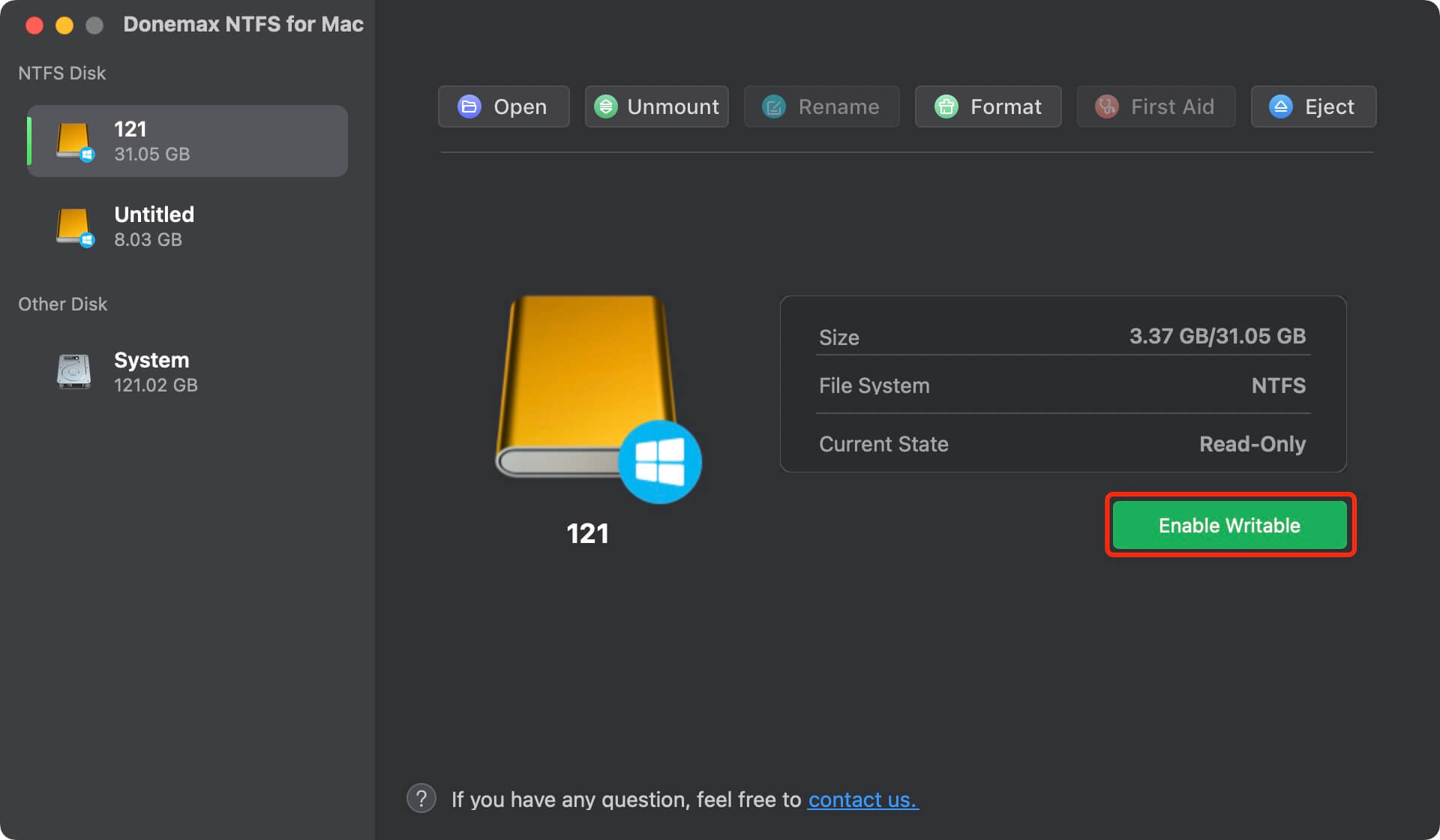
make NTFS drive writable on Mac

Step 4:  Open Finder and freely drag and drop any files or folders directly onto your NTFS drive!

Fix 2: Modify Folder Permission Settings in Finder

If the drive format is APFS or Mac OS Extended, permissions might be preventing file transfers:
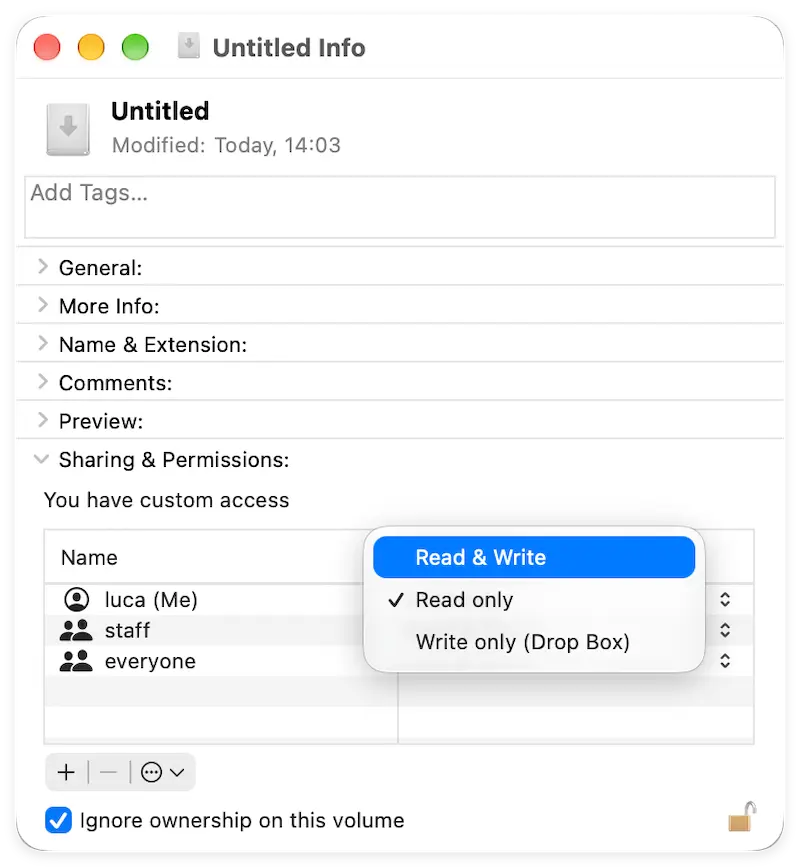
  1. Right-click your external drive icon on the desktop or sidebar, and select 'Get Info'.
  2. Expand the 'Sharing & Permissions' section at the bottom.
  3. Click the lock icon and enter your Mac admin password to make changes.
  4. Change your privilege setting to 'Read & Write'. You can also check the box for 'Ignore ownership on this volume'.

change permissions of external drive Mac

Fix 3: Restart Finder or Relaunch macOS

If drag and drop stops working completely across your system, restarting Finder often resolves temporary glitches:

  1. Press Option + Command + Esc to open the Force Quit menu.
  2. Select 'Finder' from the list and click 'Relaunch'.
  3. Alternatively, restart your Mac from the Apple Menu > Restart.

Fix 4: Run First Aid in Disk Utility to Repair Drive Errors

If macOS locked the drive because of file system irregularities, repair it using built-in diagnostic tools:
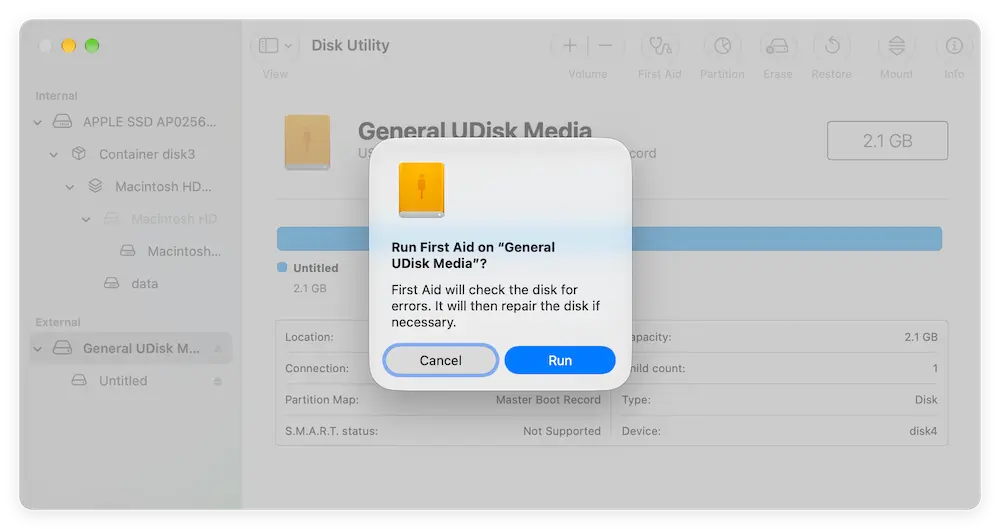
  1. Open Finder > Applications > Utilities > Disk Utility.
  2. Select your external drive from the left sidebar.
  3. Click the 'First Aid' button at the top toolbar and select 'Run'.
  4. Wait for Disk Utility to scan and fix directory errors, then try dragging files again.

run First Aid to fix external drive Mac

Fix 5: Free Up Storage Space on the External Drive

Check if your external drive has sufficient capacity. Open 'Get Info' on the drive and review the 'Available' space. Delete unneeded files or clear the Mac Trash while the drive is connected.

Fix 6: Check Cables and Try Another USB Port

Disconnect your external hard drive and inspect the cable connector. Plug the drive directly into a motherboard USB-C or Thunderbolt port on your Mac, bypassing USB extension cables or unpowered hubs.

Fix 7: Reformat the External Drive (Last Resort)

If the drive file system is severely corrupted and you do not need the files stored on it, reformatting will create a fresh file system:
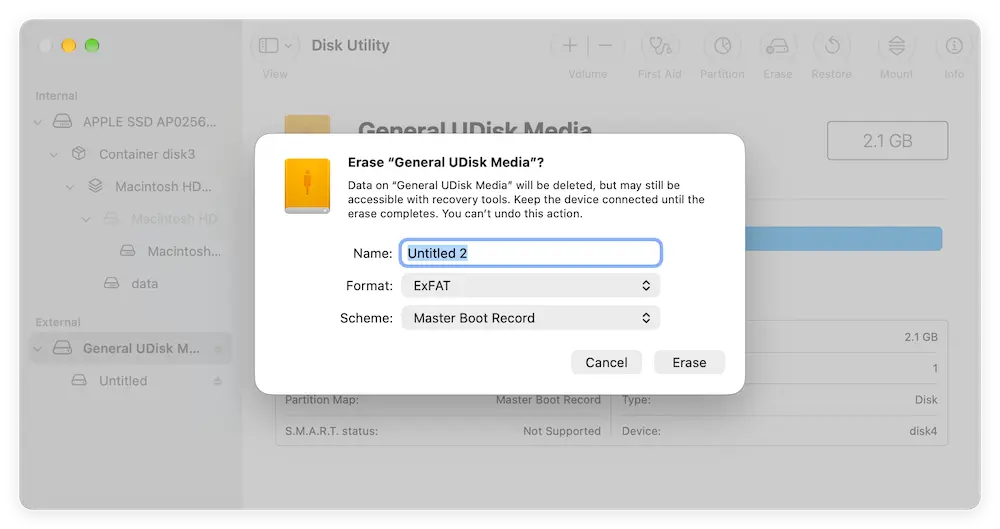
  1. Open Disk Utility, select the external drive, and click 'Erase'.
  2. Choose exFAT (for Windows & Mac compatibility) or APFS (for Mac-only use).
  3. Click 'Erase'. Note that this will permanently delete all contents on the drive!

reformat external drive Mac

Best Practices for Smooth Mac External Drive Usage

Adopting these simple daily habits will keep your external drives healthy and prevent file transfer issues:

  1. Always Eject Drives Safely:  Always click 'Eject' in Finder before disconnecting your external drive to prevent partition errors.
  2. Keep Donemax NTFS Installed:  Use Donemax NTFS for Mac to maintain seamless cross-platform reading and writing without reformatting.
  3. Do Not Interrupt Copy Operations:  Avoid unplugging cables during active file transfers to prevent corrupting file allocation tables.

FAQs about Can't Drag and Drop Files to External Drive on Mac

If it worked previously, the drive may have been ejected improperly, causing macOS to temporarily lock the volume into read-only mode to prevent corruption. Running First Aid in Disk Utility or restarting your Mac usually resolves this.
Right-click the external drive icon on your desktop or Finder sidebar and choose 'Get Info'. Look at the 'Format' line. If it says 'Windows NT File System (NTFS)', your Mac requires software like Donemax NTFS for Mac to write files.
Yes. Donemax NTFS for Mac is fully optimized for both Intel-based Macs and modern Apple Silicon M-series (M1, M2, M3, M4, M5, M6, etc) MacBooks and desktop Macs running modern macOS versions.
exFAT works natively on Mac and Windows, but it lacks file system journaling, making it more vulnerable to data corruption during accidental disconnects. Keeping your drive as NTFS and using Donemax NTFS for Mac offers superior stability for important files.
Yes. Donemax NTFS for Mac provides native transfer speeds with no file size limits, allowing you to move massive video files, photo libraries, and backups smoothly.

Conclusion

Understanding why can't i drag and drop files to external drive Mac empowers you to solve file transfer barriers quickly.

In most cases, the culprit is the read-only restriction on Windows NTFS drives. Instead of risking data loss by formatting your drive, using Donemax NTFS for Mac provides the fastest, safest, and most convenient fix.

Download Donemax NTFS for Mac today and enjoy hassle-free drag-and-drop file transfers across all your external storage drives!

logo stage

Donemax NTFS for Mac

An easy-to-use NTFS tool for Mac lets you write to NTFS drives. You can read and write to NTFS drives on your Mac without any limits. It also can help you mount, format, repair, rename, open drive on your Mac.


 Download

Donemax NTFS for Mac

Rate: 4.8


Steven
Contributing Writer

Steven

Steven has been a senior writer & editor of Donemax software since 2020. He's a super nerd and can't imagine the life without a computer. Over 6 years of experience of writing technical solutions and software tesing, he is passionate about providing solutions and tips for Windows and Mac users.

Gerhard Chou
Editor in chief

Gerhard Chou

In order to effectively solve the problems for our customers, every article and troubleshooting solution published on our website has been strictly tested and practiced. Our editors love researching and using computers and testing software, and are willing to help computer users with their problems