Best NTFS Driver for macOS Tahoe on M5 MacBook Pro

Charles
Written byCharlesUpdated on Aug 14, 2026

Gerhard Chou
Approved byGerhard Chou

Table of Contents

Before we start: macOS Tahoe on the latest M5 MacBook Pro natively provides read-only support for Windows-formatted NTFS external hard drives, SSDs, and USB flash drives. To achieve full read and write access - allowing you to copy, edit, save, rename, and delete files on NTFS drives - you need a modern, reliable driver. Donemax NTFS for Mac stands out as the best NTFS driver for macOS Tahoe on M5 MacBook Pro, offering native M5 chip support, high-speed performance, 1-click write enablement, and complete data safety.


 Download

Donemax NTFS for Mac

Rate: 4.8


PAGE CONTENT:

Are you the proud owner of a brand-new M5 MacBook Pro running Apple's macOS Tahoe? Whether you use your laptop for high-end video editing, software development, or everyday tasks, you likely work with external storage devices.

However, if you connect an external hard drive, SSD, or thumb drive formatted in Windows NTFS, you will quickly notice a frustrating problem: you can view files, but you cannot copy new items to the drive, edit documents, or delete unnecessary files.
best NTFS driver for macOS Tahoe on M5 MacBook Pro

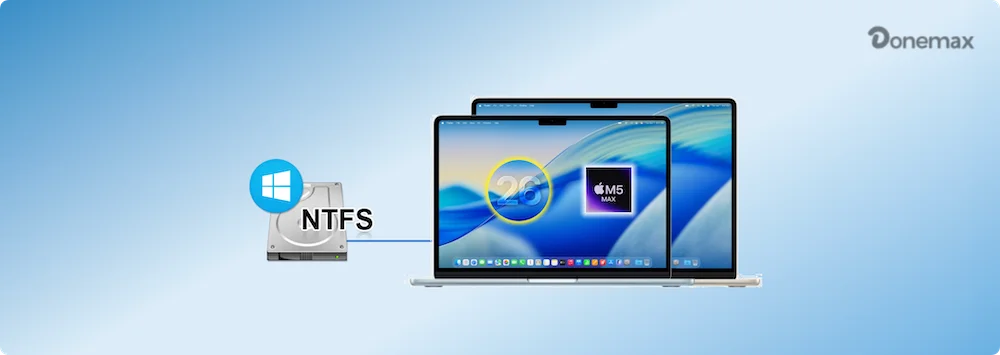
To overcome this cross-platform barrier, finding the best NTFS driver for macOS Tahoe on M5 MacBook Pro is essential. In this detailed guide, we will analyze why macOS limits NTFS support, what to look for in a driver, and why Donemax NTFS for Mac is the top choice for M5 Mac users.

Why Does M5 MacBook Pro Need an NTFS Driver?

NTFS (New Technology File System) is Microsoft's proprietary file system for Windows operating systems. Because Microsoft keeps NTFS specifications private, Apple includes only basic read support within macOS.

On macOS Tahoe running on the ultra-fast M5 Apple Silicon architecture, Apple maintains this read-only policy to ensure kernel stability and protect data integrity out of the box.

Without a dedicated third-party NTFS driver, M5 MacBook Pro users face several major roadblocks:

  • No File Copying:  You cannot transfer video projects, photos, or documents from your M5 MacBook Pro to a Windows drive.
  • Read-Only Editing:  You cannot modify Word files, Excel spreadsheets, or project files directly stored on an NTFS volume.
  • Inability to Delete Files:  You cannot free up space on external drives because macOS prevents you from deleting files on NTFS partitions.
  • Risk of Reformatting:  Formatting an external drive to exFAT or APFS destroys existing data and can break compatibility with Windows PCs.

What Makes a Great NTFS Driver for macOS Tahoe?

With the release of the M5 series Apple Silicon processors and macOS Tahoe, legacy NTFS drivers often fail to work due to strict security measures and driver architecture changes in macOS.

When evaluating the best NTFS driver for macOS Tahoe on M5 MacBook Pro, keep these five crucial factors in mind:

  1. Native M5 Apple Silicon Compatibility:  The software must feature native ARM/M5 code optimization so it runs smoothly without relying on Rosetta 2 translation or slowing down your Mac.
  2. Full Support for macOS Tahoe:  It must fully support macOS Tahoe, seamlessly handling new system security features like System Extension permissions.
  3. Lightning-Fast Read/Write Speed:  High data transfer rates are essential when moving large 4K/8K video clips or heavy backup archives between Windows and Mac formats.
  4. One-Click & Auto-Mount Ease:  The driver should automatically mount connected NTFS volumes in read-write mode upon connection, eliminating manual terminal commands.
  5. Rock-Solid Data Safety:  It must ensure complete data safety, guarding against file corruption, unexpected disconnections, or system crashes.

Top Recommendation: Donemax NTFS for Mac

Among the available solutions on the market, Donemax NTFS for Mac emerges as the top-rated choice for M5 MacBook Pro users running macOS Tahoe. Designed specifically for modern Apple Silicon hardware and the latest macOS updates, Donemax offers a lightweight, fast, and completely safe user experience.

Key Features of Donemax NTFS for Mac

Donemax NTFS for Mac packs all the tools you need to manage Windows drives on your Apple laptop effortlessly:

  • Full Read-Write Access:  Grants complete read, write, edit, copy, move, and delete capabilities for any connected NTFS drive on macOS Tahoe.
  • Optimized for M5 Chip:  Built natively for Apple Silicon (M1, M2, M3, M4, and M5) and Intel Macs, ensuring minimal CPU usage and maximum transfer speeds.
  • Automatic Drive Mounting:  Automatically mounts external NTFS drives in read-write mode as soon as you plug them into your Thunderbolt/USB-C ports.
  • Comprehensive Disk Management:  Includes built-in tools to open, mount, unmount, repair corrupted drives, rename partitions, and safely eject external drives.
  • 100% Risk-Free:  Designed with clean, military-grade disk management safety standards to protect your sensitive files during data transfers.

How to Use Donemax NTFS for Mac on macOS Tahoe

Enabling full write access for Windows drives on your M5 MacBook Pro takes less than a minute. Follow these simple steps:

Step 1: Download and Install Donemax NTFS for Mac

Download the latest version of Donemax NTFS for Mac from the official Donemax website. Double-click the installer package and follow the quick setup wizard.

Donmeax NTFS for Mac

  • Best Microsoft NTFS driver for macOS Tahoe.
  • Fully compatible with M5 chip Macs.
  • Easy and one-click to make NTFS drive writable.
 

 Download

Donemax NTFS for Mac

Rate: 4.8


Step 2: Launch the App and Connect Your Drive

Open Donemax NTFS for Mac from your Launchpad or Applications folder. Plug your NTFS-formatted external hard drive, SSD, or USB flash drive into your M5 MacBook Pro.

Step 3: Enable Writable Mode

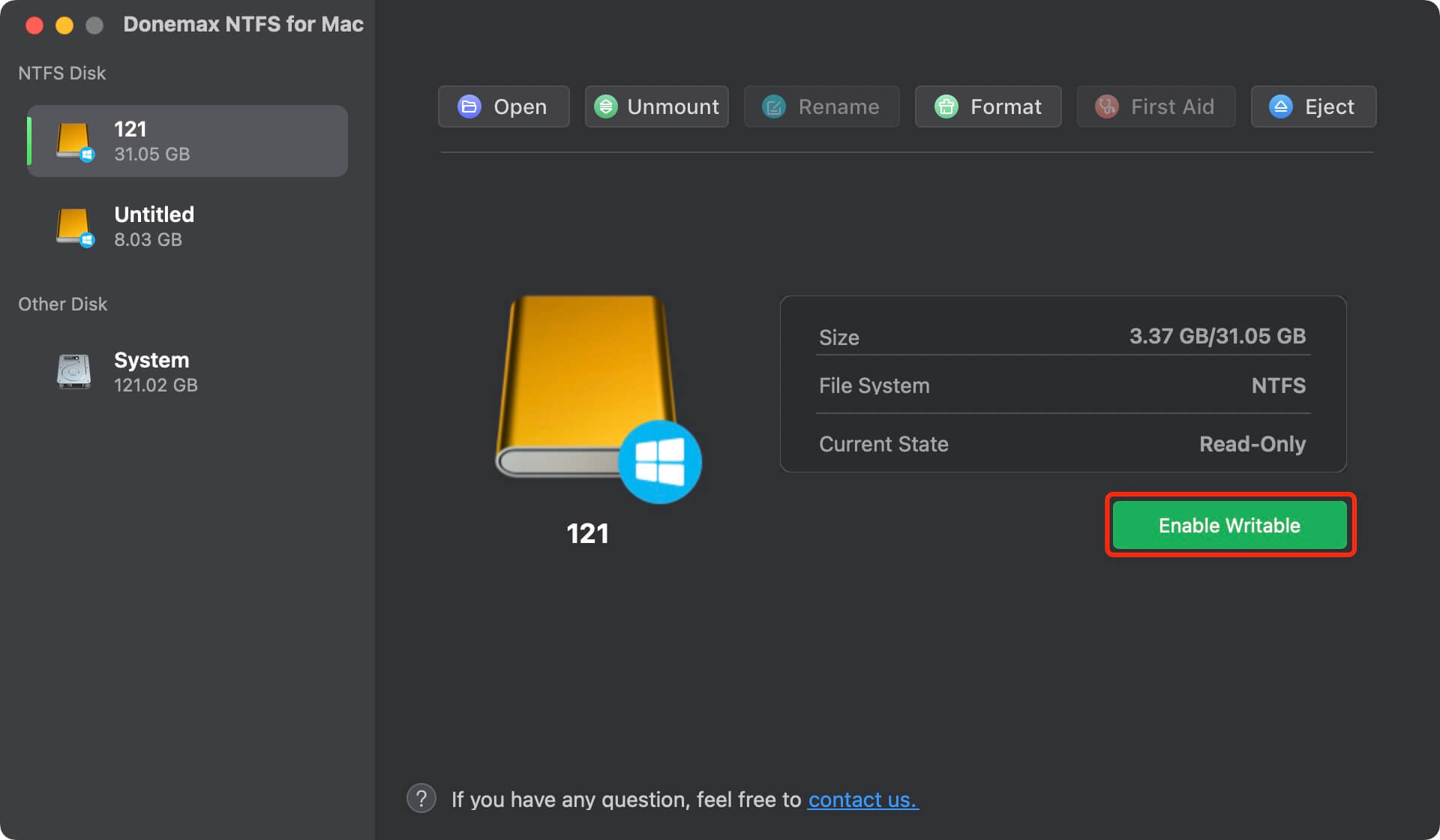
Select your NTFS drive from the drive list inside the application window. Click the 'Enable Writable' button. Donemax will instantly remount your drive in full read-write mode, allowing you to copy, edit, and delete files freely.
Enable Writable Mode

Comparison: Donemax vs. Other NTFS Solutions

To help you make an informed decision, let us compare Donemax NTFS for Mac with other popular options:

  • Paragon NTFS for Mac:  Premium reliability with fast speeds, but comes with a higher price tag and complex licensing upgrades for new macOS releases.
  • Tuxera NTFS for Mac:  Focuses on data safety layers, but offers slightly slower write speeds and a bulkier user interface.
  • Free Tools (NTFS-3G / FUSE / Mounty):  Requires entering complex command-line prompts in Terminal and disabling System Integrity Protection (SIP), which poses major security risks to your M5 Mac.
  • Donemax NTFS for Mac (Winner):  Offers the ideal combination of high transfer speeds, an affordable price, intuitive 1-click operation, and full compatibility with macOS Tahoe and M5 hardware.

FAQs about NTFS Driver for macOS Tahoe on M5 Mac

Yes! Donemax NTFS for Mac is updated regularly to provide 100% native compatibility with macOS Tahoe and Apple M5 Silicon processors, guaranteeing fast performance without system lag.
No. Donemax NTFS for Mac uses safe file system drivers that ensure standard read-write operations without risking file corruption or data loss.
Yes, absolutely. Donemax does not reformat or alter the underlying NTFS structure. Your external drive remains 100% compatible with Windows PCs and Mac laptops.
Free Terminal hacks rely on experimental features or obsolete kernel extensions. They often require disabling Mac security settings (SIP) and carry a high risk of corrupting your hard drive contents.
Yes. Donemax supports all external storage devices formatted with NTFS, including mechanical hard drives, portable SSDs, USB flash drives, and memory cards.
No. Once configured, Donemax NTFS for Mac automatically detects and mounts your NTFS drives in read-write mode every time you plug them in.

Conclusion:

Using Windows-formatted drives on a Mac should never be a headache. While macOS Tahoe on M5 MacBook Pro defaults to read-only access for NTFS volumes, installing a reliable NTFS driver solves this issue permanently.

With its native M5 Apple Silicon support, fast data transfer speeds, user-friendly interface, and affordable pricing, Donemax NTFS for Mac is undeniably the best NTFS driver for macOS Tahoe on M5 MacBook Pro.

Ready to write, edit, and delete files on your NTFS drives without restrictions? Download Donemax NTFS for Mac today and unlock full cross-platform compatibility on your M5 MacBook Pro!

logo stage

Donemax NTFS for Mac

An easy-to-use NTFS tool for Mac lets you write to NTFS drives. You can read and write to NTFS drives on your Mac without any limits. It also can help you mount, format, repair, rename, open drive on your Mac.


 Download

Donemax NTFS for Mac

Rate: 4.8


Charles
Contributing Writer

Charles

Charles, who lives in Sydney, Australia, is an editor & writer of Donemax Team. He is good at writing articles related with Apple Mac computers, Windows operating systems, data recovery, data erasure, disk clone and data backup, etc. He loves reading and playing tennis in his spare time and is interested in testing new digital devices such as mobile phones, Macs, HDDs, SSDs, digital cameras, etc.

Gerhard Chou
Editor in chief

Gerhard Chou

In order to effectively solve the problems for our customers, every article and troubleshooting solution published on our website has been strictly tested and practiced. Our editors love researching and using computers and testing software, and are willing to help computer users with their problems