Written byCharlesUpdated on Nov 04, 2026

Before we start: For attendees who need to capture critical discussion points, training modules, or legal notes without disturbing the flow or alerting the host in Teams meetings, using a dedicated desktop utility like Donemax Recorder is the most reliable solution. Donemax Recorder lets you record Teams meeting in high-definition MP4 format, preserving system audio, microphone tracks, and camera overlays .
PAGE CONTENT:
Have you ever attended an important Microsoft Teams meeting on your PC and wished you could save a copy for future review? Whether it is a fast-paced client briefing, a technical university lecture, or a company-wide town hall, keeping an accurate record of presentation slides and oral commitments is invaluable.
Unfortunately, Microsoft Teams places strict constraints on who can record meetings natively. By default, unless the meeting organizer specifically grants you recording permission or elevates your role to a co-host, the 'Rec' button inside Teams remains completely greyed out.
Even worse, when an authorized host does click that button, Teams immediately posts a bright notification banner across the screen of every participant: 'Recording has started.' It also logs the recording in the meeting chat history, making discreet note-taking impossible. This article provides a comprehensive guide on how to record Teams meeting without host knowing on PC safely, efficiently, and with crystal-clear audio quality exported directly to MP4 format.
To understand how to record discreetly, it helps to know how Microsoft Teams handles built-in session recording on Windows PC.
1. Server-Side Cloud Recording Architecture
When you initiate a native recording inside the Microsoft Teams app, the recording process does not take place locally on your personal computer. Instead, Microsoft's cloud servers capture the audio, video, and screen-sharing streams directly. Once the meeting concludes, the video file is processed and automatically stored in OneDrive for Business or SharePoint.
2. Automated Participant Notifications
Because the recording is processed on Microsoft servers, Teams enforces compliance privacy rules by sending API signals to every connected client. These signals display the prominent top banner and issue an audible prompt informing attendees that the session is being recorded. Consequently, any native attempt to record inside the app will always alert the host and all other attendees.
To see why third-party screen software is superior for attendee recording, consider this feature-by-feature comparison:
| Recording Feature | Native Teams Cloud Recording | Donemax Recorder (PC) |
|---|---|---|
| Host Permission Needed? | Yes (Must be Host/Co-host) | No (Works for any attendee) |
| Triggers Screen Banner? | Yes (Notifies everyone instantly) | No (Completely silent & private) |
| Output File Format | SharePoint / OneDrive Cloud Link | Local MP4 Video File |
| Audio Source Capture | Cloud Stream (Server dependent) | System Audio + Mic simultaneously |
| Auto Edit & AI Captions | No (Raw cloud recording) | Yes (Auto Zoom, Cursor polish, .srt AI captions) |
The most effective and hassle-free way to record Teams meeting without host knowing on PC is using Donemax Recorder. Designed specifically for Windows 10 and 11 (64-bit), Donemax Recorder operates independently of the Microsoft Teams application layer.
Because Donemax Recorder captures video frames directly from your PC graphics card and system soundcard, Microsoft Teams has no way of detecting that a recording is taking place. There are no API hooks, no server requests, and zero banners generated.
Follow these simple steps to record your Teams meeting secretly on PC:
Step 1: Configure Camera and Audio Sources. Launch Donemax Recorder. Choose your USB webcam (or 'Don't record Camera'), select your Microphone, and pick your Digital Audio/Speakers system sound source.
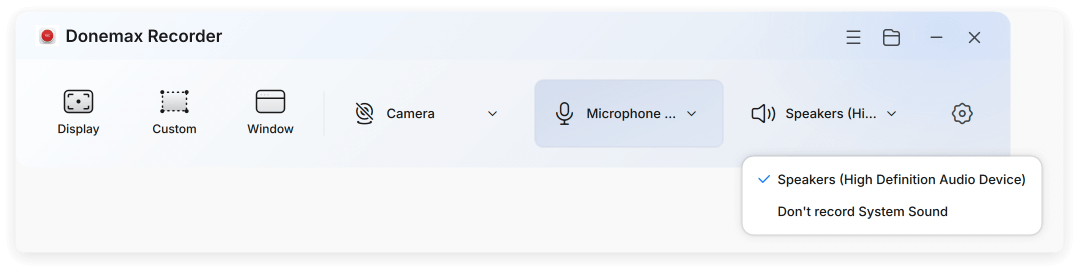
Step 2: Select Recording Area and Devices. Open Microsoft Teams and join your meeting. On the Donemax launcher bar, select Display, Custom region, or Window mode targeting the Teams application.

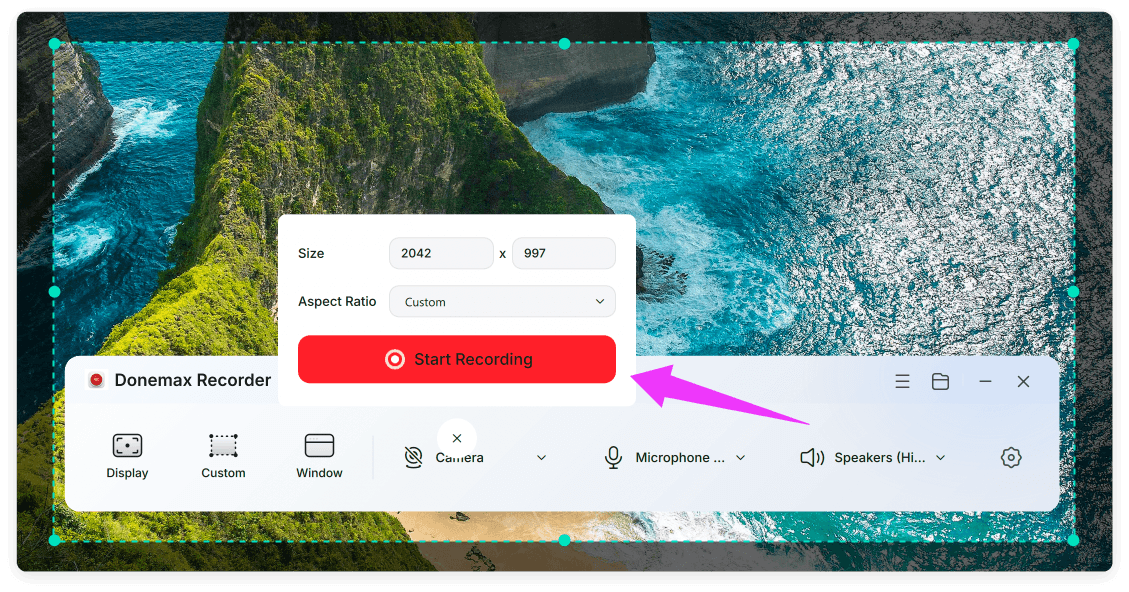
Step 3: Start Discreet Recording. Click the red Start Recording button. After a 3-second countdown, Donemax Recorder captures the session quietly in the background while a floating bar lets you pause or stop.
Step 4: Stop Recording. Click Stop when the meeting finishes. The built-in Donemax Editor opens with auto-generated zooms and AI captions ready.

Step 5: Edit and Export to MP4. If necessary, you can also edit the video. Review your recording and click the blue Export button to save your finished MP4 video file.
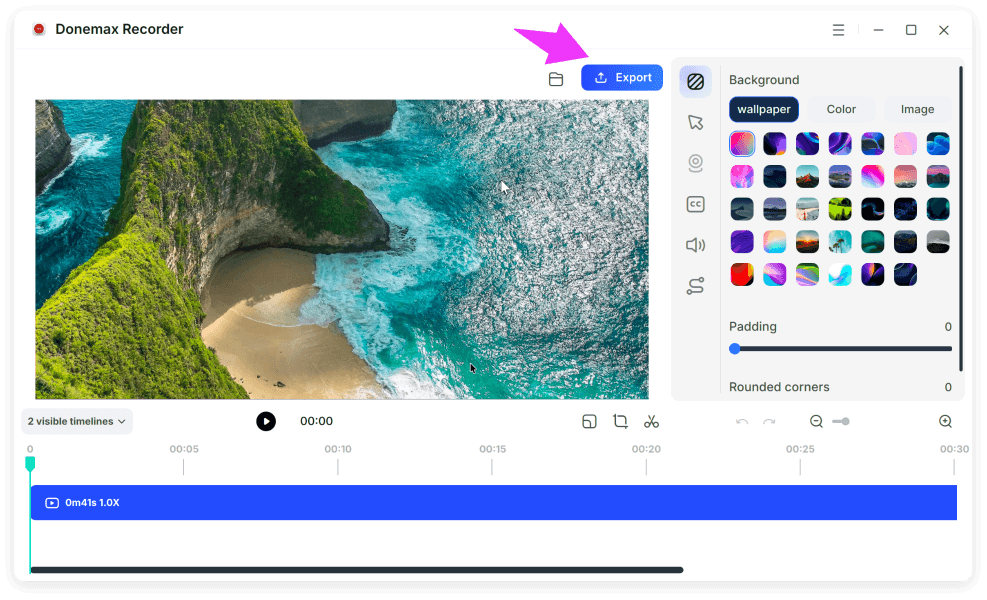
💡 Pro Tip for Meeting Archives: Donemax Recorder exports polished videos in MP4 format at original resolution and up to 60 FPS. You can also export .srt subtitle files alongside your MP4 for easily searchable meeting transcripts.
If you are running Windows 10 or Windows 11 on your PC and prefer not to install third-party software immediately, you can use the built-in Xbox Game Bar utility.
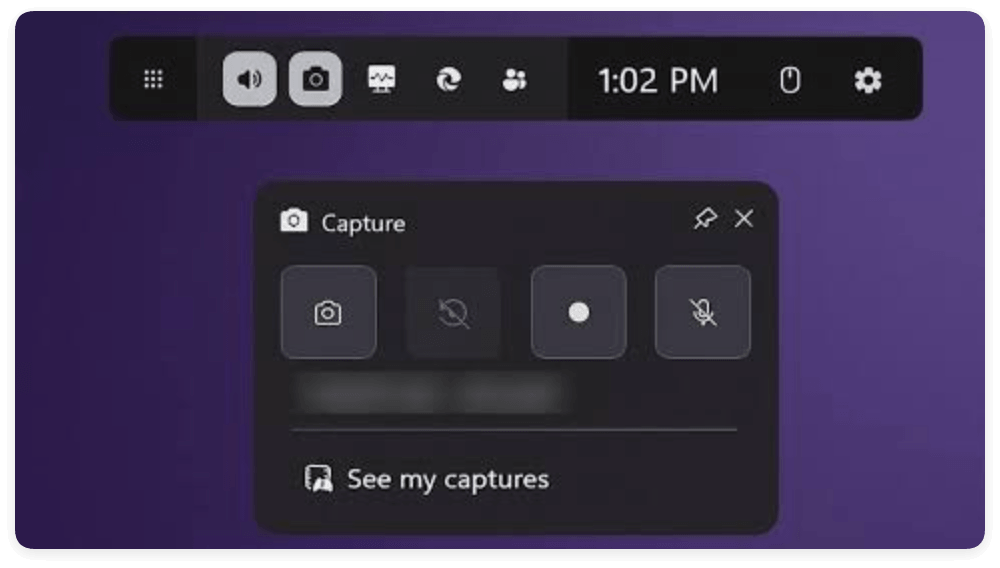
While Xbox Game Bar is free and built into Windows, it has notable drawbacks for professional use. It can only record one active app window at a time (if you minimize Teams or switch windows, recording stops). Additionally, it lacks auto-zoom features, AI transcriptions, and advanced audio control options.
While technical tools enable you to record Teams meeting without host knowing on PC, it is important to practice responsible recording hygiene:
Microsoft Teams' native recording restrictions can be frustrating when you simply want to keep personal study notes, review project updates, or archive important presentations on your PC. Relying on host approval or triggering invasive meeting banners is often impractical.
By using Donemax Recorder, you can record Teams meeting without host knowing on PC smoothly and reliably. With HD MP4 video export, dual audio track capture, AI auto-zoom, automatic captions, and full privacy protection, it is the ultimate tool for capturing Microsoft Teams sessions on Windows PC.
Donemax Recorder for Windows
Donemax Recorder is an auto-zoom Windows screen recorder that automatically magnifies clicks and applies smooth cursor effects for effortless tutorial and demo creation.
Charles
Charles, who lives in Sydney, Australia, is an editor & writer of Donemax Team. He is good at writing articles related with Apple Mac computers, Windows operating systems, data recovery, data erasure, disk clone and data backup, etc. He loves reading and playing tennis in his spare time and is interested in testing new digital devices such as mobile phones, Macs, HDDs, SSDs, digital cameras, etc.
Gerhard Chou
In order to effectively solve the problems for our customers, every article and troubleshooting solution published on our website has been strictly tested and practiced. Our editors love researching and using computers and testing software, and are willing to help computer users with their problems