
Written byMariaUpdated on Aug 31, 2026

Before we start: To securely wipe hard drive Windows 11 26H2 and make data completely unrecoverable, simply deleting files or formatting the drive is not enough. Windows 11 26H2 offers built-in tools like 'Reset this PC' with data cleaning enabled or Diskpart 'clean all'. However, for certified data destruction without complex commands, professional software like Donemax Data Eraser uses military-grade wiping standards to guarantee 100% data irrecoverability.
PAGE CONTENT:
Upgrading to Windows 11 26H2 brings faster performance, sharper visual designs, and enhanced AI-driven features to your computer. But whether you are preparing to sell your old PC, trade in your laptop, or simply clean out an old storage disk, securing your personal data should be your top priority.
Many users assume that hitting the 'Delete' key, emptying the Recycle Bin, or performing a quick format removes their files permanently. Unfortunately, that is far from true. When you delete a file or format a drive in Windows 11 26H2, the system only removes the records for the files. The actual data area of the deleted files remains intact on your SSD or HDD.
Anyone with data recovery software can retrieve your deleted files in just a few clicks. To make your files 100% unrecoverable, you must overwrite every sector of the storage device with random data or zeros. This process is called disk wiping. Here we will introduce a few methods to securely wipe hard drive on Windows 11 26H2 and ensure the data is unrecoverable.
Windows 11 26H2 comes with built-in options to clean your system. While these native features offer basic protection, they come with certain limitations depending on your technical expertise and hardware type.
Windows 11 includes a system reset feature located in Settings > System > Recovery. When resetting your PC, you can wipe the system disk by enabling the 'Clean data?' toggle.
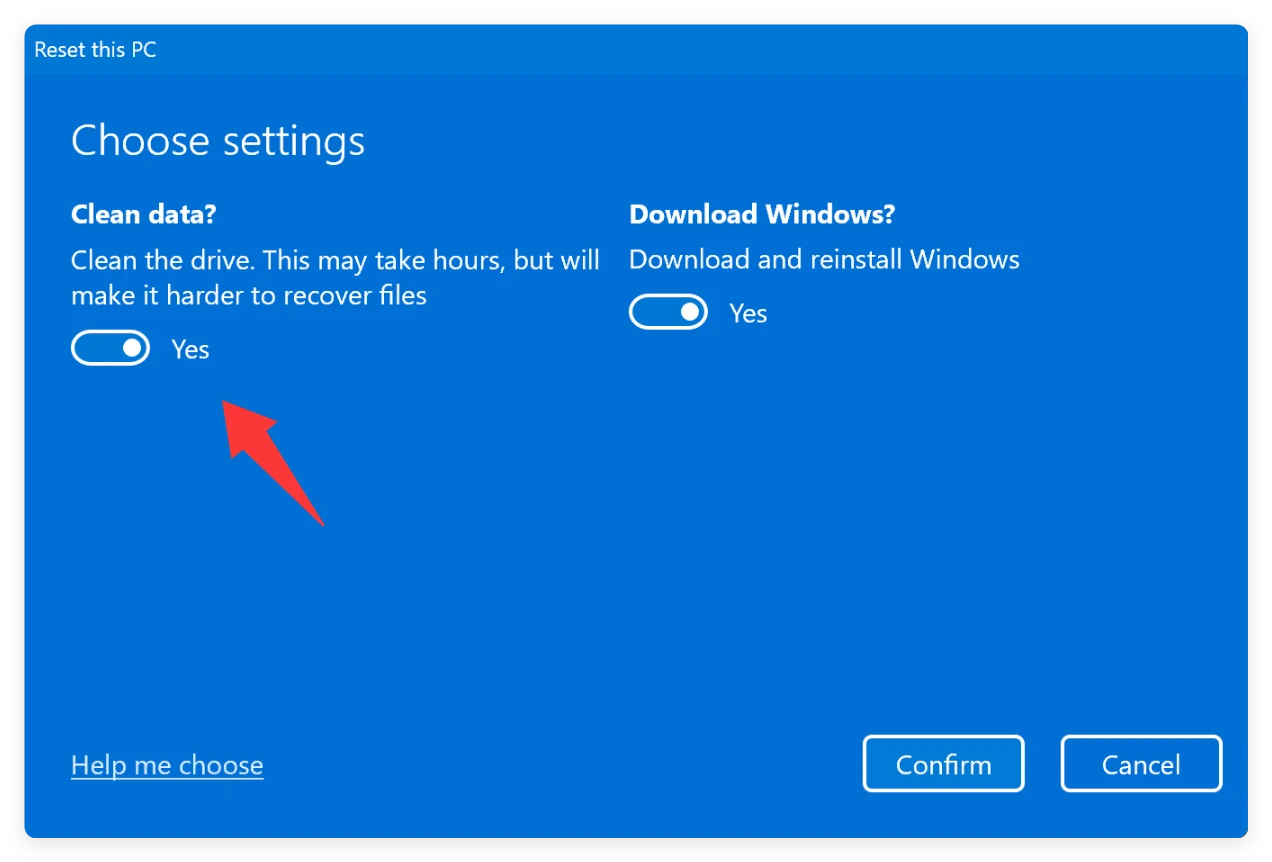
This tells Windows to write zeros over your system drive while reinstalling the OS. While helpful when selling a whole computer, it takes a long time and only applies to the entire primary system partition.
Advanced users can launch Command Prompt as administrator and run the 'diskpart' tool followed by the 'clean all' command.
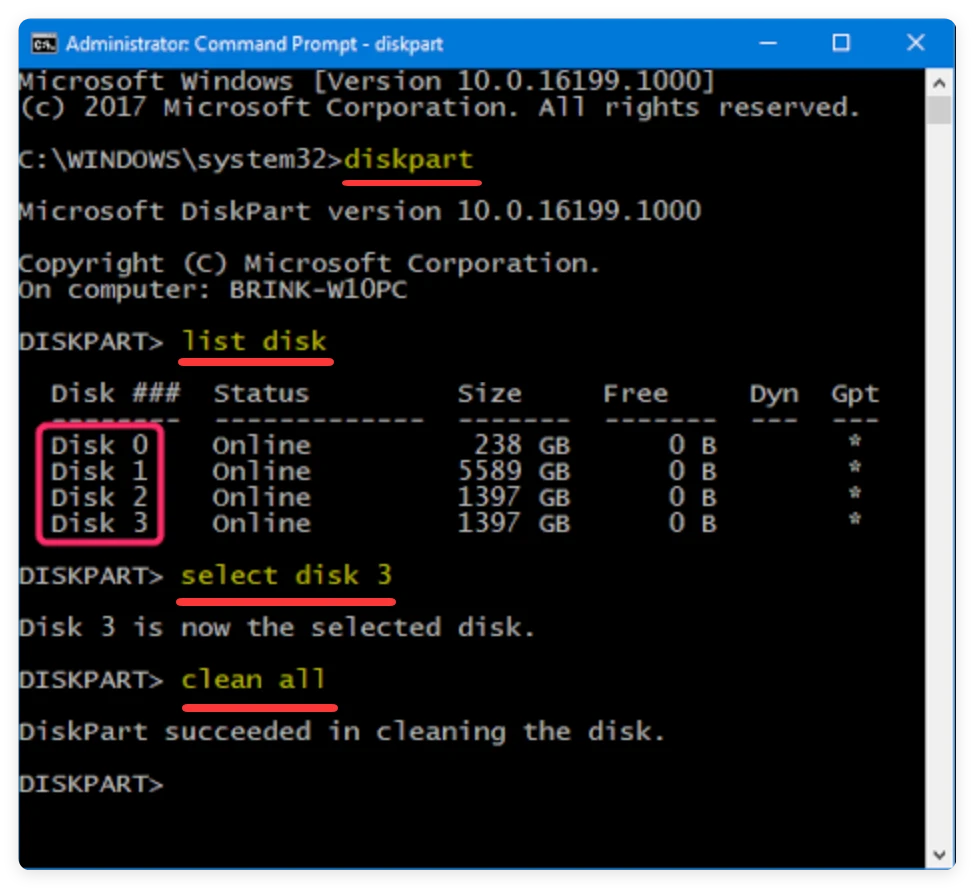
This command writes zeros to every sector of the selected target drive. However, there is zero room for error. If you accidentally type the wrong drive number, you will wipe your main system disk without any easy way to cancel.
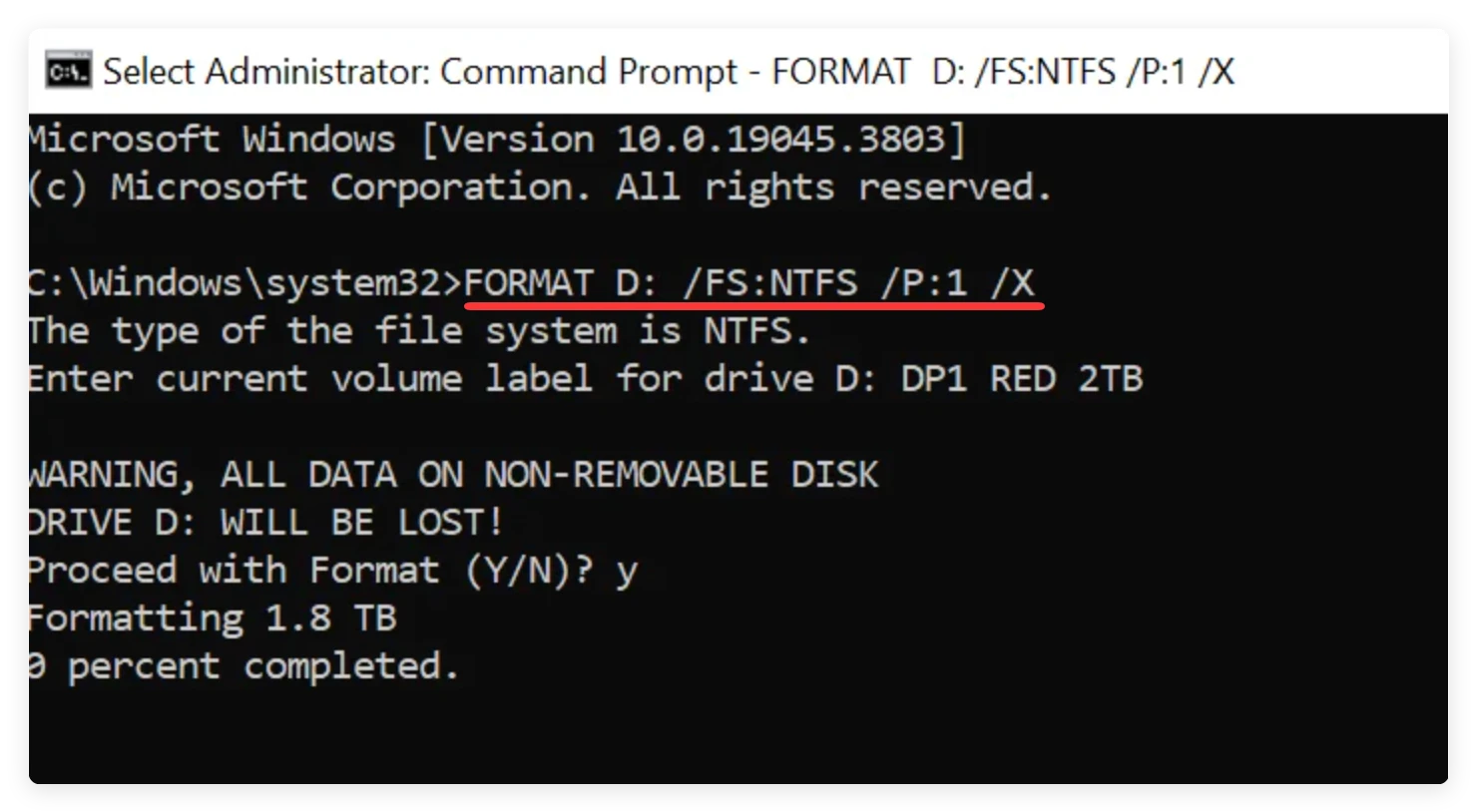
You can also use the 'format D: /FS:NTFS /p:1 /X' command in terminal mode to format a drive and fill sectors with single-pass zeros. Like Diskpart, this tool lacks a visual interface and requires manual command entry.
Donemax Data Eraser is a reliable, certified data destruction tool designed for Windows 11 26H2, Windows 10, and macOS. It allows you to permanently sanitize HDDs, NVMe SSDs, SATA SSDs, USB flash drives, and external hard drives without complicated command syntax.
⚠️ Safety Reminder: Data erased by Donemax Data Eraser is 100% permanent and impossible to retrieve. Please make sure to back up any files you want to keep to an external storage drive or cloud service before starting the wipe process!
Step 1: Download and install Donemax Data Eraser on your Windows 11 26H2 computer. Connect the hard drive or USB drive you wish to wipe.
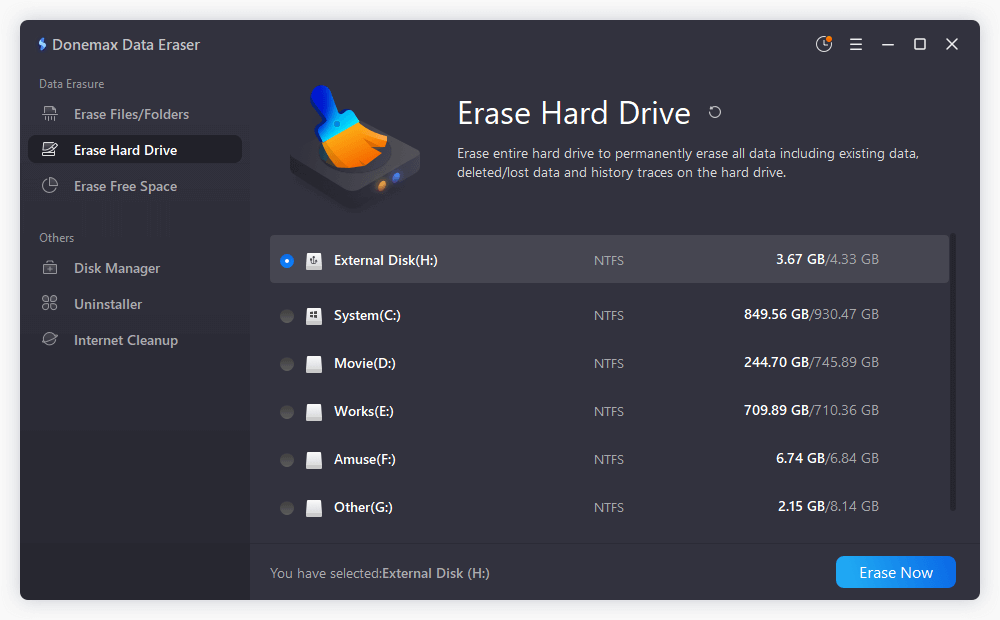
Step 2: Launch the application and select Erase Hard Drive from the left sidebar menu. Select the target drive from the disk list. Double-check the drive capacity and letter to ensure accuracy.Click the Erase Now button.
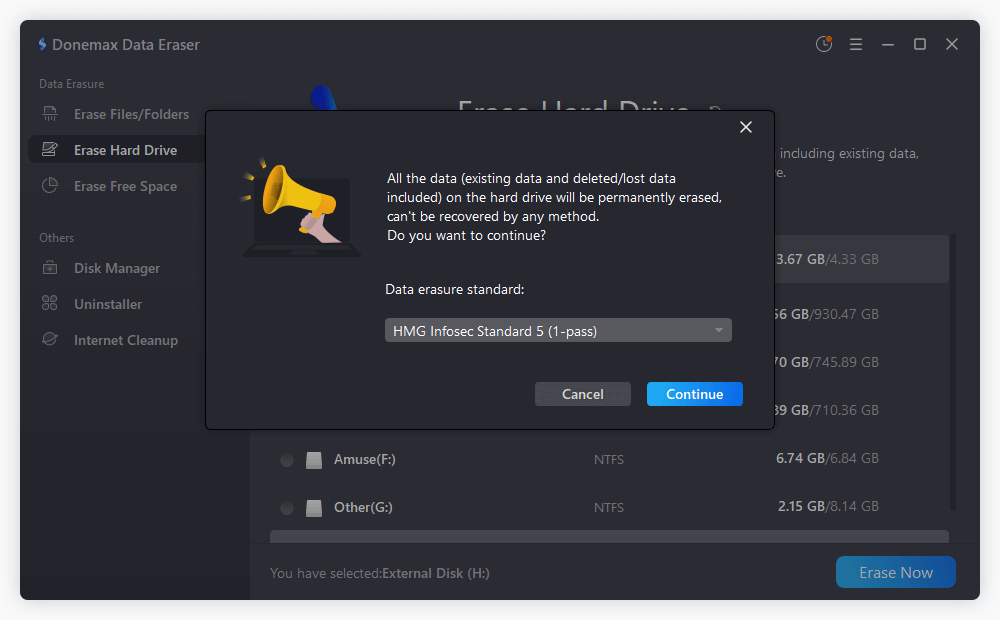
Step 3: Check and select a data erasure standard. Confirm and click the Continue button to initiate the secure wiping process.
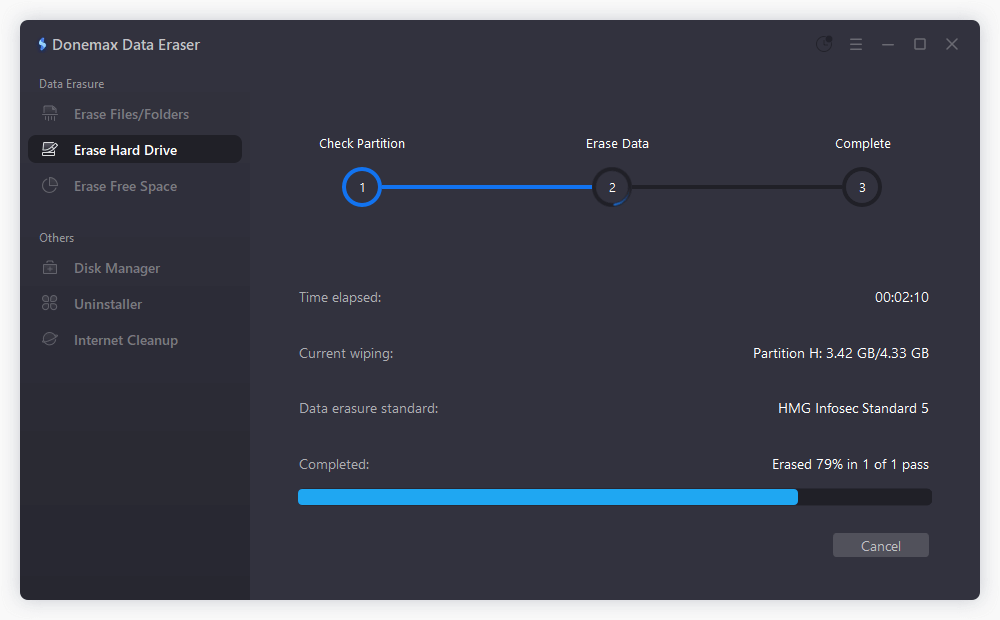
Step 4: Wait for the process bar to reach 100%. Once complete, your hard drive is formatted, clean, and completely safe from data recovery.
If you want to wipe your entire computer, including the C drive where Windows 11 26H2 is currently installed, you cannot wipe it from within the active Windows desktop environment because the operating system locks itself.
To wipe your primary boot drive completely, follow these steps:
Step 1. Factory reset the system and ensure to choose remove everything. This can ensure all your personal data is deleted while factory reset the system.
Step 2: Open Donemax Data Eraser on your PC. Select the Erase Free Space tab from the main screen. Select your primary drive (such as Drive C:).
Step 3: Click Erase Now and select the data wiping method. Then start the wiping process and the software will overwrite all unused sectors on your disk.
This process destroys the traces of previously deleted files without modifying your active documents, applications, or Windows system files.
While native Windows utilities get basic zero-filling done, dedicated software like Donemax Data Eraser provides a graphical user interface, flexible wiping modes, and compliance with recognized international data sanitization standards.
To ensure complete privacy compliance, professional wiping tools rely on tested data erasure standards. Here is a brief look at the wiping methods supported by Donemax Data Eraser:
Protecting your digital privacy is essential when disposing of, selling, or repurposing computer equipment. Simply deleting files or running a basic format leaves your confidential data vulnerable to unauthorized recovery.
By taking advantage of specialized software like Donemax Data Eraser on Windows 11 26H2, you can permanently wipe your hard drives, SSDs, and external storage devices in just a few clicks. Download Donemax Data Eraser today to safeguard your digital footprint!
Donemax Data Eraser
The best data erasure program to permanently delete data. It works on PCs, Macs, HDDs, SSDs, USB drives, digital cameras, and other devices. Once the tool erases the data, no one can recover it by any method.
Maria
Maria is one of the senior writers & editors of Donemax who lives and works in Sydney, Australia. She loves PC, Mac and Internet Technology. She has 6 years of writing articles about data recovery on PC/Mac, disk cloning solution, data eraser and computer OS optimization, etc. She is also interested in testing various software and digital products.
Gerhard Chou
In order to effectively solve the problems for our customers, every article and troubleshooting solution published on our website has been strictly tested and practiced. Our editors love researching and using computers and testing software, and are willing to help computer users with their problems