Written byStevenUpdated on Jun 26, 2026

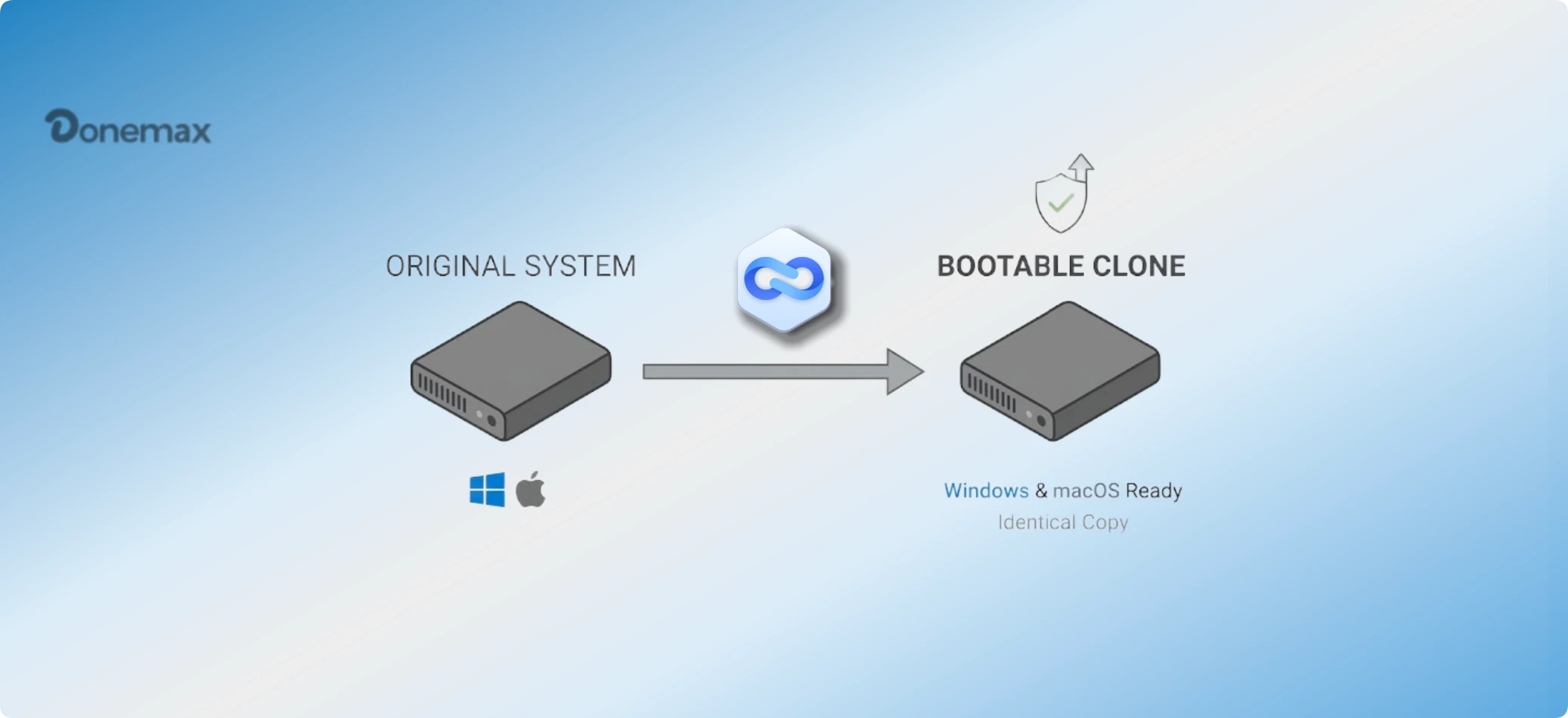
Before we start: To avoid data loss in case there are issues happened during upgrading to Windows 11 26H2, it's highly suggested to back up your important data first. Also, you can use Donemax Disk Clone to make a full and bootable copy of the current system.
PAGE CONTENT:
Are you excited about the upcoming Windows 11 features? Microsoft has just announced Windows 11 version 26H2. This is the next major annual feature update for the second half of 2026.
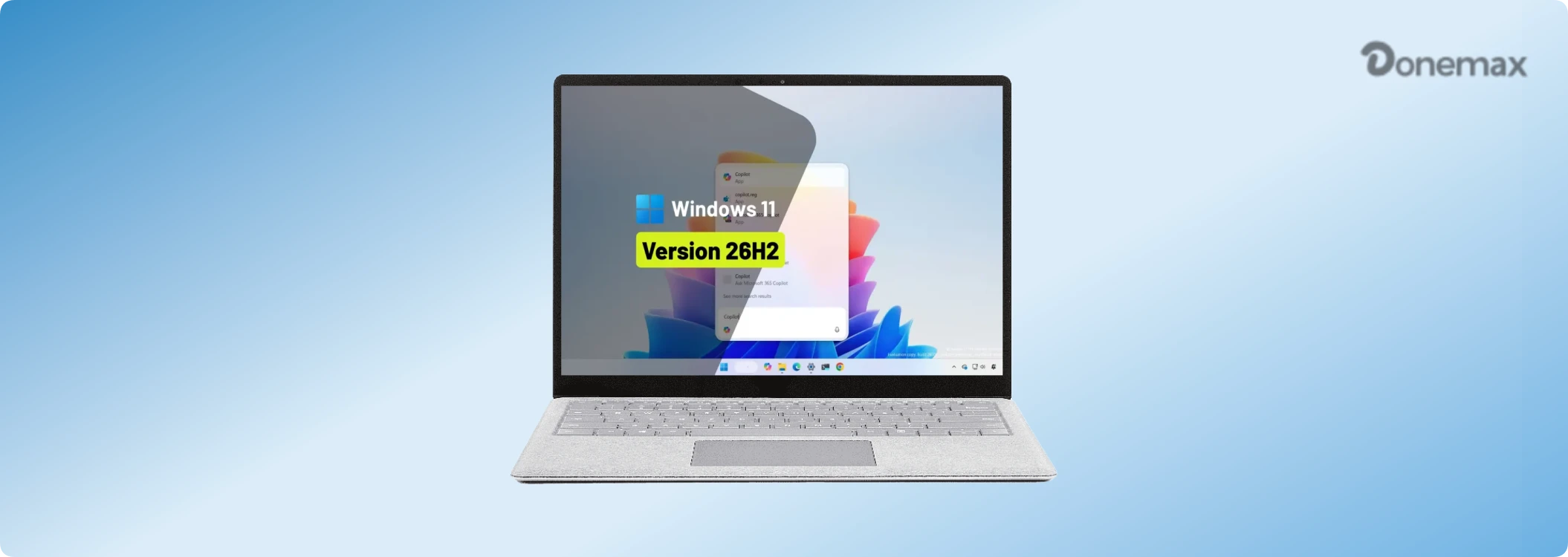
If you are looking for how to update to Windows 11 26H2, you are in the right place! Because this version is not fully released to the general public yet, you cannot find it in your standard Windows Update settings. But don't worry. You can easily get this update early by joining the Windows Insider Program. In this easy guide, we will show you exactly how to do it step-by-step.
Before we begin, let's look at how Microsoft is delivering this update. Windows 11 26H2 is an annual feature update. However, Microsoft has confirmed it will be released as a small enablement package (eKB) for most users.
This means if your PC is already running Windows 11 24H2 or 25H2, the 26H2 update will install very fast. It works just like a small monthly security update and only requires a single restart to activate new features.
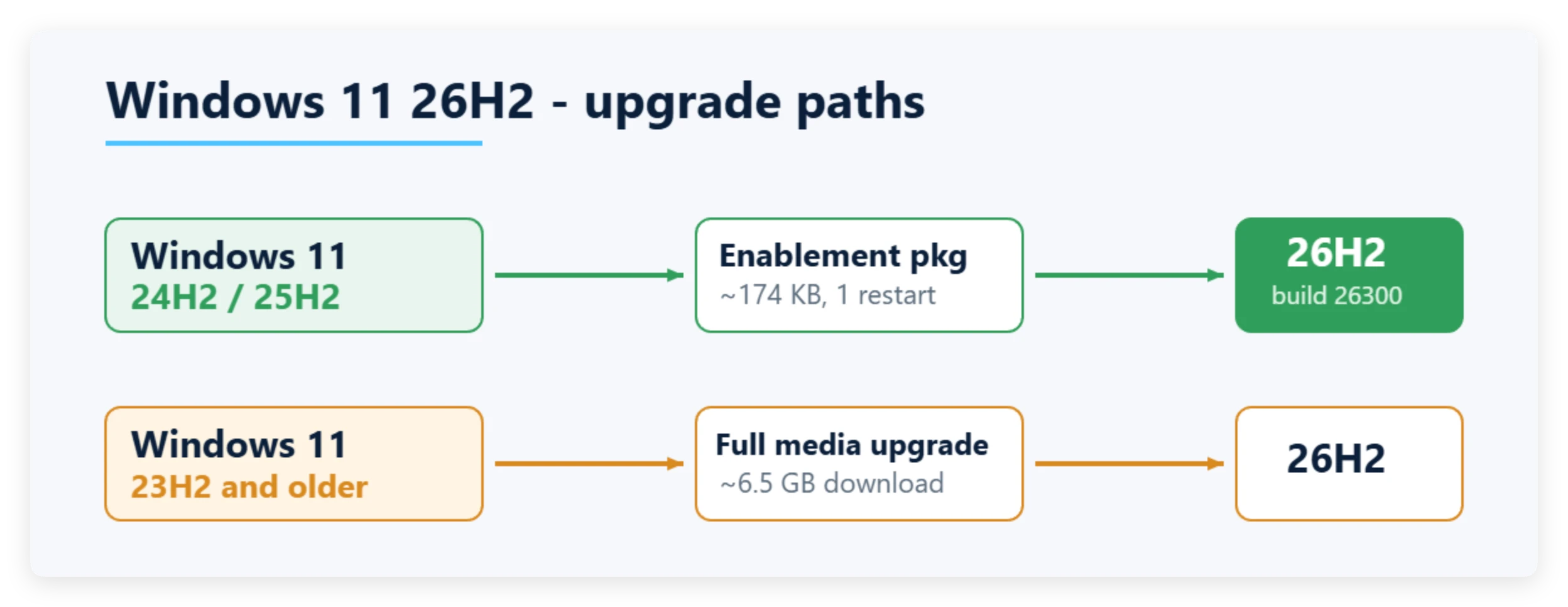
💡 Note: If your device runs Windows 11 version 26H1, Microsoft states you cannot upgrade directly to 26H2 because 26H1 uses a different system core. You will receive a path to a future version instead.
Installing any new update or preview build can sometimes carry risks. System bugs or installation errors could cause data loss or boot issues. Therefore, backing up your personal files is a critical first step.
You can use a reliable backup tool like Donemax Disk Clone to safely clone your hard drive or back up files before proceeding. This ensures your data remains completely safe no matter what happens during the update.
Create Bootable Clone Backups with Donemax Disk Clone
Make a full and bootable clone for your system to protect your system/data before upgrading to Windows 11 26H2.
To download Windows 11 26H2 right now, you need to become a Windows Insider. Follow these simple steps to join:
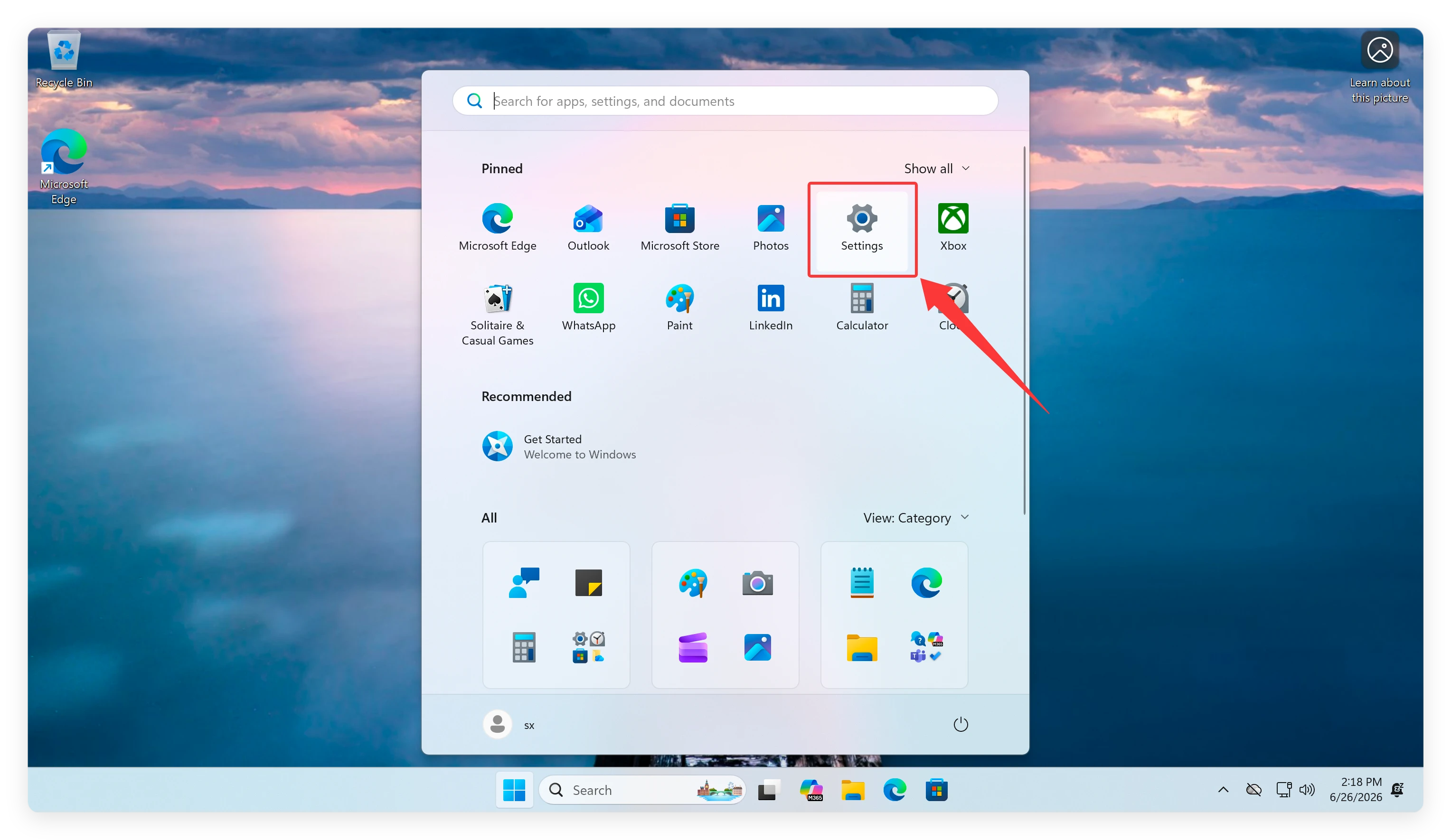
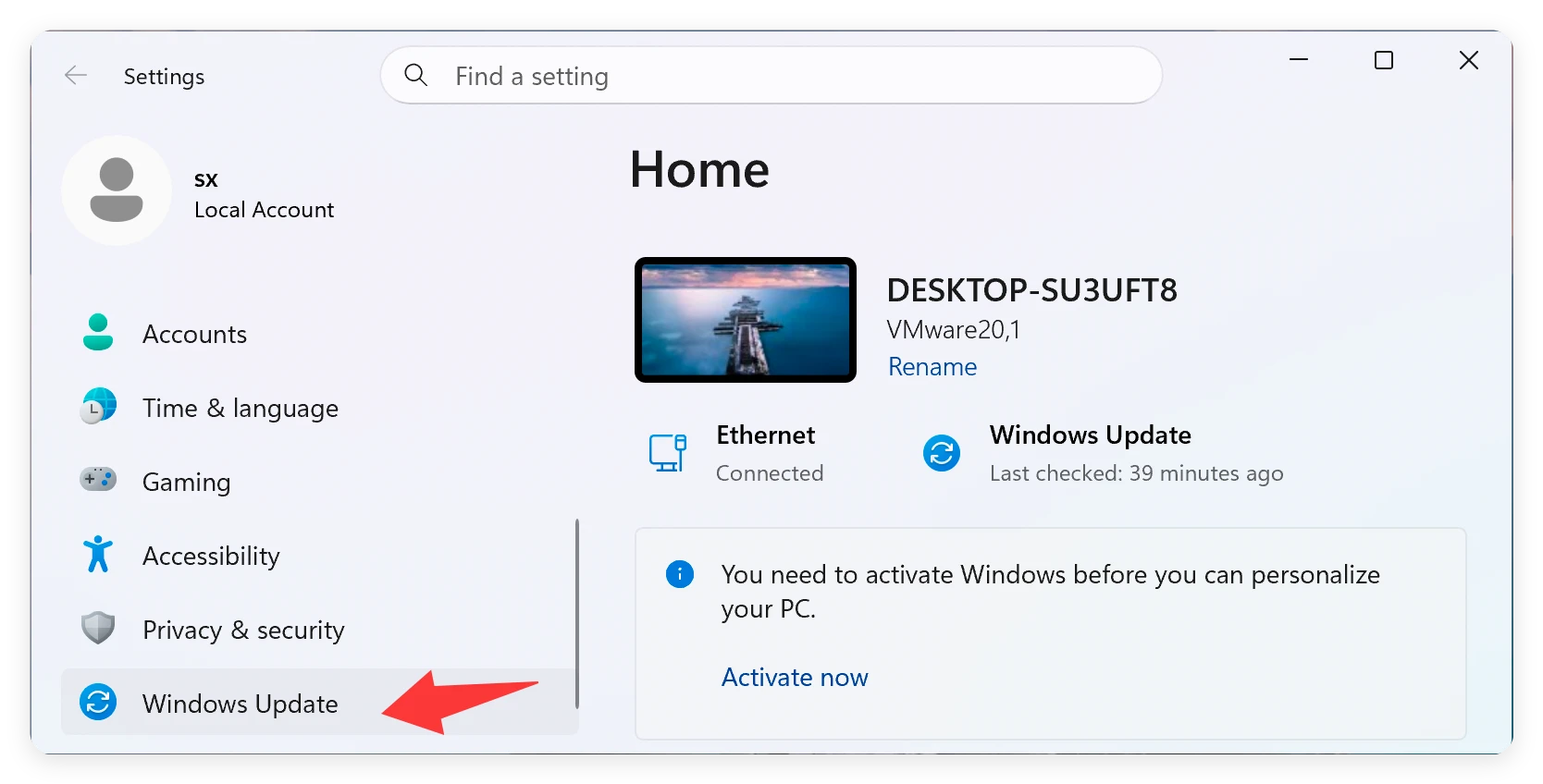
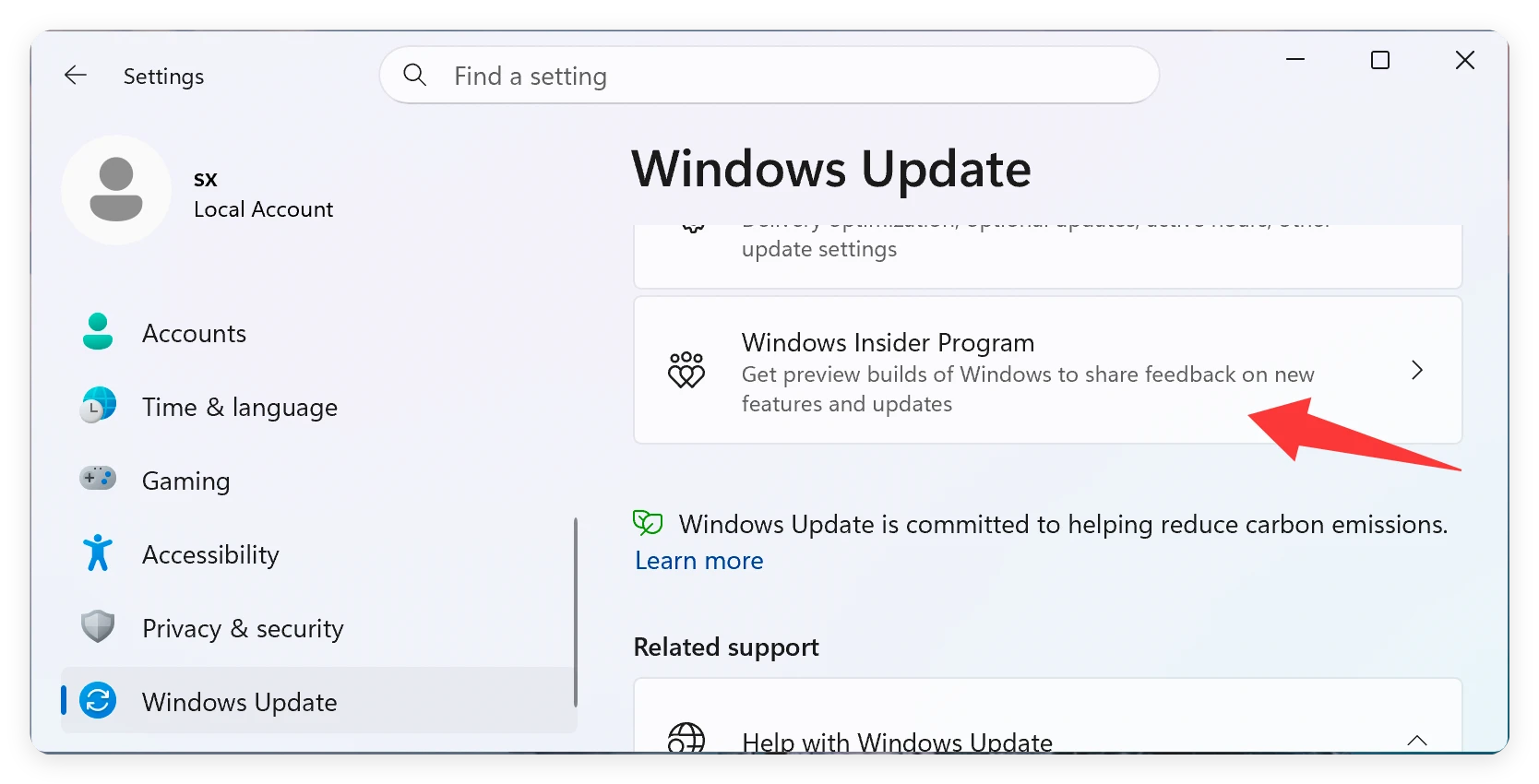
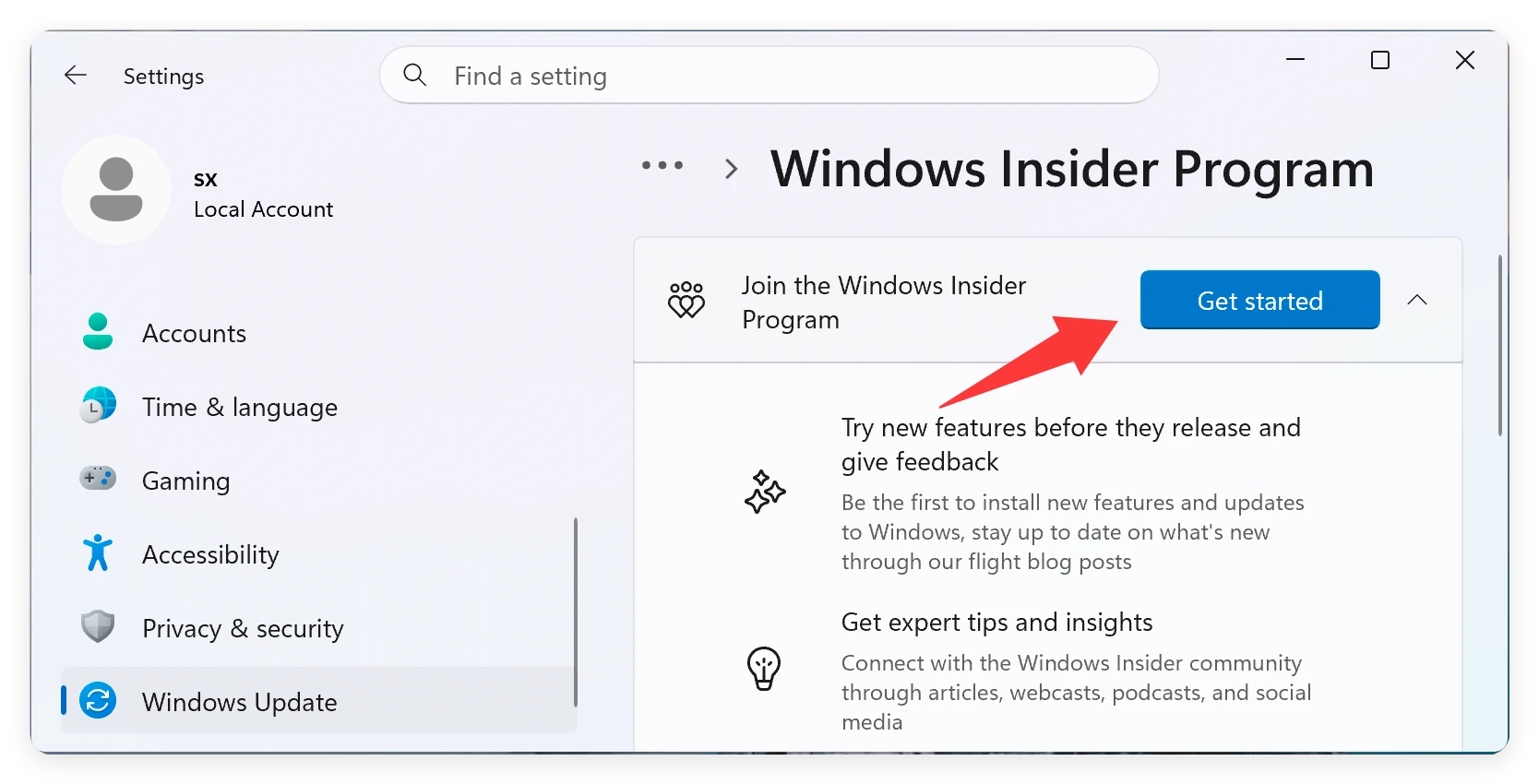
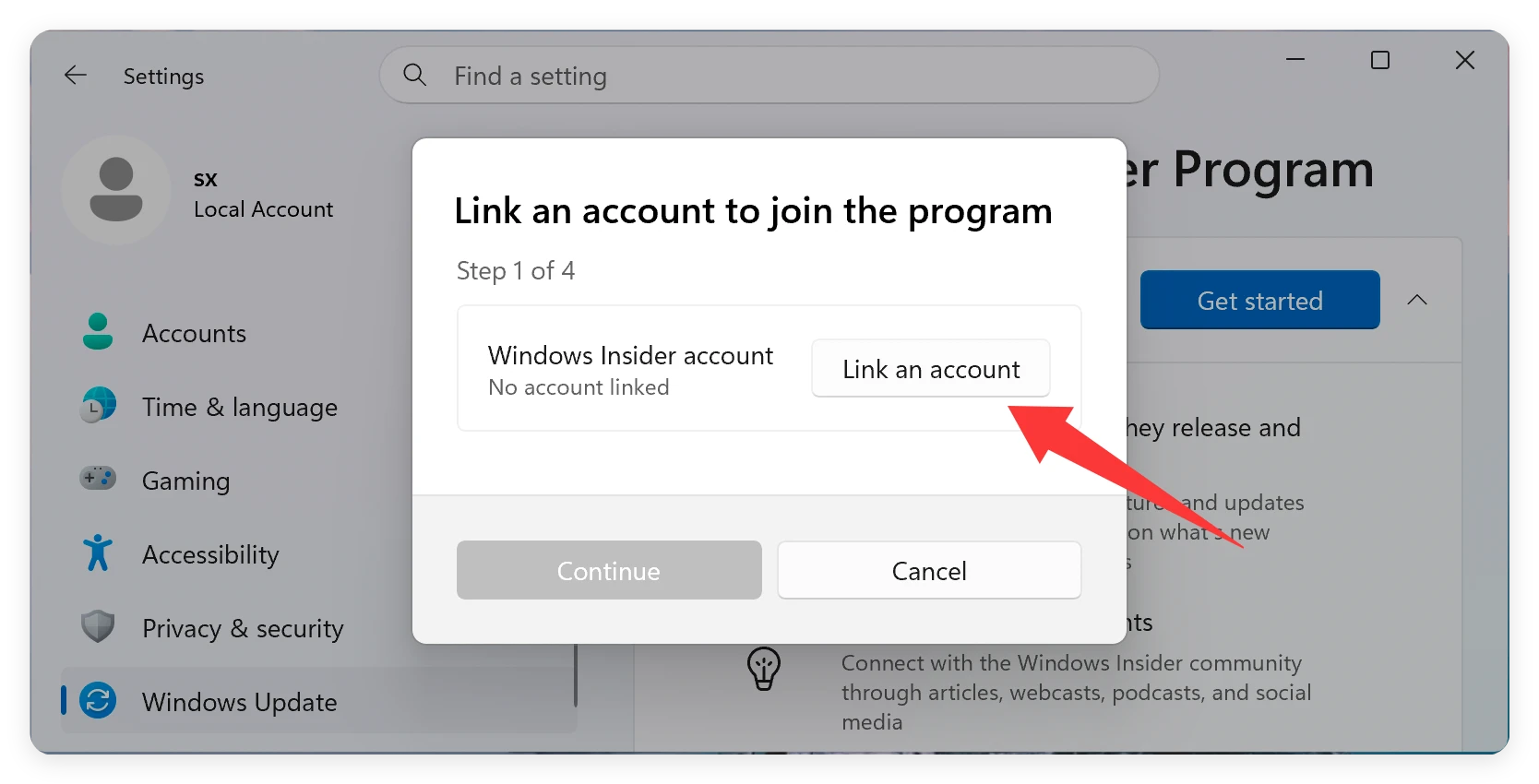
Microsoft is currently testing Windows 11 version 26H2 in a new channel called the Experimental channel.
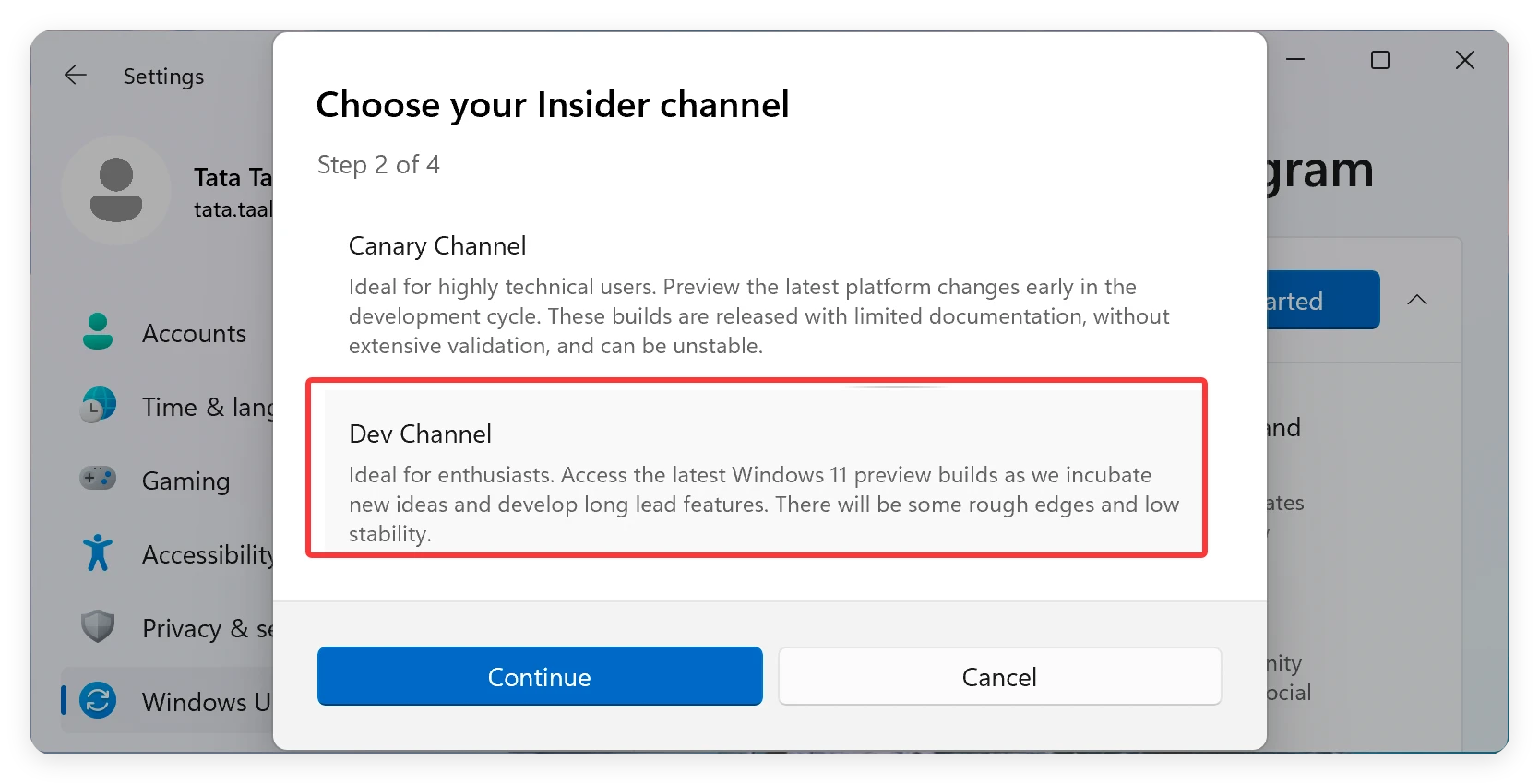
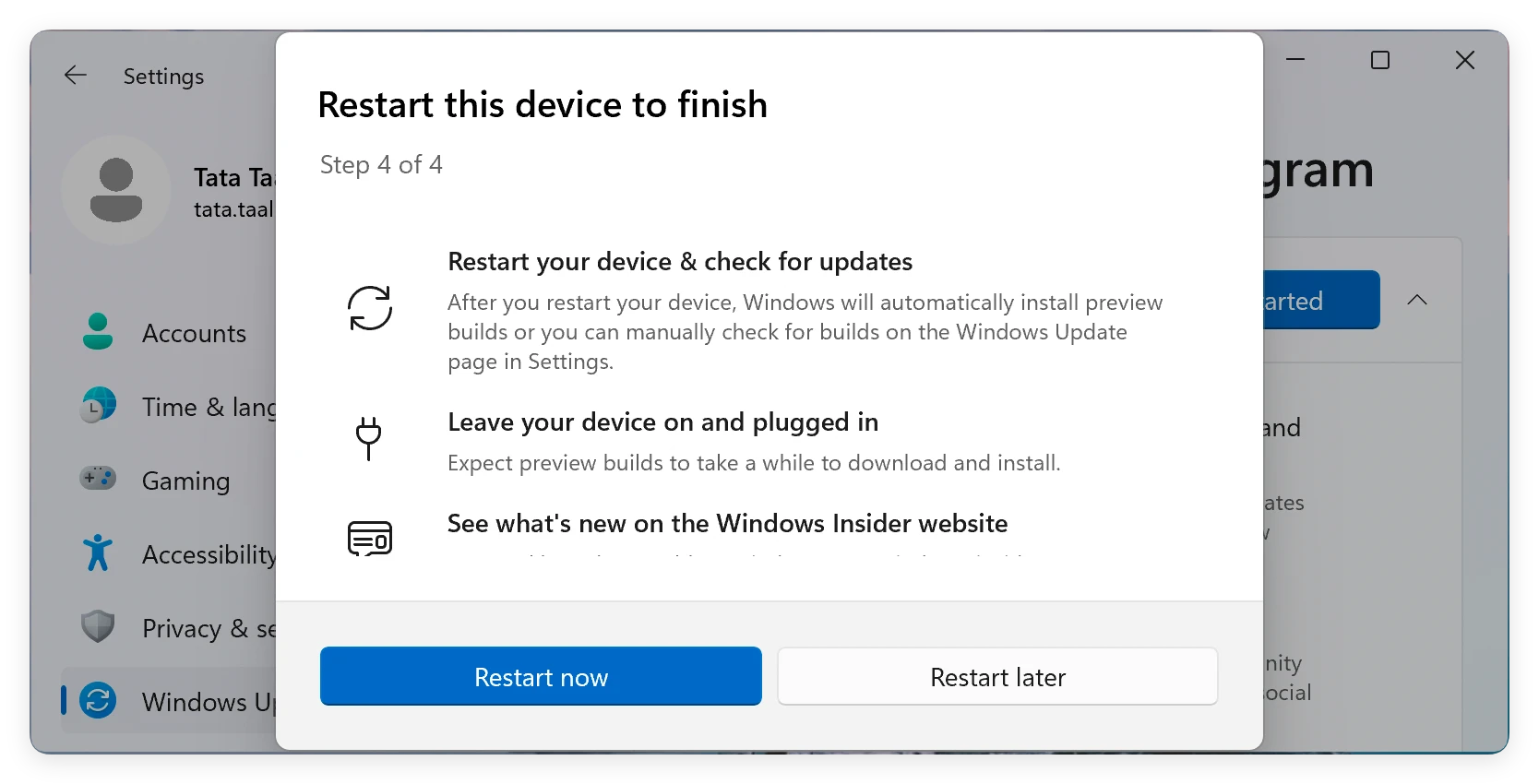
Once your PC restarts, you are ready to get the update. Here is how to complete the process:
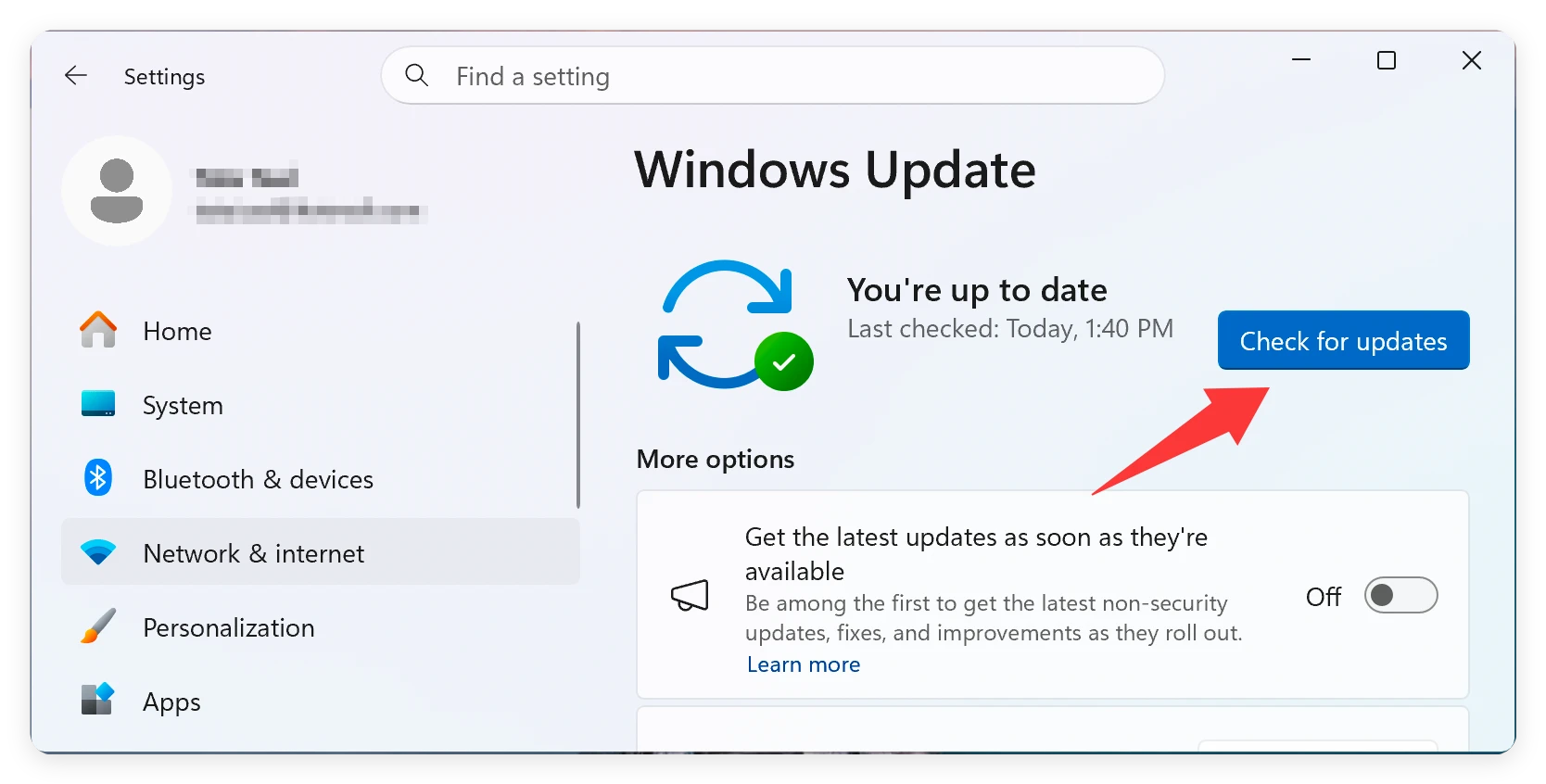
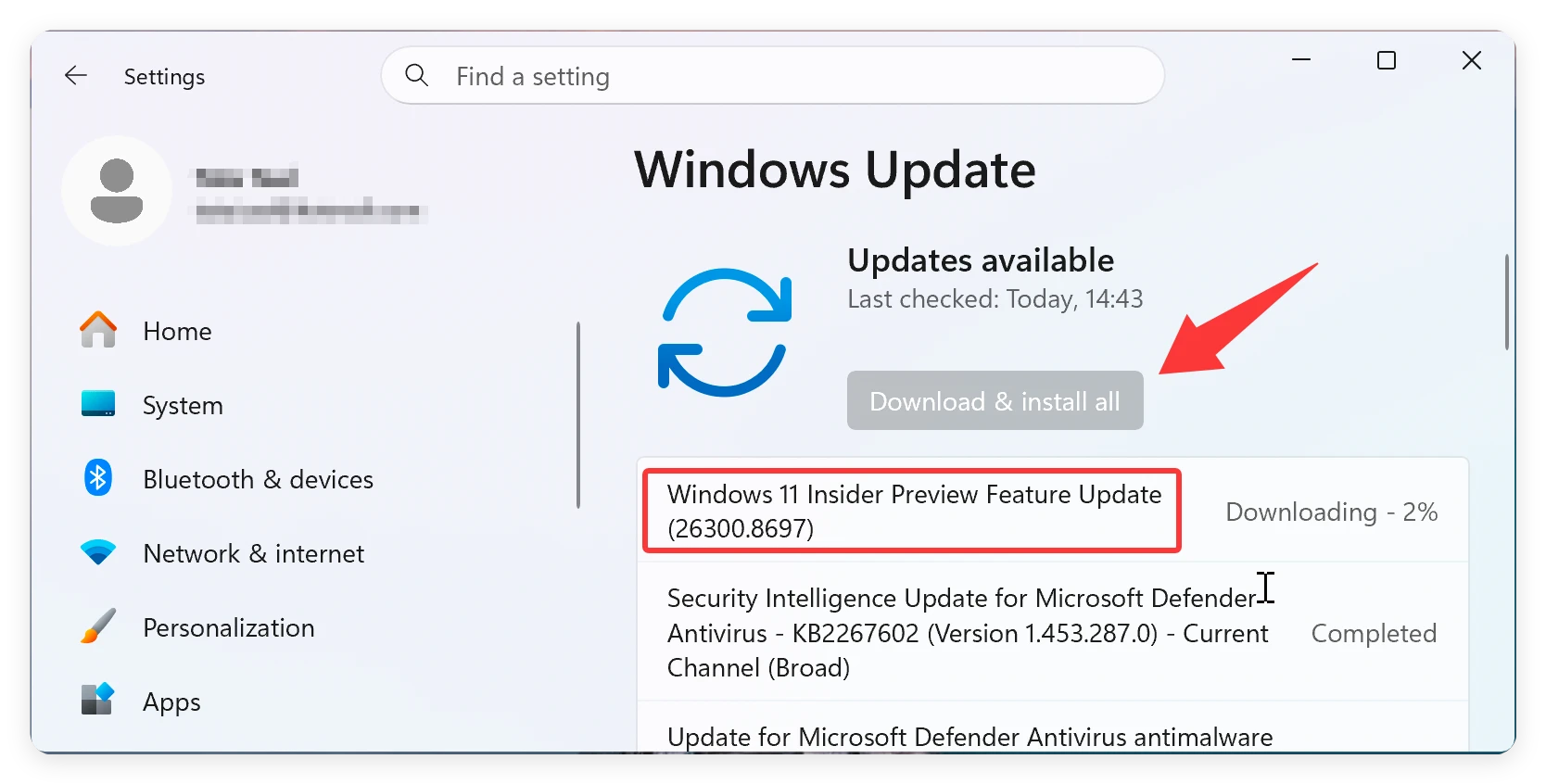
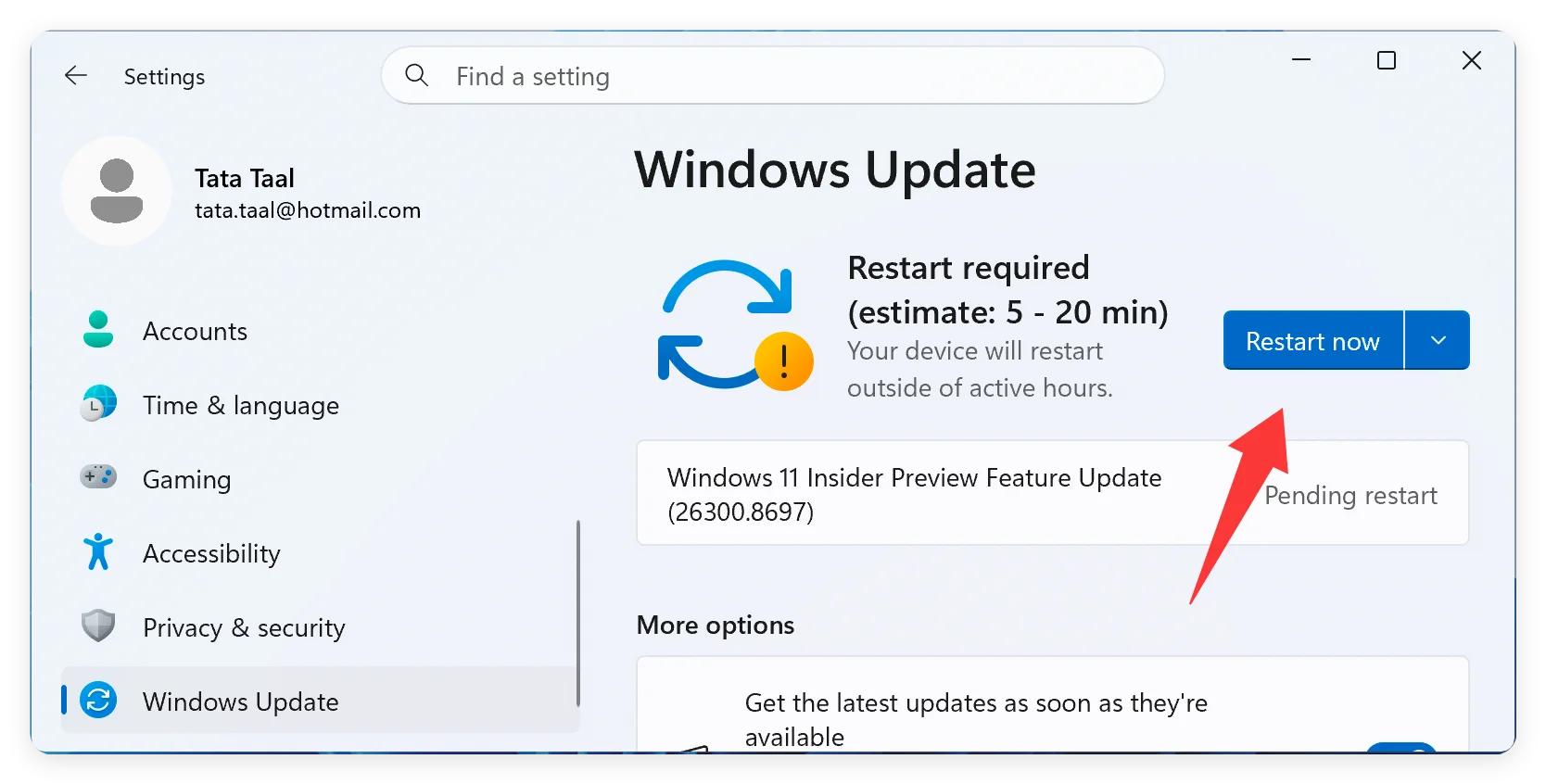
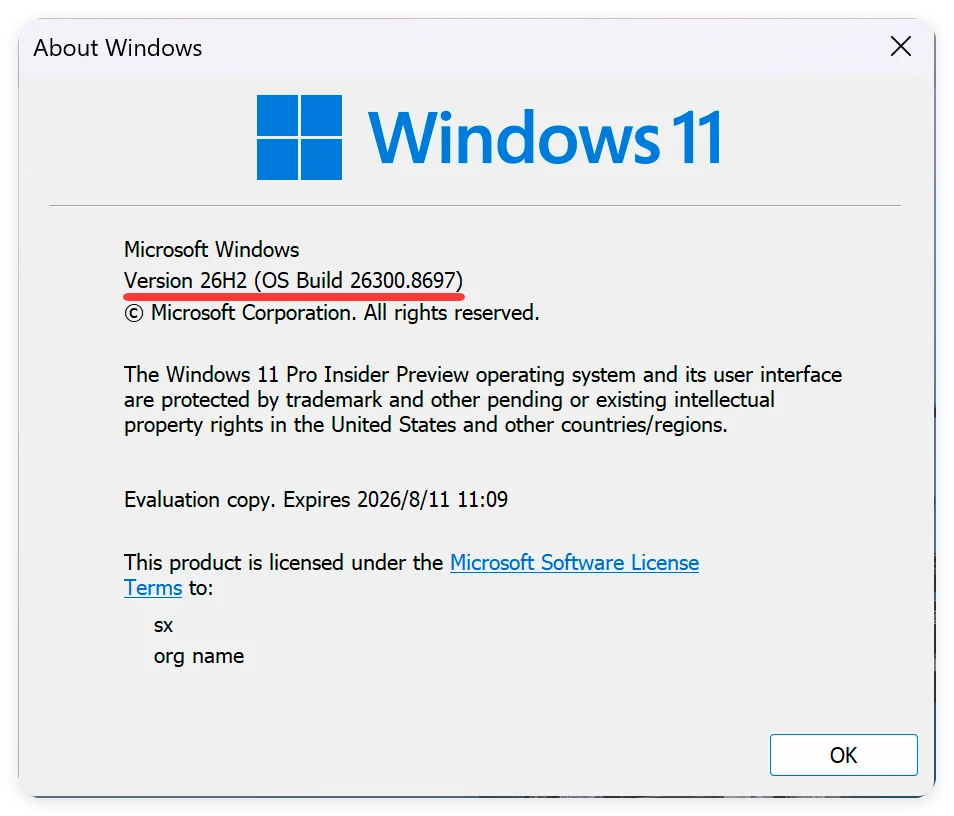
Updating to Windows 11 26H2 is a great way to experience the newest desktop AI capabilities and system enhancements ahead of everyone else. By joining the Windows Insider Program and selecting the Experimental channel, you can install the update in just a few minutes using Microsoft's fast enablement system.
Just remember that preview versions can occasionally have unexpected glitches. To protect your hard work and personal documents, always perform a complete system backup with Donemax software before upgrading. Enjoy exploring all the new tools and upgrades inside Windows 11 26H2!
Donemax Disk Clone
An award-winning disk cloning program to help Windows users and Mac users clone HDD/SSD/external device. It also can create full bootable clone backup for Windows PCs and Macs.
Steven
Steven has been a senior writer & editor of Donemax software since 2020. He's a super nerd and can't imagine the life without a computer. Over 6 years of experience of writing technical solutions and software tesing, he is passionate about providing solutions and tips for Windows and Mac users.
Gerhard Chou
In order to effectively solve the problems for our customers, every article and troubleshooting solution published on our website has been strictly tested and practiced. Our editors love researching and using computers and testing software, and are willing to help computer users with their problems
Clone hard drive with advanced clone technology or create bootable clone for Windows/Mac OS.
Completely and easily recover deleted, formatted, hidden or lost files from hard drive and external storage device.
Certified data erasure software - permanently erase data before selling or donating your disk or any digital device.