
Written byMariaUpdated on Jan 12, 2026

Before we start: Before selling a DJI camera, it's better to remove the data, format the SD card, or factory reset the camera. For sensitive or confidential data, it's necessary to wipe the data permanently with a professional data wiping software, like Donemax Data Eraser.
PAGE CONTENT:
Selling a DJI camera or drone can be an exciting upgrade opportunity, but it comes with a crucial responsibility: protecting your personal data. DJI cameras, including drones like the Mini, Air, Mavic, and handheld Osmo cameras, store sensitive information such as photos, videos, flight logs, and account credentials.
If you don't wipe data before selling a DJI camera, a new owner could potentially access your personal media or even misuse your DJI account. This guide explains how to properly wipe all data from your DJI device to ensure privacy and security.
Before wiping your DJI camera, it's important to understand where your data is stored. DJI devices have two primary storage areas:
1. Internal Storage:
Some DJI drones and cameras have built-in memory that stores system settings, flight logs, calibration data, and sometimes media files. For example, the DJI Osmo Pocket stores videos and photos in internal memory if no SD card is installed.
2. SD Cards:
Most DJI drones and cameras use removable SD cards to store photos and videos. This storage is separate from internal memory but still contains valuable personal data. SD cards are portable, meaning data can easily be recovered if not properly formatted.
Before selling, you should ensure the following data types are removed:
Understanding what needs to be removed ensures that nothing personal is left behind.
Before wiping your DJI camera, it's a good idea to back up any important media or logs. Once you perform a factory reset or SD card format, this data will be irretrievably lost.
Why Backup Matters
Backing up your data ensures you don't lose precious videos, photos, or drone flight logs. These may include scenic aerial footage, important project media, or recreational videos that you may want to keep for personal archives.
1. Transfer Files from SD Card to Computer:
Remove the SD card from the DJI device and connect it to a computer using a card reader. Copy all media files to a dedicated folder.
2. Download Flight Logs via DJI App:
Open DJI Fly, DJI GO, or DJI GO 4 app, navigate to the flight logs, and export them to your computer or cloud storage.
3. Backup Settings or Templates:
Some devices allow you to export camera settings, templates, or control presets. Saving these can be helpful if you upgrade to a new DJI device.
Properly wiping data involves multiple steps, including deleting files from SD cards, performing factory resets, and removing DJI accounts.
Most DJI drones and cameras allow you to reset system settings directly from the device menu. Steps may vary slightly depending on the model:
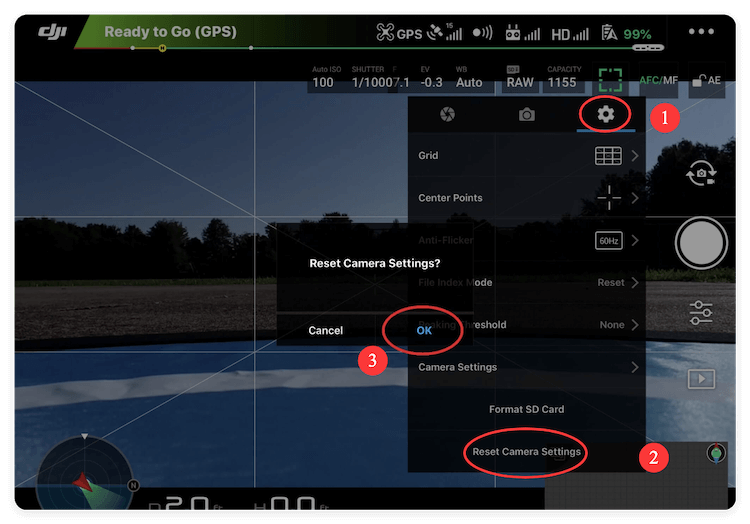
This method ensures that all device-specific configurations, calibration data, and internal media stored in the camera are removed.
After the factory reset, your DJI camera will return to its original state, just like it was when you first purchased it. This ensures all personal data is removed.
SD cards often hold the bulk of your media files. Simply deleting files manually may not be enough, as some data can be recovered with specialized software. For complete security:
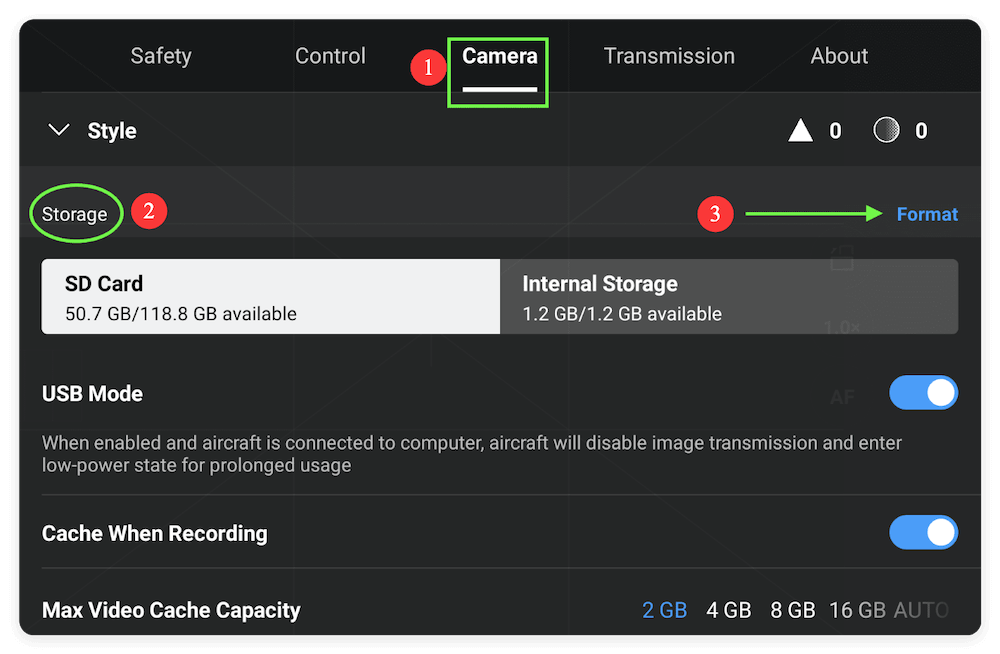
1. Format SD Card Using DJI Camera:
Most DJI drones allow you to format the SD card through the camera menu or DJI app. Formatting completely wipes the card and ensures data cannot be easily recovered. If extremely concerned about data recovery, format the SD card multiple times using different methods (standard format, then full format via computer).
2. Manual Deletion via Computer (Optional):
If you prefer, you can manually delete files by connecting the SD card to a computer. However, formatting is the recommended method for maximum security.
If your DJI camera is linked to your DJI account, it's important to unbind it before selling:
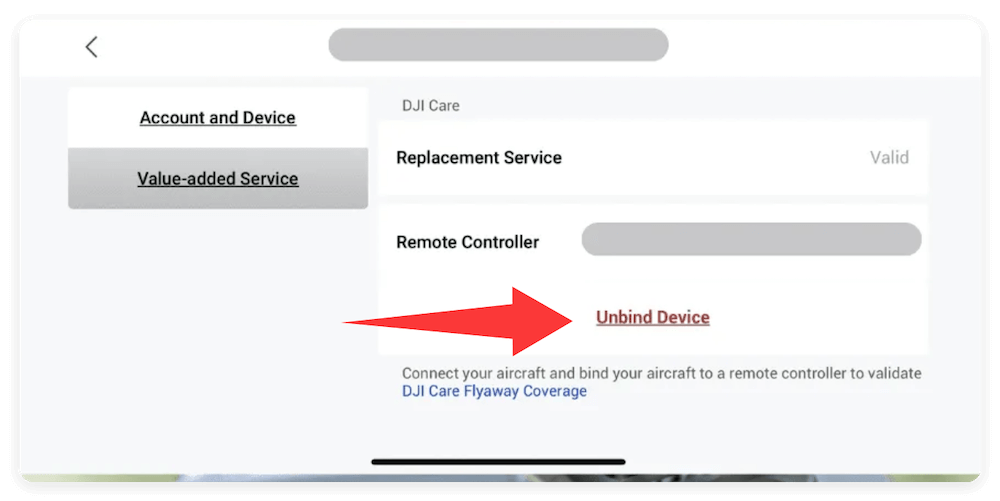
This ensures that the new owner cannot access your DJI account or associated cloud storage.
By following these steps, you guarantee that all personal data, settings, and accounts are fully removed before selling your DJI camera. This protects your privacy and ensures the device is ready for the new owner.
Even after performing the above steps, some additional precautions can help protect your privacy, especially when you need to sell or give the camera away:
1. Physically Remove SD Card
If you're unsure whether the data has been fully wiped, remove the SD card and either keep it or securely wipe it using a computer. This prevents the new owner from recovering media files.
2. Double-Check Storage
After resetting, reinsert the SD card and check the internal storage:
3. Optional: Using Third-Party Tools
For added security, you can use third-party software to perform secure deletion of SD cards, making data recovery extremely difficult or impossible. Tools like Donemax Data Eraser or other secure wipe software can help. These professional tools can perform overwriting of deleted files to prevent recovery.
Here we will show you how to wipe the data permanently from DJI camera with the software Donemax Data Eraser.
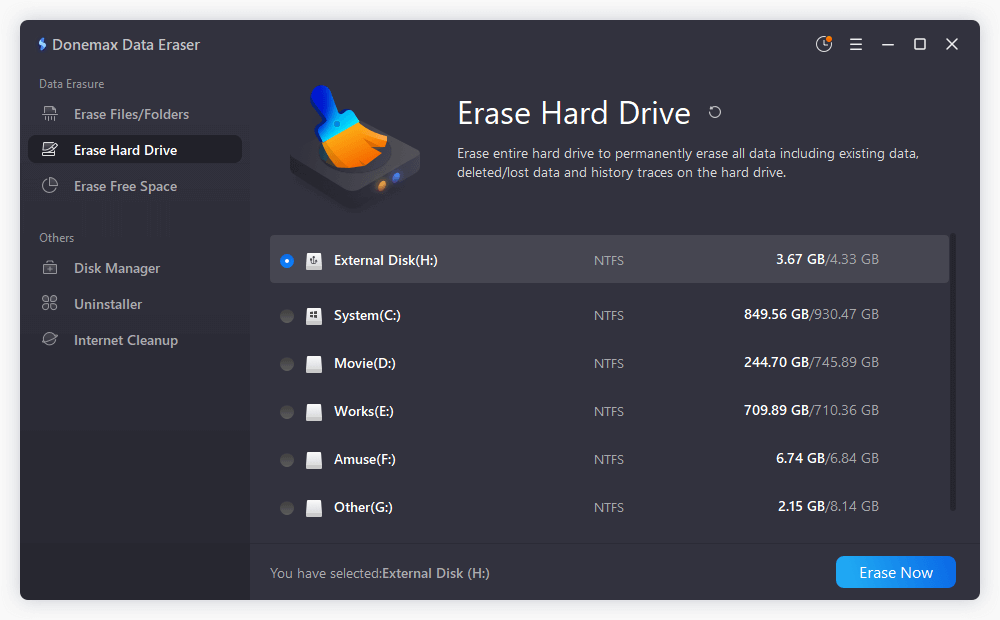
Step 1. Unplug the card from DJI camera and connect it to the computer via a card reader. Then run the software and choose Erase Hard Drive. Click the Erase Now button.
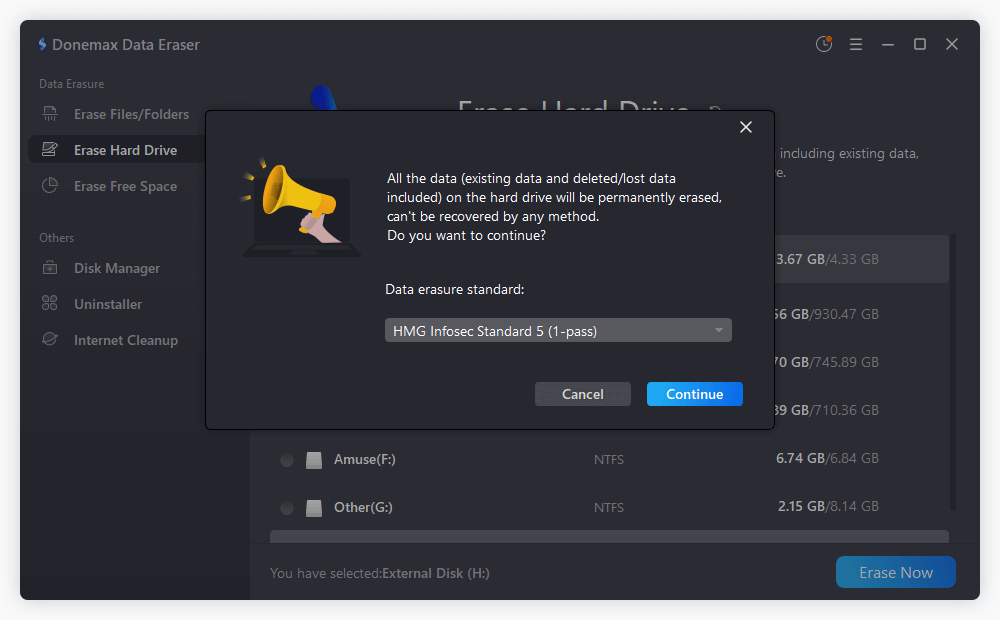
Step 2. A popup windows will appear and you can select a data erasure standard to wipe data permanently from the card.
Step 3. Start the data wiping process and it will take a while. Just wait patiently until the wiping process is dne.
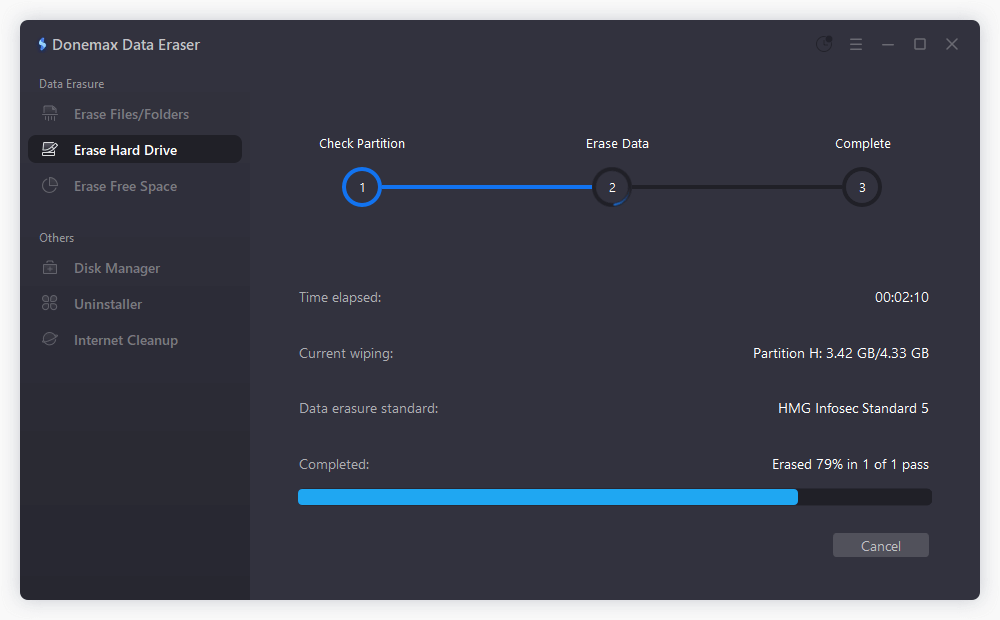
After the process is finished successfully, all data on the DJI camera card is permanently gone. There is no chance to recover the wiped data in any way.
Once data is wiped, preparing the camera for resale improves the chances of a successful sale and ensures the buyer can use the device without issues.
1. Cleaning the Device
2. Restoring Default Settings
3. Including Accessories and Documentation
Many sellers make mistakes that leave personal data at risk. Avoid these:
1. Selling Without Unbinding from DJI Account:
Always remove your DJI account from the device. Otherwise, the new owner may access your cloud storage or account.
2. Forgetting to Format SD Card:
Simply deleting files is not enough—always perform a full format.
3. Not Performing Factory Reset on Internal Storage:
Internal memory can still hold personal data if not reset.
4. Leaving Apps Logged In:
Ensure DJI apps are logged out on the device before handing it over.
By avoiding these mistakes, you protect your privacy and make the device ready for the next user.
Selling a DJI camera without wiping its data is risky. Flight logs, photos, videos, and app accounts can reveal personal information if not removed. Following the steps outlined in this guide ensures that:
By taking the time to properly wipe your DJI camera, you safeguard your privacy and provide a better experience for the buyer. Whether you are selling a DJI drone, Osmo camera, or other DJI device, these steps are essential before parting ways with your equipment.
Donemax Data Eraser
One of the best data erasure programs can permanently delete data. It works on PCs, Macs, HDDs, SSDs, USB drives, digital cameras, and other devices. Once the tool erases the data, no one cannot recover it by any method.
Maria
Maria is one of the senior writers & editors of Donemax who lives and works in Sydney, Australia. She loves PC, Mac and Internet Technology. She has 6 years of writing articles about data recovery on PC/Mac, disk cloning solution, data eraser and computer OS optimization, etc. She is also interested in testing various software and digital products.
Gerhard Chou
In order to effectively solve the problems for our customers, every article and troubleshooting solution published on our website has been strictly tested and practiced. Our editors love researching and using computers and testing software, and are willing to help computer users with their problems