
Written byMariaUpdated on Aug 17, 2026

Before we start: It's necessary to choose a compatible software if you want to clone HDD to SSD on Windows 11 26H2. Donemax Disk Clone can support cloning to SSD and automatically optimize the SSD. Also, the software is fully compatible with the latest Windows 11 26H2 system.
PAGE CONTENT:
Has your PC started feeling sluggish after updating to Windows 11 26H2? If your system drive is still a mechanical Hard Disk Drive (HDD), you are missing out on the speed and responsiveness your computer can actually deliver.
Windows 11 26H2 brings new background services, AI enhancements, and system features that demand fast storage performance. Running this modern OS update on a traditional HDD often results in high disk usage, long boot times, and delayed app launches.
Upgrading to a Solid State Drive (SSD) is the best fix. The good news is that you do not need to reinstall Windows or set up your applications again. In this guide, you will learn how to clone HDD to SSD on Windows 11 26H2 safely and easily.
Cloning creates an exact 1:1 replica of your old hard drive onto your new SSD. This process transfers your operating system, system settings, installed programs, and personal files.
Here is why cloning is the smartest choice for Windows 11 26H2 users:
Before starting the cloning process on Windows 11 26H2, complete these simple preparation steps to guarantee a smooth drive transfer:
1. Connect Your New SSD
Choose an SSD with enough capacity to hold all data from your current HDD (2.5-inch SATA SSD or M.2 NVMe SSD).
2. Clean Up Your Source HDD
Remove temporary files, empty your Recycle Bin, and uninstall unnecessary applications. Cleaning your drive reduces the total cloning time.
3. Verify GPT and UEFI Settings
Windows 11 26H2 requires UEFI mode and GPT partition layout. Right-click the Windows Start menu, select Disk Management, right-click Disk 0, choose Properties, and open the Volumes tab to confirm your disk style is GPT.
Windows 11 26H2 does not come with a built-in full disk cloning utility. To perform a safe and bootable system migration, you need reliable disk cloning software.
Donemax Disk Clone is an easy-to-use and powerful cloning software designed specifically for Windows systems. It fully supports Windows 11 26H2 and ensures your cloned drive boots smoothly.
Follow these simple steps to migrate your entire HDD to a new SSD using Donemax Disk Clone:
Step 1: Download and Launch Donemax Disk Clone
Download the disk cloning software Donemax Disk Clone first. Install and open the program on your Windows 11 26H2 computer.
Step 2: Choose 'Disk Clone' Mode
On the main interface, select Disk Clone mode. By cloning the entire system disk, it can help you migrate the system from HDD to SSD.
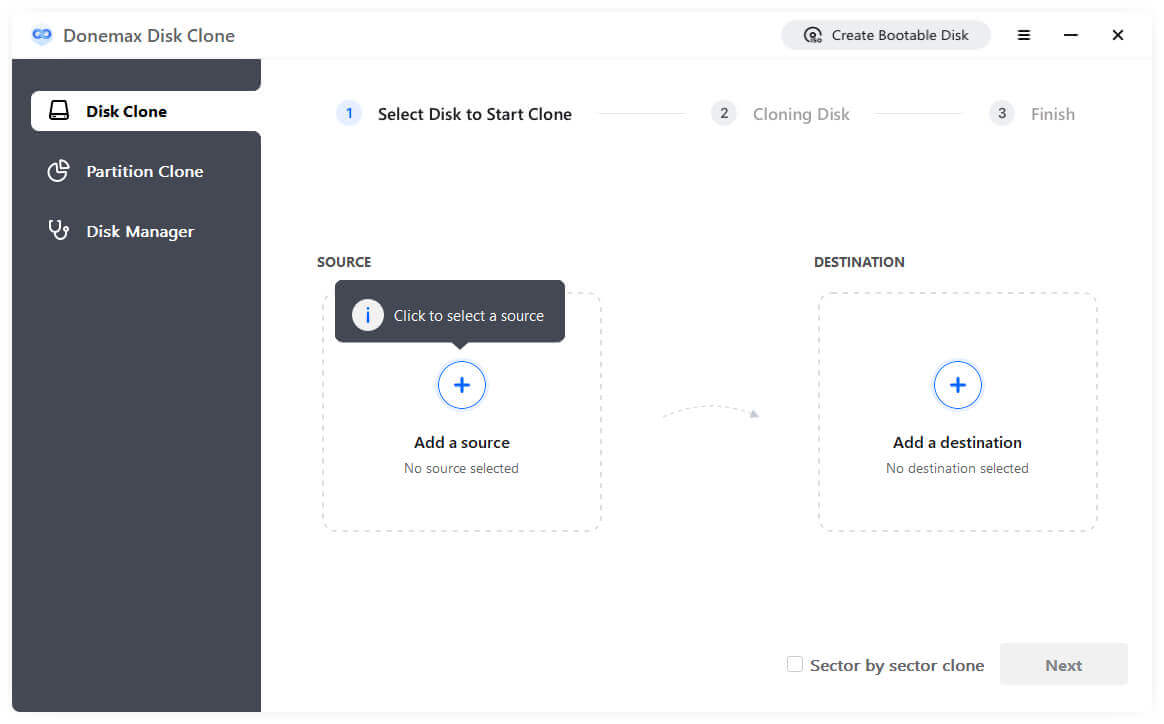
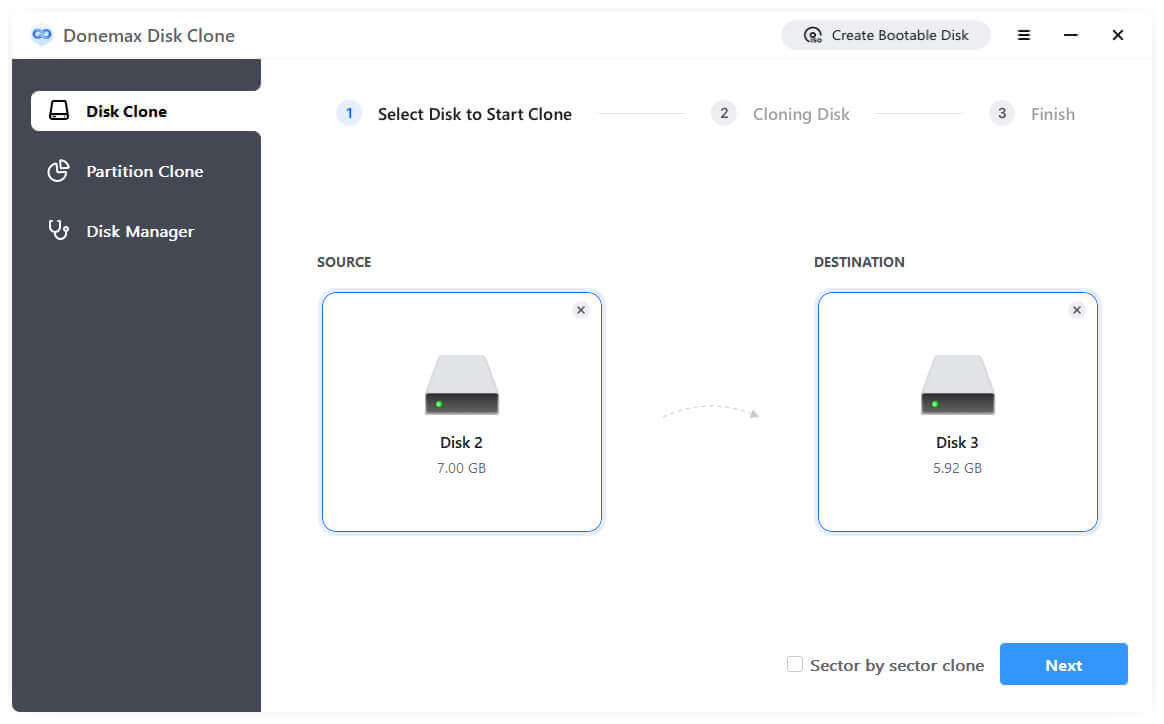
Step 3: Select Source HDD and Target SSD
Choose your old HDD as the Source Disk. Then select your new SSD as the Destination Disk. Double-check your disk selection to avoid overwriting wrong drives.
Step 4: Enable Optimization for SSD
Check the box for 'Check the option if the destination is SSD' option. This turns on automatic 4K alignment, ensuring top read and write speeds on your new SSD.
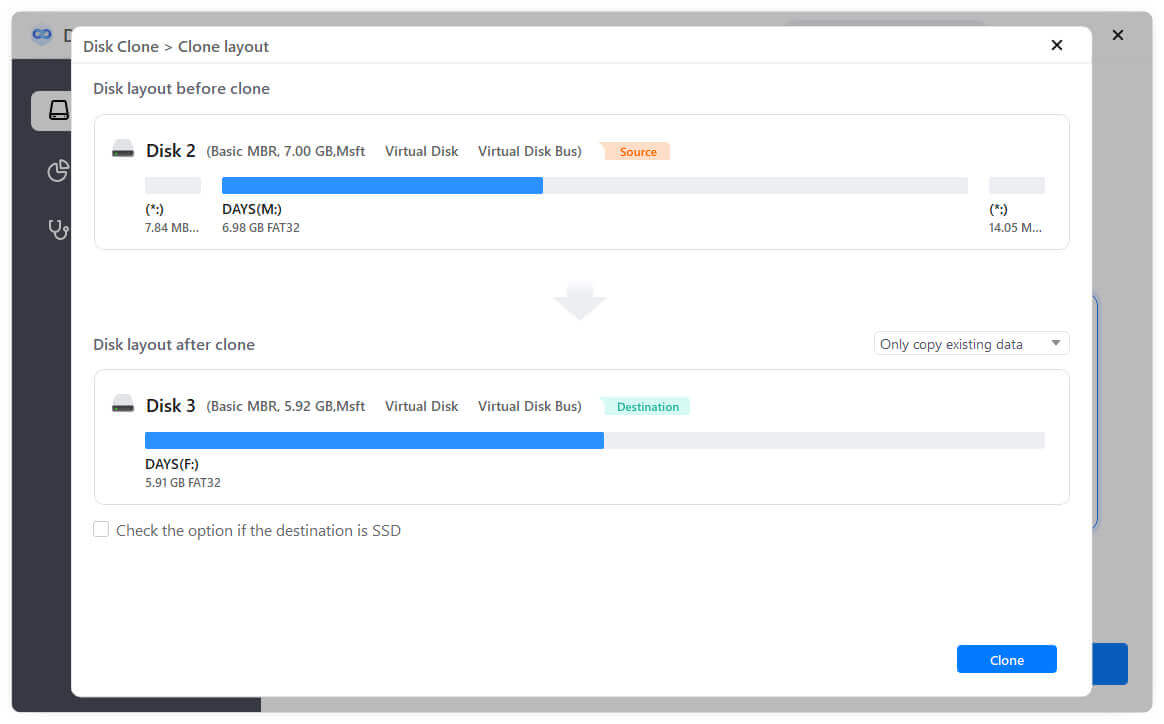
Step 5: Start the Cloning Process
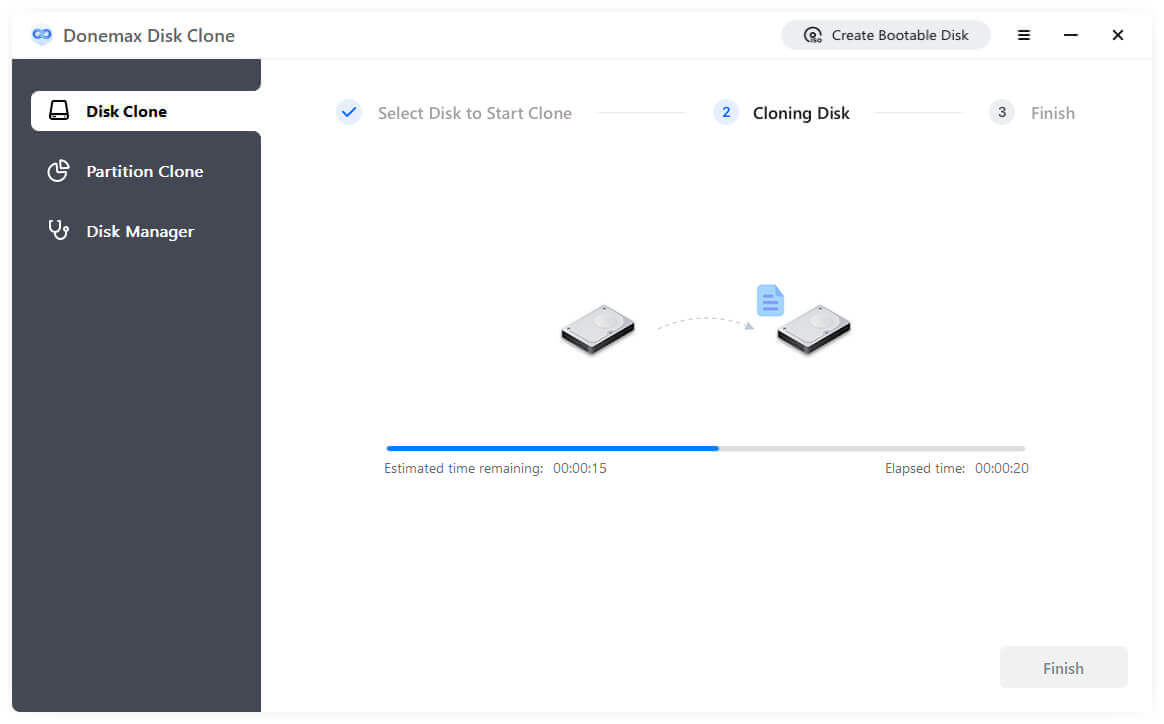
Click the 'Clone' button to start copying. Donemax Disk Clone will transfer all files, boot partitions, and OS data to the target drive. A success message will appear when finished.
After cloning, you must configure your computer to start up from the new SSD:
Option A: Swap Physical System Drives
Shut down your laptop. Remove the old HDD and install the newly cloned SSD into the main internal slot. Turn on your laptop, and Windows 11 26H2 will boot right up.
Option B: Change Boot Order in BIOS/UEFI
Knowing how to clone HDD to SSD on Windows 11 26H2 is the easiest way to give your computer a dramatic speed boost. You get faster boot times, smoother multitasking, and instant app loading without losing any files or reinstalling Windows.
With Donemax Disk Clone, drive cloning is quick, safe, and hassle-free. Download Donemax Disk Clone today to upgrade your system storage effortlessly!
Donemax Disk Clone
An award-winning disk cloning program to help Windows users and Mac users clone HDD/SSD/external device. It also can create full bootable clone backup for Windows PCs and Macs.
Maria
Maria is one of the senior writers & editors of Donemax who lives and works in Sydney, Australia. She loves PC, Mac and Internet Technology. She has 6 years of writing articles about data recovery on PC/Mac, disk cloning solution, data eraser and computer OS optimization, etc. She is also interested in testing various software and digital products.
Gerhard Chou
In order to effectively solve the problems for our customers, every article and troubleshooting solution published on our website has been strictly tested and practiced. Our editors love researching and using computers and testing software, and are willing to help computer users with their problems