Written byCharlesUpdated on Jul 07, 2026

Before we start: If you want to migrate data from one drive to another, update Windows 11 system disk to SSD, or replace a disk with a larger one, you can use the secure and reliable disk cloning software for Windows 11 - Donemax Disk Clone.
PAGE CONTENT:
Upgrading your computer's storage can feel like a massive chore. The thought of reinstalling your operating system, moving files, and setting up all your applications from scratch is enough to make anyone put off a hardware upgrade.
Thankfully, you do not have to start over. Disk cloning allows you to create an exact, one-to-one copy of your hard drive or solid-state drive (SSD). This includes your operating system, software settings, personal files, and hidden system data.
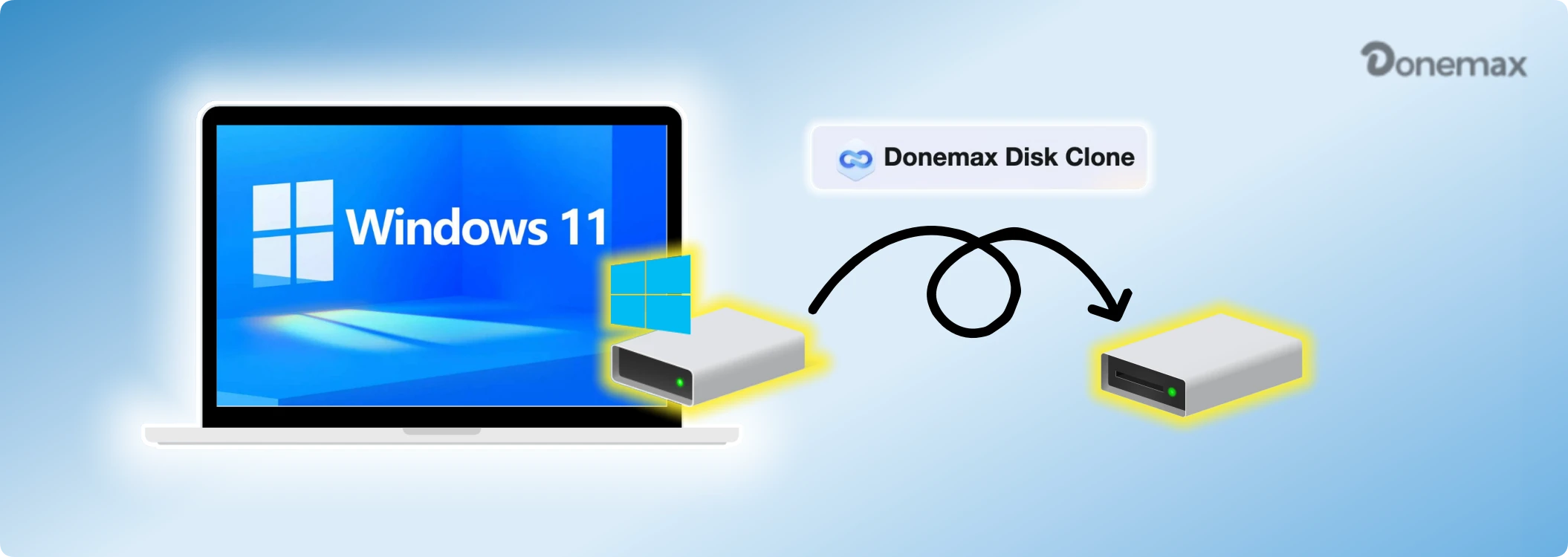
If you are looking for a reliable solution, getting a Donemax Disk Clone for Windows 11 download is the quickest way to get the job done. In this guide, we will break down why this tool is highly recommended, what makes it special, and exactly how to use it to migrate your system without losing a single file.
When you search for disk copying tools, you will find many complex technical programs. Some require deep knowledge of partition styles, while others involve complicated commands. Donemax Disk Clone stands out because it balances advanced, robust capabilities with an incredibly straightforward, user-friendly design.
The modern architecture of Windows 11 requires strict security layouts, such as GPT partition styles and secure boot pathways. Donemax is fully optimized to handle these requirements smoothly.
Here is what makes it a top choice for Windows 11 users:
Complete Versatility: It seamlessly clones HDDs, SSDs (including fast NVMe drives), external hard disks, and USB flash drives.
Dual Cloning Capabilities: It does not just copy individual files or regular data storage drives; it handles entire disk cloning too.
Bootable System Clones: This is its standout feature. It can create a fully bootable clone of your active Windows 11 system drive, allowing you to swap physical drives and boot up immediately without reinstalling Windows.
Sector-by-Sector Accuracy: It offers smart sector copying that mirrors the structure of your drive exactly, ensuring zero data loss during the migration process.
To get started, you can find the official software installation package directly here:
Creating a bootable clone of your system drive using the standard Disk Clone mode is simple. Before you begin, make sure your new target SSD or HDD is connected to your computer (either internally or via a SATA-to-USB adapter cable).
💡 Important Note: Make sure your new target drive has enough capacity to hold the data stored on your current system disk. If there are any files on the new drive, back them up beforehand, as the cloning process will overwrite the destination disk.
Follow these clear, easy steps to clone your Windows 11 system disk:
Step 1: Open the Software and Select Disk Clone
Once you complete your Donemax Disk Clone for Windows 11 download and install it, open the program on your computer. On the main dashboard interface, click on the Disk Clone mode option.
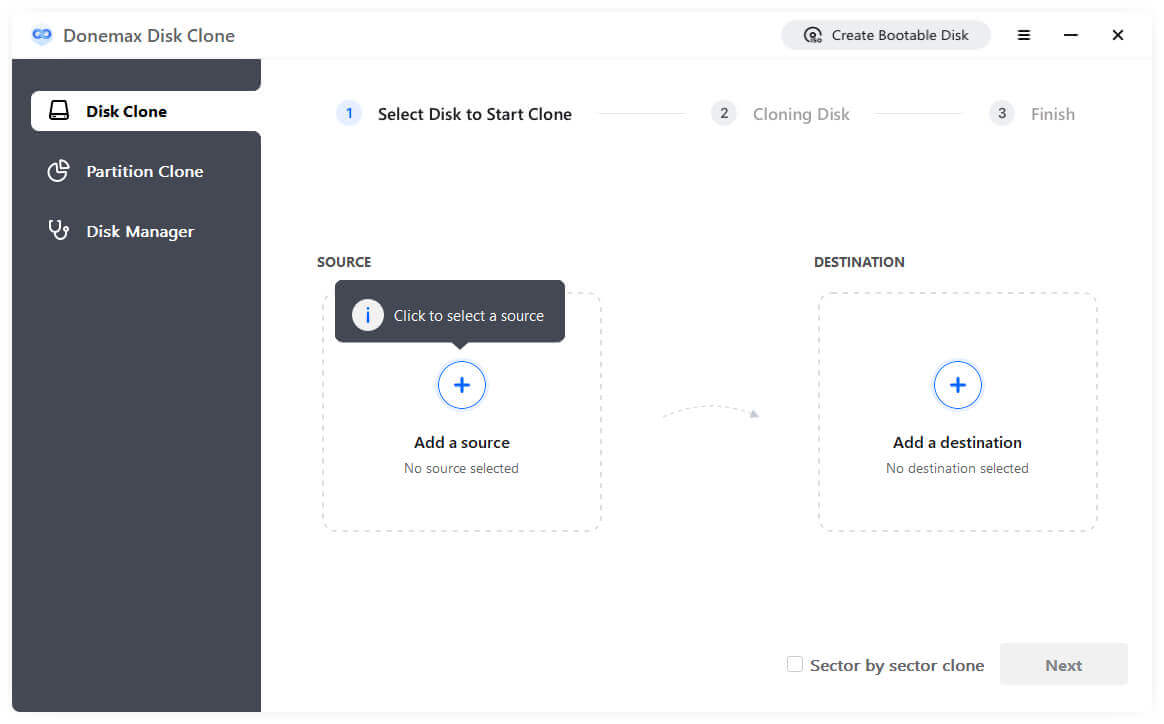
Step 2: Choose Your Source Disk and Destination Disk
You will see a list of drives connected to your system. Select your current Windows 11 system drive (usually Disk 0 or drive C) as your Source Disk. Next, select your new, empty SSD or hard drive as your Destination Disk. Click Next to proceed.
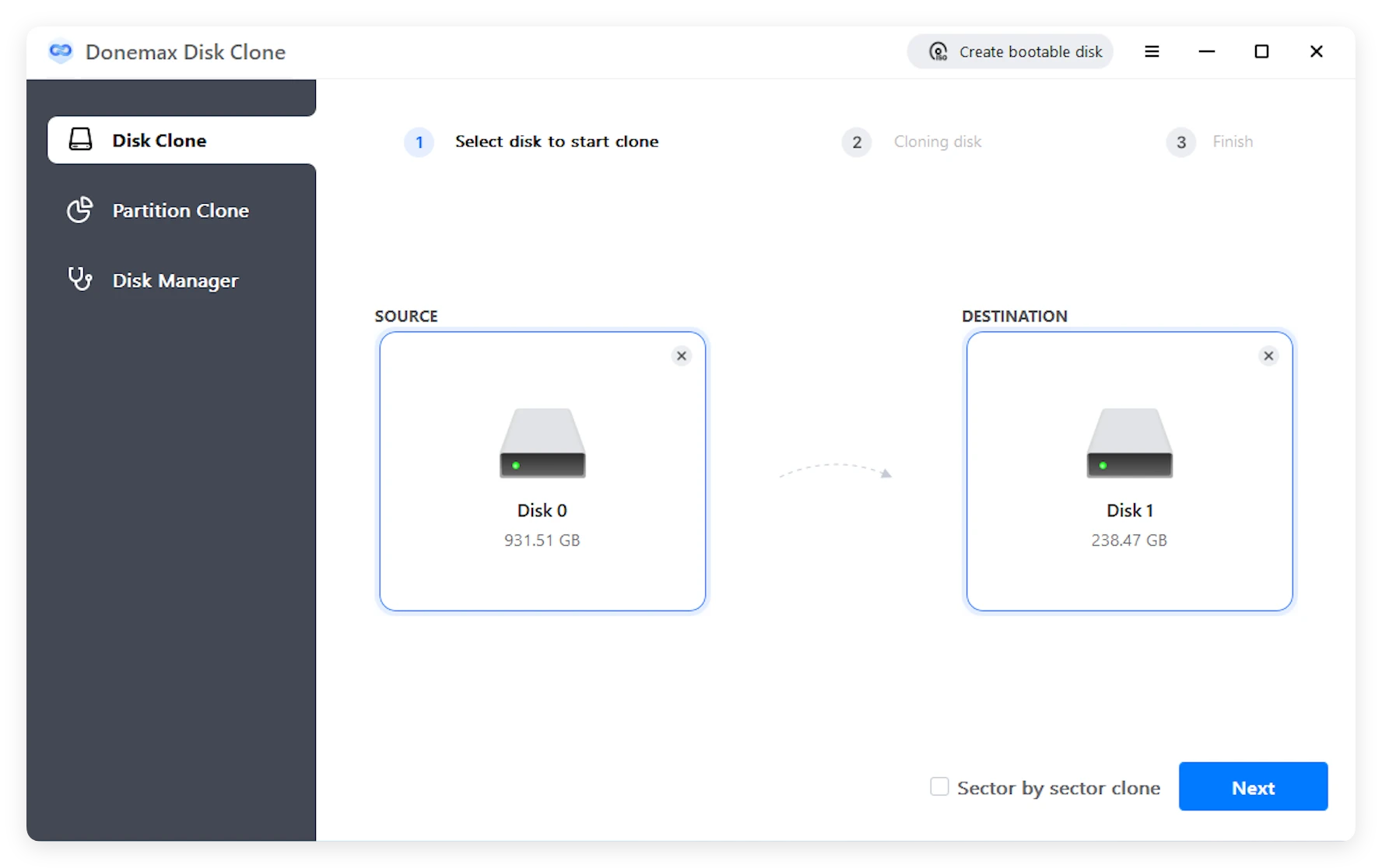
Step 3: Check and Edit Your Disk Layout
The software will display a preview of how your data partitions will look on the new drive. If you are migrating your system to a larger drive, you can adjust the partition sizes to ensure you use all the newly available space.
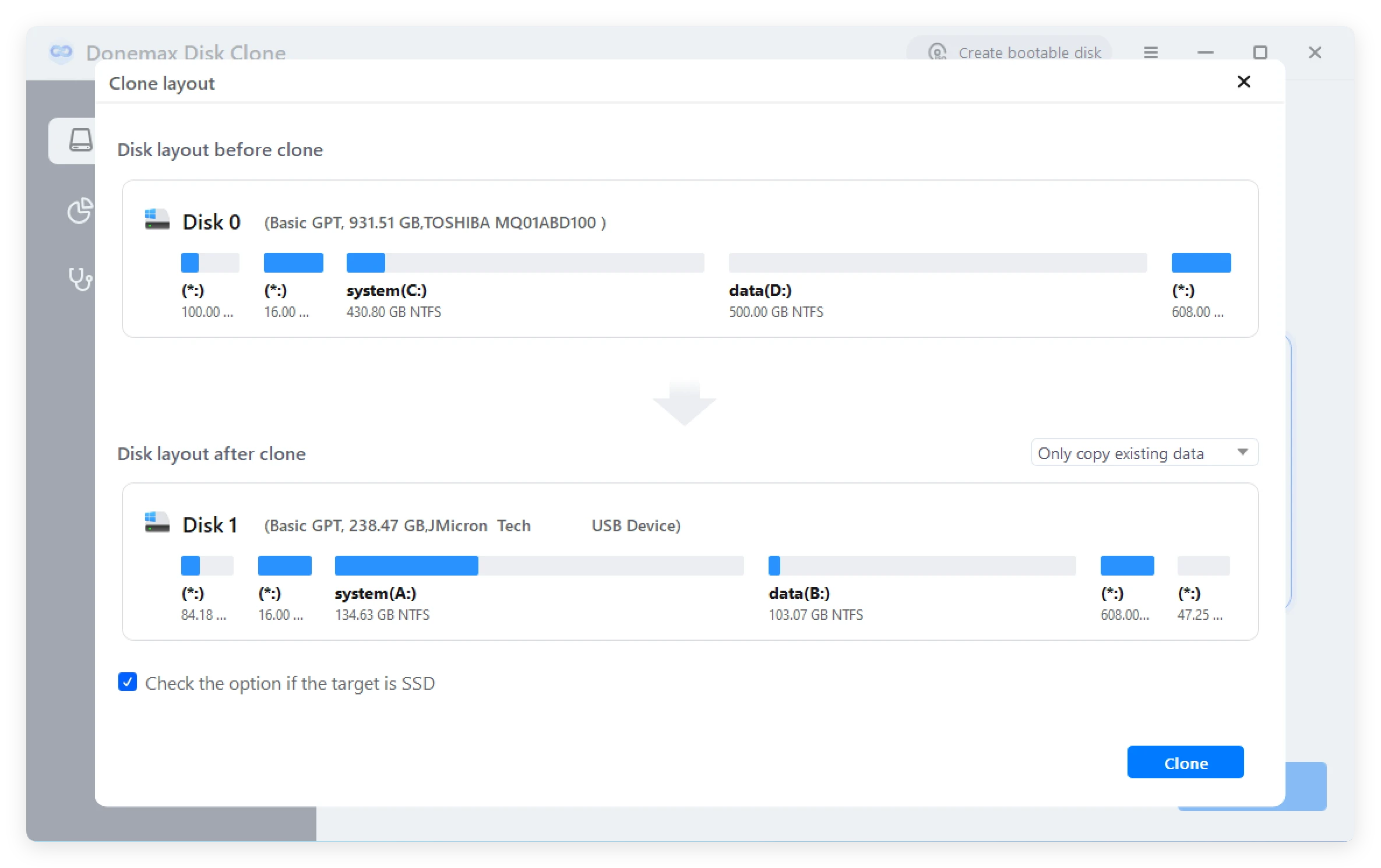
Step 4: Click Clone and Complete the Process
Review your choices one final time to ensure the source and target targets are correct. Click the Clone button to begin the copy operation.
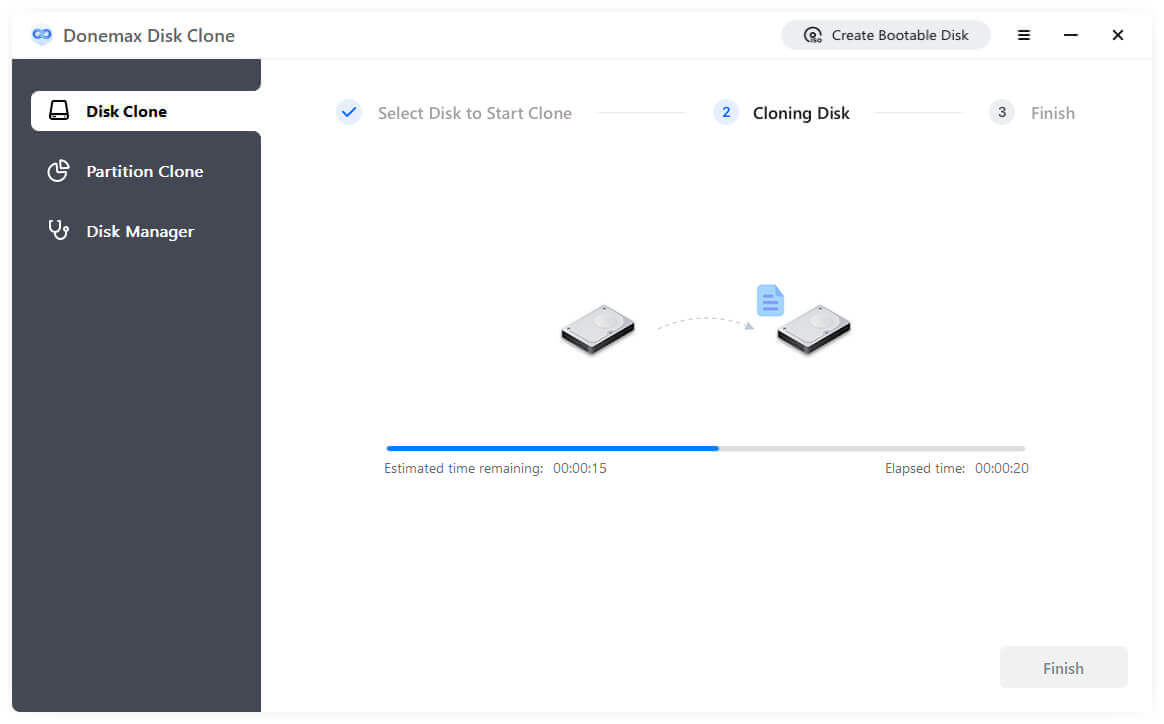
The program will safely copy every single byte of data, including your hidden Windows 11 boot configurations. Once the progress bar fills up, the process is complete! You can now shut down your computer, swap the old drive out for the new one, and boot directly into Windows 11.
Upgrading your system storage does not have to mean losing your customized desktop layouts, personalized settings, or favorite software programs. By downloading a professional utility like Donemax Disk Clone, you turn a tedious multi-hour technical chore into a clean, automated background process that finishes in just a few clicks.
Protect your data and save your time. Head over to the official platform to secure your Donemax Disk Clone for Windows 11 download and enjoy a faster, upgraded computer today!
Donemax Disk Clone
An award-winning disk cloning program to help Windows users and Mac users clone HDD/SSD/external device. It also can create full bootable clone backup for Windows PCs and Macs.
Charles
Charles, who lives in Sydney, Australia, is an editor & writer of Donemax Team. He is good at writing articles related with Apple Mac computers, Windows operating systems, data recovery, data erasure, disk clone and data backup, etc. He loves reading and playing tennis in his spare time and is interested in testing new digital devices such as mobile phones, Macs, HDDs, SSDs, digital cameras, etc.
Gerhard Chou
In order to effectively solve the problems for our customers, every article and troubleshooting solution published on our website has been strictly tested and practiced. Our editors love researching and using computers and testing software, and are willing to help computer users with their problems