Written byCharlesUpdated on Aug 21, 2026

Before we start: To make an exact copy of a single partition or an entire disk easily, a professional disk clone software is essential. Donemax Disk Clone is recommended to clone partition or disk. With the software, you can also make a complete and bootable clone backup for the system disk on Windows and Mac.
PAGE CONTENT:
Upgrading to a faster Solid State Drive (SSD) or replacing an aging hard drive used to be a headache. Reinstalling Windows or macOS, setting up system drivers, downloading applications, and moving thousands of files often took an entire weekend.
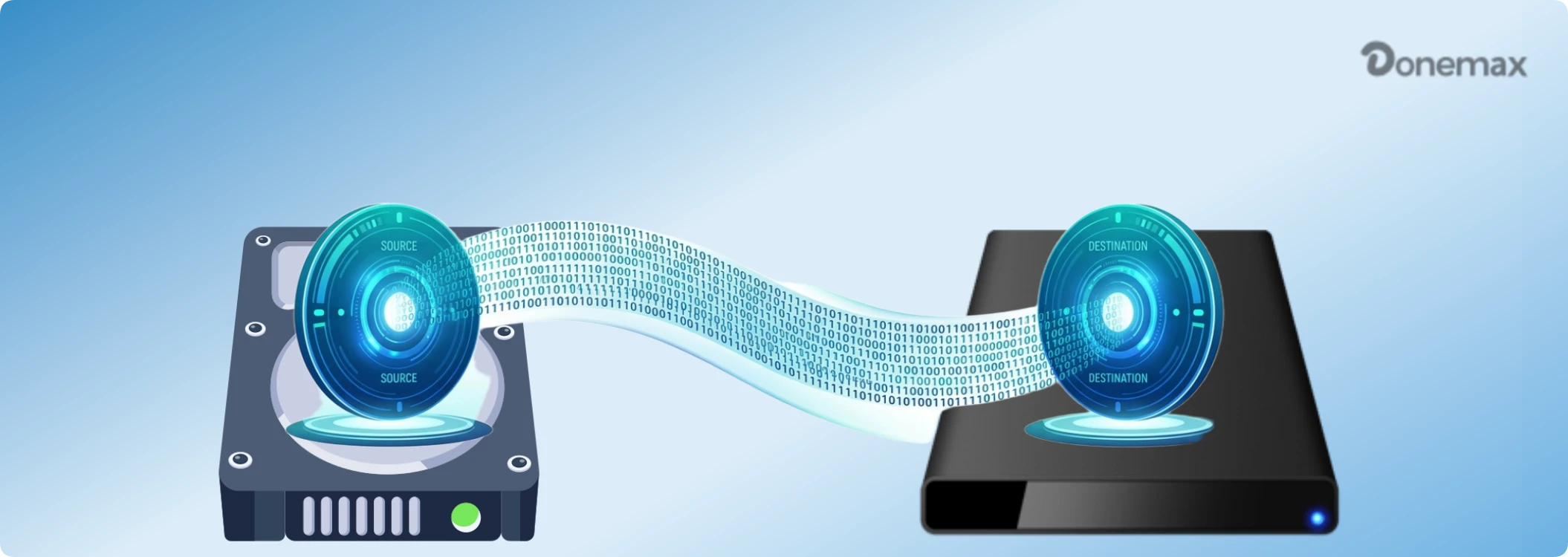
Today, disk cloning software eliminates that struggle completely. By creating an exact 1:1 replica of your drive, you can migrate everything in just a few clicks. Whether you want to boost system performance or safeguard critical files, using a dedicated solution like Donemax Disk Clone professional disk clone software makes the process fast, seamless, and stress-free.
Donemax Disk Clone professional disk clone software is a powerful, user-friendly utility designed for Windows and Mac users. It enables you to duplicate hard drives, clone individual partitions, migrate operating systems, and back up data without losing a single file.
Unlike traditional backup tools that store files in proprietary archives, Donemax Disk Clone creates an exact physical or logical copy of your storage device. If your system drive fails or you upgrade to a larger SSD, you can swap the drive and boot right back into your familiar desktop environment without missing a beat.
Donemax Disk Clone stands out in the market due to its high efficiency, security, and ease of use. Key highlights include:
Donemax Disk Clone keeps things clean and straightforward by offering two dedicated modes tailored to different task requirements:
Disk Clone mode is designed for complete drive duplication. It is the primary mode to use when upgrading your main storage or migrating your Operating System.
When you use Disk Clone mode for OS migration, the software copies system data along with all other files, application configurations, and hidden system structures. It automatically ensures that the target disk is made bootable. After cloning, you simply swap the drives or change the BIOS/UEFI boot order, and your computer boots smoothly into the target disk—exactly like the original system.
Partition Clone mode allows you to clone a single, specific partition from one drive to another location, rather than duplicating the whole physical drive.
This mode is ideal if you want to back up a dedicated data drive (such as a D: or E: drive), isolate work files, or transfer specific database partitions to an external drive without affecting the surrounding operating system or other drive partitions.
To help you decide which mode best fits your scenario, here is a quick breakdown:
| Feature / Capability | Disk Clone Mode | Partition Clone Mode |
|---|---|---|
| Primary Purpose | Full drive replacement, OS migration, full backup | Individual partition backup or selective migration |
| System Bootability | 100% Bootable (Includes OS, EFI/MBR, System files) | Data focus; not bootable unless whole system cloned |
| Target Scope | Entire physical disk (All partitions included) | Selected drive partition only (e.g., D: or E: drive) |
| Best Used For | Upgrading HDD to NVMe SSD or swapping damaged drives | Backing up work files, photos, or secondary volumes |
Migrating your operating system to a new SSD with Donemax Disk Clone professional disk clone software requires no technical expertise. Follow these straightforward steps:
Step 1: Connect Your New Drive: Connect the new SSD or HDD to your computer internally via SATA/M.2 slot or externally using a USB-to-SATA/NVMe adapter.
Step 2: Choose Source and Destination Drives: Open the application and select 'Disk Clone' mode from the primary navigation menu. Select your current system disk as the Source drive and your new SSD as the Destination drive.
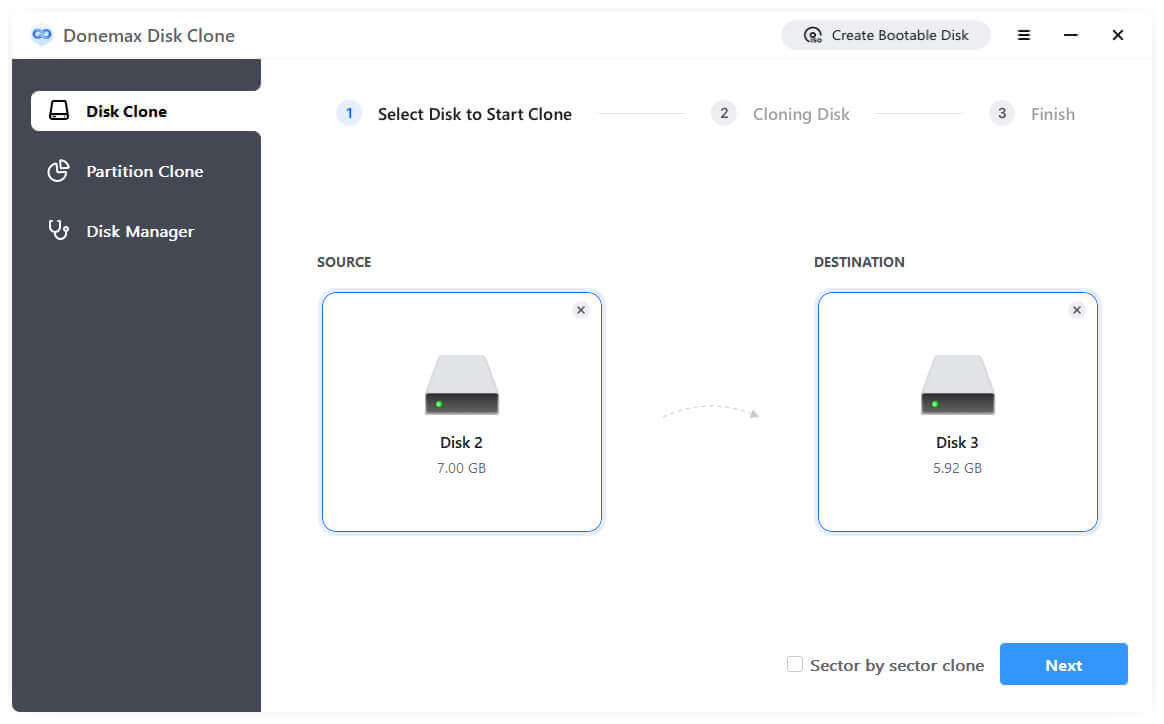
Step 3: Preview & Edit layout: Verify the partition layout on the destination drive. If necessary, you can also edit to change the layout. When cloning to SSD, tick "Check the option if the destination is SSD."
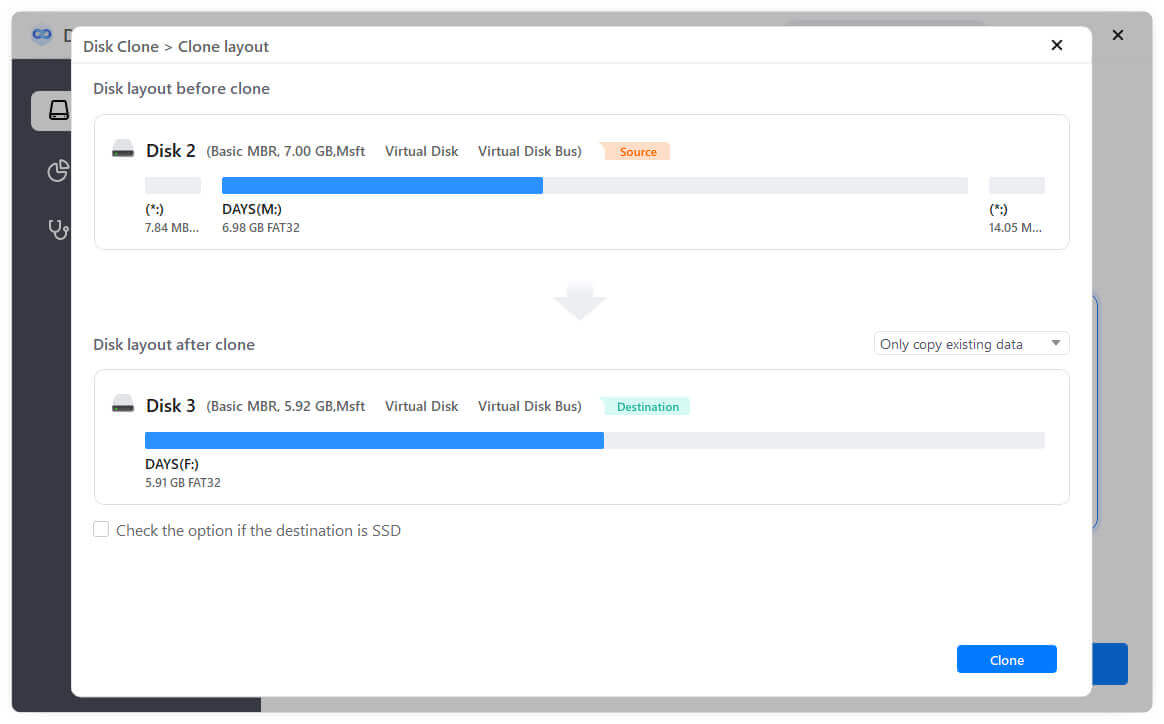
Step 4: Start Cloning: Click 'Clone' to start the migration process. The software will safely duplicate all system data and files.
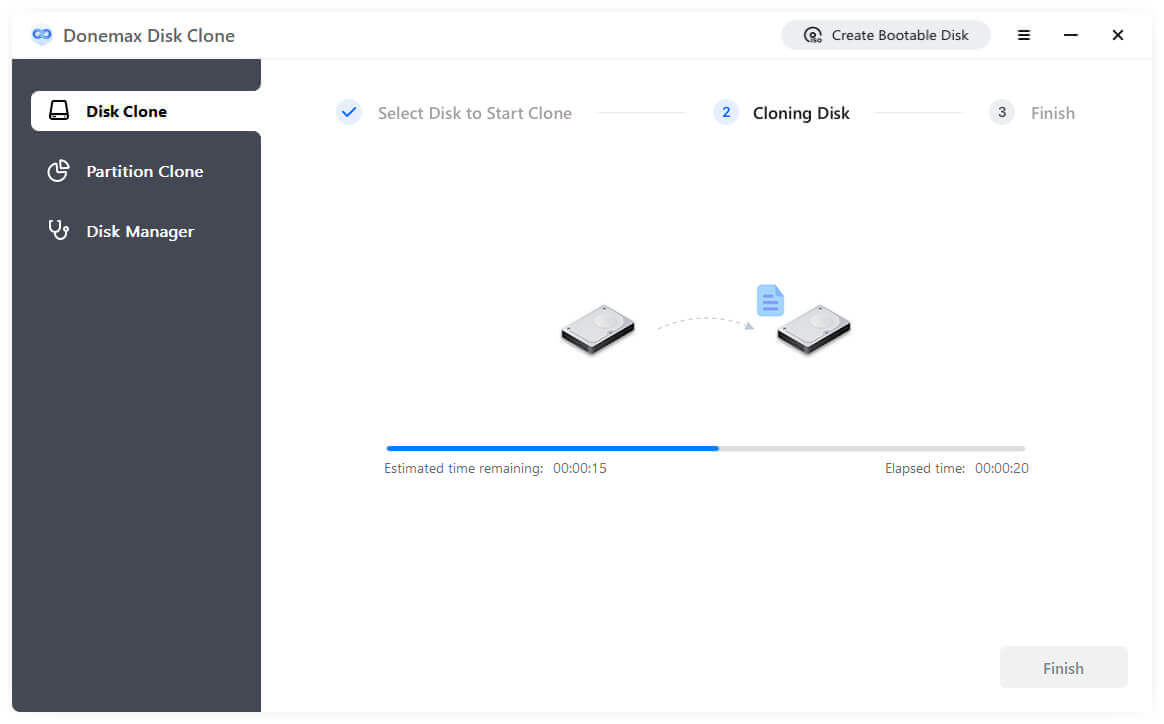
Step 5: Boot from the Cloned Drive: Once cloning completes, restart your computer. Enter the BIOS/UEFI menu to set the cloned disk as the primary boot device, or replace your old drive directly.
To ensure a smooth migration with Donemax Disk Clone professional disk clone software, keep these helpful tips in mind:
Upgrading hard drives or migrating operating systems no longer requires complex procedures or manual reinstall the operating system. With Donemax Disk Clone professional disk clone software, users can clone entire disks or individual partitions with total peace of mind.
By utilizing Disk Clone mode for system migration, you ensure that system files, applications, personal data, and boot settings are duplicated perfectly. Explore Donemax Disk Clone today to upgrade your storage effortlessly and keep your data completely safe.
Donemax Disk Clone
An award-winning disk cloning program to help Windows users and Mac users clone HDD/SSD/external device. It also can create full bootable clone backup for Windows PCs and Macs.
Charles
Charles, who lives in Sydney, Australia, is an editor & writer of Donemax Team. He is good at writing articles related with Apple Mac computers, Windows operating systems, data recovery, data erasure, disk clone and data backup, etc. He loves reading and playing tennis in his spare time and is interested in testing new digital devices such as mobile phones, Macs, HDDs, SSDs, digital cameras, etc.
Gerhard Chou
In order to effectively solve the problems for our customers, every article and troubleshooting solution published on our website has been strictly tested and practiced. Our editors love researching and using computers and testing software, and are willing to help computer users with their problems