
Written byMariaUpdated on Aug 07, 2026

Before we start: To safely clone hard drive before Windows 11 26H2 update, connect an external SSD or HDD to your PC, download reliable software like Donemax Disk Clone, choose 'Disk Clone', select your target drive, and click 'Clone Now'. This creates an exact, bootable backup of your entire system. If the 26H2 update fails or causes blue screens, you can instantly boot from your cloned drive without losing any personal files or configurations.
PAGE CONTENT:
Major Windows updates are always exciting. They bring slick new interface designs, upgraded security enhancements, performance boosts, and cutting-edge artificial intelligence features. The upcoming Windows 11 26H2 update is no exception. Microsoft continues to refine Windows 11 with deeper system optimizations, refined power management, and smarter default apps.
However, system crashes, corrupted boot sectors, frozen installation loops, driver conflicts, and unintended data loss remain very real possibilities during large update deployments. This is why knowing how to clone hard drive before Windows 11 26H2 update is the ultimate insurance policy for your PC. By creating an exact, bit-for-bit duplicate of your current working system, you gain complete peace of mind knowing you can roll back instantly if anything goes wrong.
You might ask: 'Why should I clone my entire hard drive when Windows 11 already offers built-in rollback options and cloud backups?' That is a fair question, but standard Windows rollbacks and cloud backups have serious structural limitations during major OS updates.
To help you understand why cloning is superior for major updates like Windows 11 26H2, let us look at a quick comparison:
| Feature | Full Disk Cloning | File Backup | Windows Rollback |
|---|---|---|---|
| Bootable Directly? | Yes (Instant Boot) | No (Needs OS Reinstall) | Only if OS Boots |
| Copies Windows OS & Programs? | Yes (100% Exact Copy) | No (Only Files) | Yes (Temporary 10 days) |
| Protects Against Boot Failure? | Yes (100% Protected) | No | No |
| Recovery Effort Required | Near Zero (Plug & Play) | High (Reinstall Everything) | Medium (If available) |
Before you begin the process to clone hard drive before Windows 11 26H2 update, make sure you have prepared the following essential items:
Cloning your drive sounds like a complex technical job, but modern software makes it as simple as clicking a few buttons. Follow this straightforward step-by-step tutorial using Donemax Disk Clone.
Step 1: Download, Install, and Launch Donemax Disk Clone
First, download Donemax Disk Clone. Install the program on your Windows PC and launch it. Connect your target external or internal drive to your computer, making sure Windows recognizes it.
Step 2: Choose the Right Cloning Mode
Donemax Disk Clone offers two practical cloning modes designed for different needs:
For complete protection before the 26H2 update, select 'Disk Clone'.
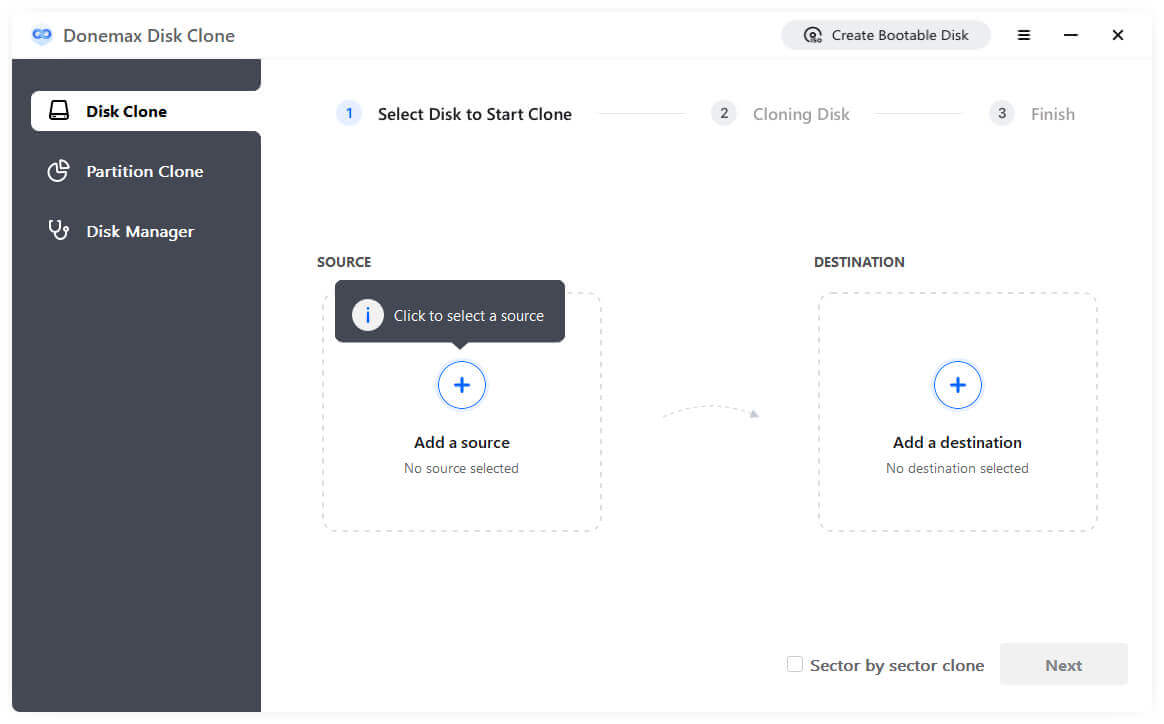
Step 3: Select Source Drive and Target Drive
In the software interface, select your original system drive (where Windows 11 is currently running) as the Source Disk. Then, select your connected external SSD/HDD or secondary disk as the Destination Disk.
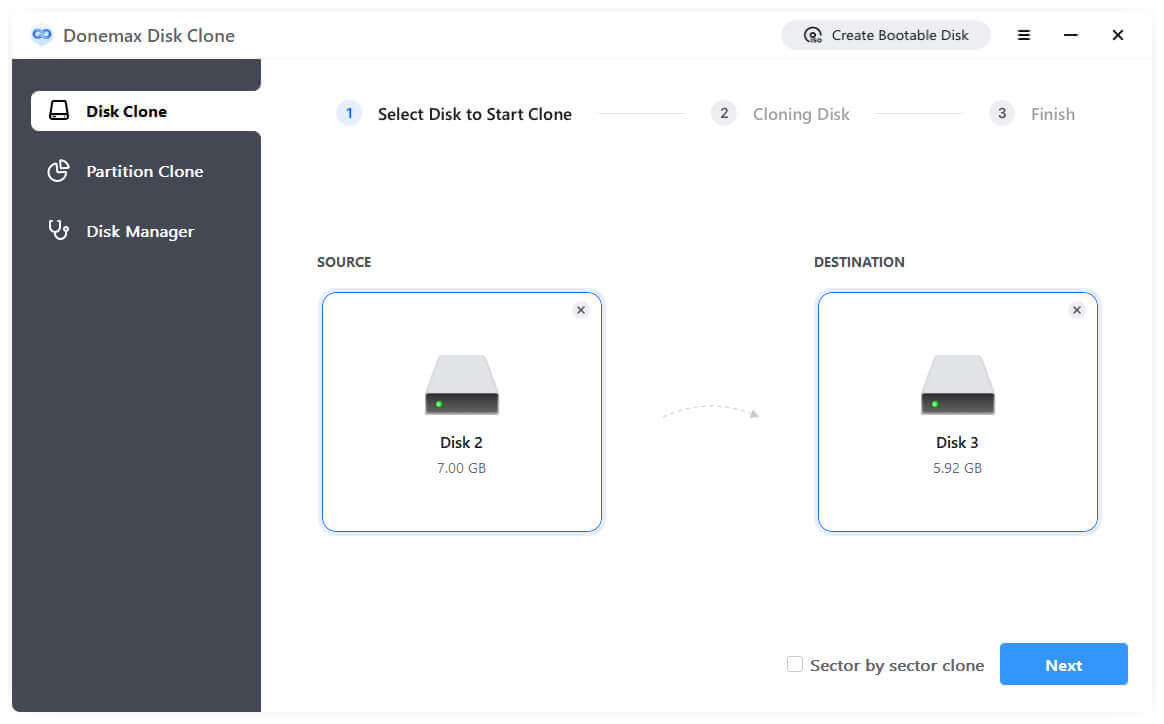
💡 Note: The cloning process will overwrite data on the destination drive. Make sure there are no important files on your target drive, or back them up beforehand.
Step 4: Configure Settings and Enable Sector-by-Sector Copy (Optional)
If your target drive is a solid-state drive (SSD), make sure to check the 'Check the option if the destination is SSD' box. This activates automatic SSD alignment, optimizing read/write speeds and lifespan for your new SSD. You can also enable sector-by-sector cloning if you want an absolute byte-for-byte exact duplicate of every disk sector.
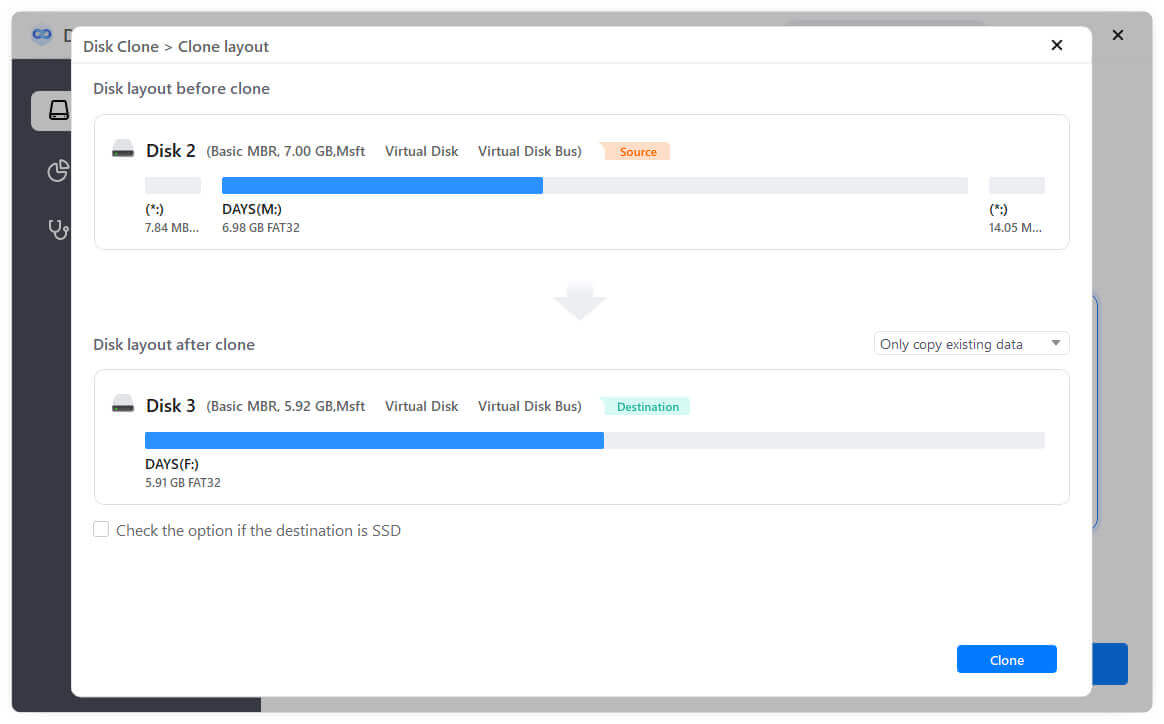
Step 5: Start the Cloning Process
Click the 'Clone' button. Donemax Disk Clone will begin copying data from your system drive to the target drive. Thanks to high-speed cloning algorithms, the process usually takes only a few minutes to an hour, depending on the size of your used data and drive speed.
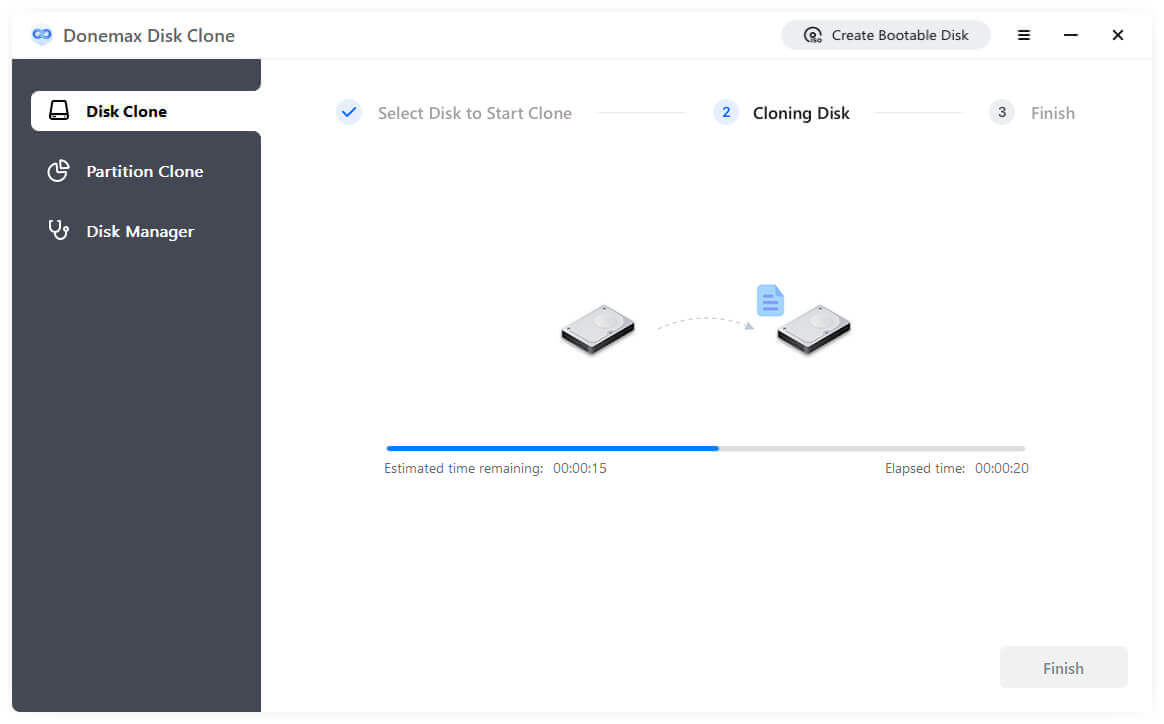
Once the process reaches 100%, you will see a success message. You now have a complete, fully bootable clone of your PC system prior to the Windows 11 26H2 update!
Now that your system is cloned and safely stored on your external or secondary drive, you can proceed with the Windows 11 26H2 upgrade without any anxiety.
Executing the 26H2 Update
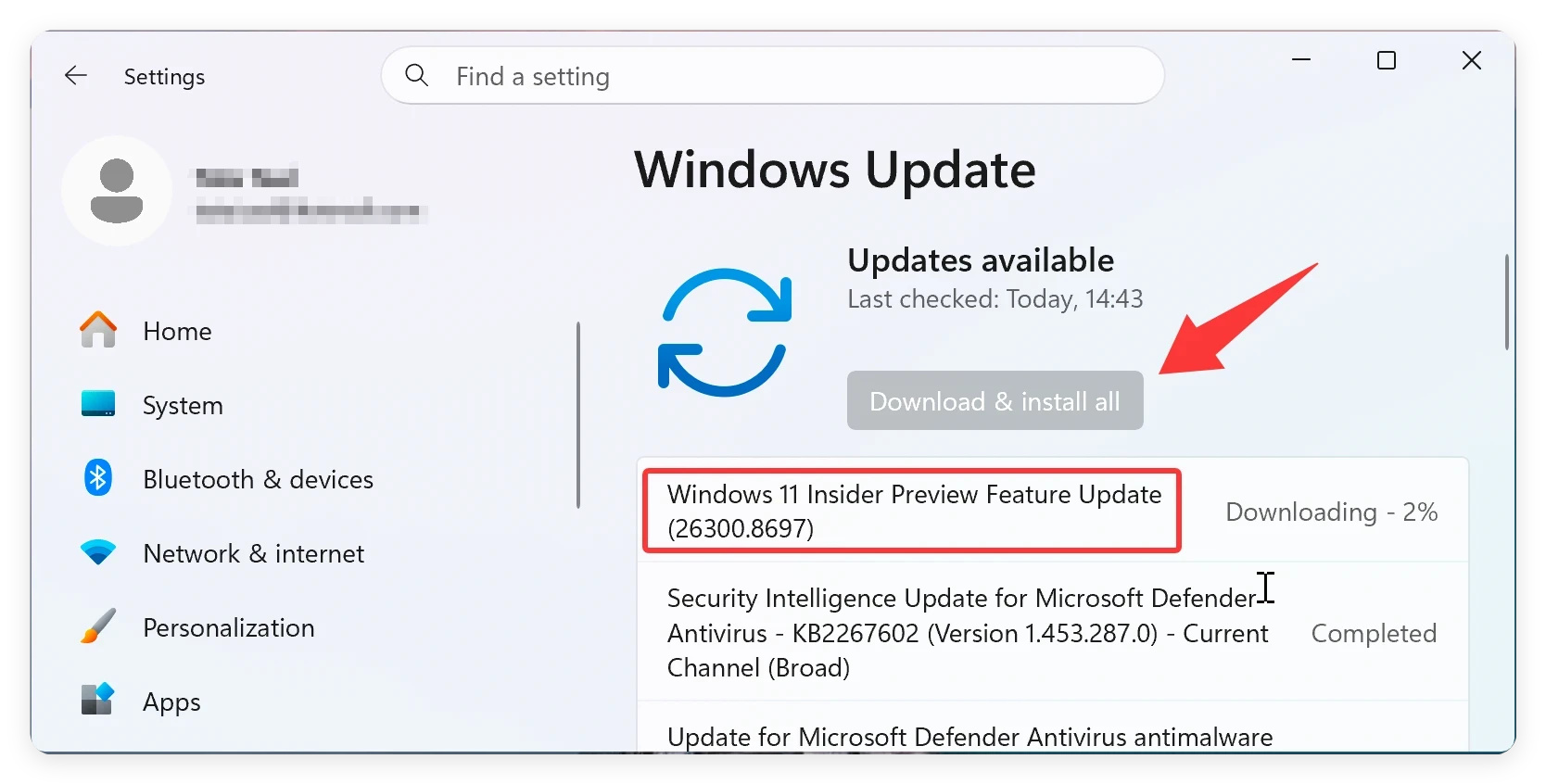
What to Do If the Windows 11 26H2 Update Fails?
If the update installs smoothly and your applications work perfectly, congratulations! You can keep your cloned drive as an off-site backup or erase it for regular storage use.
However, if the update fails, crashes your system, or causes unacceptable software incompatibilities, you can recover in two simple ways:
Option A: Boot Directly from the Cloned Drive. If you cloned to an internal drive or swapped your drives, restart your PC, enter BIOS/UEFI settings (usually by pressing F2, F12, Del, or Esc during startup), and change the boot priority to your cloned drive. Your PC will instantly boot into your pre-update Windows system.
Option B: Reverse Clone Back to Your Main Drive. Open Donemax Disk Clone on another computer or via a bootable disk, and clone the backup target drive back onto your primary internal drive. Within minutes, your computer will be reverted to the exact state it was in right before you started the 26H2 update.
To ensure maximum safety and performance during the 26H2 update, keep these expert tips in mind:
Upgrading to Windows 11 26H2 brings valuable performance tweaks, fresh features, and vital security improvements to your PC. However, taking a few extra minutes to clone hard drive before Windows 11 26H2 update is the smartest move any computer user can make.
By using Donemax Disk Clone, you eliminate the risk of update failures, corrupted files, or lost software settings. Whether you choose to clone your system drive or your entire physical disk, having a bootable duplicate guarantees that your PC and data remain safe no matter what happens during the update.
Download Donemax Disk Clone today, create your bootable system backup, and enjoy a completely stress-free Windows 11 26H2 update experience!
Donemax Disk Clone
An award-winning disk cloning program to help Windows users and Mac users clone HDD/SSD/external device. It also can create full bootable clone backup for Windows PCs and Macs.
Maria
Maria is one of the senior writers & editors of Donemax who lives and works in Sydney, Australia. She loves PC, Mac and Internet Technology. She has 6 years of writing articles about data recovery on PC/Mac, disk cloning solution, data eraser and computer OS optimization, etc. She is also interested in testing various software and digital products.
Gerhard Chou
In order to effectively solve the problems for our customers, every article and troubleshooting solution published on our website has been strictly tested and practiced. Our editors love researching and using computers and testing software, and are willing to help computer users with their problems