
Written byMariaUpdated on Sep 20, 2026

Before we start: Did you accidentally format a hard drive after upgrading to Windows 11 26H2? Or maybe Windows prompted you to format an external disk before you could access your photos, documents, or videos?
PAGE CONTENT:
Formatting a wrong hard drive can feel like a nightmare. It seems as though all your personal files vanished in a single click. Here is the good news: Formatting a drive does not immediately destroy your files. Don't add any data to the formatted hard drive.
With the right steps and a reliable data recovery tool, you can recover data from a formatted hard drive on Windows 11 26H2 easily. In this guide, we will walk you through how format recovery works, what you must do immediately to protect your data, and the step-by-step method to get your files back.
Yes, in most cases, you can recover files from a formatted hard drive.
When you perform a Quick Format in Windows 11 26H2, the system removes the file directory paths that tell your computer where files are located. However, the actual binary data remains on the physical storage blocks of the hard drive.
Until new data overwrites those exact storage locations, your old files are still recoverable using professional data recovery software.
Windows 11 version 26H2 brings new system features, updated file system handling, and enhanced security updates. However, users still encounter data loss due to formatting for several common reasons:
Regardless of why your drive was formatted, the recovery principles remain the same.
To understand your chances of data recovery on Windows 11 26H2, it helps to understand how Windows formats disks.
| Feature | Quick Format | Full Format |
|---|---|---|
| Execution Time | Fast (Seconds) | Slow (Minutes to Hours) |
| Data Removal | Removes index/file table only | Overwrites data sectors with zeros |
| Bad Sector Check | No | Yes |
| Data Recoverability | High Chance (using Donemax) | Extremely Low / Impossible |
If you performed a Quick Format (which is the default option in Windows 11 26H2 File Explorer), your file data is almost certainly intact and recoverable.
The most effective way to recover data from a formatted hard drive on Windows 11 26H2 is by using specialized data recovery software. Donemax Data Recovery is designed to deep-scan formatted, corrupted, or inaccessible drives and restore files safely.
Key Features of Donemax Data Recovery for Windows 11 26H2:
Step-by-Step Guide to Recover Formatted Drive Files
Follow these simple steps to retrieve your files on Windows 11 26H2:
Step 1: Download the official installation file of Donemax Data Recovery. Install the software on a separate partition or external disk (e.g., install on Drive C: if you are trying to recover data from Drive D:).
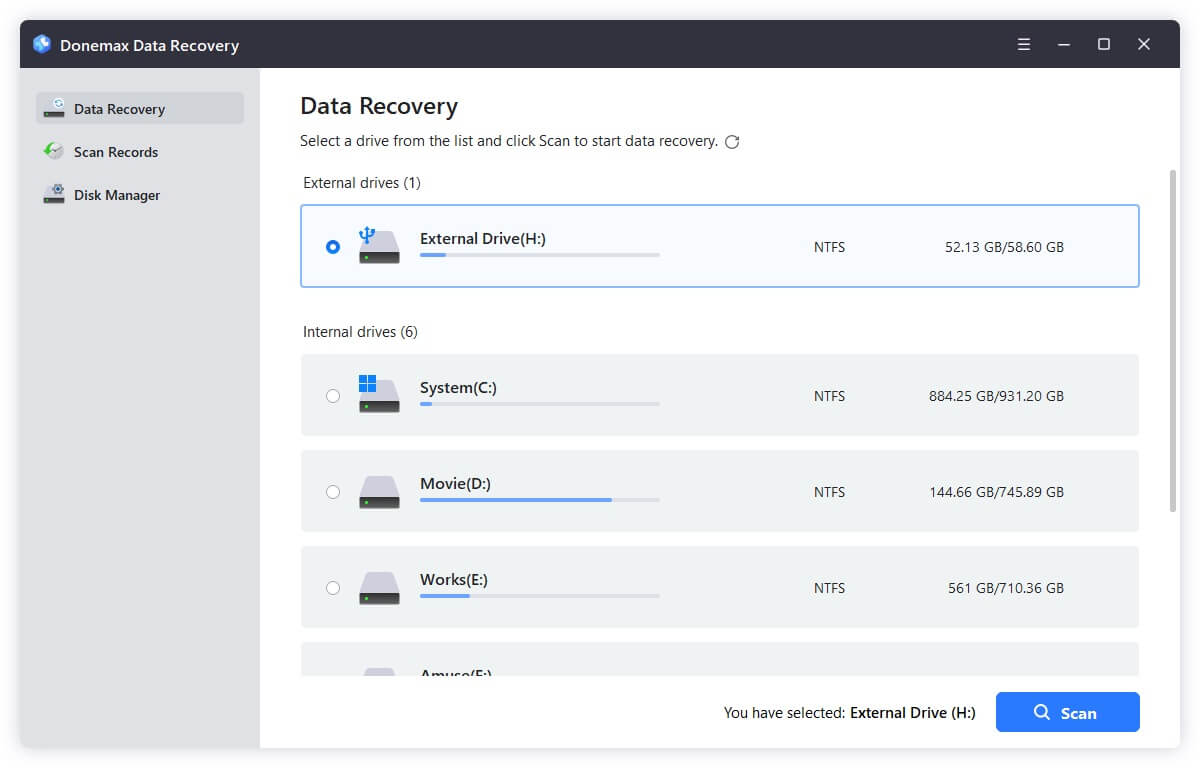
Step 2: Launch Donemax Data Recovery on your Windows 11 PC. The main interface will list all connected internal and external hard drives. Select the formatted drive or partition you want to recover.
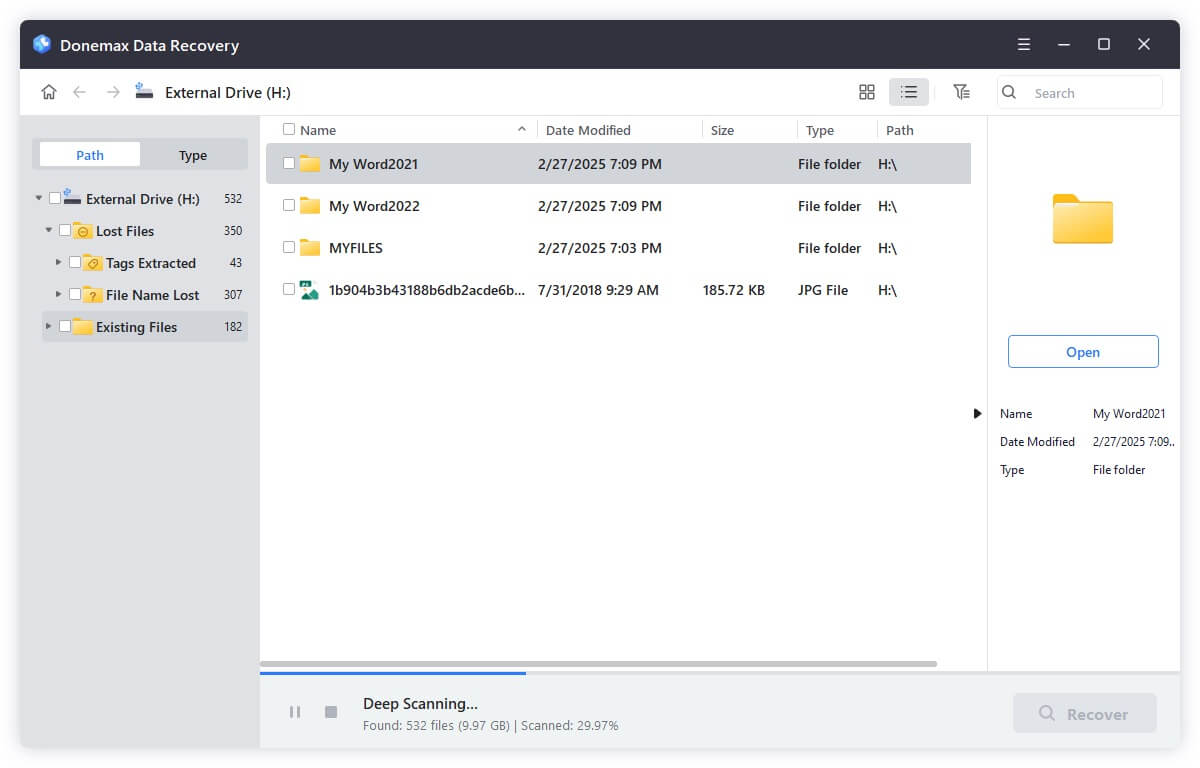
Step 3: Click the Scan button. Donemax will automatically run a deep scan across the hard drive to find all lost, formatted, or hidden files. You can preview files in real-time as the scan progresses.
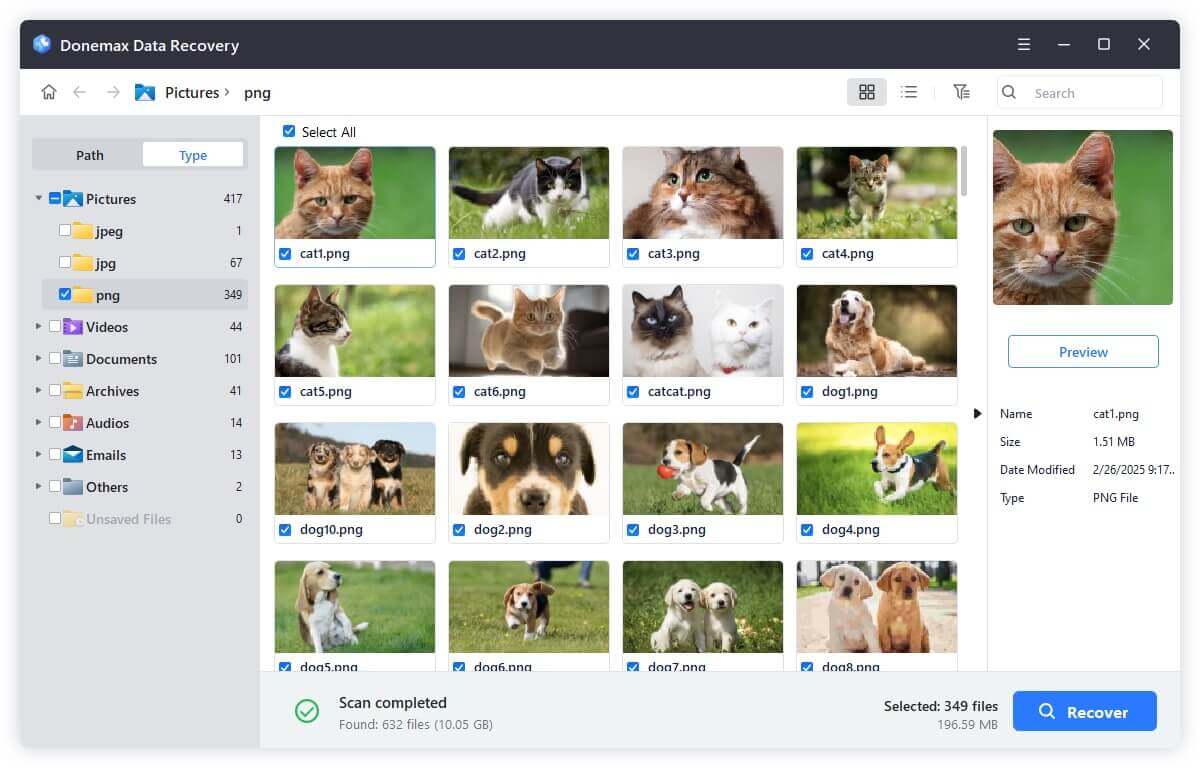
Step 4: Once the scan completes:
Important Safety Tip: Never save recovered files back onto the same formatted drive until you are completely sure you have retrieved all your important data.
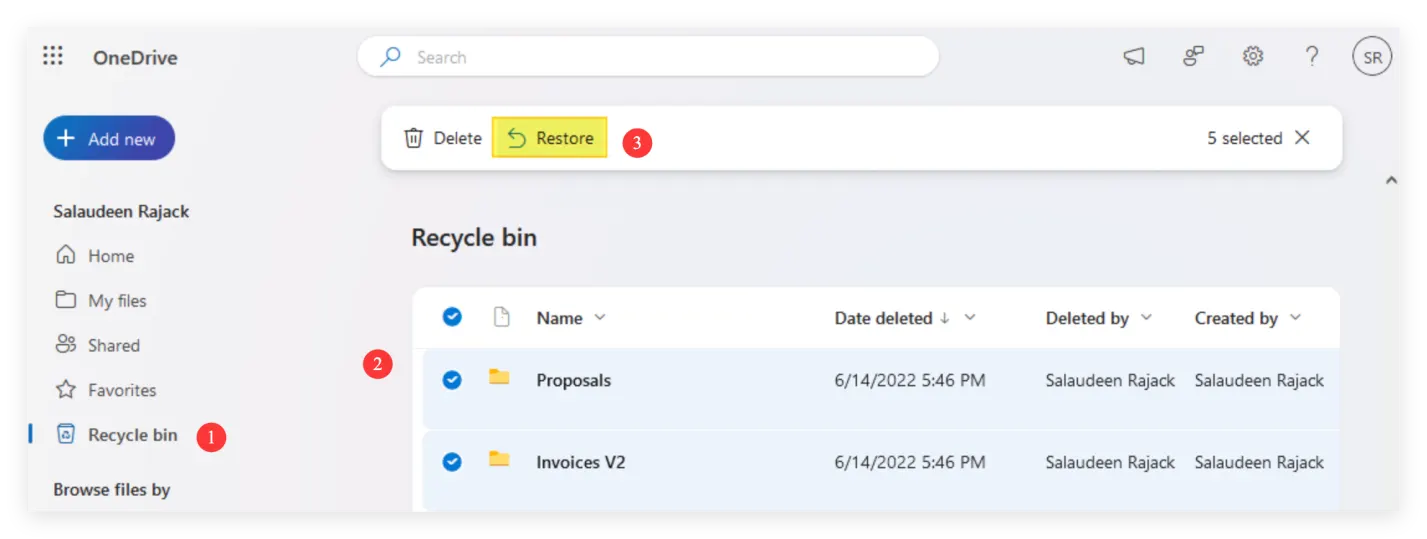
Windows 11 26H2 deeply integrates with cloud storage options like Microsoft OneDrive. If you had auto-sync or backup enabled before formatting the local hard drive, your files might still exist in the cloud.
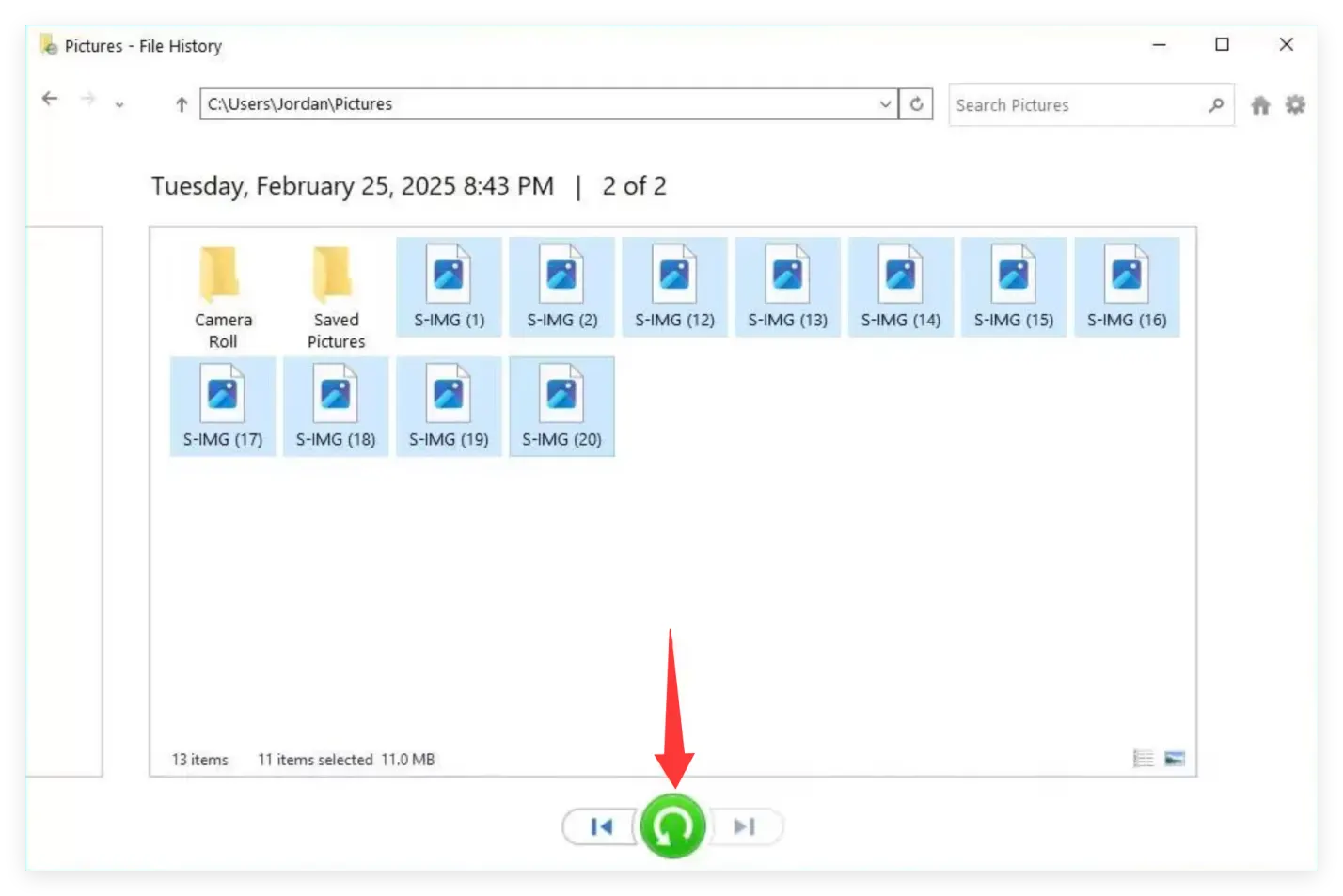
If you set up Windows File History on your Windows 11 PC prior to formatting the drive, you can restore previous file versions.
While tools like Donemax Data Recovery make format recovery straightforward, preventing data loss is always the best strategy.
Accidentally formatting a hard drive on Windows 11 26H2 is stressful, but it doesn't have to mean permanent data loss. Because Windows Quick Format leaves raw file data intact, you can rely on Donemax Data Recovery to scan the drive and restore your valuable documents, photos, and videos quickly.
Remember to stop using the drive immediately to prevent data overwriting, download Donemax on a healthy partition, and start your file recovery process today!
Donemax Data Recovery
Powerful, safe & easy-to-use data recovery software. Easily and completely recover deleted, formatted, or other lost data. The tool supports PC, Mac, HDD, SSD, USB drive, camera, SD card, RAID and other storage devices.
Maria
Maria is one of the senior writers & editors of Donemax who lives and works in Sydney, Australia. She loves PC, Mac and Internet Technology. She has 6 years of writing articles about data recovery on PC/Mac, disk cloning solution, data eraser and computer OS optimization, etc. She is also interested in testing various software and digital products.
Gerhard Chou
In order to effectively solve the problems for our customers, every article and troubleshooting solution published on our website has been strictly tested and practiced. Our editors love researching and using computers and testing software, and are willing to help computer users with their problems