Written byMariaUpdated on Sep 02, 2026

Before we start: In this article, we will talk about why Dash Cam keeps saying format SD card and use built-in tools or third-party tools to fix this issue. If want to recover lost videos or images from the SD card, just use data recovery tool - such as Donemax Data Recovery to get the lost files back.
PAGE CONTENT:
Dash cameras are indispensable tools for drivers, offering peace of mind and evidence in case of incidents. However, a recurring issue for many users is the frustrating prompt to format the SD card, even when it's already been formatted. This problem disrupts the dash cam's functionality and can lead to data loss. This guide will explore the reasons behind this issue and provide detailed solutions to fix it while offering preventive measures to ensure long-term reliability.
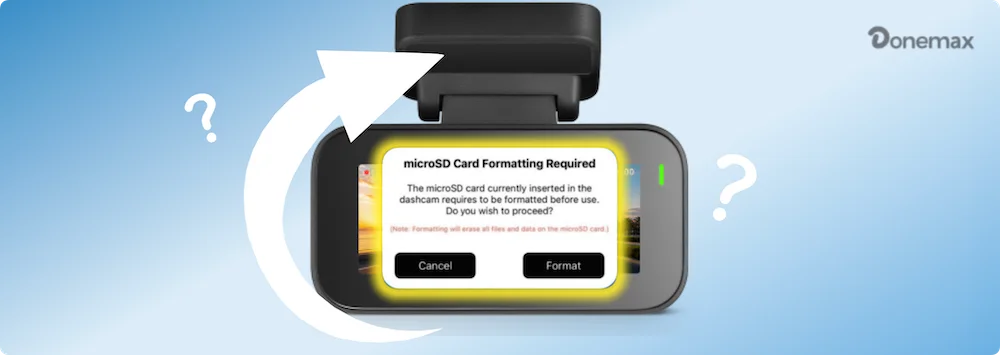
The problem where a dash cam keeps requesting to format the SD card typically arises due to compatibility or functionality issues between the device and the card. While it might seem like a minor inconvenience, it could render your dash cam unreliable during critical moments.
Common Reasons for the Dash Cam SD Card Not Formatting Issue:
The first step is ensuring that the SD card meets your dash cam's specifications.
If the SD card doesn't match the requirements, replace it with a compatible model.
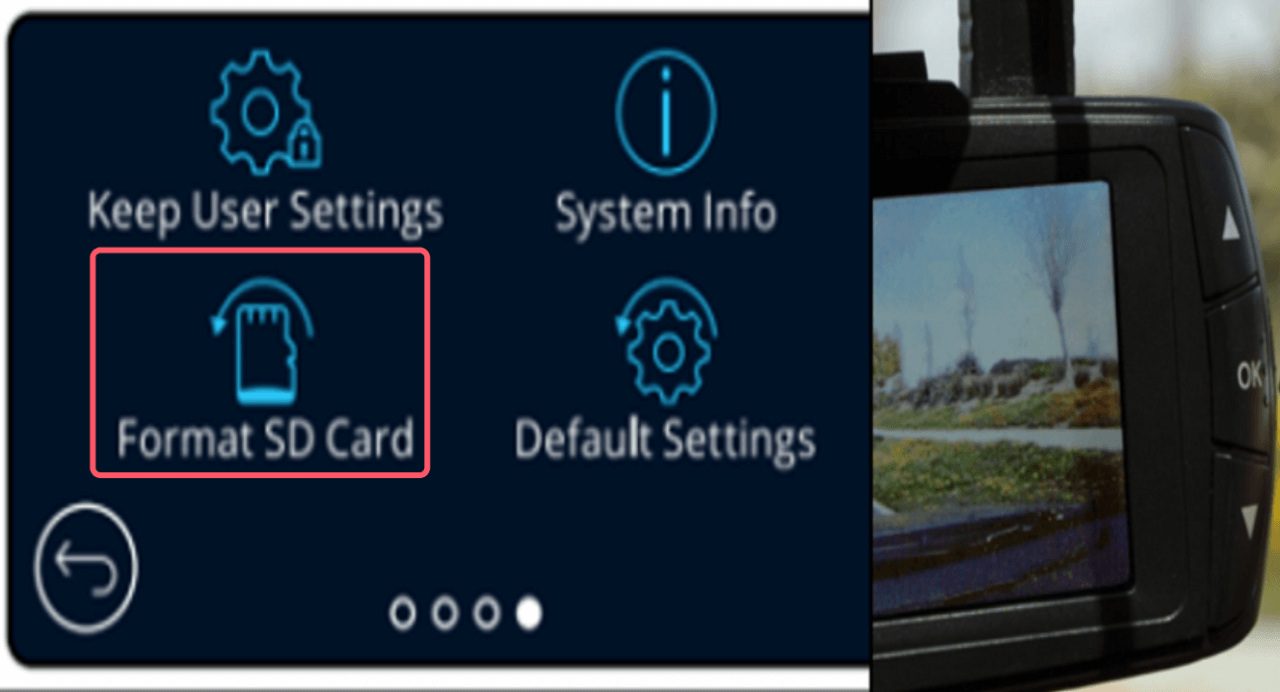
Sometimes, an improperly formatted card can cause issues. Follow these steps to reformat it:
● Formatting via Dash Cam
● Formatting via Computer
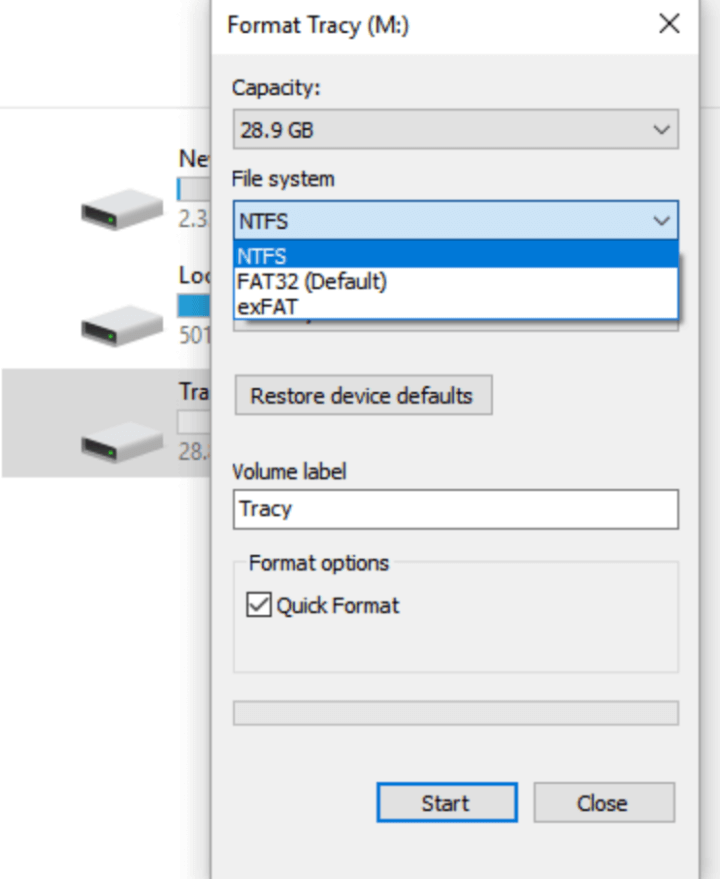
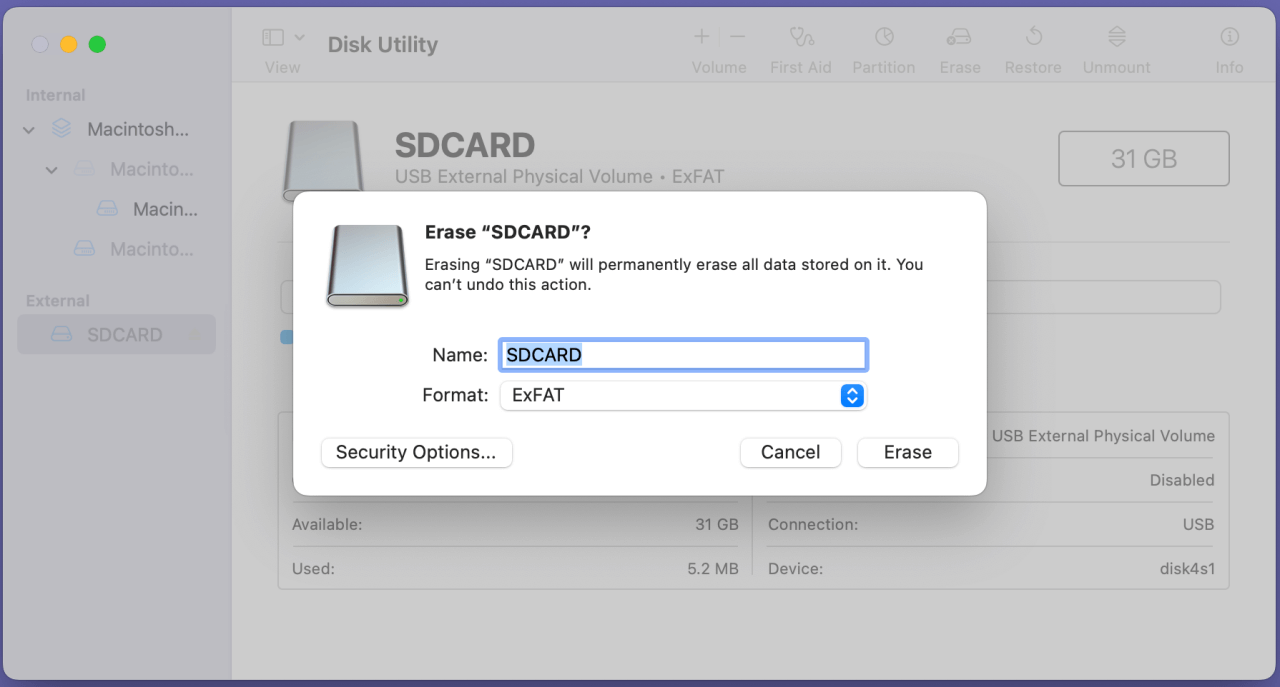
Proper formatting often resolves the issue and ensures the card is ready for use.
Outdated firmware can cause compatibility issues with SD cards. Check the manufacturer's website for updates:
Firmware updates can resolve software bugs and improve overall functionality.
If formatting and firmware updates don't resolve the issue, the SD card itself may be the problem. Test the dash cam with a new, high-quality SD card to rule out hardware faults.
Inspect the dash cam's SD card slot for physical damage or debris. A loose connection or dirt inside the slot can prevent the card from functioning correctly. Use compressed air or a soft brush to clean the slot gently.
If the issue persists after following the basic troubleshooting steps, consider these advanced solutions:
1. Use Specialized SD Card Tools
Use tools like H2testw (Windows) or SD Formatter (by the SD Association) to check the health of your SD card and repair any issues. These tools can detect and fix file system errors, improving the card's functionality.
2. Reset Dash Cam Settings
Resetting the dash cam to its factory settings can resolve software glitches. Refer to the user manual for reset instructions.
3. Contact the Manufacturer
If none of the above steps work, reach out to the dash cam manufacturer for support. They may offer additional troubleshooting steps or provide a replacement if the device is under warranty.
Taking proactive measures can help prevent repeated formatting requests and improve the longevity of your dash cam setup.
1. Regular Maintenance
2. Use High-Quality SD Cards
3. Keep Firmware Updated
Data recovery software - such as Donemax Data Recovery can help you recover deleted, formatted and inaccessible files from your Dash Camera's SD card.
Step 1. Connect the SD card to your computer, then download and install Donemax Data Recovery on your computer.
Step 2. Open Donemax Data Recovery, select the Dash Cam's SD card to start data recovery.
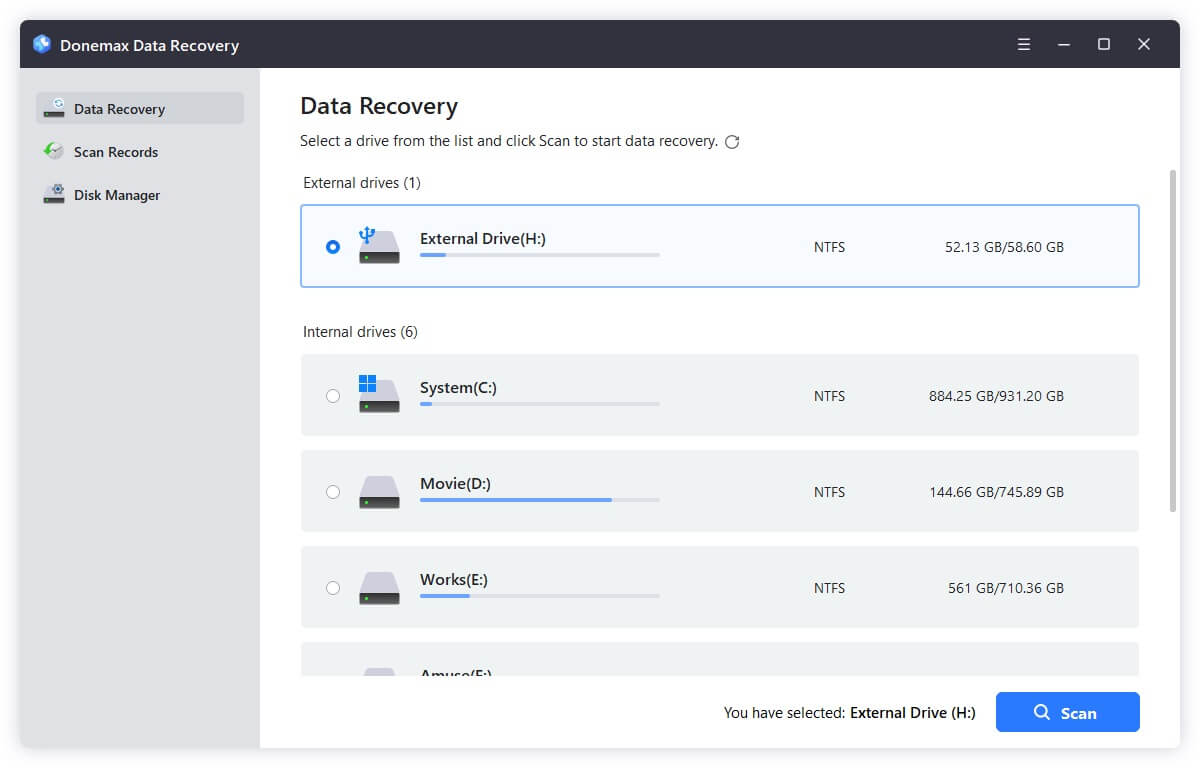
Step 3. Click on Scan button to deeply scan the SD card and find all recoverable files.
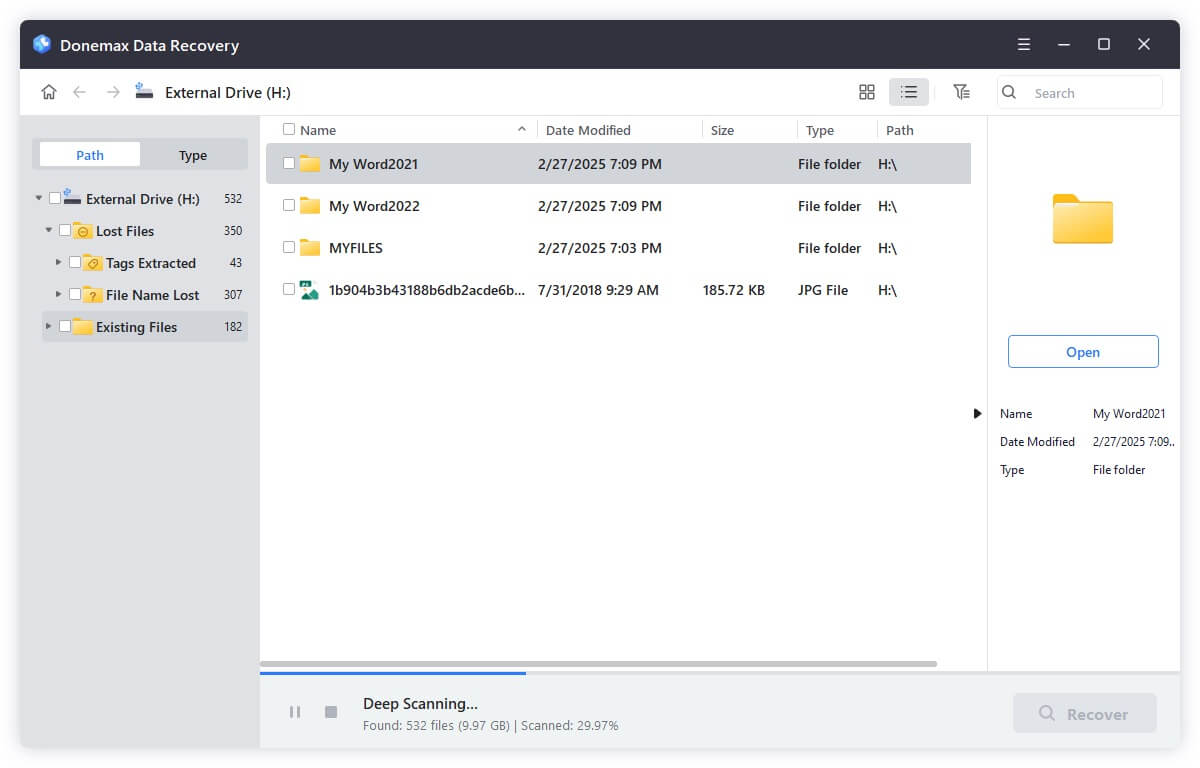
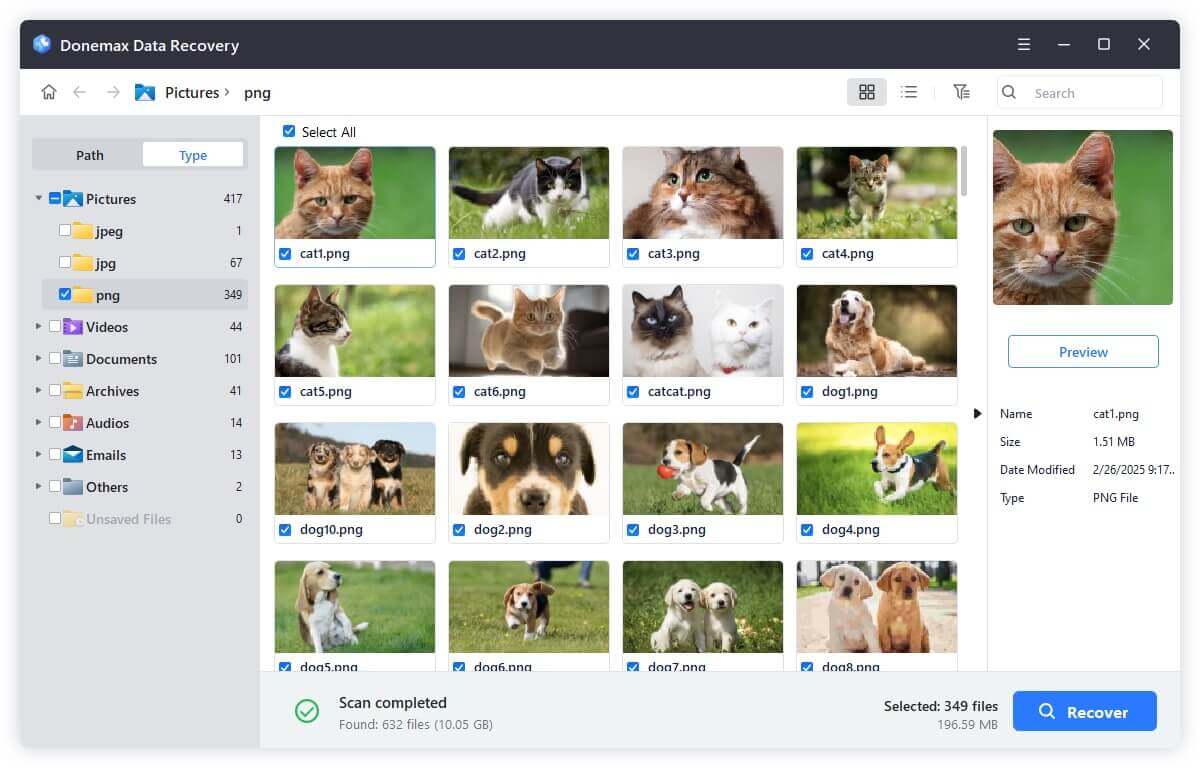
Step 4. Once the scan is completed, you can preview all recoverable files such as videos and images. Then select the wanted files, click on Recover button to save them.
If your dash cam keeps asking to format the SD card, don't worry - it's a common issue with practical solutions. By understanding the causes, following the troubleshooting steps, and taking preventive measures, you can ensure your dash cam works reliably when you need it most.
Investing in a high-quality SD card, maintaining proper formatting practices, and keeping your dash cam updated will save you time and frustration in the long run. Share this guide with fellow drivers to help them tackle similar problems and keep their dash cams running smoothly. If you want to recover lost images and videos from the Dash Camera's SD card, just try data recovery software - such as Donemax Data Recovery.
Donemax Data Recovery
Powerful, safe & easy-to-use data recovery software to easily and completely recover deleted, formatted, inaccessible and lost data from PC, Mac, HDD, SSD, USB drive, camera, SD card, RAID and other storage devices.
Maria
Maria is one of the senior writers & editors of Donemax who lives and works in Sydney, Australia. She loves PC, Mac and Internet Technology. She has 6 years of writing articles about data recovery on PC/Mac, disk cloning solution, data eraser and computer OS optimization, etc. She is also interested in testing various software and digital products.
Gerhard Chou
In order to effectively solve the problems for our customers, every article and troubleshooting solution published on our website has been strictly tested and practiced. Our editors love researching and using computers and testing software, and are willing to help computer users with their problems
Clone hard drive with advanced clone technology or create bootable clone for Windows/Mac OS.
Completely and easily recover deleted, formatted, hidden or lost files from hard drive and external storage device.
Certified data erasure software - permanently erase data before selling or donating your disk or any digital device.