Written byChristinaUpdated on May 20, 2026

PAGE CONTENT:
If you've ever tried to reinstall macOS, wipe your hard drive, or restore your Mac from a backup, you might have run into a bit of a roadblock. You press the recovery keys, your Mac boots up, and suddenly you're staring at a spinning globe with a message that reads: "Starting Internet Recovery, this may take a while."
And boy, do they mean it. Sometimes it feels like it takes forever.

If you are staring at your screen wondering if your Mac is permanently frozen or if it's actually doing something, don't panic. While this message can look a bit alarming, it is usually completely normal. However, if it has been stuck for hours or the progress bar hasn't budged, there are a few simple tweaks you can do to speed things up or bypass the screen entirely.
If you've been waiting for an unreasonable amount of time, a few different factors might be bottle-necking your recovery process:
If your Mac is stuck on the spinning globe, or if you want to speed up the process, walk through these troubleshooting steps.
Wi-Fi is convenient, but it's prone to interference and drops. For a process as sensitive as Internet Recovery, a hardwired connection is always best.
Sometimes, temporary system settings or corrupt boot paths get stuck in your Mac's non-volatile random-access memory (NVRAM). Resetting this can clear out network caches and help the recovery environment initialize properly.
Here is how to do it on Intel-based Macs:
💡 Note: If you have a modern Apple Silicon Mac, there is no manual NVRAM reset key combo. Simply shutting the Mac down completely and turning it back on handles these checks automatically.
Did you know that there are actually different key combinations to trigger Internet Recovery? Depending on what keys you hold down at startup, you tell your Mac to download a completely different file size.
When turning on your Intel Mac, check which one you are using:
If the latest version of macOS is massive (like a 12 GB installer), switching to the original version that came with your Mac might give you a much smaller download size, getting you through the recovery screen much faster!
If you are trying to run Internet Recovery on a public Wi-Fi network (like at a coffee shop or hotel) or a highly secure office network, it will likely fail or stall midway. These networks often require a browser login step ("captive portals") or have strict firewalls that block background downloads.
If you see an error code (like -1008F or -2003F) or the spinning globe just freezes completely, you don't have to give up. You can bypass the internet download entirely using an alternative option.
If your Mac can't pull the installation files from the internet, you can download them on another computer and feed them to your Mac via a USB flash drive. This completely bypasses the dreaded "this may take a while" screen.
What you need:
How to do it:
sudo /Applications/Install\ macOS\
[Version].app/Contents/Resources/createinstallmedia --volume /Volumes/USB
Press Enter, type your Mac password, and let it build the drive.
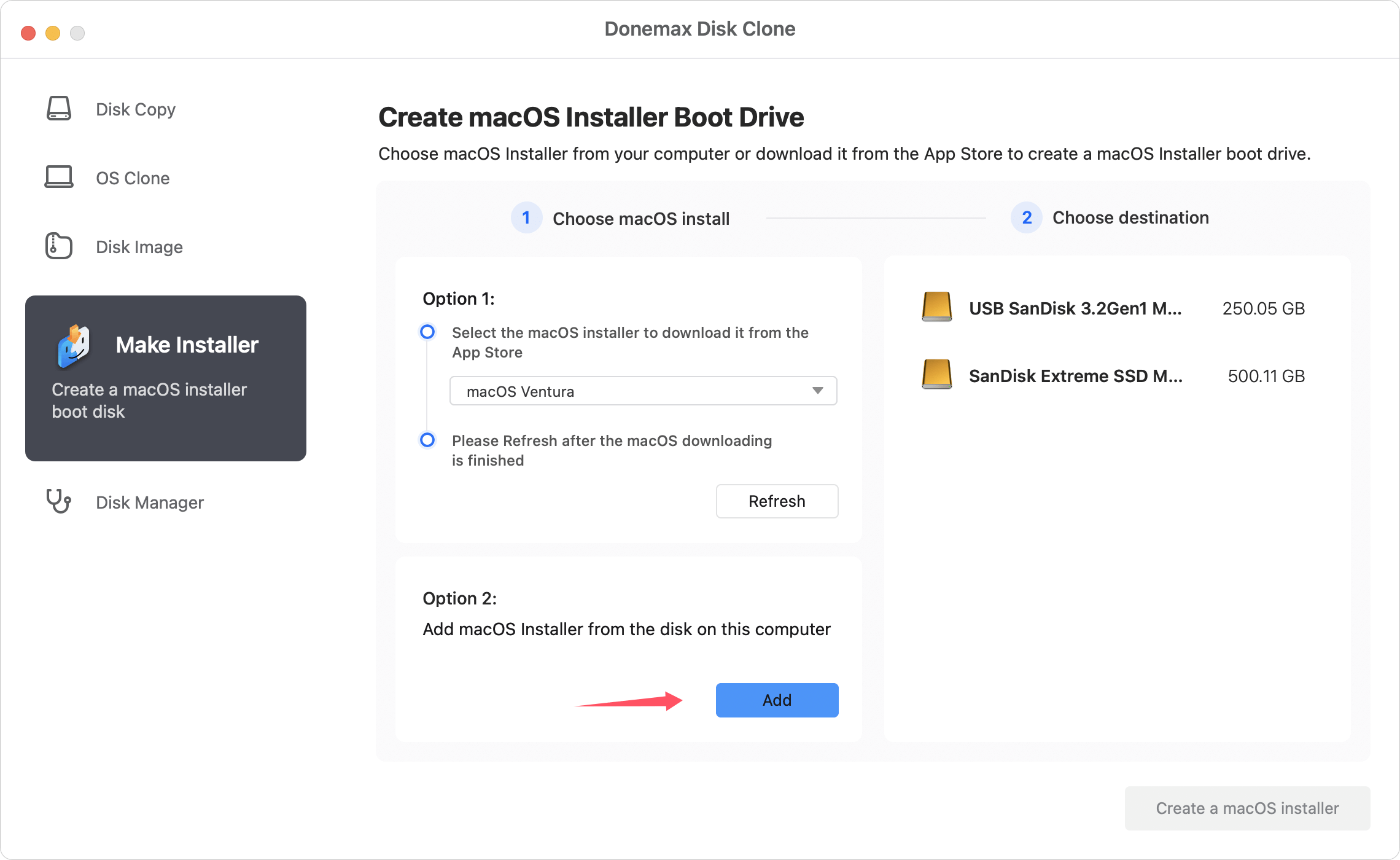
If you don't want to create the installer with Terminal, there is another easy way - using Donemax Disk Clone for Mac. The software offers a feature to create a bootable USB installer easily:
Run the software and choose Make Installer. You can select a version of macOS to download or manually select a downloaded installer file. Choose the USB drive and click Create a macOS installer button.
This method loads instantly because all the installation data is already physically saved onto the USB drive, saving you from downloading gigabytes over unstable Wi-Fi.
To make sure your system restoration goes off without a hitch next time, keep these quick tips in mind:
Seeing "Starting Internet Recovery, this may take a while" shouldn't cause panic. In most situations, your Mac is simply doing some heavy lifting over your network connection to ensure a clean, safe, and compatible restore environment. Give it some patience, optimize your network by swapping to an Ethernet cord, and if all else fails, rely on a trusty bootable USB drive to get the job done manually!
Christina
Christina is the senior editor of Donemax software who has worked in the company for 4+ years. She mainly writes the guides and solutions about data erasure, data transferring, data recovery and disk cloning to help users get the most out of their Windows and Mac. She likes to travel, enjoy country music and play games in her spare time.
Gerhard Chou
In order to effectively solve the problems for our customers, every article and troubleshooting solution published on our website has been strictly tested and practiced. Our editors love researching and using computers and testing software, and are willing to help computer users with their problems
Clone hard drive with advanced clone technology or create bootable clone for Windows/Mac OS.
Completely and easily recover deleted, formatted, hidden or lost files from hard drive and external storage device.
Certified data erasure software - permanently erase data before selling or donating your disk or any digital device.