
Written byChristinaUpdated on Dec 18, 2025

PAGE CONTENT:
Apple's shift from Intel processors to Apple Silicon (M1, M2, M3, M4, and M5 chips) introduced dramatic changes to Mac performance, power efficiency, and architecture. However, this transition also disrupted legacy workflows—especially those that depended on dual-booting Windows through Boot Camp. If you're an Apple Silicon Mac user who want to run Windows on your machine, this article walks you through the current options, limitations, and step-by-step instructions for using virtualization and cloud-based methods.
Whether you're a developer needing Windows-exclusive tools or a gamer exploring cross-platform titles, you'll find the most practical solutions right here to install Windows OS on Apple Silicon Mac.
On Intel-based Macs, Boot Camp allowed users to install Windows natively. Unfortunately, Boot Camp is not supported on Apple Silicon Macs. Apple's new chip architecture (based on ARM, not x86) means traditional native Windows installations are no longer possible.
Microsoft's official ARM version of Windows isn't generally licensed for direct Mac installation either. However, virtualization platforms now offer reliable ways to run Windows on Apple Silicon Macs, particularly via Parallels Desktop or UTM.
Before proceeding, ensure your setup meets the following requirements:
To run Windows OS on Apple Silicon Mac, you can install the system on Mac directly via virtualization tools or directly run Windows via cloud service. Here we will introduce each method in detail.
What Is Parallels Desktop? Parallels Desktop is a premium virtualization software optimized for Apple Silicon. It allows you to run Windows 11 ARM in a virtual machine on your Mac without rebooting. It is officially authorized by Microsoft to run Windows 11 on M-series Macs and offers seamless integration with macOS.
Pros
Cons
How to Install Windows with Parallels
Step 1: Download and install Parallels Desktop
Go to https://www.parallels.com and download the latest version of Parallels Desktop for Mac. Install it like any other macOS app.
Step 2: Get Windows 11 ARM Version
Parallels automates this step. On launch, it detects that you're using Apple Silicon and offers to download Windows 11 ARM Insider Preview directly from Microsoft.
You may need to sign in with a Microsoft account to join the Windows Insider Program.
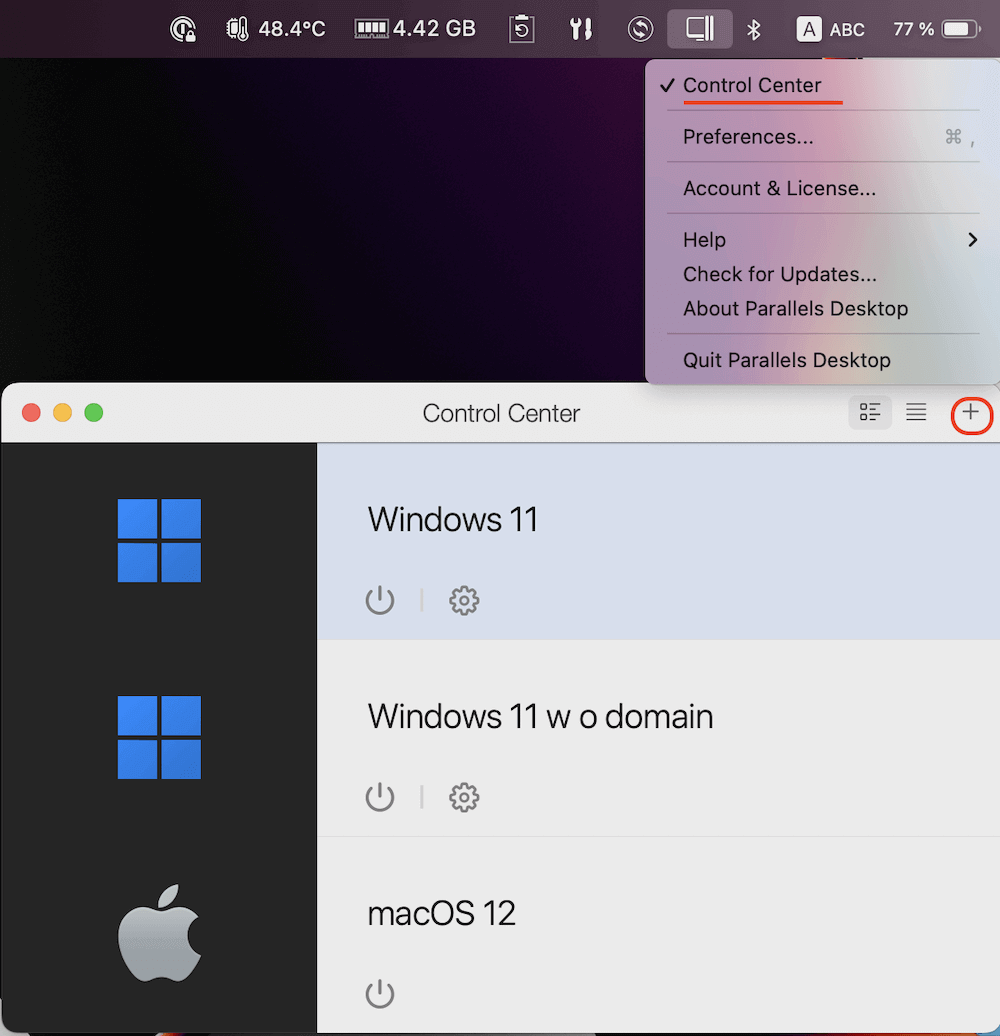
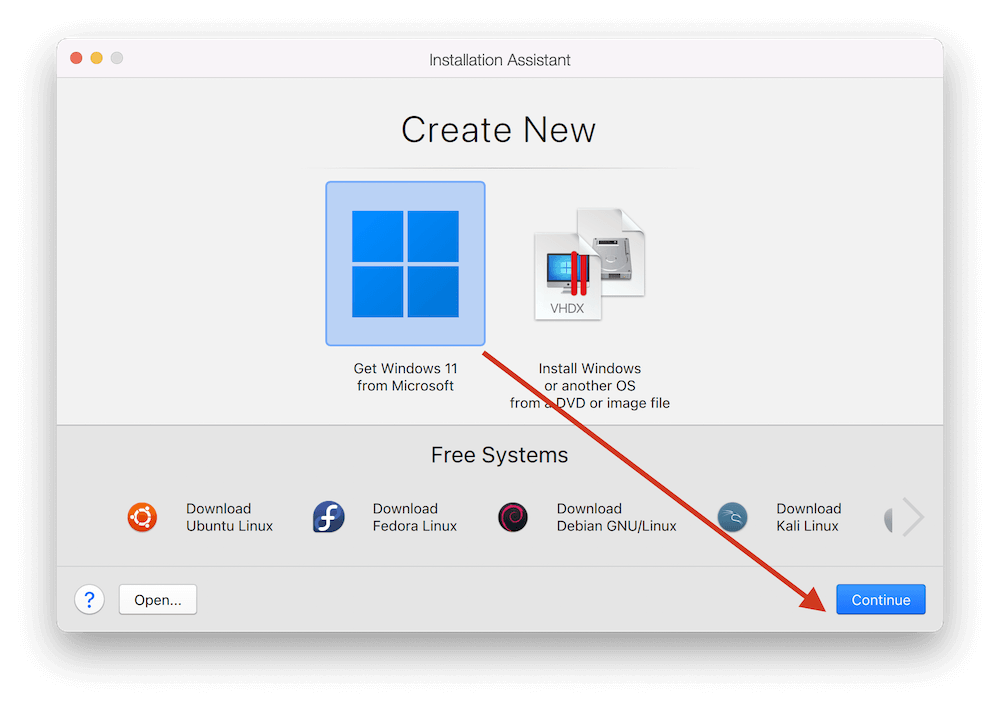
Step 3: Create a Virtual Machine for Windows
Parallels automatically creates a new VM, downloads the ISO, and begins setup. Just follow the wizard.
Step 4: Configure the Virtual Machine
Step 5: Finish Installation
Parallels installs Windows 11 ARM, sets up drivers, and lets you log in.
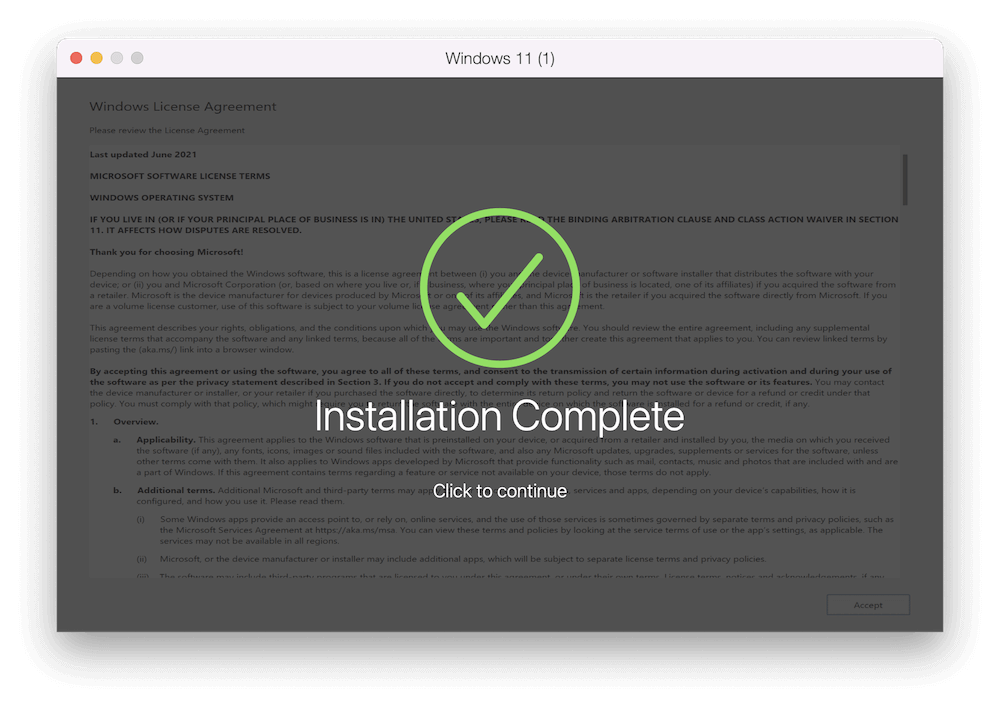
You're done! You can now launch Windows from your Mac Dock like any other app.
Bonus: Gaming Setup (Optional)
If you want to play lightweight or older Windows games:
Note that graphics-intensive games like Call of Duty or Cyberpunk 2077 won't perform well due to virtualization and ARM architecture limits.
Why Parallels is Ideal for Most Users
Performance and Use Cases
Parallels provides near-native speed for everyday tasks:
However, graphics-intensive games or apps requiring x86 64-bit architecture may not perform well due to ARM emulation limits.
What Is UTM? UTM is a free, open-source virtualization software built on QEMU, designed specifically for macOS, including Apple Silicon. It allows you to run Windows ARM using VHDX files.
Pros
Cons
How to Install Windows with UTM:
Step 1: Download and Install UTM
Visit https://mac.getutm.app/ and download the latest version. Install it on your Mac.
Step 2: Download Windows 11 ARM VHDX
Go to Microsoft's Insider Preview downloads and download the Windows 11 ARM64 VHDX.
Requires free Microsoft account and joining the Insider Preview Program.
Step 3: Create New Virtual Machine in UTM
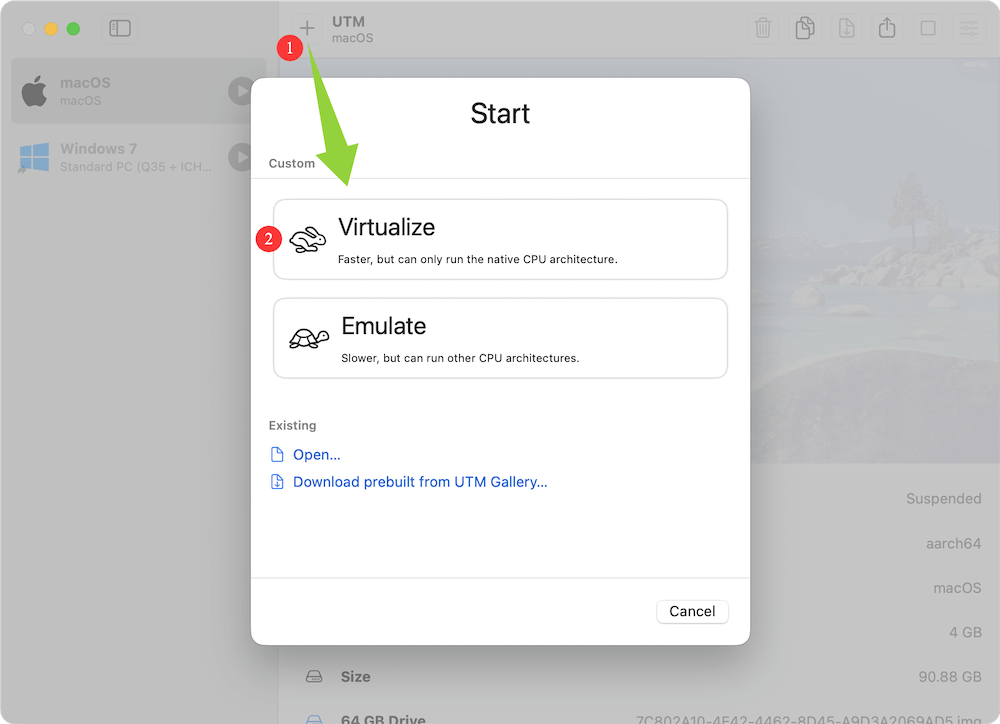
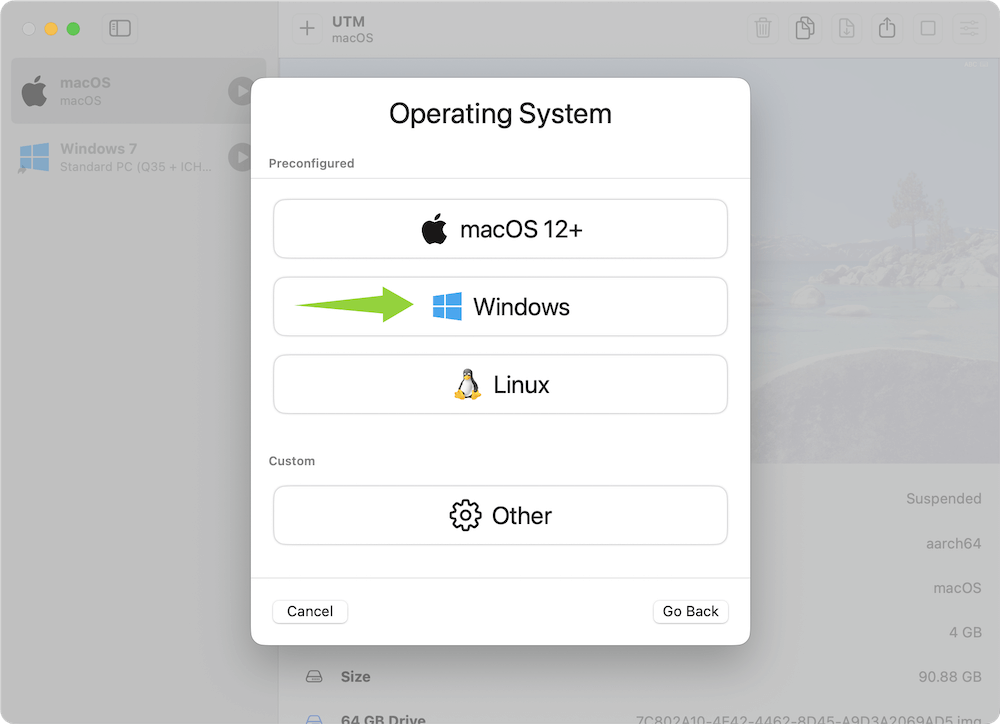
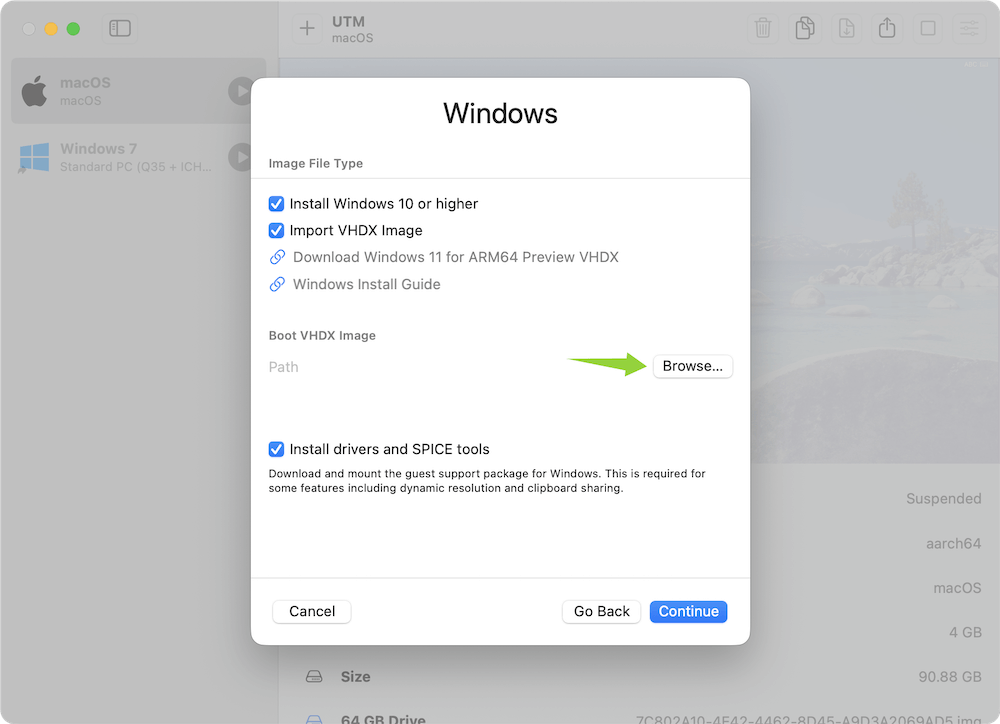
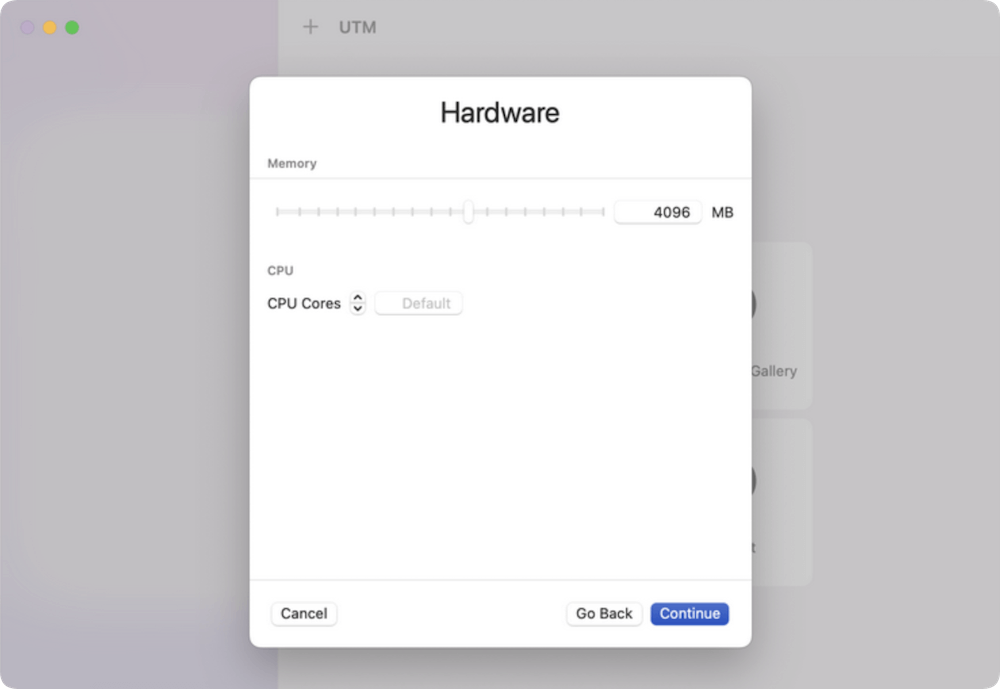
Step 4: Install and Boot Windows
Click "Play" to boot your VM. Windows will complete setup as normal.
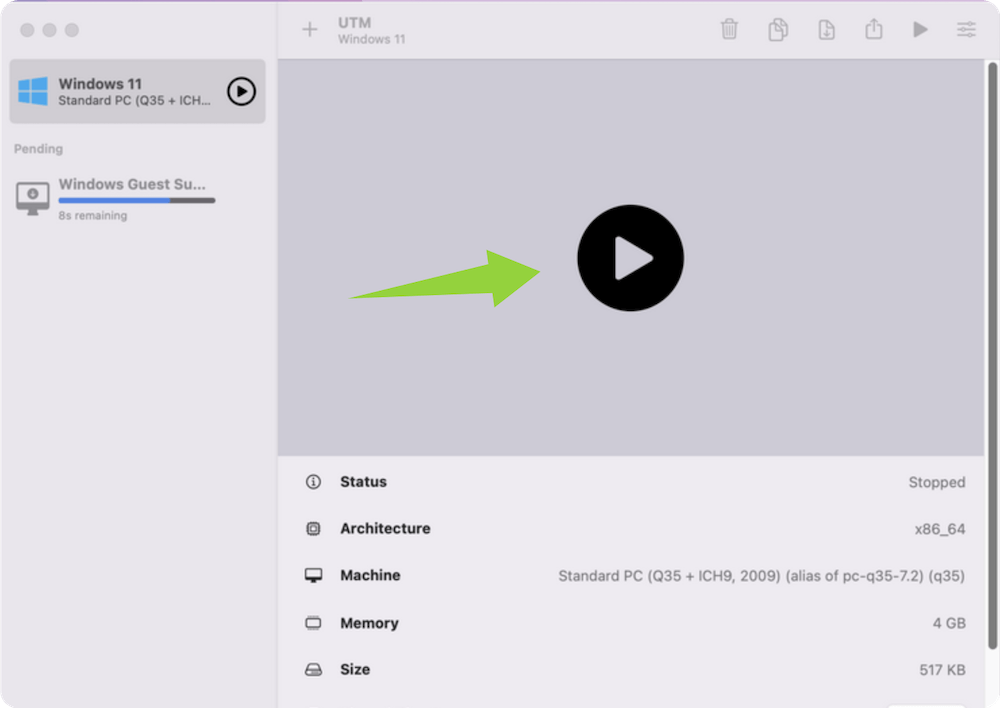
Step 5: Install SPICE Tools (Optional but Recommended)
SPICE tools improve performance and enable clipboard sharing, file transfers, and better resolution. You can find these under UTM's VM settings.
Performance and Limitations
UTM is ideal for lightweight tasks like:
However, there's no GPU acceleration, and performance lags behind Parallels. It's best suited for occasional or hobbyist Windows use.
If local virtualization doesn't suit your needs, you can run Windows in the cloud. You don't need to install Windows OS on Mac. There are some available options:
A. Windows 365
Microsoft's subscription service that delivers a full Windows PC over the cloud.
B. Azure Virtual Desktop
Ideal for businesses and IT teams wanting to manage multiple users.
C. Amazon WorkSpaces or Shadow
Third-party services offering cloud PCs that run Windows OS.
Pros
Cons
Despite viable workarounds, there are a few limitations worth noting:
1. No Boot Camp (Native Install)
There's no dual-boot option like on Intel Macs.
2. App Compatibility
Windows ARM supports ARM-native apps, and many x64 apps run via emulation. But some older x86 apps and drivers may fail to work.
3. Gaming Challenges
4. Hardware Peripheral Support
Certain USB dongles, printers, or legacy software may not work properly due to missing drivers.
Tips for the Best Experience
1. Can I run x86 Windows apps on M1/M2/M3/M4/M5 Mac?
Yes, Windows ARM includes x86 emulation. However, apps requiring x64 emulation may have limited compatibility or degraded performance.
2. Is Windows 11 ARM version free to use?
The Insider Preview is free, but for full activation, you need a valid and paid license key.
3. Which is better to run Windows on Mac: Parallels or UTM?
Parallels is better for performance and user experience. UTM is free and great for advanced users or testing.
4. Can I dual-boot Windows and macOS on M-chip Macs?
No, dual-booting via Boot Camp is no longer available on Apple Silicon Macs.
Apple Silicon changed the game for Mac performance but also changed how Windows runs on these devices. While traditional dual-booting is off the table, Parallels Desktop, UTM, and cloud-based solutions provide reliable ways to access Windows on your M1, M2, M3, M4, or M5-chip Mac.
If you need Windows frequently or require performance, go with Parallels. If you're okay with a more manual and free approach, UTM is your go-to. And if you rarely need Windows and prefer not to install anything locally, a cloud service may be your best bet.
By choosing the right method based on your needs and following the steps in this guide, you can comfortably bridge the gap between macOS and Windows on your Apple Silicon Mac.
Donemax Disk Clone for Mac
An award-winning disk cloning program to help Mac users clone HDD/SSD/external device. It also can create full bootable clone backup for Macs.
Christina
Christina is the senior editor of Donemax software who has worked in the company for 4+ years. She mainly writes the guides and solutions about data erasure, data transferring, data recovery and disk cloning to help users get the most out of their Windows and Mac. She likes to travel, enjoy country music and play games in her spare time.
Gerhard Chou
In order to effectively solve the problems for our customers, every article and troubleshooting solution published on our website has been strictly tested and practiced. Our editors love researching and using computers and testing software, and are willing to help computer users with their problems

