
Written byChristinaUpdated on May 27, 2026

Before we start: A sudden kernel panic during a major macOS upgrade, an unexpected local electrical surge, or other issues can lead to system crash and data loss on M5 Max Mac. Fortunately, you can use Donemax Data Recovery for Mac to get back lost data effectively.
PAGE CONTENT:
When a highly professional system containing months of unbacked work crashes completely, it can feel like an absolute crisis. However, because modern Mac internal Solid State Drives (SSDs) are soldered directly onto the logic board, traditional physical drive-pulling methods are completely out of the window. You must solve the issue logically. Fortunately, as long as the core storage microchips have not suffered fatal physical damage, your raw data is almost certainly completely intact.

In this detailed, step-by-step tutorial, we will explain exactly how to recover lost data from crashed M5 Max Mac systems safely at home using advanced, modern utilities.
Security & Storage are Linked: On an M5 Max Mac, the storage chips are permanently locked to the specific processor. Because they are integrated for security, you cannot physically remove the drive to read its data on another machine.
Data is Safe but Trapped: When a Mac crashes, your files are still intact on the drive, but the system just can't boot up to show them. To get your data back, you have to use built-in recovery tools or an external boot drive to access those files directly, as long as the drive hasn't been wiped.
📍 Action Note for Crashed Systems: If your system crashes mid-operation, do not attempt repetitive hard-reboots or force multiple software recovery installs onto the main partition. These actions can trigger background log-writing scripts that can overwrite your unindexed lost files. Keep the computer powered off until you are ready to implement the recovery steps below.
To recover files from after system crash on M5 Max Mac — whether dealing with collapsed APFS volumes or extracting data via Share Disk mode — you need a specialized tool like Donemax Data Recovery for Mac. Designed specifically for modern Apple Silicon architectures (including the powerful M5 chip lineup).
Donemax combines corporate-level deep scanning with a simple, household-friendly wizard that automates the entire process, saving you from expensive repair shops. It operates with a 100% risk-free scanning layer, allowing you to thoroughly search and preview all recoverable files before making any financial commitment.
Depending on the condition of your crashed M5 Max Mac, choose one of the two proven professional methods below to safely scan and pull your vital files back to safety.
If your crashed M5 Max Mac can still power on but refuses to boot past a black screen or error icon, you can turn it into an external hard drive to scan it from another machine.
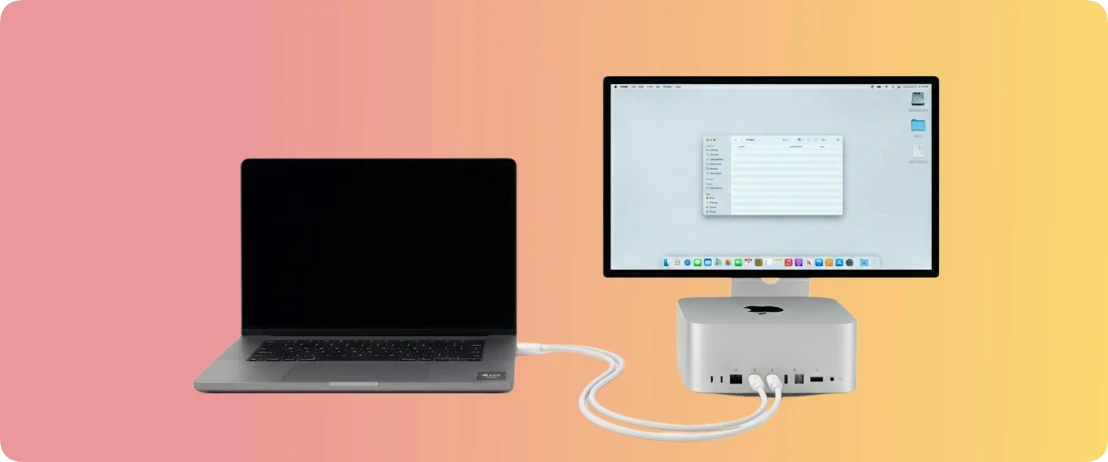
Step 1: Connect your crashed M5 Max Mac directly to a healthy secondary Mac using a high-quality Thunderbolt 4 or Thunderbolt 5 cable.
Step 2: Completely power down the crashed M5 Max Mac. Press and hold down the physical Power button. Do not let go until you see the text 'Loading Startup Options' display on the screen.

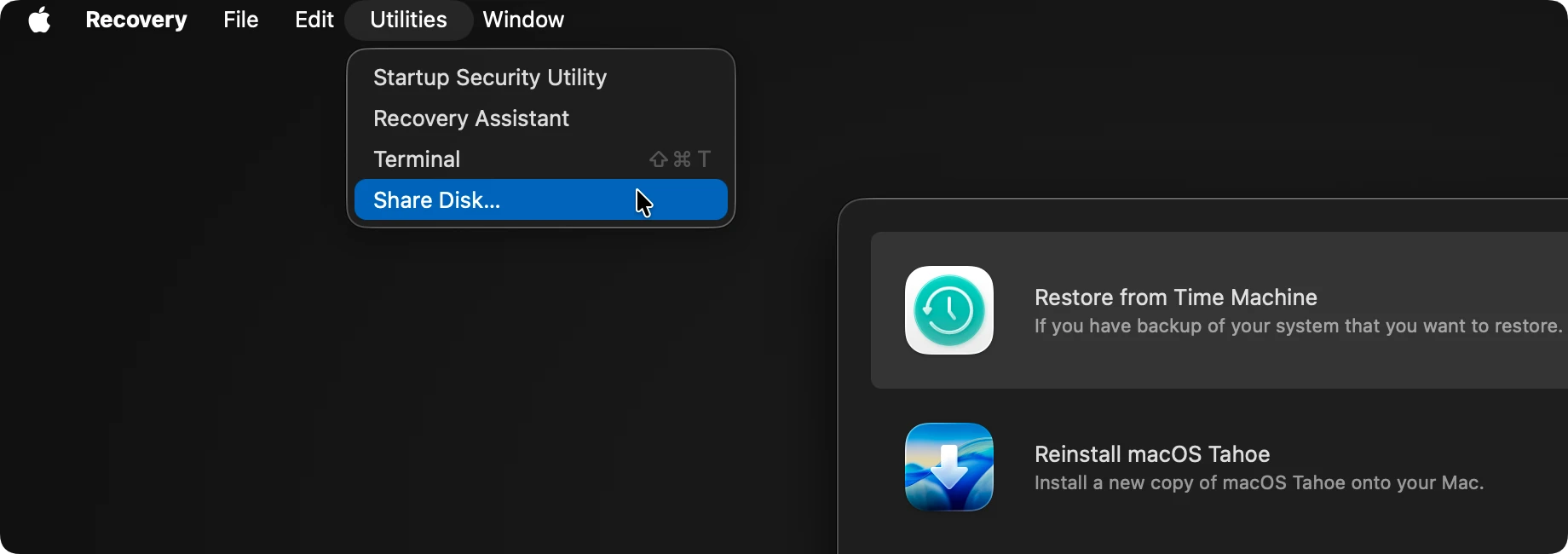
Step 3: Click on Options and select Continue to load the main macOS Recovery screen. Go to the top menu bar, click Utilities, and choose Share Disk.
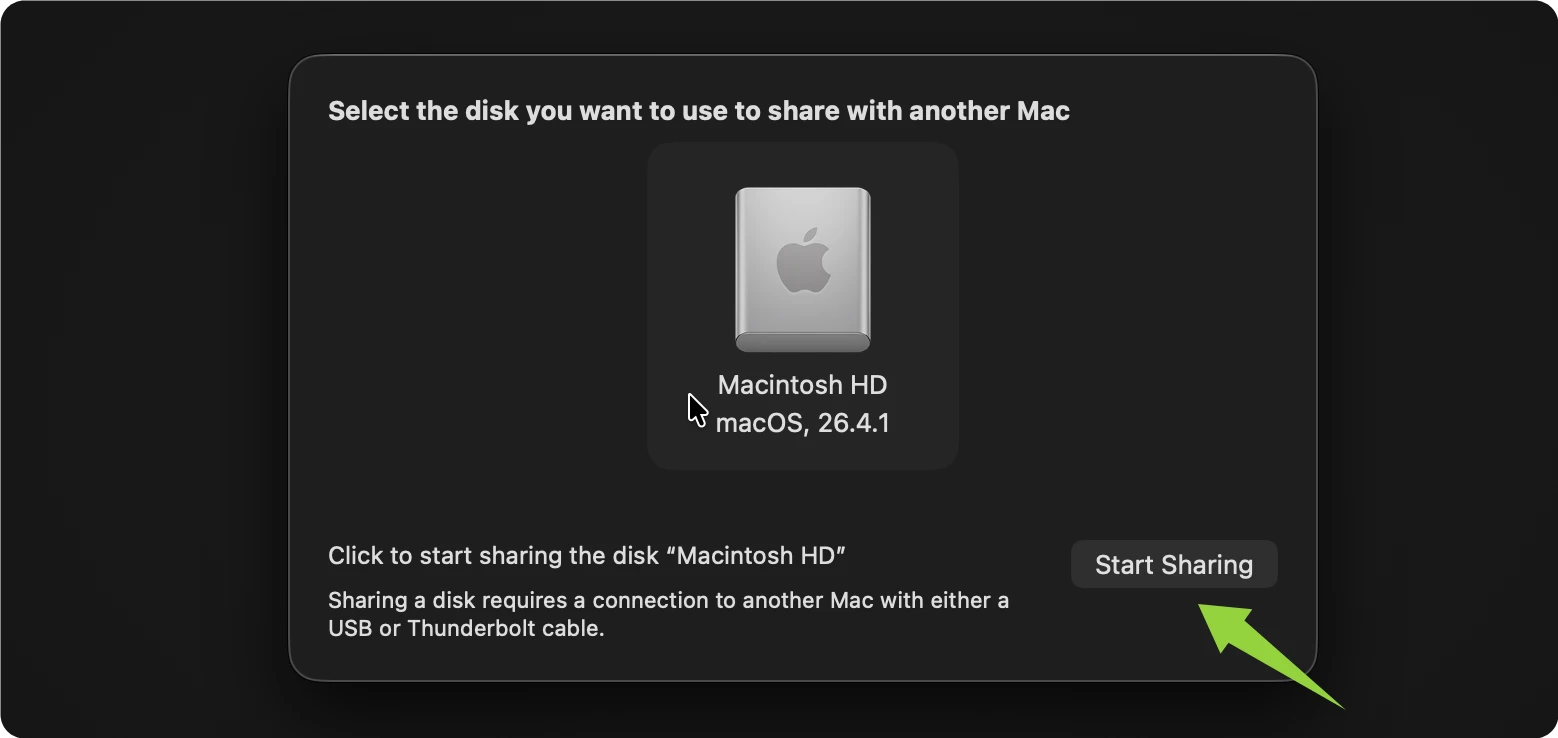
Step 4: Select your primary internal drive volume (typically 'Macintosh HD') and click Start Sharing. The crashed Mac's storage will now mount as an external drive on the desktop of your healthy Mac.
Step 5: Launch Donemax Data Recovery for Mac on the healthy Mac. The software will detect the shared drive volume. Select it, click Scan, preview your files, and save them safely onto the healthy Mac's local drive or an external storage device.

Experiencing a sudden system crash on a professional machine like the M5 Max Mac can be incredibly stressful, but data loss does not have to be permanent. By leveraging modern Apple Silicon recovery features like Share Disk Mode and pairing them with an optimization-aware utility like Donemax Data Recovery for Mac, you can bypass broken system directories and safely retrieve your critical files at home.
Don't risk your professional assets with erratic troubleshooting attempts. Secure your download of Donemax Data Recovery today, implement the correct recovery pipeline, and reclaim your digital peace of mind in just a few clicks!
Donemax Data Recovery for Mac
Donemax Data Recovery for Mac is one of the best Mac data recovery software. It is easy-to-use and can help in recovering deleted, formatted, inaccessible or lost data from Mac HDD/SSD, external disk, USB drive, SD card, camera or other storage devices.
Christina
Christina is the senior editor of Donemax software who has worked in the company for 4+ years. She mainly writes the guides and solutions about data erasure, data transferring, data recovery and disk cloning to help users get the most out of their Windows and Mac. She likes to travel, enjoy country music and play games in her spare time.
Gerhard Chou
In order to effectively solve the problems for our customers, every article and troubleshooting solution published on our website has been strictly tested and practiced. Our editors love researching and using computers and testing software, and are willing to help computer users with their problems