
Written byCharlesUpdated on Jun 05, 2026

Before we start: If you failed to make a clone for M5 Mac with Carbon Copy Cloner (CCC), you can change to the tool Donemax Disk Clone for Mac. The software fully supports M5 Mac and can create bootable clone easily.
PAGE CONTENT:
Upgrading to a blazing-fast M5 Apple silicon Mac is a thrilling experience. Everything is quicker, from starting up your computer to opening complex apps. But if you have been a loyal Mac user for a while, you might run into an unexpected headache when trying to set up your backup routine.
Many users who rely on Carbon Copy Cloner (CCC) have noticed a major roadblock: Carbon Copy Cloner can't clone on M5 Mac systems like it used to on old Intel models. If you are experiencing this issue, you are definitely not alone. It can be incredibly confusing when a trusted software program suddenly stops working on a brand-new computer.
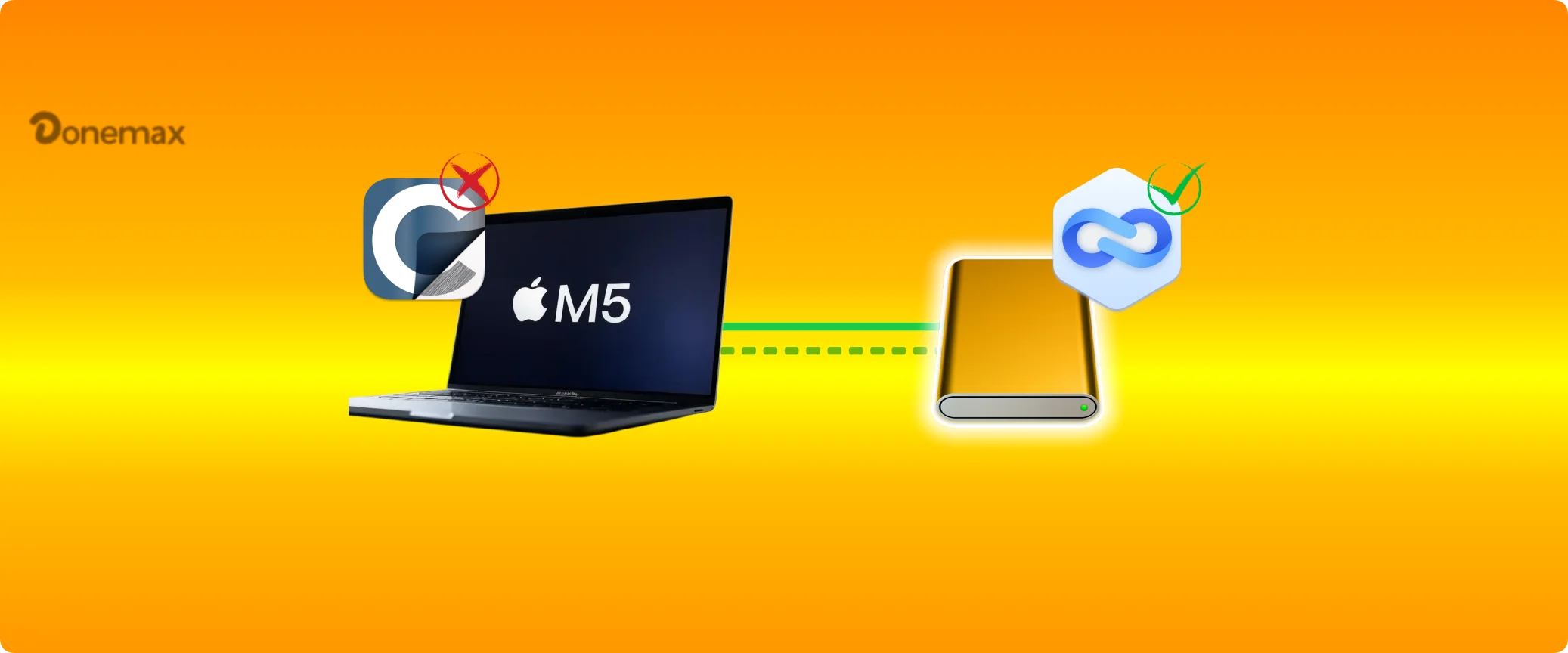
Fortunately, there is a simple explanation and a wonderful alternative. In this guide, we will break down exactly why traditional Mac cloning tools run into walls on newer Apple hardware, and introduce you to an easy-to-use solution: Donemax Disk Clone for Mac.
To understand why Carbon Copy Cloner struggles with cloning the startup drive on an M5 Mac, we have to look at the massive security upgrades Apple has made over the last few years.
On older Intel-based Macs, the system software and your personal data lived together quite loosely on the hard drive. Wiping a drive and creating a direct byte-for-byte clone was simple. Anyone could load up a tool, click a button, and copy everything over to an external drive.
Starting with recent macOS versions and peaking with the advanced M5 Apple silicon architecture, Apple completely redesigned the security foundation of its machines. Your Mac's startup drive is no longer just one giant pool of files. Instead, it is broken up into tightly locked compartments.
The core system files are stored on a completely separate, read-only volume. This volume is sealed cryptographically by Apple. Third-party software utilities are strictly blocked from writing to or replicating this system volume directly. Apple wants to ensure that no malicious code can ever touch or alter the core engine of your Mac.
Because Carbon Copy Cloner traditionally relies on copying these deep system layers, it hits a hard security wall built into the M5 chip architecture. This leaves home users looking for a fresh, compatible solution that understands modern Apple security.
If you are looking for an app that fills the gap, Donemax Disk Clone for Mac is the perfect answer. This powerful, safe, and incredibly user-friendly cloning software is fully optimized to handle the latest macOS versions and the complex M5 chip architecture.
Donemax Disk Clone for Mac does not try to fight Apple's strict internal security rules. Instead, it works alongside them. The software is engineered to cleanly mirror your files, settings, and apps while respecting the internal layout of your M5 Apple silicon chip.
✅ The Great Feature: Donemax Disk Clone for Mac allows you to effortlessly create a fully bootable backup of your M5 startup drive onto an external SSD. It handles the difficult technological heavy lifting behind the scenes, keeping the entire interface completely uncomplicated for home users.
Whether you need an emergency backup copy of your system, want to migrate your digital life to a larger drive, or simply want the peace of mind that comes with a perfect duplicate, Donemax makes the entire process pain-free.
Donemax Disk Clone for Mac is built with a highly intuitive dashboard. It provides three straightforward modes tailored to fit whatever task you are trying to accomplish:
You don't need any technical background or coding skills to use this program. The layout is clean and takes only a few clicks. Follow these easy steps to make a full and bootable clone for your M5 mac:
Step 1: Choose the OS Clone mode.
Open Donemax Disk Clone for Mac from your Applications folder. On the main interface, select the 'OS Clone' option on the left-hand menu panel.
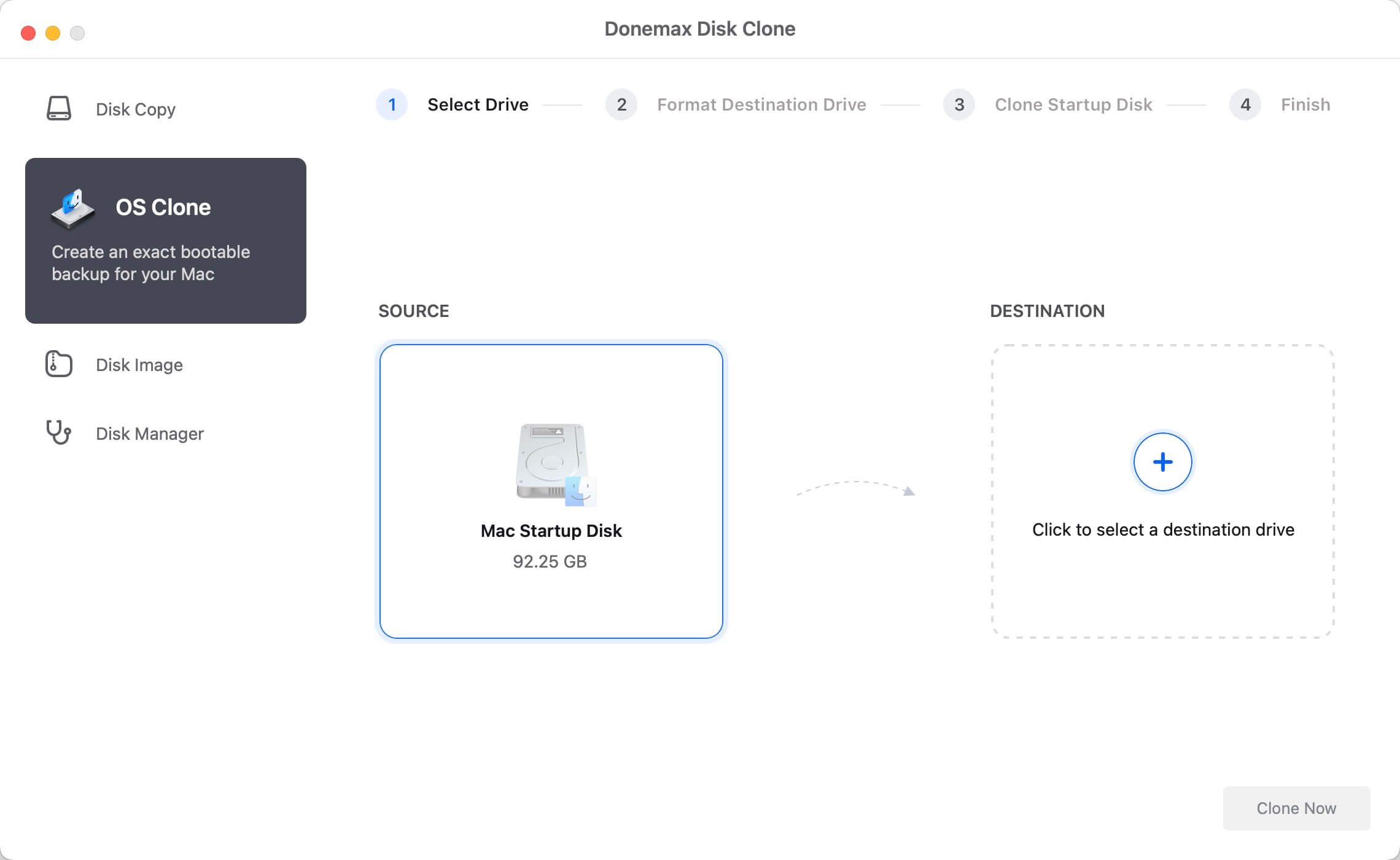
Step 2: Point to your destination drive.
The software will automatically detect your internal M5 Mac drive as the source. All you need to do is look at the list of connected devices and select your external SSD as the target destination.
💡 Tip: Please make sure there are no important files on this external drive, because the cloning process will overwrite its contents to create the copy.
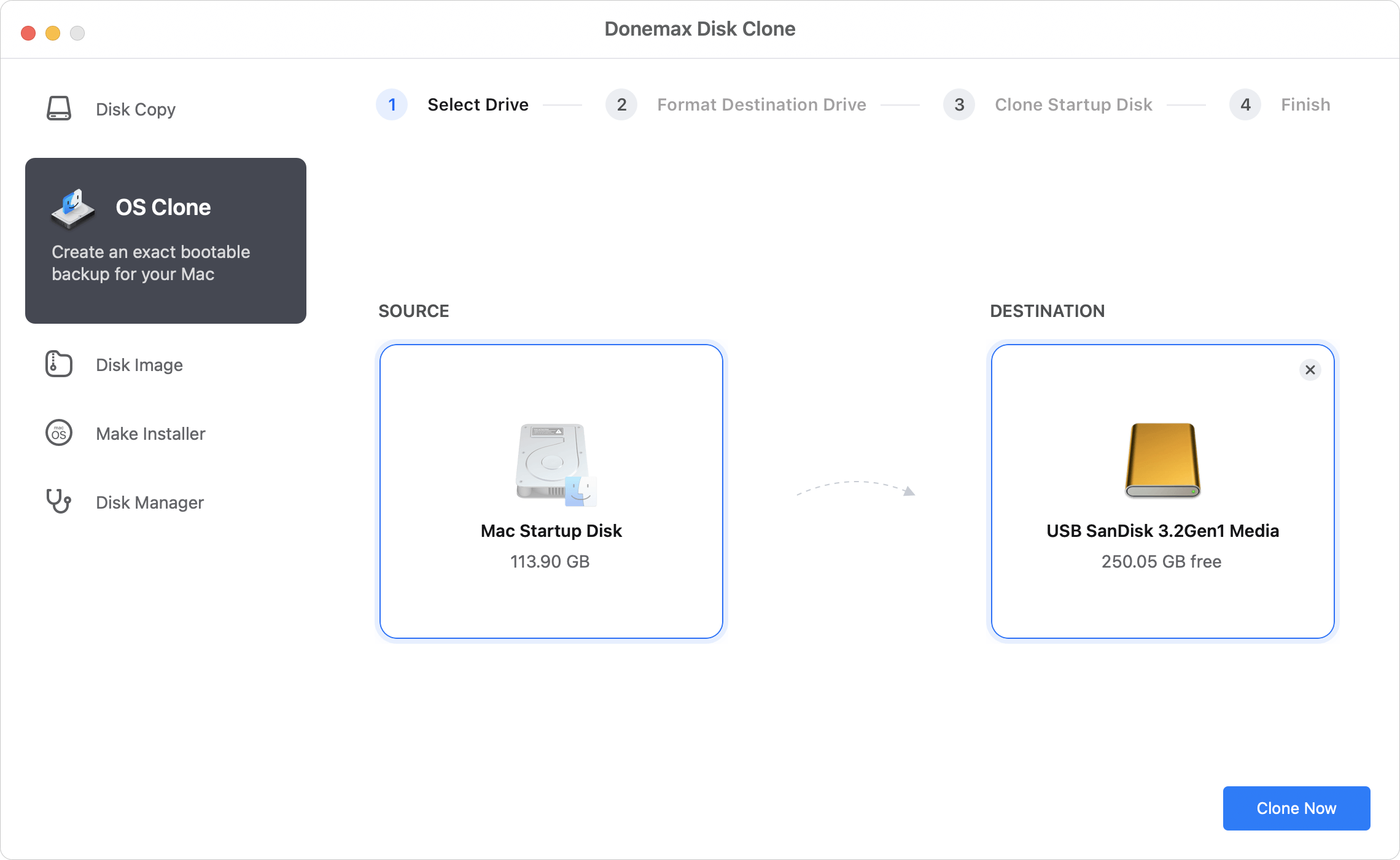
Step 3: Execute the clone.
Click the 'Clone Now' button. Donemax will immediately begin moving your data safely. Keep your Mac open and connected to a reliable power source while the progress bar fills up.
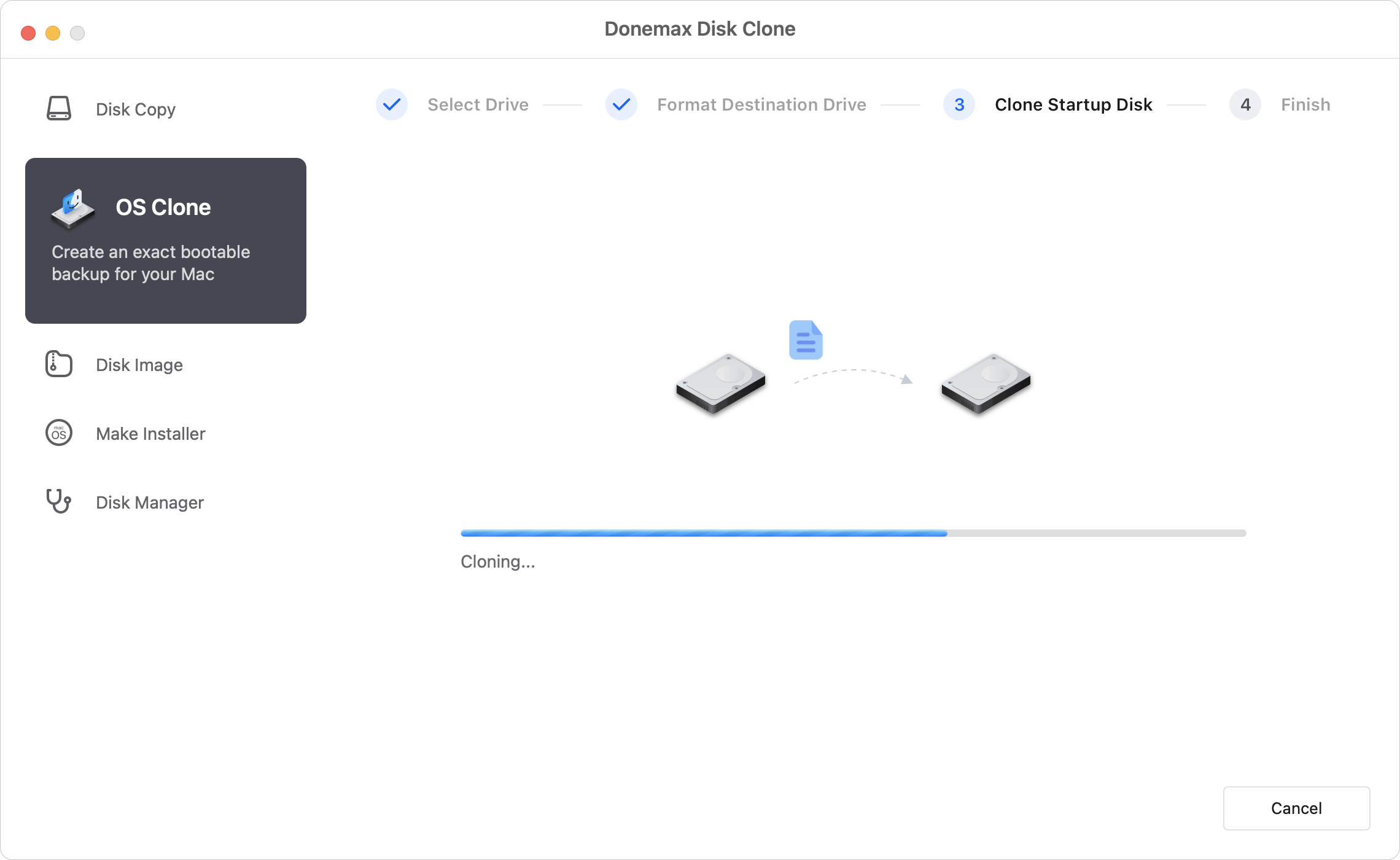
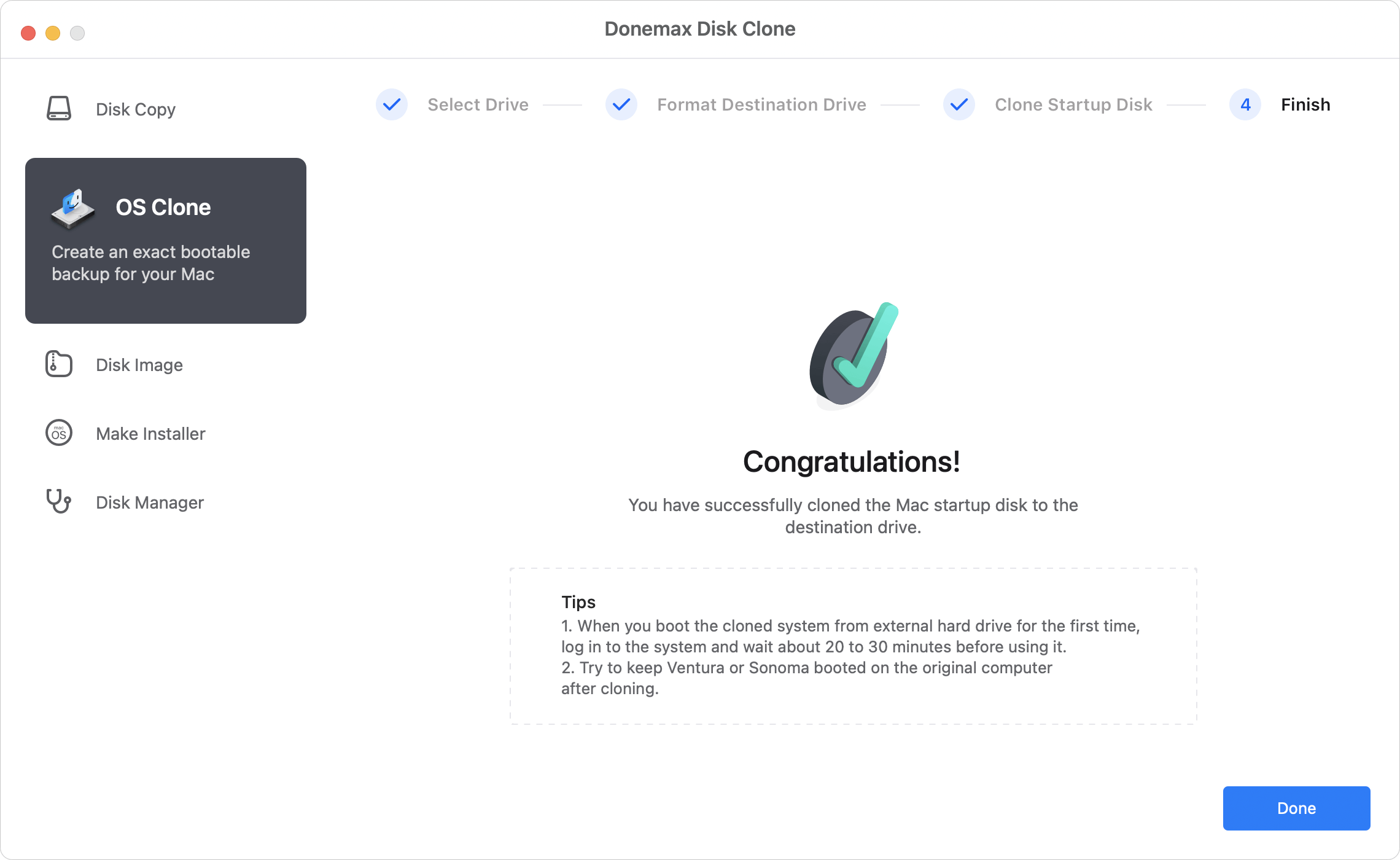
Step 4: Process complete.
Once the software displays a success notification, your data is completely secured. You now possess an exact, bootable backup of your M5 Mac that you can use for recovery at any time.
To keep your cloning experience smooth and protect your expensive Apple hardware, keep these quick best practices in mind:
It can be highly frustrating when old, reliable software programs like Carbon Copy Cloner can't clone on M5 Mac systems due to Apple's modern security guardrails. But this shouldn't leave your personal data unprotected.
By switching over to Donemax Disk Clone for Mac, you obtain a fully compatible tool built specifically for the needs of modern Apple silicon. It safely handles your data, protects your settings, and guides you through the process using a straightforward interface that anyone can understand. Give it a try today and make sure your valuable files are always backed up safely.
Donemax Disk Clone for Mac
An award-winning disk cloning program to help Mac users clone HDD/SSD/external device. It also can create full bootable clone backup for Macs.
Charles
Charles, who lives in Sydney, Australia, is an editor & writer of Donemax Team. He is good at writing articles related with Apple Mac computers, Windows operating systems, data recovery, data erasure, disk clone and data backup, etc. He loves reading and playing tennis in his spare time and is interested in testing new digital devices such as mobile phones, Macs, HDDs, SSDs, digital cameras, etc.
Gerhard Chou
In order to effectively solve the problems for our customers, every article and troubleshooting solution published on our website has been strictly tested and practiced. Our editors love researching and using computers and testing software, and are willing to help computer users with their problems

