
Written byStevenUpdated on Jun 12, 2026

Before we start: How to clone M-chip Mac? It's necessary to choose the reliable disk cloning software for M-chip Mac. Donemax Disk Clone for Mac is able to create complete and bootable clone backup for Apple Silicon Macs effectively.
PAGE CONTENT:
Upgrading your Mac or making a secure backup is an excellent way to ensure your files stay safe. For years, Mac users relied on third-party utilities to copy everything to external drives. If you own a modern Mac powered by Apple Silicon (such as an M1, M2, M3, M4 or M5 chip), finding the right cloning program has changed. Apple's modern hardware uses security measures that handle startup files differently than older Intel computers.
When looking for software, two popular solutions frequently stand out: Donemax Disk Clone for Mac and SuperDuper!. Both programs aim to save your files and duplicate your volumes, but they use very different approaches. This guide takes an in-depth look at Donemax Disk Clone for Mac VS SuperDuper! to help you decide which tool fits your needs best.
Cloning a storage drive used to be a simple, straightforward copy process. On older Intel-based Macs, software could copy every single sector from your internal drive onto an external drive. You could plug that external drive into almost any compatible Mac, hold down the Option key at startup, and boot directly from it. This provided a perfect system backup for emergencies.
With the launch of Apple Silicon chips, Apple changed the internal security architecture completely. Modern M-chip Macs feature a Secure Enclave tied deeply into the internal hardware. The operating system files are locked inside a cryptographically signed, read-only system volume (SSV).
Because of these deep hardware constraints, basic external copies cannot boot an M-chip Mac on their own. Instead, an M-chip Mac requires a precise, structure-aware tool that works harmoniously with Apple's built-in recovery protocols. This is exactly where the difference between older legacy utilities and modern, updated tools becomes clear.
Donemax Disk Clone for Mac is a modern utility built to address the unique file structures of newer macOS versions. It features an incredibly straightforward interface that removes all guesswork from data storage management. Users do not need a background in engineering to successfully migrate their computers.
The standout component of this software is its native 'OS Clone' mode. This specific feature recognizes your M1, M2, M3, M4 or M5 system structure instantly. It automates the process of copying the system files, application preferences, user metadata, and hidden parameters. It builds the necessary layout on your external hard drive or SSD so that it can serve as a dependable recovery device.
Beyond core operating system migration, Donemax gives you plenty of flexibility. It includes separate modes for copying single file directories, building compressed disk images (like .dmg packages), and managing local drives. This makes it a great multi-tool for everyday storage management.
SuperDuper! is a respected name in the world of Apple utilities. For over a decade, it helped millions of Intel Mac users create identical bootable system images. It earned praise for its stable engine and useful features, such as 'Smart Update' (an option that only copies new or changed files to save time) and 'Sandboxing'.
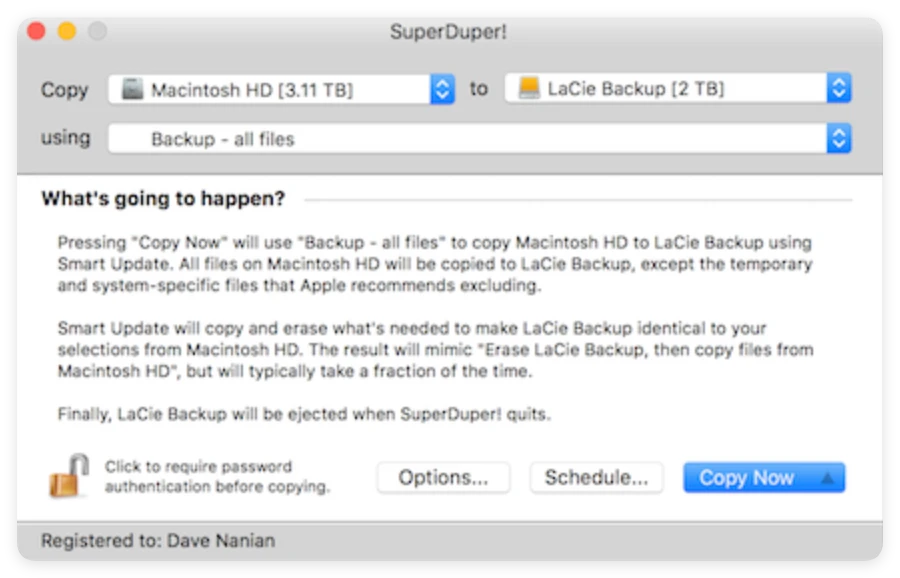
However, its underlying design reflects an older era of utility design. The user interface relies heavily on drop-down text menus and technical descriptions that can confuse casual users. Finding specific settings often requires browsing through detailed help menus.
When handling Apple Silicon, SuperDuper! faces some structural challenges. To create a bootable backup on an M-chip Mac, users cannot simply run a quick copy command. They must follow specific external instructions, which often involve using Apple's terminal utilities or manually installing the macOS setup package onto the destination disk first. This multi-step process can be overwhelming if you are looking for a fast, simple solution.
To better understand how these two applications stack up, let us examine their features side by side across several key categories:
User Interface and Learning Curve
Donemax uses a modern application design with clean, distinct buttons for each primary function. You choose your mode, select your destination, and click a single button.
SuperDuper! uses a traditional interface full of dense drop-down text configurations. If you do not know technical storage terms, SuperDuper! can feel intimidating.
Apple Silicon Compatibility and Bootable Clones
Donemax Disk Clone handles M-chip background requirements directly within its engine. Its 'OS Clone' mode writes both the data data and the recovery layout automatically.
SuperDuper! struggles to manage the Signed System Volume natively on M-chips without extra setup steps from the user, making its setup process significantly longer.
Cloning Flexibility and File Selection
Donemax allows you to copy your complete system, package files into a single compressed disk image, or select individual folders to copy. This helps save space if your destination drive is small.
SuperDuper! is mainly designed for full-disk operations; excluding specific folders can be difficult and requires configuring complex exclusion rules.
Pricing and Total Value
Donemax provides its complete feature set, including disk management and bootable installer tools, for an affordable price of around $19.95.
SuperDuper! costs $27.95 to unlock essential automated features like scheduling and its Smart Update tool.
| Feature Category | Donemax Disk Clone for Mac | SuperDuper! |
|---|---|---|
| M-Chip Boot Support | Fully automated via 'OS Clone' feature | Requires extra steps and manual OS installation |
| User Interface | Clean, modern, and simple for beginners | Traditional text-based menus, higher learning curve |
| File Selection | Supports copying specific files or whole disks | Mainly handles full-disk copies; hard to filter |
| Price Point | Highly cost-effective (approx. $19.95) | One-time purchase (approx. $27.95) |
When evaluating Donemax Disk Clone for Mac VS SuperDuper! specifically for an M-chip Mac, Donemax emerges as the clear winner for several key reasons:
Creating a complete bootable backup of your M-chip Mac is straightforward with Donemax Disk Clone. Follow these simple steps to set up your recovery drive:
Step 1: Connect Your External Drive
Plug your external hard drive or SSD into your M-chip Mac. Make sure the drive has enough free space to hold all the data from your Mac's internal storage. Open Apple's built-in Disk Utility and format the external drive as APFS to ensure full compatibility.
Step 2: Launch Donemax and Select OS Clone
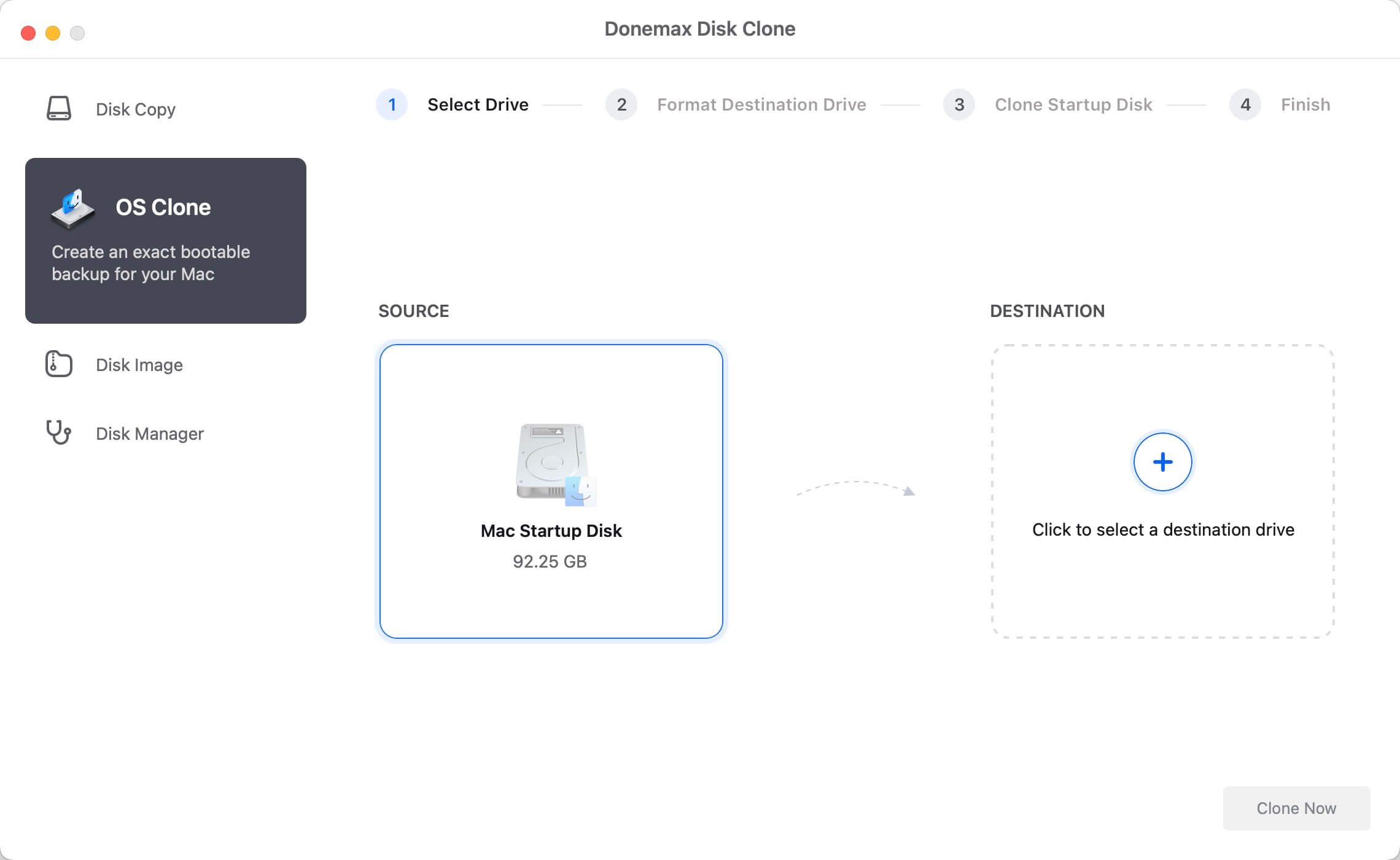
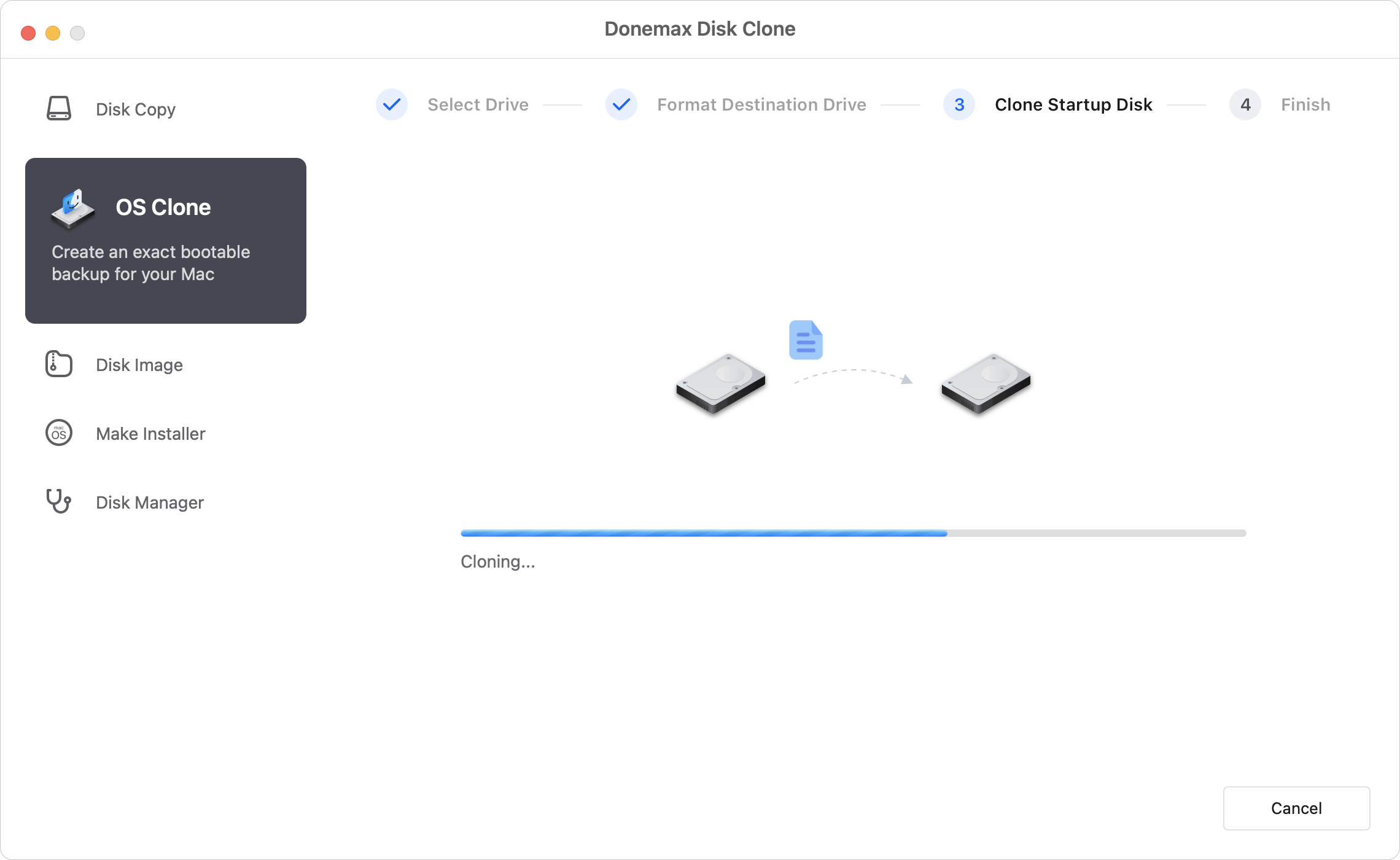
Open Donemax Disk Clone for Mac from your Applications folder. Look at the left sidebar menu and select the 'OS Clone' mode. This mode is specifically designed to create an exact, bootable duplicate of your operating system.
Step 3: Choose Your Target Destination Drive
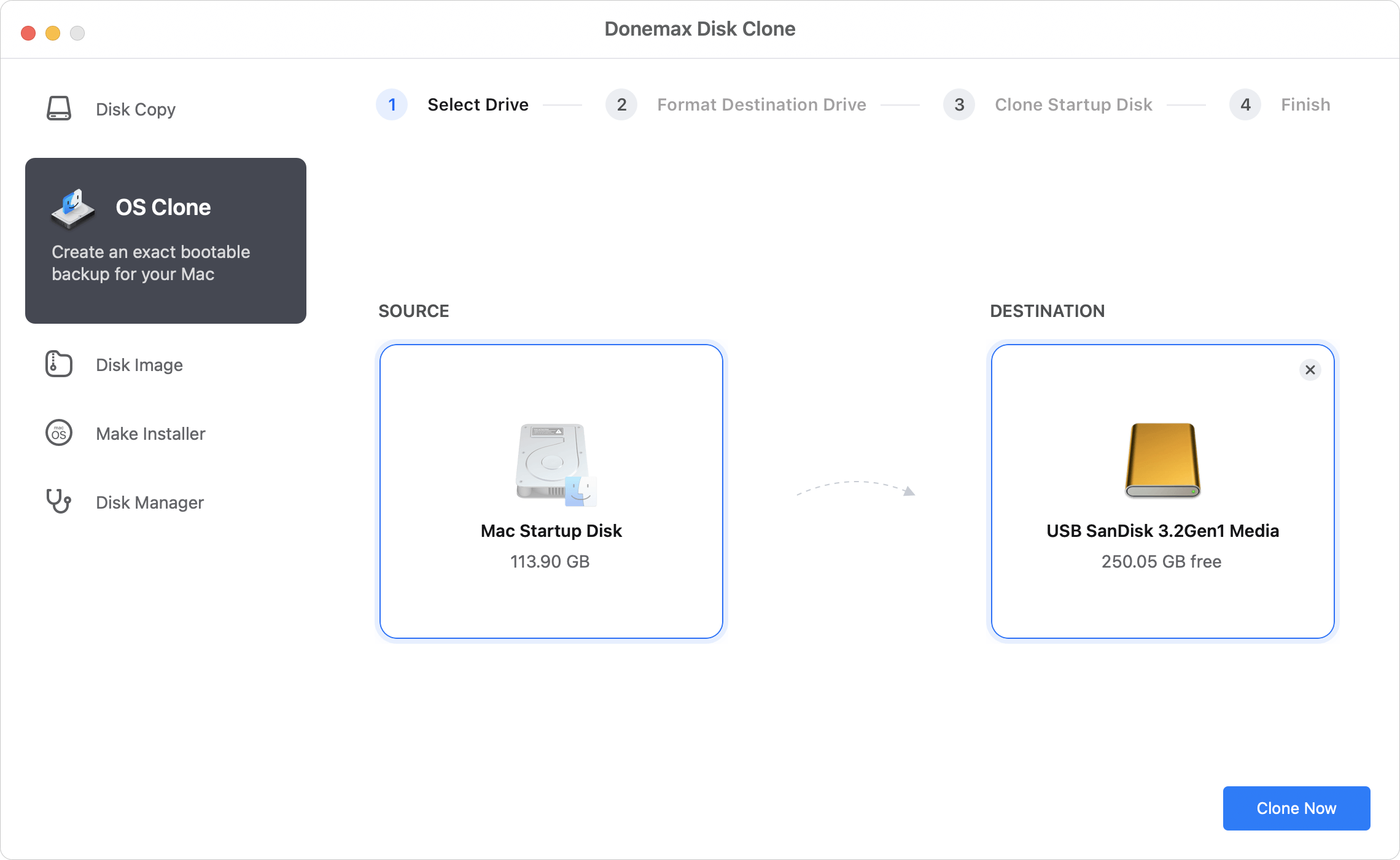
The software will automatically detect your Mac's internal startup drive as the source. All you need to do is select your newly formatted external drive as the target destination where the data will be saved.
Step 4: Click Clone Now and Wait
Click the blue 'Clone Now' button. Donemax will safely configure the system layouts and copy your files. Keep your Mac plugged into power and avoid disconnecting the drive until the program displays a completion message.
When looking closely at Donemax Disk Clone for Mac VS SuperDuper!, the right choice comes down to how much time and effort you want to spend on your backups. SuperDuper! is a reliable tool with a long history on Intel Macs, but its manual setup requirements on Apple Silicon feel a bit outdated for today's fast-moving tech environment.
For modern M-chip Macs, Donemax Disk Clone for Mac is the clear winner. It removes all the technical headache by turning a complicated, multi-step command process into a simple, one-click operation. It works seamlessly with Apple’s strict security protocols to give you a dependable, bootable clone without requiring you to be a computer engineer.
If you want a modern, fast, and easy way to protect your system and files, Donemax Disk Clone for Mac is the perfect tool for the job. Download Donemax Disk Clone for Mac today and create your first secure bootable backup in just a few minutes!
Donemax Disk Clone for Mac
An award-winning disk cloning program to help Mac users clone HDD/SSD/external device. It also can create full bootable clone backup for Macs.
Steven
Steven has been a senior writer & editor of Donemax software since 2020. He's a super nerd and can't imagine the life without a computer. Over 6 years of experience of writing technical solutions and software tesing, he is passionate about providing solutions and tips for Windows and Mac users.
Gerhard Chou
In order to effectively solve the problems for our customers, every article and troubleshooting solution published on our website has been strictly tested and practiced. Our editors love researching and using computers and testing software, and are willing to help computer users with their problems

