Written byChristinaUpdated on Apr 28, 2026

Before we start: If your browser feels slow, websites look outdated, or pages are not loading properly, clearing the browser cache on your Mac can often fix the problem instantly. Donemax DMcleaner for Mac is a reliable and safe tool that can clear browser cache and other junk data on Mac.
PAGE CONTENT:
Have you ever noticed your Mac feeling a bit sluggish while browsing? Maybe a website layout looks "broken," or a page you know was updated is still showing old information. Usually, the culprit isn't your internet connection or your Mac's hardware—it's a bloated or corrupted browser cache.
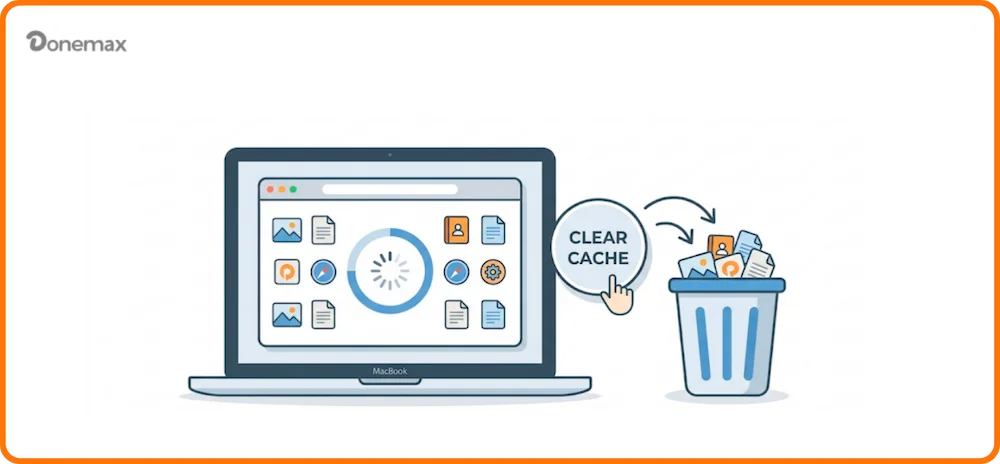
In this guide, we'll walk through exactly how to clear browser cache on Mac across all major platforms. Whether you are a casual home user or a pro dev, these steps will help you reclaim speed and fix display errors in seconds.
Think of browser cache as your browser's "short-term memory." To save time, your browser (Safari, Chrome, etc.) downloads elements of a website—like images, logos, and scripts—and stores them locally on your Mac.
The next time you visit that site, the browser pulls those files from your hard drive instead of downloading them again from the internet. This results in:
If a website owner updates their site design but your Mac is still holding onto the old files, you run into trouble. You might see:
Learning how to clear browser cache on Mac is the simplest way to "force" your browser to see the internet as it is right now.
Before we dive into the "how-to," let's clear up a common myth: Clearing your cache does not mean losing your passwords.
Feature |
What it is |
Should you clear it? |
|---|---|---|
Cache |
Stored images and site files. |
Yes, for performance/loading fixes. |
Cookies |
Files that keep you logged in and remember settings. |
Only if you're okay with logging back into every site. |
History |
A list of every page you've visited. |
Only for privacy reasons. |
Safari is highly optimized for Mac, but its cache settings are hidden behind a "Develop" menu that you need to turn on first.
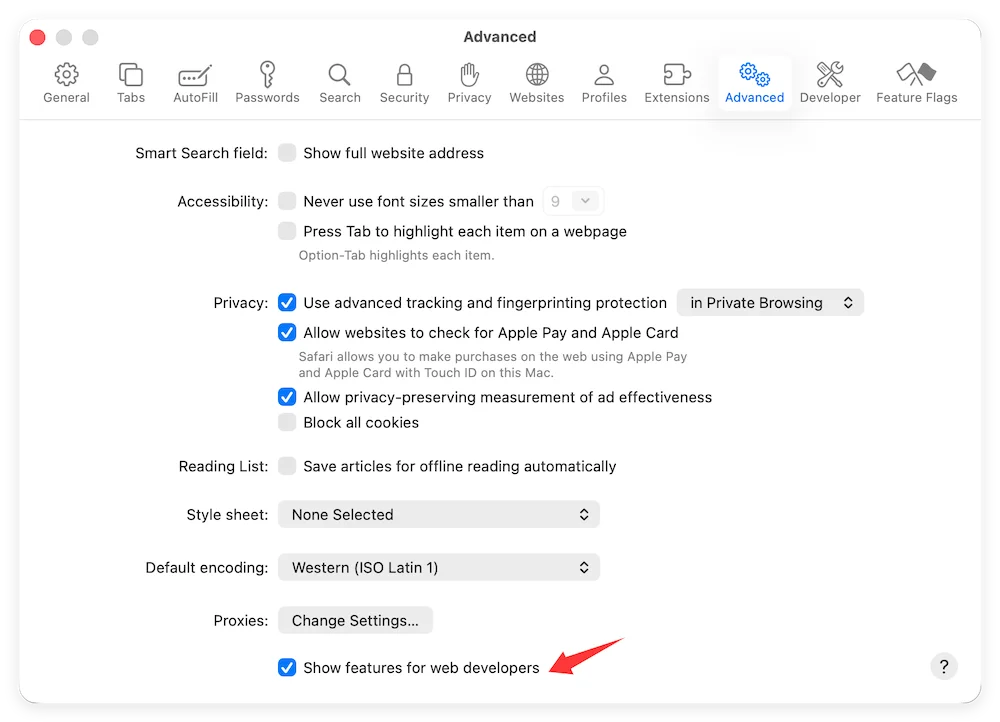
Step 1: Enable the Develop Menu
Step 2: Empty the Caches
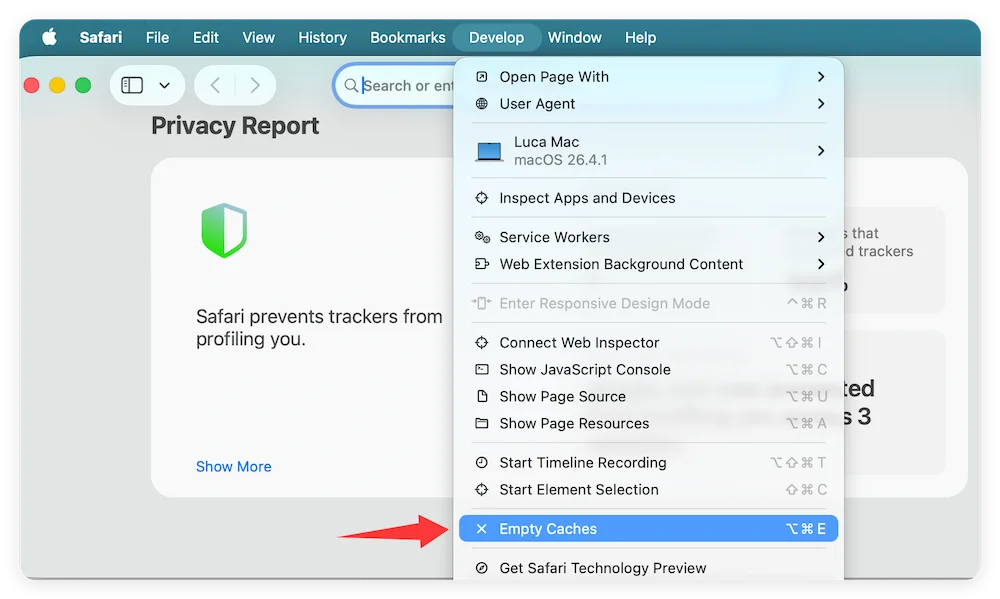
💡 Pro Tip: Use the shortcut Option + Command + E for an instant clear.
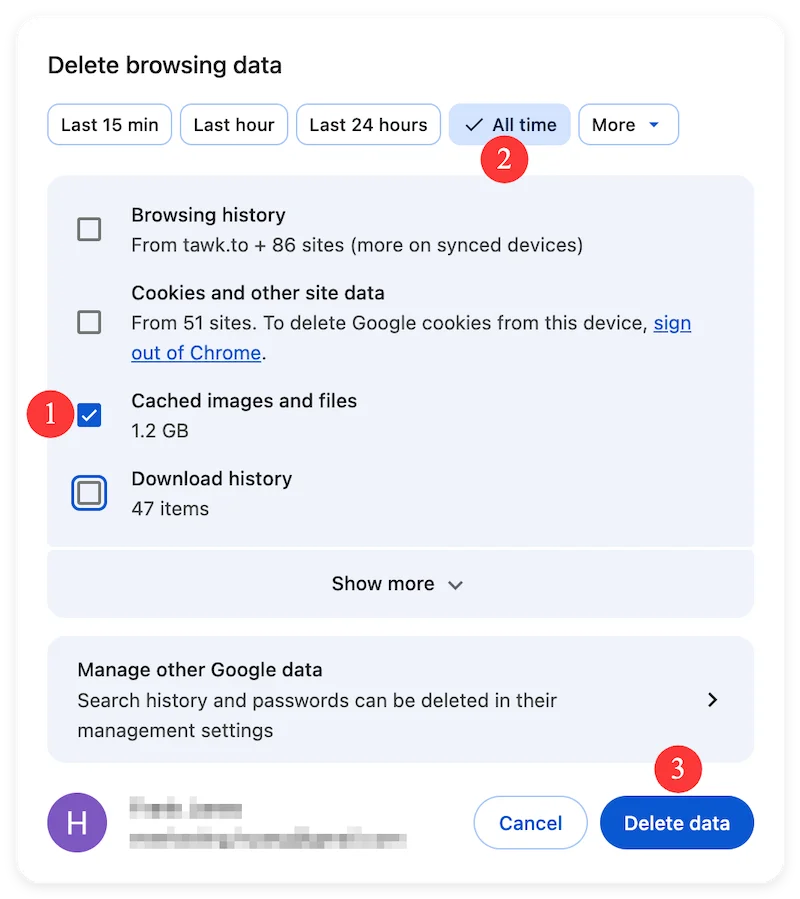
Chrome is the most popular browser for Mac users who value extensions and cross-device syncing.
The Fast Way: Press Command + Shift + Delete to jump straight to the settings window.
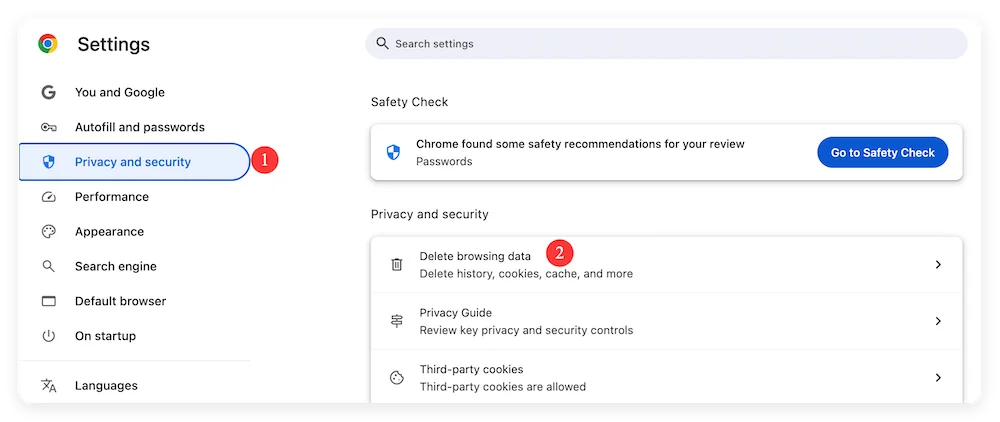
The Manual Way:
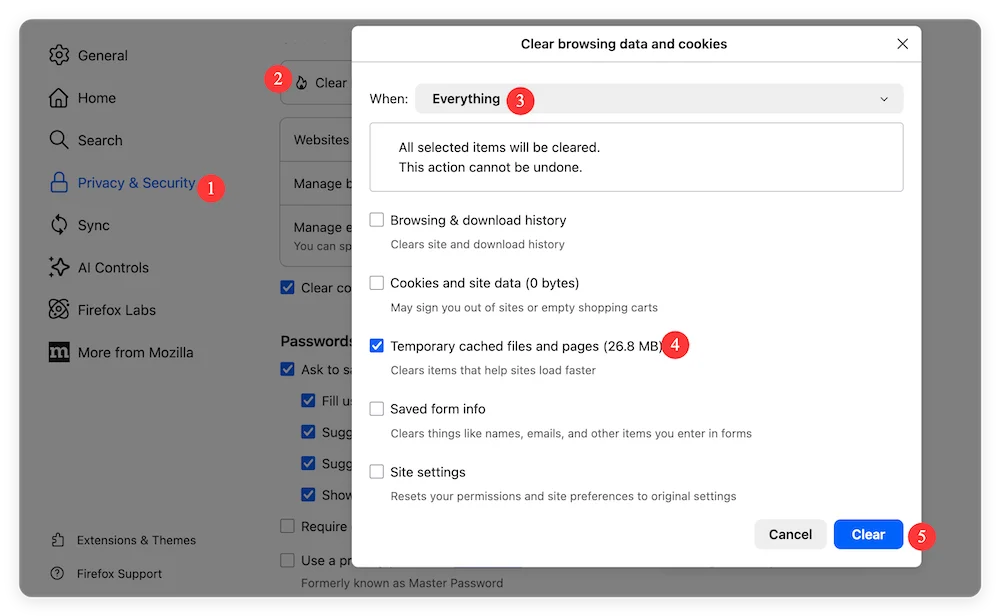
Firefox offers excellent privacy controls and makes it very easy to isolate cache from your passwords.
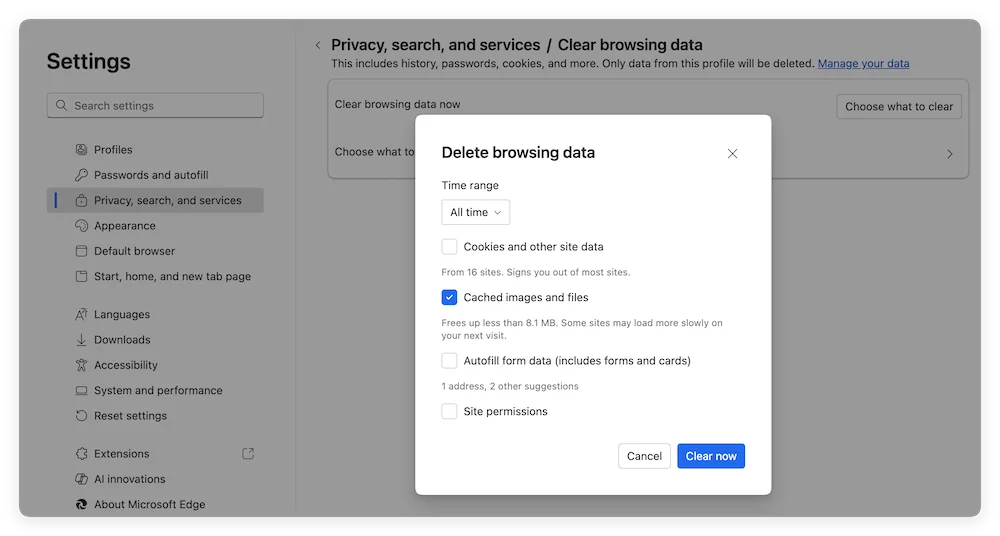
Since Edge is based on the Chromium engine, its process is nearly identical to Chrome.
Sometimes you don't need to wipe your entire browser's memory—you just need one specific webpage to behave. A Hard Refresh bypasses the cache for the current tab only.
If your whole Mac feels sluggish (not just the browser), you may need to clear your System Cache. This is more advanced and should be done with caution.
💡 Note: Only do this if you are comfortable troubleshooting your Mac, as some system files are essential.
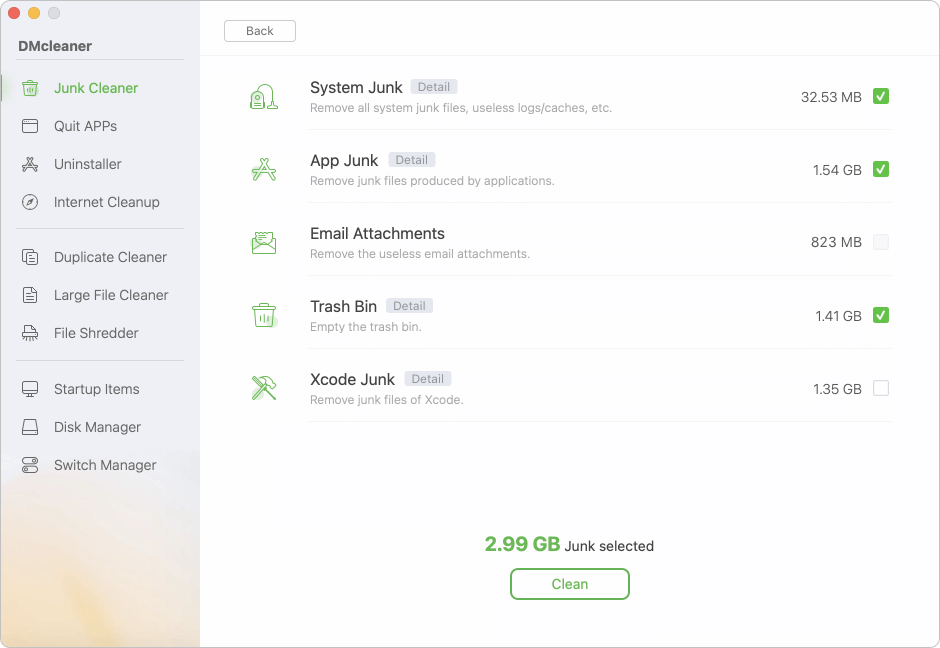
Manually clear cache data of browsers or system will take time. Also, it may be risky and deleting the important data. To make the task simple and safe, a professional Mac cleanup tool is recommended.
You can use the software Donemax DMcleaner for Mac. With the software, you can not only clear the browsers' cache data, but also securely remove the other junk data from your Mac.
To clear the browser cache data, just run the software and choose Internet Cleanup option. Choose a browser to scan and clean up.
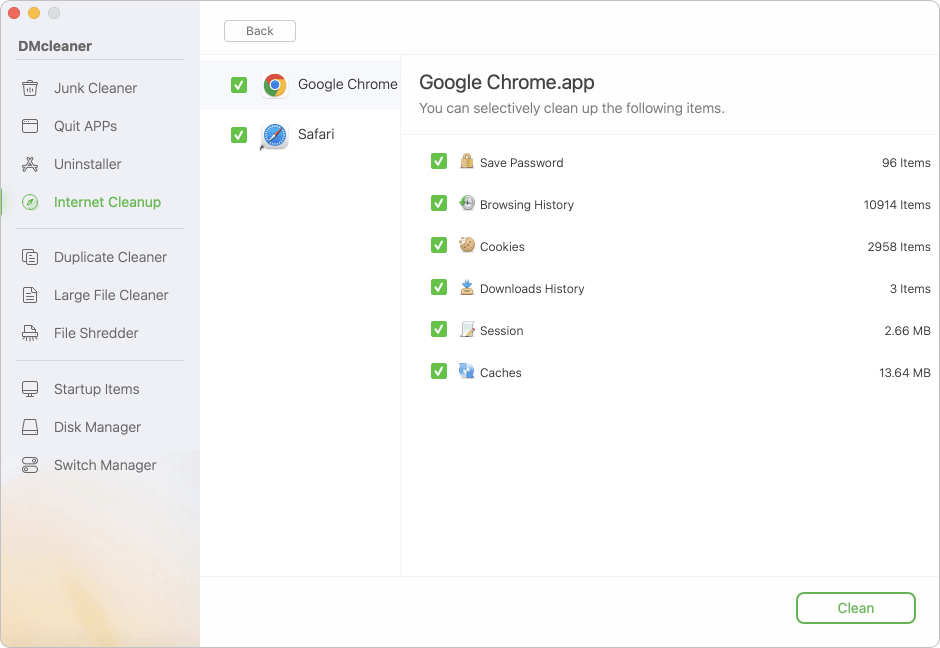
You can also choose Junk Cleaner option to remove the system cache data, app junk data and so on.
By following this guide on how to clear browser cache on Mac, you are ensuring:
If you've cleared your cache and still have issues, try restarting your Mac or disabling third-party extensions that might be interfering with page loads. Happy browsing!
Now you fully understand how to clear browser cache on Mac across Safari, Chrome, Firefox, and Edge. Clearing cache is one of the fastest ways to fix slow browsing, outdated pages, and login issues. It is a simple troubleshooting step that can resolve many common web problems within seconds.
For most users, clearing cache occasionally is enough to maintain smooth browser performance. Developers and advanced users may need to clear it more frequently when testing website updates.
If your browser starts acting strangely, remember: clearing cache is often the quickest and safest solution.
By following this guide, you can confidently manage your browser storage and keep your Mac running efficiently.
Donemax DMcleaner for Mac
Donemax DMcleaner for Mac is an award-winning Mac cleanup & maintenance tool. It offers over 10 tools to help Mac users clean junk data. It helps speed up a slow Mac. Additionally, it includes a smart switch manager and disk manager for Mac.
Christina
Christina is the senior editor of Donemax software who has worked in the company for 4+ years. She mainly writes the guides and solutions about data erasure, data transferring, data recovery and disk cloning to help users get the most out of their Windows and Mac. She likes to travel, enjoy country music and play games in her spare time.
Gerhard Chou
In order to effectively solve the problems for our customers, every article and troubleshooting solution published on our website has been strictly tested and practiced. Our editors love researching and using computers and testing software, and are willing to help computer users with their problems