
Written byMariaUpdated on Sep 07, 2026

Before we start: To clear the system junk, cache or other junk data on Mac, the best choice is using the professional cleanup tool Donemax DMcleaner for Mac. The software can easily remove the junk data to speed up Mac and optimize the Mac performance.
PAGE CONTENT:
The M5 Mac Pro is a monster of a workstation. Packed with Apple's cutting-edge M5 silicon, it handles heavy video editing, 3D rendering, and software development without breaking a sweat. But even the fastest computer in the world can run into a common wall over time: system clutter.

When you use your M5 Mac Pro day after day, macOS accumulates temporary files, application logs, outdated caches, and leftover app debris. Eventually, you might notice your SSD space shrinking, or pro apps acting sluggish. In this guide, you will learn exactly how to clear system junk and cache on M5 Mac Pro to keep your setup running at peak performance.
You might wonder why a high-end machine like the M5 Mac Pro accumulates so much junk. The reason lies in how macOS and modern applications operate behind the scenes.
Whenever you launch a program, load a project, or stream media, your system creates temporary files called caches. Caches are designed to speed things up by saving frequently used data so it doesn't have to be re-created from scratch.
However, many applications forget to clean up after themselves. Over months of heavy use, these temporary files stack up inside your System Data category. Instead of speeding up your Mac, gigabytes of stale cache files end up cluttering your SSD and slowing down file indexing.
Clearing system junk and cache on M5 Mac Pro is a routine maintenance task that provides several immediate benefits:
If you prefer to clean your Mac manually without installing extra tools, macOS gives you direct access to user cache folders. Follow these simple steps carefully.
Step 1: Clear User Caches in Finder
💡 Tip: It is best practice to delete the contents inside the app folders, rather than deleting the main app folders themselves. macOS will automatically rebuild fresh cache files when needed.
Step 2: Clear System Caches & Logs
Step 3: Remove Old Downloads and iOS Backups
Large installer packages (.dmg files) and outdated iPhone or iPad backups frequently hide inside your local storage.
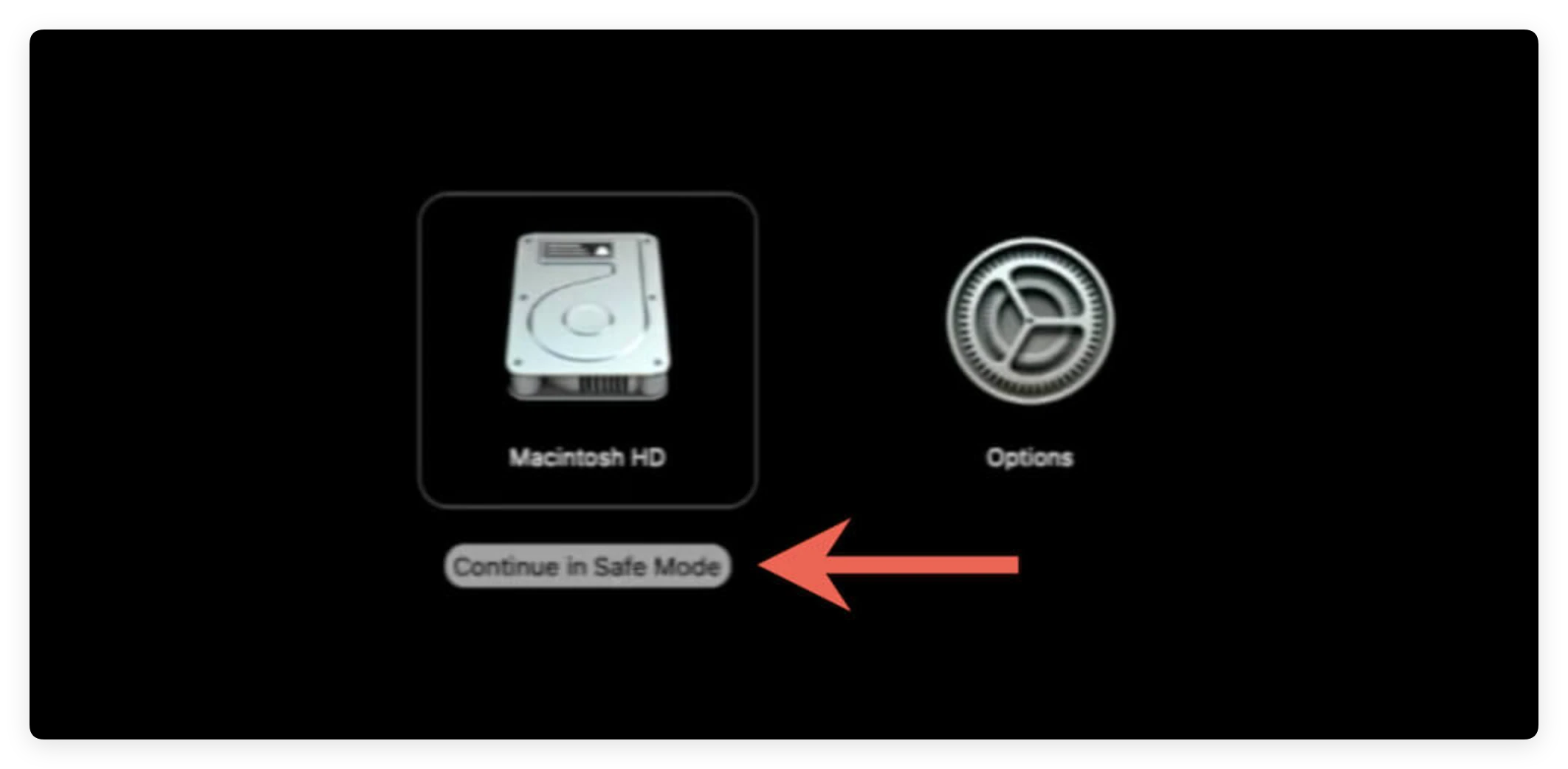
Did you know that booting your M5 Mac Pro into Safe Mode automatically runs built-in system maintenance? Safe Mode clears system-level caches and checks your startup disk for file errors.
How to Boot M5 Mac Pro into Safe Mode:
While manual cleaning works, searching through hidden Library folders takes time and carries the risk of accidentally deleting important system files. If you want a fast, safe, and automated solution, Donemax Mac Cleaner is the ideal tool.
Donemax Mac Cleaner is designed specifically for modern macOS systems, including the latest M-series chips like the M5. It scans your entire system in seconds and identifies safe-to-remove junk files with a single click.
Why Choose Donemax Mac Cleaner?
3 Easy Steps to Clear Junk with Donemax Mac Cleaner:
Step 1: Download & Install: Download Donemax Mac Cleaner, install and launch it on your M5 Mac Pro.
Step 2: Start Scan: Click the 'Junk Cleaner' tab and hit the 'Scan' button. The software will analyze your drive in seconds.
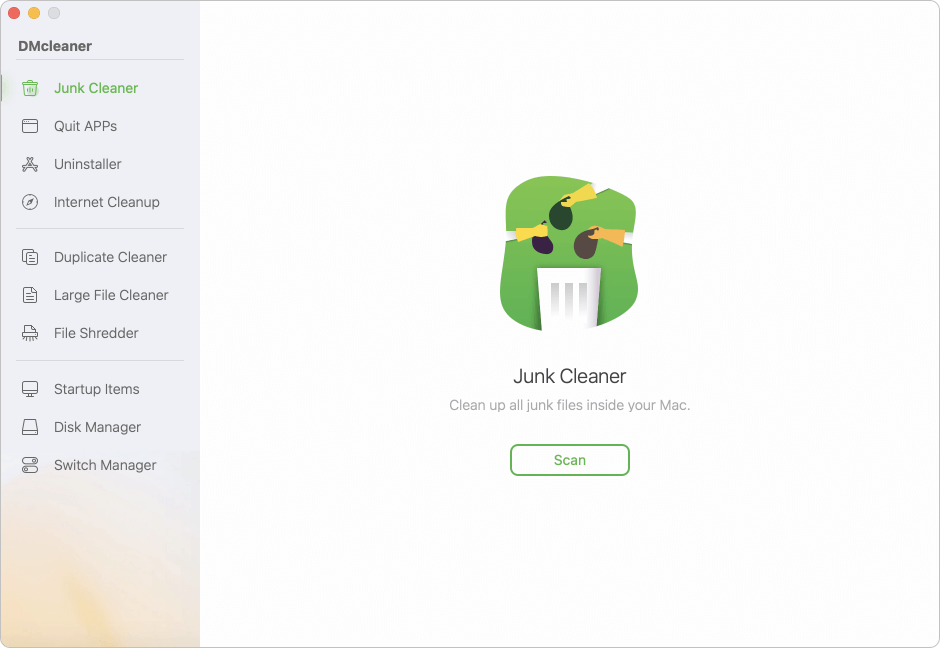
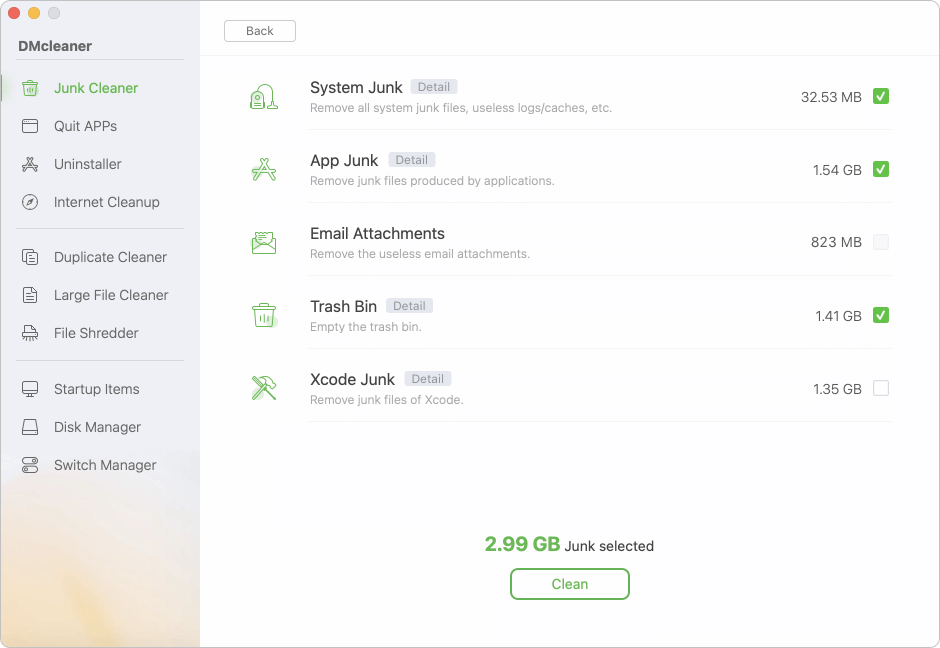
Step 3: One-Click Clean: Review the categorized junk files and click 'Clean' to immediately reclaim gigabytes of free disk space.
| Feature | Manual Cleanup | Donemax Mac Cleaner |
|---|---|---|
| Speed & Convenience | Time-consuming (15-30 mins) | Instant (1-click scan) |
| Safety Level | Moderate (Risk of wrong deletion) | 100% Safe (Automated filters) |
| App Leftover Cleanup | Requires searching hidden folders | Automatic detection & removal |
| System Optimization | Limited to manual file moves | Includes RAM clean & startup manager |
| Ease of Use | Requires technical steps | Simple GUI for all users |
Your M5 Mac Pro is a powerful investment, and keeping it clean ensures you get the absolute best performance out of Apple's hardware. Whether you choose to manually clear cache folders or use a convenient tool like Donemax Mac Cleaner, regular system maintenance is key.
If you want to save time and keep your workstation in top shape effortlessly, download Donemax Mac Cleaner today and enjoy a clean, fast, and optimized Mac!
Donemax DMcleaner for Mac
Donemax DMcleaner for Mac is an award-winning Mac cleanup & maintenance tool. It offers over 10 tools to help Mac users clean junk data. It helps speed up a slow Mac. Additionally, it includes a smart switch manager and disk manager for Mac.
Maria
Maria is one of the senior writers & editors of Donemax who lives and works in Sydney, Australia. She loves PC, Mac and Internet Technology. She has 6 years of writing articles about data recovery on PC/Mac, disk cloning solution, data eraser and computer OS optimization, etc. She is also interested in testing various software and digital products.
Gerhard Chou
In order to effectively solve the problems for our customers, every article and troubleshooting solution published on our website has been strictly tested and practiced. Our editors love researching and using computers and testing software, and are willing to help computer users with their problems