
Written byChristinaUpdated on Sep 22, 2026

Before we start: When drag the app to Trash on MacBook Neo doesn't mean the app is completely removed. There are leftovers on the system which will occupy some disk space. Donemax DMcleaner for Mac can completely uninstall apps without leaving leftovers, which can help you save space on Mac.
PAGE CONTENT:
Getting a new MacBook Neo is an exciting upgrade. With its ultra-fast processing and sleek macOS architecture, performance is rarely an issue out of the box. However, as you install new tools, creative suites, games, and productivity applications, system clutter inevitably accumulates.
Many users assume that dragging an app icon to the Trash completely removes it from their MacBook Neo. Unfortunately, macOS leaves behind hidden cache files, user preferences, application support folders, and system logs. Over time, these residual files consume valuable SSD storage and slow down overall system performance.

In this guide, we will explore why standard app deletion isn't enough and review the best uninstaller software for MacBook Neo apps to keep your device running like new.
When you install an application on macOS, it places core operational files across several system directories beyond the main Applications folder. When you drag an app to the Trash, only the main application bundle (.app) is deleted.
The following lingering components often remain behind on your storage drive:
To reclaim disk space and prevent background memory consumption, using a dedicated Mac app uninstaller is essential.
When selecting an uninstaller for your MacBook Neo, keep these crucial factors in mind:
Here is a quick overview comparing the top uninstaller solutions available for MacBook Neo:
| Software Name | Key Feature | Ease of Use | Best For |
|---|---|---|---|
| Donemax DMcleaner for Mac | 1-Click Full App & Leftover Removal | Very High | Overall Best Performance & Value |
| CleanMyMac X | All-in-one System Utility | High | Full Suite System Optimization |
| AppCleaner | Basic Drag-and-Drop | Medium | Simple Lightweight Removal |
| Hazel | Automated Trash Triggers | Medium | Background File Monitoring |
Among all available options, Donemax DMcleaner for Mac stands out as a powerful, lightweight, and intuitive solution tailored specifically for modern Mac hardware.
Whether you are cleaning out large applications, removing leftover traces from previous manual deletions, or managing startup items, Donemax DMcleaner provides an effortless experience.
Uninstalling applications and removing leftover files with Donemax DMcleaner takes just three easy steps:
Step 1: Download and Install Donemax DMcleaner - Download DMcleaner for Mac and install it on your MacBook Neo.
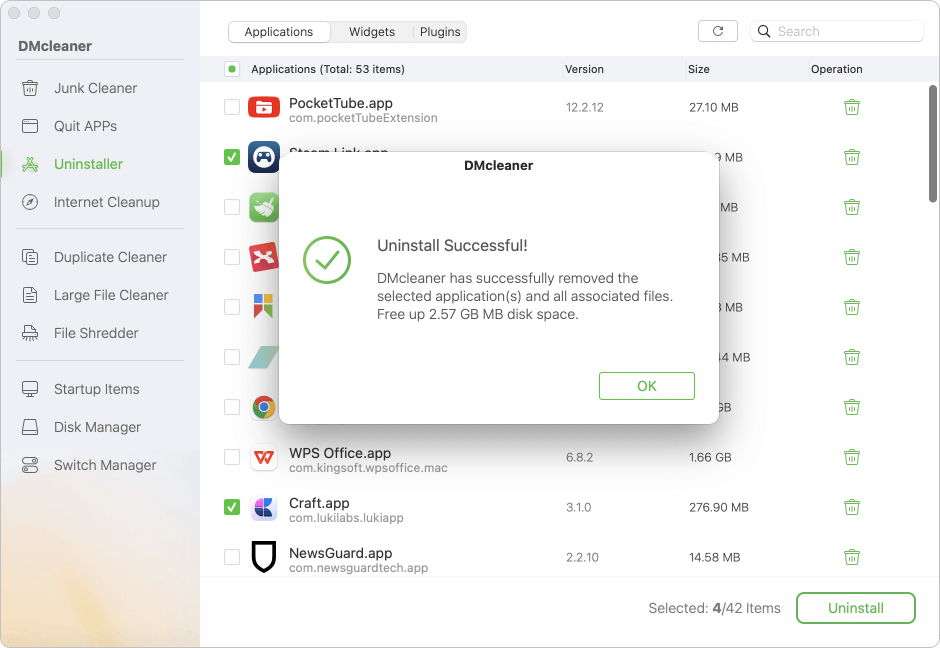
Step 2: Scan Your Applications - Open the application and select the 'Uninstaller' feature at the left side from the main menu. The software will automatically scan the MacBook Neo and list all the applications. Check and view all installed applications.

Step 3: Select and Uninstall - Browse the list of detected apps. Select the applications you want to remove. DMcleaner automatically highlights all associated support files, caches, and preferences. Click 'Uninstall' to delete everything completely.

Step 4: Finish the Uninstall - After the uninstall process is done, the software will show the uninstall successful information and the spaced released after uninstalling the selected apps. Click the OK button to finish the whole uninstalling process.
Keeping your MacBook Neo fast, clean, and organized requires proactive app management. While built-in macOS deletion options cover the basics, they leave behind hidden clutter that slowly degrades storage efficiency.
Using the best uninstaller software for MacBook Neo apps—such as Donemax DMcleaner for Mac—ensures complete file removal, frees up valuable disk space, and maintains peak system performance effortlessly.
Donemax DMcleaner for Mac
Donemax DMcleaner for Mac is an award-winning Mac cleanup & maintenance tool. It offers over 10 tools to help Mac users clean junk data. It helps speed up a slow Mac. Additionally, it includes a smart switch manager and disk manager for Mac.
Christina
Christina is the senior editor of Donemax software who has worked in the company for 4+ years. She mainly writes the guides and solutions about data erasure, data transferring, data recovery and disk cloning to help users get the most out of their Windows and Mac. She likes to travel, enjoy country music and play games in her spare time.
Gerhard Chou
In order to effectively solve the problems for our customers, every article and troubleshooting solution published on our website has been strictly tested and practiced. Our editors love researching and using computers and testing software, and are willing to help computer users with their problems