
Written byChristinaUpdated on May 21, 2026

PAGE CONTENT:
We've all been there. You are wrapping up a long project, your desk is tidy, and you are ready to pack up your Mac and head out. You reach for the cable of your external hard drive, thumb drive, or camera SD card, but just as you are about to pull it out, a nagging voice in your head stops you. Or worse, you attempt to do things the right way, only for macOS to throw a frustrating warning dialog: "Disk Not Ejected Properly" or "The disk wasn't ejected because one or more programs may be using it."
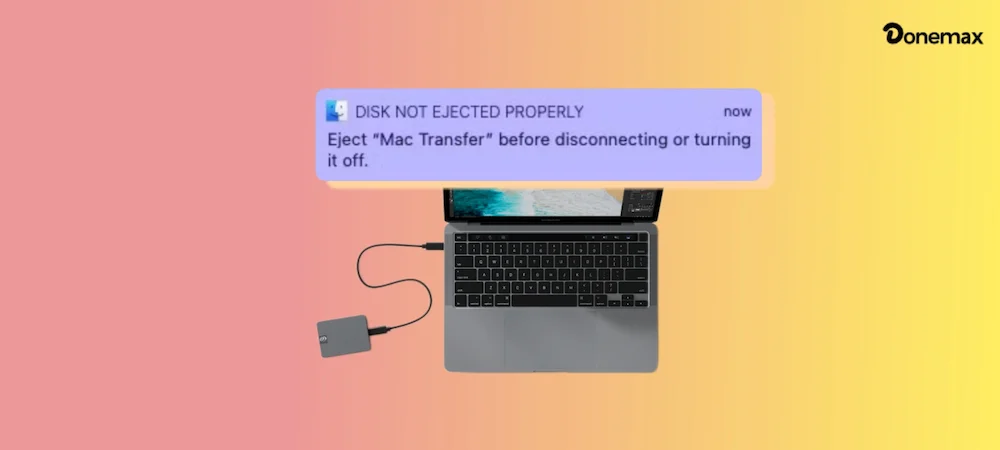
When you need to eject device on Mac, it is easy to view these warning prompts as minor digital annoyances. However, pulling a live data cable out of your computer without a formal system release is playing a dangerous game of digital roulette.
In this complete, home-user-friendly guide, we will break down the exact native methods to cleanly remove your external hardware. More importantly, we'll explore advanced troubleshooting steps to safely force eject external hard drive on Mac when your system refuses to let go.
Before diving into the steps, let's talk about what happens under the hood when a storage device is plugged into your Mac.
Modern macOS setups use a smart strategy called write caching. To make your apps run faster and prevent performance stutters, your Mac doesn't always write changes to an external drive the exact millisecond you make them. Instead, it holds those bits of data in its high-speed internal RAM memory, waiting for a quiet moment to flush that data safely onto the external platters or flash storage chips.
When you trigger a command to eject device on Mac, you aren't just making an icon disappear from your screen. You are sending a formal command to the operating system to:
If you skip this step and pull the cord, you risk creating corrupted file headers, scrambling your partition map, or even physically frying your external enclosure's controller chip due to sudden voltage drops.
Apple provides several built-in visual methods to safely unmount your hardware. Choose whichever path feels most natural for your workflow.
The central file hub of your Mac is the best place to start.
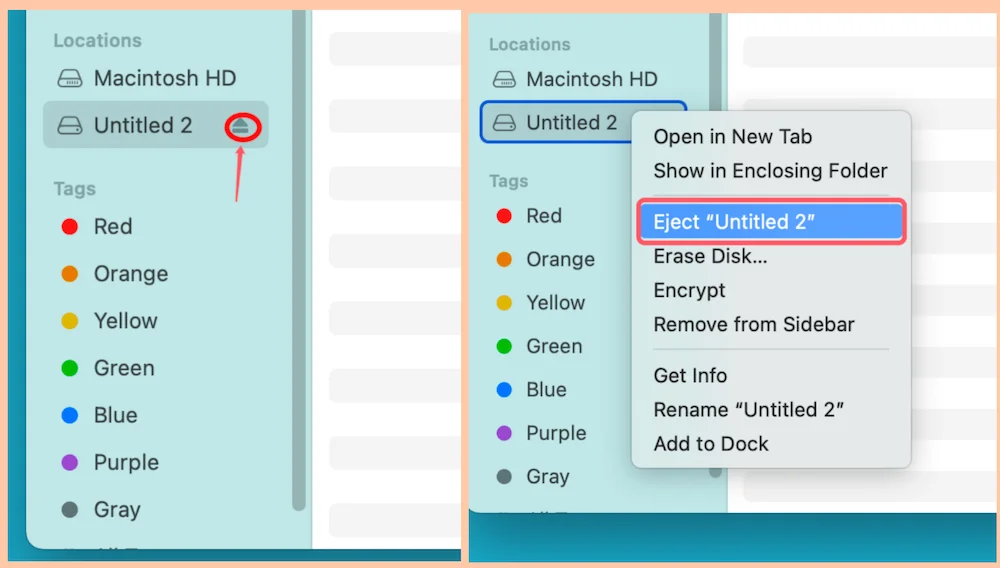
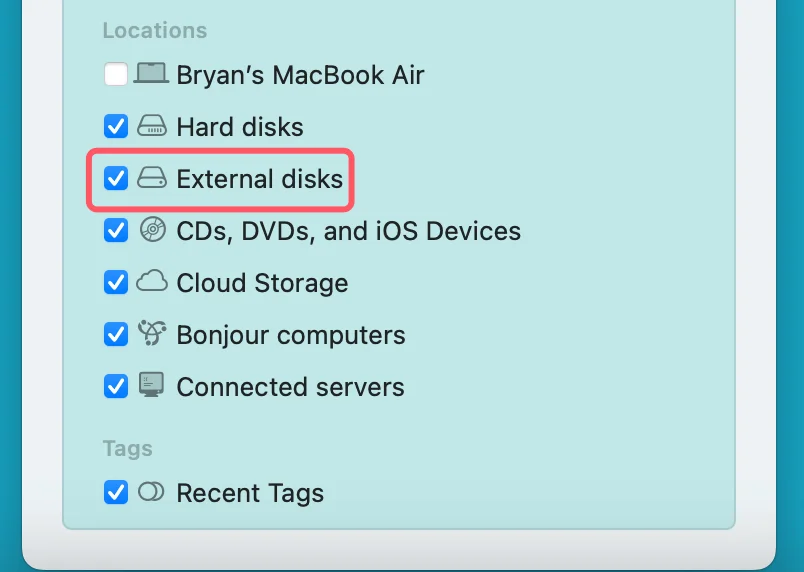
📍 Tips: If your drive isn't showing up in the Finder sidebar, go to the top menu bar and select Finder > Settings > Sidebar, and ensure that the checkbox for External disks is toggled on.
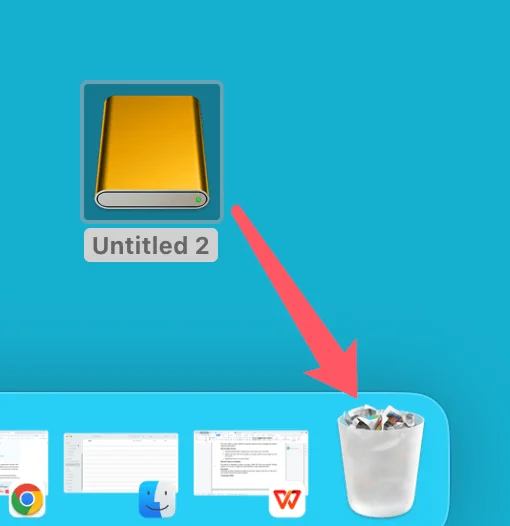
If you like keeping a clean desktop with visible storage icons, this classic Mac shortcut is perfect:
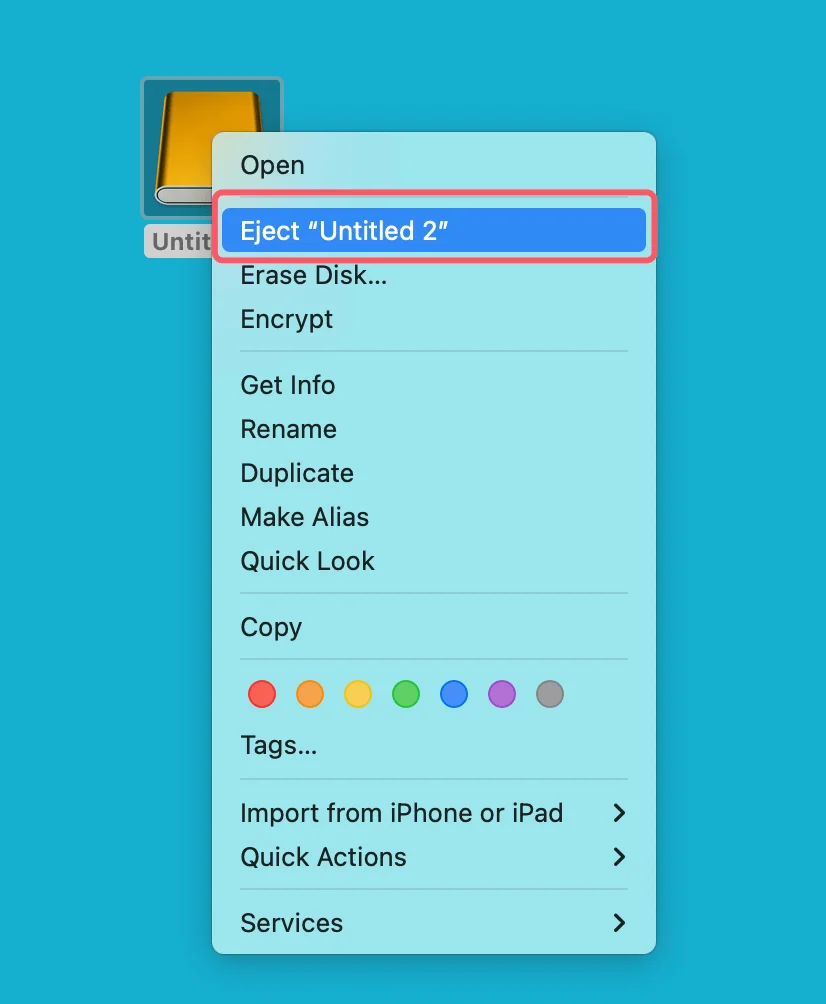
When standard Finder layouts are acting laggy or failing to respond to your mouse clicks, you can go a level deeper using Apple's built-in storage manager:
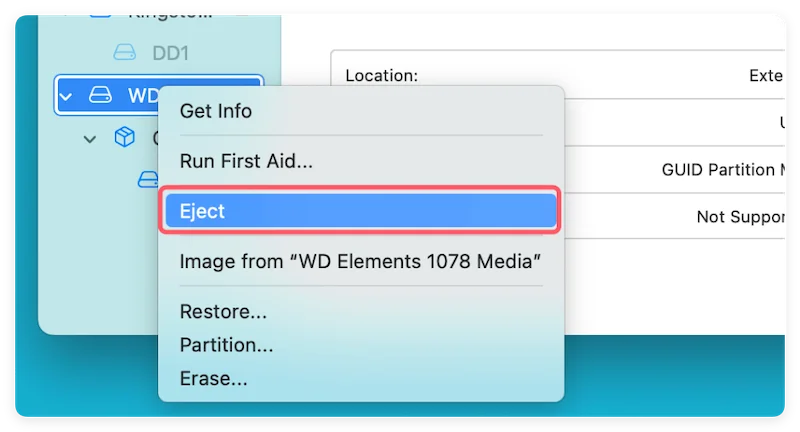
Sometimes, you try all four of the native steps above, but your Mac stubborn refuses to let go, flashing a warning that the device is busy. Why does this happen?
Most of the time, it isn't your fault. While you might have closed your open Microsoft Word documents or finished moving your family videos, hidden system tasks might still be reading from the drive. For instance, Apple's built-in search engine (Spotlight) might be actively indexing every single folder on your newly connected drive, or a background backup process might be cross-checking old archive logs.
Before you resort to aggressive measures to force eject external hard drive on Mac, try these smart troubleshooting steps:
If the standard routes fail and you cannot turn off or restart your machine right away, you can use advanced administrative tools to force the volume to detach.
Disk Utility has an integrated override system built directly into its core logic:
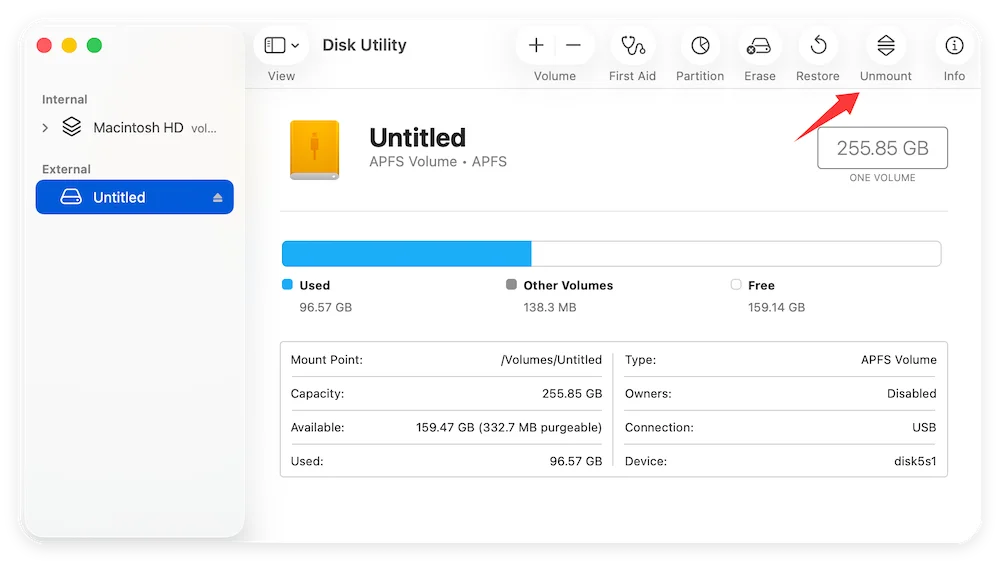
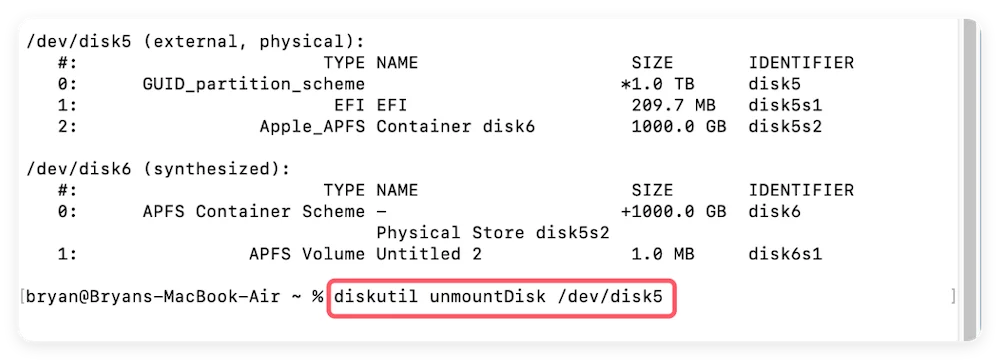
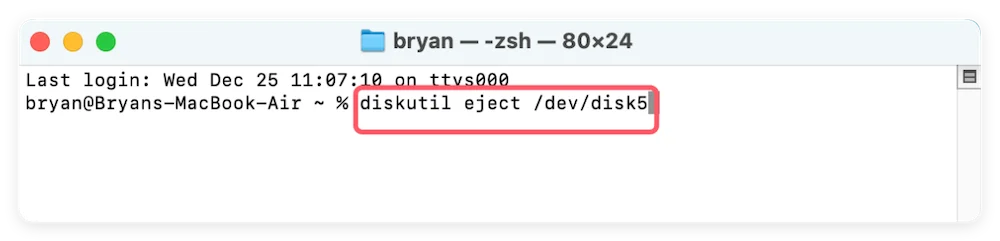
If you aren't afraid of utilizing command line environments, you can instruct your Mac's core kernels to break the drive connection directly.
diskutil list
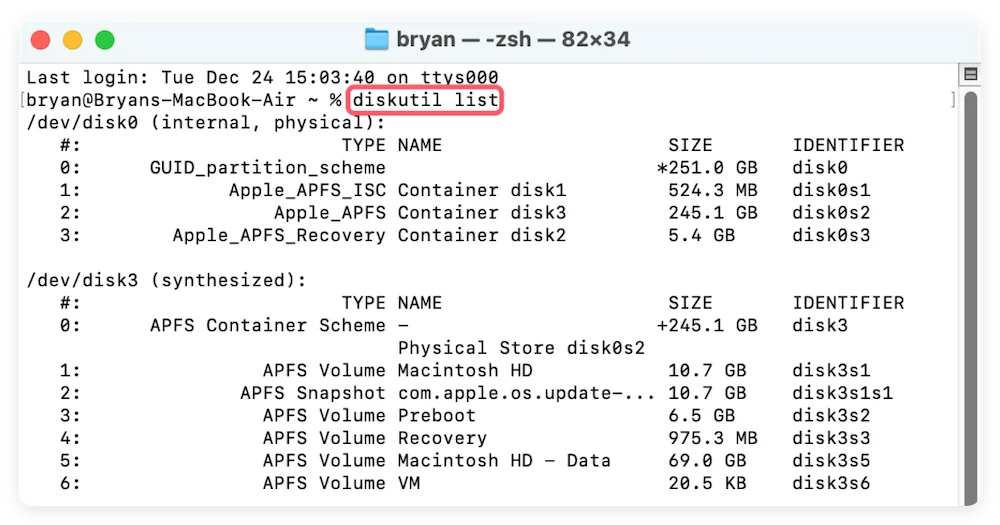
diskutil unmountDisk /dev/diskX
diskutil eject /dev/diskX
If you accidentally pulled a storage cord loose without realizing an app was actively writing data, or if an aggressive force unmount corrupted your drive's file structure, do not panic. The files themselves are often still resting intact on the data sectors; your Mac has simply lost the indexing map needed to locate them.
This is where specialized tools like Donemax Data Recovery for Mac save the day. Built with a powerful deep-scanning algorithmic engine, Donemax bypasses damaged drive tables to find and rebuild lost documents, photos, and media archives.
Here is how easily you can recover your files:
Step 1. Download and Install: Download the official copy of Donemax Data Recovery for Mac and install it into your Applications folder.
Step 2. Connect and Select: Plug your damaged external drive into your Mac and open the software. Select your external device from the clean main visual menu list.
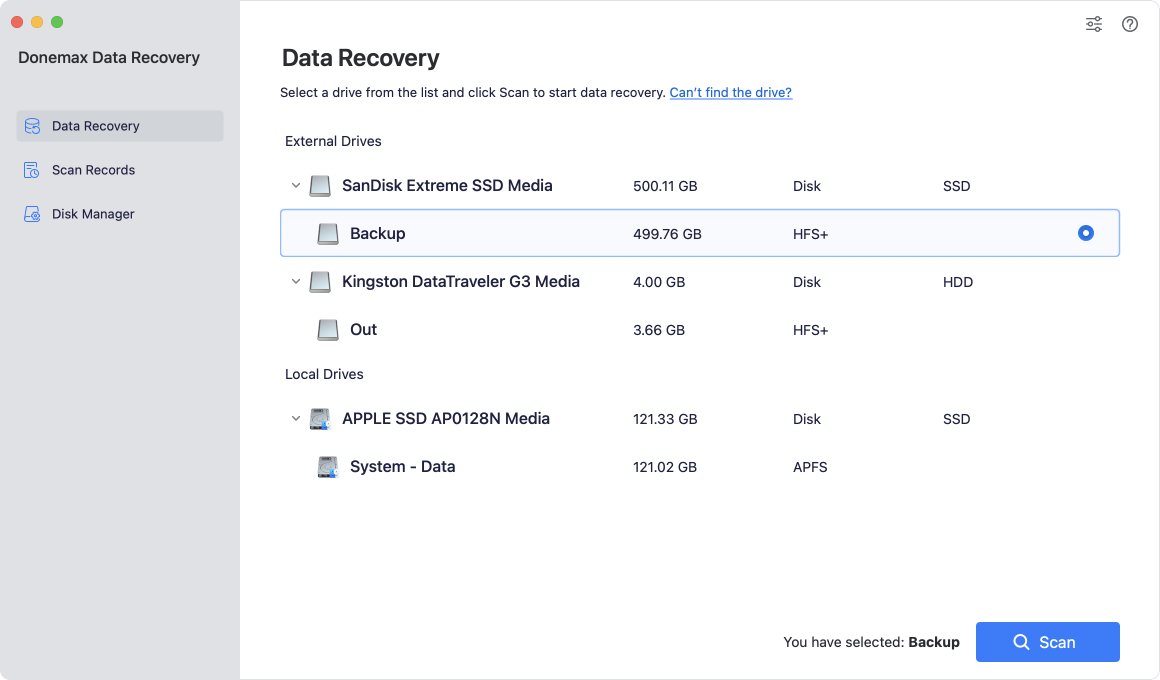
Step 3. Scan: Click the bright blue Scan button. Don't worry if it takes a little time—the software is thoroughly scanning every sector of the drive to piece your corrupted files back together.
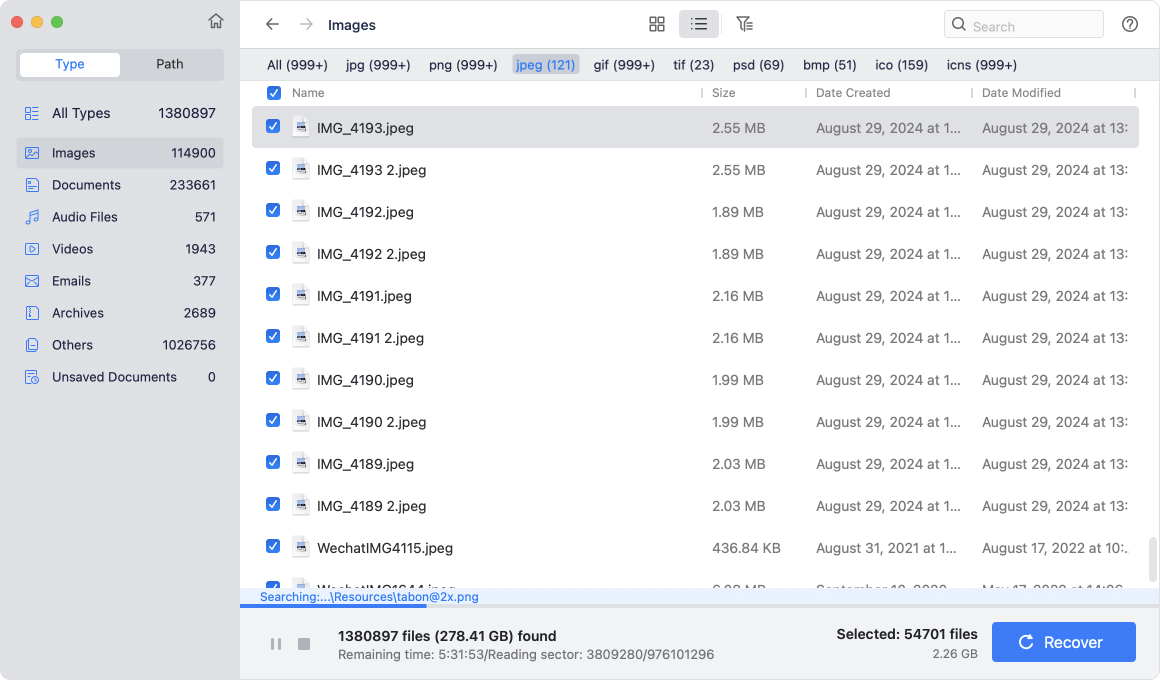
Step 4. Preview and Restore: Once the scan finishes, browse through the neat layout of found files. Use the preview tool to verify your photos or documents, check the boxes next to what you want to save, and click Recover to copy them to a completely safe folder on your Mac's internal hard drive.

Taking an extra five seconds to properly eject device on Mac is one of the easiest ways to protect your digital life. Whether you use the simple Finder sidebar shortcut or rely on the advanced options in Disk Utility to force eject external hard drive on Mac, keeping your files safe is well worth the tiny bit of effort. And if things ever do go wrong, you can rest easy knowing that recovery tools like Donemax Data Recovery are always ready to help you bring your lost files back.
Donemax Data Recovery for Mac
Donemax Data Recovery for Mac is one of the best Mac data recovery software. It is easy-to-use and can help in recovering deleted, formatted, inaccessible or lost data from Mac HDD/SSD, external disk, USB drive, SD card, camera or other storage devices.
Christina
Christina is the senior editor of Donemax software who has worked in the company for 4+ years. She mainly writes the guides and solutions about data erasure, data transferring, data recovery and disk cloning to help users get the most out of their Windows and Mac. She likes to travel, enjoy country music and play games in her spare time.
Gerhard Chou
In order to effectively solve the problems for our customers, every article and troubleshooting solution published on our website has been strictly tested and practiced. Our editors love researching and using computers and testing software, and are willing to help computer users with their problems

