
Written byChristinaUpdated on Jun 09, 2026

Before we start: If there are issues with the computer and the system cannot boot, how to start your computer quickly without reinstalling system? Download Donemax Disk Clone today and give yourself the peace of mind you deserve! It can create bootable clone to help you reduce down time in case of system crash.
PAGE CONTENT:
Have you ever faced a sudden computer crash right in the middle of an important task? It is a stressful experience. Most people backup their files, but when your operating system fails, standard backups cannot get you up and running instantly. You would still need to reinstall the OS, reconfigure your settings, and download all your software apps again.
That is where a bootable clone backup becomes a lifesaver. Instead of just saving your photos and documents, a bootable clone makes an exact, 1:1 duplicate of your entire hard drive. This includes your operating system, system settings, personal files, and installed software.
If your computer's internal drive breaks down, you can simply plug in your cloned drive and boot your computer directly from it. No downtime, no configuration, and no data loss. In this easy guide, we will show you exactly how to create bootable clone backups with Donemax Disk Clone for both Windows and macOS systems.
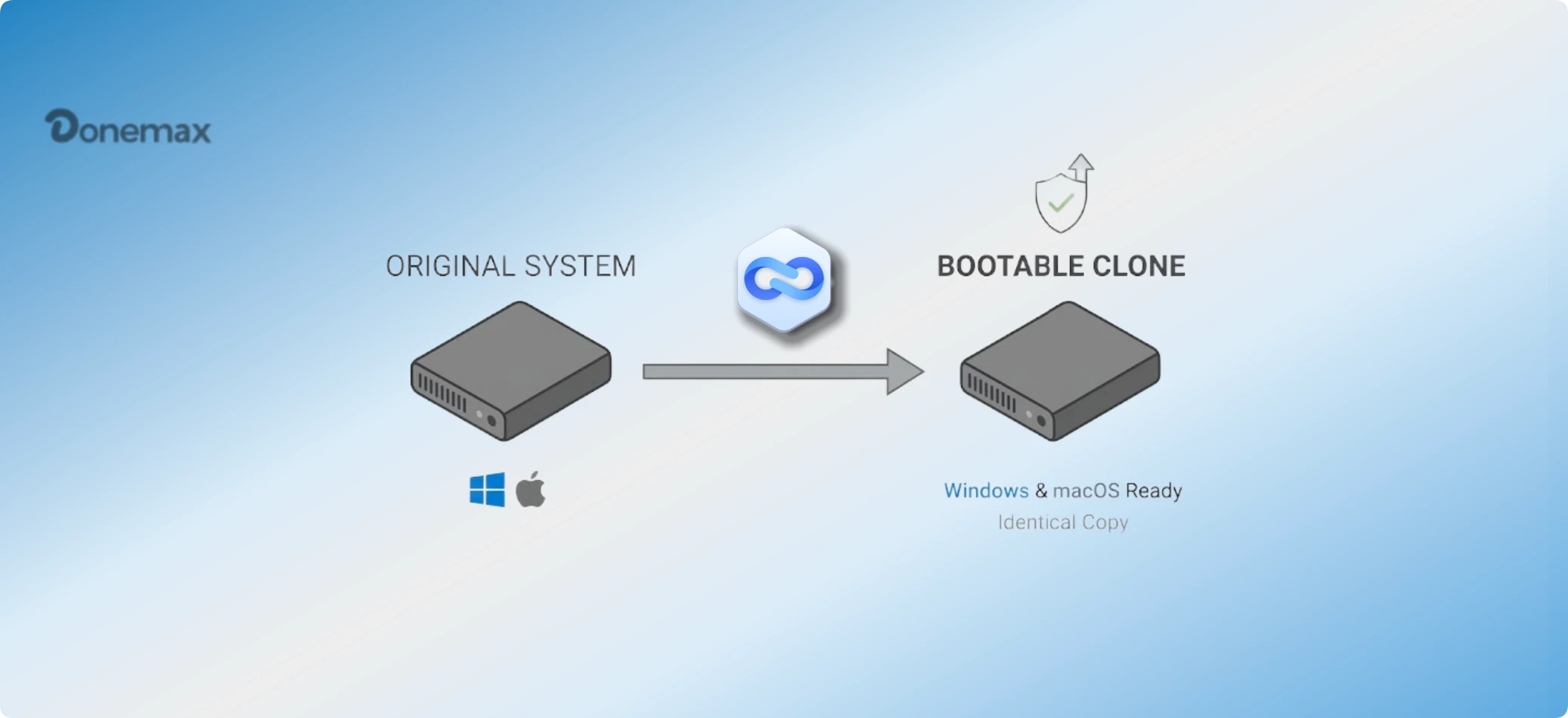
There are many backup tools out there, but Donemax Disk Clone stands out because it combines power with total simplicity. Whether you are using a Windows PC or an Apple Silicon Mac, this software provides a stress-free experience. It supports internal and external HDDs, SSDs, NVMe drives, and USB flash drives.
Donemax offers a clean, step-by-step interface that guides you smoothly through the cloning process. You do not need to be a tech expert to use it. It works beautifully for upgrading an old drive to a fast SSD, migrating your operating system, or establishing a rock-solid data recovery plan.
Windows updates or hardware wear and tear can occasionally prevent your PC from booting properly. By creating a system clone, you can protect yourself from these unexpected surprises. Donemax Disk Clone for Windows provides a dedicated "Disk Clone" option that handles everything seamlessly.
Step 1: Launch the software on your PC. You will see a clean main menu with clear options. Look at the main panel and select the "Disk Clone" mode. This mode allows you to clone an entire hard disk drive to another target drive.
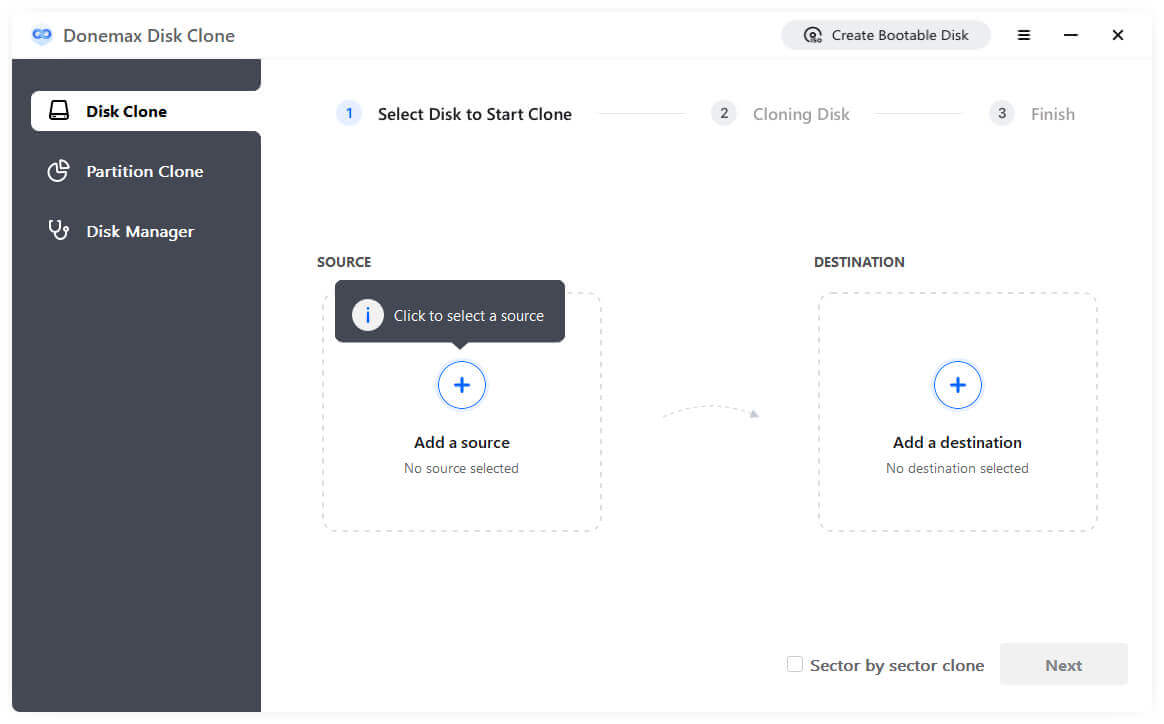
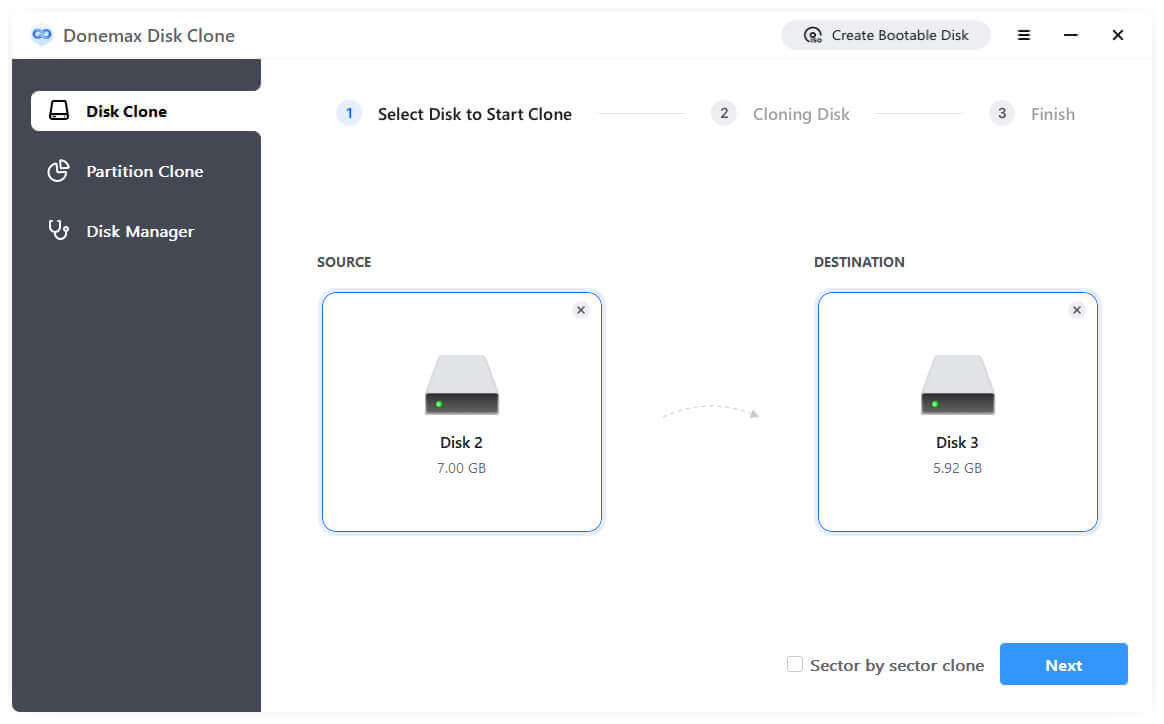
Step 2: Choose your computer's main internal hard drive (usually Disk 0) as your source drive. Then, select your connected external hard drive or SSD as the destination drive.
Step 3: Review the layout of your destination drive and edit it if necessary. If you are cloning onto a new, super-fast solid-state drive, make sure to check the box that says "Check the option if the target is SSD". This special setting optimizes the cloning alignment, reduces disk access time, and improves your SSD's performance.
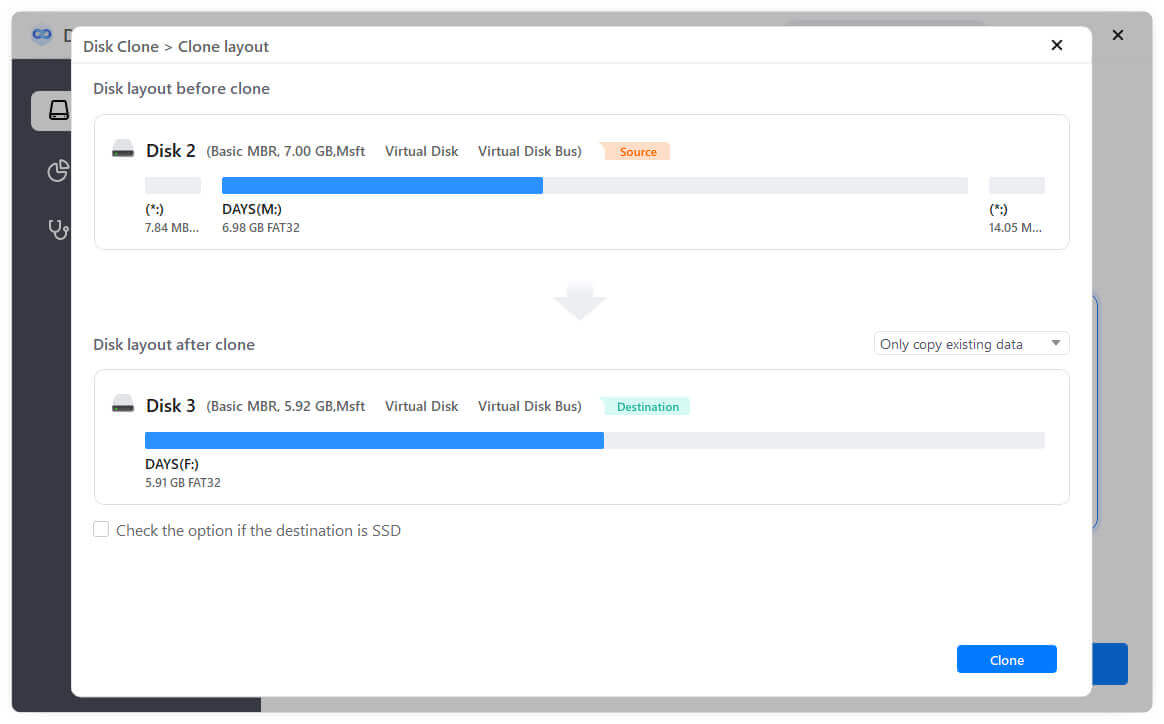
Step 4: Click the "Clone" button to begin the replication process. Donemax will safely copy every single sector of data. Once finished, your external drive is fully prepared as a bootable system backup.
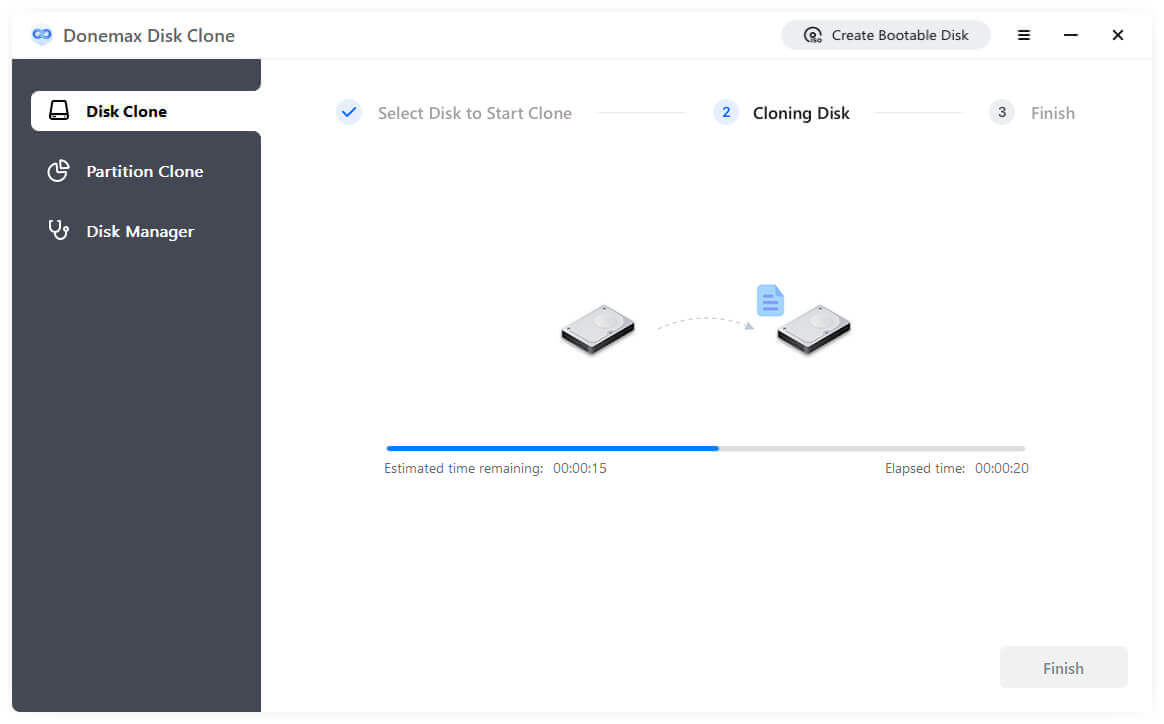
💡 Pro Tip: After the process is done, you can test your new backup drive. Restart your computer, tap the boot menu key (usually F12, F11, or Esc depending on your motherboard), and select the external drive to verify that your PC boots up perfectly.
Apple computers have unique security architectures, especially modern Macs with Apple Silicon M1, M2, M3, M4 or M5 chips and T2 security chips. Standard copy-and-paste methods or basic backup programs will not make a drive bootable. Fortunately, the Mac version of Donemax Disk Clone for Mac includes a specialized feature built specifically for this called "OS Clone".
While the "Disk Copy" option is wonderful for secondary storage drives, Mac users must use the "OS Clone" option to clone their main startup disk. The OS Clone feature is designed to securely duplicate macOS, system files, local configuration settings, apps, and user accounts. It configures the underlying Apple Software Restore (ASR) protocols so that the external drive is recognized as an authentic, bootable startup drive by the Mac operating system.
Step 1: Plug your external HDD or SSD into your Mac. Download and open Donemax Disk Clone for Mac. On the left sidebar menu, look for and click on the "OS Clone" option.
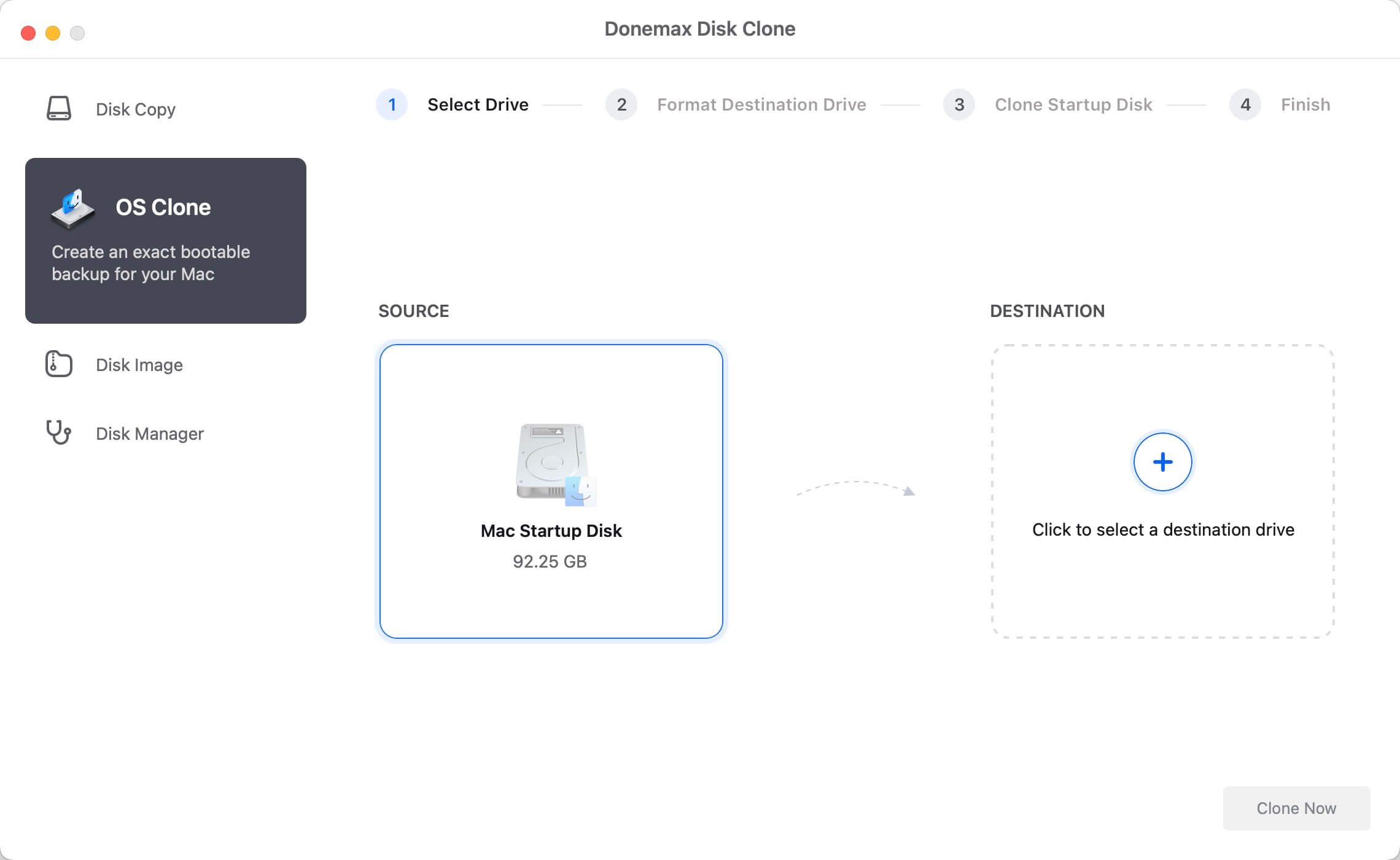
Step 2: The application will automatically pick your Mac's internal Macintosh HD as the source. All you need to do is select your connected external hard drive as the target destination.
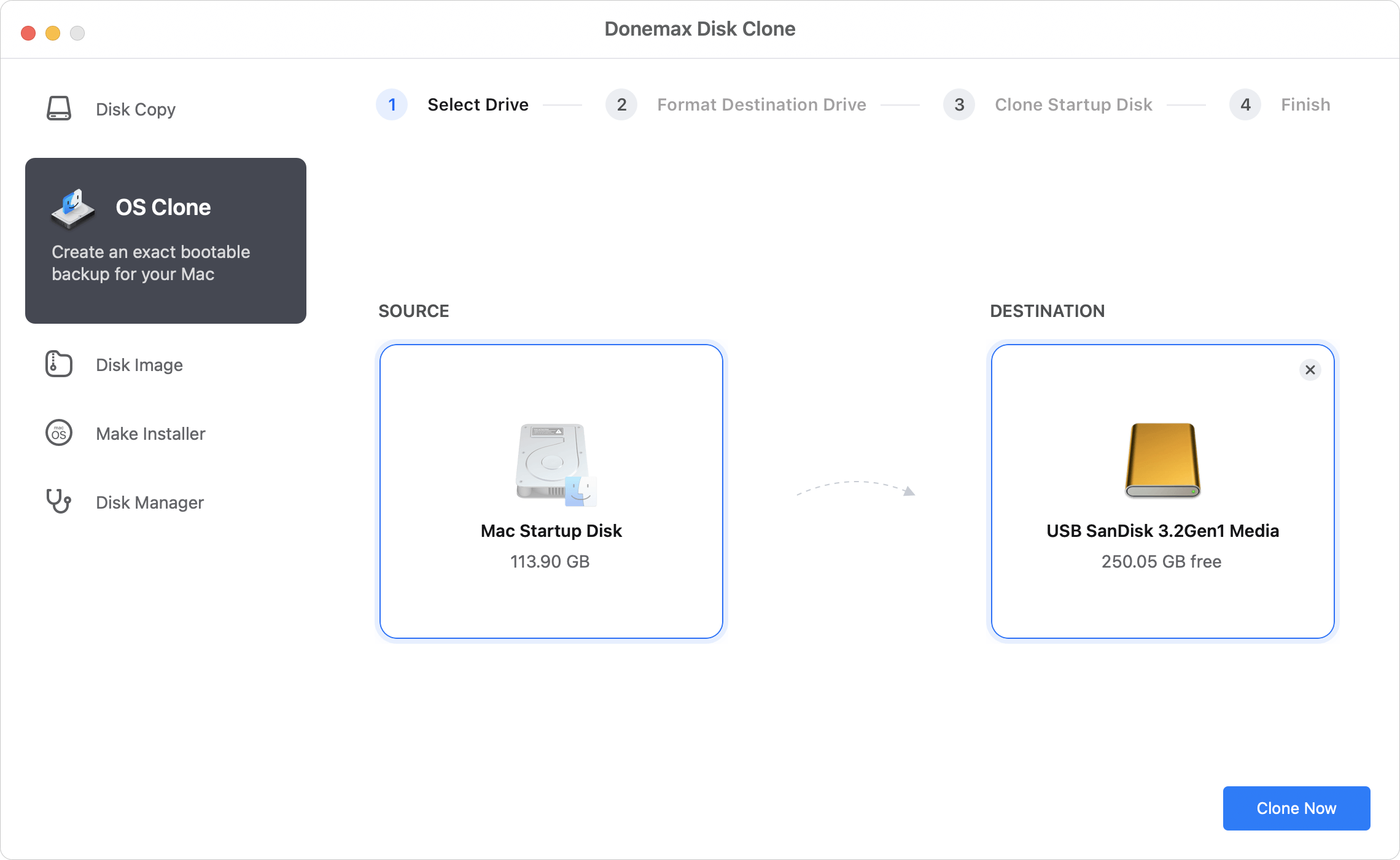
Step 3: Click the "Clone Now" button. The software will run a secure, deep replication of your system environment. Do not close the app or unplug your drive until the progress bar reaches 100%.
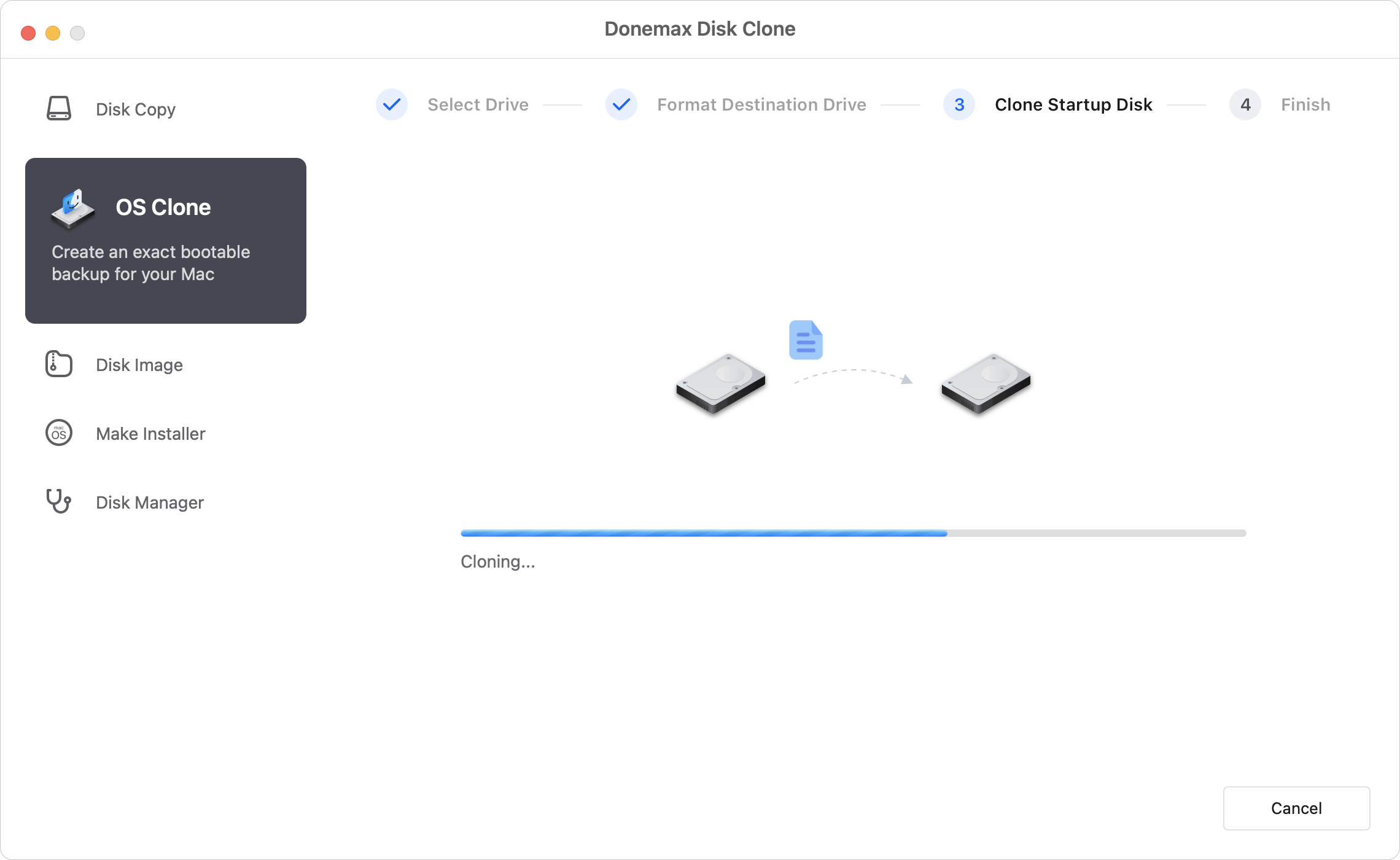
Once your OS Clone is successfully created, booting from it depends on your specific Mac hardware:
To make sure your backup is always ready to save the day, consider practicing a few simple habits:
Learning to create bootable clone backups with Donemax Disk Clone is one of the smartest things you can do to protect your digital life. It removes the panic of computer crashes and drive failures by giving you a direct, plug-and-play recovery tool. With separate, dedicated modes tailored for both Windows and Mac systems, Donemax makes complete data protection simple, fast, and accessible for everyone.
Donemax Disk Clone
An award-winning disk cloning program to help Windows users and Mac users clone HDD/SSD/external device. It also can create full bootable clone backup for Windows PCs and Macs.
Christina
Christina is the senior editor of Donemax software who has worked in the company for 4+ years. She mainly writes the guides and solutions about data erasure, data transferring, data recovery and disk cloning to help users get the most out of their Windows and Mac. She likes to travel, enjoy country music and play games in her spare time.
Gerhard Chou
In order to effectively solve the problems for our customers, every article and troubleshooting solution published on our website has been strictly tested and practiced. Our editors love researching and using computers and testing software, and are willing to help computer users with their problems

