Written byChristinaUpdated on Apr 21, 2026

Before we start: How to make NTFS drives fully work on Mac? The easiest way is using the third-party tool Donemax NTFS for Mac to make the drives readable and writable.
PAGE CONTENT:
If you've ever plugged a Windows-formatted external hard drive into your Mac only to realize you can't drag files onto it, you've hit a classic "cross-platform" wall. It's a common frustration for users who jump between Windows and macOS environments.
The big question is: Can NTFS work on Mac?

The short answer is yes, but it comes with a "read-only" catch by default. In this guide, we'll break down exactly how to bridge the gap so you can write to NTFS on Mac without losing your mind—or your data.
Before we dive into the "how-to," let's look at the "what."
NTFS (New Technology File System) is the standard format for modern Windows operating systems. Microsoft designed it to be robust, supporting large files (well over 4GB), file encryption, and advanced permissions.
On the other side of the fence, Apple transitioned to APFS (Apple File System) in 2017. While APFS is incredible for SSDs and Mac-only environments, it doesn't play natively with Windows.
Because these two giants use different "languages" for their files, a compatibility gap exists.
Yes! Out of the box, macOS has native read-only support for NTFS drives. This means when you plug in your Windows drive:
However, you cannot:
If you try to move a file to an NTFS disk, macOS will simply give you a "read-only" error.
If "read-only" isn't enough for your workflow, you have three main paths to enable write support. Let's look at which one fits you best.
For the average home user or creative professional, a dedicated NTFS for Mac driver is the safest and most efficient solution. These drivers act as a "translator" that sits between your Mac and the drive, allowing macOS to treat the NTFS volume like its own.
Top Recommended Drivers for 2026:
Why go this route?
How to use the NTFS for Mac tool (Donemax)
It's very simple to use the software. First, download and install the software Donemax NTFS for Mac on your Mac machine.
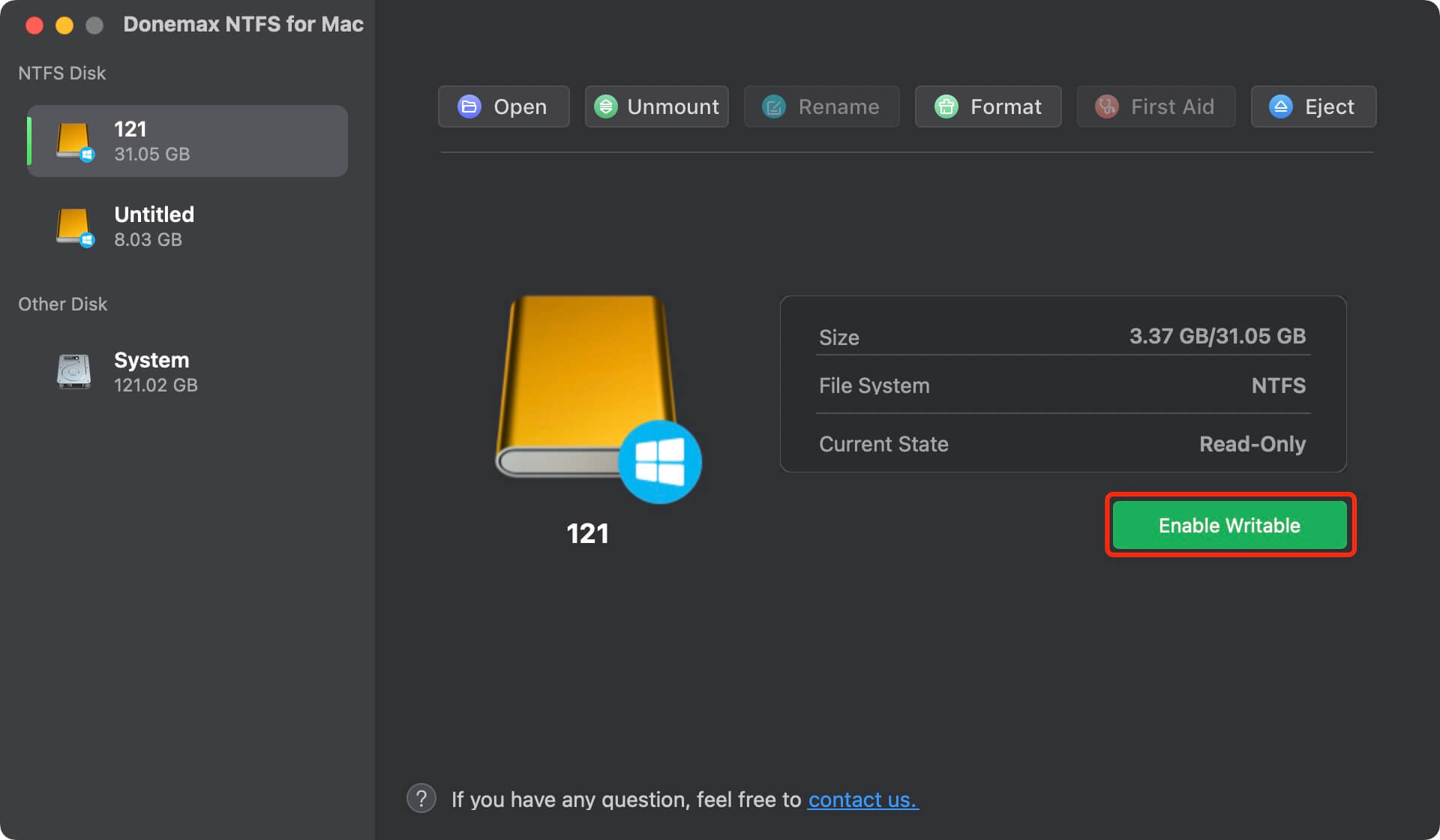
Run the software and connect the NTFS drive to the Mac. Select the NTFS drive and click Enable Writable button. Then you can access and write to the NTFS drive without limitations.
Technically, macOS has a hidden, experimental feature to enable NTFS writing via the Terminal.
sudo nano /etc/fstab
LABEL=DRIVENAME none ntfs rw,auto,nobrowse
📍 Warning: We generally do not recommend this for most users. It is unstable, unsupported by Apple, and carries a high risk of permanent data loss. If you are an advanced user, you can manually mount the drive with write permissions, but it's often buggy on newer macOS versions like Sonoma or Tahoe.
If your drive is empty—or you have a place to temporarily back up your data—you can format the drive to exFAT.
exFAT is the "universal language" of file systems. It is natively supported by both Windows and macOS for both reading and writing.
Comparison Table: Which File System Should You Choose?
Feature |
NTFS |
APFS |
exFAT |
|---|---|---|---|
Primary OS |
Windows |
macOS (Modern) |
Both |
Mac Read Access |
Native |
Native |
Native |
Mac Write Access |
Requires Driver |
Native |
Native |
Max File Size |
4GB+ |
4GB+ |
4GB+ |
Best Use Case |
Windows-heavy work |
Mac-only backups |
Cross-platform |
Even with the right tools, you might run into a few hiccups. Here's how to handle them:
The answer to "can NTFS work on Mac" is a resounding yes—provided you have the right strategy.
By choosing the right file system strategy, you can ensure a smooth, headache-free workflow regardless of which computer you're using.
Christina
Christina is the senior editor of Donemax software who has worked in the company for 4+ years. She mainly writes the guides and solutions about data erasure, data transferring, data recovery and disk cloning to help users get the most out of their Windows and Mac. She likes to travel, enjoy country music and play games in her spare time.
Gerhard Chou
In order to effectively solve the problems for our customers, every article and troubleshooting solution published on our website has been strictly tested and practiced. Our editors love researching and using computers and testing software, and are willing to help computer users with their problems