Written byStevenUpdated on Mar 30, 2026

PAGE CONTENT:
When you format a disk on a Mac, you aren't just choosing a file system (like APFS or ExFAT); you are choosing a Partition Scheme. Think of the partition scheme as the "blueprint" or "map" of your hard drive. It tells your Mac how the data is organized, where a partition starts, and—crucially—if the disk can be used to boot up your computer.
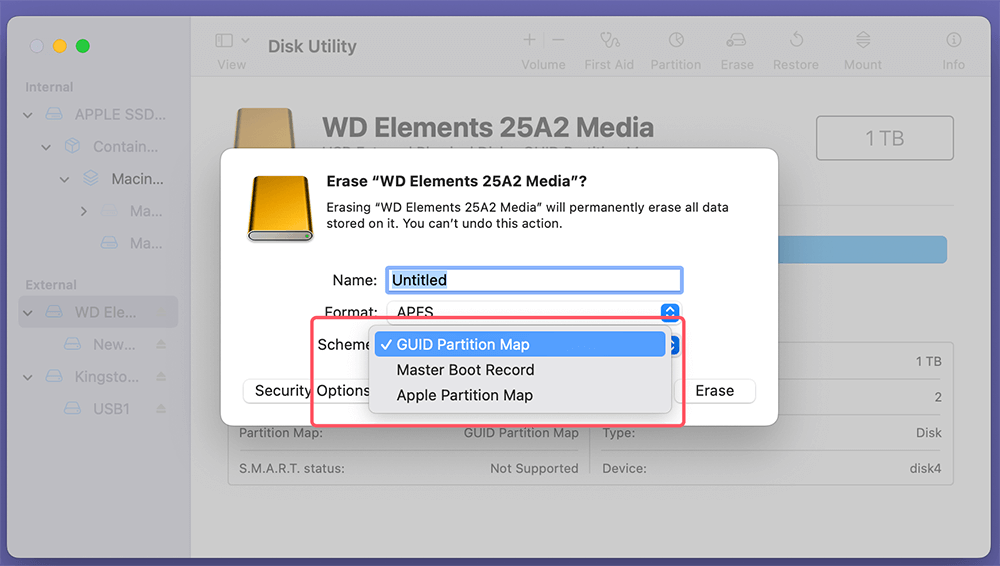
In this guide, we will break down the three primary Mac partition schemes found in macOS Disk Utility: GUID Partition Map, Master Boot Record (MBR), and Apple Partition Map (APM).
The GUID Partition Map, also known as GPT (Globally Unique Identifier Partition Table), is the modern standard for nearly all computers today. It replaced the aging MBR system to handle larger drives and more robust data protection.
GPT is designed to work with modern hardware and operating systems, and it has the flexibility to manage large storage devices and support advanced features like partition redundancy and data integrity checks. It has become the default partitioning scheme for Intel-based Macs and is also the standard for Apple Silicon Macs.
The Master Boot Record is the classic partition scheme originally designed for DOS and older Windows systems. While largely replaced by GPT in the Windows world as well, it remains vital for compatibility. MBR has limitations in terms of partition size, the number of partitions, and flexibility compared to GPT.
MBR is not the default partition scheme on modern Macs, but it may still be used for compatibility reasons, particularly on older Mac systems or in dual-boot configurations with Windows. When setting up a dual-boot system using Boot Camp, MBR may be used to format the partition for Windows, especially when working with older or non-UEFI Macs.
The Apple Partition Map (APM) is an older partitioning scheme that was used by PowerPC-based Macs before the transition to Intel-based systems. APM was developed to support the unique needs of the Macintosh architecture, particularly the PowerPC (PPC) processors used in older Macs. APM is not compatible with Intel-based Macs and is largely obsolete, though it may still be found on older Mac systems.
APM was used by Macs with PowerPC processors, but with the advent of Intel-based Macs and later Apple Silicon, APM has been replaced by GPT. If you’re working with a vintage Mac, you may encounter APM when accessing or modifying the partitions on an old drive.
When deciding on the right partition scheme for your Mac, consider the following factors:
|
Feature |
GUID Partition Map (GPT) |
Master Boot Record (MBR) |
Apple Partition Map (APM) |
|---|---|---|---|
|
Primary Use |
Modern Macs & PCs |
Compatibility with Windows/Devices |
Legacy PowerPC Macs |
|
Max Partition Size |
9.4 Zettabytes |
2 Terabytes |
2 Terabytes |
|
Bootable on Mac? |
Yes (Intel & Apple Silicon) |
No (typically) |
Yes (PowerPC only) |
|
Compatibility |
macOS, Win 10/11, Linux |
Nearly all systems |
macOS only |
A common "home user" problem is not seeing the scheme options in Disk Utility. By default, Mac only shows volumes.
Step-by-Step Instructions:
Converting an MBR disk to GPT or change the other Mac partition schemes is a relatively simple process on macOS using Disk Utility or the diskutil command in Terminal. However, converting from MBR to GPT requires wiping the disk, which means data loss if it is not backed up. It's important to carefully consider whether conversion is necessary before proceeding.
Choosing the right Mac Partition Scheme ensures your data is safe and your hardware is compatible. For almost every scenario, GUID Partition Map is the correct choice. Use MBR only for cross-platform thumb drives, and leave Apple Partition Map for the history books.
Steven
Steven has been a senior writer & editor of Donemax software since 2020. He's a super nerd and can't imagine the life without a computer. Over 6 years of experience of writing technical solutions and software tesing, he is passionate about providing solutions and tips for Windows and Mac users.
Gerhard Chou
In order to effectively solve the problems for our customers, every article and troubleshooting solution published on our website has been strictly tested and practiced. Our editors love researching and using computers and testing software, and are willing to help computer users with their problems
Clone hard drive with advanced clone technology or create bootable clone for Windows/Mac OS.
Completely and easily recover deleted, formatted, hidden or lost files from hard drive and external storage device.
Certified data erasure software - permanently erase data before selling or donating your disk or any digital device.