
Written byChristinaUpdated on Oct 26, 2026

Before we start: Permanently shred private videos or other files can help you protect privacy information. Donemax Data Eraser is the best drive wiping and file shredding tool. It can erase data permanently to make the data irrecoverable.
PAGE CONTENT:
We all store sensitive content on our laptops, from family moments and personal memories to confidential work clips. When it comes time to clean up your drive, sell your computer, or lend it to a friend, ensuring your private videos are completely destroyed is essential.
Many users believe that pressing the Delete key or emptying the Recycle Bin permanently removes a file. Unfortunately, that is not true. Standard file deletion only hides the file from view while leaving the raw video data intact on your storage drive.
In this guide, we will explain why basic deletion leaves your privacy exposed and show you the best, proven methods on how to delete private videos from your laptop forever on both Windows and Mac.
When you store a video on your laptop, your operating system creates an index entry pointing to the location of that video on your hard drive or SSD. Understanding what happens when you delete a file explains why standard methods fail to protect your privacy:
Because video files are large, unallocated drive sectors containing your private video frames can remain intact for months or even years. Anyone with basic recovery software can scan your laptop drive and restore those personal videos in minutes.
Modern laptops come with either traditional Hard Disk Drives (HDDs) or Solid State Drives (SSDs). How data is permanently erased depends significantly on your storage type:
Using a specialized file shredder ensures that your video files are overwritten and sanitized across both HDD and SSD storage architectures.
The easiest and most reliable way to delete private videos from your laptop forever is using professional data sanitization software. Donemax Data Eraser is designed to permanently shred files and folders beyond any possibility of recovery.
Donemax Data Eraser utilizes certified international wiping algorithms―such as Zero Fill, Random Overwrite, DoD 5220.22-M, NIST 800-88, and Gutmann―to overwrite video sectors on your SSD or HDD.
Key Features of Donemax Data Eraser:
Step-by-Step Guide: How to Shred Private Videos using Donemax Data Eraser
Step 1: Download and install Donemax Data Eraser on your Windows laptop or Mac. Launch the software and select the "Erase Files/Folders" option from the main dashboard.
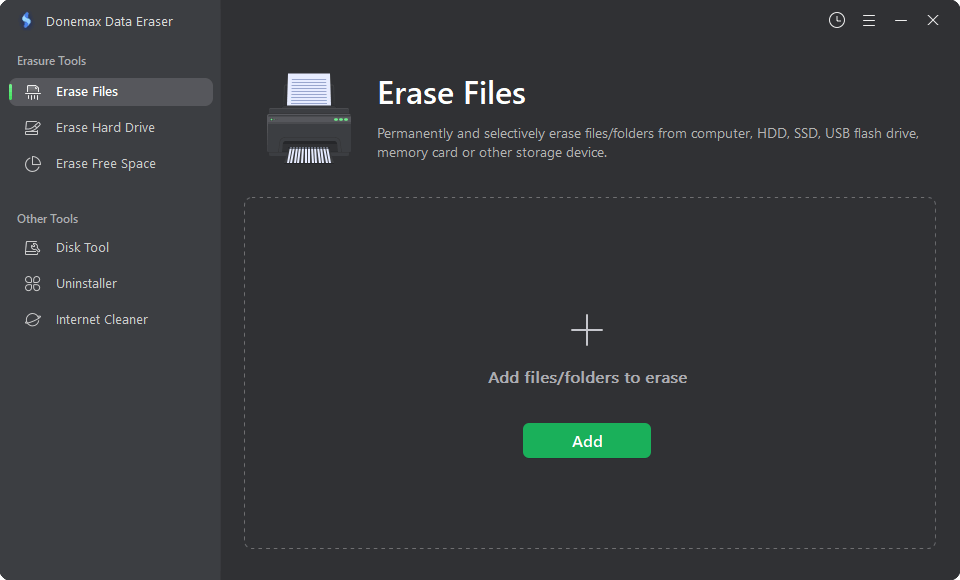
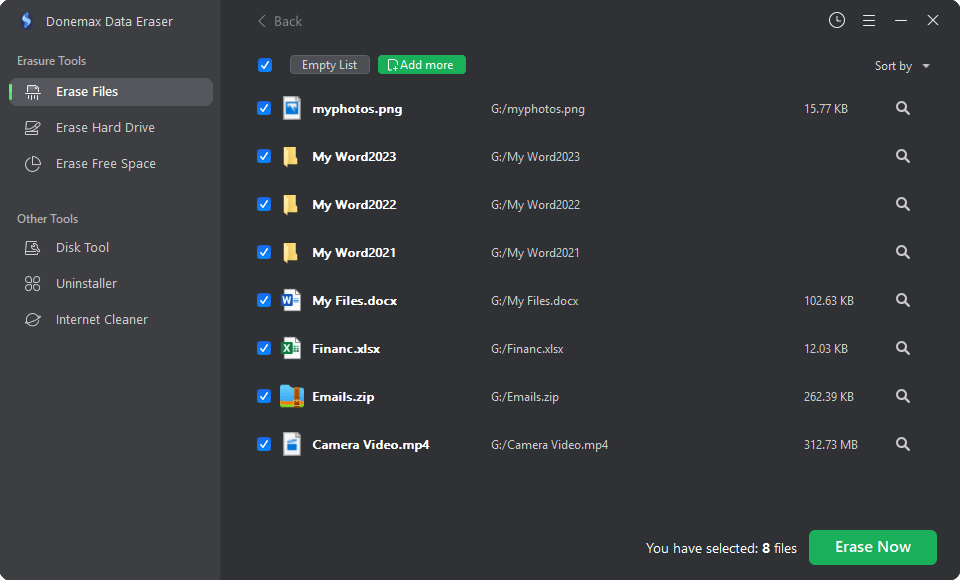
Step 2: Click the "Add" button to browse and select the private video files or folders you wish to destroy forever. Confirm your selection and click "Erase Now".
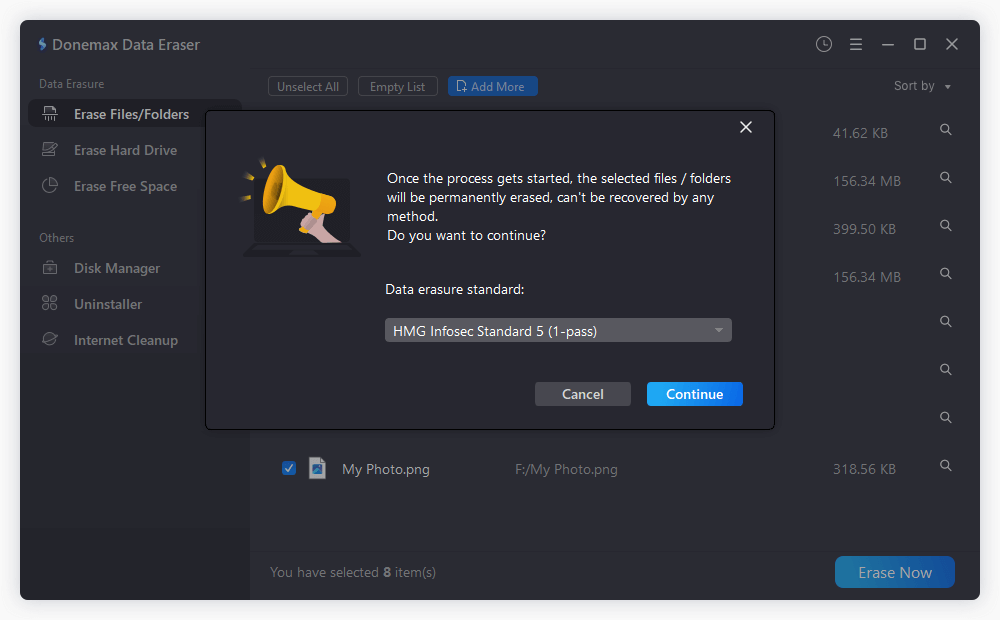
Step 3: Then you can select a data erasure standard. Click "Continue" button to start. Donemax Data Eraser will shred and overwrite every selected file. Once completed, your private videos are 100% irrecoverable.
If you are using a Windows laptop and prefer not to install third-party software, you can combine standard deletion with built-in command-line utilities to overwrite free disk space.
First, delete your private videos and empty your Recycle Bin. Then follow these steps:
cmd, right-click Command Prompt, and select Run as administrator.cipher /w:C:\ (replace C:\ with the drive letter where your videos were stored) and press Enter.The Cipher utility will write zeros, ones, and random numbers across all free disk space, rendering previously deleted videos irrecoverable.
Mac users can leverage native macOS Terminal tools to securely remove private files from their laptop storage.
Steps to Shred Files Using Terminal on macOS:
rm -P /path/to/your/video.mp4 and press Enter.The -P flag instructs macOS Terminal to overwrite the specified video file three times (with zeros, ones, and random data) before unlinking it.
Protecting your personal privacy requires more than standard file deletion. Simply dragging private videos to the Recycle Bin leaves your sensitive content vulnerable to recovery tools.
To ensure your private videos are erased forever, professional data destruction is the safest path forward. Donemax Data Eraser offers a simple, 1-click solution to shred files and wipe free space on Windows and Mac laptops. Download Donemax Data Eraser today to permanently delete your private videos with complete peace of mind!
Donemax Data Eraser
Donemax Data Eraser The best data erasure program to permanently delete data. It works on PCs, Macs, HDDs, SSDs, USB drives, digital cameras, and other devices. Once the tool erases the data, no one can recover it by any method.
Christina
Christina is the senior editor of Donemax software who has worked in the company for 4+ years. She mainly writes the guides and solutions about data erasure, data transferring, data recovery and disk cloning to help users get the most out of their Windows and Mac. She likes to travel, enjoy country music and play games in her spare time.
Gerhard Chou
In order to effectively solve the problems for our customers, every article and troubleshooting solution published on our website has been strictly tested and practiced. Our editors love researching and using computers and testing software, and are willing to help computer users with their problems