
Written byMariaUpdated on Mar 09, 2026

Before we start: When you need to remove all data from an external hard drive on Windows 11, there are different ways to help you. However, if you simply run quick format, the formatted data on the drive is still recoverable. If you need a safer way to wipe drive and data permanently, use Donemax Data Eraser. It can make sure the wiped data is unrecoverable.
PAGE CONTENT:
If you are selling your external hard drive or want to give it to other people, do not forget to delete all of your files permanently! The only apparent reason behind this deletion is to ensure that no tool would be able to recover your crucial files or data. Moreover, in this way, the next person can start fresh with the external hard drive, or you can also get enough space for yourself to store new files. So, get to know all the reliable methods to wipe out your external hard drive on Windows 11 without wasting your time!
Now, users can install the latest Windows 11 on their PCs. If you have a Windows 11 PC, you can follow this guide to help you wipe or format the external hard drive on your Windows 11 PC without causing any problem.
Actually, you can format or wipe the external hard drive in multiple ways. Here, you will get three proven methods to permanently erase data from external hard drive on Windows 11. You can choose anyone of them depending on your needs.
💡 Note: after you use Disk Management to wipe/format your external hard drive, the lost data on the external hard drive still can be recovered by data recovery software.
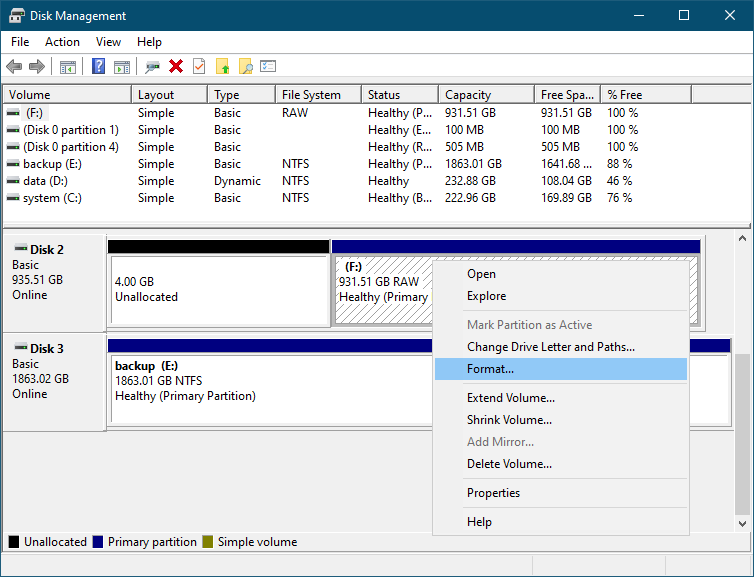
To wipe out your external hard drive by using the Disk management, follow up the under given steps:
Step 1. Open up the "Start Menu" and the type "Disk management." After that, either click on the search results or open the button.
Step 2. Right-click on that external hard drive which you want to erase and then click o Format.
Step 3. A pop-up will appear on your screen, and you will get multiple options like changing the name of the volume, file system, or many other options. Then format the external hard drive.
💡 Note: after you use Disk Management to wipe/format your external hard drive, the lost data on the external hard drive still can be recovered by data recovery software.
Well, you will find it one of the quick and straightforward ways to erase your external hard drive. The entire process is pretty simple and takes a couple of seconds to wipe out all the files from your external hard drive. So, what are you waiting for? Just follow the under given steps:
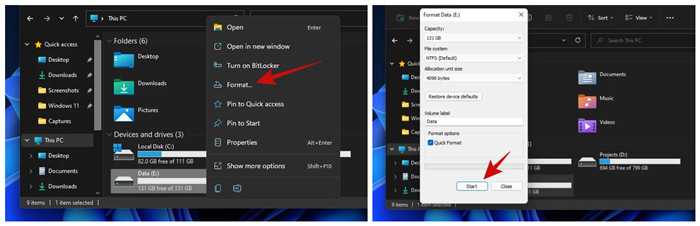
Step 1. Open This PC, and find the external hard drive.
Step 2. The only thing that you have to do over here is to right-click on the drive which you have just selected to wipe. And then, click on "Format".
Step 3. A small pop-up "Format" will appear on your screen and will offer you a bunch of options. If you are interested in doing a quick data wipe, click on the "Start" button.
The two methods can help you quickly format your external hard drive on a Windows 11 PC. However, the formatted data still can be recovered by data recovery software - such as Donemax Data Recovery. If you want to format the external hard drive and permanently erase all data from it, you can try data erasure software - such as Donemax Data Eraser.
Please note that once your data is erased by Donemax Data Eraser, the data is lost forever, can't be recovered by any data recovery software. So, you'd better back up your external hard drive before you wipe it.
Follow the steps below to wipe external hard drive on Windows 11:
Step 1. Open Donemax Data Eraser on your Windows 11 PC and connect the external hard drive to your Windows 11 PC.
Step 2. Choose data erasure mode - Erase Hard Drive. This mode can help you wipe and format the external hard drive. All data on the external hard drive will be erased forever.
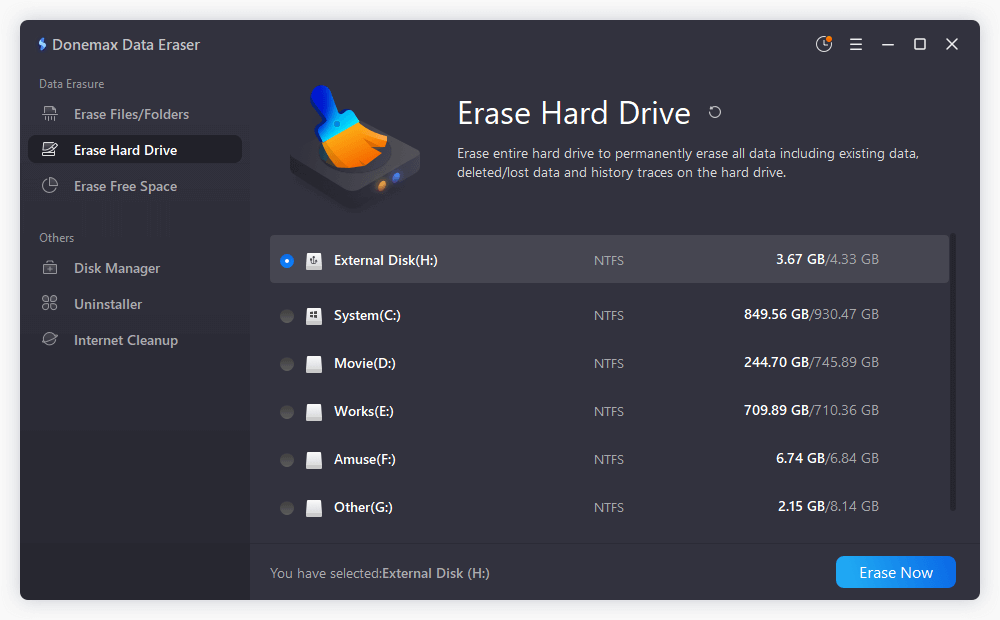
Step 3. Select the external hard drive and click on Erase Now button. Then you need to select a data erasure standard to wipe data. Any data erasure algorithm in the list can ensure to wipe data permanently.
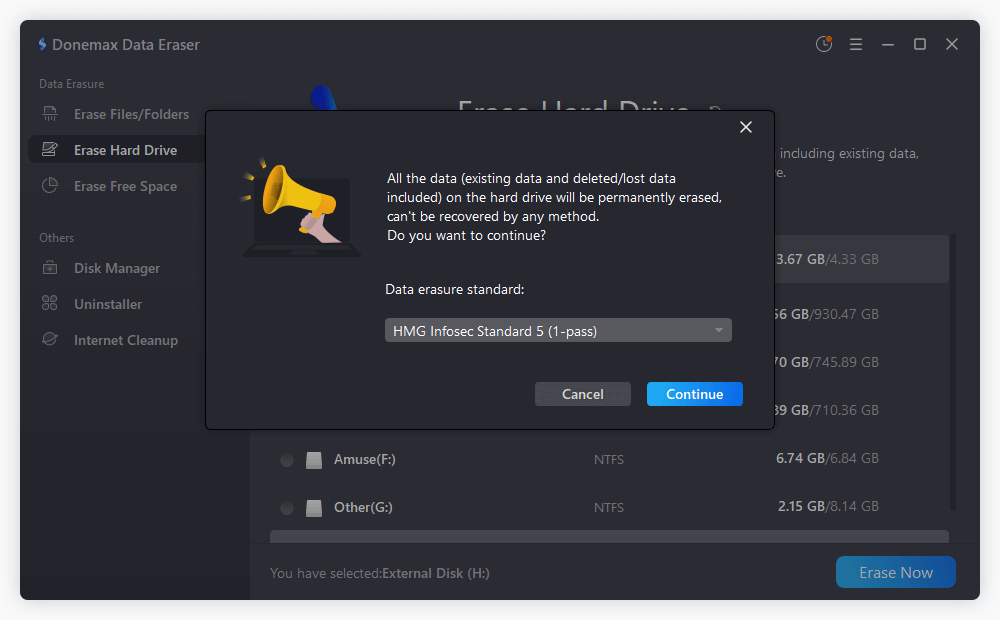
Step 4. After confirming the data erasure standard, click on Continue button. Then this software will format and wipe the external hard drive.
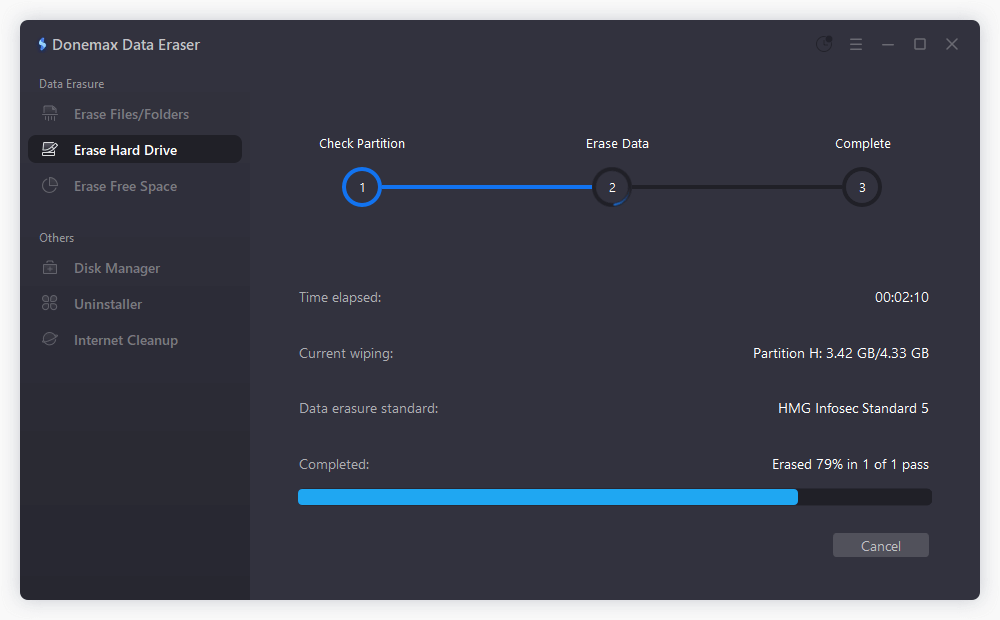
Step 5. Once the process gets finished, all data on the external hard drive is lost forever. If necessary, you can use a data recovery software to scan the wiped drive and verify the result.
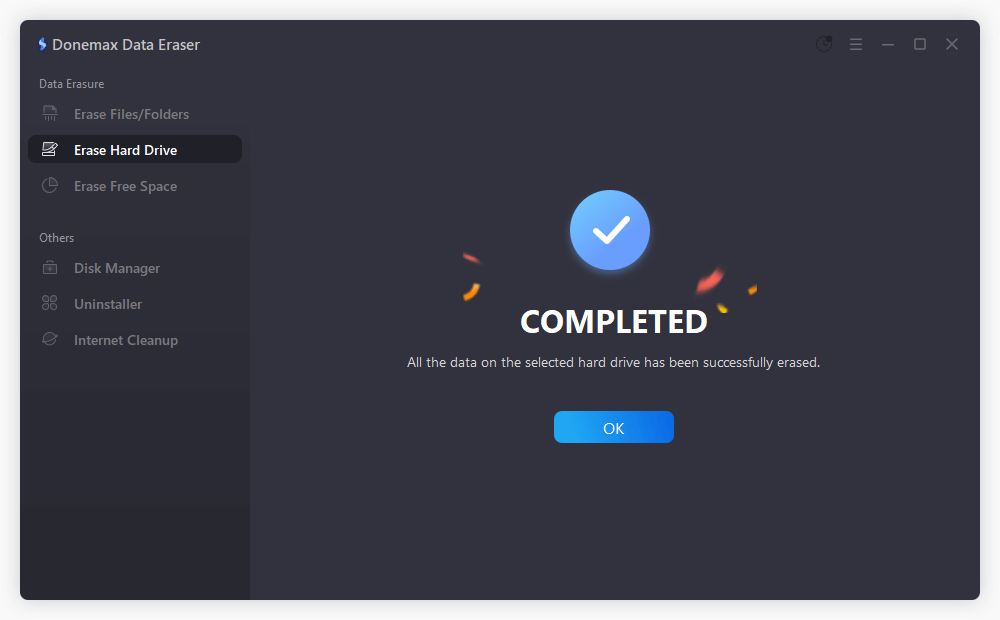
Make sure that you have backed up your external hard drive data before you wipe it. Formatting or wiping the external hard drive on Windows 11 will remove all data from the drive.
Three different ways to wipe the external memory from windows 11 have been described here. Format the external hard drive in Disk Management or using explorer will not wipe data permanently. With professional data recovery software, it's still able to get back the formatted data. If you need to securely wipe data and avoid data recovery, choose Donemax Data Eraser to wipe external hard drive and make sure the data is gone for good. Follow any of them and get rid of all of your unwanted files quickly!
Donemax Data Eraser
One of the best data erasure programs can permanently delete data. It works on PCs, Macs, HDDs, SSDs, USB drives, digital cameras, and other devices. Once the tool erases the data, no one cannot recover it by any method.
Maria
Maria is one of the senior writers & editors of Donemax who lives and works in Sydney, Australia. She loves PC, Mac and Internet Technology. She has 6 years of writing articles about data recovery on PC/Mac, disk cloning solution, data eraser and computer OS optimization, etc. She is also interested in testing various software and digital products.
Gerhard Chou
In order to effectively solve the problems for our customers, every article and troubleshooting solution published on our website has been strictly tested and practiced. Our editors love researching and using computers and testing software, and are willing to help computer users with their problems