Written byStevenUpdated on Dec 05, 2025

Before we start: It's necessary to check the PC health regularly to protect your system and data. Also, it's very important to back up your data first. For example, you can use Donemax Disk Clone to make a full backup for your PC drive.
PAGE CONTENT:
Maintaining your PC's health is essential for ensuring optimal performance, stability, and system longevity. Whether you use your computer for work, gaming, or daily browsing, ignoring system health can lead to slow performance, hardware failures, or even data loss.
The good news? You don't need expensive software or professional services to keep your computer in check. Several reliable free PC health check tools for Windows 11/10 can help you analyze system performance, clean up junk files, and troubleshoot potential issues—all with minimal effort.
In this guide, we'll explore what a PC health check is, built-in Windows options, and the best free third-party tools to keep your Windows computer running at its best.
How to optimize and speed up Mac?
Clear junk data and optimize the system to speed up Mac which is running slow.
A PC health check refers to assessing your computer's hardware, software, and overall system status to identify problems or inefficiencies. Regular health checks help prevent slow performance, overheating, outdated drivers, excessive background processes, and storage issues.
The process can cover areas such as:
Manual checks can be tedious, especially for non-technical users. That's where automated health check software comes in—they streamline the process, providing actionable insights with just a few clicks.
Before jumping to third-party tools, it's worth knowing that Windows 11 and 10 include several built-in utilities to assess your system's health:
Windows Security
Task Manager (Performance Tab)
Disk Cleanup
System File Checker (SFC)
Windows Memory Diagnostic
Limitations
While these tools are handy, they often require manual input, lack advanced features, and don't provide a holistic view of your system. For more comprehensive maintenance, third-party health check software can help.
Let's explore the most trusted free PC health check tools available in 2025, their features, pros, and limitations:

Originally designed to verify Windows 11 compatibility, this lightweight tool provides useful system information:
Features:
Pros
Cons
Best for: Quick system check and upgrade readiness for Windows 11.
A household name in PC maintenance, CCleaner's Health Check provides basic system cleanup and optimization:
Features:
Pros
Cons
Best for: Cleaning junk files and improving general system responsiveness.
Developed by IObit, Advanced SystemCare Free offers an all-in-one solution for system cleanup and optimization:
Features:
Pros
Cons
Best for: Users seeking a simple, one-click system optimizer.
Glary Utilities offers a powerful suite of over 20 tools to maintain and repair your PC:
Features:
Pros
Cons
Best for: Power users wanting deeper control over system maintenance.
A lightweight, beginner-friendly alternative for optimizing your Windows PC:
Features:
Pros
Cons
Best for: Quick, no-fuss system cleanup for casual users.
Unlike general maintenance tools, HWiNFO focuses on detailed hardware diagnostics:
Features:
Pros
Cons
Best for: Enthusiasts, gamers, and tech-savvy users monitoring hardware status.
With multiple options available, selecting the right tool depends on your needs:
💡 Caution: Always download software from official websites or trusted sources. Avoid unknown tools that claim to boost performance—they can contain malware or cause system instability.
Here's how to use CCleaner Free to perform a basic health check:
Step 1. Download & Install:
Visit www.ccleaner.com. Download the free version and install the software.
Step 2. Launch CCleaner:
Open the program and click on Health Check. Click the Start button and it will start to scan and check the PC.
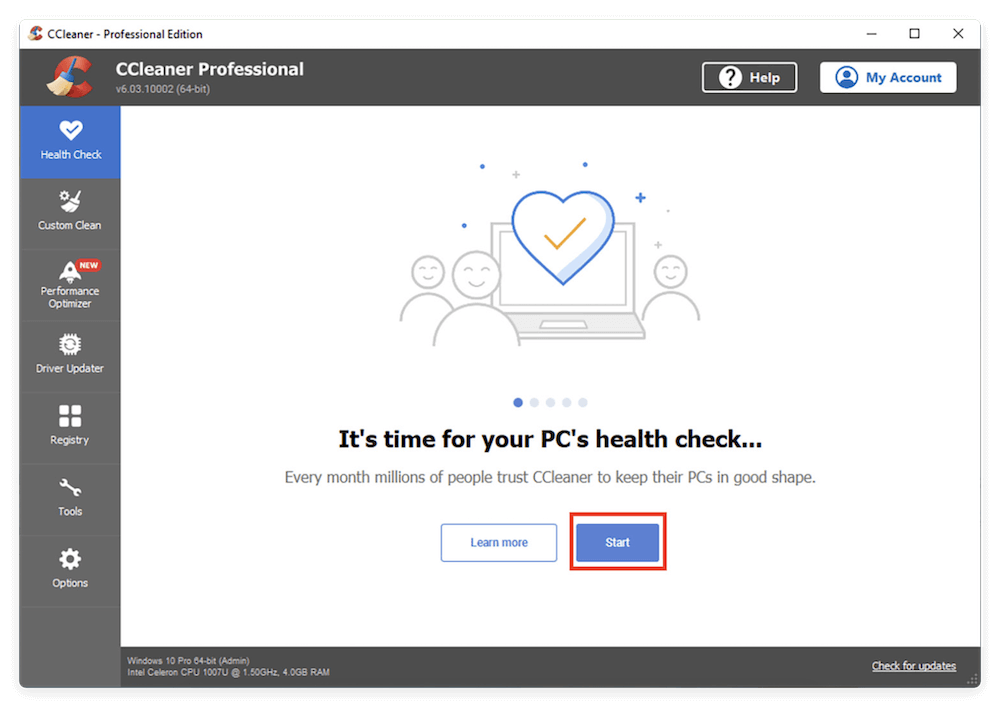
Step 3. Run the Health Check:
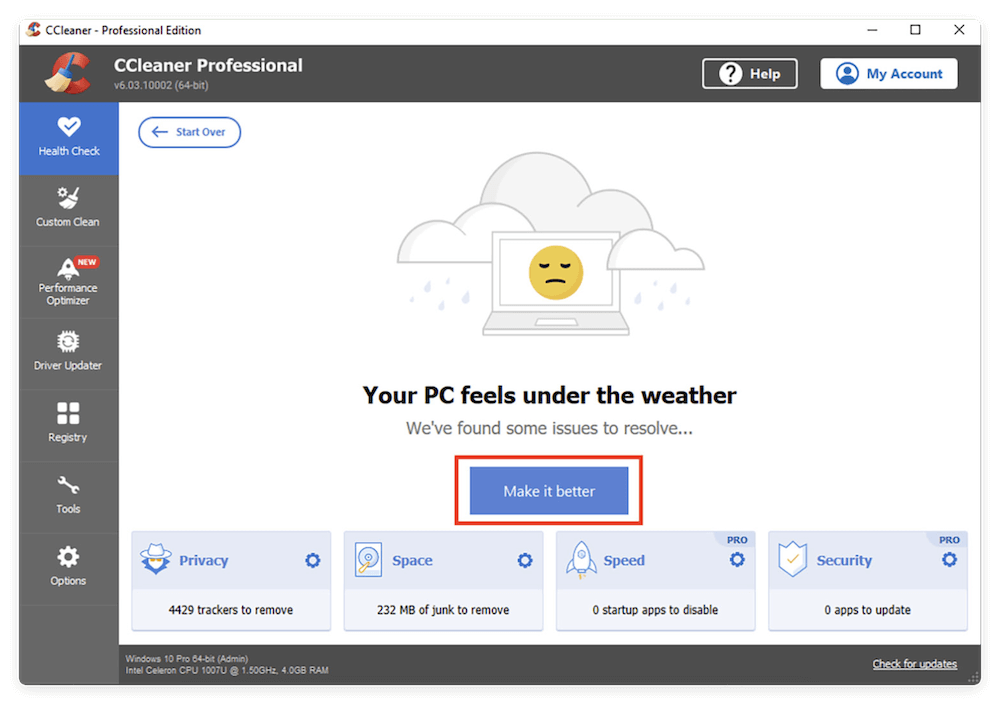
CCleaner scans for trackers, junk files, performance issues, and security recommendations. Click Make it better to apply suggested fixes.
Step 4. Review Results:
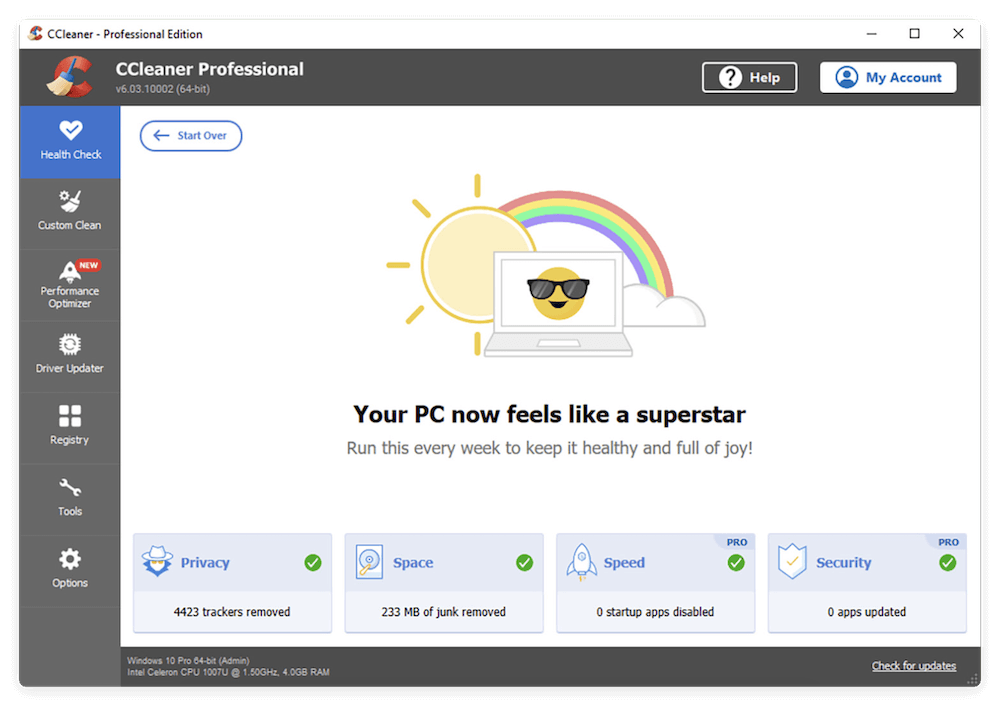
After the scan, CCleaner will show how much space was freed and improvements made.
Repeat this process regularly to keep your system optimized.
Software tools help, but healthy computing habits are equally important:
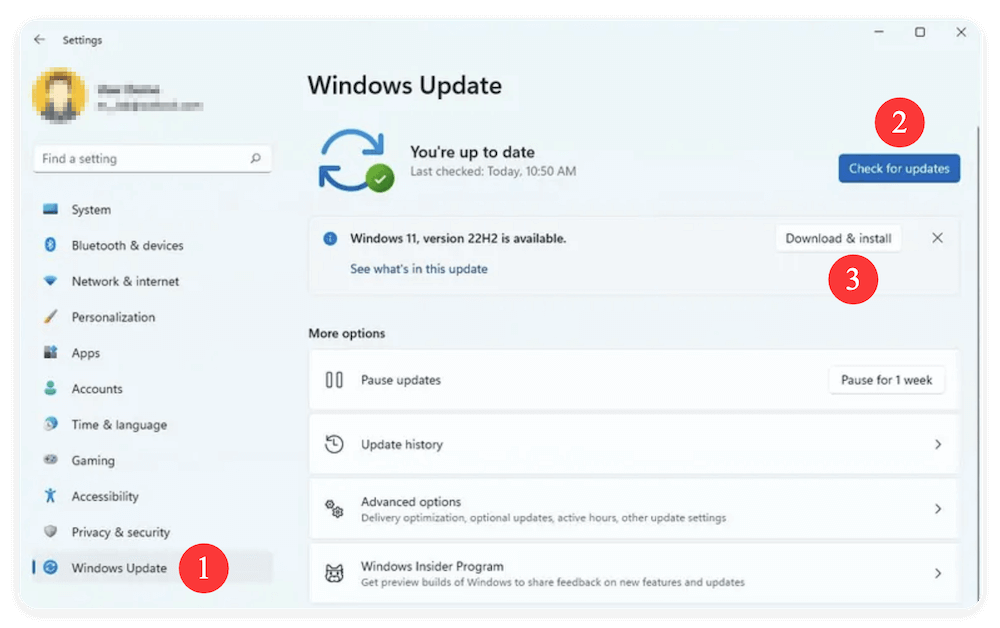
Windows regularly releases updates that include security patches, bug fixes, performance enhancements, and new features.
Why It Matters:
How to Check for Updates:
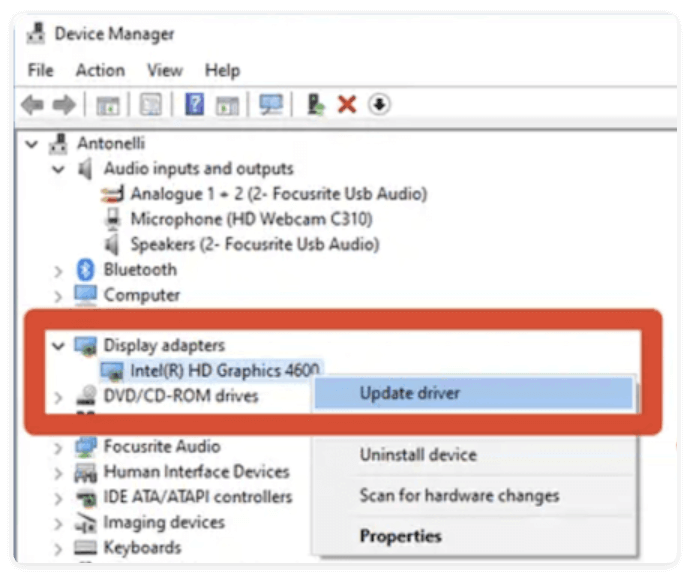
Outdated drivers can cause system crashes, hardware malfunctions, or degraded performance—especially for graphics cards, sound devices, and network adapters.
Driver Update Methods:
Accumulated junk files, temporary files, and browser caches can slow down your PC and waste valuable storage space.
Built-in Method:
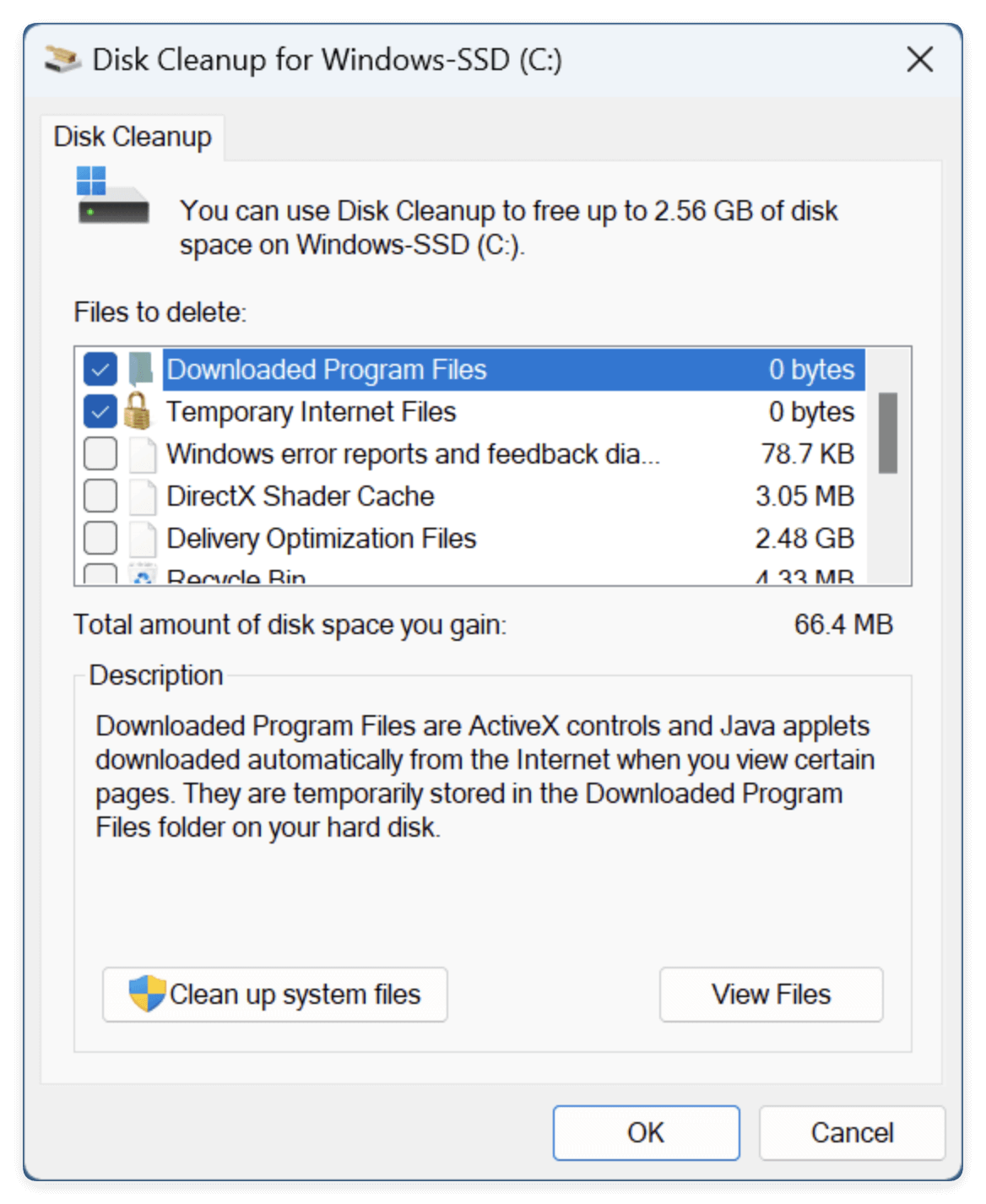
Many applications set themselves to launch at startup, which slows boot times and consumes system resources.
How to Disable Unnecessary Startup Apps:
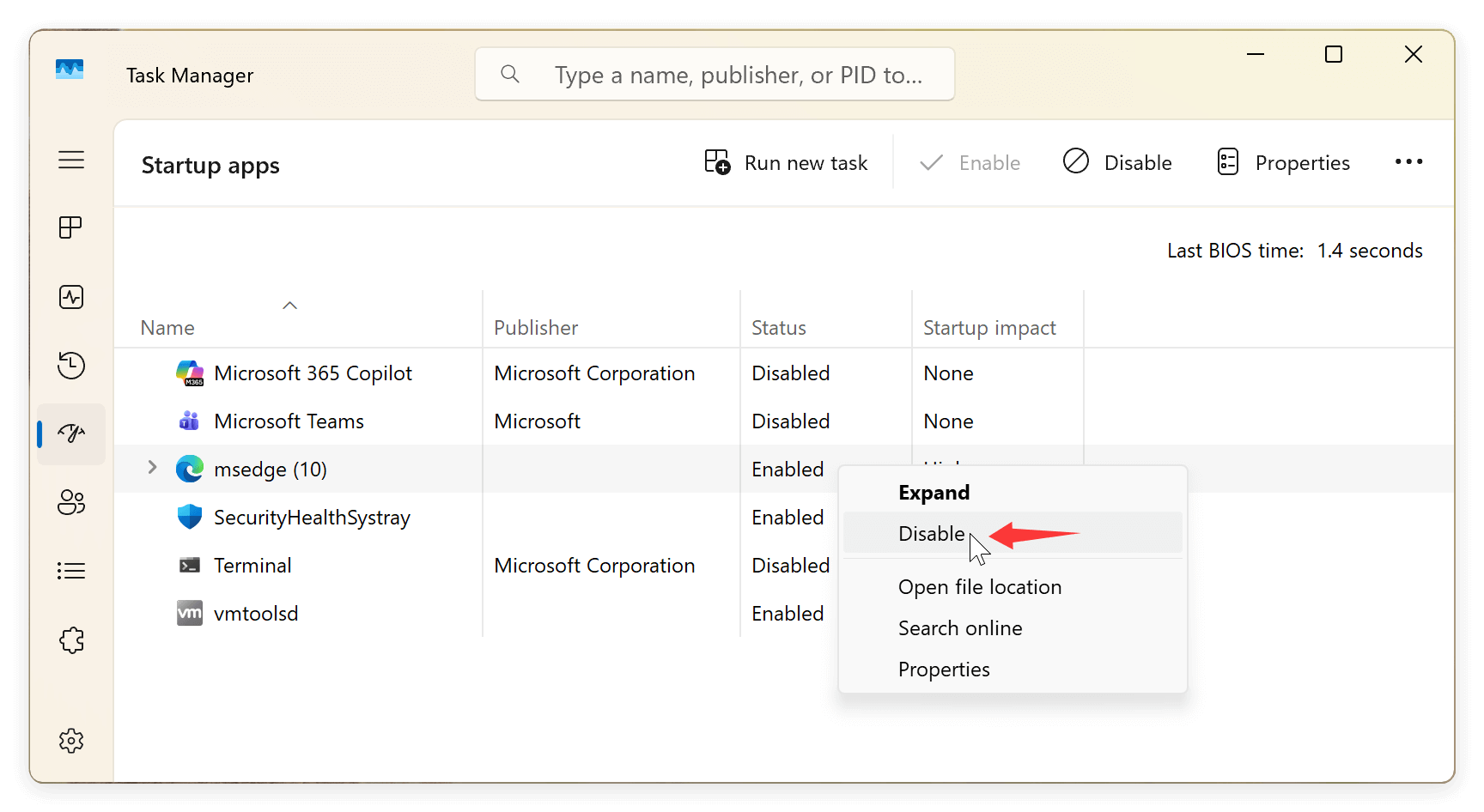
Common Culprits to Disable:
Reducing startup clutter can significantly improve boot times and responsiveness.
Overheating can lead to system crashes, throttling, or permanent hardware damage, especially in laptops or gaming PCs.
Tools for Monitoring:
Temperature Guidelines:
Data loss can occur from hardware failure, malware attacks, or accidental deletion. Regular backups prevent permanent file loss.
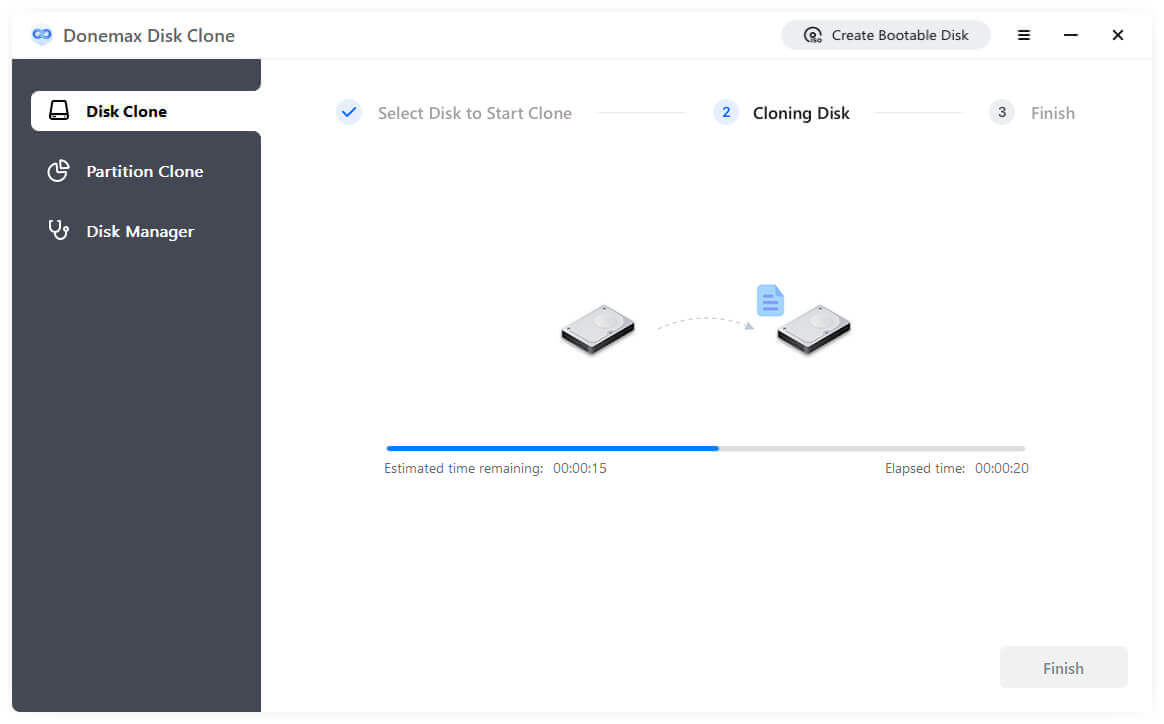
For example, you can use Donemax Disk Clone to make a full and bootable clone for your PC. If there are issues with the PC, you can still have a backup of your files and get your computer working again quickly.
Here is how to make a full disk copy with the software:
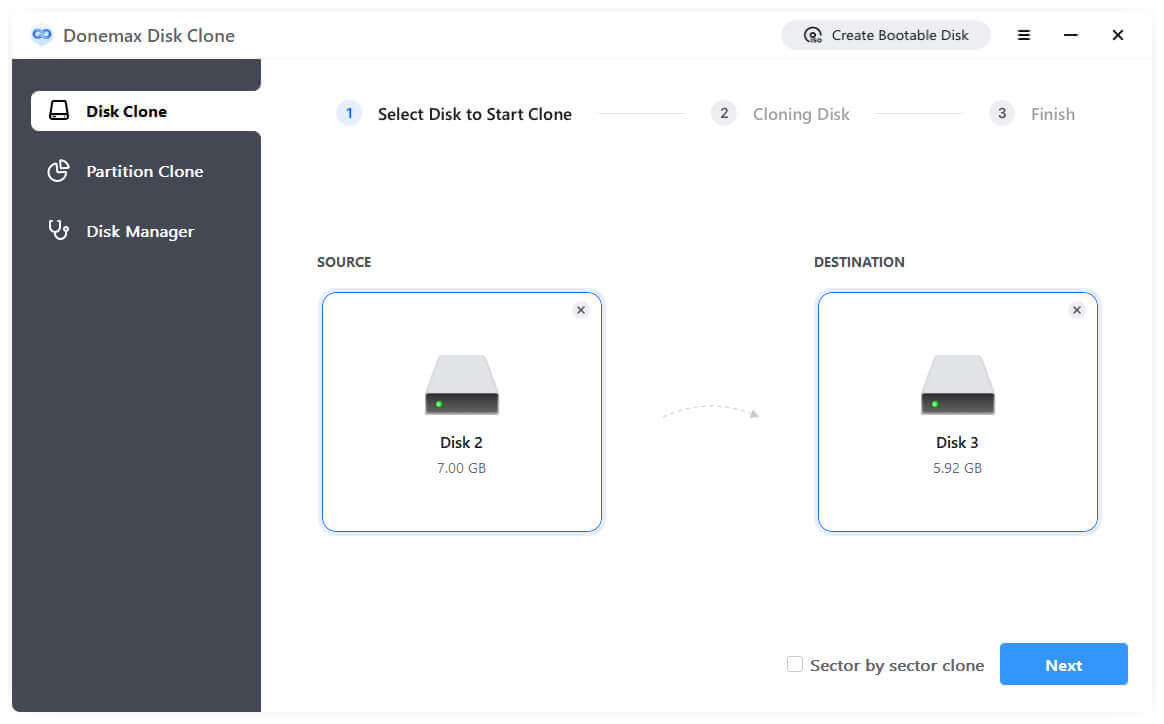
Step 1. Run the software and connect an empty external drive to your PC. Change to Disk Clone mode. Choose your PC drive as source and the external drive as destination.
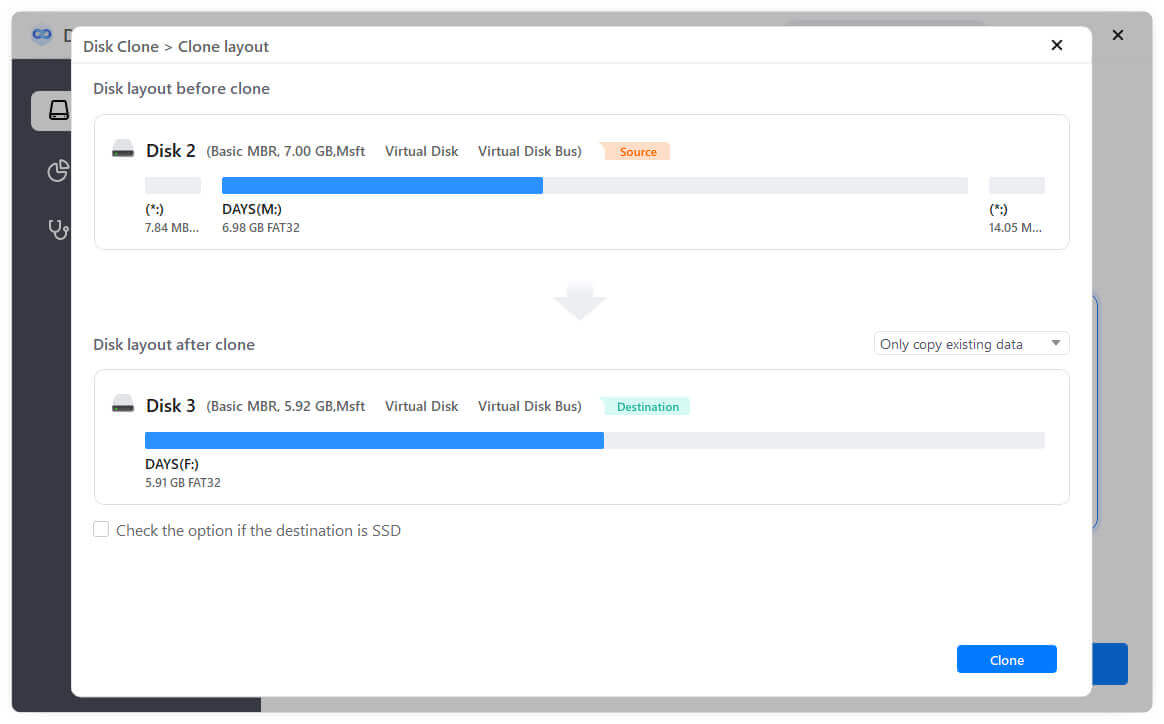
Step 2. Preview the disk layout on the destination disk before the disk cloning process is executed. If necessary, you can edit and change the disk layout as you want.
Step 3. Click the Clone button to continue. The software will start to cloning the PC drive to the external hard drive. It can make a full and bootable clone backup.
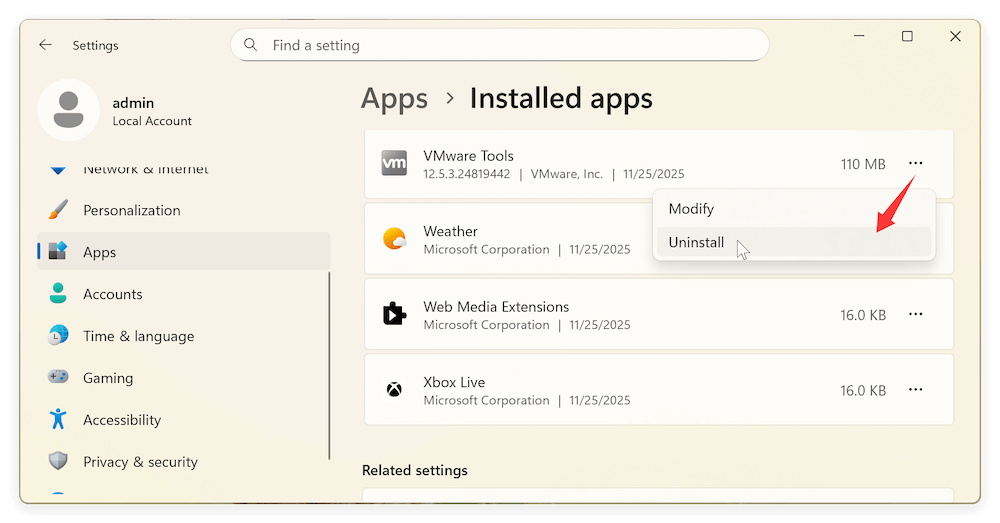
Many pre-installed or third-party apps run in the background, consume RAM, and may even display ads or notifications.
How to Remove Bloatware:
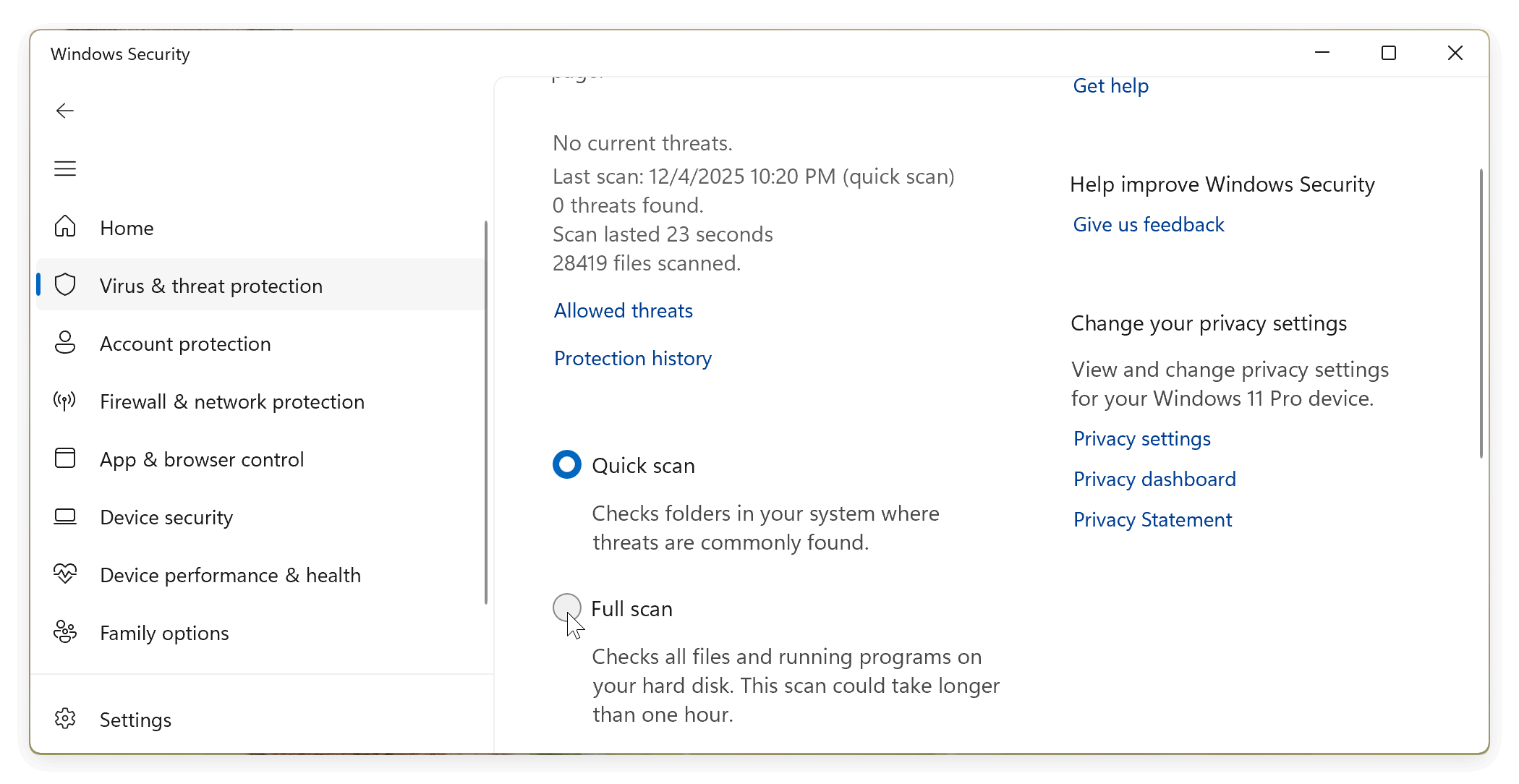
Malware infections can significantly impact performance, compromise security, and damage files.
Windows Built-in Protection:
Hard drives and SSDs can develop bad sectors or wear down over time, impacting performance or leading to failure.
For HDD/SSD Health:
Fragmentation can slow HDD performance, while SSDs benefit from periodic optimization.
💡 Note: Do not defragment SSDs; Windows handles their maintenance automatically.
A sluggish PC doesn't always mean it's time for new hardware. With the right free PC health check software, you can dramatically improve system performance, identify problems early, and extend your computer's life.
Windows 11 and 10 users have plenty of reliable options—from Microsoft's own tools to feature-rich third-party software like CCleaner, Glary Utilities, and HWiNFO.
By combining regular health checks with smart computing practices, your PC can stay fast, stable, and secure—without spending a dime.
Donemax Disk Clone
An award-winning disk cloning program to help Windows users and Mac users clone HDD/SSD/external device. It also can create full bootable clone backup for Windows PCs and Macs.
Steven
Steven has been a senior writer & editor of Donemax software since 2020. He's a super nerd and can't imagine the life without a computer. Over 6 years of experience of writing technical solutions and software tesing, he is passionate about providing solutions and tips for Windows and Mac users.
Gerhard Chou
In order to effectively solve the problems for our customers, every article and troubleshooting solution published on our website has been strictly tested and practiced. Our editors love researching and using computers and testing software, and are willing to help computer users with their problems