
Written byStevenUpdated on Sep 15, 2026

Before we start: Upgrading your PC storage is one of the most effective ways to boost overall system performance. If you have updated to the latest Windows 11 26H2 version, you might notice that newer feature updates and AI-driven background tasks demand faster read and write speeds. Fortunately, clone and migrate Windows 11 26H2 with Donemax Disk Clone, you can easily migrate the system without reinstalling system and apps.
PAGE CONTENT:
Moving the operating system from an old mechanical Hard Disk Drive (HDD) or a smaller Solid State Drive (SSD) to a larger NVMe SSD can dramatically speed up boot times, file transfers, and application loading. However, installing Windows 11 26H2 completely from scratch is a massive headache. You have to re-configure all system settings, reinstall heavy software programs, re-activate licenses, and manually copy personal files. This is where dedicated Windows 11 26H2 system migration software becomes essential.
In this comprehensive guide, we will explore how disk cloning software simplifies OS transfer, compare key features to look for, and provide a step-by-step walkthrough using Donemax Disk Clone to migrate Windows 11 26H2 seamlessly without data loss.
Windows 11 26H2 brings improved system responsiveness, refined user interface components, and deeper integration with modern hardware capabilities. But as operating systems grow more complex, running them on traditional hard drives or filled-to-capacity SSDs leads to performance bottlenecks.
Here are the primary reasons users decide to migrate their Windows 11 26H2 system to a new disk:
Not all disk cloning utilities handle Windows 11 smoothly. Windows 11 relies on specific system structures, such as UEFI boot mode, GPT partition tables, and secure boot configurations. When choosing a migration tool, ensure it satisfies the following modern requirements:
When evaluating the top system migration software on the market, Donemax Disk Clone stands out as an exceptionally reliable, fast, and easy-to-use solution. Engineered to fully support Windows 11 26H2, Windows 10, 8, 7, and Windows Server environments, Donemax Disk Clone takes the technical friction out of disk migration.
Whether you are transferring your boot drive from SATA SSD to M.2 NVMe SSD, or migrating a desktop HDD to an external drive enclosure, Donemax Disk Clone guarantees a 100% secure, sector-exact, and bootable copy.
To guarantee a completely smooth and error-free Windows 11 26H2 migration, take a few minutes to complete these basic prep steps:
Migrating your Windows 11 26H2 system drive with Donemax Disk Clone requires only four simple steps. Follow the detailed instructions below:
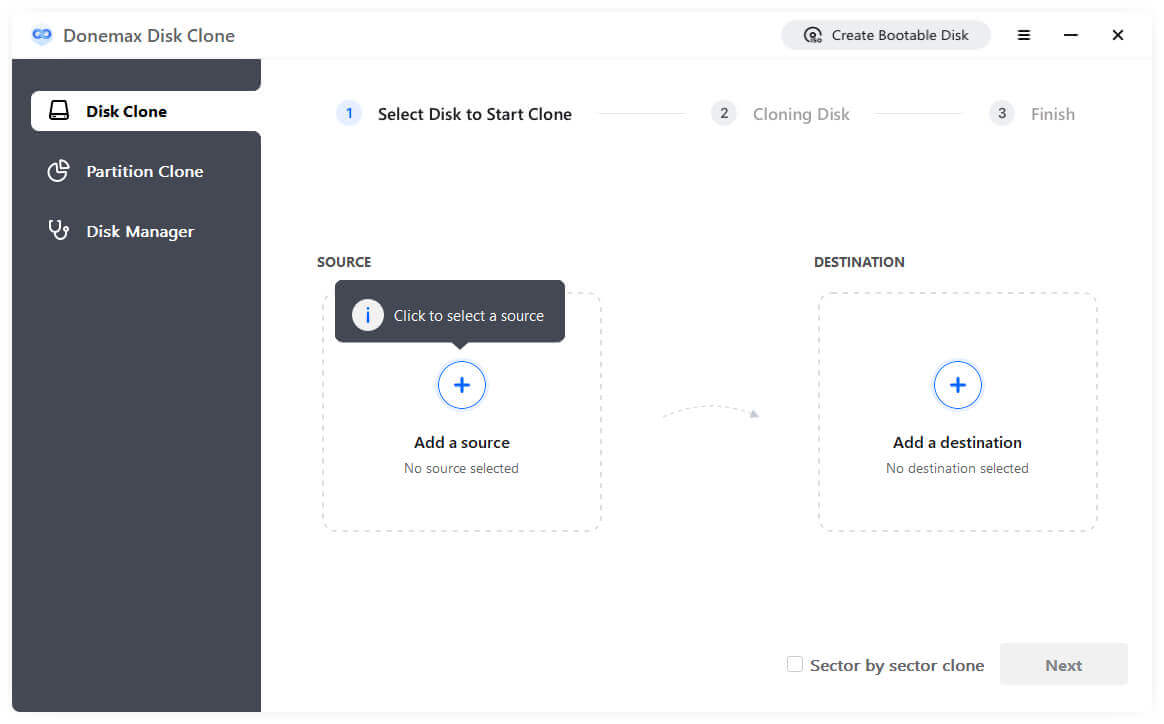
Step 1. Run the Software and Choose Disk Clone
Download, install, and launch Donemax Disk Clone on your Windows 11 26H2 computer. On the main interface, click on the Disk Clone mode from the left sidebar. This mode clones the entire disk—including system, boot, and recovery partitions—to the destination drive.
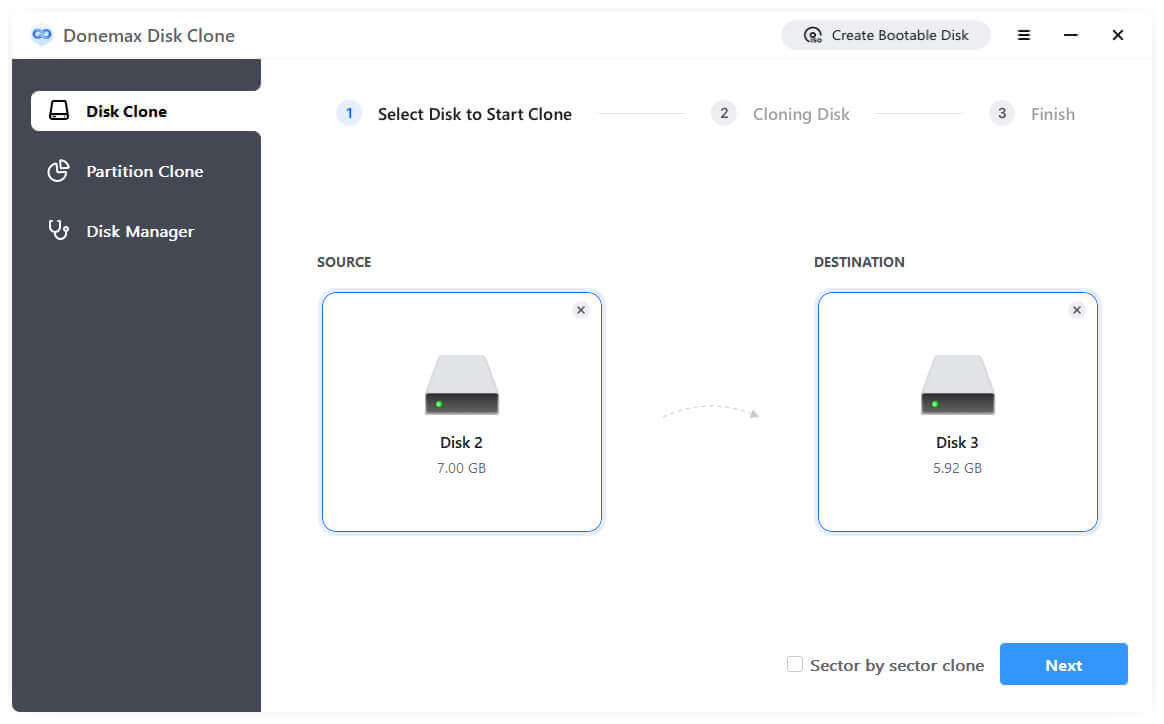
Step 2. Select Source Disk and Target Disk
Select your original Windows 11 26H2 system disk as the Source disk. Next, select your new, empty HDD or SSD as the Target disk. Double-check your selections to make sure you have chosen the correct drives.
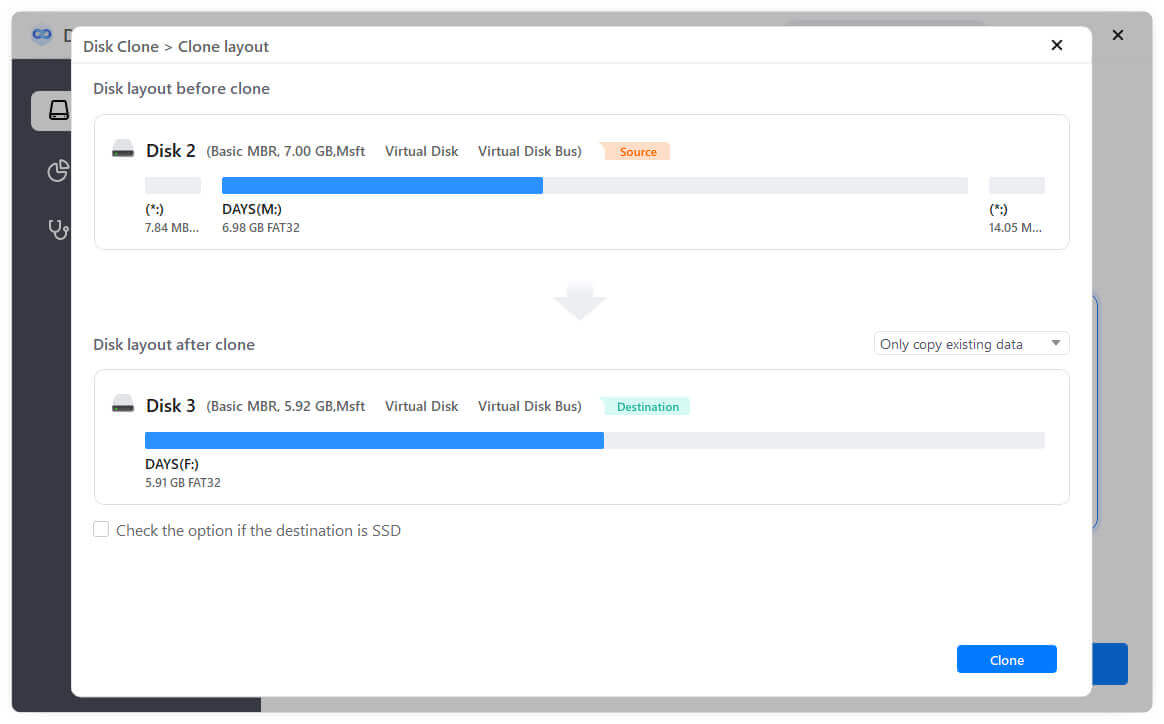
Step 3. Preview and Customize Disk Layout
Click the Next button to proceed. Donemax Disk Clone will display a preview of how the partition layout will look on the destination disk. If you are migrating to a larger or smaller drive, you can easily modify the disk layout or resize partitions according to your needs. Also, when cloning to an SSD, ensure to tick the option for SSD.
Step 4. Start Cloning and Complete Migration
Click the Clone button to start the process. The software will duplicate all system structures, applications, and files onto the new drive. Once it's done, the destination disk will become the exact same as the original disk, and it will be completely bootable.
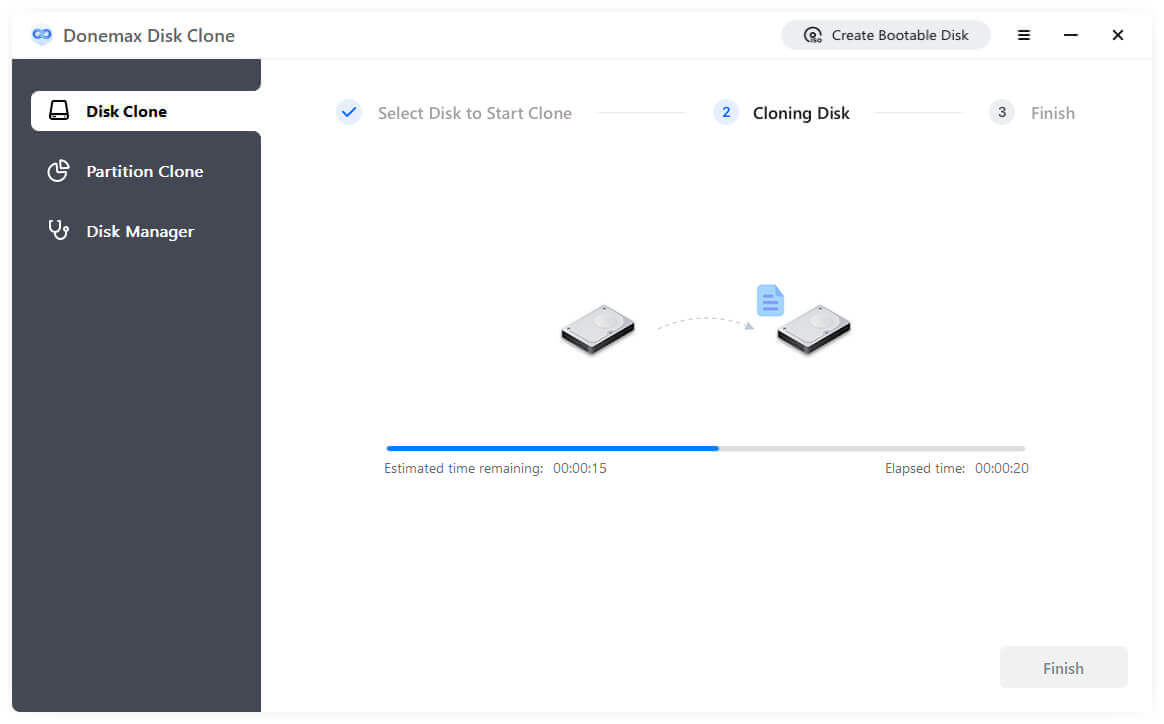
After the cloning process finishes successfully, follow these final configuration steps to ensure your PC boots cleanly from the new target disk:
Option 1. Hardware Swap (Recommended): Power off your computer and disconnect the power cable. Remove the old system drive and install the new SSD directly into the primary internal slot. This ensures Windows assigns drive letter C: automatically without registry conflicts.
Option 2. Change UEFI Boot Priority: If you keep both drives installed inside the computer, power on your PC and immediately press the hotkey (usually F2, F11, F12, or Del) to enter UEFI/BIOS settings. Navigate to the Boot Priority tab and set your new SSD as Boot Option #1. Save changes and exit.
Boot into Windows 11 26H2. Go to Settings > System > Activation to verify system activation status. Also, you will find all your desktop items, settings, installed software, and personal files completely intact.
Once you have confirmed that your Windows 11 26H2 system boots smoothly from the new drive, you can use Donemax Disk Clone or Windows Disk Management to format the old drive and convert it into a secondary storage device.
Migrating your operating system doesn't have to be a slow or frustrating process. With the right Windows 11 26H2 system migration software, upgrading your computer hardware is quick, safe, and hassle-free.
Donemax Disk Clone offers an all-in-one disk cloning solution that allows you to clone Windows 11 26H2 to a faster SSD or larger HDD in just four simple steps. By preserving all your personal data, software configurations, and bootable structures, you can enjoy maximum PC performance without wasting hours on clean installations. Download Donemax Disk Clone today and upgrade your Windows 11 26H2 system with confidence!
Donemax Disk Clone
An award-winning disk cloning program to help Windows users and Mac users clone HDD/SSD/external device. It also can create full bootable clone backup for Windows PCs and Macs.
Steven
Steven has been a senior writer & editor of Donemax software since 2020. He's a super nerd and can't imagine the life without a computer. Over 6 years of experience of writing technical solutions and software tesing, he is passionate about providing solutions and tips for Windows and Mac users.
Gerhard Chou
In order to effectively solve the problems for our customers, every article and troubleshooting solution published on our website has been strictly tested and practiced. Our editors love researching and using computers and testing software, and are willing to help computer users with their problems